How to – Use File and Image Data Type in Dataverse (Dynamics 365)


File Data Type was introduced somewhere around late 2019. At that time, it was only available for Canvas App and Power Automate / Flow, and with subsequent updates, it was then added for Model Driven App as well.

https://powerapps.microsoft.com/en-us/blog/introducing-improvements-to-data-storage-in-common-data-services/

The File Data type while creating the column à

By default, the file size is 32,768 KB.

  • Min – 1 KB
  • Maximum – 131072 KB

Let us keep it as 2000 KB and save it.

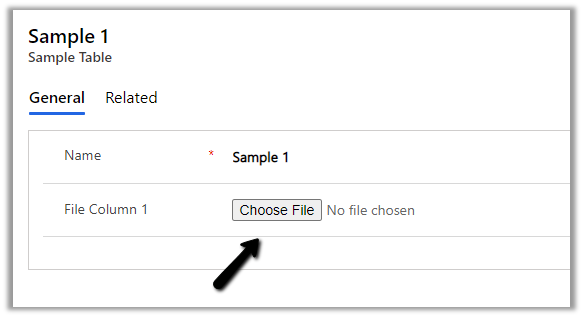
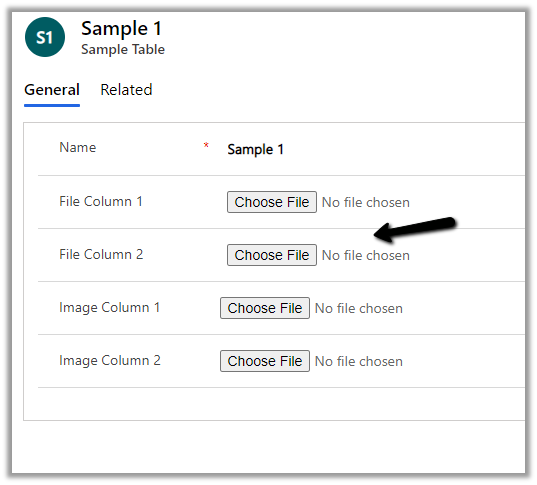
Here we have added the field in the form.

We need to save the record before the field is enabled.
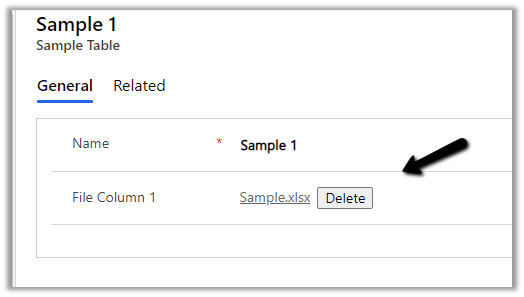
On trying to upload a file more than 2000 KB size, the max size, we specified while creating the column, will give the below error.

“The upload failed for File Column 1. Please try again or contact your admin.”

The Maximum file size property cannot be updated after the column is created.

Similarly, we have the Image data type.
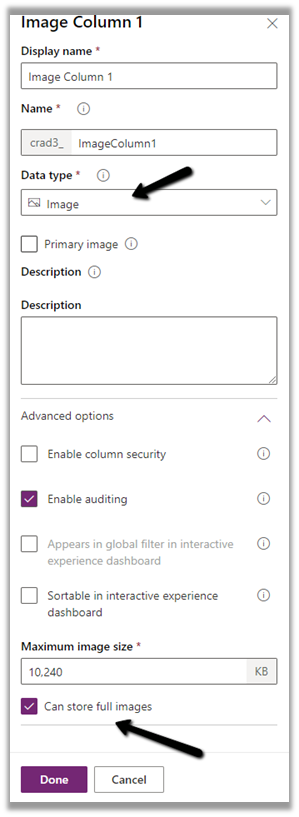
The default size is 10240 KB.

  • Min – 1 KB
  • Max – 30720 KB

If the image size is more than specified, we will get the below error message

The upload failed for Image Column 2. Please try again or contact your admin.

Below we have added a new file type column named File Column 2 with a maximum size of 100 MB.
With 2020 Release Wave 2, there is no need to specify file chunking while uploading a file of 16 MB or more, by dividing file data blocks of 4 MB or less through API.

https://docs.microsoft.com/en-gb/power-platform-release-plan/2020wave2/data-platform/improvements-microsoft-dataverse-file-image-upload-download

Earlier à

https://docs.microsoft.com/en-us/powerapps/developer/data-platform/file-attributes#retrieve-file-data

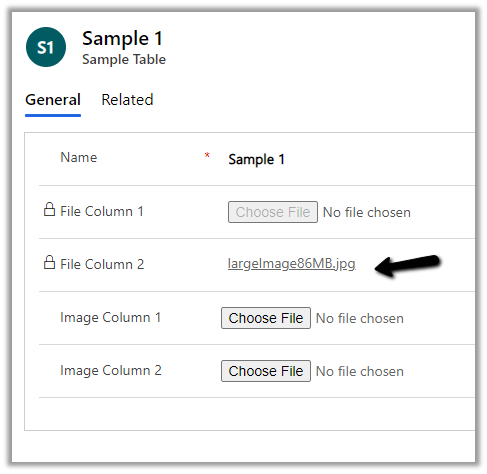
Below is the sample code we have used to upload a file of size 86 MB.

The file uploaded à
Now let us look at downloading part.

The URL that can be used are

Byte Array formatà
https://%5Borganization%5D/api/data/v9.1/entitySetName(entityID)/fileTypeAttributeName/$value?size=full

Base64 String formatà

https://[organization]/api/data/v9.1/entitySetName(entityID)/fileTypeAttributeName/?size=full

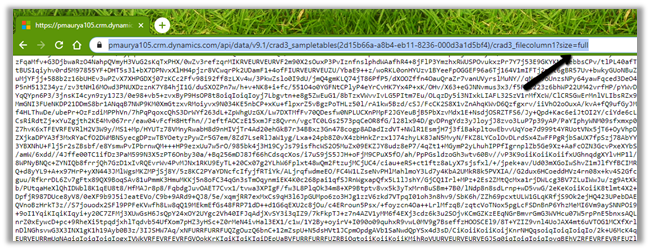
Let us try the URL in the browser for both below File column 1 and 2.

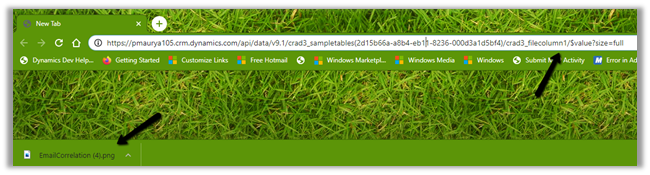
https://pmaurya105.crm.dynamics.com/api/data/v9.1/crad3_sampletables(2d15b66a-a8b4-eb11-8236-000d3a1d5bf4)/crad3_filecolumn1/$value?size=full

It downloads the file for File Column 1à
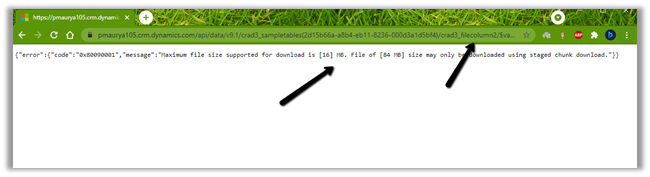
In case of File Column 2, we get the below error message as its size exceeds 16 MB à

{“error”:{“code”:”0x80090001″,”message”:”Maximum file size supported for download is [16] MB. File of [84 MB] size may only be downloaded using staged chunk download.”}}
Base 64 Format ->
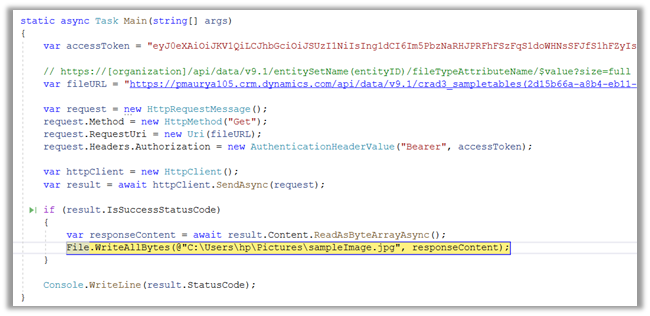
Below is the sample C# code to download the file if the size is less than 16 MB
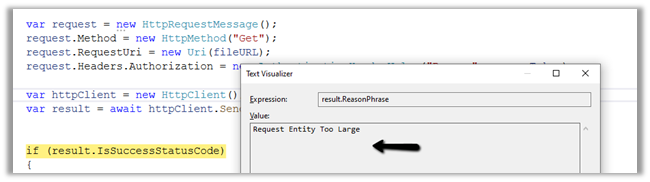
If it is more than 16 MB we will get the below error à Request Entity Too Large
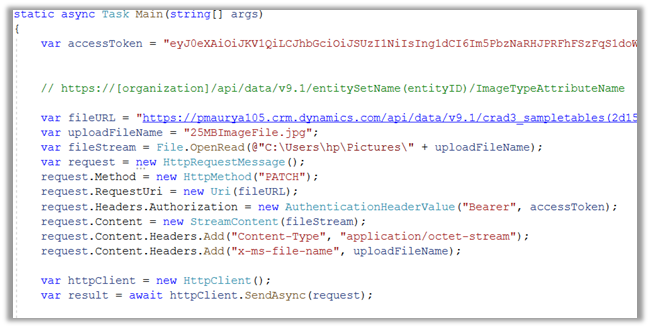
For Image Data Type, for uploading the full image > 16 MB (without dividing into a smaller chunk of less than 4 MB), we can use the below source code. It is the same as for the file data type.
For download, we can download either the thumbnail or full image (<= 16 MB) using the same source code used for file download.

For thumbnail –

GET [Organization URI]/api/data/v9.1/entity(recordGuid)/myentityimage/$value

For full image –

GET [Organization URI]/api/data/v9.1/entity(recordGuid)/myentityimage/$value?size=full

For more than 16 MB we need to use chunking.

Get all the details below à

https://jukkaniiranen.com/2019/12/why-would-you-store-images-and-files-in-cds/

https://debajmecrm.com/new-data-type-filein-cds-all-you-may-need-to-know-about-it/

https://debajmecrm.com/retrieve-contents-of-file-data-type-field-in-dynamics-365-cds-using-javascript-client-code/

Hope it helps..
Advertisements

Canvas App – Quick Reference


Recently we were working on Canvas Apps so thought of listing down some of the key points for quick reference

  • Use Items property for defining values for Drop Down and Combo Box.

Items = [“Branch”,”Country”]


  • Use DefaultSelectedItems for Setting Default values for Combo Box.

DefaultSelectedItems = [“Branch”]

  • To disable multiple selections for Combo Box set SelectMutiple as false

SelectMultiple = false


  • Change Data Source of Gallery based on Combo Box selected value

Items = If(ComboBox1.Selected.Value = “Branch”, Branches, Countries)


  • Filter Gallery’s data based on Text Box (string search)

Items = If(ComboBox1.Selected.Value = “Branch”,Filter(Branches,searchInput.Text in cre9d_value ||searchInput.Text in cre9d_name), Filter(Countries,searchInput.Text in cre9d_value ||searchInput.Text in cre9d_name))

Filter à

Search à

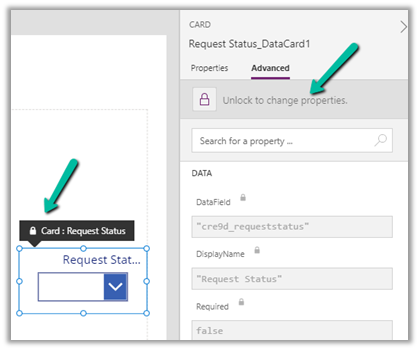
  • Unlock the Data Card field within the form to make changes to its properties

  • Use Navigate to move to a different Screen on OnSelect of Button

Navigate(Screen2, ScreenTransition.Fade)

  • The first item of the Gallery acts as a template

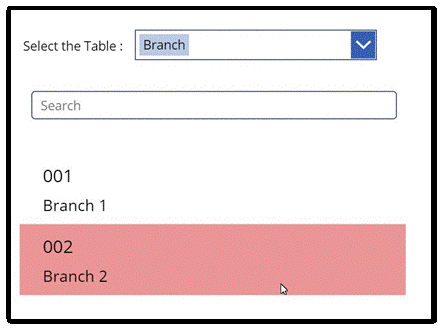
  • Use TemplateFill property to highlight the selected item in the Gallery.

TemplateFill = If(ThisItem.IsSelected,RGBA(233,150,150,10))

  • Use Sort to sort the Data Source for Items property

Items = Sort(Requests,’Created On’,Descending)

  • Fetch User’s Security Role and hide and show control based on it.

If(LookUp([@’Security Roles’], Name = “Maker”, Role) in Concat(LookUp([@Users], ‘Primary Email’ = User().Email).’Security Roles (systemuserroles_association)’, Role & “;”), true, false)

  • Submit, Reset, and New Form on saving a record on OnSelect of Button

SubmitForm(frmRequest);

ResetForm(frmRequest);

NewForm(frmRequest);

  • DataField is the most important property of the DataCard, which binds the control to the field in the Data Source.

The default value of the DataCard.

  • ThisItem is how we interact with the current record.

  • On SubmitForm – the form control reads the value of DataField property of all the cards to find the field to change and the value of each card from the Update property.

  • Clear Button and Enable Spell Check option for Text Input

checks for the spelling as well provide the option to clear the text box as shown below.

Update / Set a Contextual Variable (referenced on the screen where they are created) 

UpdateContext({varCount: 1, varActive: true, varName: User().FullName})

Set a global variable (available across the app

Set(varCount, 1);Set(varActive, true);Set(varName, User().FullName)

  • With UpdateContext we can declare more than one variable at a time, which is not possible with global variable.
  • Use GUID function à

To generate a new GUID use  GUID()

To convert a string to GUID(“0f8fad5b-d9cb-469f-a165-70867728950e”)

  • To set a variable null – Set(myNullVar, Blank())
  • GroupBy  function – returns a table with records grouped together based on the values in one or more columns.

https://docs.microsoft.com/en-us/powerapps/maker/canvas-apps/functions/function-groupby

GroupByTableColumnName1 [, ColumnName2, … ], GroupColumnName )

  • ForAll function – to evaluate a formula against all records of a Table

ForAll(TableFormula)

  • Table – Required. Table to be acted upon.
  • Formula – Required. The formula to evaluate for all records of the Table.

https://docs.microsoft.com/en-us/powerapps/maker/canvas-apps/functions/function-forall

  • Component – Reusable control

https://docs.microsoft.com/en-us/powerapps/maker/canvas-apps/create-component

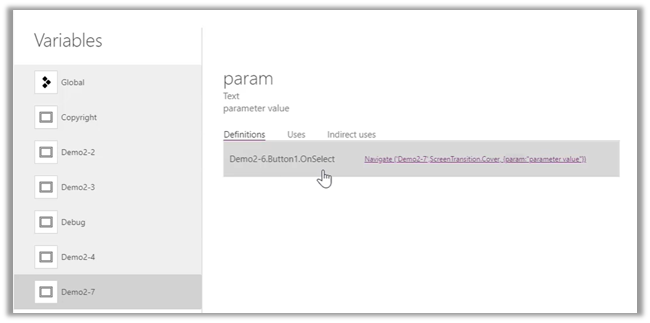
  • Pass parameter 

https://docs.microsoft.com/en-us/powerapps/maker/canvas-apps/functions/function-param#param

  • Patch gives more control than SubmitForm

https://sharepains.com/2020/06/19/patch-vs-submitform-vs-update-power-apps/

  • Delegable data sources – Dataverse, SharePoint, SQL Server

https://docs.microsoft.com/en-us/powerapps/maker/canvas-apps/delegation-overview

https://docs.microsoft.com/en-us/connectors/commondataservice/#power-apps-delegable-functions-and-operations-for-dataverse

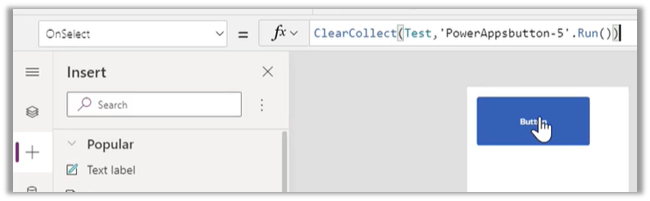
  • Get the response from Power Automate

  • App OnStart Property

https://docs.microsoft.com/en-us/powerapps/maker/canvas-apps/functions/object-app#onstart-property

  • Using Excel as Static Data for the app.

http://powerappsguide.com/blog/post/code-how-to-define-a-read-only-table-of-static-data

  • Connection.Connected (Offline) – to check if app is connected to network or not.

https://docs.microsoft.com/en-us/powerapps/maker/canvas-apps/functions/signals#connection

  • Concurrent Function to evaluate multiple formulas at the same time.

https://docs.microsoft.com/en-us/powerapps/maker/canvas-apps/functions/function-concurrent

  • IfError for Error handling

https://docs.microsoft.com/en-us/powerapps/maker/canvas-apps/functions/function-iferror#iferror

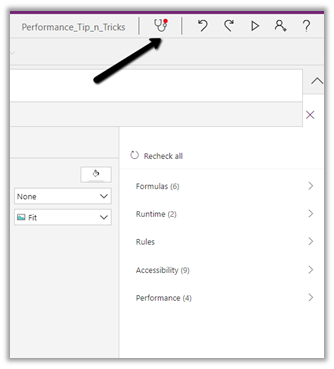
  • AppChecker – for checking the canvas app for accessibility.

https://docs.microsoft.com/en-us/powerapps/maker/canvas-apps/accessibility-checker

Hope it helps ..

Advertisements

Audit Entity / Table – Few key points (Dynamics 365 / Power Apps)


In the earlier post we looked at different ways of extracting Audit History data.

Extract Audit Historyhttps://nishantrana.me/2021/05/17/how-to-export-the-audit-history-values-from-dynamics-365/

We can use Microsoft 365 Security and Compliance Center for the same, though it is limited to the Production environment only.

https://docs.microsoft.com/en-us/power-platform/admin/enable-use-comprehensive-auditing#requirements

Then we have Audit History Extractor, and we can also write SSIS Packages as well as Custom Code.

Let us just revisit some of the key points with regards to the Audit entity.

  • Do we have the Audit entity available for Advanced Find? >> No.

  • Do we have it available inside Report Wizard? >> No.

  • Can we write SSRS Report against the Audit entity using the TDS endpoint?

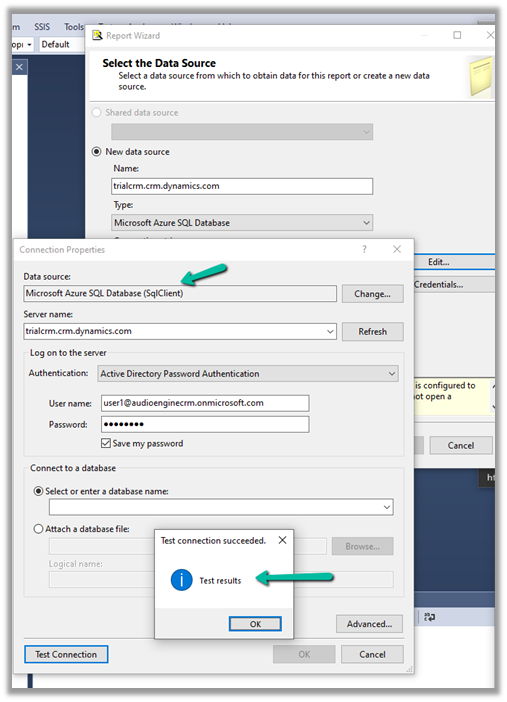
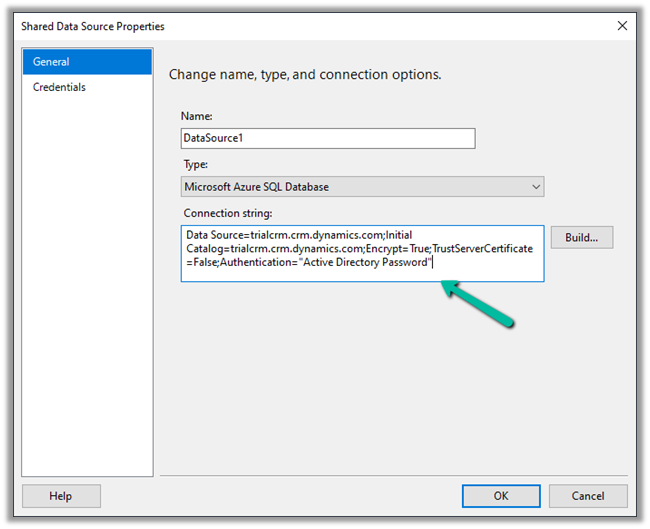
Let us create the Data Source.

Select the authentication as Active Directory Password Authentication for the TDS endpoint.

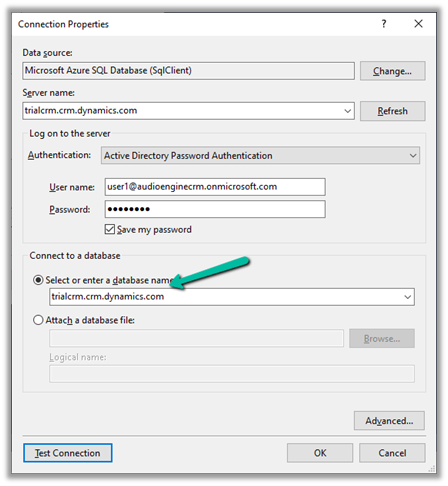
Enter the database name manually.

The final connection string >>

Data Source=orgnamae.crm.dynamics.com;Initial Catalog=orgname.crm.dynamics.com;Encrypt=True;TrustServerCertificate=False;Authentication=”Active Directory Password”

Within SQL4CDS the following query works

However, the same query doesn’t work inside SSRS.

It will give the below error message >>

Table audit is not available for reports

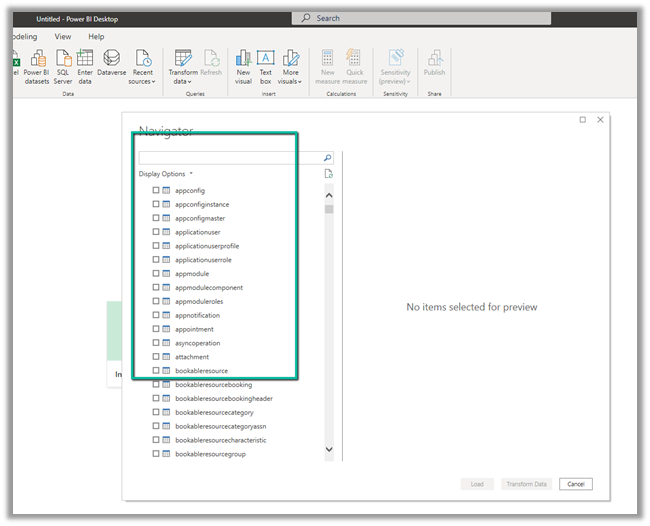
  • Do we have the Audit entity in the Power BI Dataverse connector? >> No

However, we can use the OData endpoint to create the report against the Audit entity.

https://www.365knowledge.com/2019/03/06/dynamics-365-user-access-report-with-fetchxml-and-power-bi/

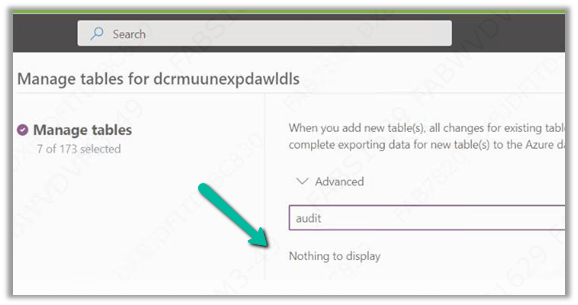
  • Do we have the Audit entity available in Azure Synapse Link (Export to Data Lake)? >> No

How to set up Azure Synapse Link >>

https://nishantrana.me/2021/06/16/how-to-setup-azure-synapse-link-microsoft-dataverse/

  • Cannot we write a Fetch XML Based SSRS report?

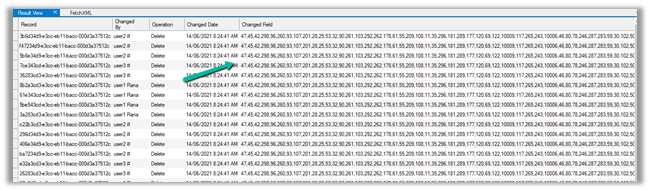
Writing a Fetch XML based-report would be challenging, because of the way information is saved.

Check the below article to understand how the audit table stores the information.

https://mahadeomatre.blogspot.com/2015/02/ms-crm-audit-database-table-details.html

http://makdns.blogspot.com/2014/06/dynamics-crm-audit-entity.html

  • How about SQL Based SSRS Report if we are using SQL – for On-Premise?

Refer to the below article that provides the steps to do so.

http://makdns.blogspot.com/2014/06/dynamic-crm-20112013-audit-report-in.html

Hope it helps..

Advertisements

New Subject Control for the subject entity in Dynamics 365 Customer Service (2021 Release Wave 2)


It becomes difficult to find and select the appropriate subject if there are too many subjects defined as one has to manually traverse across the subject tree hierarchy.

Also, check – Differences between Subject and Category Entity

We now have new subject control introduced as part of 2021 Release Wave 2

  • It allows for easy viewing of the subject tree hierarchy.
  • Search across parent and child nodes.
  • Highlighting the search results.

Below is our sample Subject

Old experience

  • No Search Capability

2021 Release Wave 2

  • We can now perform a search

  • We can search across the parent and child nodes and also the search results are highlighted as shown below

Check out the Release Wave 2 Plan

Microsoft Dynamics 365 2021 release wave 2 plan overview | Microsoft Docs

Hope it helps..
 

Advertisements

How to – Get the size of tables in Dataverse / Dynamics 365


Using the Capacity page in the Power Platform Admin Center we can extract the details of size occupied by table (in MB) within a particular environment.

Login to the admin portal and navigate to Capacity

https://admin.powerplatform.microsoft.com/resources/capacity

Select the Dataverse tab and click on Details or in case of trial click on the Trial tab

Here we have selected the details (graph) option for one of the environments.

Select Download all tables option for the Top database capacity use, by table chart


We can see the details within the extracted CSV file.

Get all the details here

https://docs.microsoft.com/en-us/power-platform/admin/capacity-storage#environment-storage-capacity-details

Hope it helps..

Advertisements

Solved- Currently, Dynamics 365 apps can only be enabled for your default region error


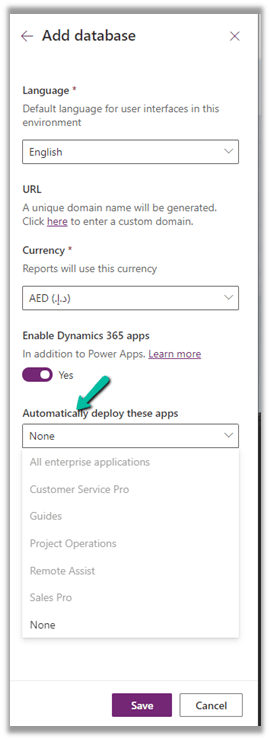
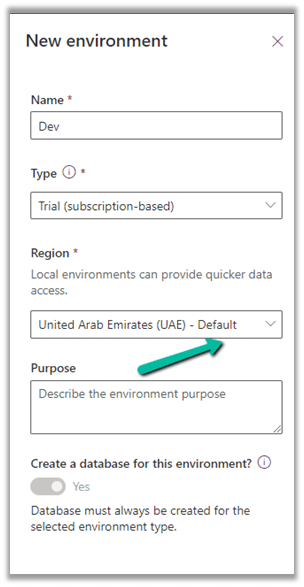
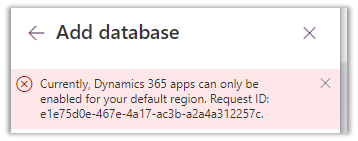
While trying to add a new Trial (subscription-based) on a Dynamics 365 Trial environment, we were getting the below error

Currently, Dynamics 365 apps can only be enabled for your default region

The default region was UAE for the other environments 

Even for the Azure Synapse Link – it was showing the default region as UAE North

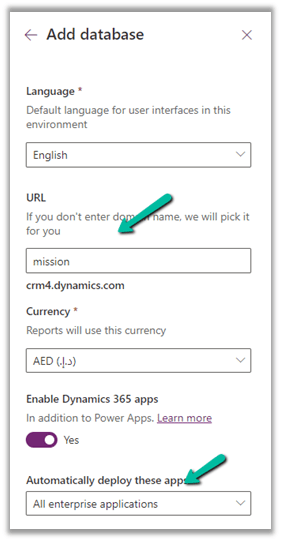
In our case selecting the Region to Europe allowed us to create a Trial (subscription-based).

Get all the details herehttps://docs.microsoft.com/en-us/power-platform/admin/create-environment

https://community.dynamics.com/365/f/dynamics-365-general-forum/395813/dynamics-365-apps-can-only-be-activated-for-your-default-region

Hope it helps..
Advertisements
Advertisements