Set Auto Number field value conditionally in Dynamics 365 / Dataverse


Recently we had a requirement to use auto numbers for lead records.

However, based on where the lead records are being created from, we wanted to specify a different prefix to it.

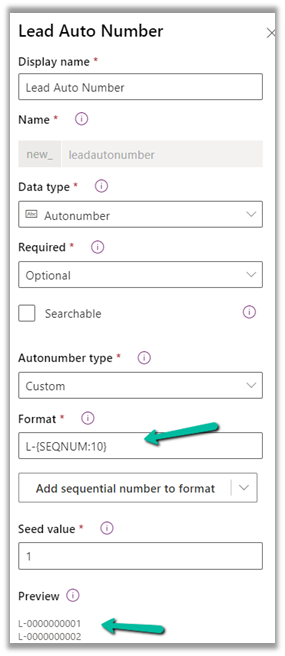
For leads created manually, the format should be prefixed “L” followed by “– “and then 10 digit sequence number.

L-{SEQNUM:10}

And if created through API the prefix should be B.

B-{SEQNUM:10}

To achieve this, we can define an auto-number field with the following format.

Next, we can have a bool field (default – false) in the lead table, to identify if it is being created from the API, which we can set while creating the lead record through API.

And a Pre Create Plugin on Lead to check the value of that field.

If it is set (true), that we can replace the Prefix from L to B in the auto-number field within the context.

In the Pre Create plugin, we get the next sequence in the auto-number field, so simply replacing/setting the value of the auto numbering field did the trick.

Lead created through Web Application –

Lead created through API –
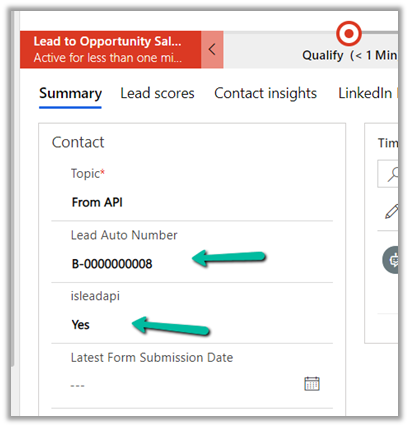
Here uniqueness was more important than the next sequence of the lead record so this solution worked.

Also check –

https://jonasr.app/2020/03/anm-unique-seq/

https://nishantrana.me/2021/11/09/few-key-points-auto-number-field-in-dataverse-dynamics-365-ce-crm/

Hope it helps..

Advertisements

Fixed – BadGateway. The request failed. Error code: ‘502’. Error Message: ‘BadGateway’ in PowerAutomate – Start and wait for an approval


Recently we were getting the below error for one of our Flows.

BadGateway. The request failed. Error code: ‘502’. Error Message: ‘BadGateway’.

Everything seemed right.

Finally, found (thanks to the forum) that the fix was to update the Approvals Administrator security role.

Provide – Read Access to System Job inside Customization tab.

Before

After

This time our flow worked smoothly.

Hope it helps..

Advertisements

Lookup Behavior – Minimum character to trigger search and delay between trigger – Dynamics 365


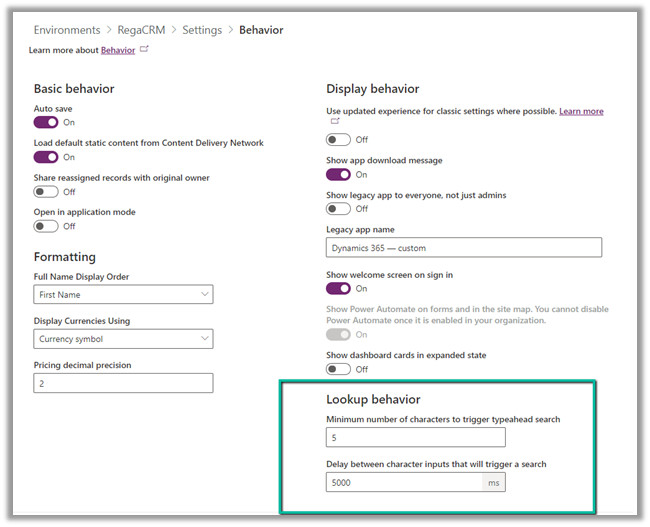
Within Power Platform Admin Center – (https://admin.powerplatform.microsoft.com/)  through Environments >> [Name] >> Settings >> Behavior >> Lookup Behavior settings we can control the minimum number of characters entered before triggering the search in the and delay before the search is triggered for the lookups.

  • Minimum number of characters to trigger typeahead search – Default (2)
  • Delay between character inputs that will trigger a search – Default (250ms)

Here we have updated the value to 5 and 5000 respectively for our testing.

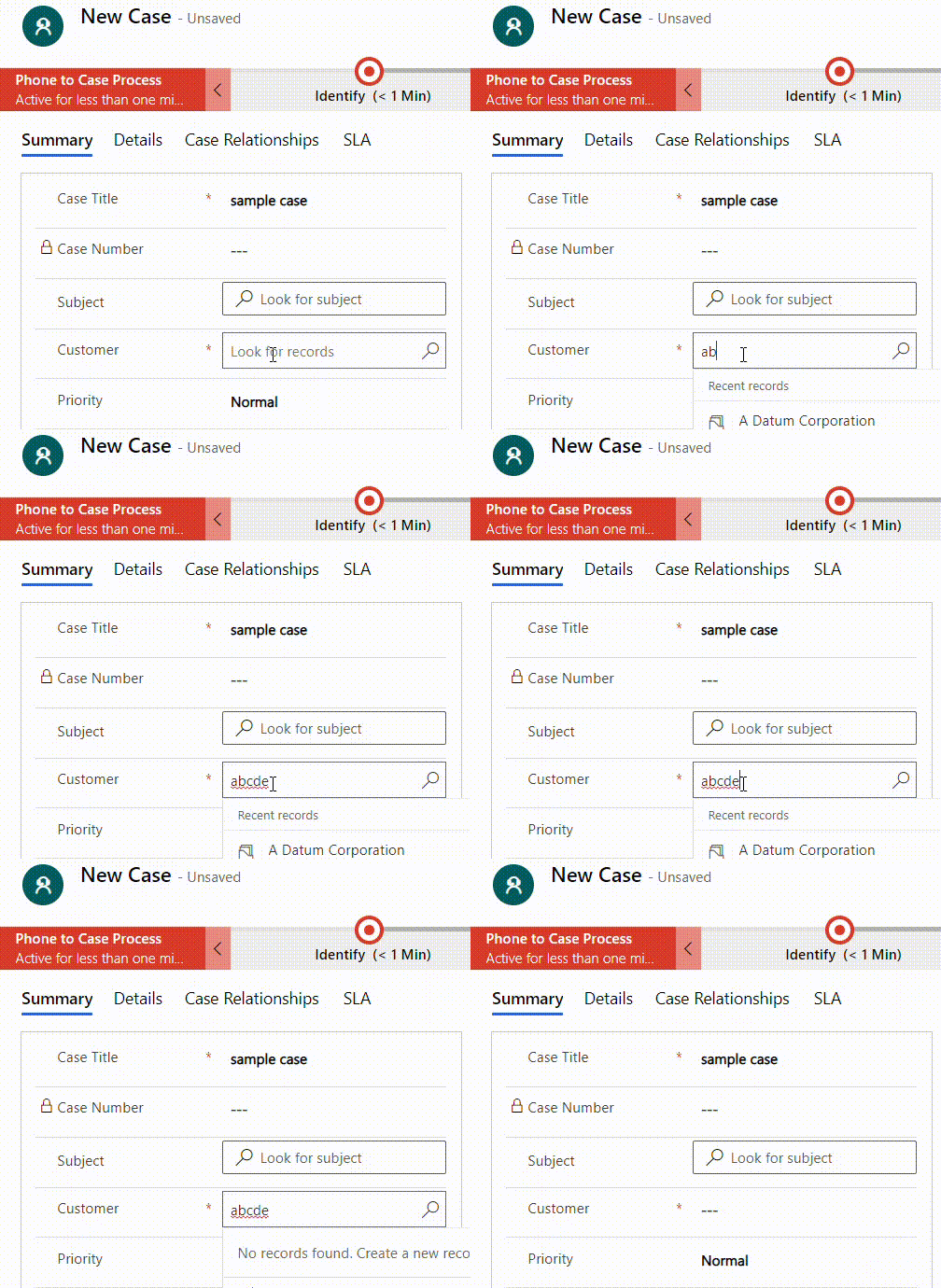
The result –

Lookup Behaviour

After 5 characters are entered, it waits for 5 seconds before searching (loading..)

Also check –

https://nishantrana.me/2021/06/22/advanced-lookup-in-model-driven-power-apps-dynamics-365/

https://docs.microsoft.com/en-us/power-platform/admin/settings-behavior

Hope it helps ..

Advertisements

Step by step – Configure Dynamics 365 Marketing in a Dataverse Environment


To configure Dynamics 365 Marketing in an existing Dataverse Environment –

  • Login to Power Platform Admin Center

  • Click on Dynamics 365 apps inside Resources

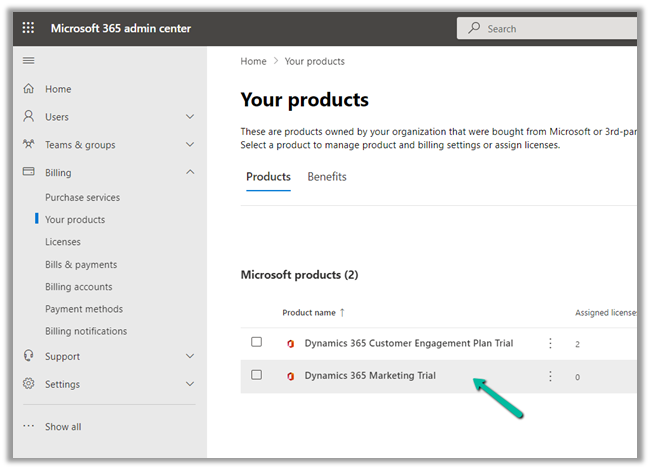
If Dynamics 365 Marketing is not listed there, log in to Microsoft Admin Center and start the trial.

We can see the product listed within Admin Center.

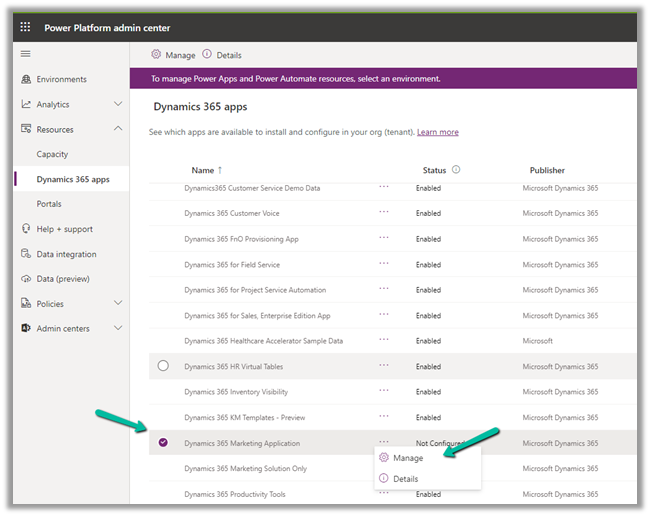
Back in Power Platform Admin Center we can see the Marketing application listed in the resources.

  • We can either install the Dynamics 365 Marketing Application with complete features or the Dynamics 365 Marketing Solution only, which only installs the solution.

Note – you don’t need a Global Admin role, the System Administrator role is enough to finish the setup.

  • It asks for the address to continue. In the case of multiple organizations, it would give the option of selecting the organization against which we want to configure the marketing app.

  • The installation starts, usually it takes somewhere around 2 hours or so.

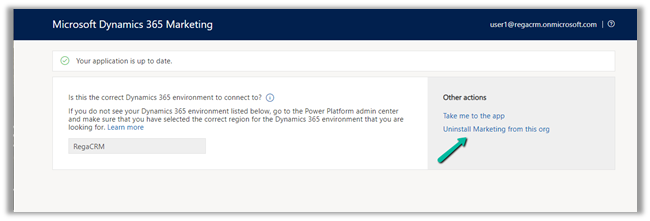
  • After installation finishes, we can navigate to the app or uninstall the marketing app from the org.

  • Take me to the app, opens the app.

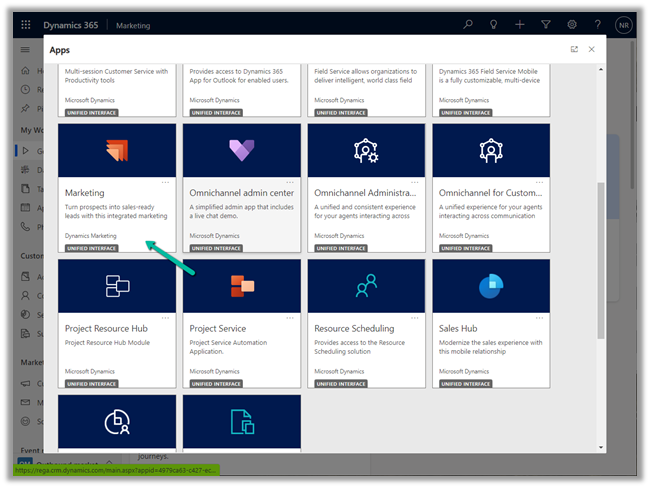
  • We can all see the Marketing app listed in the Apps section.

  • Similarly to Uninstall Dynamics 365 Marketing Application, we use the same option – navigate to Resources >> Dynamics 365 Apps – select Manage for the app.

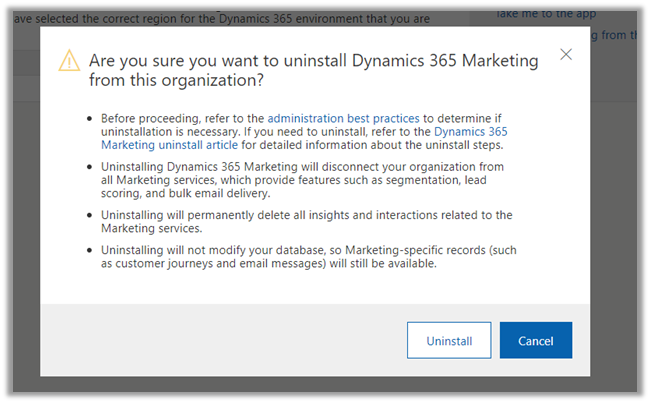
  • It takes to the Marketing Admin Page, from where we can Uninstall the App

  • Read the details before continuing with the uninstall.

  • Apart from configuring Dynamics 365 Marketing over an existing organization, we can also set up a separate trial of the Marketing app.

https://dynamics.microsoft.com/en-gb/marketing/overview/#

  • Specify the work email id and launch the trial.

  • We can see the trial environment listed separately within Power Platform Admin Center

Hope it helps..

Advertisements

Assign approvals to any user in the Tenant – Power Automate


We recently implemented Approvals, and we required that any user in the tenant should be able to provide approval.

For one of the users, we got the below error while testing the flow.

UserNotMemberOfCdsSecurityGroup

This was because we were using the Security Group to control access to Dataverse Environment.

So adding the user to the Security Group fixed the issue for us.

The user had the required CRM /Dataverse license.

More on that – 

https://nishantrana.me/2021/11/01/fixed-error-code-usernotmemberofcdssecuritygroup-error-message-the-user-xyz-cannot-be-created-in-microsoft-dataverse-because-the-account-is-not-a-member-of-group-abc/

Next, we ran into an another issue with one more user’s account and got the below error.

InvalidApprovalCreateRequestAssignedToNoValidUsers

The user was unlicensed so we thought that could be the issue. However, for other unlicensed users it was working fine, on running the flow, the user was getting added to CRM with Approvals User security role.

https://docs.microsoft.com/en-us/power-automate/get-started-approvals#assign-approvals-to-any-user-in-your-tenant

Next, we checked the AllowAdHocSubcriptions setting in Azure AD.

We tried both enabling and disabling this setting, but it still worked for other unlicensed users except the particular user.

We had added the user’s account to the Security Group also.

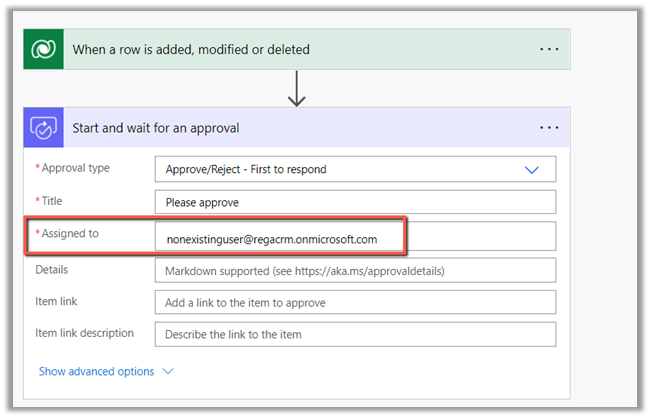
After spending some more time, when we tried to search for that user’s account in Outlook Address Book, it didn’t give us any result, then we realized that the account doesn’t exist anymore in the Tenant.

https://nishantrana.me/2021/11/03/fixed-invalidapprovalcreaterequestassignedtonovalidusers-error-message-required-field-assignedto-contained-no-valid-users-in-the-organization/

Hope this helps..

Advertisements

Fixed – ‘InvalidApprovalCreateRequestAssignedToNoValidUsers’. Error Message: ‘Required field ‘assignedTo’ contained no valid users in the organization’.


We would get the below error while using Approvals in Power Automate

“BadRequest. The request failed. Error code: ‘InvalidApprovalCreateRequestAssignedToNoValidUsers’. Error Message: ‘Required field ‘assignedTo’ contained no valid users in the organization'”

This error occurs if we are trying to send the approval to the user which doesn’t exist in the organization or to the external users.

We recently got this error, and interestingly in our case, the user was showing up in the members in the Security Group inside Azure Admin Portal and was also giving us the option to add the user in Assigned To in the Flow.

However the user was not there in the Address Book of the Outlook, that is when we realized that user does not exist in the tenant anymore.

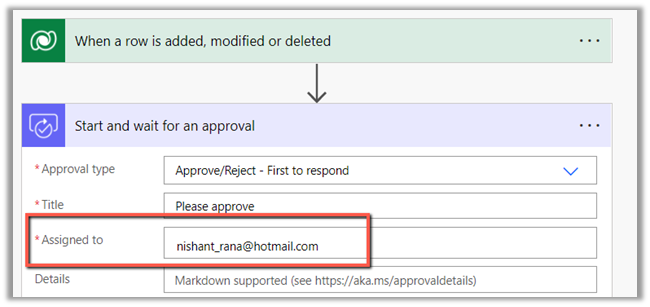
The flow can also fail if Assigned to a user’s personal account.

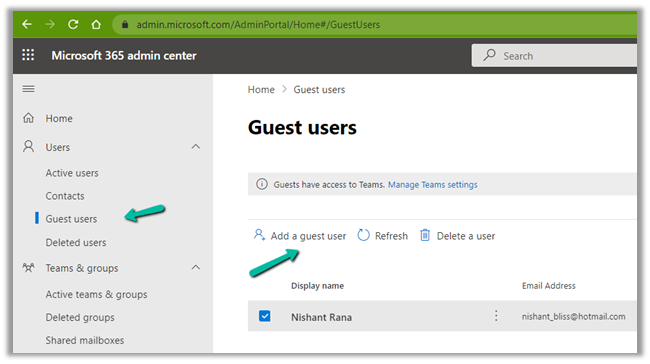
Here we have an option, to add the user as the Guest User.

Within Admin portal, navigate to Users >> Guest Users 

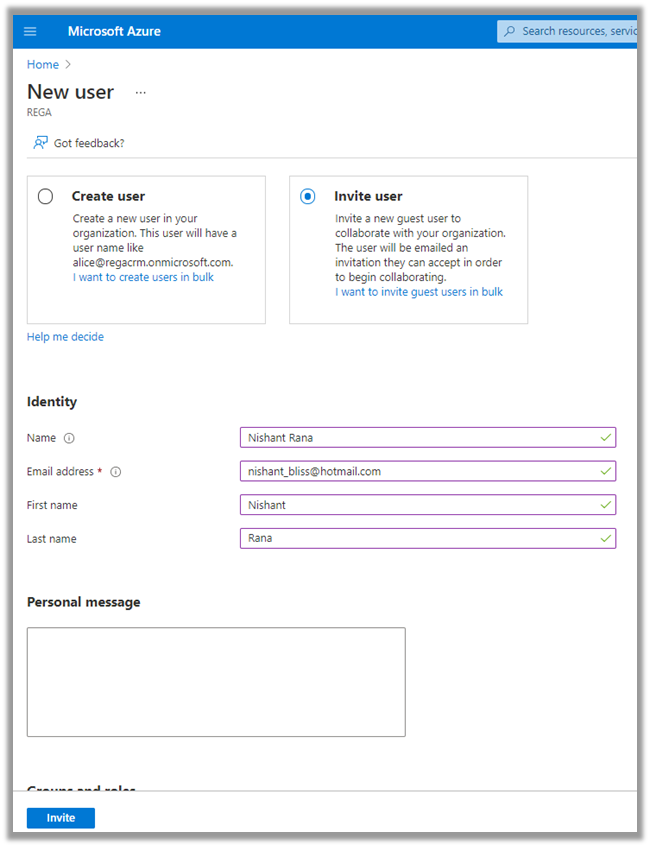
Invite the user 

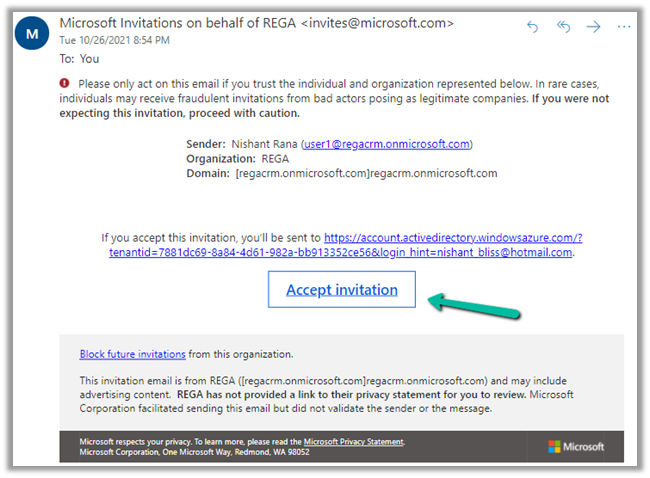
The guest user needs to accept the invitation.

Back in our approval flow, we can now select the guest user added.

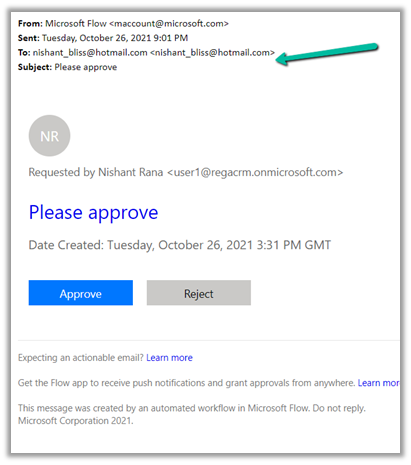
We can see the guest user getting the approval request

If we are using Security Group for the CRM Environment, than the user needs to be added to the Security Group also, else we will get the below exception – UserNotMemberofCdsSecurityGroup – The user cannot be created in Microsoft Dataverse because the account is not the member of the security group.

Fixed – Error code: ‘UserNotMemberOfCdsSecurityGroup’. Error Message: ‘The user ‘xyz’ cannot be created in Microsoft Dataverse because the account is not a member of group ‘abc’

In case we want to use approval with an external user(s) – without adding them as a guest user, we can use Send Email with Options Action instead of Power Automate Approvals.

https://debajmecrm.com/approvals-with-external-users-in-power-automate-without-consuming-power-automate-flow-license/

Hope it helps..
Advertisements