How to – Provision / Setup Omnichannel for Customer Service trial – Dynamics 365


In this post, we’d start by creating a trial of Dynamics 365 Customer
Service.

Navigate to – https://dynamics.microsoft.com/en-us/customer-service/overview/

And select Try for free

Enter your email details and follow the steps.

In a few mins, the trial will be ready.

Clicking on Launch Trial opens the Customer Service Workspace app.

Below are the other apps we can see installed as part of the Customer Service Trial, including the Omnichannel Admin Center and Omnichannel for Customer Service along with the Customer Service admin center app.


Opening the Omnichannel Admin Center app allows us to configure the Chat Demo.
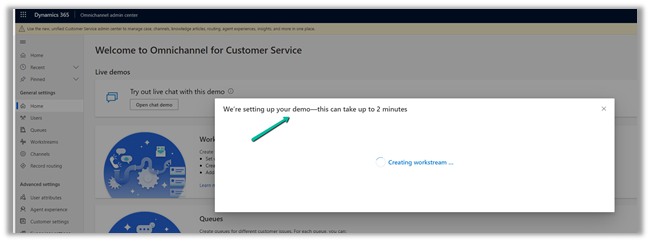
In a few seconds, the demo will be configured.

Clicking on the Open agent app opens the Omnichannel  for Customer Service App.

Click on Let’s Chat! widget to start the chat.

Opening the Let’s Chat widget sends the notification to the agent as shown below.
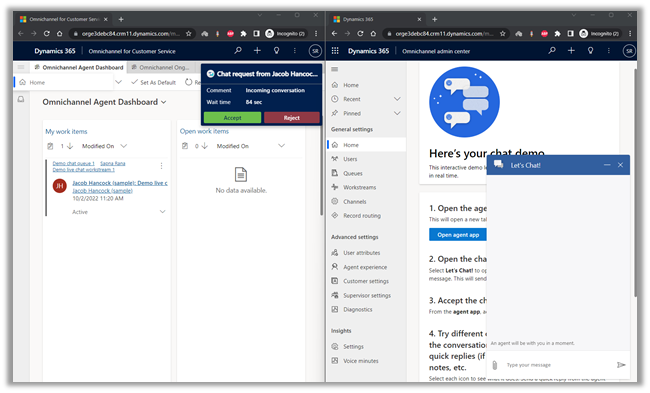
Clicking on Accept in the notification starts a new session.
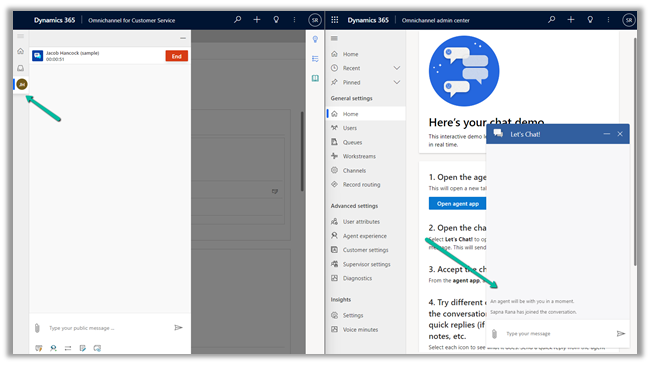
It also starts the conversation.
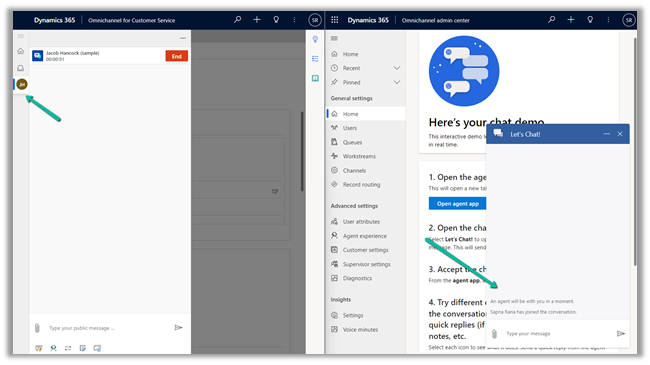
The agent can click on End or the customer can close the Chat Widget to end the conversation

The End button is grayed out and the customer gets the message as Agent has ended the conversation.

As we can see, we have the working Omnichannel trial environment ready for us to try out different channels/features, etc.

In Power Platform Admin Center, if we check inside Resources >> Dynamics 365 Apps for the Customer Service Trial we can see the Omnichannel Apps installed.

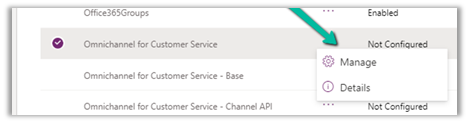
Interestingly if we navigate to Resources >> Dynamics 365 apps and check the Omnichannel for Customer Service app we see the status Not configured.

Clicking on the Manage option, opens the dialog box, informing us that it will navigate us to Dynamics 365 apps admin page.
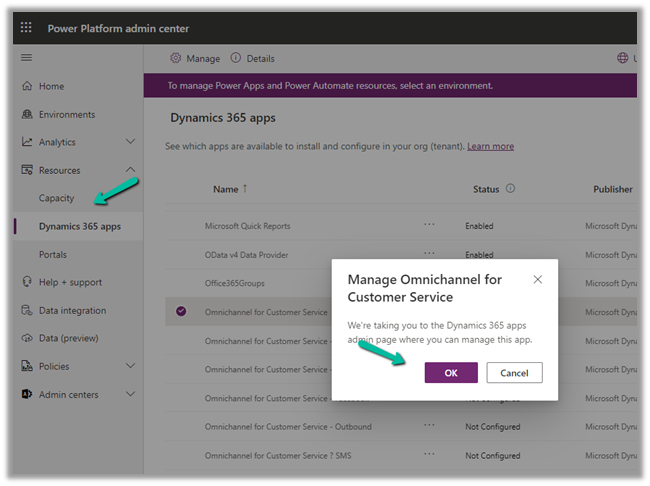
In our case it kept us asking to sign in, instead of taking us to the admin page.

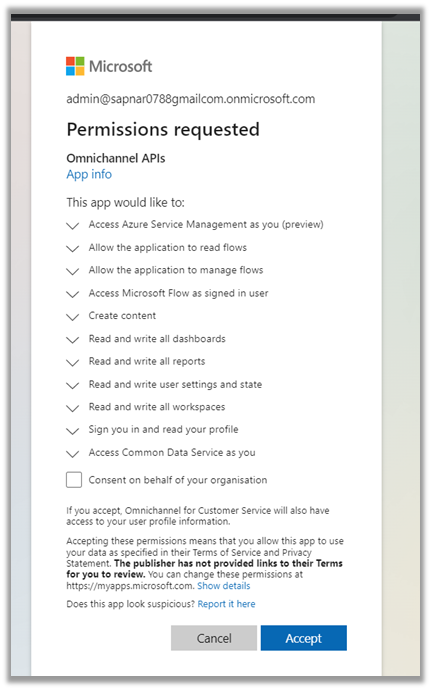
So next we tried Providing the data access consent as mentioned in the MS Docs.
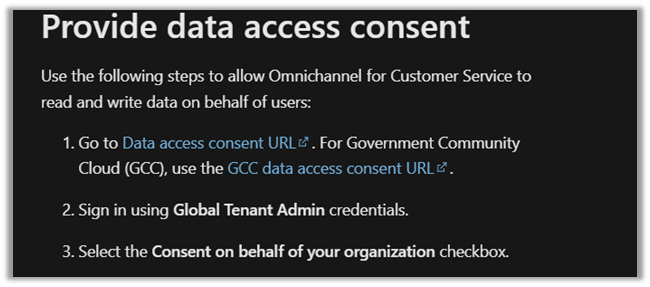
https://learn.microsoft.com/en-us/dynamics365/customer-service/omnichannel-provision-license#provide-data-access-consent

For which we got the below error.

As it failed, we tried the same after assigning the Power BI (free) license to the admin user. (The user should also have Microsoft 365 Global Admin roles along with System Administrator in the env.)

https://learn.microsoft.com/en-us/dynamics365/customer-service/try-channels
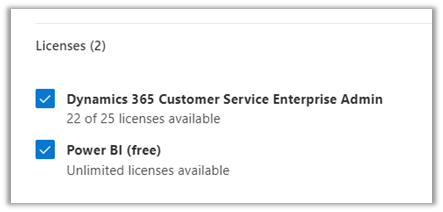
https://learn.microsoft.com/en-us/dynamics365/customer-service/omnichannel-provision-license#prerequisites

And it worked this time.

This time clicking on Manage for the Omnichannel for Customer Service, took us to the Dynamics 365 Admin page.

Inside Dynamics 365 Administration Center we can manage the environments in which we want to install or remove the Omnichannel as well as different channels inside it.

From the Admin Center, we managed to upgrade the Omnichannel in the Customer Service Trial environment and also configure it in another sandbox environment.
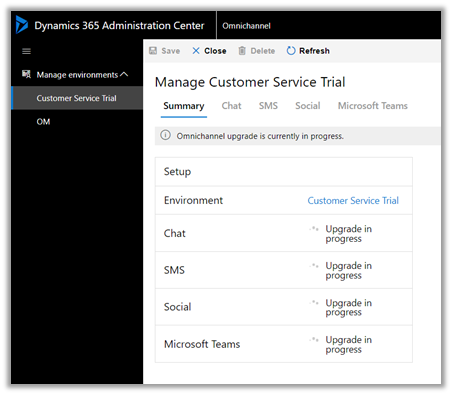
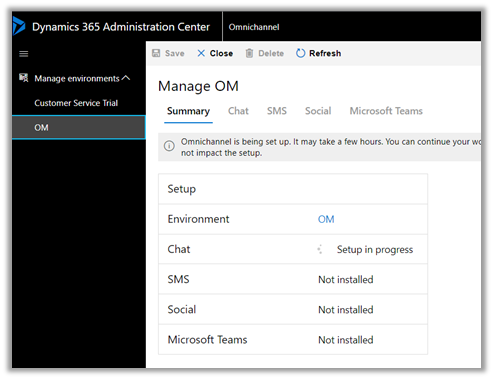
Interestingly even after the update/setup was completed
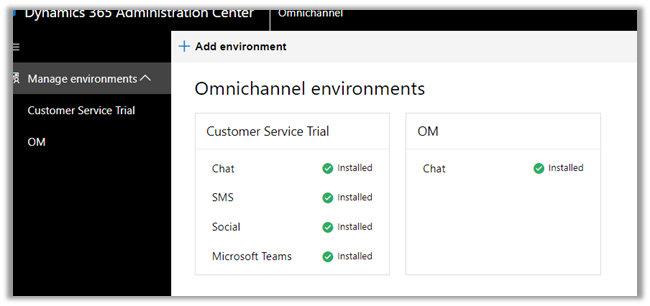
the status of Omnichannel for Customer Service on the Dynamics 365 Page was “Not configured”, which could be some bug or something as mentioned in the MS Docs.

https://learn.microsoft.com/en-us/dynamics365/customer-service/omnichannel-provision-license#set-up-omnichannel-for-customer-service-

“You can safely ignore the status”

So in our case, when we had configured the Customer Service Trial, the Omnichannel was already configured in that environment as we saw earlier. We were mainly facing issues to access the Dynamics 365 Administration Center, which got resolved after assigning the Power BI License to the admin user followed by giving the required consent.

Kindly refer to the below links to learn about Omnichannel in in-depth

https://neilparkhurst.com/2022/08/11/omnichannel-for-customer-service-collection-2/

https://thecrm.ninja/omnichannel-for-dynamics-365/

https://www.youtube.com/watch?v=WM2JLGNPzT8

Hope this helps..

Advertisements

Fixed – User Presence not working – Customer Service Workspace / Omnichannel (Dynamics 365/CRM)


Recently while exploring Customer Service Workspace we could not see the presence being loaded for the users.

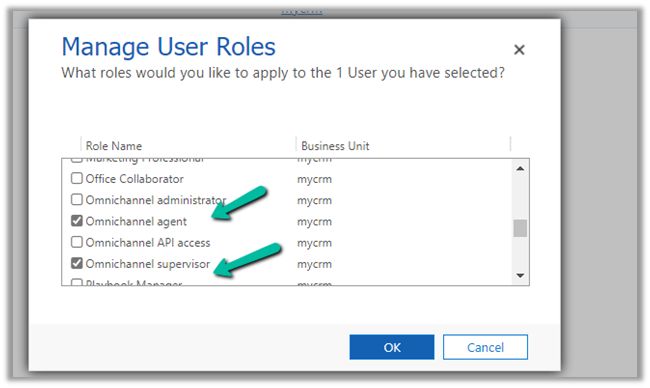
The first thing we need to check here is if the user has either the Omnichannel Agent / Supervisor role or Customer Service Representative role assigned. (it will not load even if you are a system admin or Omnichannel Administrator role only)

The next thing to check is the omnichannel record (Channel Integration Framework V2.0 Providers entity/table)

Check the value for the Channel URL field –

It should be

https://oc-cdn-ocprod.azureedge.net/convcontrol/ChatControl.htm?uci=true&clientName=zfp&cloudType=Public&env=prod&ocBaseUrl=https://unq0c996fcff27241fb845216a48ece6-crm.omnichannelengagementhub.com&ucilib=https://org749544d7.crm.dynamics.com/webresources/Widget/msdyn_ciLibrary.js

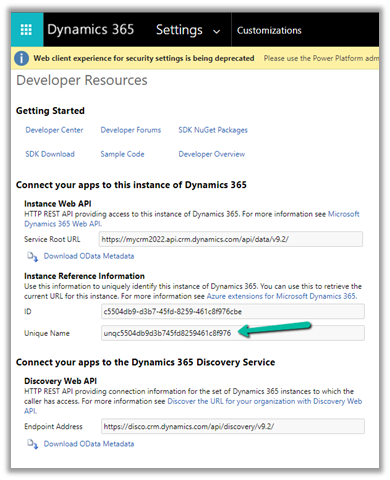
Replace the first part in ocBaseUrl with your organization’s Unique Name (Customization > Developer Resources)

and second is the organization base url in the uclib.

If it still doesn’t work or gets stuck at 25 or 57 percent, check if you have security defaults enabled in the tenant if so either disable it.

Disable Security Defaults while login into Power Platform / Dynamics 365 – Nishant Rana’s Weblog

Or make sure the users have the multi-factor authentication set up on their account.

After we made sure all the above settings – we had the presence working for the users.

Get all the details here-

Troubleshoot issues in Omnichannel for Customer Service

Hope it helps..

Advertisements

Macros in Omnichannel and Customer Service Workspace – Dynamics 365


Macros enables users to perform the set of sequential actions – repetitive and monotonous –  in a more process compliant manner, which can be reused across different sessions, making it faster, more efficient and less error prone.

To define a Macro, navigate to Omnichannel Administration app > Agent Experience > Macros

Posts on Omnichannel for Customer Service (Dynamics 365)

The interface is similar to Power Automate with some predefined automation actions.

Session Connector has the following actions >

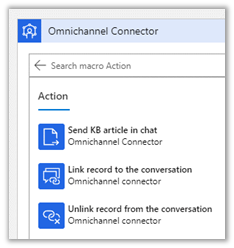
Omnichannel Connector has the following actions >

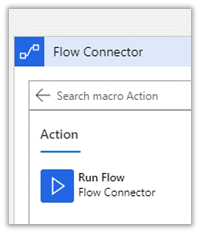
Flow Connector has the following actions >

Productivity Automation has the following actions >

Get all the details here –https://docs.microsoft.com/en-us/dynamics365/app-profile-manager/macros

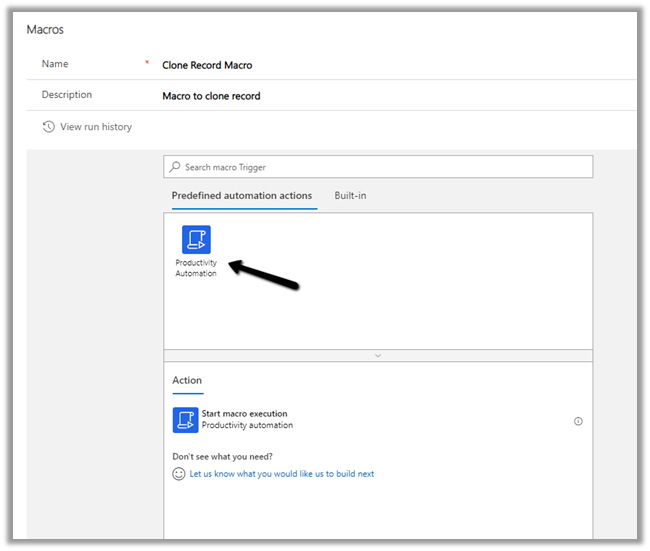
Now back to our Macro, select Productivity Automation trigger.

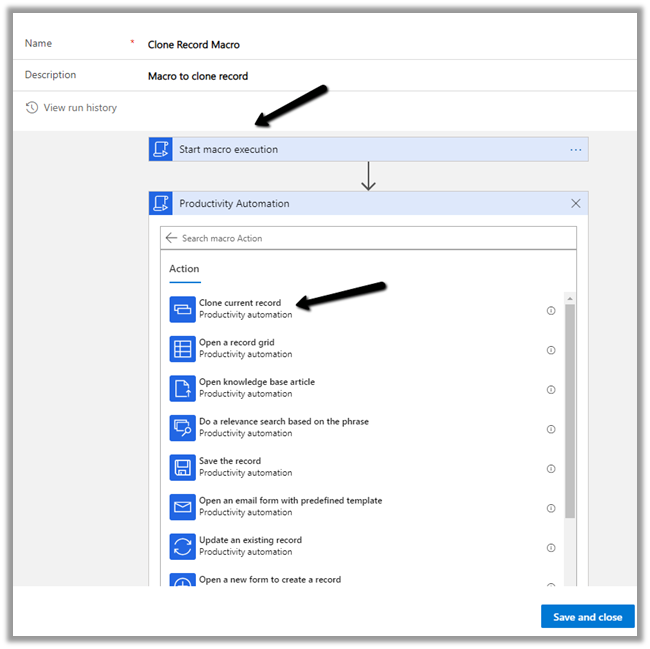
Select the action Start macro execution.

Select Clone current record.

Specify the title of the cloned record.

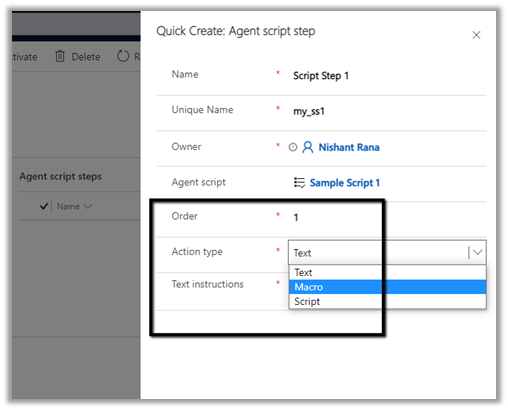
Let us create a new Agent Script with Agent Script step having Action Type as Macro.

Agent Script – https://nishantrana.me/2021/03/02/agent-scripts-in-omnichannel-and-customer-service-workspace-dynamics-365/

Navigate to Omnichannel Administration > Agent Experience > Agent Script and create a new Agent Script.

Follow it by adding a new Agent script step.

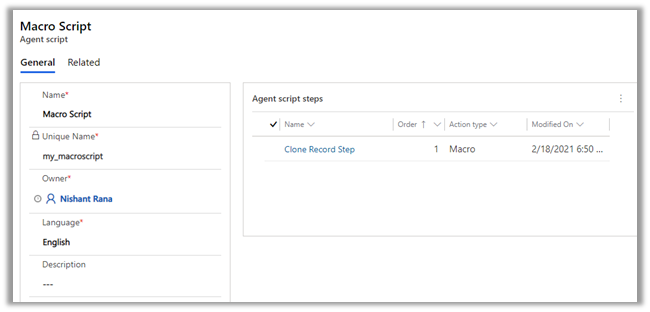
Below is our Agent script step record

which is associated with the Agent Script record

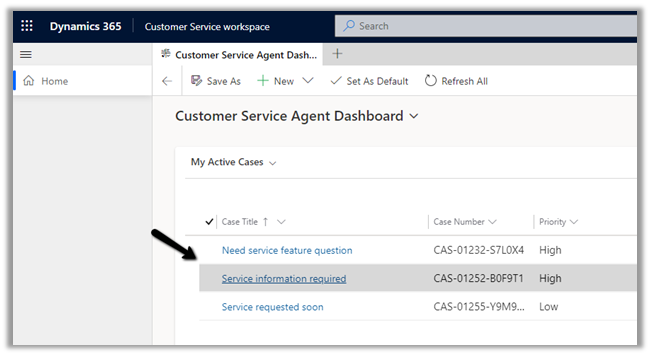
Now to test it let us open an existing record within a new session (Shift + record click) within Customer Service Workspace.

More on Customer Service Workspace –https://nishantrana.me/2020/08/13/new-customer-service-workspace-app-preview-in-dynamics-365-2020-release-wave-2/

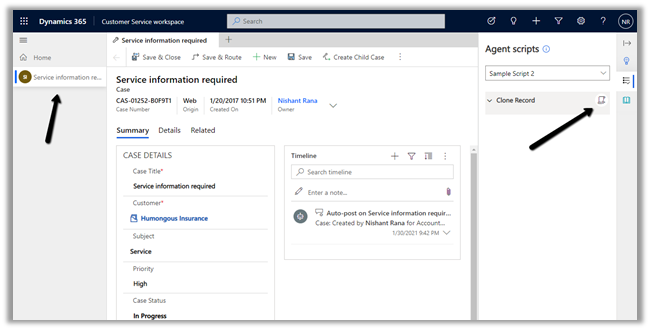
Select Clone Record for the record to be opened in the new session.

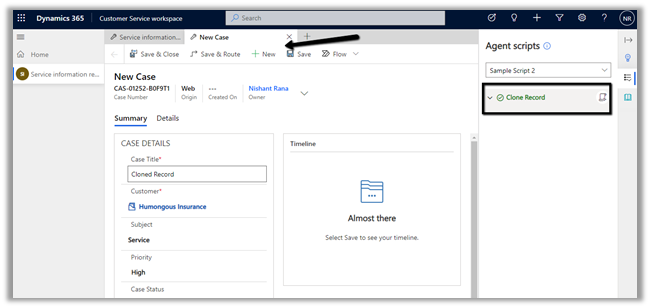
As expected selecting on Clone Record – opens the clone of the record in a new Tab as shown below

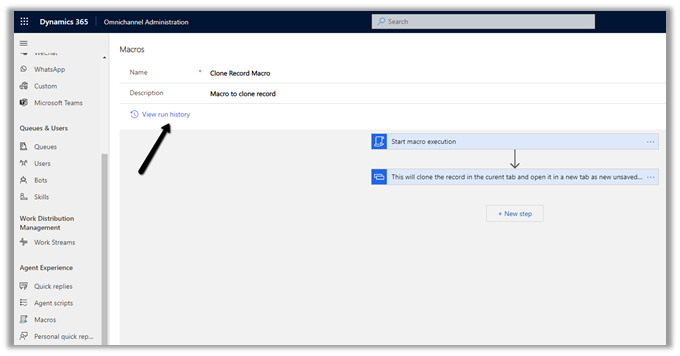
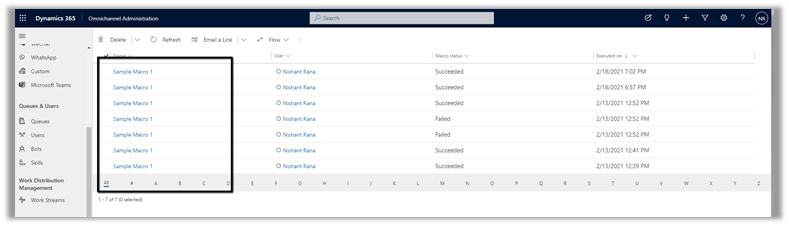
We can also check the run history of the Macro using View run history option

That was a very basic example we saw, now with the option of running flow i.e. Run Flow as Macro using the Flow Connector, the possibility is limitless.

Hope it helps..

Advertisements

Agent scripts in Omnichannel and Customer Service Workspace – Dynamics 365


Agent scripts are available within the Productivity pane in the Customer Service workspace and Omnichannel for the Customer Service app.

Agent scripts contains series of steps that will guide the agents while working, helping them to be more efficient.

More on Customer Service Workspace – https://nishantrana.me/2020/08/13/new-customer-service-workspace-app-preview-in-dynamics-365-2020-release-wave-2/

Omnichannel for Customer Servicehttps://nishantrana.me/category/omnichannel/

Smart Assisthttps://nishantrana.me/2020/08/17/ai-suggestions-for-similar-knowledge-articles-and-cases-in-dynamics-365-2020-release-2020-wave-2/

To define Agent Scripts – navigate to Customer Service Hub > Service Management > Agent Scripts or Omnichannel Administration > Agent Experience > Agent Scripts


Create a new Agent script record, and specify steps for the same by creating new agent script step record.


We can define 3 different types of Action – Text, Macro, and Script.


For simplicity, we have selected Text here.


We have defined 2 script steps for the agent script as shown below.


Next, we need to associate the Agent Script with the Session template.

Inside the Omnichannel Administration > Agent Experience > Sessions, select the template we want the script to be associated.

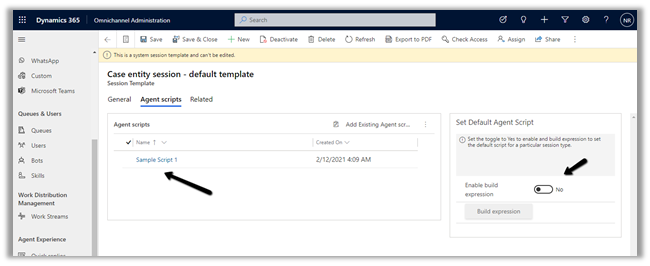
Here let us select the Case entity session – default template

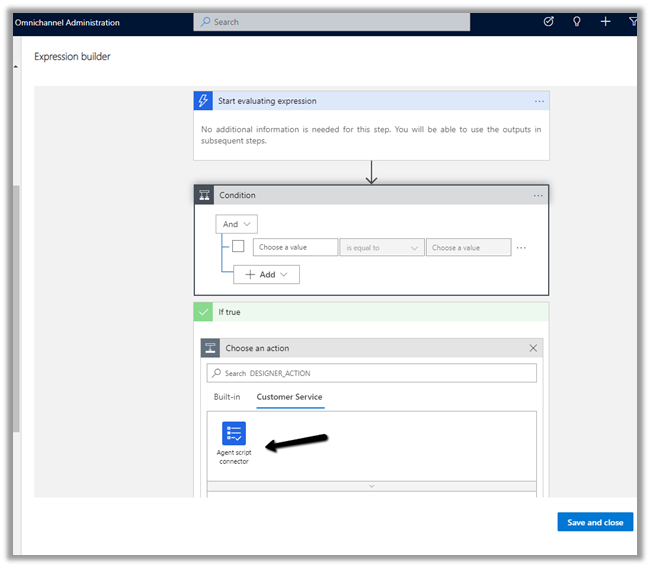
We can also define the conditions for the default agent script to be applied using the Enable Build expression option.

https://docs.microsoft.com/en-us/dynamics365/app-profile-manager/agent-scripts#set-the-default-agent-script-for-agents

For now to make the example simple, we leave it as No (default).

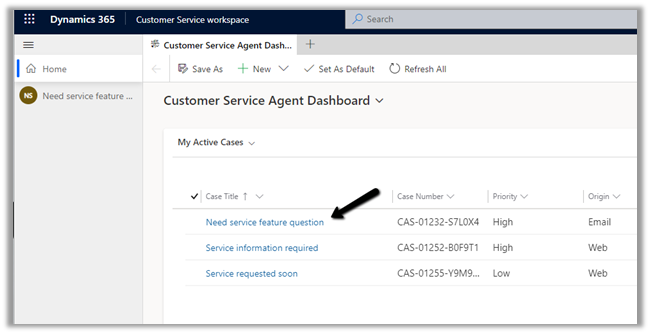
Back in Customer Service Workspace or Omnichannel for Customer Service App– Shift + click the case record to open the new session in the Active Cases grid.

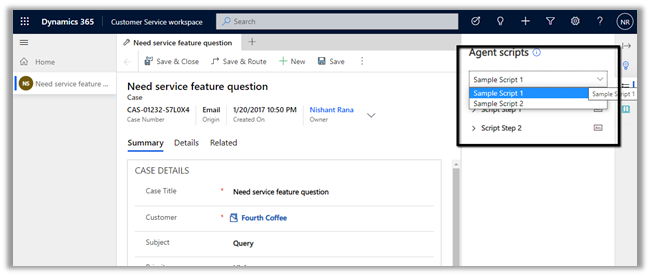
We can see the script populated there for the agent on the case record opened.

If we have multiple scripts associated with the Session template – the agent has the option to select the appropriate script.

Hope it helps..

Advertisements

How to – Setup Entity records routing – Omnichannel for Customer Service


In the previous posts, we learn about provisioning, setting up a live chat, and WhatsApp channel.

Posts on Omnichannel for Customer Service (Dynamics 365)

In this post, we’d see how to set up an Entity records channel.

Through the Entity records channel, we can route cases as well as other entities to the omnichannel agents.


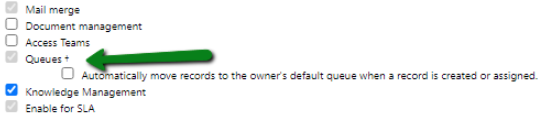
To enable an entity for Routing, enable Queues for that entity. 

Q

Leave the “Automatically move records to the owner’s default queue …” checkbox unchecked for automatic distribution of records to work.

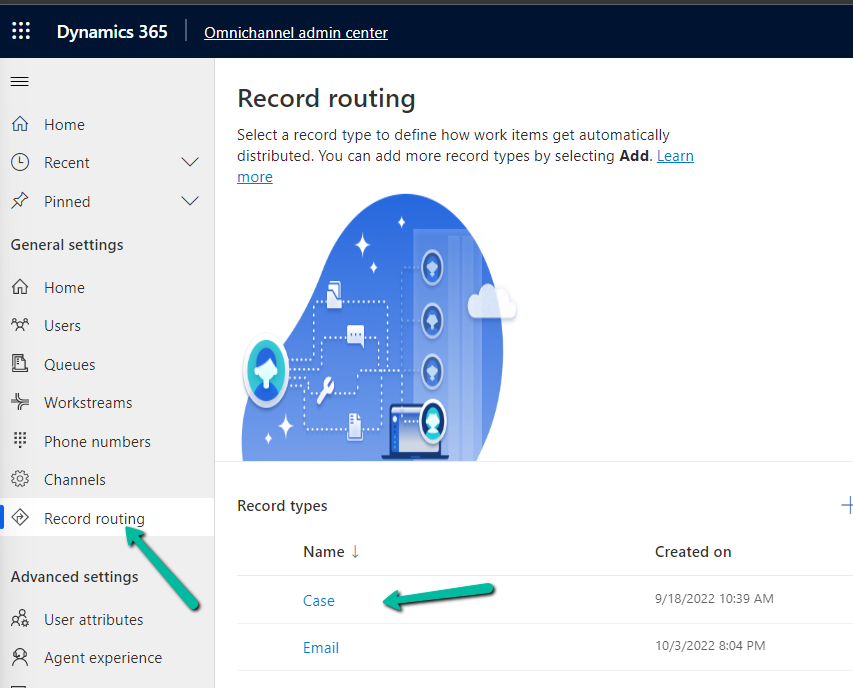
We need to make sure Unified Routing is switched on and the record type or entity is enabled for record routing.

RR

Inside the Omnichannel Administration app, navigate to Channels à Entity Records to create a new entity record channel.

A default workstream will be created automatically, we can also select an existing workstream.

Click on the Routing Rules tab to define the routing rule.

Add a new rule item i.e. for case type as a problem, route the record to Complaints Queue.

Activate the routing rule created.

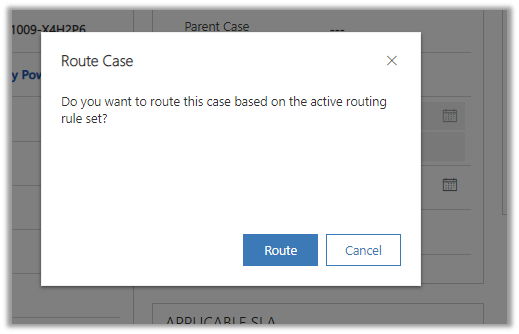
Let us create a new case of type problem and apply routing to it.

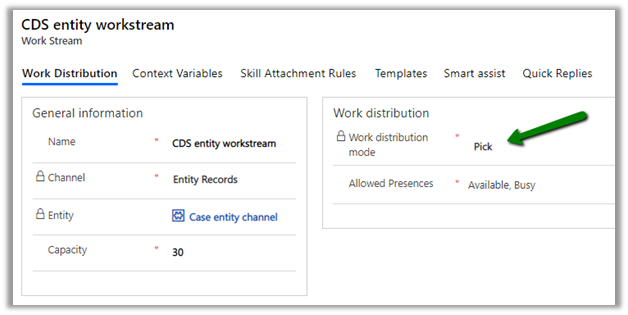
We can see the records added to open work items for agents to pick as defined in the CDS entity workstream.

We can also set the Work distribution mode to Push that would send the notifications to the agent

To automatically route the record we can use Power Automate to define a flow that calls the Apply Routing Rule action.

Refer below blogs to learn in-depth about the Omnichannel

https://neilparkhurst.com/2020/05/29/omnichannel-for-customer-service-collection/

https://thecrm.ninja/omnichannel-for-dynamics-365/

along with Microsoft Docs

https://docs.microsoft.com/en-us/dynamics365/omnichannel/omnichannel-customer-service-guide

Hope it helps..
Advertisements

How to – Setup WhatsApp Channel (Preview) in Omnichannel for Customer Service


In the previous post, we provisioned the Omnichannel for Customer Service and had configured the Chat channel.

Posts on Omnichannel for Customer Service (Dynamics 365)

In this post, we’d see how to set up the WhatsApp channel (preview)

Within the Omnichannel Administration app, navigate to Channels à WhatsApp and create a new WhatsApp account record.

Provide the required consent

As a first step, let us set up the Twilio sandbox account to be used for WhatsApp channel configuration.

Create Twilio WhatsApp account

https://www.twilio.com/whatsapp

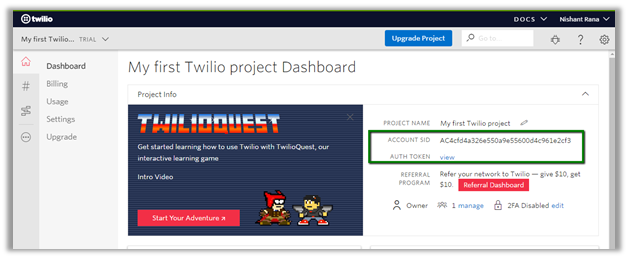
Navigate to console and copy the value of Account SID and AUTH TOKEN

https://www.twilio.com/console

Specify Account SID and Auth token of the Twilio account created in the new WhatsApp channel record.

Saving the record will generate the Twilio inbound URL, copy that URL.

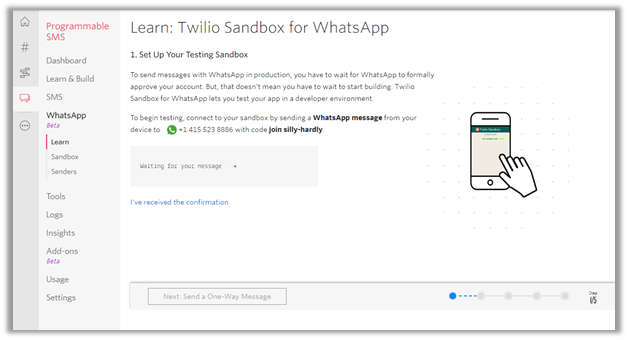
Navigate to Twilio Console à Programmable SMS à WhatsApp and activate the sandbox.

Follow the instructions to configure the sandbox.

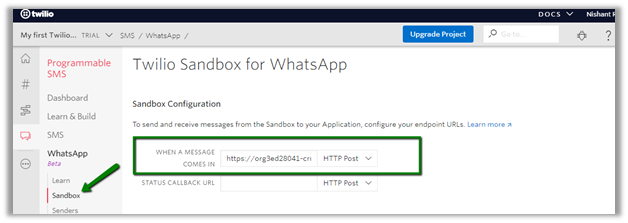
On successful confirmation, select Sandbox in the navigation menu and paste the Twilio Inbound URL generated eariler in the “When a message comes in” text box

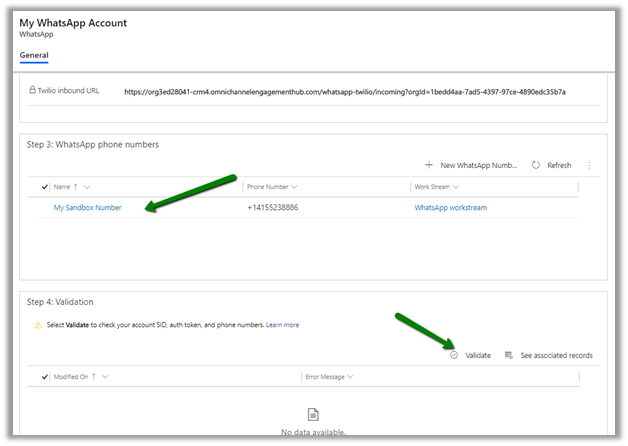
Back in our WhatsApp channel record, add the sandbox WhatsApp number configured

Specify the Twilio Sandbox WhatsApp number and select the out of the box WhatsApp workstream.

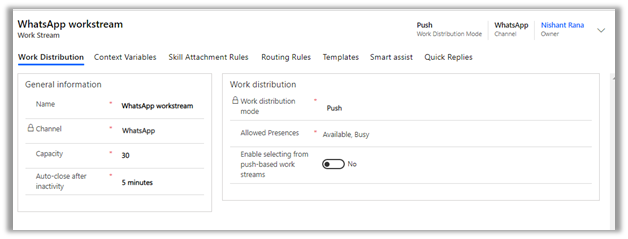
The default WhatsApp workstream

Next click on Validate to check the configuration

With validation successful now we are good to test it.

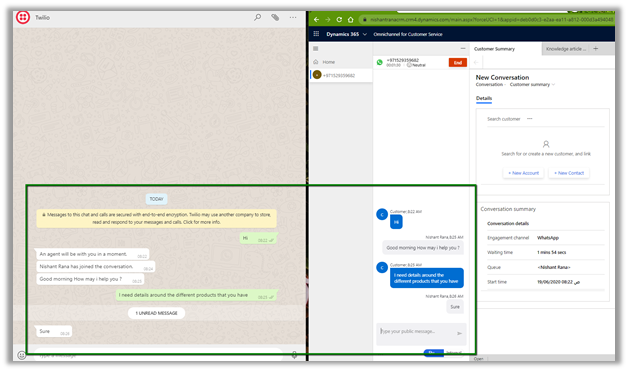
Send the message to the Twilio sandbox number

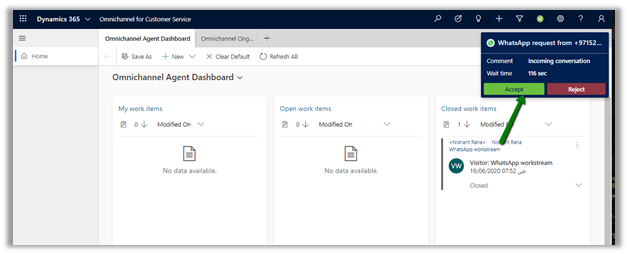
The agent will receive the notification from the WhatsApp channel configured.

On accepting the notification, Agent can now communicate with the visitor.

Thus, we saw how seamless it is to configure and get started with WhatsApp channel in Omnichannel for Customer Service.

Refer below blogs to learn in-depth about the Omnichannel

https://neilparkhurst.com/2020/05/29/omnichannel-for-customer-service-collection/

https://thecrm.ninja/omnichannel-for-dynamics-365/

along with Microsoft Docs

https://docs.microsoft.com/en-us/dynamics365/omnichannel/omnichannel-customer-service-guide

Hope it helps..
Advertisements