How to – enable the enhanced email template editor in Model-driven Apps(Dynamics 365 / Dataverse)


Below is what our existing or current Email Template editor looks like (Sales Hub >> Personal Settings >> Email templates)

Let us now enable the Enhanced Email Template editor for the App / Environment (it is enabled by default for Customer Service workspace and Customer Service Hub apps)

Create or Open an existing solution, Add existing >> Setting >> Enable the New Email Template Editor

We can set the value as Yes for the Setting environment value to apply it for the environment.

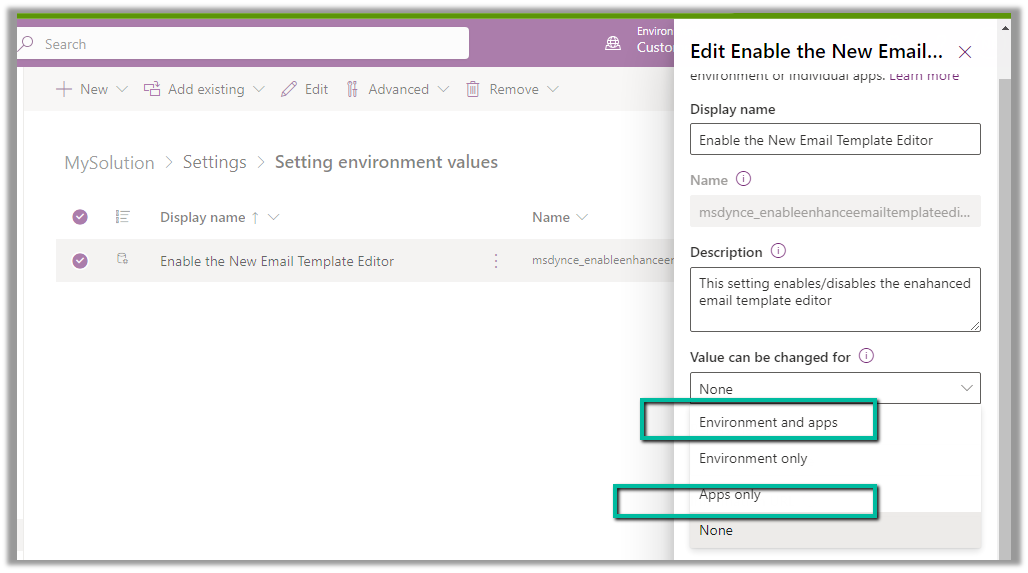
To enable it for a specific app, make sure we have the option “Environment and apps” and “Apps Only” selected for Value can be changed for option.
To specify the app(s) for which we want to enable the new email template editor, we need to add that corresponding app to the solution.

Here we have added the Sales Hub.

Add Existing >> App >> Model-driven App >> Sales Hub

On adding the Sales Hub App, we get the option to set the value for the Sales Hub app, which we have set as Yes.


Publish all customization.

We can now see the new Editor tab added for the new Email Template record inside Sales Hub.
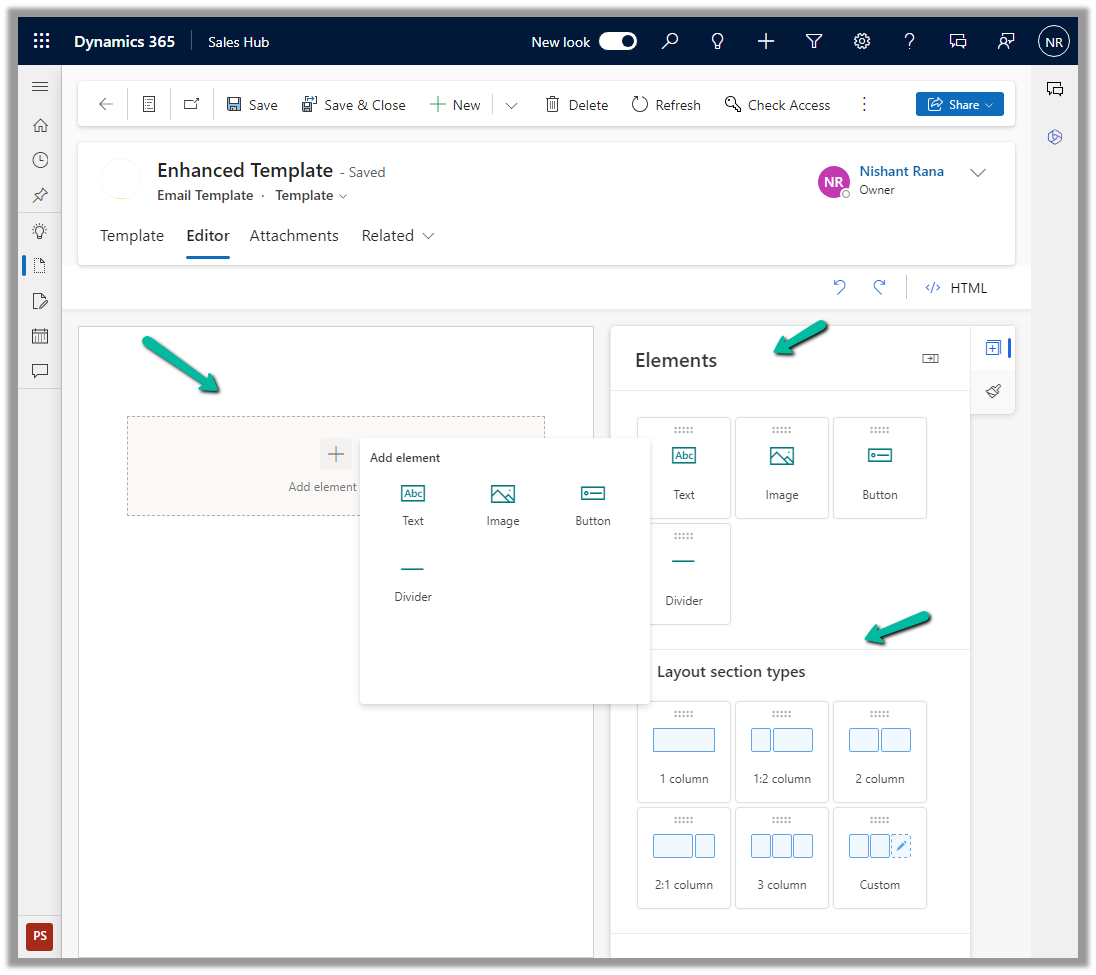
We can drag and drop, and specify properties, of the layout section and elements in the new editor.
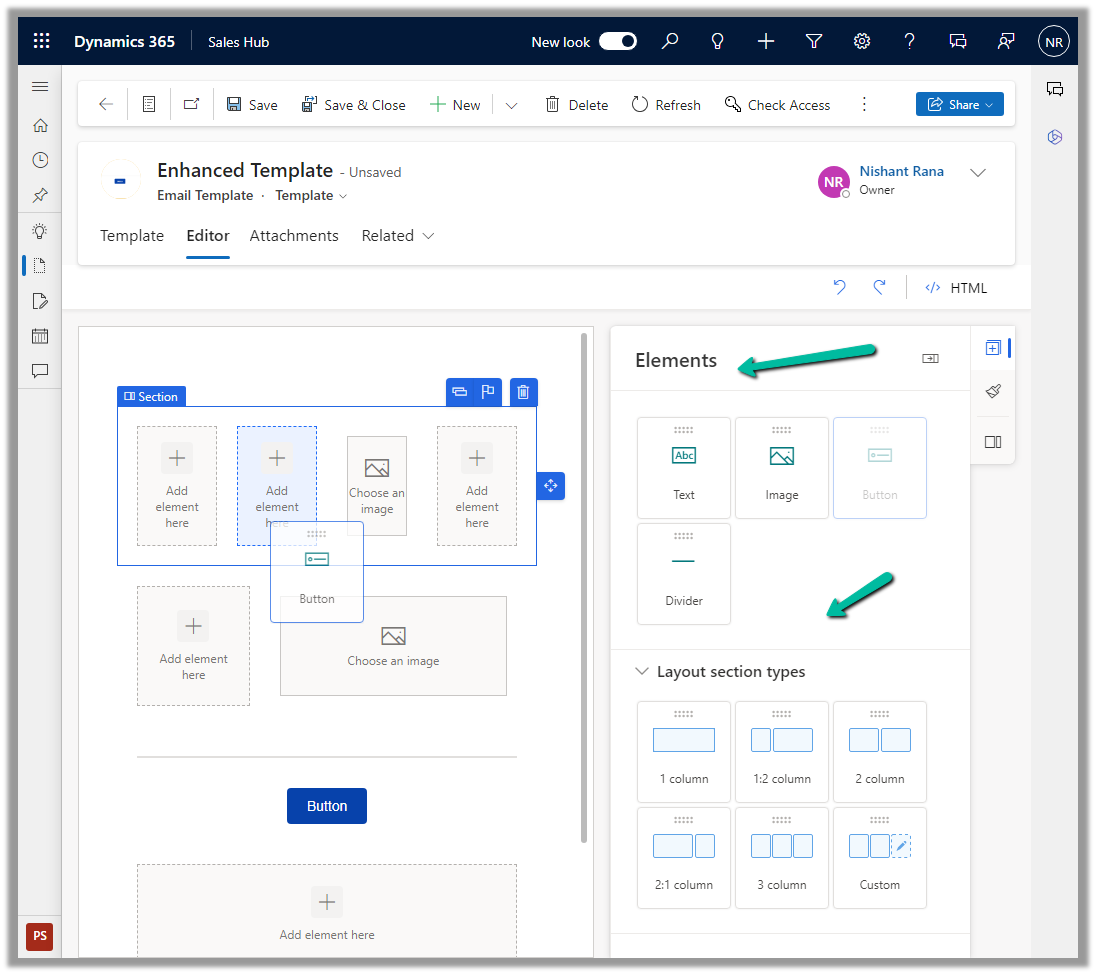
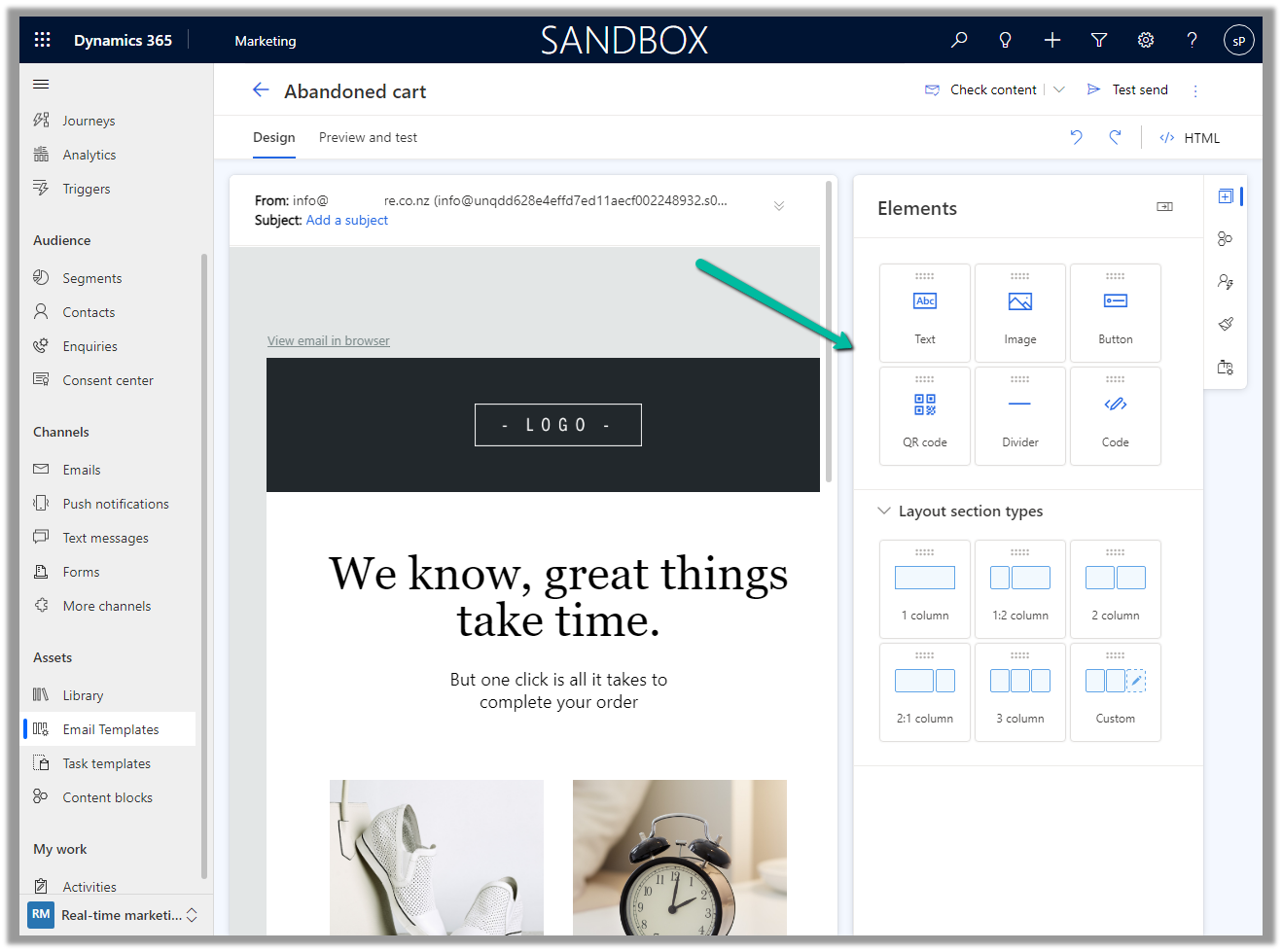
The new email template editor uses the same design as the email editor in Dynamics 365 Marketing, making it more consistent across the different apps in the platform.
Get all the details here.

Hope it helps..

Advertisements

Try the new modern look for the Model-driven app (Preview)


The new modern refreshed look for the Model-driven app can be enabled from Maker Portal >> Model-driven App (Edit) >> Settings >> Upcoming – Try the new look and feel (preview)

The new look makes use of the latest Fluent UI React Components

Or now we see the option to Try the new look in the app itself in the command bar.

Let us look at the changes

  • Grids now have the checkboxes added to it

(open the image in new tab to view it clearly)

  • Infinite scrolling
  • The same grid is applied to Sub Grid and Associated Grids
  • Forms now have a new Command Bar, refreshed BPF, Sections, etc.
  • Form fields now have a background, icon placement, stying changes, etc.

Get all the details here

Hope it helps..
Advertisements

Hide Show Button in Command Bar / Ribbon in Dynamics 365 / Model-Driven App (For Quick Reference)


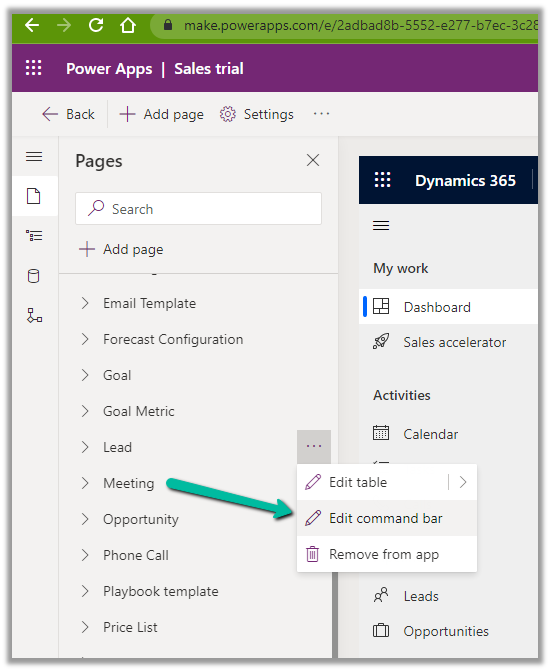
Open the App in the App Designer, select the Edit Command Bar for the table

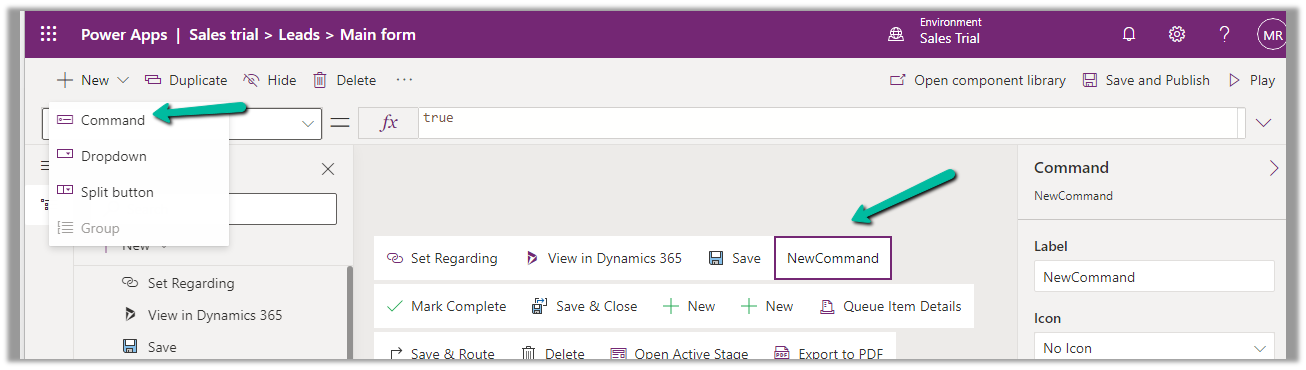
Also, check the limitations of the Command designer, the important one being that the pre-existing classic commands cannot be customized with the new command designer.

For the new Command added, set its Visible property based on the status of the current selected item/record.

More on Power Fx

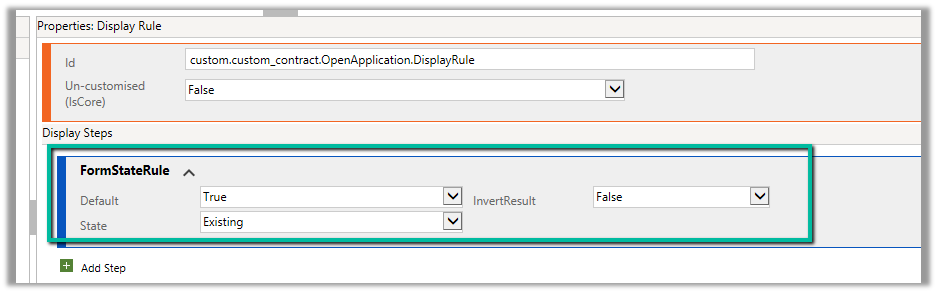
Now similarly if we want to show the button only for an existing record by updating the RibbonDiffXML, we can write the following DisplayRule based on FormStateRule


Hope it helps..
 

Advertisements

Modern link sharing UI, co-presence, online status (preview) in the model-driven app (Dynamics 365)


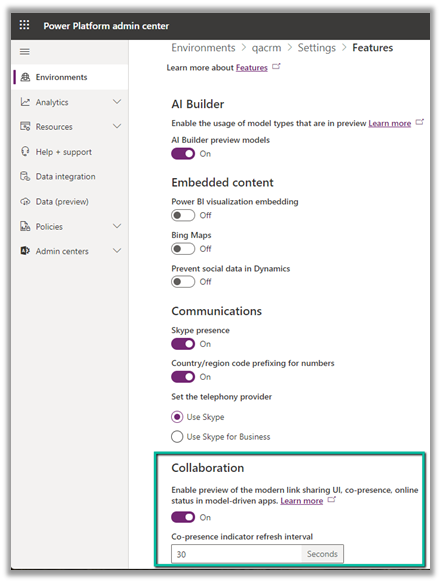
To enable the Collaboration preview feature, log in to the Power Platform Administration Center, select the Environment >> Settings >> Features >> Collaboration


Currently, the following entities are supported – Case, Contact, Account, and Opportunity.

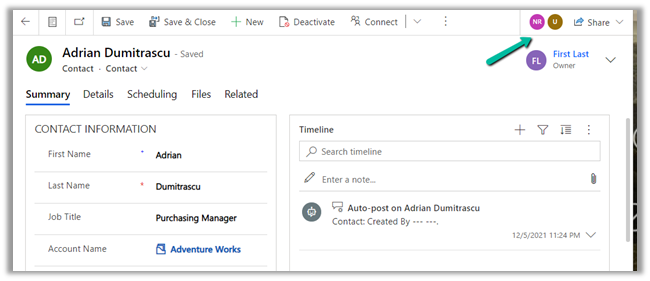
Enabling this feature adds a new section in the command bar for the records, that allows us to see the other users working on the same record.

Here we can see 2 other users working on the same contact record.

We can select the user’s picture to see their status, send an email, start teams chat, and open the contact card.

Send Email opens the default mail app with To populated.

Teams chat opens the team for a chat.

Open contact card opens the contact’s card.

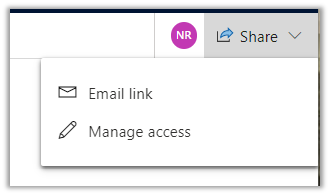
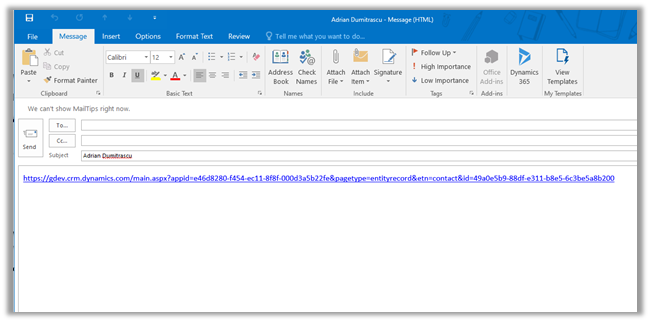
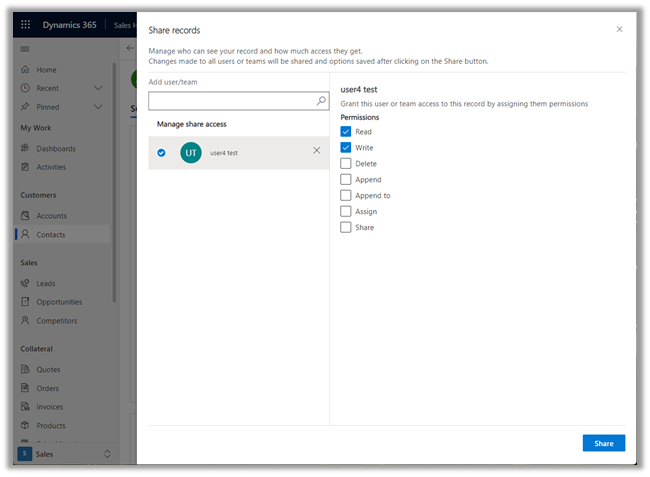
Share allows emailing the link of the current record and sharing the record.

Email link

Clicking on Manage access opens the share records dialog.

Get all the details here –

https://docs.microsoft.com/en-us/powerapps/user/collaboration

Also check – Collaborate using comments –https://nishantrana.me/2021/12/16/collaborate-using-comments-preview-in-modern-app-designer-power-apps-dynamics-365/

Hope it helps.. 
Advertisements

How to – Use Advanced lookup in Model-driven Power Apps / Dynamics 365


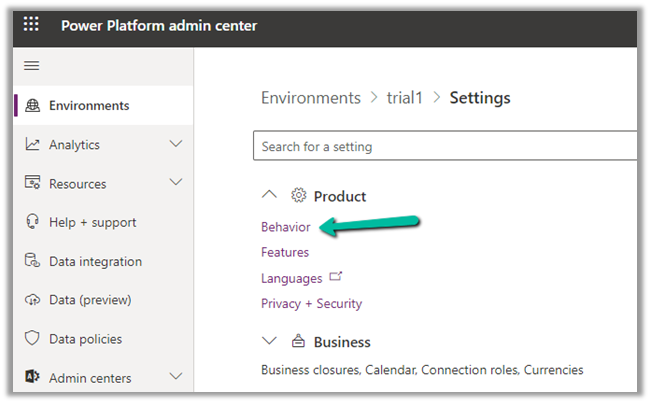
To enabled Advanced Lookup, log into to Power Platform Admin Center, navigate to

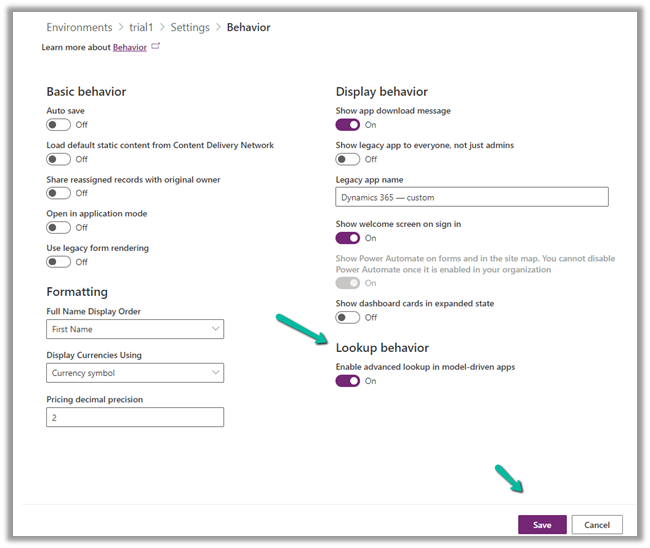
Environment >> [Select Environment] >> Settings >> Behavior

Enable the Lookup behavior and Save.

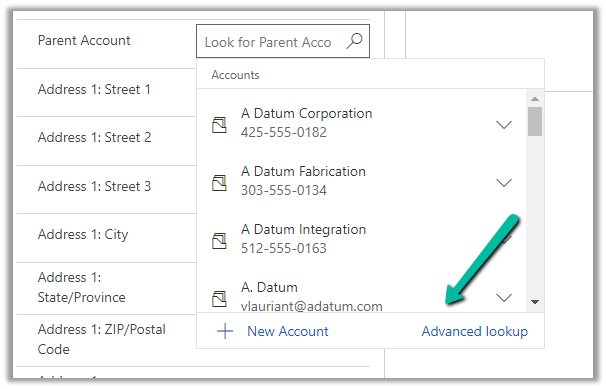
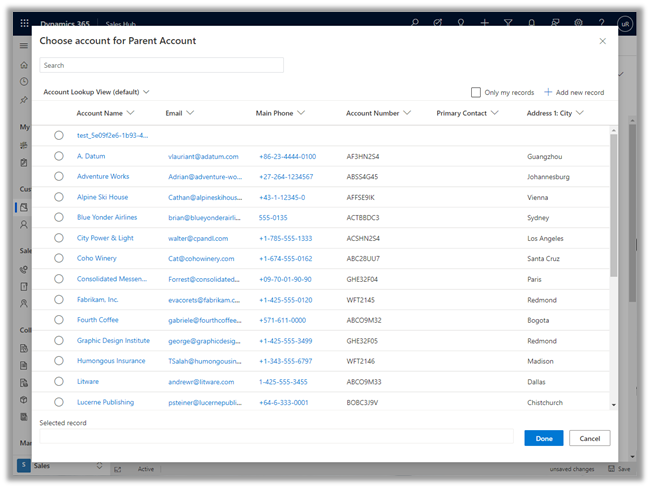
This adds the Advanced Lookup option in the Lookup dialog.


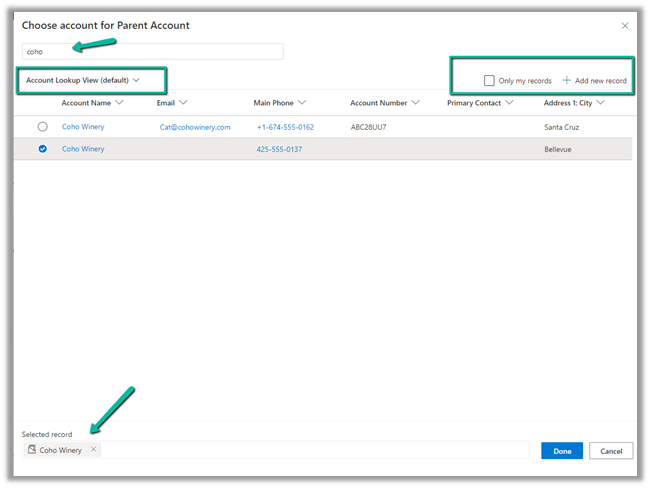
Clicking on it opens the Advanced Lookup Grid 


We can perform SEARCH within a selected View, CHANGE a view, can FILTER it the results further to show only records owned, ADD a new record, SORT the grid.


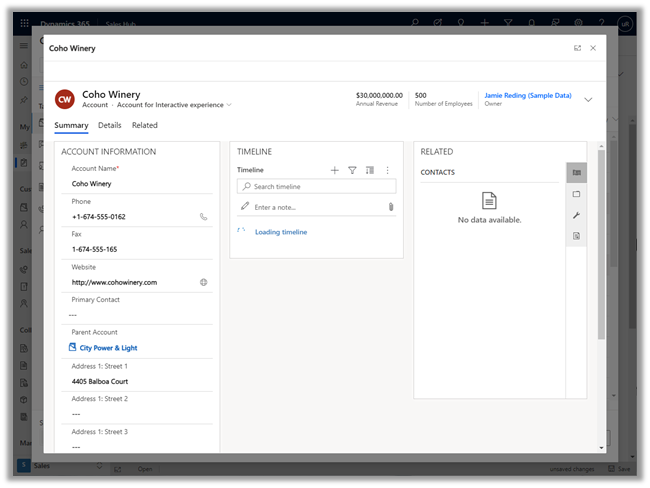
The best part is we can open/edit an existing record as well as add new ones without losing the existing context.

Opening an existing record from the result opens the record in the new pop-up window as shown below.

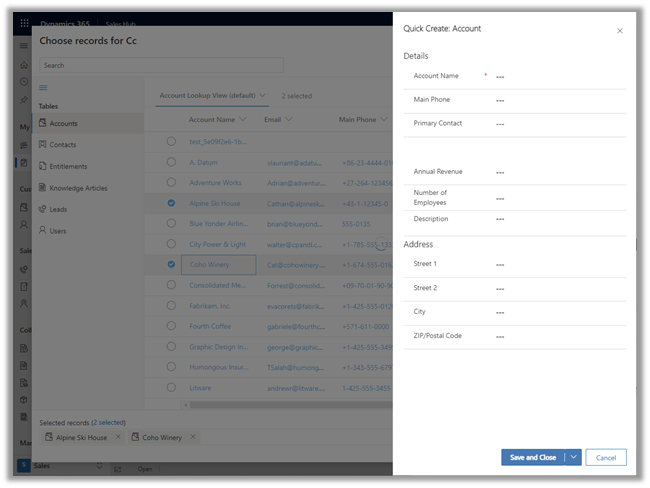
Similarly, the Add new option opens the Quick Create form.

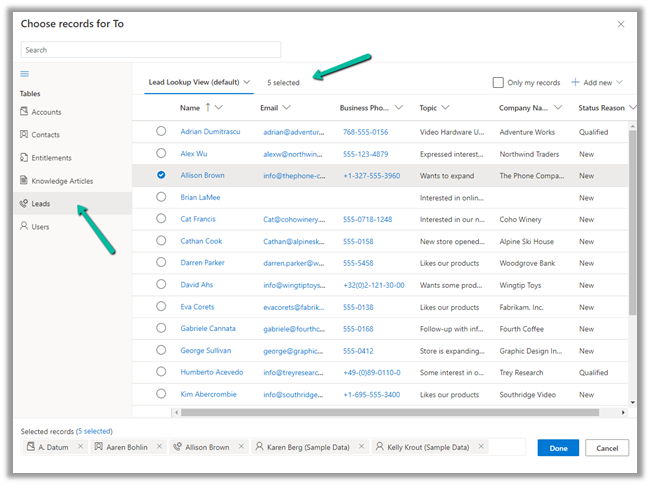
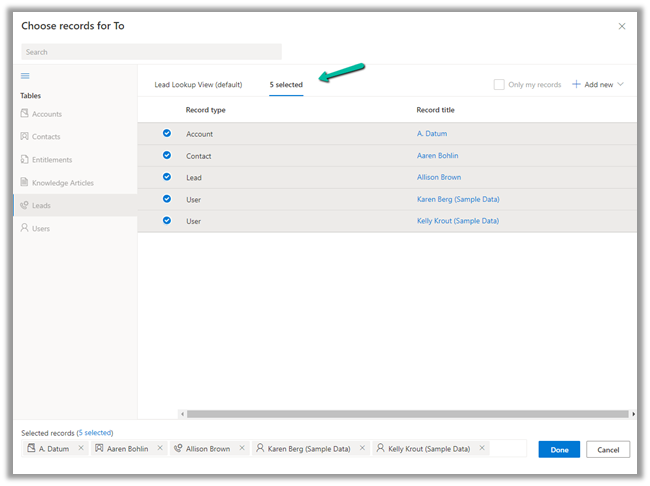
In case of special data type like Party List or Regarding, we can select multiple records of different entities we are presented with.

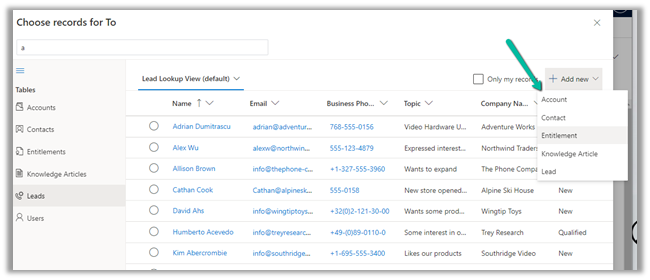
Similar the option to Add new records list all the tables/entities applicable to that lookup.

Thus the new advanced lookup makes working with Lookup much simpler and effective and we should start adapting / using it.

Blog posts on 2021 Release Wave 1 – Dynamics 365

Hope it helps..

Advertisements