
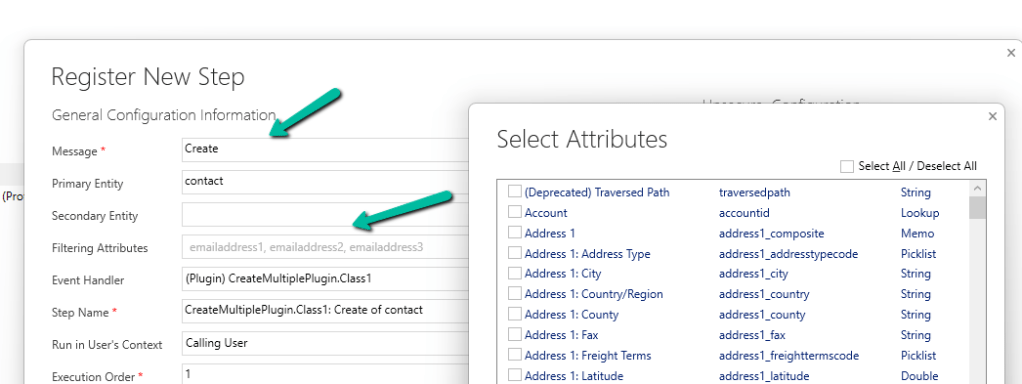
While registering a plugin step, found that we can now specify Filtering Attributes for Create message.
Check the below post for more details –
Advertisements

While registering a plugin step, found that we can now specify Filtering Attributes for Create message.
Check the below post for more details –

Sales Copilot can be used to get the latest news for the company or account associated to the Lead, Opportunity, Contact, or Account form. We can also use the prompt “Get latest news for account” and either specify and account record or choose one of the account record listed.
Allow data movement across regions in the Power Platform Admin Center using Enable copilots and generative AI features outside United States and Switzerland – Power Platform | Microsoft Learn
To enable Sales Copilot, navigate to
Sales Hub >> App Settings >> Sales Copilot (preview) >> Set up Sales Copilot

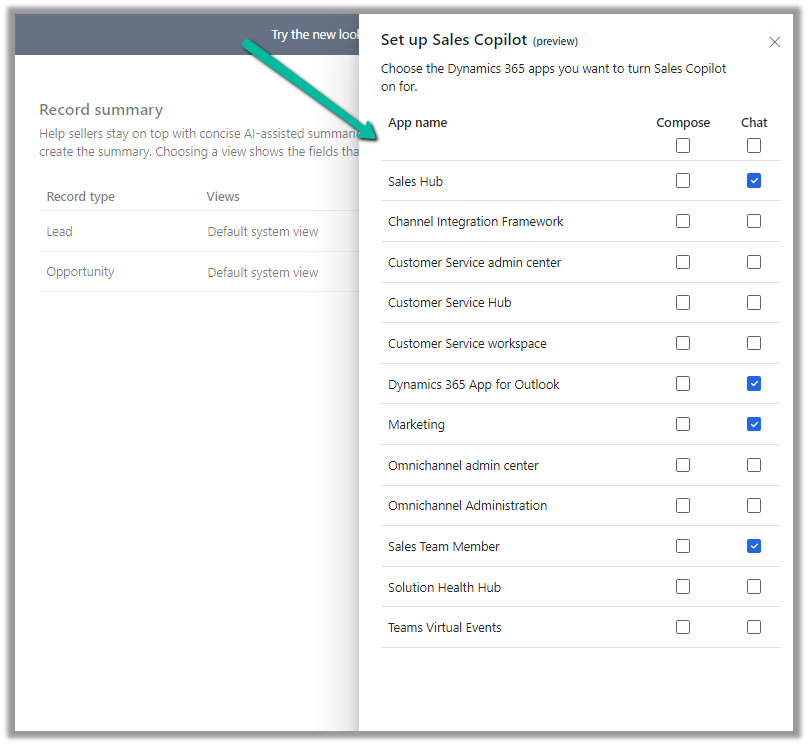
Or if we have already enabled it, we can manage the features provided along with the different apps we want to apply the Sales Copilot using the Manage apps option.

Here we can specify to which apps we want to enable the feature.
Once enabled we can see the “Get latest news related to account” command in the Sales Copilot chat.

Below is the result we get on triggering that command.

We get the same command for the Opportunity, Contact, and Account form.

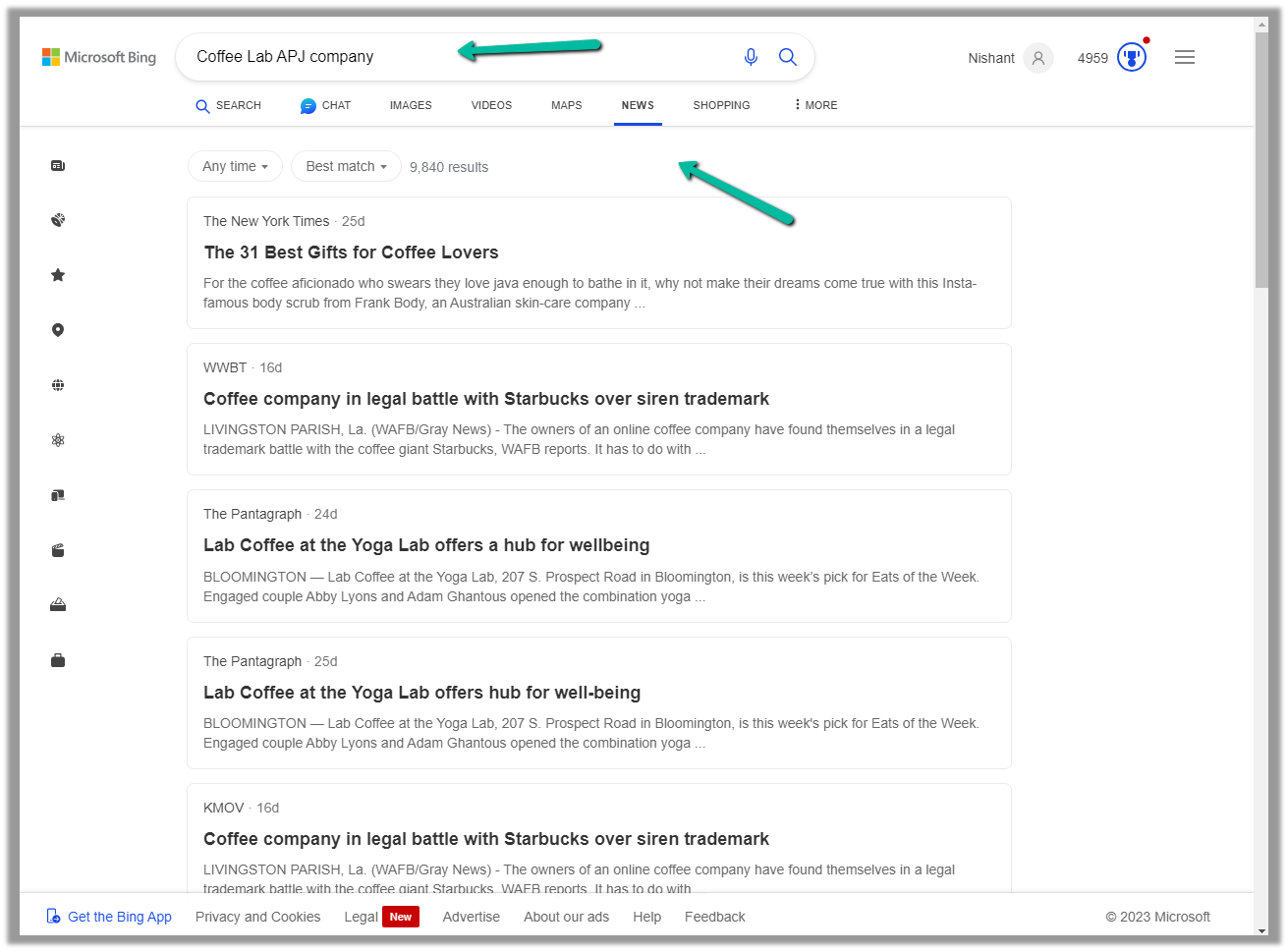
We can use the command “Show more in Bing” to open the Bing Search Results.

Below we can see the results in Bing
Get all the details here
Hope it helps..

Sales Copilot can generate a quick summary of a lead and opportunity record, based on the fields defined in a view.
Allow data movement across regions in the Power Platform Admin Center using Enable copilots and generative AI features outside United States and Switzerland – Power Platform | Microsoft Learn
To enable Sales Copilot, navigate to
Sales Hub >> App Settings >> Sales Copilot (preview) >> Set up Sales Copilot
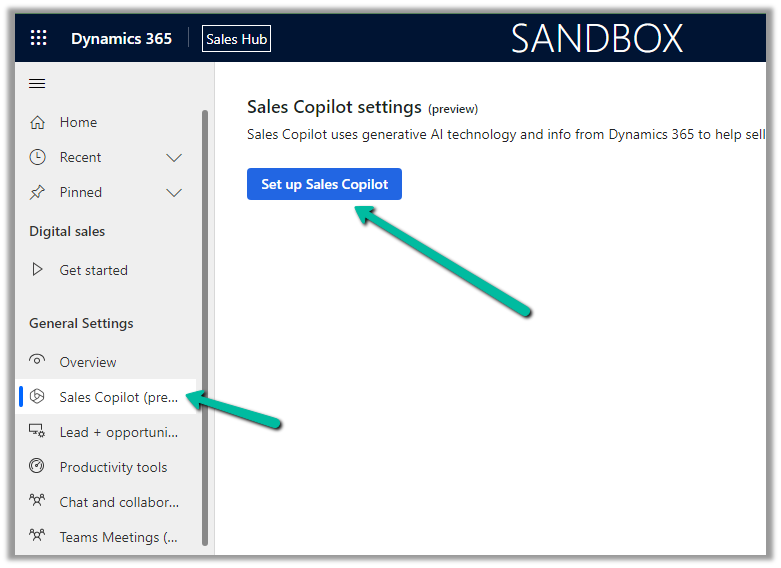
Or if we have already enabled it, we can manage the features provided along with the different apps we want to apply the Sales Copilot using the Manage apps option.
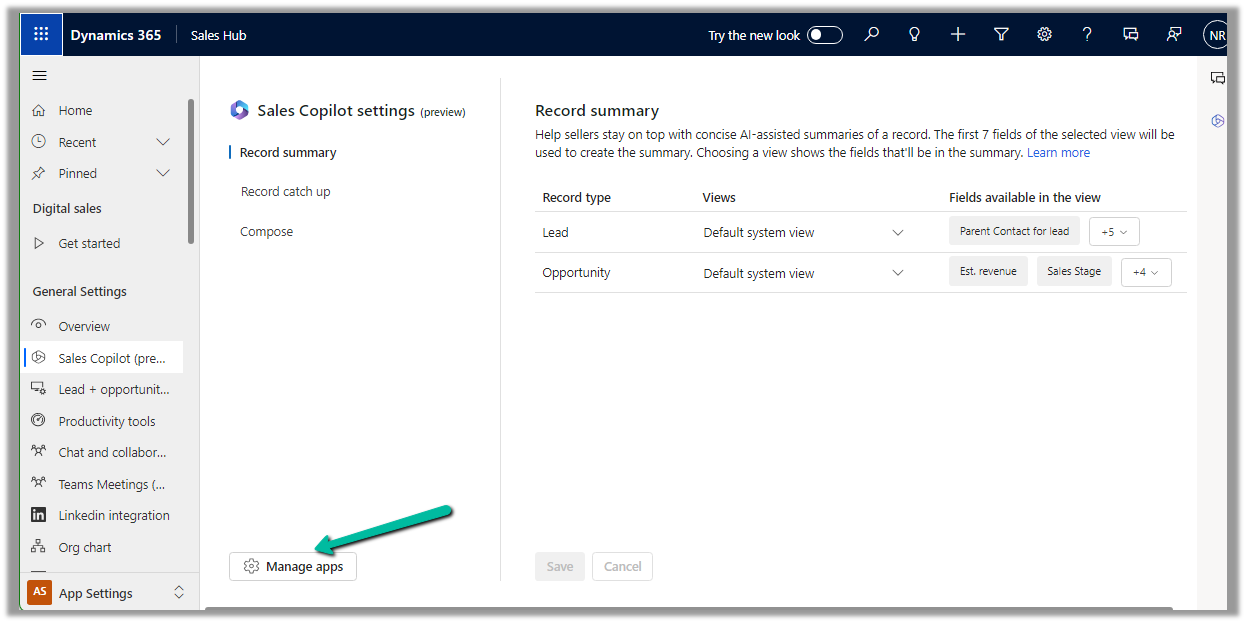
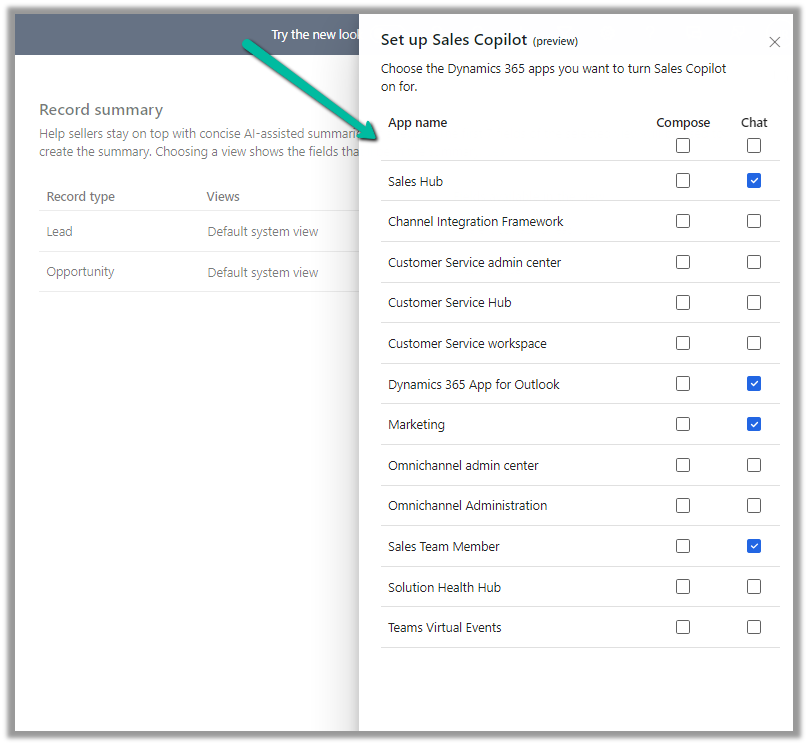
Here we can specify to which apps we want to enable the Compose and Chat feature
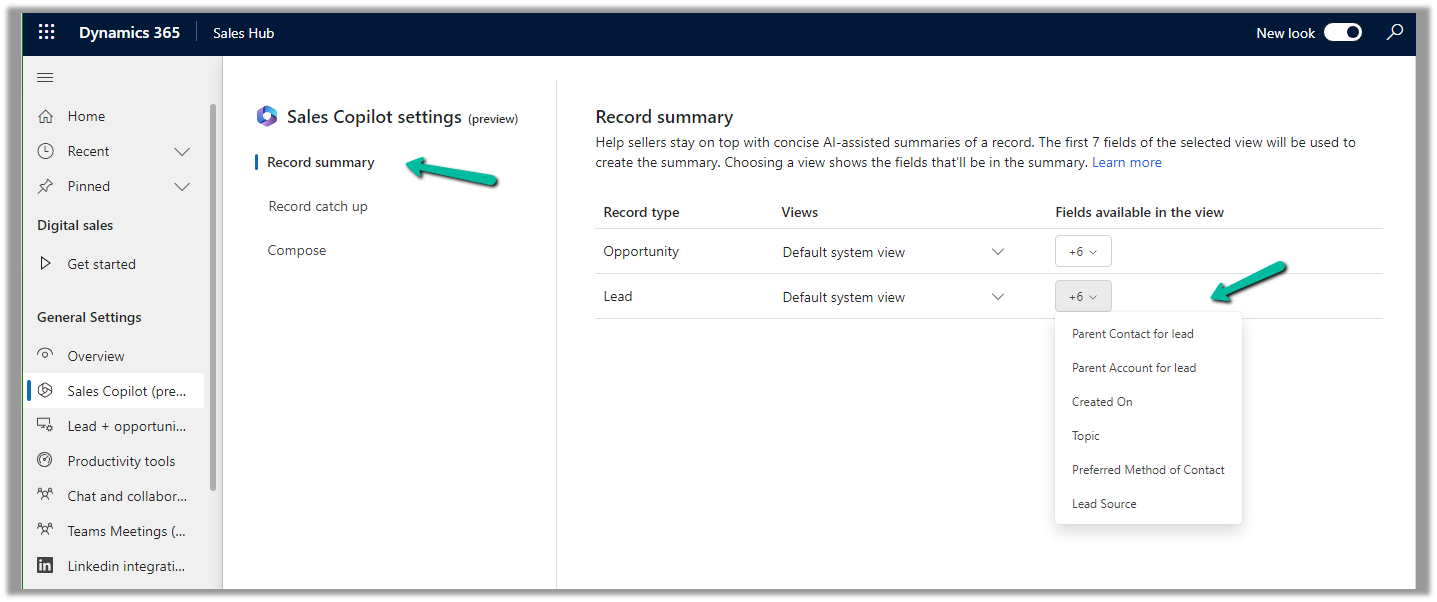
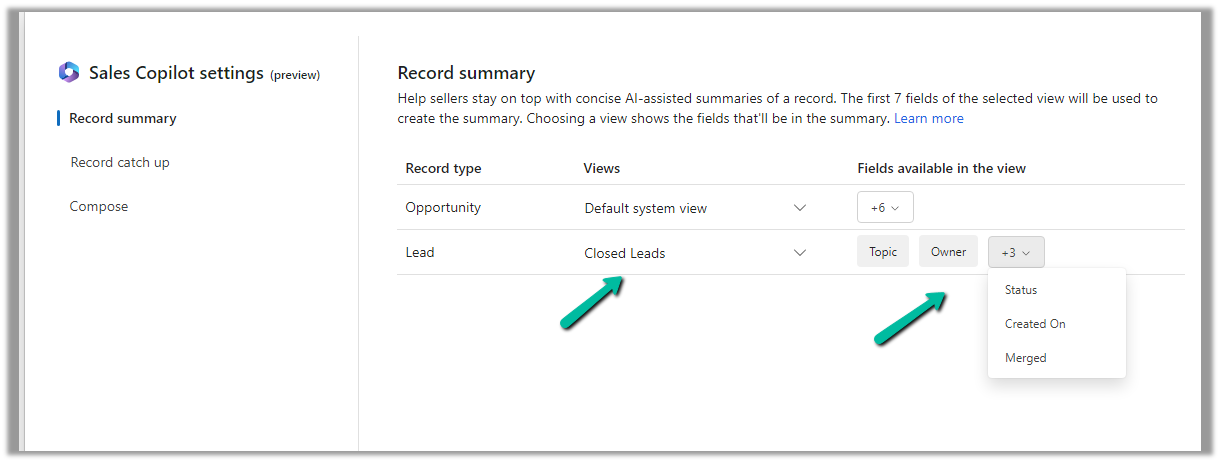
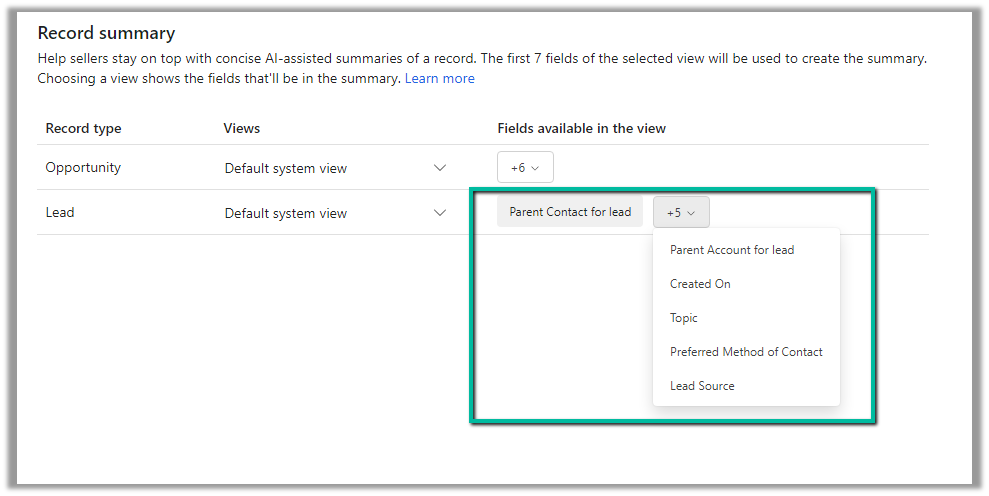
For the Record summary feature, the first 7 fields of the view are considered. We can see “Default System View” selected by default.
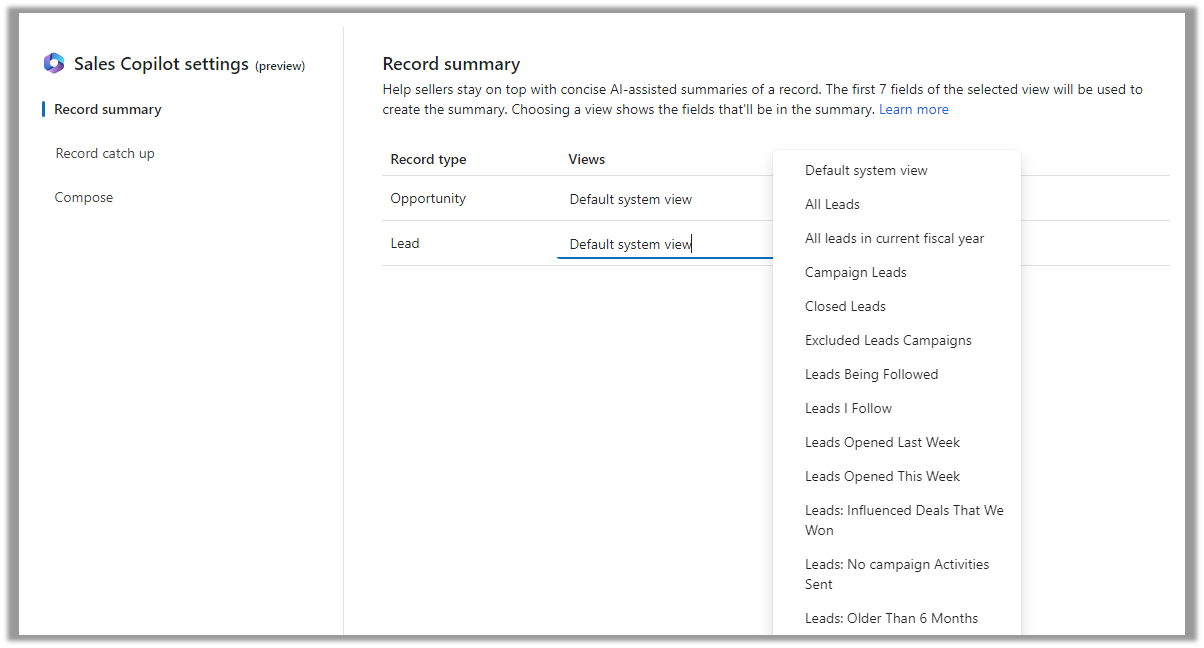
However, we have the option to select a different view, and then the fields of the selected view will be used for the summaries.
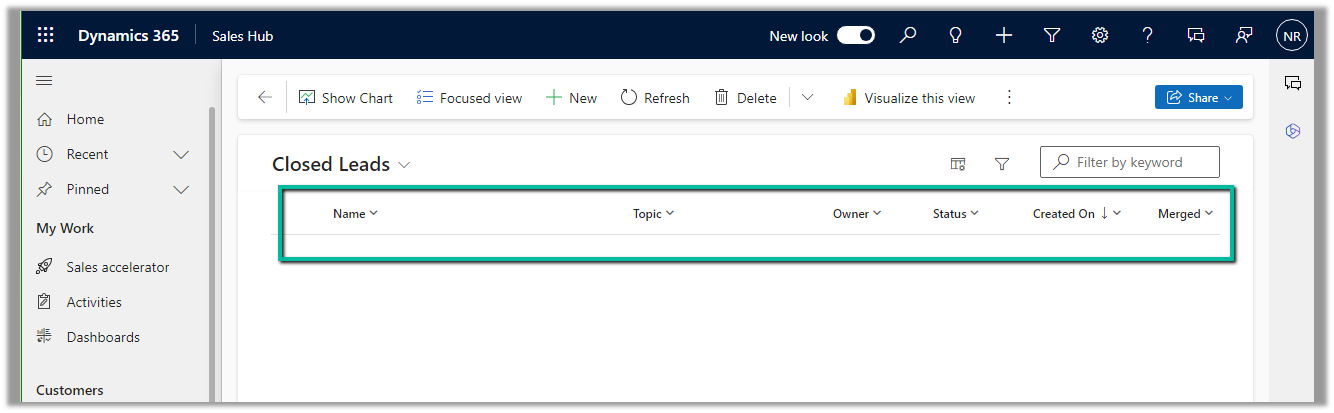
Below if we select the Closed Leads view and we can see it corresponding fields that will be considered for the summaries.
The Closed Leads view
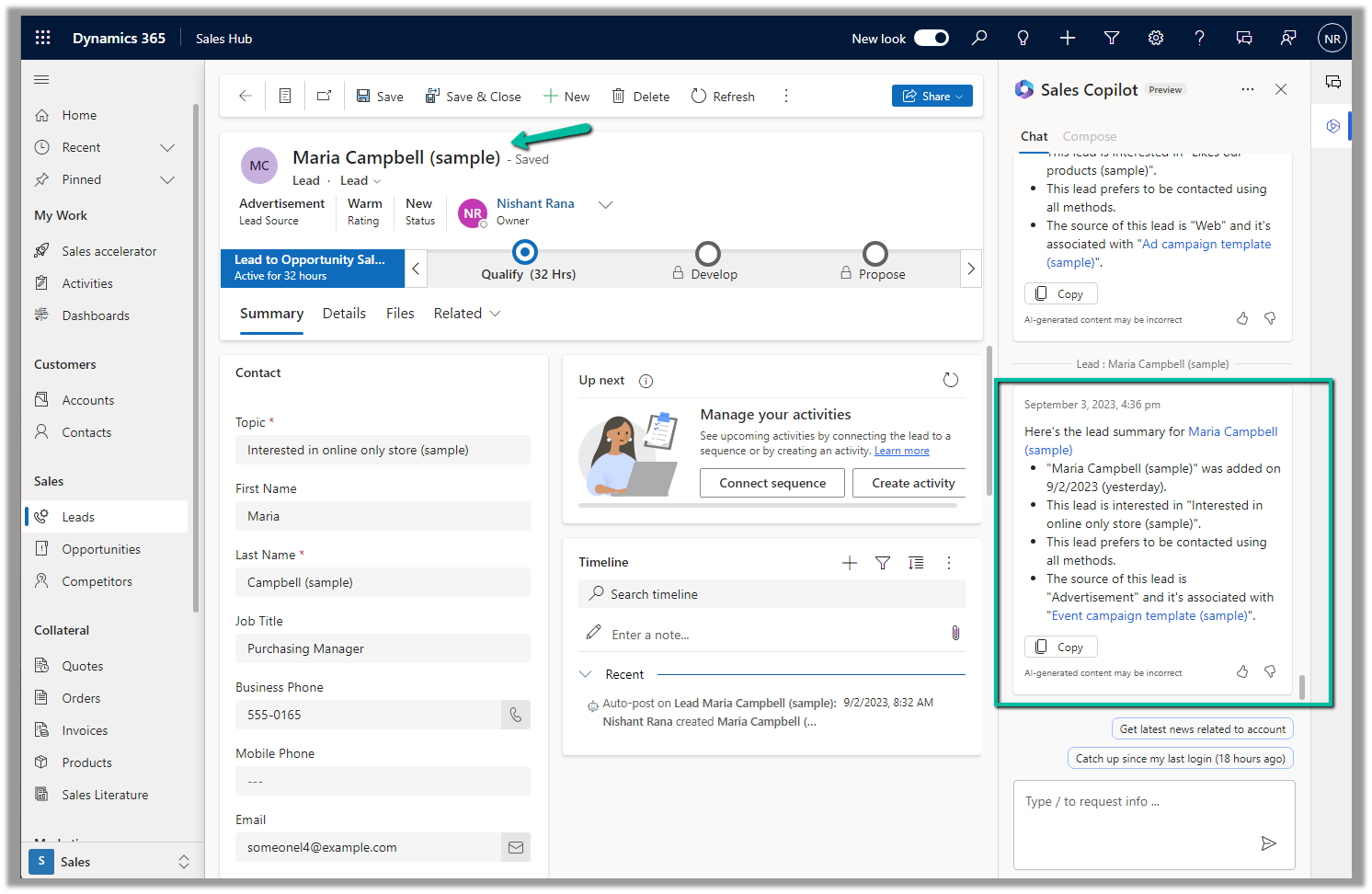
We can open an existing lead or opportunity record, and the Sales Copilot automatically generates the summary for that record.
Or if we want to generate summary for a specific lead or opportunity we can use the below prompt.
Summarize lead or Summarize opportunity followed by @ and the record’s name.
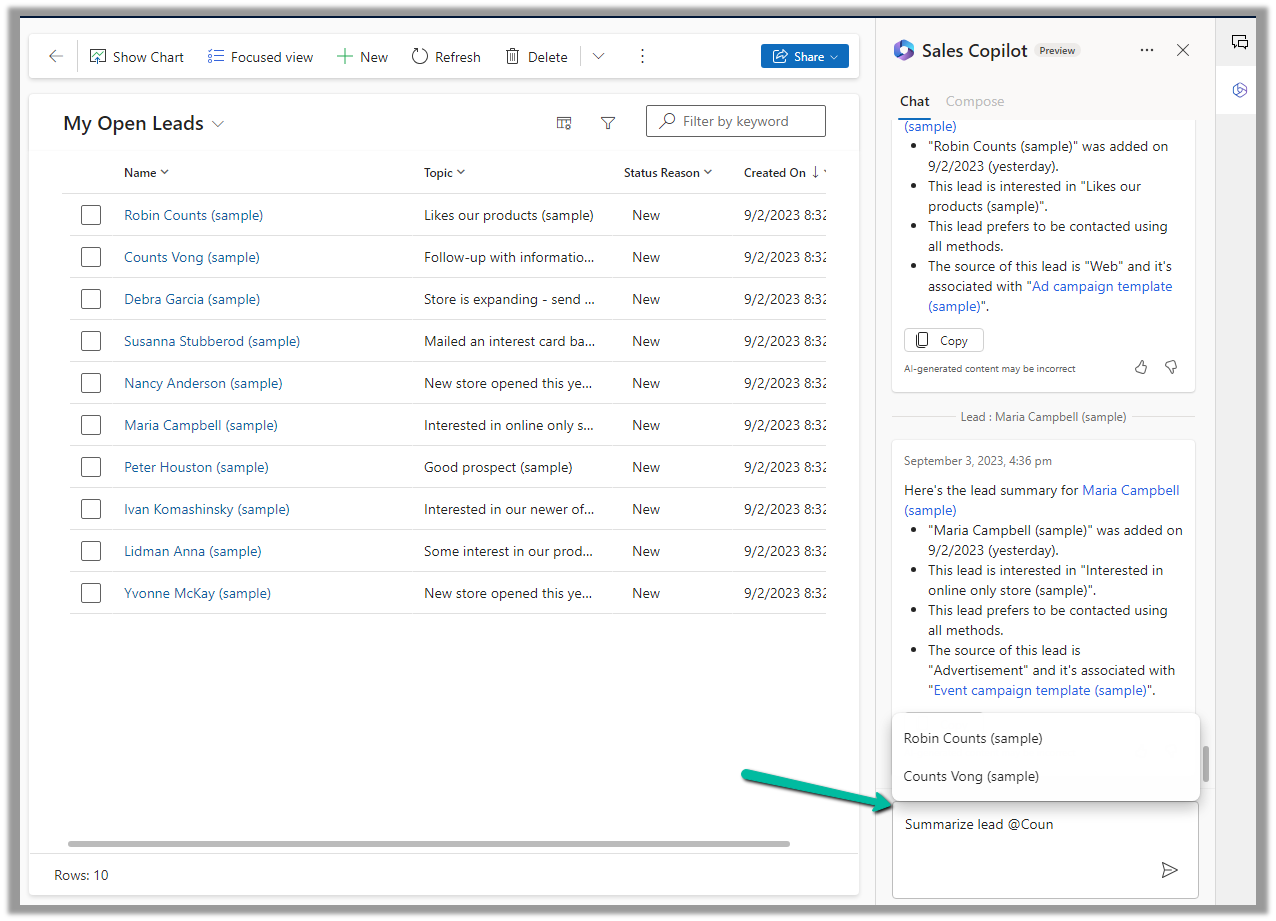
Below is the summary for Counts Vong (sample) lead record.
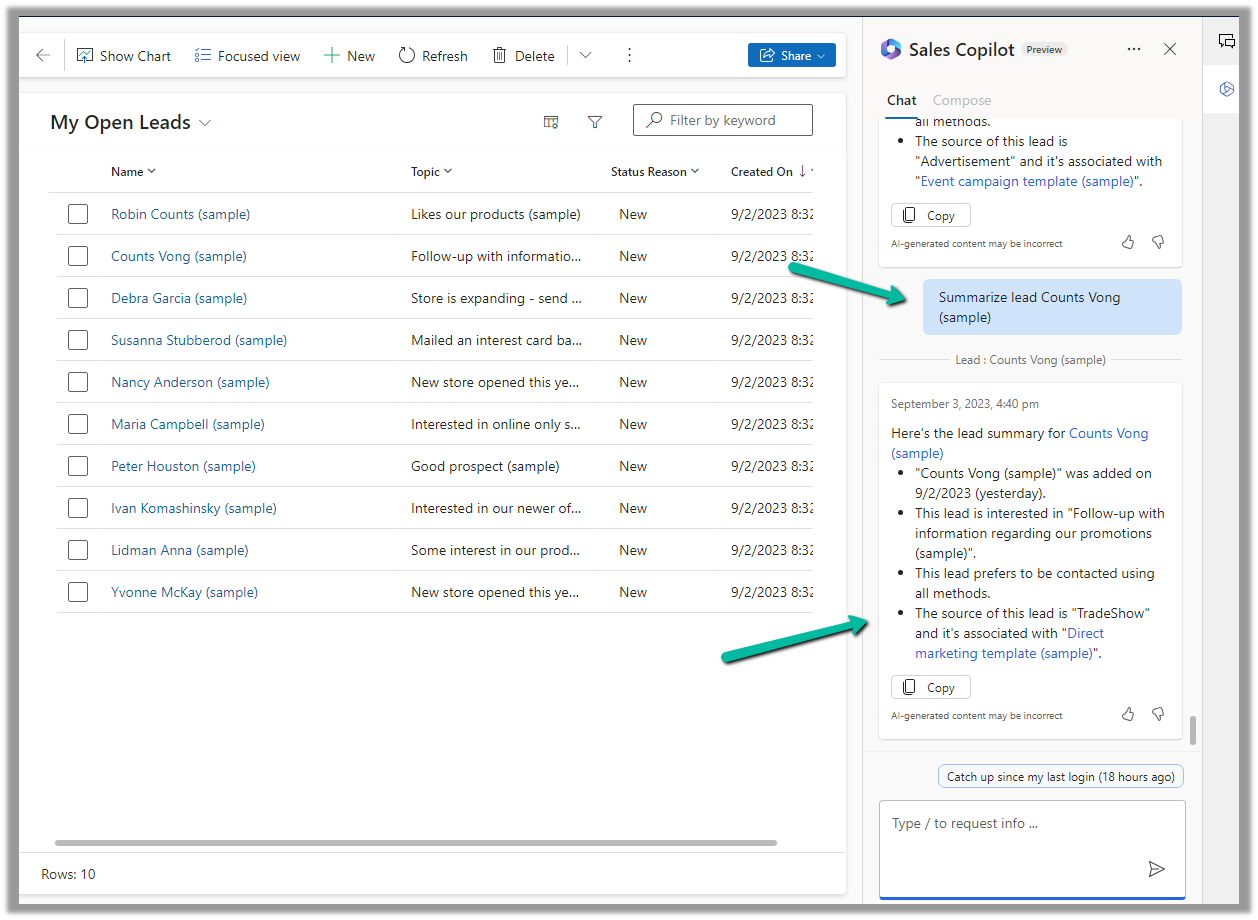
Here we can see the AI-generated summary making use of Created On, Topic, Preferred Method of contacct, Lead source field etc of Default system view.
Get more details here.
Hope it helps..

Check out the below articles explaining in detail the Reparent behavior.


The new modern refreshed look for the Model-driven app can be enabled from Maker Portal >> Model-driven App (Edit) >> Settings >> Upcoming – Try the new look and feel (preview)
The new look makes use of the latest Fluent UI React Components

Or now we see the option to Try the new look in the app itself in the command bar.

Let us look at the changes
(open the image in new tab to view it clearly)


Get all the details here
Hope it helps..

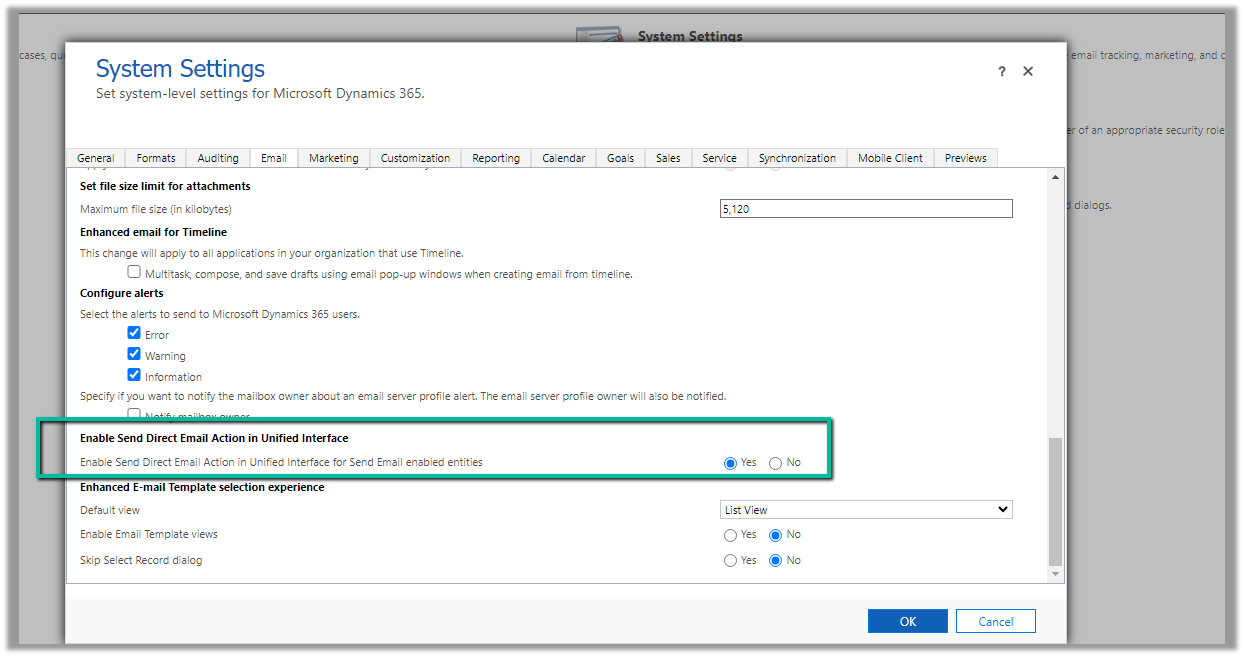
To enable the option of sending bulk email / direct mail in Unified Interface, we can navigate to Settings >> Administration >> System Settings >> Email >> Enabled Send Direct Email Action in Unified Interface
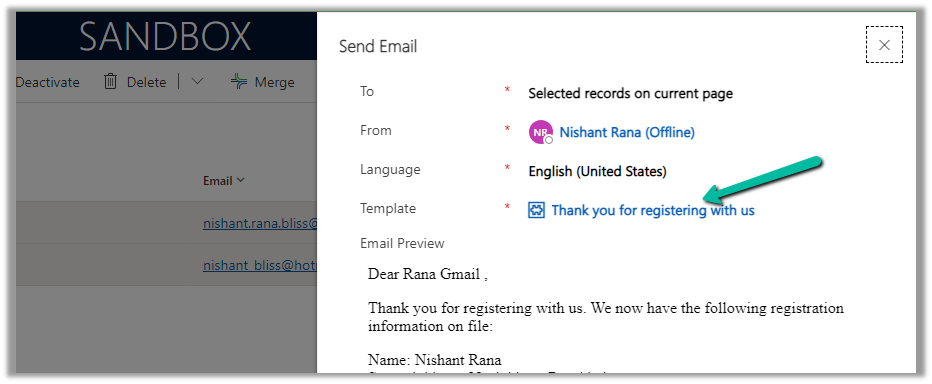
Now on selecting the record(s) of email enabled table, we get the option “Send Direct Email”

We can also specify the Email Template and preview the content before sending.
We can see the mail received in the Hotmail account from the CRM user’s email id/mailbox configured.
Here the end-user has also replied to the email.
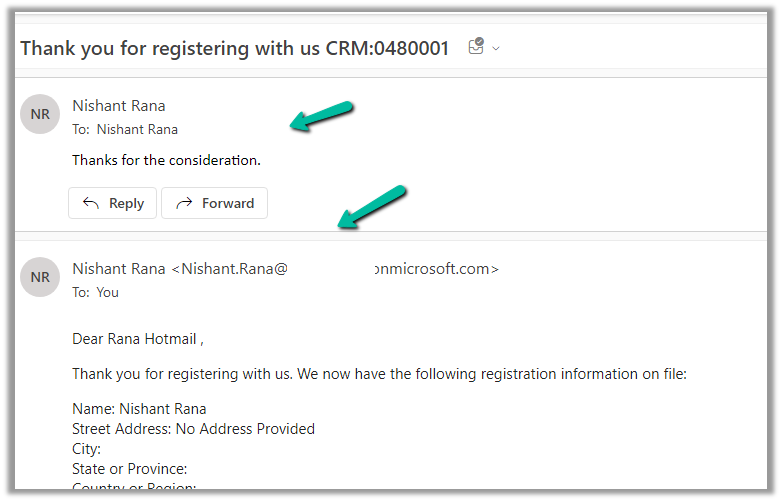
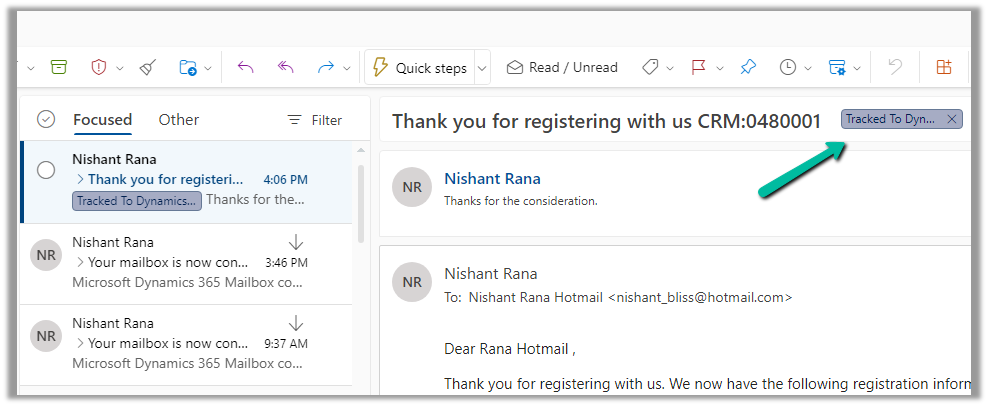
We can see the response / reply automatically “Tracked to Dynamics 365” in the CRM user’s outlook. (based on the CRM user’s Personal Options setting)
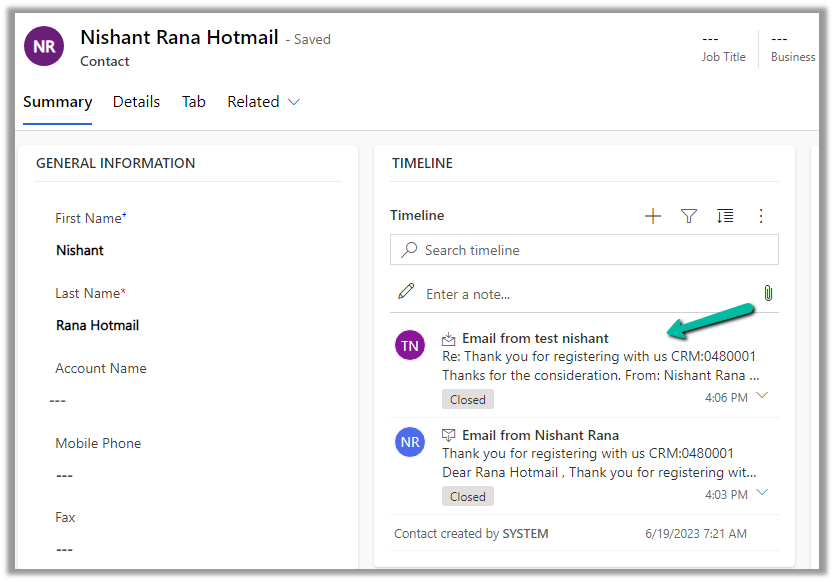
Which creates Email activity (closed status) in the corresponding contact record inside CRM.
More on Tracking Email –
Hope it helps..



 Nishant Rana's Weblog