Configure Customer Service Analytics and Insights in Dynamics 365 Customer Service Hub (Preview)


With the recent updates, the Analytics and Insights that were earlier only available inside Customer Service Insights and Customer Service Analytics for Dynamics 365 in Power BI are now accessible from within the Customer Service Hub.

Navigate to the Service ManagementAnalytics and Insights – Settings (preview) section inside Customer Service Hub to enable it.

Toggle the Enabled option to enable Analytics reporting.

The reports can be viewed from Reports (preview) – Service Area

To enable Insights, click on Get Started.

It will perform a check for the license before setting things up.

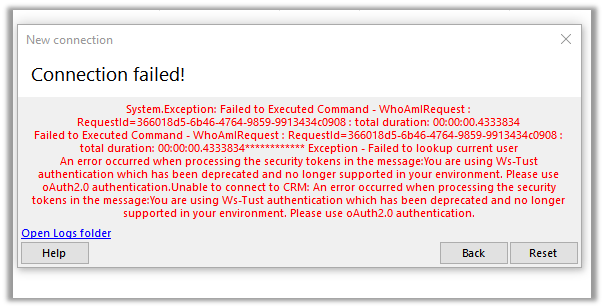
We’d get the below error if the license is missing.

To get the license, log in to the admin portal.

https://admin.microsoft.com/

For Purchase Services, select Dynamics 365 Customer Service Insights.

Enable the trial.

Assign the license to the user.

This time the configuration will be successful.

Clicking on View reports will open the reports.

We have the option to share, configure it, and to open it inside the Customer Service Insights app.

  • Both the reports and insights are accessible from Service Area the Customer Service Hub

AS

Get all the details here

https://docs.microsoft.com/en-gb/dynamics365/customer-service/introduction-customer-service-analytics

Hope it helps..

Modern email template experience in Dynamics 365 – 2020 Release Wave 2


With 2020 Release Wave 2, we can now author the email template from within the Customer Service Hub app. (along with the classic Settings – Templates – Email Templates section)

Other blog posts on 2020 Release Wave 2

Navigate to Service Area – Templates

Clicking on New brings the below window, where we can specify Template Name, Permission Level, Category (entity), and Language.

The classic experience – (it had only template type field – which included value Global and entities)

  • The new Email Template editor brings a rich text experience. ( with the option of working with image inline)

The classic experience –

  • The new Email Template also brings the new modern and familiar toolbar.

legacy experience –

  • The new Insert / Edit dynamics text screen

Classic one –

  • We can also add attachments to the email template.

Now if we create a new email and try to apply the above template, we will be presented with the below message, which asks us to save the record first and then inserts the template, if we want the attachments to be part of it.

After saving the record, we can now insert the email template which also adds the attachments.

Dynamics 365 2020 release wave 2 –https://docs.microsoft.com/en-us/dynamics365-release-plan/2020wave2/

Hope it helps..
Advertisements

Custom entity support for PDF document generation in Dynamics 365 – 2020 Release Wave 2


With 2020 Release wave 1 we had PDF generation capability added to Lead, Contact, Opportunity, Quote, Order and Invoice entity.

https://nishantrana.me/2020/02/13/save-and-email-pdf-options-added-to-dynamics-365-sales-2020-release-wave-1-plan/

This has been extended to the custom entities with new capabilities added in 2020 Release Wave 2

Other blog posts on 2020 Release Wave 2

In Sales Hub, navigate to App SettingsProductivity Tools – Convert to PDF and select Manage


We can Search / Select the entities to enable it.


Let us enable it for the Contact entity

We can see the “Export to PDF” command added after enabling the Convert to PDF option in the contact entity.

Clicking on it we are presented with below options if we do not have any active document template available for that entity.

Let us enable PDF generation on the Account entity (as it has the document template available out of the box) and try the same.

After enabling it for Account entity, clicking on Export to PDF, gives us option to  preview the PDF document based on the template selected

Download option  will download a copy of the pdf.

The Email option will open the compose email window with the PDF attached.

Save to Dynamics will save it in the timelines as note’s attachment for that record.

This definitely was one of the most requested feature and thanks to Microsoft for adding it in the new release.

Dynamics 365 2020 release wave 2 –https://docs.microsoft.com/en-us/dynamics365-release-plan/2020wave2/

Hope it helps..
AI suggestions for similar knowledge articles and cases in Dynamics 365 – 2020 Release Wave 2


The AI suggested knowledge articles and similar cases capabilities have been added in the Customer Service workspace to help the agents in faster resolution of the cases.

Check other posts on Release 2020 Wave 2

Open Customer Service Hub, navigate to Settings in Analytics and Insights section.

Click on Manage to configure the Suggestions.

Below Case Title is the field that is defined for Case summary and Description for the Case details as default.

The other fields that can be specified are

Similarly, we can enable knowledge article suggestions, for which Article title and Article content fields need to be specified.

The other fields that can be specified are

Save the configuration.

The settings can take up to 24 hours for processing the model and to complete the first-time setup.

To view the Smart Assist Pane where we will find all the suggestions –

Open the Customer Service workspace app

https://nishantrana.me/2020/08/13/new-customer-service-workspace-app-preview-in-dynamics-365-2020-release-wave-2/

In the Customer Service Agent Dashboard, use Shift + Mouse action to open the case record.

We can see the Smart assist pane opened to the right of the record.

  • Sample knowledge article components

  • Sample similar cases component

Get all the details below

https://docs.microsoft.com/en-gb/dynamics365/customer-service/csw-view-ai-suggested-cases-knowledge-articles

Hope it helps..


Email file attachment enhancements in Dynamics 365 – 2020 Release wave 2


Let us look at the changes that have been introduced in 2020 Release wave 2, with regards to the file attachments in Email.

Enable early access to 2020 release wave 2

Check other posts on Release 2020 Wave 2

Clicking on New Attachment button will,

open Manage Attachment dialog box in 2020 Release wave 1, wherein we need to click on Choose file to open the open file dialog box.

In 2020 Release wave 2, it will open the open file dialog box directly.

For the attached file, we have only the Delete option available in 2020 Release wave 1.

In 2020 Release wave 2, we have Preview, Download along with Delete option.

Clicking on Preview will open the attachment preview dialog box as shown below.

For attachment of type pdf, we get the below message

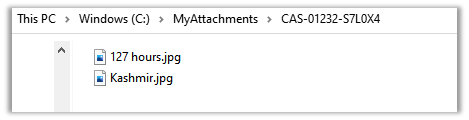
We do not see the preview option available for word document or text file.

Dynamics 365 2020 release wave 2https://docs.microsoft.com/en-us/dynamics365-release-plan/2020wave2/

Hope it helps..
Posts on 2020 Release wave 2 – Dynamics 365