*Updated 19 Sep – 2018 : Check out this powerful tool DBSync’s CRM connector, which could be used for bi-directional seamless integration of all the popular Application and Database with Microsoft Dynamcis 365- https://www.mydbsync.com/product/microsoft-dynamics-365-crm-integration
Data Export Service is an add-on that allows replicating CRM Online Data to Azure SQL Database.
The below video by expert Scott Durow is the best resource to learn about it
https://www.youtube.com/watch?v=txms2Yvn6Vc
Below are the steps we need to follow to configure it.
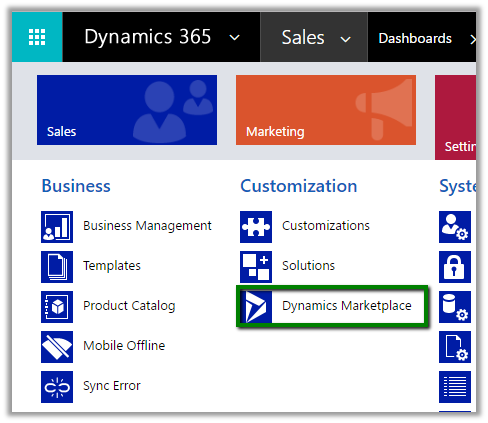
- Go to Settings – Dynamics Marketplace
- Search for Dynamics 365 Export Service
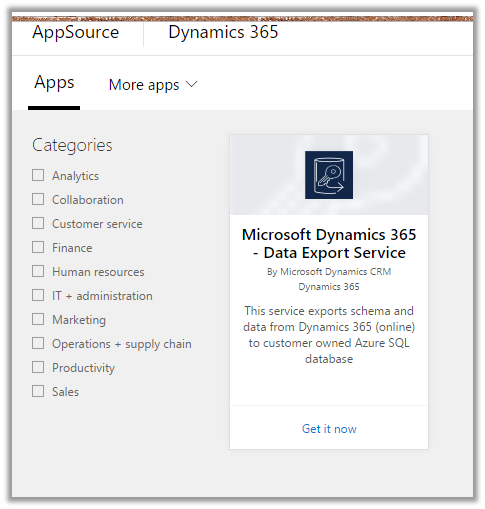
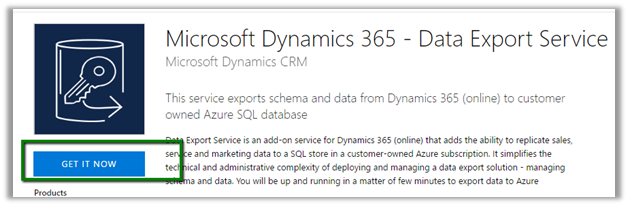
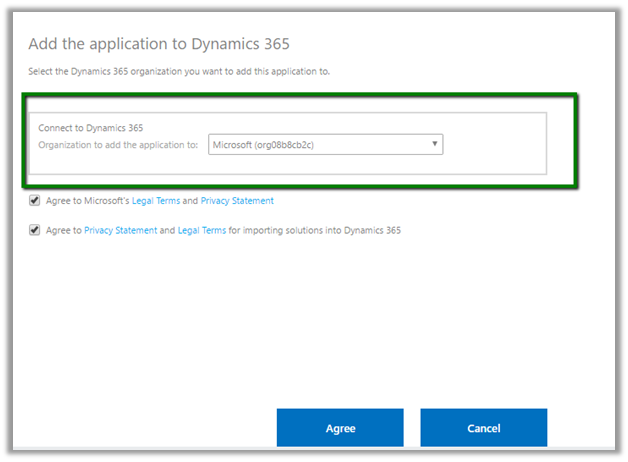
- This will install the Data Export Service solution
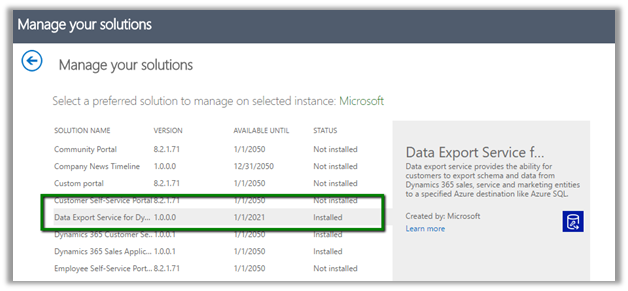
- Back in CRM – Go to Settings – Data Export. (Pop up window will open up a page for Data Export Authentication, so we need to enable pop up)
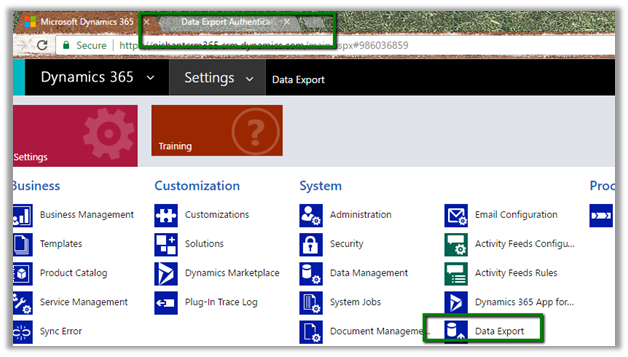
- Click on New to create a new Data Export File.

Basically, here we need the Key Vault URL here which stores the database connection string securely.
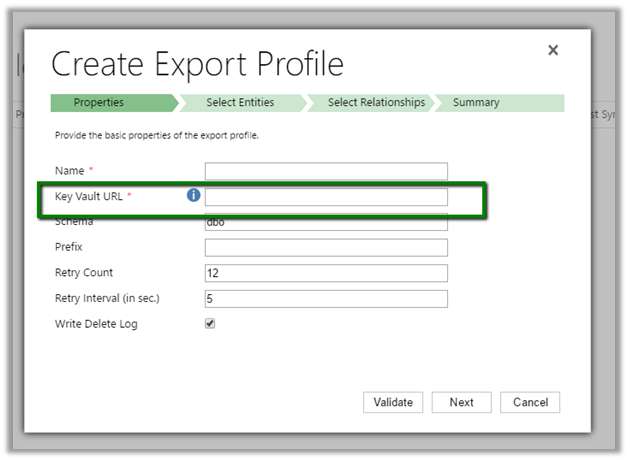
Clicking on the information icon opens up the dialog box with the below PowerShell script, which needs value for variables like subscription id, key vault name, secret name, tenant id etc.
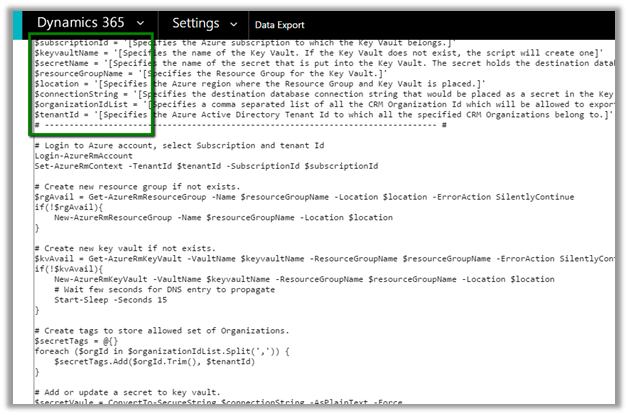
i.e.

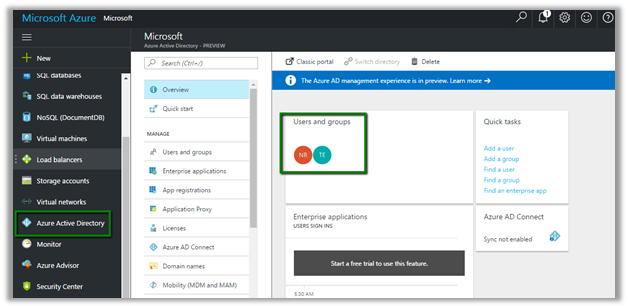
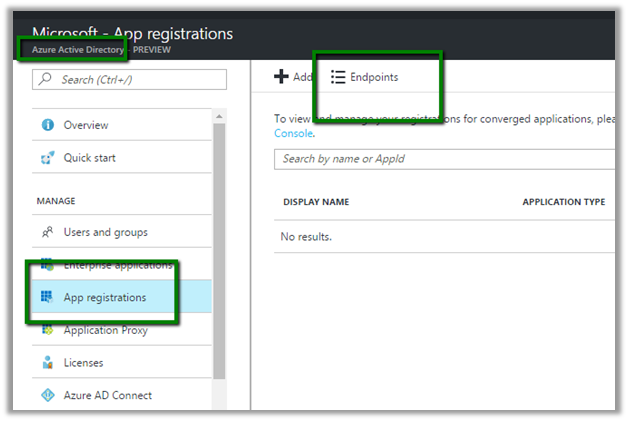
So as a first step here we need to configure Azure Active Directory (if Office 365 and Azure Tenant are separate)
https://docs.microsoft.com/en-us/azure/billing/billing-add-office-365-tenant-to-azure-subscription
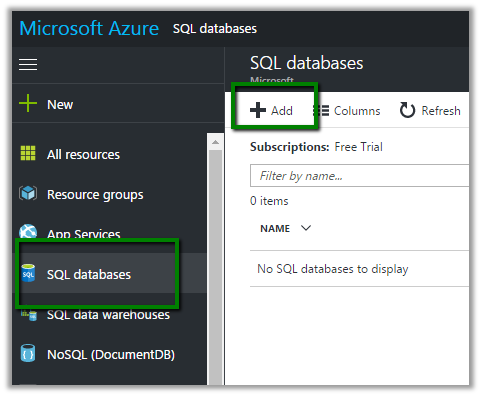
- Next step is to create Azure SQL database. Search for SQL databases in All Resources and click on Add
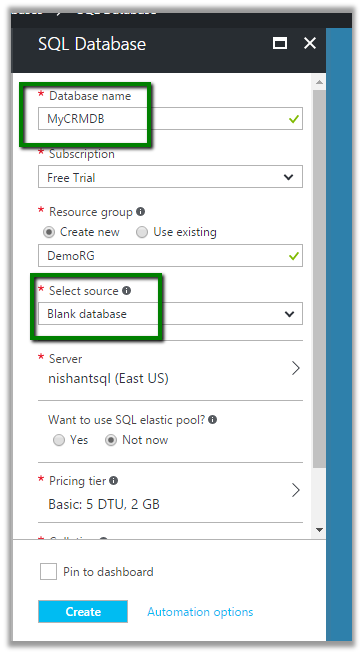
- Specify the required information and click Create.

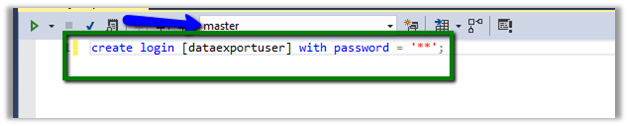
Next we need to create a User that will be used to configure Data Export Service and has appropriate rights in the database
Here the user has been assigned db owner role
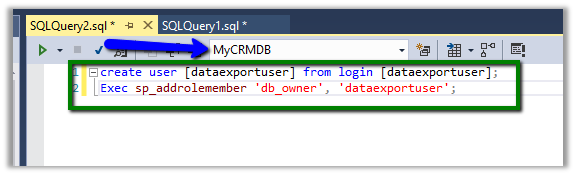
For the minimum rights required check the below article
https://technet.microsoft.com/en-us/library/mt744592.aspx

Now let us replace the below placeholders one by one

- Subscription ID –

- Key Vault Name – NishantDemoKeyVault
- Secret Name – DataExport
- Resource Group – DemoRG
- Location – East US
- Connection String –


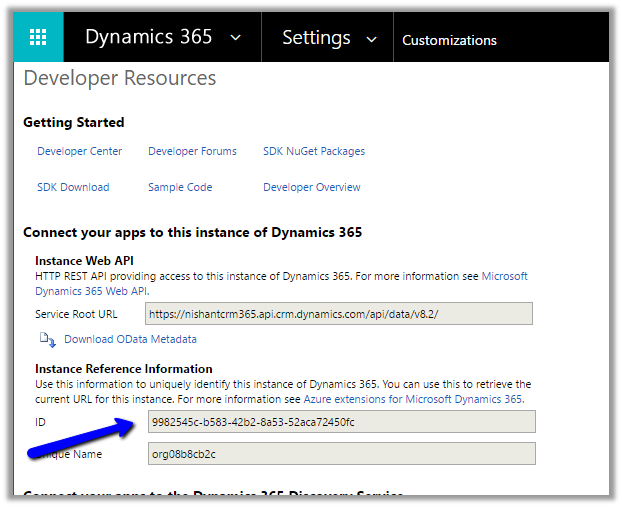

KeyVault record created in Azure à

- Going back to our Export Profile wizard, we need to paste the Key Vault URL
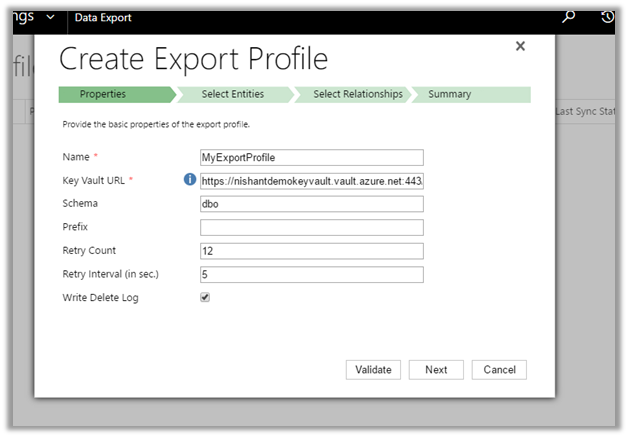
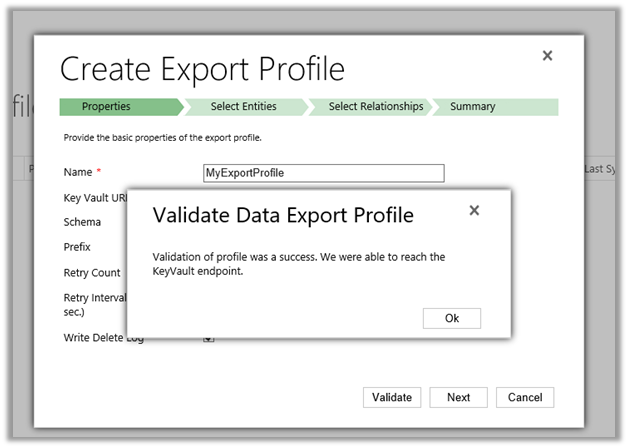
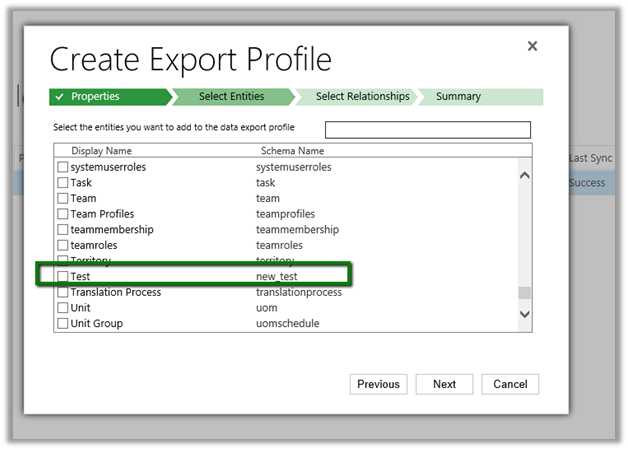
- Select the entity or entities for which profile needs to be created
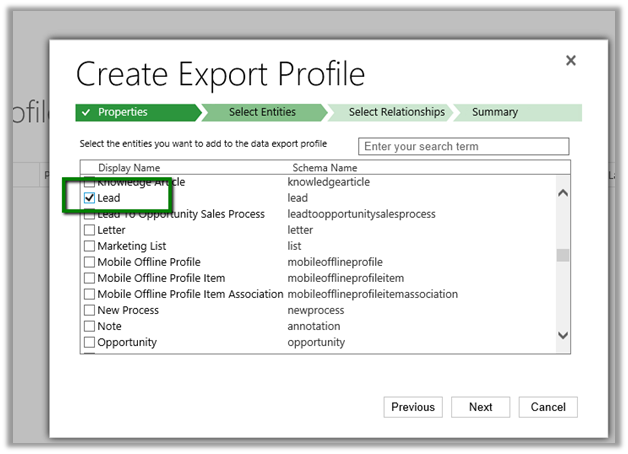

- Next click on Create and Activate

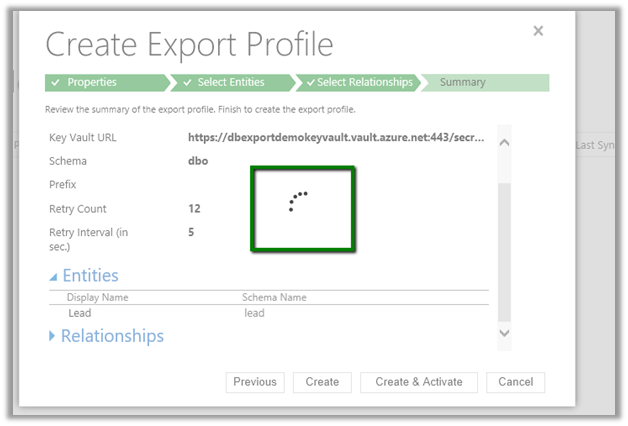
This creates the profile record in CRM


- Once Initial Sync Status shows as completed we can see the tables created in the Azure Database.
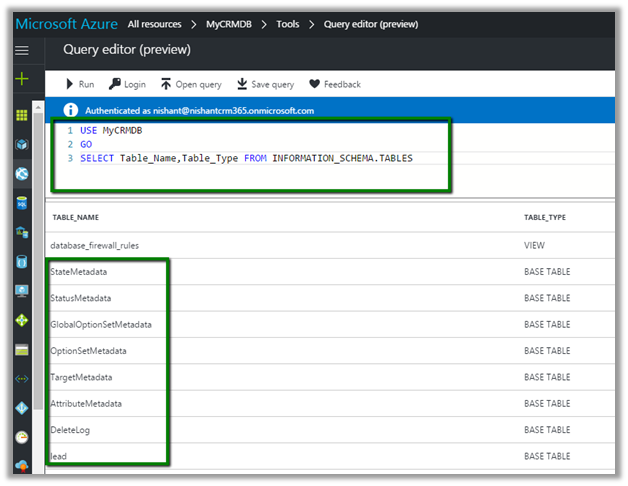
The records synchronized –
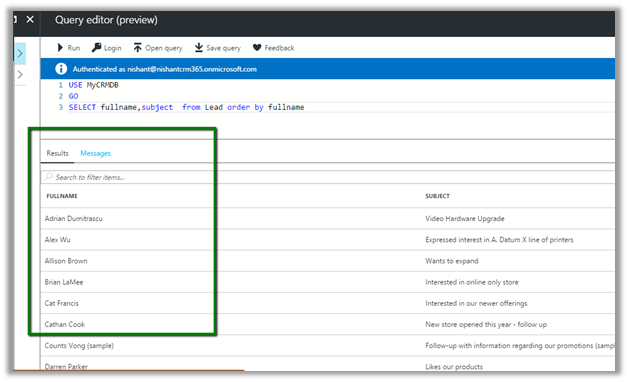
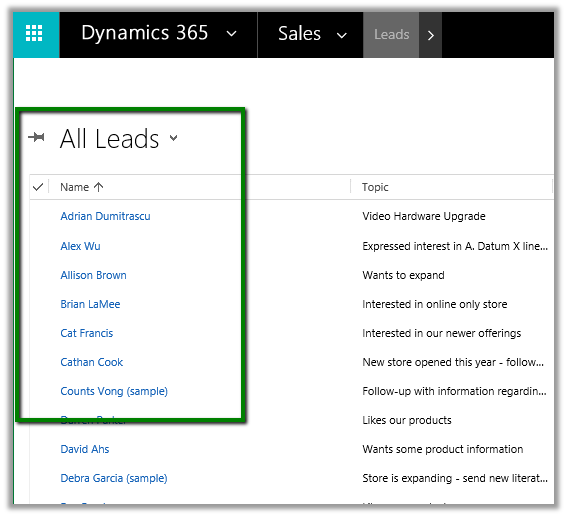
Let us delete the below selected lead records –

Delete Log table will hold the information of the deleted lead records

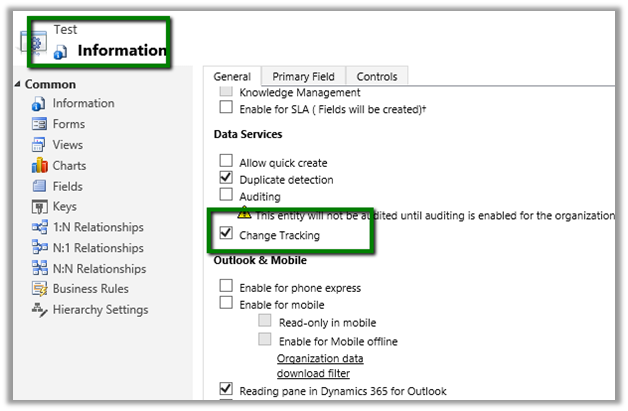
To create export profile for a custom entity, (say for e.g. entity named Test in our case)

We need to enable Change Tracking in it.
Get all the details here
http://develop1.net/public/post/Dynamic365-Data-Export-Service.aspx
https://technet.microsoft.com/library/a70feedc-12b9-4a2d-baf0-f489cdcc177d
Hope this helps..

















 Nishant Rana's Weblog