Power BI with Dynamics 365 CE – Creating Power BI Report


To begin with, let us first create a Dynamics 365 Trial.

https://trials.dynamics.com/

After our CRM trial is setup up successfully, we will install the OOB Sample Data which we would be using for creating the Power BI report.

Next, we need to create a free trial for the above user to use Power BI Service.

Go to Power BI site, and click on Start Free to get started.

Use the same user account (trial) that was used to set up the Dynamics 365 trial.

https://powerbi.microsoft.com/en-us

Note: If we already have an organization account with Power BI License we can use it to log in to Power BI else can associate a free trial to the same organization account instead of creating a new one. The gmail, hotmail, yahoo etc personal account are not allowed. https://app.powerbi.com/.

Download the Power BI Desktop as well as click on Try Free.

Power BI Desktop is basically a feature rich windows application that allows us to get data from various services online or on-premise and develop Dashboard and Reports efficiently.

The alternate way to download is through Microsoft Downloads siteà

https://www.microsoft.com/en-us/download/details.aspx?id=45331

After installing it and signing in and click on Get Data ribbon button to connect to the Dynamics CRM Online.

Select Dynamics 365 Online as the Online Services to connect to.

Specify the Web API URL of the instance.

Copy it from Customization à Developer Resources

Select the Organization Account and Sign in to the CRM Instance.

In the Navigator window, we have searched Lead entity and clicked on Edit to select the columns that we need for our sample report.

In the Query Editor window, click on “Choose Columns“, we have selected the Revenue, Created On, Subject and Owning
User field to be used for the report.

Now to get the Full Name of the system user for Owning User, expand that column, and select Full Name as the value to be displayed as shown below.

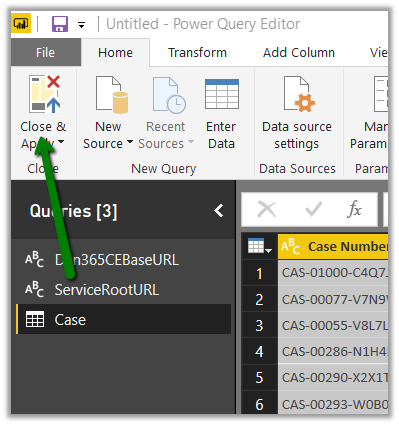
Click on Close and Apply to apply the changes to the query and to go back to the main editor.

Back in the main editor, we can see the fields added.

Now from the Visualizations section pick any of chart type.

Here we have picked a Stacked Bar Chart to start with. We can drag the fields and specify Area, Legend, and Value and also use the Filters section to generate the report as shown below.

The report after adding the fields à

Similarly, we can add our filter in the FILTER section to filter the records further as shown below

We can also add multiple charts in the report by selecting it from the Visualizations section.

For e.g. here we have used a Clustered Column chart to see all the leads based on Owner and Created On Date.

This completes the creation of simple reports which uses Dynamics 365 Online as Data Source.

In the next post, we’d publish this report to Power BI Service and display it within Dynamics 365 CE.

https://nishantrana.me/2018/08/20/power-bi-with-dynamics-365-ce-publishing-power-bi-report-to-the-web/

Hope it helps..

Maximum File Size Exceeded while using Export to Excel in Dynamics 365 CE


We got this error while trying to export around 70K data through export to excel in Dynamics 365 CE.

Log file gave us detail of the error i.e. Excel file exceeded size lime of 4 MB.

One workaround is to export small set of data (page wise) by applying some order criteria (either in the Grid or through Advanced Find)

Or better use the wonderful Export to Excel tool in XrmToolBox

https://dreamingincrm.com/2015/05/30/new-xrmtoolbox-plugin-export-to-excel/

It took few mins to export the records in excel and the file size was close to 19 MB.

Hope it helps..
Update/Upsert operation is not supported in non-transaction mode error in Dynamics 365 for Sales Connector of Informatica Cloud


Few weeks back while working on a migration project in which we were using Informatica Cloud’s Dynamics 365 for Sales connector, we used to get the below error while trying to perform the Upsert operation in Batch.

“In CRM WRITER_1_*_1> CCI_WRITER_1000 [ERROR] Update/Upsert operation is not supported in non-transaction mode. “

For this we had raised a support ticket with Informatica. The response we got was that this feature will be available in the new IICS Platform.

So recently we migrated to IICS from ICS and were glad to see this feature available i.e. “performing Upsert operation in Batch“.

Few other enhancements in the connector includes

Get all the details here

https://kb.informatica.com/proddocs/Product%20Documentation/6/CDI_Spring2018_ConnectorReleaseNotes_en.pdf

Hope it helps..
“Cannot update a published workflow definition” exception in Dynamics 365


We would get this exception if we try updating an Activated Workflow using Update Request.

So basically, if we need to update the activated\published workflow i.e. Activate or Deactivate it or change the Owner of the workflow, we would need to use the SetState and Assign Request. If we try doing it using the UpdateRequest we will the above error message.

Perform specialized operations using Update

Also, we noticed that if we try changing the state from Deactivated to Activated through Update Request, it will not change the State to Activated and it will not throw an exception as well.

However, if we use Update to Change the Owner for the deactivated workflow, it works fine.

Hope it helps..
Thirty two “Microsoft’s Very Passionate” professionals thanked with giant “WALL-OF-LOVE” at Microsoft Summit!!


Happy to see my pic there. Thanks to Peter Laker and Microsoft’s Face API .
https://www.linkedin.com/pulse/thirty-two-microsofts-very-passionate-professionals-thanked-laker/

(one more reason to smile often 🙂 )


Managing User’s Field level security profiles and Exporting the user’s Security report to CSV – New features added in User Security Manager – XrmToolBox Plugin


Last week we released the first version of the User Security Manager, you can read about its features here.

https://nishantrana.me/2018/07/16/user-security-manager-my-first-xrmtoolbox-plugin/

With the newer version, we have added the following features to it

Managing User’s Field Level Security

Apart from managing the Teams and the Security Roles for the user, now the tool allows us to manage the field level security profile of the user.

  • We can see all the Field Security Profile assigned to the user in the “Assigned” multi-select box.
  • The “Available” multi-select box lists all the Field Security Profile available in that instance.
  • The “All Assigned Field Level Security (Direct and Team)” list box lists down all the Field Level Security profile user is part of either directly or through the team.

  • Clicking on “>>” button, we can remove the user from the selected Field Security Profile that he is part of.

  • Clicking on the button labelled “<<“, adds a user to the selected Field Security Profile.

  • To remove all the Field Level Security profiles, we can click on “Remove All FSP” button.

User Security Report

User Security Report allows us to generate reports for security roles and field security profile assigned to the user directly or through team for all the system users or the selected system users.

To navigate to User Security Report section, click on ‘User Security Report‘ button.

To generate the report for all the users, click on Generate Report button without applying Report Filter or Selecting User.

The generated report: –

Using the tool, we can generate 3 types of reports –

  • User Role – Security Role directly assigned to the user.
  • User Team – Security Role assigned through the team.
  • User Profile – Field Security Profile assigned either directly or through the team.

To download or export the generated report in CSV, click on Generate Report button. Based on the report type selected, the report will be exported to the corresponding CSV files.

To generate a report for a specific user or set of users :-

  • Select the user(s) in the left panel
  • Check the Checked Users filter in the Report Filter section
  • Click on Generate Report button as shown below.

To exclude the column having blank values in it,

  • Check the “Exclude blank columns” option in Report Filter section
  • Click on Generate Report button.

The generated report: –

CSV Files: –

Please download or update to the latest version of the tool and provide your valuable feedback.

Hope it helps..