Notes on Dynamics 365 for Phones and Tablets app – Part 2 (Attachments)


Check the other articles of this series

Continuing the previous post

https://nishantrana.me/2020/04/06/notes-on-dynamics-365-for-phones-and-tablets-app-part-1/

here we will look at the attachments.

As we are aware, the file size limit for attachments in Notes is governed through System Settings à Email Tab.

The default value is 5120 KB

And maximum it can be set to 131,072 KB

If the attachment size increases, we’d get the below error message from the web application

And from the phone app

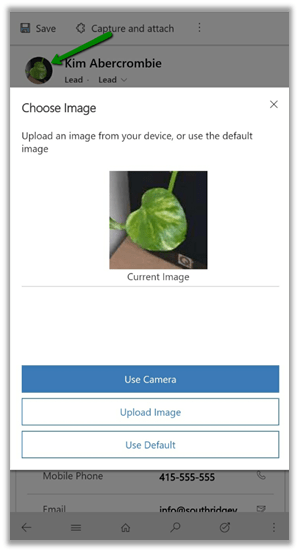
Now as we know that with Dynamics 365 for Phone and Tablet app for Andriod and iOS, we are limited to attaching images i.e. capturing it through camera or selecting an existing image from the gallery.

https://nishantrana.me/2020/03/30/attachments-to-notes-in-dynamics-365-for-phone-and-tablet-app/

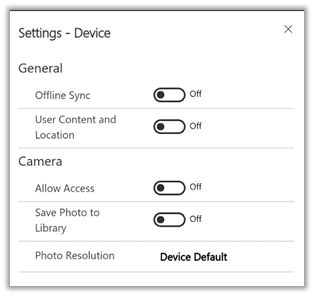
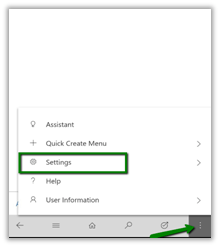
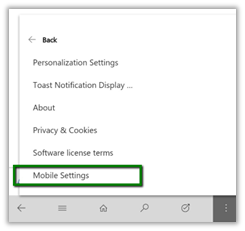
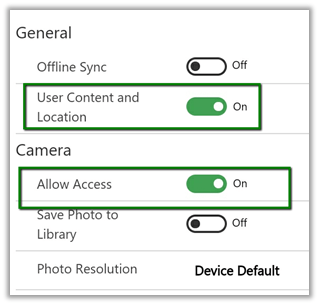
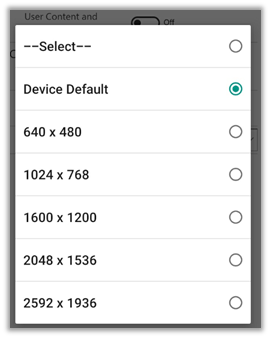
For phone and tablets, we can make use of a specific mobile setting, which allows us to set the resolution of the images

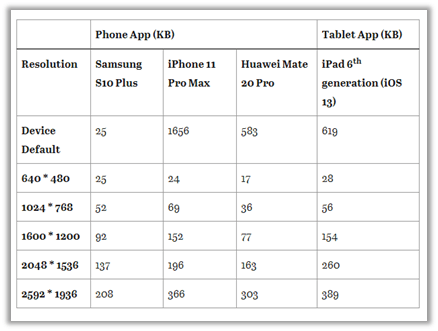
Below are our findings on the file size for different resolution for the below devices.

Phone App (KB) Tablet App (KB)
Resolution Samsung S10 Plus iPhone 11 Pro Max Huawei Mate 20 Pro
iPad 6th generation (iOS 13)
Device Default 25 1656 583 619
640 * 480 25 24 17 28
1024 * 768 52 69 36 56
1600 * 1200 92 152 77 154
2048 * 1536 137 196 163 260
2592 * 1936 208 366 303 389


Hope it helps..

Notes on Dynamics 365 for Phones and Tablets app – Part 1


Check the other articles of this series

For one of our requirements we have started exploring Dynamics 365 for Phones and Tablets, so just noting down a few of the key points identified during the exploration

  • Supported devices for the app

  • We can use the Web browser on Tablet for accessing Dynamics 365 Model-driven apps with the following specifications.

  • Using the Web browser on phones to access a model-driven app is not supported.
  • Apps on the Older version of iOS and Android other than recommended above are not supported.
  • Dynamics 365 for Blackberry App and Windows Phone App is deprecated and no longer supported.

Required privileges à

Dynamics 365 for mobile is the required security privilege to access Dynamics 365 for phones and tablets.

Following out of the box roles have this privilege assigned to it. (using Privileges Discovery plugin of XrmToolBox)

Let us now assign the salesperson security role to one of the test users and try accessing Dynamics 365 from the phone app (Android).

We’d presented with the below screen.

Let us go to Settings à My App and assign the Salesperson role to the Sales Hub app.

To access Dynamics from App, the additional privileges required are as follows

Security Roles à Customization Tab

And Read on

Business Management – Read access to User Settings

With all the appropriate privileges in place for the user, we can now login with that user’s account and can see the Sales Hub app (or the app configured) available to the user.

In case you do not see the app, try accessing through the web address.

This completes the initial setup; in the next part, we’d cover the rest of the findings.

Check other posts on Dynamics 365 for Phone and Tablet

Hope it helps..

Fixed – You don’t have any apps in this view or We can’t find any app for your role error in Dynamics 365 for Phones and Tablets app


For one of our users, we were getting below error when he was trying to access Dynamics 365 through phone and tablet app.

To resolve it make sure that all the required privileges are assigned to the user’s security role.

https://docs.microsoft.com/en-us/dynamics365/mobile-app/set-up-dynamics-365-for-phones-and-dynamics-365-for-tablets#required-privileges

and also the role is added to the appropriate app.

Settings à My Apps

Select the security role and click on Save.

We can see the app appearing for the user.

Hope it helps..
Advertisements

Upload files using SharePoint Integration for Dynamics 365 for Phones and Tablets app


Check the other articles of this series

Recently I wrote a blog post that mentions a few points that we can consider while designing a solution with regards to attachments in Dynamics 365 for Phone / Tablet App.

Attachment to Notes à

https://nishantrana.me/2020/03/30/attachments-to-notes-in-dynamics-365-for-phone-and-tablet-app/

Using SetWordTemplate to combine multiple attachments as a single doc à

https://nishantrana.me/2020/04/01/calling-setwordtemplate-from-custom-ribbon-button-in-dynamics-365/

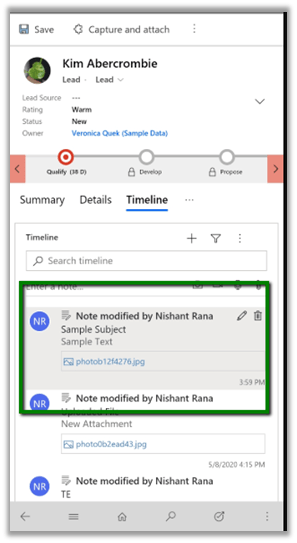
Using the above approach, we can get the doc file attached to the notes.

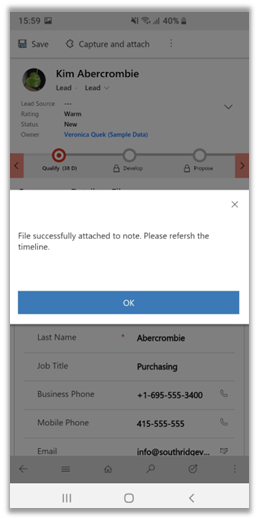
However, if we try to open the file, we would get the below error message.

To get working with attachments seamlessly from the Mobile / Tablet device, we can make use of out of the box SharePoint integration feature of the product.

https://docs.microsoft.com/en-us/power-platform/admin/set-up-dynamics-365-online-to-use-sharepoint-online

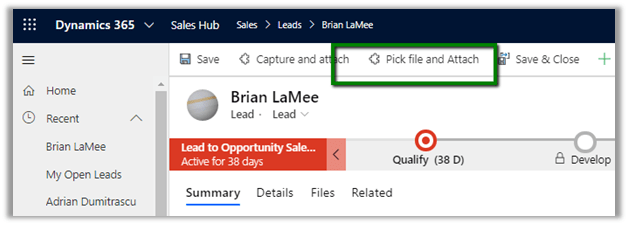
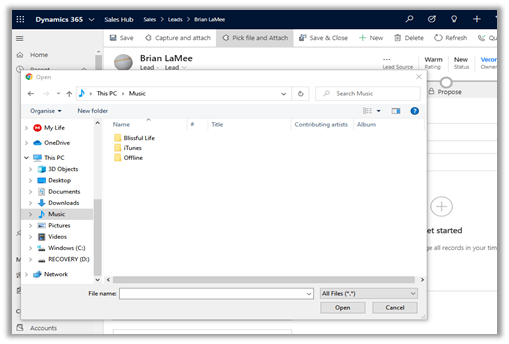
It will allow the user to upload any files from the local file system.

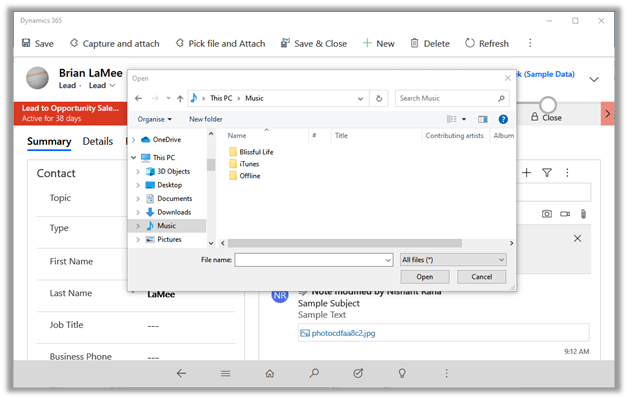
Full access to the local file system

While trying to open the word document it will open the appropriate apps installed

Hope it helps..
Calling SetWordTemplate from custom ribbon button in Dynamics 365


Check the other articles of this series

Let us continue our previous post and this time instead of calling SetWordTemplate action / request from a workflow, we will call it using a custom ribbon button.

If we try calling the action directly using Xrm.WebApi.online.execute
method from a custom ribbon button, we will get the below error “Resource not found for the segment ‘SetWordTempalte’

Source Code: –


function CallAction()
{

var parameters = {};

var selectedTemplate = {};
selectedTemplate["@odata.type"] = "Microsoft.Dynamics.CRM.documenttemplate";
selectedTemplate["documenttemplateid@odata.bind"] = "/documenttemplates(4853247F-AD72-EA11-A811-000D3A31EEC)";

var target = {};
target["@odata.type"] = "Microsoft.Dynamics.CRM.lead";
target["leadid@odata.bind"] = "/leads(2fa01d2d-7332-e611-80e5-5065f38b31c1)";

parameters.SelectedTemplate = selectedTemplate;
parameters.Target = target;
var setWordTemplateRequest = {
SelectedTemplate: parameters.SelectedTemplate,
Target: parameters.Target,

getMetadata: function() {
return {
boundParameter: null,
parameterTypes: {
"SelectedTemplate": {
"typeName": "mscrm.documenttemplate",
"structuralProperty": 5
},
"Target": {
"typeName": "mscrm.lead",
"structuralProperty": 5
}
},
operationType: 0,
operationName: "WinOpportunity"
};
}
};

Xrm.WebApi.online.execute(setWordTemplateRequest).then(
function success(result) {
if (result.ok) {

Xrm.Utility.alertDialog("Success");
}
},
function(error) {
Xrm.Utility.alertDialog(error.message);
}
);

}

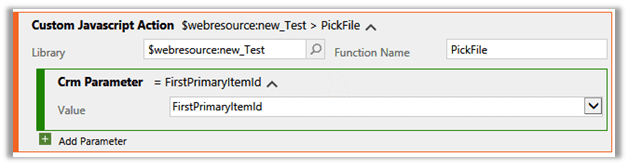
As a workaround, we can define a custom action and add the Perform Action step with SetWordTemplate step to it.

Source Code: –


function CallSetWordTemplateAction(primaryControl) {

var formContext = primaryControl;
var leadid = formContext.data.entity.getId(); 

var target = {};
target.entityType = "lead";
target.id = leadid; 

var req = {};
req.entity = target;
req.getMetadata = function () {
return {
boundParameter: "entity",
parameterTypes: {
"entity": {
typeName: "mscrm.lead",
structuralProperty: 5
}
},
operationType: 0,
operationName: "pcfpre_CreateDocumentAction"
};
};

Xrm.WebApi.online.execute(req).then(
function (data) {
var e = data; 

},
function (error) { 

var errMsg = error.message;
}
);
}

Another option is to use the Process.js library

The Ribbon Button

Ribbon button definition

Dynamics 365 for Phone \ Tablet


Source Code: –


function createWordDocument(primaryControl) {

var formContext = primaryControl;

var leadid = formContext.data.entity.getId();

Process.callAction("SetWordTemplate",
[
{
key: "Target",
type: Process.Type.EntityReference,
value: new Process.EntityReference("lead", leadid)
},
{
key: "SelectedTemplate",
type: Process.Type.EntityReference,
value: new Process.EntityReference("documenttemplate", "{4853247F-AD72-EA11-A811-000D3A31EEC8}")
}
],

function()
{
alert('Document created');
},

function (error, trace)
{

alert(error);
}
);
}

It internally makes the Soap call to SetWordTemplate Request.

Although we are able to attach the doc to notes, from mobile if we try to open it we will get the below error message

Pic2

To get the document upload to work seamlessly either we need to use Windows 10 based tablets or we need to use out of the box SharePoint integration.

Hope it helps..
How to – Use SetWordTemplate action to automate document generation and attaching it to note in Dynamics 365


Continuing our previous post,

https://nishantrana.me/2020/03/31/using-word-template-to-combine-multiple-images-attached-to-notes-in-a-single-document-in-dynamics-365/

wherein we used word template to generate a document having all the note’s attachments (picture) to it.

To enhance it further, we can write a custom workflow that calls the SetWordTemplate in Perform Action step.

SetWordTemplate action will generate the document, based on the word template defined, and will attach the document to the note of that particular record.

For this

  • Create a process of type workflow.

  • Select step Perform Action

  • Specify the Document Template and the associated entity (e.g. lead) for its input properties.

*if you do not see the entity listed, enable BPF on it

*also make sure you have notes enabled for the entity.

  • Activate the workflow.

  • Run the workflow Generate Word
    Template.

  • After refreshing the timeline, we can see the new note record created with the document as attachment to it.

The generated document à

Now as we do not have option of running On Demand Workflow from Dynamics 365 Mobile / Tablet app.

It seems like April 2020 Release Wave 1 has added this feature to the mobile app

OnDemandWorkflow

So here instead of on demand workflow, we can have a custom workflow to run on change of a specific field.

For e.g. we can add a custom field named when it is updated to Yes, we perform the same action

The workflow

This way we will be able to perform the same function within Dynamics 365 Mobile and Tablet App

Hope it helps..