Fixed –Web resource method does not exist in Dynamics 365 / Dataverse


We might get this error while working with Web resource of type JavaScript.

Either it could be because the method doesn’t exist or it could be because of the incorrect syntax.

For a small file, it is easy to figure out, but for a large file, we could use online validator tools like

Fix the syntax error, upload and publish the file and the error should get fixed.

Hope it helps..

Advertisements

Fixed – Bad Request – Error in query syntax while using Xrm.WebAPI


We might get the below error while using Xrm.WebAPI.

‘Bad Request – Error in query syntax.’

One of the reasons could be that while setting up the Lookup field, we haven’t removed the curly brackets.

Use the below function to replace/remove them.

  • let result = myGuid.replace(/[{}]/g, ”);
  • let result = myGuid.replace(“{“, “”).replace(“}”, “”);

Hope it helps..

Advertisements

Fix- Multiple levels of many-to-one relationship expansion aren’t supported in PowerApps


We would get this error while trying to get the value of a related entity (lookup) through a related entity (lookup) in the current record using the incorrect formula.

For e.g. here Region is a lookup in the Village, which in turn is a lookup in the Product record (ThisItem).

The solution here is to use the LookUp function

Before

After

ThisItem.Village.Region.Name

LookUp(Villages, Village = ThisItem.Village.Village).Region.Name


Search the Villages table, using the GUID of the Village, and fetch the name of the region lookup field in it.

Hope it helps..

Advertisements

How to – Hide, Submit and perform validation in Dynamics 365 Marketing Form


Continuing our previous post on setting hidden field’s value using JavaScript in Embedded Marketing Form,

https://nishantrana.me/2022/11/23/how-to-use-dynamics-365-marketing-javascript-api-to-set-hidden-fields-value/

below are a few more points that could help –

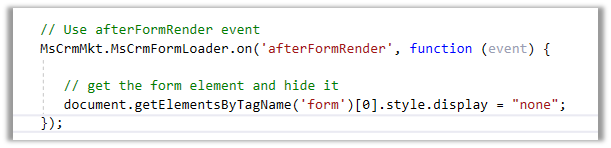
  • To hide the Marketing form on the host page – we can use afterFormRender
  • To submit the Marketing form on the host page –

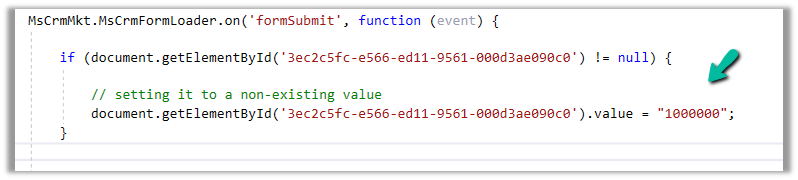
  • If we are setting a non-existing value for an option set field in the formSubmit event, it will be treated as blank before submission and the blank value will be passed. However if the field is Required then validation will kick in and the form will not get submitted.

Get more details – Extend marketing form using code

Also check – https://community.dynamics.com/365/marketing/f/dynamics-365-for-marketing-forum/384055/integrate-external-marketing-form


var xhttp = new XMLHttpRequest(); 

xhttp.open("POST", formUrl + "/formpage/” + formId + “/correlation/” + correlationId, true); 

xhttp.setRequestHeader("Content-Type", " application/x-www-form-urlencoded"); 

xhttp.send("7d58e055-d1c2-4bb3-a42f-faf6762e0acc=FirstName&3cdeebb-7c54-4cff-a1bc-772562d25c38=firstname.lastname%40sample.com&submit=");
Advertisements

Hope it helps..

Fixed – Hide field option missing for dropdown (OptionSet) field in Marketing Form – Dynamics 365 Marketing


Recently while designing the marketing form, we realized the Hide field option missing for our dropdown fields.

There are 2 ways to solve this –

In the HTML designer mode for the Marketing form –

  • Add the attribute hidden=”hidden” for the field

The field will be hidden but the Hide field toggle won’t be available in the designer.

  • Change the data-editorblocktype from “Field-dropdown” to “Field-checkbox“.

This adds the Hide field toggle option in the designer.

The result –

The helpful thread – https://community.dynamics.com/365/marketing/f/dynamics-365-for-marketing-forum/391470/how-do-i-populate-lead-source-from-a-hidden-field-on-marketing-form

Hope it helps..

Advertisements

How to – use Page Personalization in Dynamics 365 Marketing


Page personalization uses cookies stored in the user’s browser for identifying the contact, and then fetches values for the contact record using JavaScript.

For page personalization to work –

  • The domain should be authenticated
  • It must use HTTPS
  • Contact should have Prefilling enabled i.e. Prefill Marketing Form field in the Contact record should have the value Allow.
  • Specify the contact fields to be made available.

Below is the marketing form (landing page) that we’d be using.

The form has a Remember Me element in it required for Personalized Pages. It gets automatically added to the form if we enable PreFill for the form.

https://nishantrana.me/2022/11/16/how-to-enable-prefill-for-marketing-forms/

We have only kept Pre Fill enabled for the City field. The other fields in the form have prefilled disabled.

Create a new personalized page, navigate to Outbound marketing >> Marketing Content >> Personalized Pages and add

Personalized page fields to it

After adding the fields, Click on Go live.

Going live generates the JavaScript
code, that we’d paste into our page, in the <head> section of the HTML.

As we have added 3 Personalized page fields, we will have access to the value of only these 3 fields on the page where this script is used, even though our Marketing form can have multiple fields or even if the cookie has other values stored as part of another marketing form.

Below we have added the JavaScript code in the head section and modified it to fetch the value of 3 fields added and also we have the code for embedding the Marketing form.

Lastly, we have a Div element to show the personalized message to the user.

Below is our page

Let us populate the values and submit the details (with Remember me enabled)

Let us refresh the page after a few seconds. This is because in the background we will have the lead/contact record either created or updated based on what we have specified in the Marketing form.

As expected, we have the div populated with First Name, Last Name, and City details using the Personalized Page’s JavaScript.

Also as we had Pre-fill enabled for only the City field, we can see the value automatically populated for it.

Please referhttps://meganvwalker.com/d365-marketing-personalised-pages-on-your-website/

Get more detailshttps://learn.microsoft.com/en-us/dynamics365/marketing/personalized-page-content

https://learn.microsoft.com/en-us/dynamics365/marketing/personalized-page-content#test-your-page-personalization

Hope it helps..

Advertisements