How to – Handle single quote/apostrophe in Filter Rows in Power Automate (Dataverse)


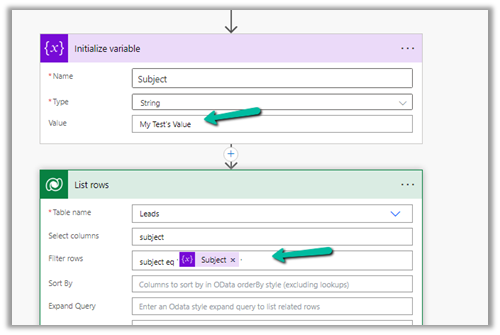
Say for e.g. we have the below flow, which finds the lead having subject as “My Test’s Value”

On running it we get the below error

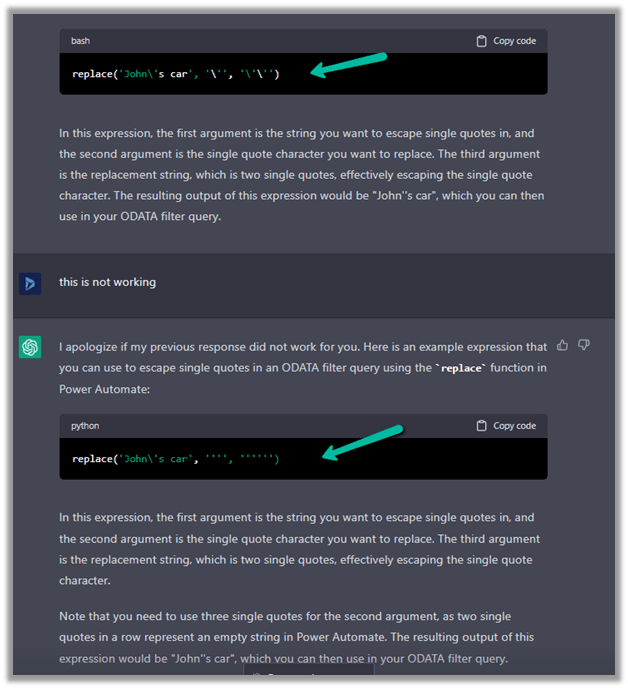
To make it work we can make use of replace function here.

replace(variables('Subject'),'''','''''')

= to espace

= special character

replace(variables(‘Subject’),,)

Please refer to the helpful post- https://techcommunity.microsoft.com/t5/power-apps-power-automate/how-to-handle-single-quotes-in-the-filter-property-with-get/m-p/2617747

This time it works successfully.

ChatGPT – quick to correct and give the right answer.

Hope it helps..


Advertisements

How to – Enable inbox for agents in Dynamics 365 Customer Service Workspace / Omnichannel


Inbox view in the agent workspace allows agents to quickly perform a preliminary assessment of the service requests coming from different channels for a timely response. Agents can view cases, conversations, and activities assigned in the inbox tab.

To enable inbox for the agents, inside the Customer Service admin center

Navigate to Agent Experience >> Workspaces >> Agent Experience profiles >> Manage


We can create new profiles or can add users to any of the existing profile that has inbox enabled

E.g. Customer Service Trial profile has the inbox enabled.

Below is the agent experience profile record, that doesn’t have inbox enabled.

Let us add one of the users to the below profile.

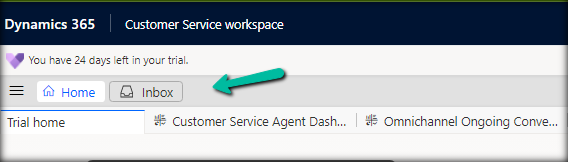
The Customer Service workspace before the user’s inbox is enabled. We can only see the Home tab.

After adding the user to the profile.

The agent can see the Inbox tab.

The agents can see the views configured in the profile inside the inbox tab.

Read more about Configuring the Inbox

To learn more about Voicemail- https://neilparkhurst.com/2022/11/08/omnichannel-for-customer-service-voicemail/

Hope it helps.

Advertisements

Use Command checker (ribbondebug=true) to identify the Ribbon Customizations Issue – Dataverse / Dynamics 365


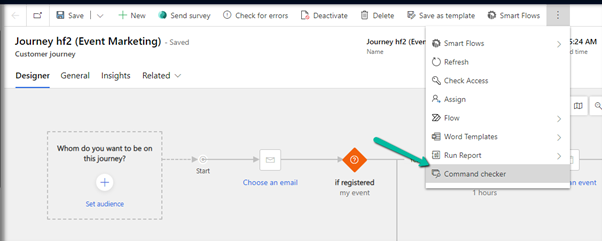
Appending ribbondebug=true to the record’s URL adds the new Command checker button in the command bar, which could help us in troubleshooting any unexpected behavior with ribbon.

More on this – https://powerapps.microsoft.com/en-us/blog/introducing-command-checker-for-model-app-ribbons/

Recently we added one enable rule to an existing button (Go Live) in the Customer Journey table. The rule was calling a JavaScript web resource based on the security role assigned to the user hiding or showing the button on the form.

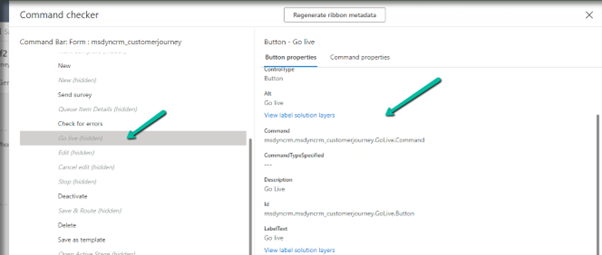
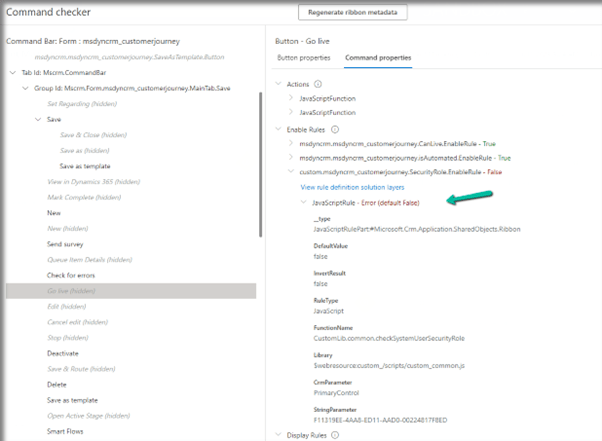
Click on the Command checker to open the window on the side pane, where we can then select our button.

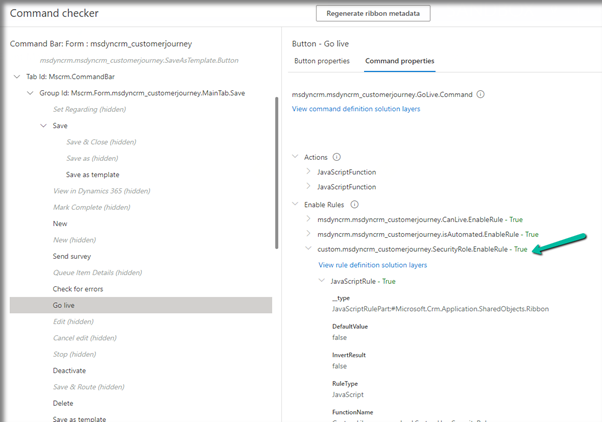
In the command properties tab, we can see our custom enable rule showing an error.

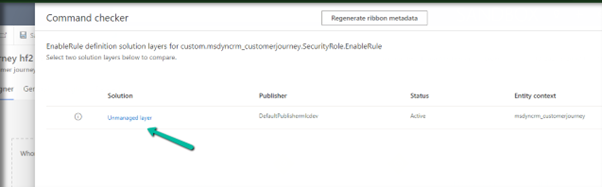
Also here clicking in View rule definition solution layers provides us the detail that this rule has been added as part of an unmanaged layer.

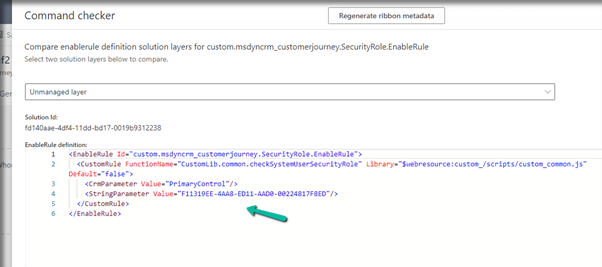
Clicking on the Unmanaged layer further provides us with the definition of the enable rule.

Going back to the error, we figured out that the function was missing from the web resource, and adding the function fixed the issue for us.

Back in the Command checker, we can see the custom Enable Rule getting evaluated correctly.

Check the Troubleshooting Guide

Hope it helps..
Advertisements

Solved – Presence not loading in Omnichannel for Customer Service / Customer Service workspace


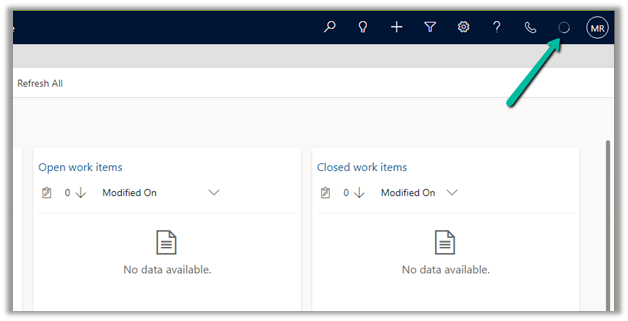
Recently in one of the environments, the presence was not loading for the agents.

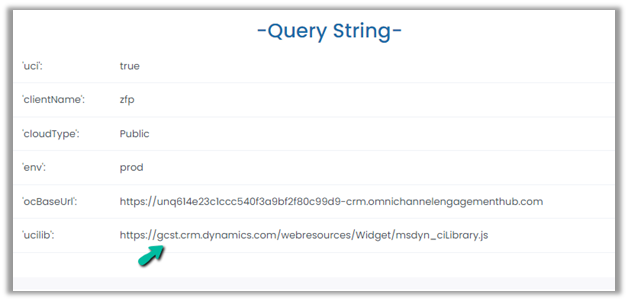
To fix it, we had to update the Channel URL to point to the correct organization name.

Before –

https://oc-cdn-ocprod.azureedge.net/convcontrol/ChatControl.htm?uci=true&clientName=zfp&cloudType=Public&env=prod&ocBaseUrl=https://unq614e23c1ccc540f3a9bf2f80c99d9-crm.omnichannelengagementhub.com&ucilib=https://orged4e3d70.crm.dynamics.com/webresources/Widget/msdyn_ciLibrary.js

After –

https://oc-cdn-ocprod.azureedge.net/convcontrol/ChatControl.htm?uci=true&clientName=zfp&cloudType=Public&env=prod&ocBaseUrl=https://unq614e23c1ccc540f3a9bf2f80c99d9-crm.omnichannelengagementhub.com&ucilib=https://gcst.crm.dynamics.com/webresources/Widget/msdyn_ciLibrary.js

Verify the Unique Name used in ocBaseUrl and Orgname from Settings >> Customizations >> Developer Resources

On correcting the URL in the Omnichannel record (Channel Integration framework 2.0 Providers)– we can see the presence loading.

The cause for the issue was we had recently updated the environment’s URL from the Power Platform Admin Center.

Check for more details –

https://tinyurl.com/3488m6p2

The presence not loading.

Hope it helps..

Advertisements

Omnichannel Real-time analytics reports (Preview) – Dynamics 365 Customer Service


The Real-time dashboard consists Summary, Ongoing conversation, Agent, and Voice report.

To enable it – Login into Customer Service Admin Center >> Operations >> Insights >> Report Settings >> Real-time Analytics (preview)


Enable it –


After a couple of minutes, we can see the Dashboard added to the Customer Service Workspace app.

Within the Summary, we can get the details of any ongoing conversation, KPIs, etc.

The ongoing conversation report shows the details of all the ongoing conversations

The agent shows all the real-time details about the agents

We can select an agent from Agent List and click on Details to show additional details about the agent.

Finally, the Voice report shows details specific to Voice Channel / Queues.

Get all the details here – Real-time analytics dashboards (preview)

Hope it helps..

Advertisements

Contact’s Originating Lead – originatingleadid is not valid for update – Dynamics 365 / Dataverse


Recently we were writing a plugin that on the creation of a lead updates the originating lead of a contact record. The value was neither getting updated nor we were getting any errors.It was after we spent a good amount of time debugging, realized that this field cannot be updated.So basically, we can specify a value for it during create of contact but cannot update it.

Hope it helps..
Advertisements