Configure Similar Record Suggestion using Cognitive Services Text Analytics (Preview) in Dynamics 365 (online)


As a first step, we need to enable text analytics and connect it to CRM.

Follow the below post for enabling text analytics, connecting CRM online to Text Analytics service.

https://nishantrana.me/2017/03/24/configure-case-topic-analysis-using-cognitive-services-text-analytics-preview-in-dynamics-365-online/

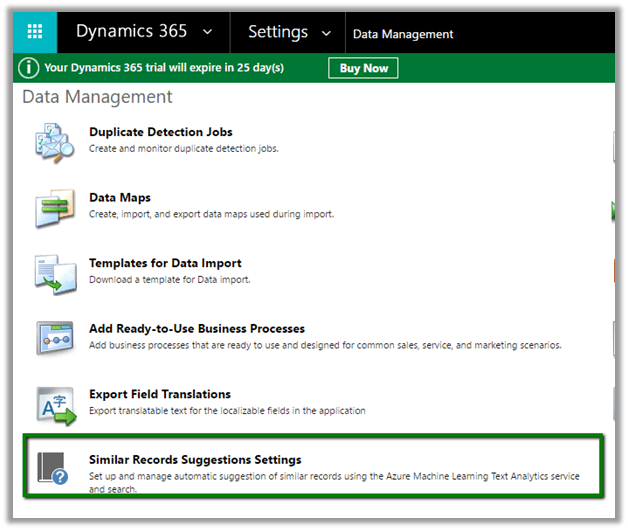
As a next step, we need to configure Similar Records Suggestions, for that go to

Settings – Data Management – Similar Records Suggestions settings

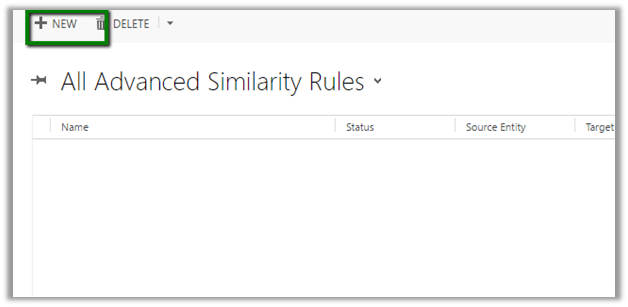
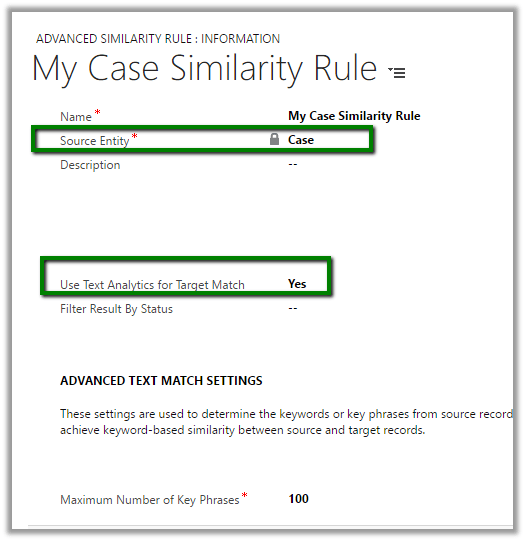
Click on New to create a new similarity rule record

Below we have created rule with Case as source entity and specified Yes for “Use Text Analytics for Target Match”

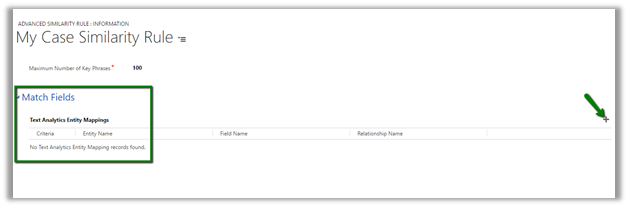
After we have created the similarity rule, we need to define the fields based on which matching will be done and suggestions will be made.

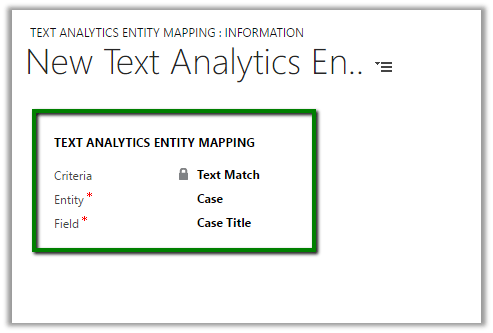
Here we have specified Criteria as Text Match, which would match the Text for the field Case Title of the Case Entity.

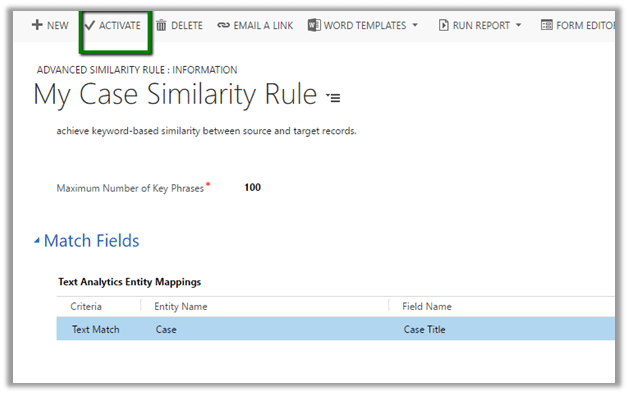
Save the above record and click on Activate to run the similarity rule.

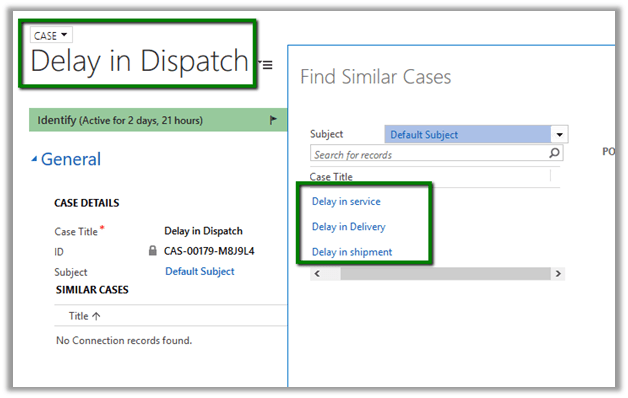
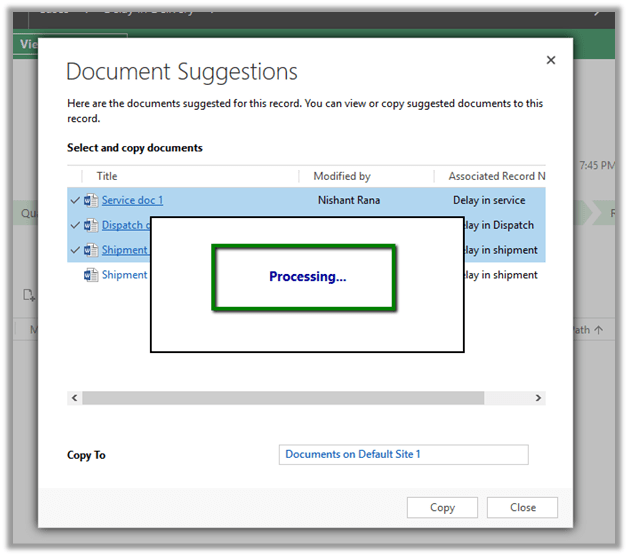
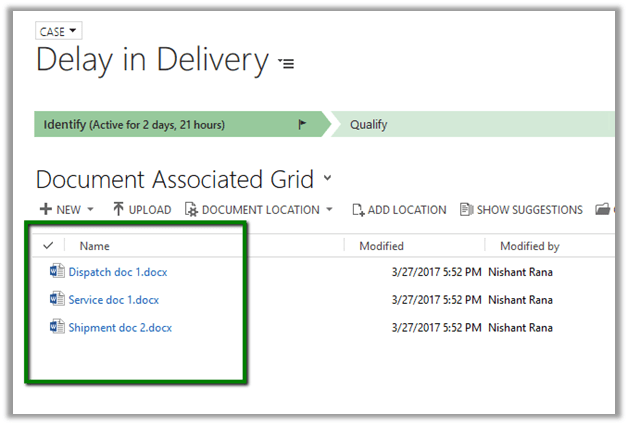
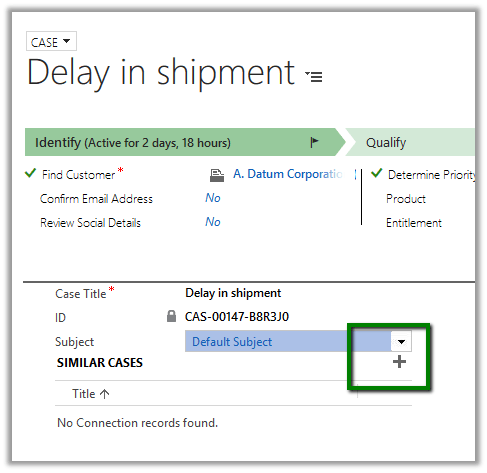
Open any of the existing case, in our below scenario we have opened the case with title “Delay in Shipment” and click on +

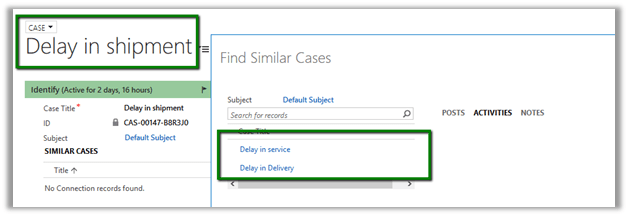
This opens up the dialog that shows similar cases (with title having Delay word in it) using Text Analytics Service configured.

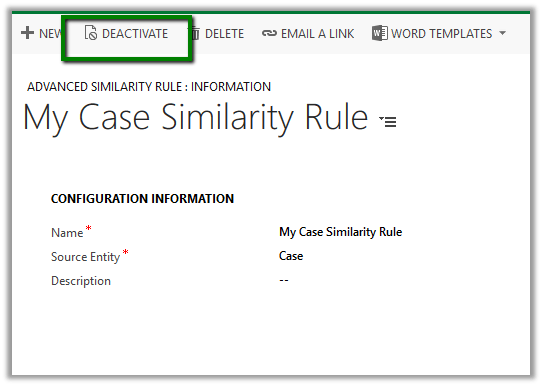
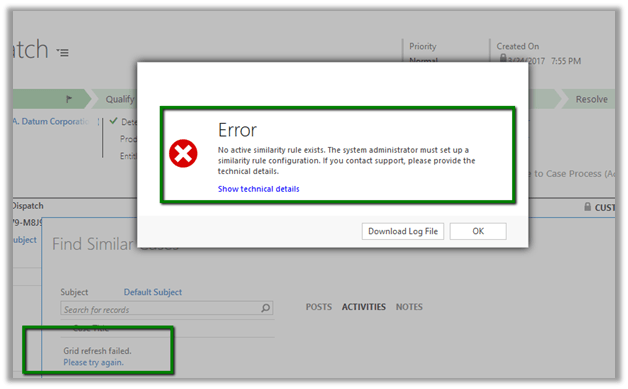
What happens if we deactivate the Similarity Rule?

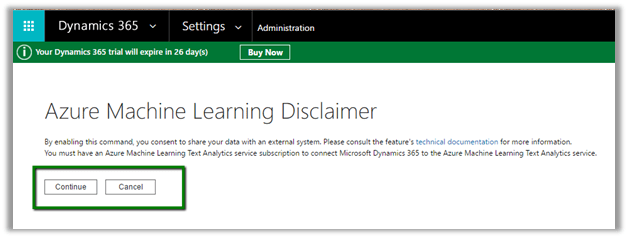
We get the below error –

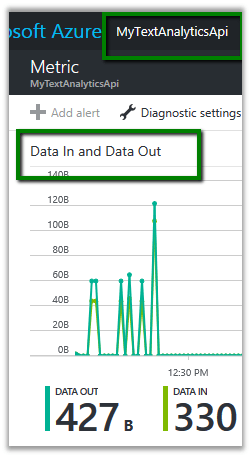
Checking the metric in the Text Analytics API.

Get all the details here

https://technet.microsoft.com/en-us/library/mt703318.aspx

Hope it helps..

Requests to this API should contain at least 100 documents, where each document is not null or empty error while configuring Topic Analysis using Text Analytics in Dynamics 365


Hi,

Recently while trying to configure Topic Analysis in Dynamics 365

https://nishantrana.me/2017/03/24/configure-case-topic-analysis-using-cognitive-services-text-analytics-preview-in-dynamics-365-online/

we got the below error for the failed record.

Error Message:{“code”:”BadRequest”,”message”:”Invalid request”,”innerError”:{“code”:”InvalidRequestContent”,”message”:”Requests to this API should contain at least 100 documents, where each document is not null or empty”,”minimumNumberOfDocuments”:100}}

This was because we had very few case records in our CRM organization < 30. We created few more records to increase the count to be more then 100 and re run the build. This time it got succeeded.

Hope it helps..

Configure Case Topic Analysis using Cognitive Services Text Analytics (Preview) in Dynamics 365 (online)


“Update – The Cognitive Services Text Analytics Topic Detection API required for this feature will be removed as of August 24, which means this feature will no longer work after that date and a topic analysis run will return an error.

https://technet.microsoft.com/en-us/library/mt752501.aspx

Text Analytics Preview feature is currently available for instances in US region. Topic analysis can be used to automatically identify topics that occurs in cases.

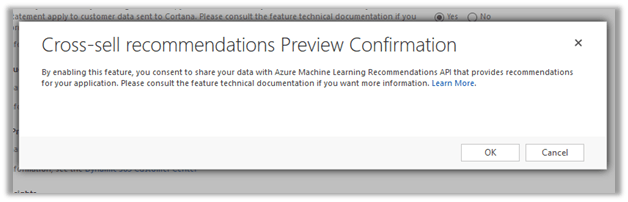
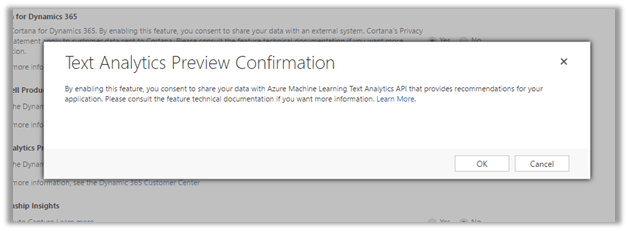
To enable the preview, go to System Settings – Preview tab and select Yes for Text Analytics Preview.

Click OK to confirm.

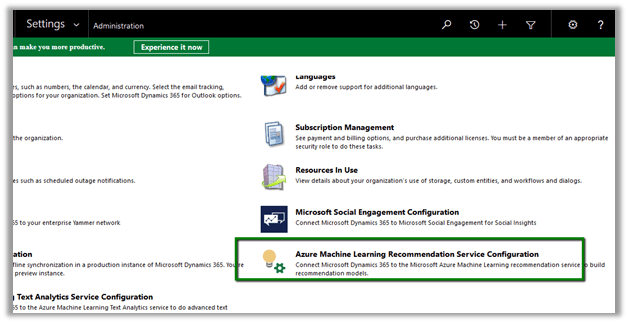
Next go to Administration and click on Azure Machine Learning Text Analytics Service configuration to configure the service.

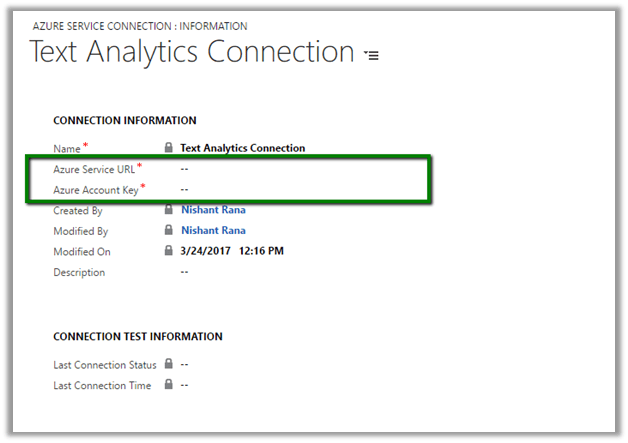
Here we would need the Azure service URL and the Azure Account Key to configure it.

To do so, go to Azure Portal

https://portal.azure.com

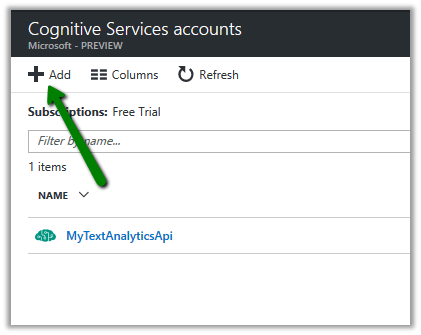
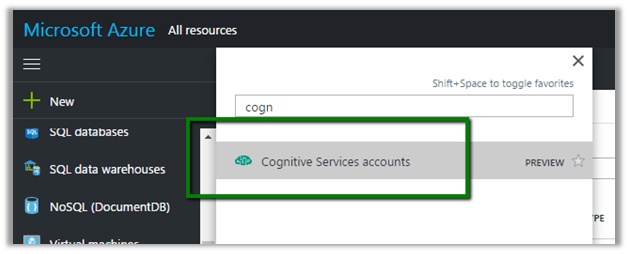
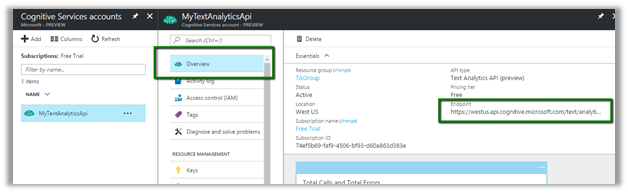
Search for Cognitive Service Accounts

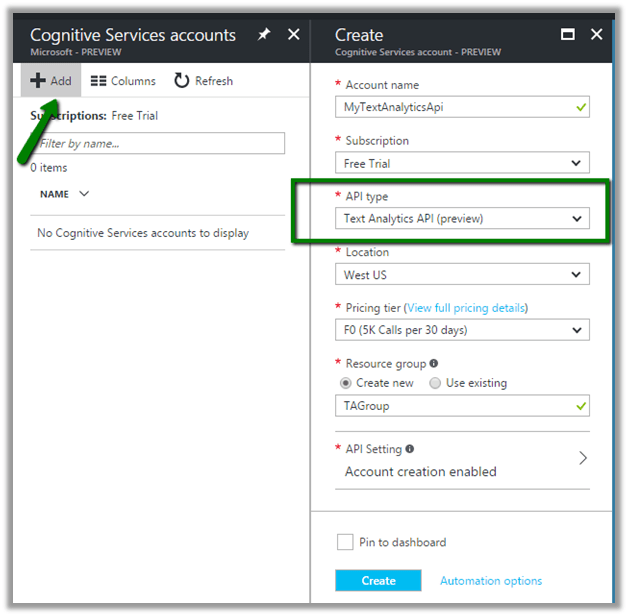
Click on Add and Specify required information.

Select Text Analytics API as API Type.

Click on create to create the service account.

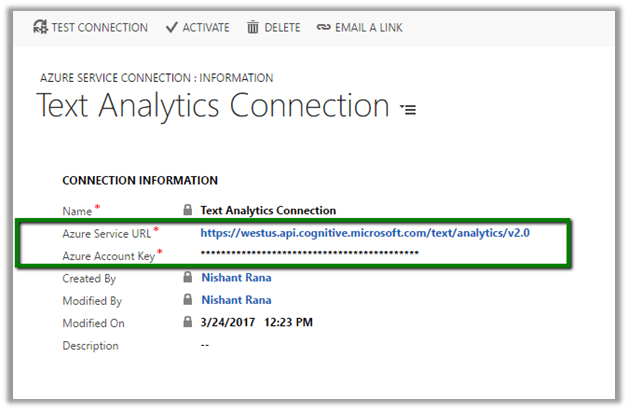
Copy the Endpoint of the created Cognitive service account which will be used as Azure Service URL in CRM.

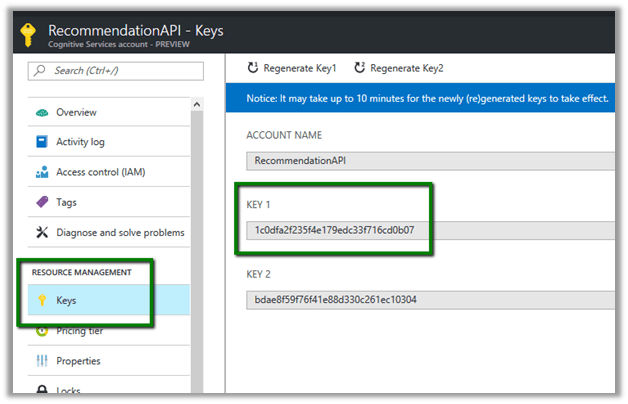
Similarly select Keys, and copy one of the Key which will be used as Azure Service Key in CRM.

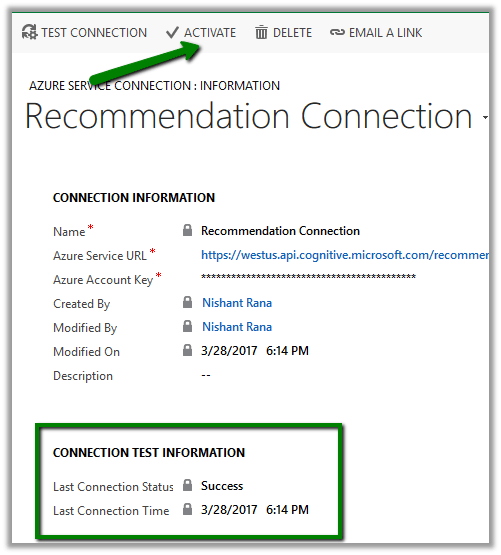
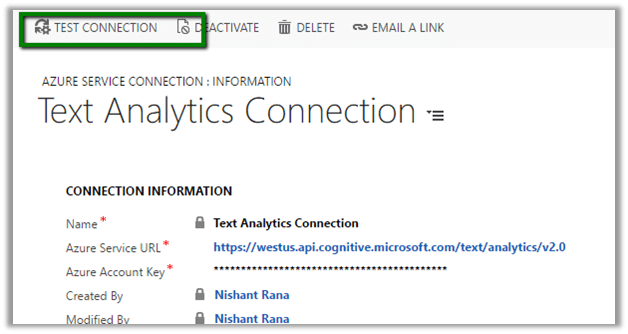
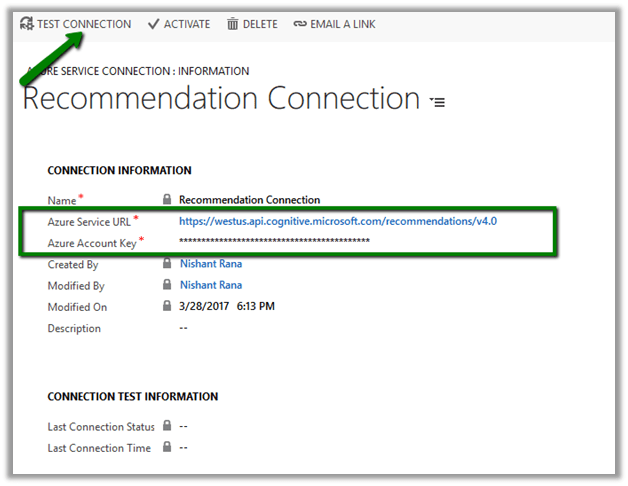
Specify the values in the Text Analytics Connection record.

Click on Test Connection to test the connection.
After successful test, click on Activate to activate the connection.

Next let us create a Topic Model which will be used to identify topics occurring in the cases.

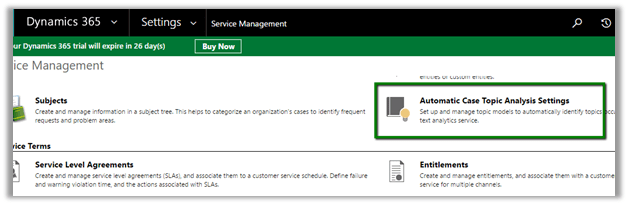
Go to Service Management – Automatic Case Topics Analysis Settings

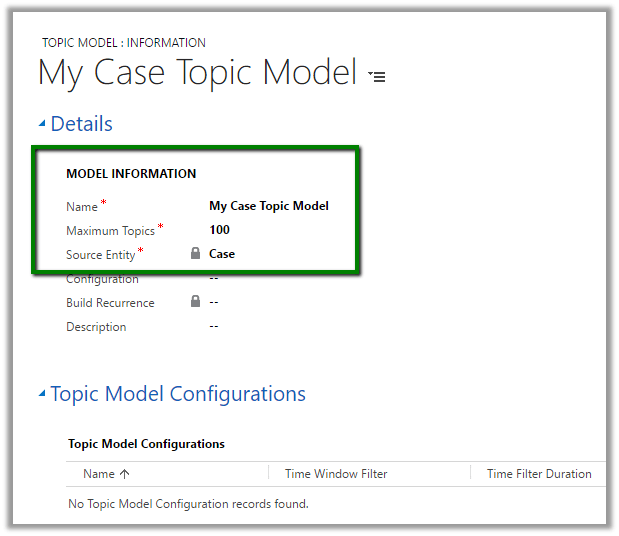
Create a new Topic model record

Create a related Topic Model Configuration record.

It auto populates the Topic Determination Fields which we can edit\add.

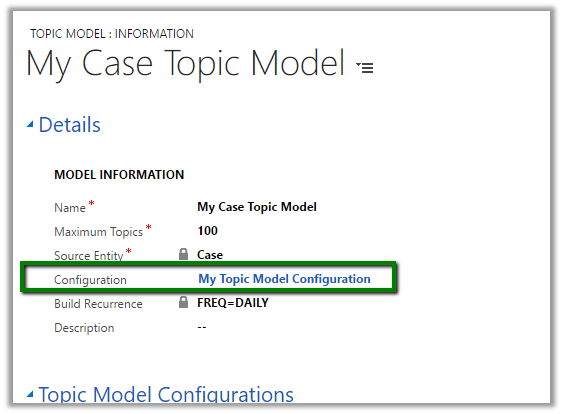
Specify the configuration record created in the Configuration lookup of Topic model record.

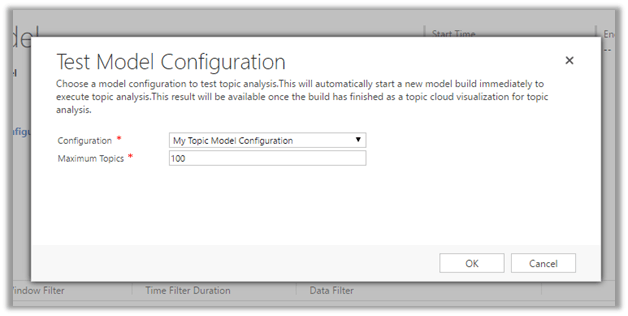
Click on Test to the configuration.

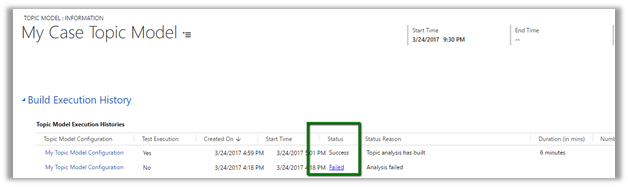
Build Execution History tab shows the status of the test run.

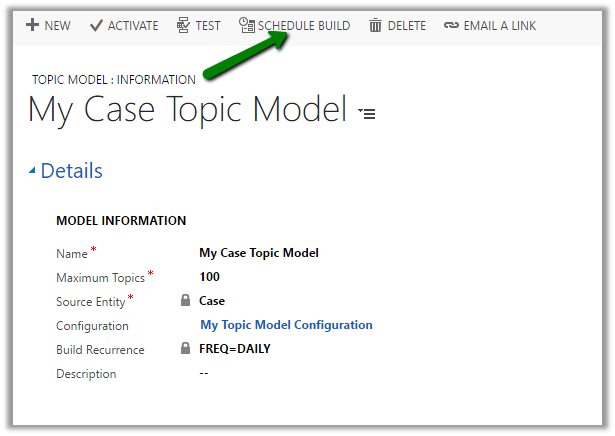
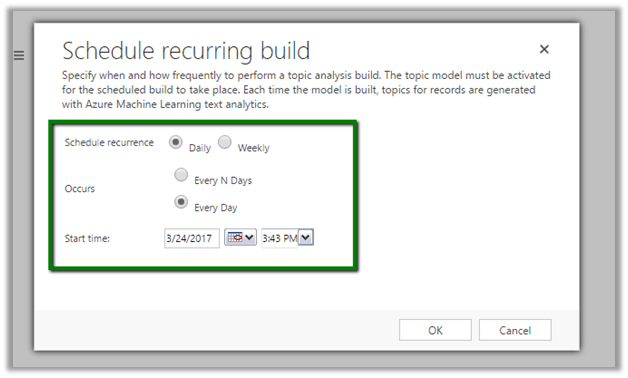
The build can be scheduled.

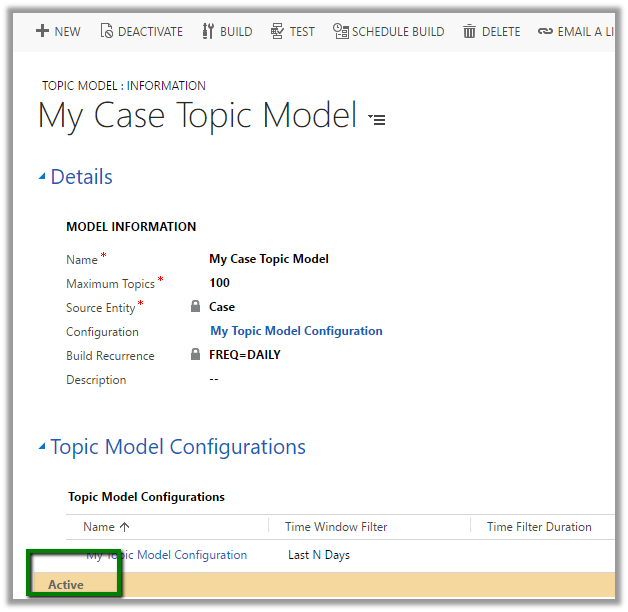
Once we have tested the configuration we can then activate the model.

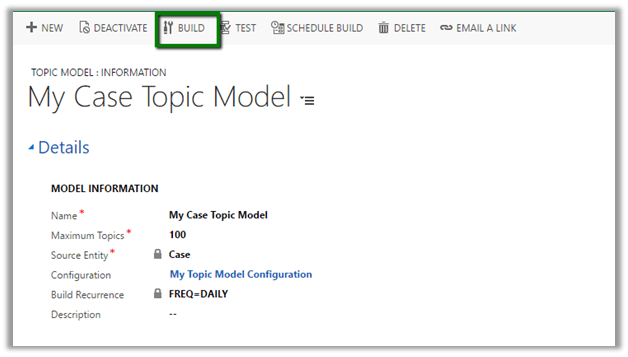
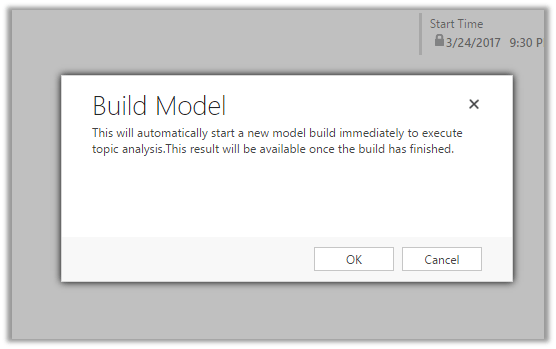
Once Activated, we can them manually trigger the build using Build button

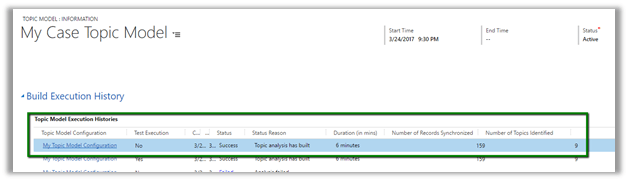
We can check the status of the build in the build execution history tab. Below record shows the build to be succeeded, duration it took i.e. 6 minutes, number of records it synchronized i.e. 159 and topics identified as 9.

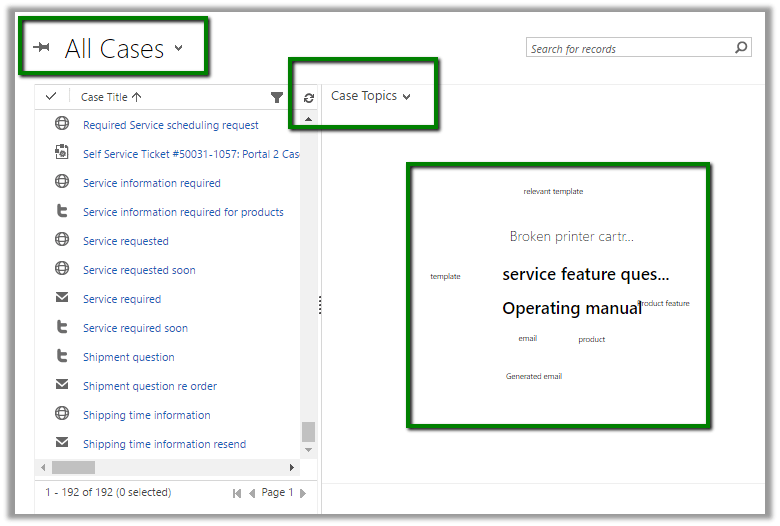
To see it in action, go to Active Cases view and select Case Topics chart which lists the topics.

Hope it helps..
Configure Dynamics 365 and Azure Service Bus Integration (using TwoWay relay, Azure Aware Plugin and listener)


Let us pick up from where we left in the previous post and implement two way relaying through which we can get the response back from the listener.

https://nishantrana.me/2017/03/22/configure-dynamics-365-and-azure-service-bus-integration-using-oneway-relay-and-listener/

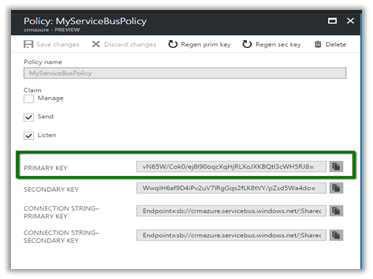
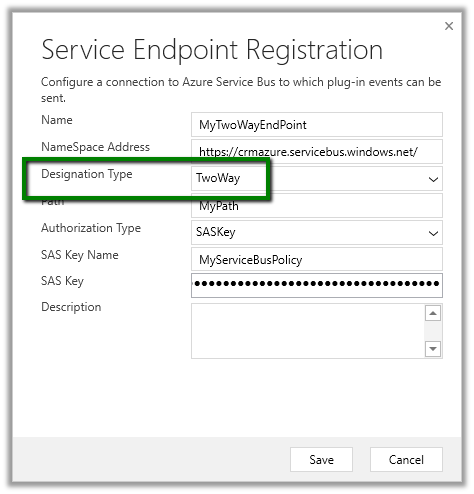
First let us update the Service Endpoint Registration, change the designation type to TwoWay, it would also ask to enter the SAS Key. Copy it from Azure and paste it.

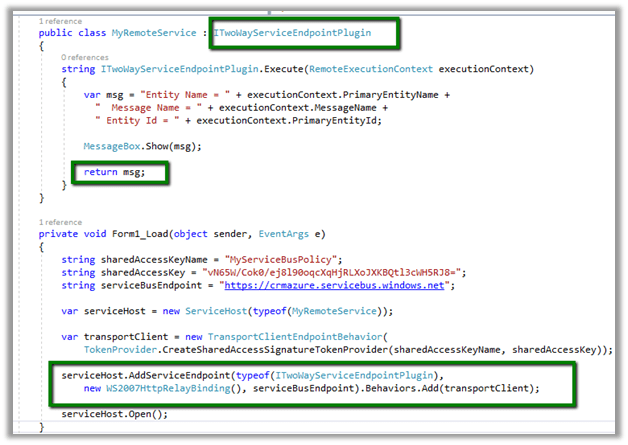
Update the listener windows application created in the previous post to implement ITwoWayServiceEndpointPlugin

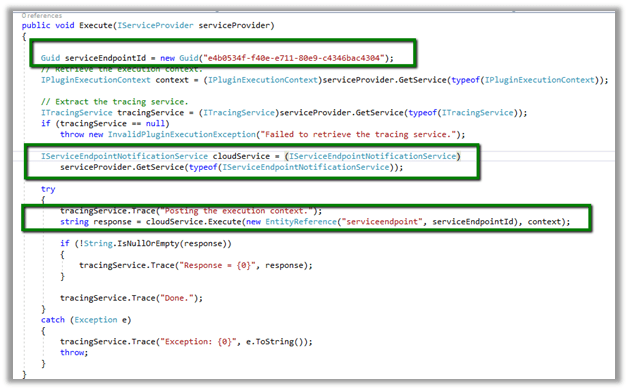
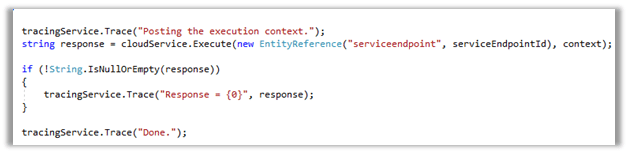
Use the below code to create the custom azure aware plugin.

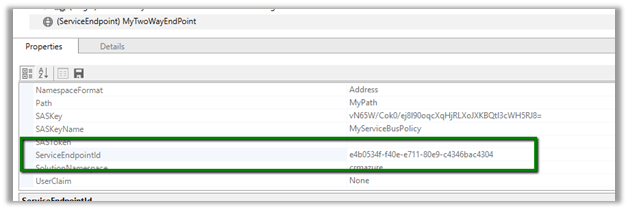
Get the service endpoint id from the Properties window of the Service End Point registered.

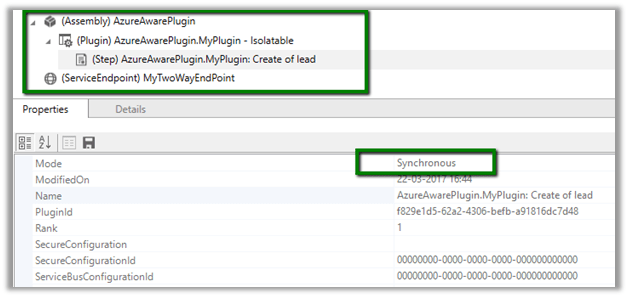
Register the assembly and add the Post Create Synchronous Lead Step to it.

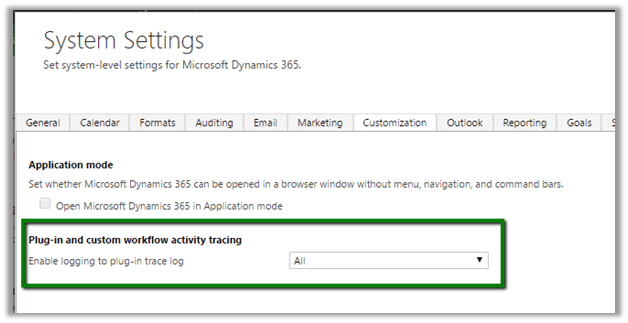
As we are using trace service to log the response, set All for Enable logging to plugin-trace log option from Administration – System Setting – Customization.

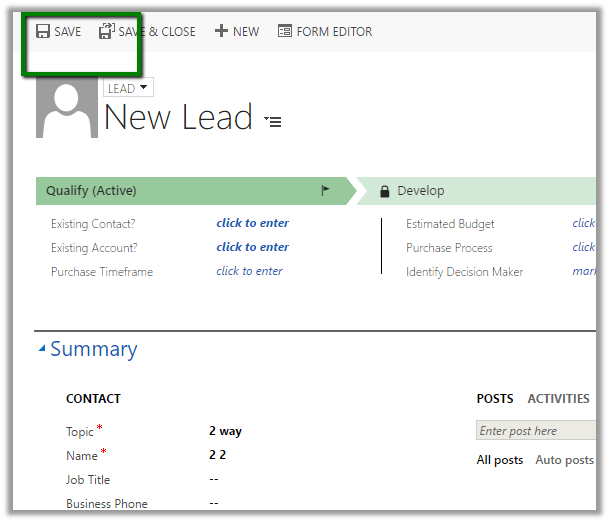
Start the listener windows application and to trigger the plugin, create the lead record

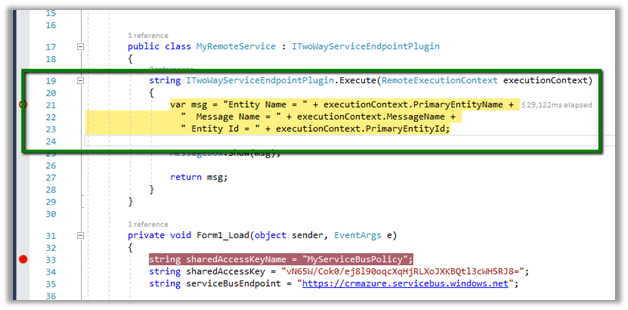
We can see the execute method being called from Azure Service bus on create of Lead record.

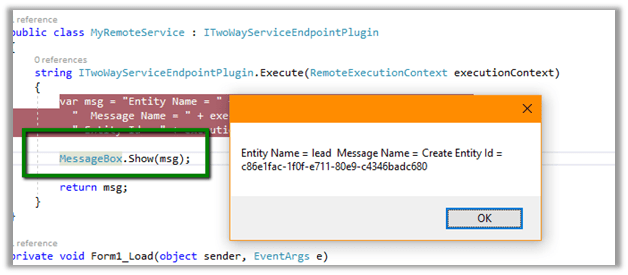
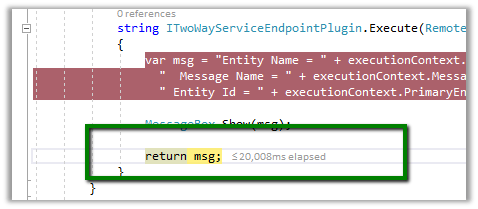
The message being returned from listener application to the plugin.

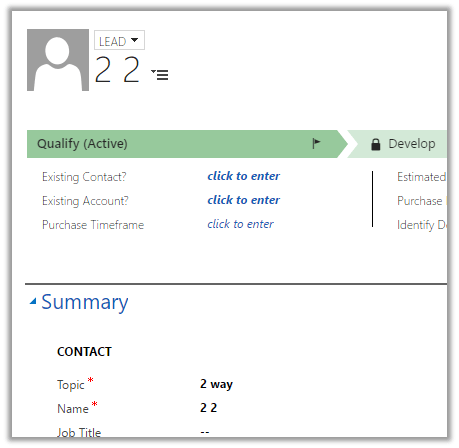
The newly created lead record.

The trace message within the plugin –

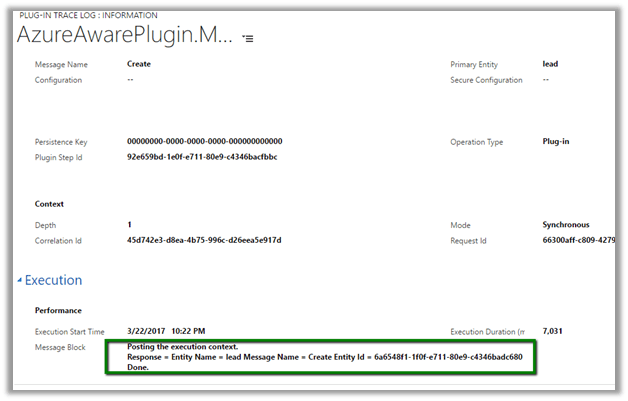
Plugin Trace log with the response received from the listener –

Hope it helps..
How to -Configure Data Export Service in Microsoft Dynamics 365


*Updated 19 Sep – 2018 : Check out this powerful tool DBSync’s CRM connector, which could be used for bi-directional seamless integration of all the popular Application and Database with Microsoft Dynamcis 365- https://www.mydbsync.com/product/microsoft-dynamics-365-crm-integration

Data Export Service is an add-on that allows replicating CRM Online Data to Azure SQL Database.

The below video by expert Scott Durow is the best resource to learn about it

https://www.youtube.com/watch?v=txms2Yvn6Vc

Below are the steps we need to follow to configure it.

  • Go to Settings – Dynamics Marketplace

  • Search for Dynamics 365 Export Service

  • Click on GET IT NOW

  • Click on Agree

  • This will install the Data Export Service solution

  • Back in CRM – Go to Settings – Data Export. (Pop up window will open up a page for Data Export Authentication, so we need to enable pop up)

  • Click on New to create a new Data Export File.

Basically, here we need the Key Vault URL here which stores the database connection string securely.

Clicking on the information icon opens up the dialog box with the below PowerShell script, which needs value for variables like subscription id, key vault name, secret name, tenant id etc.

i.e.

So as a first step here we need to configure Azure Active Directory (if Office 365 and Azure Tenant are separate)

https://docs.microsoft.com/en-us/azure/billing/billing-add-office-365-tenant-to-azure-subscription

  • Next step is to create Azure SQL database. Search for SQL databases in All Resources and click on Add

  • Specify the required information and click Create.

Next we need to create a User that will be used to configure Data Export Service and has appropriate rights in the database

Here the user has been assigned db owner role


For the minimum rights required check the below article

https://technet.microsoft.com/en-us/library/mt744592.aspx

Now let us replace the below placeholders one by one

  • Subscription ID
  • Key Vault Name – NishantDemoKeyVault
  • Secret Name – DataExport
  • Resource Group – DemoRG
  • Location – East US
  • Connection String

  • Organization ID List

KeyVault record created in Azure à

  • Going back to our Export Profile wizard, we need to paste the Key Vault URL

  • Click on Validate

  • Select the entity or entities for which profile needs to be created

  • Select any relationships 

  • Next click on Create and Activate

This creates the profile record in CRM

  • Once Initial Sync Status shows as completed we can see the tables created in the Azure Database.

The records synchronized –

Let us delete the below selected lead records –

Delete Log table will hold the information of the deleted lead records

To create export profile for a custom entity, (say for e.g. entity named Test in our case)

We need to enable Change Tracking in it.

Get all the details here

http://develop1.net/public/post/Dynamic365-Data-Export-Service.aspx

https://technet.microsoft.com/library/a70feedc-12b9-4a2d-baf0-f489cdcc177d

Hope this helps..
Advertisements

Create a simple logic app with Dynamics 365 connector


Let us create a simple logic app that on create of a contact record in CRM creates the same contact in Gmail.
Log in to the azure portal.

https://portal.azure.com/#create/hub

Select New Logic App

Specify Name, Resource Group and Location for the logic app.

Select Blank Logic App

Select “When a record is created” as Trigger.

Sign in to Dynamics 365 Instance.

Select the Organization name and Entity as Contact.

Select Add an action and the New Step

Choose Google Contacts as the Service

Sign in to your Gmail account to be connected

Allow permission to Logic App to access Gmail

Configure Full Name and Primary Email (Dynamic content) as the values for the contact record to be created in Gmail.

Save and Run the app.

Create the new contact record in CRM that triggers the logic app.

On Successful run à

We can see the contact record created in Gmail.

Find all the details here

https://docs.microsoft.com/en-us/azure/connectors/connectors-create-api-crmonline

Hope it helps..