How to enable prefill for marketing forms


Check the previous posts on hosting marketing forms for more details

How to – embed marketing form on an external page

Here we will see Prefill in action.

https://learn.microsoft.com/en-us/dynamics365/marketing/form-prefill#create-a-landing-page-form-with-prefill-enabled

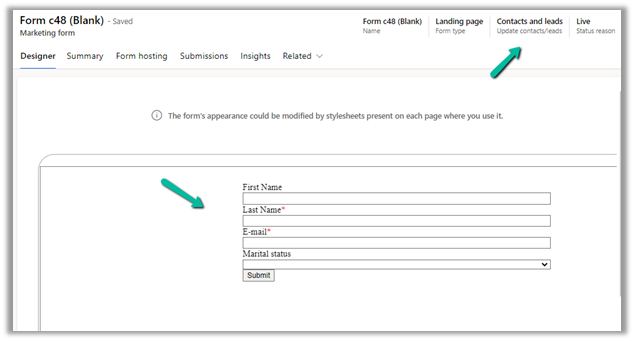
We have created the below marketing form (type – Landing Page) right now (currently Pre-fill is set as default false for the form/fields)

Submit the form –

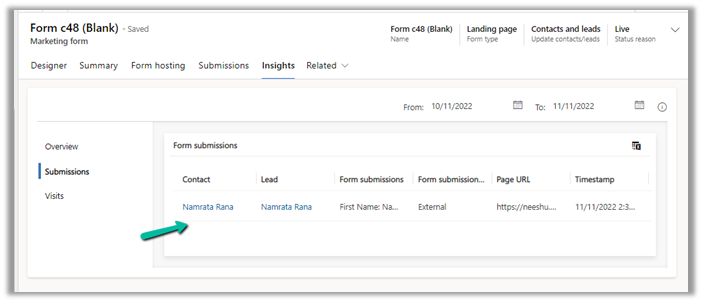
We can see the contact / lead records created as part of submission.

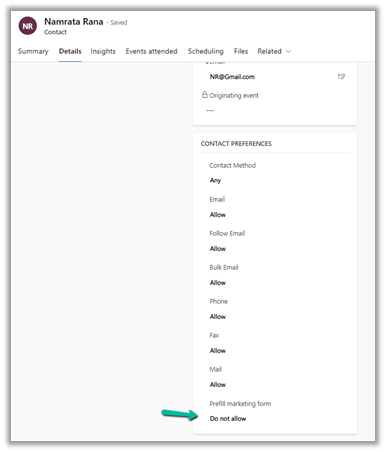
The contact has Do not allow for Prefill marketing form field

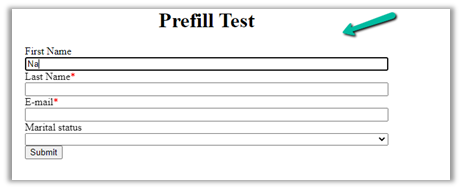
Opening the website we don’t see any pre-fill information as expected.

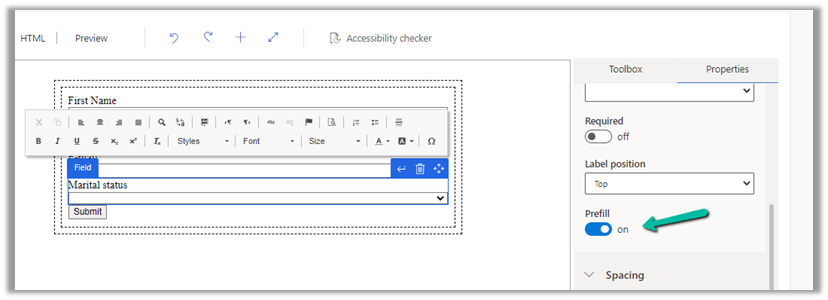
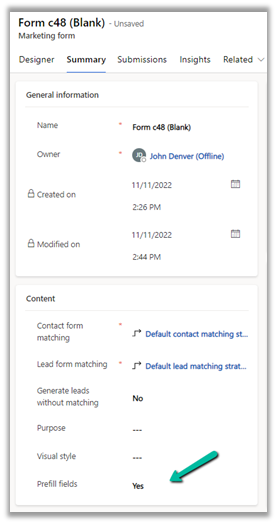
Now let us enable prefill for the fields and for the form.

Enabling Prefill for form automatically adds the Remember me element to the form. It is tied to Prefill marketing form field on the contact record as we saw earlier and required for prefilling to work.

Let us submit the form, this time with Remember me as true.

We can see Prefill marketing form field set as Allow for the contact.

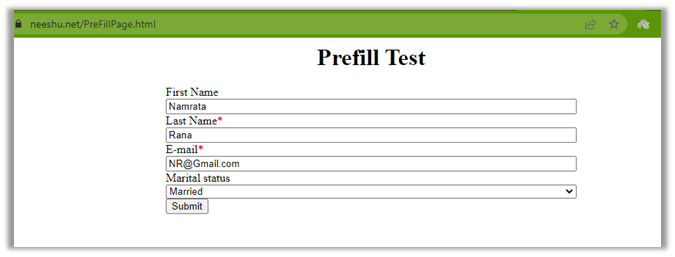
Load the marketing form page again and we can see the value already pre-filled or populated for the user.

We saw how we can enable prefilling for Landing Page type form, by enabling prefill as true at form and field level and adding the remember me element.

For form type – Subscription Center, pre-filling is already enabled for all the fields regardless of their prefill setting, and at the form level also it is set as true and the field is read-only.

Here we do not have to add a remember-me element.

Here we must include the Do not email element.

Prefill in the case of subscription form

Hope it helps..

Advertisements

How to – use form capture to integrate with external form in Dynamics 365 Marketing


We’d use form capture option when we want to integrate with external form not not created in Dynamics 365 Marketing .

Let us take a simple example to understand how the form capture works.

Check the previous post on embedding the Dynamics 365 Marketing form on an external page – https://nishantrana.me/2022/11/10/how-to-embed-marketing-form-on-an-external-page/

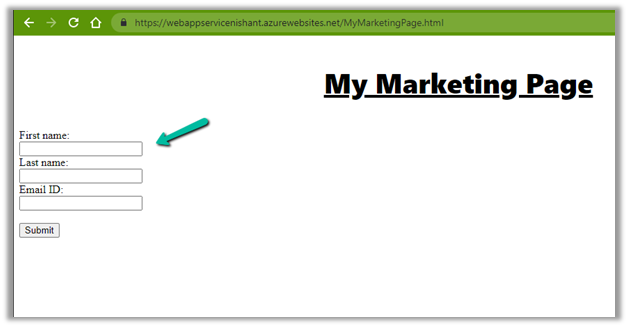
Here we have this simple HTML page having a form in it.

Navigate to Outbound marketing >> Internet Marketing >> Marketing forms

Select Capture Form in the command bar.

Enter the URL of the page which has the form in it.

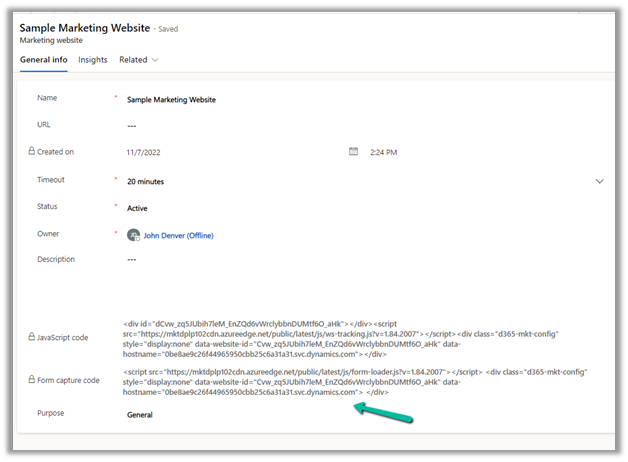
For the verification process to be successful, we need to copy the form capture code to the web page. We can find the form capture code in the Marketing website record.

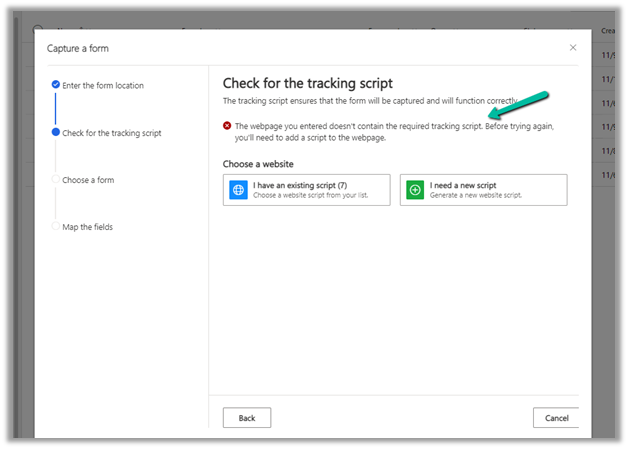
Else in the next step, it will check for the script and if not found will give the option to use an existing script or generate a new one to copy to that web page.

Once we have entered the script, we’d get the message that the tracking script is valid on re-running the verification.

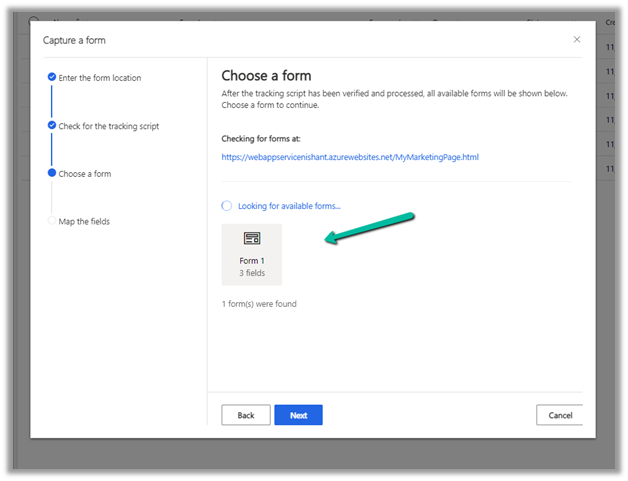
It will identify and load all the forms found on the page. Select the form.

Next map the fields in the form with Dynamics 365 Field, and click on Save and Close.

We can see the website and field mapping details in the marketing form record, with the option of Rescan form and Go live.

Let us Go live with the form.

Let us refresh our page which has the form, and submit the details.

Back in the Submissions tab of the marketing form, we can the submitted values as pending initially.

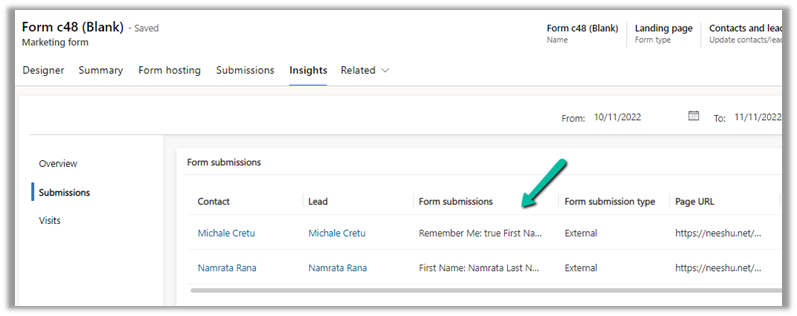
In the Insights, later we can see the form submissions

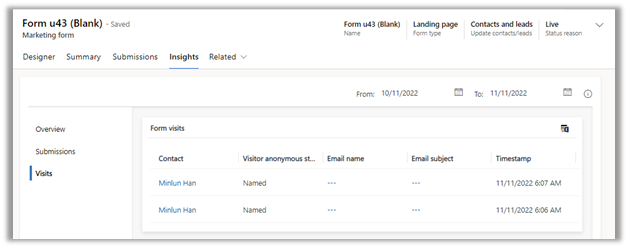
And Form Visits details

Note – Prefill isn’t supported for Form Capture

Check for more details –

https://vivian.tiiman.com/tip-9-form-capture-quirks-d365-marketing/

https://learn.microsoft.com/en-us/dynamics365/marketing/embed-forms#capture-a-new-external-form

Hope it helps..

Advertisements

Fixed – change the owner of the Flow or Flow client error returned with the status code “Forbidden” and ConnectionAuthorizationFailed in Power Automate


Recently while trying to change the owner of the workflow we were getting the below error 

Flow client error returned with status code “Forbidden” and details “(“error”:X [“code”: “ConnectionAuthorizationFailed”, “message”: “The caller object id is ‘ffcdd1fc-2858-4019-9a96-19d73ae124c8″. Connection ‘providers/Microsoft.PowerApps/APIs/shared_commondataserviceforapps/connections/shared-commondataser-87229e07-1003-4e05-8172-fdaf112ceb98’ to ‘shared_commondataserviceforapps cannot be used to activate this flow, either because this is not a valid connection or because it is not a connection you have access permission for. Either replace the connection with a valid connection you can access or have the connection owner activate the flow, so the connection is shared with you in the context of this flow.”}}”.

Below are the steps we were following to change the owner of the cloud flow –

https://learn.microsoft.com/en-us/power-automate/change-cloud-flow-owner

Select Edit for the flow, specify the owner and save.


In our case, the owner had left the organization and the user’s record was not available in the CRM. Finally, we managed to change the owner and fix the issue, by assigning the new owner to the corresponding modern flow record through the below steps – 

  • Open Advanced Find
  • Search for Process Type equals Modern Flow


  • Select the flow, click on the Assign Process button and specify the new owner.


This way we were able to change the owner without any error and got the flow working properly.

Hope it helps..

Advertisements

How to – add Contact Insights / Account Insights to the form – Dynamics 365 Marketing


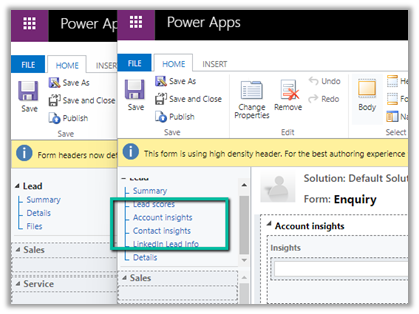
We can see the Account Insights / Contact Insights tab added along with LinkedIn Lead Info on the default lead form (as well as contact/account) after we install Dynamics 365 Marketing.

These tabs will be added if you try creating a new form (Main).

But if we have other existing forms (Main), these tabs won’t be added and won’t be available for us to add.

In that case, we need to edit the Form XML to add these sections.

Here we will be adding the Contact Insights tab to one of the existing forms to the Lead.

Using the Form XML Manager (XrmToolBox plugin – developed by my friend Rasheed), get the Form XML of the form where we have the contact insights tab added.

Copy the below details –

Tab – Contact Insights

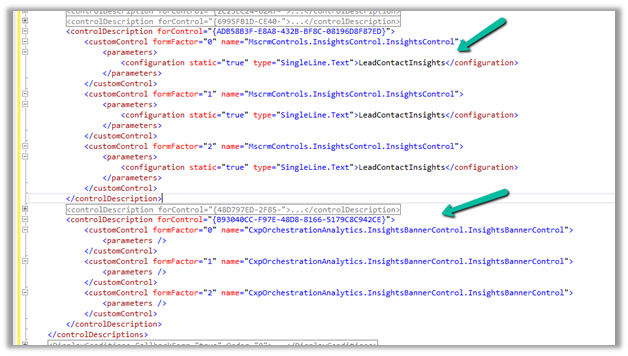
And the below controlDescription

Going back to Form XML Manager, select the form where we want to add the contact insight tab, get its Form XML and add the above details and publish.

We can see the Contact Insights tab added

Similarly, we can Account Insights, and the LinkedIn Lead Info tab as well.

Hope it helps..

	<tab name="contactInsights" id="{AC28F8C9-4498-47C7-8D9B-2FE028CFBDAC}" IsUserDefined="0" locklevel="0" showlabel="true" expanded="true" labelid="{6905336d-985b-4137-a106-31b1dd4e1560}">
			<labels>
				<label description="Contact insights" languagecode="1033" />
			</labels>
			<columns>
				<column width="100%">
					<sections>
						<section name="insights_section" showlabel="false" showbar="false" locklevel="0" id="{2328D81F-CA70-4A20-8B62-DA36756DA7D8}" IsUserDefined="0" layout="varwidth" columns="1" labelwidth="115" celllabelalignment="Left" celllabelposition="Left" labelid="{29474d06-89ea-41ad-a999-9d96dd95c938}">
							<labels>
								<label description="Insights" languagecode="1033" />
							</labels>
							<rows>
								<row>
									<cell rowspan="1" id="{37367a00-f45e-4ae4-a4a4-5ba1023fdc11}" colspan="1" labelid="{e971ab6b-ea22-4543-bbd5-06e50f11f9f1}">
										<labels>
											<label description="" languagecode="1033" />
										</labels>
										<control id="msdynmkt-lead-insights-banner-control" classid="{F9A8A302-114E-466A-B582-6771B2AE0D92}" disabled="false" uniqueid="{B93040CC-F97E-48D8-8166-5179C8C942CE}" isunbound="true">
											<parameters />
										</control>
									</cell>
								</row>
								<row>
									<cell id="{58B703D6-BBA5-4078-9499-1D5A1FB35932}" showlabel="false" locklevel="0" labelid="{db0b8895-c098-45e5-b95f-f85df882f96d}">
										<labels>
											<label description="Insights" languagecode="1033" />
										</labels>
										<control id="LeadContactInsightsCtrl" classid="{F9A8A302-114E-466A-B582-6771B2AE0D92}" datafieldname="msdyncrm_insights_placeholder" disabled="false" uniqueid="{ADB58B3F-E8A8-432B-BF8C-08196D8F87ED}" />
									</cell>
								</row>
							</rows>
						</section>
					</sections>
				</column>
			</columns>
		</tab>
	<controlDescription forControl="{ADB58B3F-E8A8-432B-BF8C-08196D8F87ED}">
			<customControl formFactor="0" name="MscrmControls.InsightsControl.InsightsControl">
				<parameters>
					<configuration static="true" type="SingleLine.Text">LeadContactInsights</configuration>
				</parameters>
			</customControl>
			<customControl formFactor="1" name="MscrmControls.InsightsControl.InsightsControl">
				<parameters>
					<configuration static="true" type="SingleLine.Text">LeadContactInsights</configuration>
				</parameters>
			</customControl>
			<customControl formFactor="2" name="MscrmControls.InsightsControl.InsightsControl">
				<parameters>
					<configuration static="true" type="SingleLine.Text">LeadContactInsights</configuration>
				</parameters>
			</customControl>
		</controlDescription>
		<controlDescription forControl="{48D797ED-2F85-4D89-A329-69C2A1A0E1DD}">
			<customControl formFactor="0" name="MscrmControls.InsightsControl.InsightsControl">
				<parameters>
					<configuration static="true" type="SingleLine.Text">LeadAccountInsights</configuration>
				</parameters>
			</customControl>
			<customControl formFactor="1" name="MscrmControls.InsightsControl.InsightsControl">
				<parameters>
					<configuration static="true" type="SingleLine.Text">LeadAccountInsights</configuration>
				</parameters>
			</customControl>
			<customControl formFactor="2" name="MscrmControls.InsightsControl.InsightsControl">
				<parameters>
					<configuration static="true" type="SingleLine.Text">LeadAccountInsights</configuration>
				</parameters>
			</customControl>
		</controlDescription>
		<controlDescription forControl="{B93040CC-F97E-48D8-8166-5179C8C942CE}">
			<customControl formFactor="0" name="CxpOrchestrationAnalytics.InsightsBannerControl.InsightsBannerControl">
				<parameters />
			</customControl>
			<customControl formFactor="1" name="CxpOrchestrationAnalytics.InsightsBannerControl.InsightsBannerControl">
				<parameters />
			</customControl>
			<customControl formFactor="2" name="CxpOrchestrationAnalytics.InsightsBannerControl.InsightsBannerControl">
				<parameters />
			</customControl>
		</controlDescription>
	</controlDescriptions>
Advertisements

How to – configure website tracking in Dynamics 365 Marketing


We can create a website record in Dynamics 365 Marketing to trace visitors to the website.

To setup Dynamics 365 Marketing (trial) – https://nishantrana.me/2021/11/13/step-by-step-configure-dynamics-365-marketing-in-a-dataverse-environment

Navigate to Outbound marketing >> Internet Marketing >> Marketing websites and create a new marketing website record.

Marketing will record closely grouped visits from a single browser as a single session. A new session will start after the timeout specified period of inactivity – 20 min is the default.

On saving the record, JavaScript Code and Form capture code is generated. The URL field and Description are for entering details for the website record for our use, it doesn’t affect the codes generated.

JavaScript code can be added to any page that we want to track. We can reuse the same code across multiple pages or can have different website records (code) for each page as per our requirements. JavaScript uses cookies for tracking, the users will remain anonymous till they register themselves through the landing page.

Form capture code is used when we want to integrate with a form created externally. We will look at it in later posts when we discuss marketing forms.

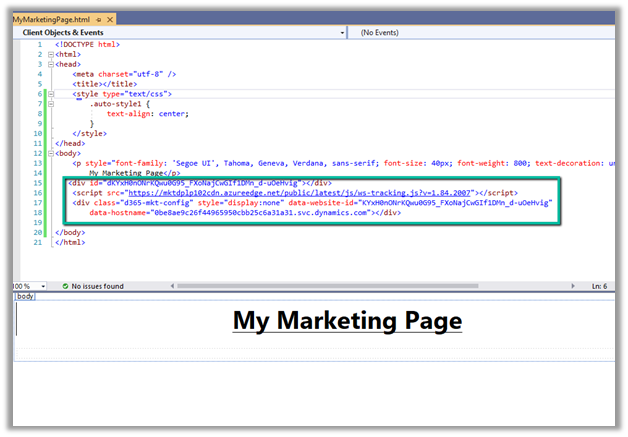
Below we have added the JavaScript code to one of the HTML pages inside Visual Studio.

Let us open the page in the browser.

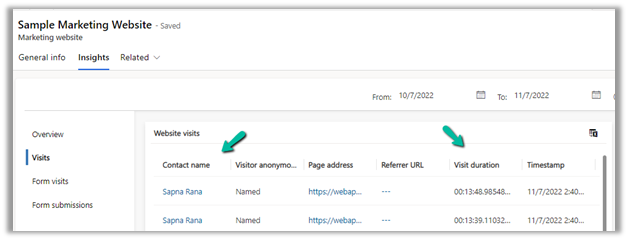
Go to Insights >> Visits in the marketing website record, we can see the visits being tracked.

Now we have published the page in the Azure App Service, just to see what details are captured this time.

This time we can see it tracking the Page Address, unlike last time when we were running it locally.

If the user has registered through the landing page (through marketing form submission, which we’d cover in the next post), we will get more details about the visitor as shown below.

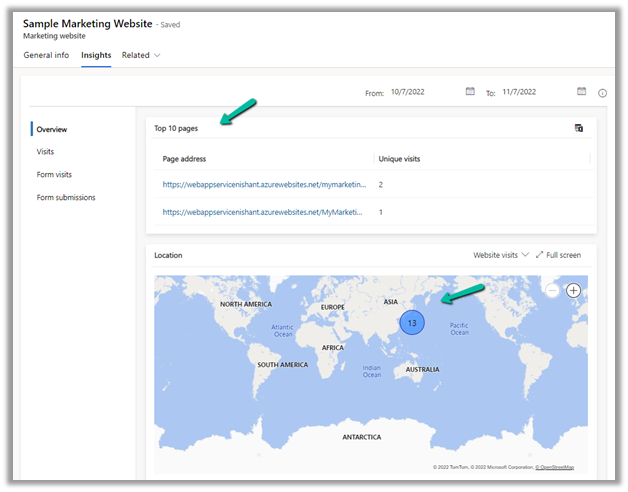
Within the overview section, we can get a few more details as shown below.

Hope it helps..

Advertisements

Few key points – Dynamics 365 Marketing Licensing / Apps


Below are a few key points and links for quick reference –

Core Marketing License

Dynamics 365 Marketing – For organizations without any other Dynamics 365 Application.

Dynamics 365 Marketing Attach – For organizations with qualifying Dynamics 365 Applications (minimum 10 users of the following apps – Dynamics 365 Sales, Customer Service, Field Service, Supply Chain Management, Finance or Commerce)

Additional Marketing Licenses – that can be purchased apart from the core license –

Production License – Used for the production environment. Fully functional and includes both solutions and services. It is licensed per tenant and includes a default capacity allotment of 10K Marketing contacts (contact, lead, account, customer insights B2C profile, etc) and 100K marketing interactions (email, SMS, push notifications) per month.

Non-Production License – Used for the test environment to try out new features or customizations. Fully functional and includes both solutions and services but has strict quotas and cannot be used to run production campaigns.

Solution Only License – Used for development or test environment for customizations, importing or exporting solutions, non-functional testing, other development, etc. Only includes solutions and entities and doesn’t include any services. Included with Paid Licenses. To convert a solution-only environment to production or non-production, we will need to purchase either production or non-production license and do the configuration using the marketing setup wizard.

Another Tenant example –

Picture1

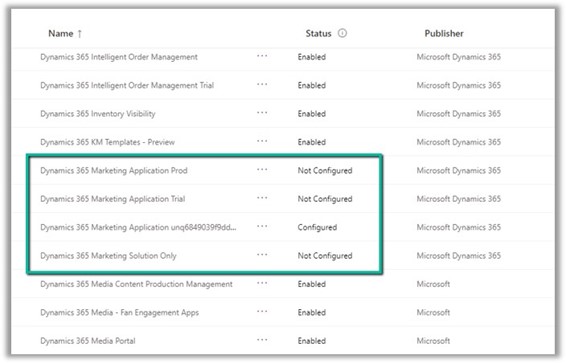
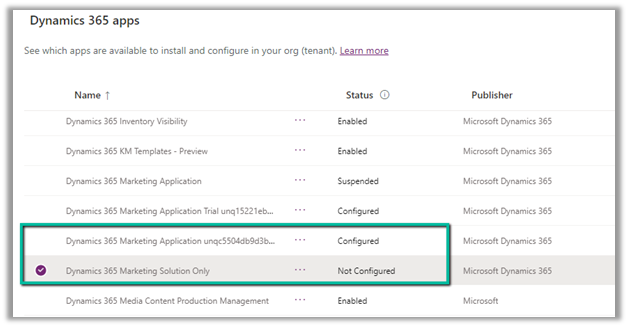
A configured Marketing Application app will have the unique id of the organization / env. appended to it, on which it has been configured as shown above.

Dynamics 365 Marketing Application App: This is a fully functional Dynamics 365 Marketing application, including both solutions and services. Mainly for production but can be used for another environment for testing the functionalities.

Dynamics 365 Marketing Solution Only App: This application includes all the marketing solutions/entities but doesn’t include any services. It can be installed on as many test or development environments as needed for no additional charge.

Other points –

We can only have one Dynamics 365 marketing app per environment i.e. each Dynamics 365 Marketing App can be tied to only one environment.

To add more marketing apps to the tenant, we need to purchase an additional license. On purchase of the license, we can see an unconfigured Dynamics 365 Marketing app added in the tenant.

We can have n number of marketing apps available in the tenant, which can be assigned to any of the Dynamics 365 environments not being used for marketing earlier.

We can also set up a marketing trial – https://learn.microsoft.com/en-us/dynamics365/marketing/trial-signup which can be later purchased – https://learn.microsoft.com/en-us/dynamics365/marketing/direct-purchase#purchase-a-license-within-a-trial

Adding Marketing capacities – We can buy additional marketing contacts and interactions as below

Dynamics 365 Marketing Pricinghttps://dynamics.microsoft.com/en-us/marketing/pricing/

Step by step – Configure Dynamics 365 Marketing in a Dataverse Environment

Hope it helps..

Advertisements