Word Version : https://1drv.ms/w/s!As1evjwQ4RIjjZRve-ZmrICdtmZoaA?e=KVDUDB
Pros of using ClickDimensions with Microsoft Dynamics CRM \ 365
Easy to set up and configure. ClickDimensions will provide a solution file which needs to be imported to the Dynamics CRM Web Application. It doesn’t require any setup files or any other infrastructure to be configured as it will be using the existing CRM Infrastructure.
Below we can see the ClickDimensions installed as Solution on top of existing Dynamics CRM instance. The solution import is followed by some basic configuration and we are up and running in no time.
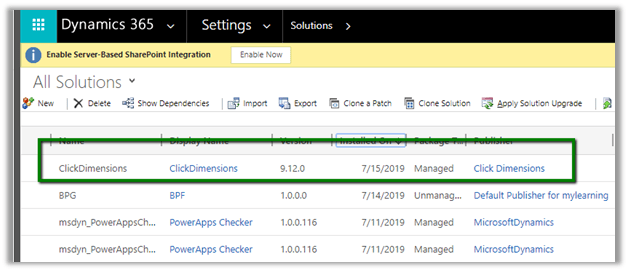
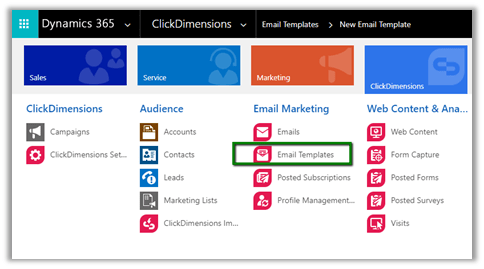
It is the only tool available in the market that is natively embedded and exclusively built for Microsoft Dynamics CRM. So, the Microsoft Dynamics CRM Users will not have to switch between separate applications for the marketing needs and can use their existing Dynamics CRM skills for their marketing needs. It basically adds the required Group, Area and Subarea within CRM Web Application’s SiteMap as shown below.

As it is natively embedded with CRM, it has direct access to all the information and the data to be targeted for marketing like lead, contact, accounts and marketing lists that reside within CRM. In case of any other marketing tool, we’d have a Dynamics CRM Connector that needs to configured to sync the same data periodically and maintained at two different places one inside Dynamics CRM and other the marketing tool.
Relatively cheaper and cost-effective than other marketing tools available in the market Marketo, HubSpot, Pardot, etc.
Below are some of the prominent features provided by ClickDimensions for marketing needs
Email Marketing
The Email Marketing provides features specific to sending emails (Newsletters, Special offers, Instructions, etc.) to customers along with insights and statistics on how the customers are interacting with the emails.
Marketing List
To send bulk email, we would need to create a marketing list (static or dynamic). Marketing list can be used to target Lead, Contact or Account records inside Dynamics CRM.
Below is a sample Static Marketing List in Dynamics CRM
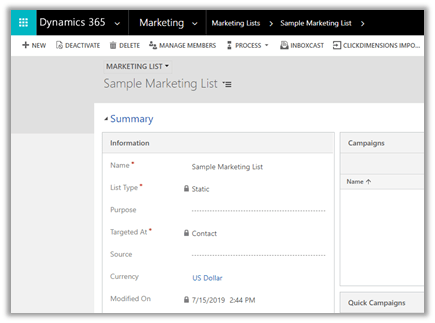
Clicking on the Manager Members button in the ribbon menu allows adding members to the marketing list.
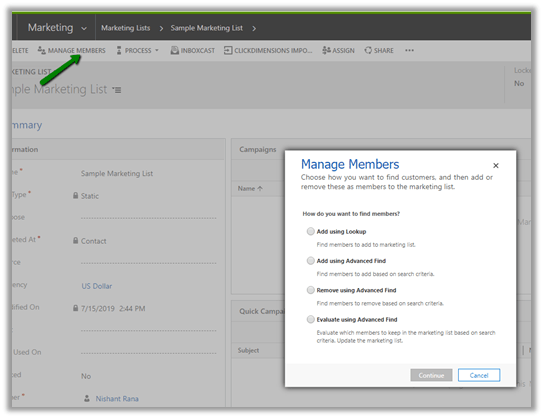
Advanced Find option within Manage Members dialog box let us define the criteria for the members to be targeted as part of the marketing list for e.g. contact having age greater than 30.
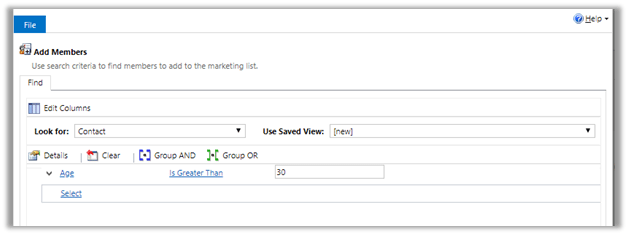
In the case of Dynamic Marketing List, instead of actual members (records), query or criteria is saved in the marketing list and the marketing list members get updated automatically based on the query specified.
Email Templates
To create an email template in Dynamics CRM, navigate to ClickDimensions à Email Templates. Email Templates are used to design the Emails to be sent to the customer or clients. Email Templates can be reused or cloned to update some of the content to be sent to the recipients.
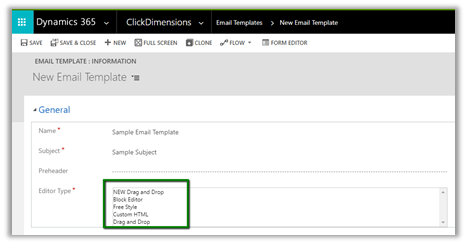
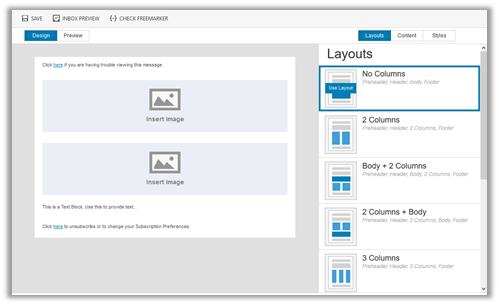
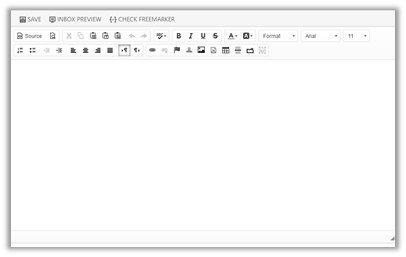
ClickDimensions provide different type of editors for designing Email Template as shown below à

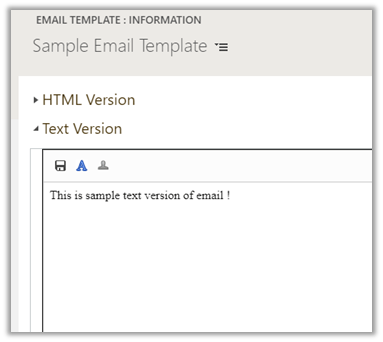
Email Template entity also provides a field called Text Version which allows you to specify the Text Version of the email so that anyone who cannot or wishes not to receive HTML in emails can still read the email.
Email Sends
Email Sends are the records using which the Email Templates created are attached to the marketing list and emails are sent out to the members of the marketing list associated.
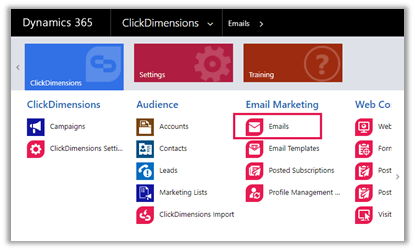
To create an Email Send record, navigate to ClickDimensions à Emails
Click on New button to create the Email Send as shown below.
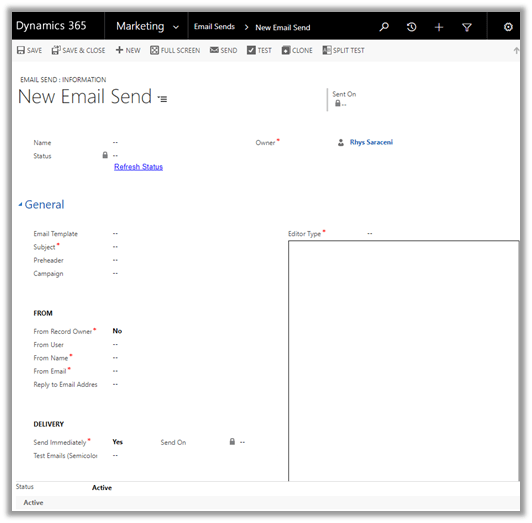
Let us go through each of the section and corresponding fields of the Email Send record.
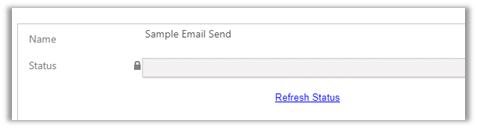
The Status field will have the following values Draft, Pending, Sent, Error Recovery and Recovery Stopped, which shows the current status of the Email Send record. It will be Draft status, to begin with, and will be changed to Pending when being sent and Sent when sent from the system. User can click on Refresh Status to check the status instead of reloading the form.
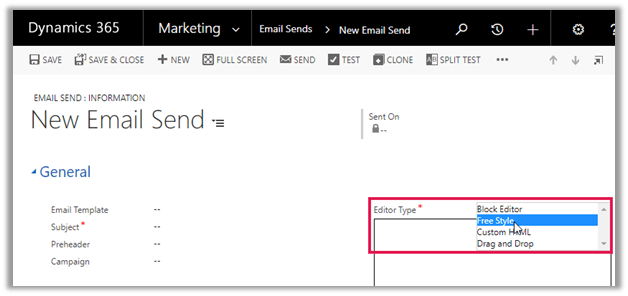
Either an existing Email Template (optional field) can be associated or a new email template can be created for the Email Send. The existing Email Template associated can be further modified in the editor window in the Email Send. This will not update the original email template.
-
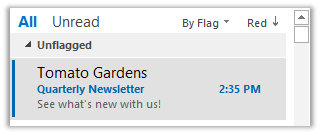
Subject is the mandatory field and specifies the subject for the email e.g. “Tomato Gardens”
-
Preheader will be the third line of text appearing in the message in the inbox for e.g. “See what’s new with us!”
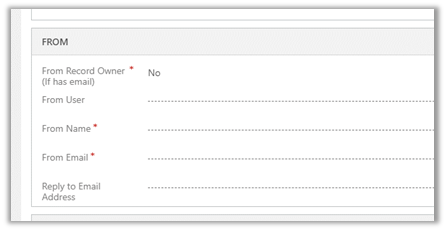
From Section of Email Send
-
When an Email Send is sent out while From Record Owner is set to Yes, the From Name and From Email values for each individual recipient will dynamically be set to the name and email address listed on the CRM User record of the Lead or Contact’s record owner.
-
If From Record Owner is set to No, every recipient will see the values in From Name and From Email. When From Record Owner is set to Yes, none of the recipients will see the values listed in the From Name and From Email fields on the Email Send unless the name and/or email address are missing from the Owner’s record. In this case, the values listed in From Name and From Email are used as back-up values.
-
From User field can be used to select any of the CRM users in the system. This will also auto-populate From Name and From Email field’s value from the selected user record.
-
Reply to email address field can be used to specify any email address if we do not want replies to be sent to From Email field.
Delivery section of Email Send

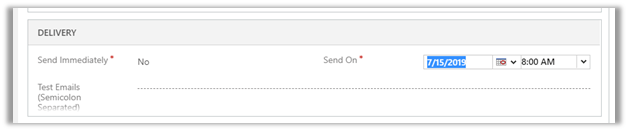
To schedule the delivery of the emails, the Send Immediately field can be set as No and Send On field can be used to specify the date and time as shown below.
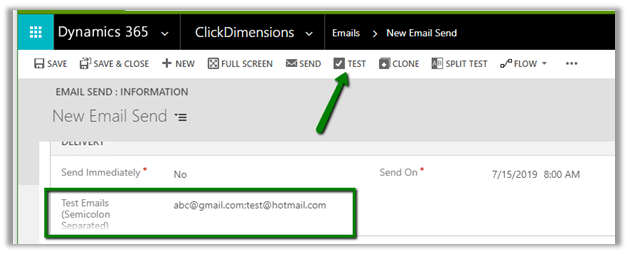
Test Emails (Semicolon Separated) field can be used to specify the test email address (by clicking the Test button in the ribbon menu of Email Send form) before sending the emails.
Recipients Section of Email Send
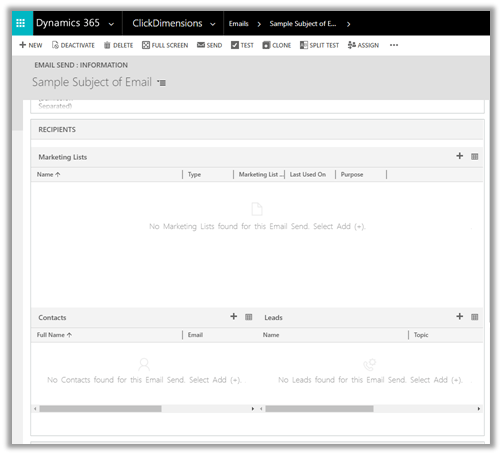
Recipients section allows us to specify either Marketing Lists or individual contacts, leads or accounts record to which email needs to be sent as shown below.
Suppressed Marketing Lists section of Email Send
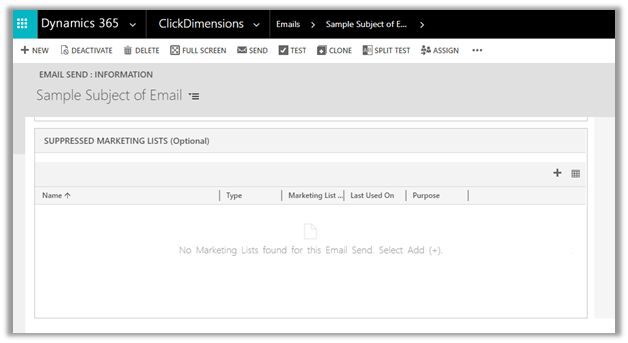
Suppressed Marketing Lists allows us to select one or more marketing list to exclude from Email Send.
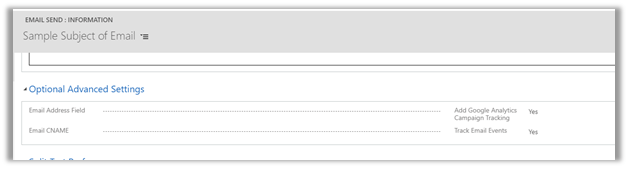
Optional Advanced Settings Section of Email Send
-
Email Address Field specifies which field of contact, lead and account to be used for sending an email. By default, it uses emailaddress1 field.
-
Email CNAME – To brand the links differently than the default Email CNAME.
-
Add Google Analytics Campaign Tracking – If a campaign is associated with the Email Send then Google Analytics can be associated to it using this option.
-
Track Email Events – Indicates whether Opens and Clicks are recorded for Email Send.
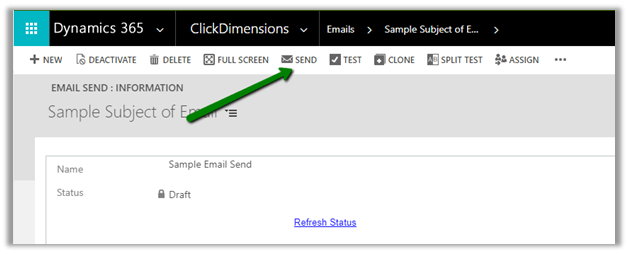
Once all the required values are specified for the Email Send record, save it and click on SEND button to send the Emails.
Email statistics for Email Send
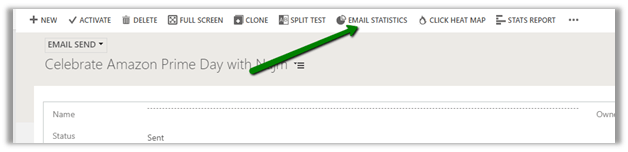
Once the email is successfully sent out, click on EMAIL STATISTICS button on the Email Send to get the email statistics.
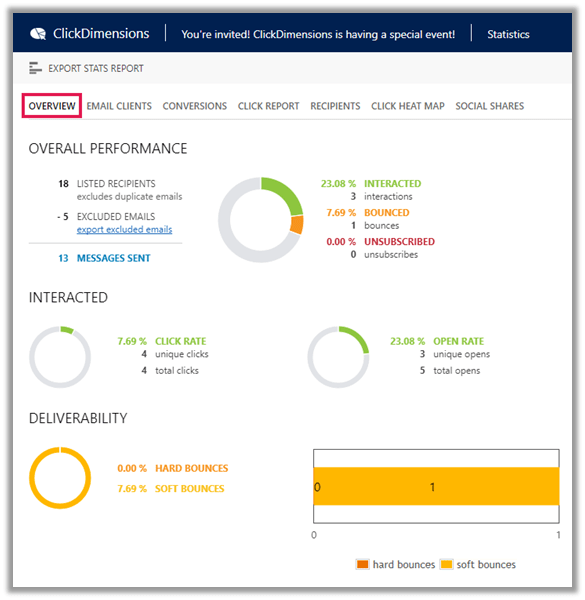
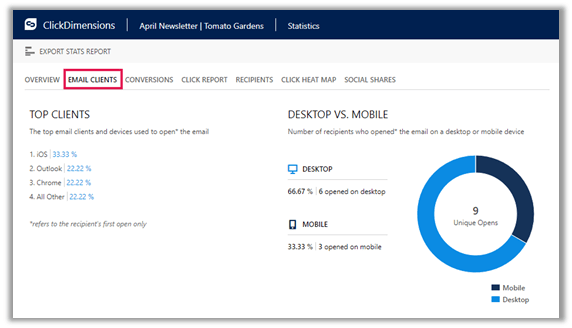
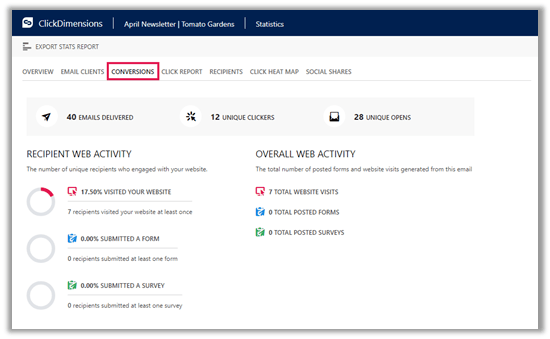
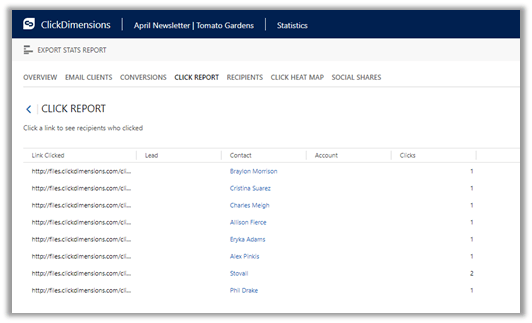
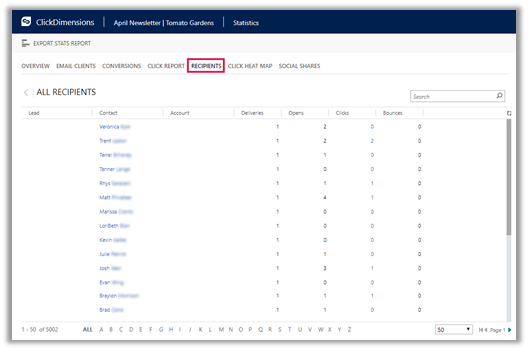
Different tabs and details provided in Email Statistics à
Overview:
Email Clients:
Conversions:
Click Reports:
Recipients:
Heat Map:

Marketing Channel – SMS
ClickDimensions supports sending text messages both in bulk and to individuals (Leads, Contact, and Account) using SMS Provider. Currently, it supports below three different SMS Providers.
-
Twilio
-
MessageNet
-
BulkSMS
The account or subscription for the above SMS providers needs to be bought separately and need to be configured in ClickDimensions.
Navigate to ClickDimensionsà
Bulk Text Messages

Click on New to create a new Bulk Text Message record
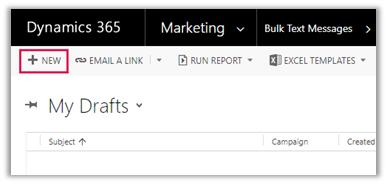
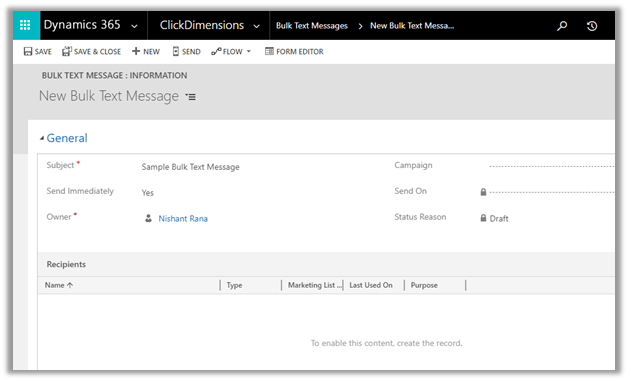
Bulk Text Message Section Overview
-
Subject: This will be the subject of the Text Message
-
Campaign: To associate the record with a campaign.
-
Send Immediately: Specify whether to send the message immediately. Set it to No and specify a date in Send on the field to schedule it.
-
Send On: The date on which the messages should be sent when scheduled.
-
Status Reason: The status of the record.
-
Recipients: Add the marketing list to which text message is to be sent.
Message Content area is where we can compose the text message.
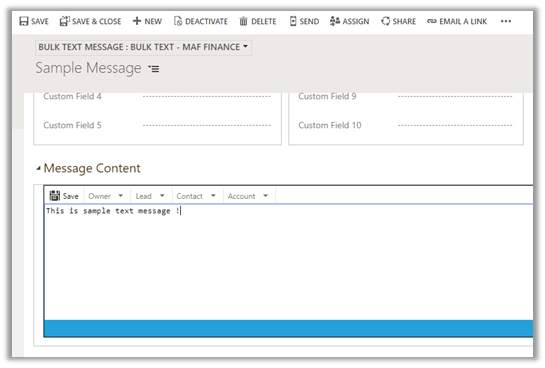
The dynamic drop down allows us to pull the information from the respective lead/contact/account records added in the marketing list.

Once the message is composed, click on Send to send the Bulk Text Message.
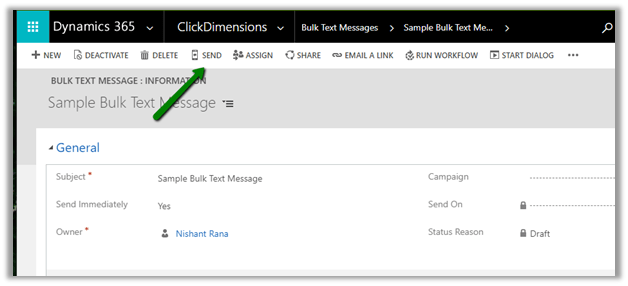
To send individual SMS, open any existing lead, contact or account record and click on other activities and create the Text Message record with appropriate details and click on Send.
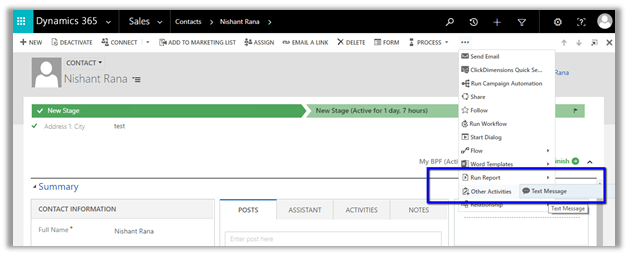
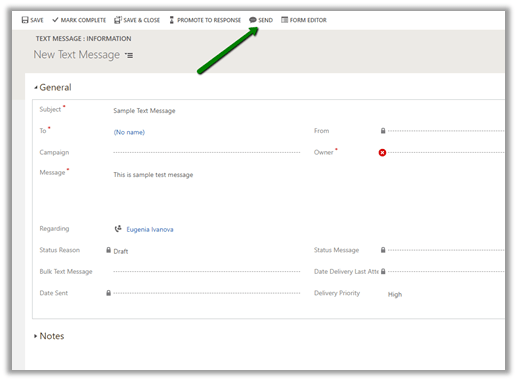
SMS Statistics
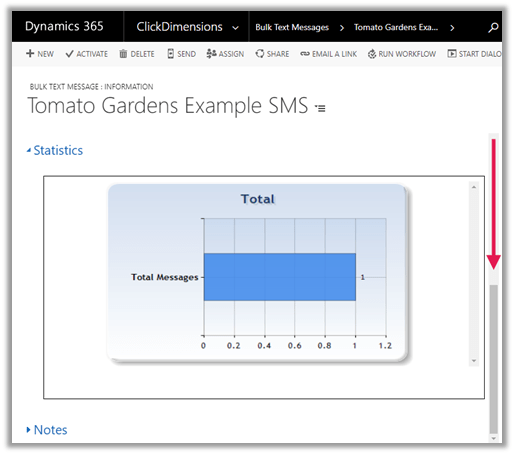
Open up the sent Bulk Text Message, it will have a section name Statistics that shows the total messages that have been attempted to send.
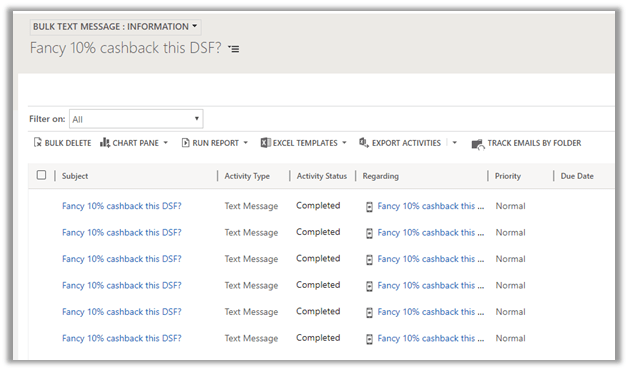
Click on Closed Activities menu for the sent Bulk Text Message record to see that individual SMS statistics

SMS Replies
SMS Provider i.e. either Twilio and BulkSMS can be configured to allow SMS recipients to respond to the SMS Messages. These responses get associated with the respective lead or contact records in CRM.
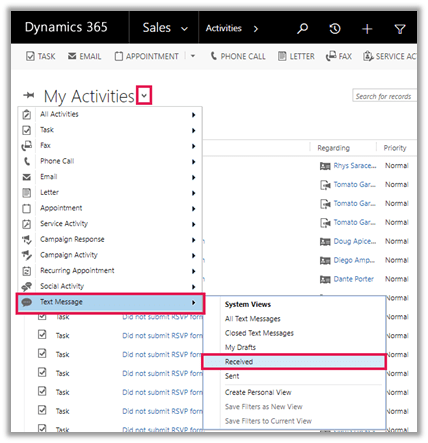
To see replies, go to Activities and select Received View for Text Message entity.
SMS Unsubscribes
The SMS recipients can reply with one of the following responses to be unsubscribed from SMS.
-
unsubscribe
-
stop
-
remove
-
688
-
*688
This updates the field Allow Text Messages in Lead/Contact/Account record to “No”

Marketing Channel – Events
Events capabilities of ClickDimensions allows us to create Event Records and Event Participant Records which will be associated with existing lead or contacts records if matching email address exists if no matching email address is found lead or contact records are created in CRM based on the configuration done.
Below are the connectors supported by ClickDimensions for Events
-
GoToWebinar
-
WebEx
-
Eventbrite
-
Cvent
Once the connector is configured for any of the above Events Provider from ClickDimensions à Settings à Connectors section,
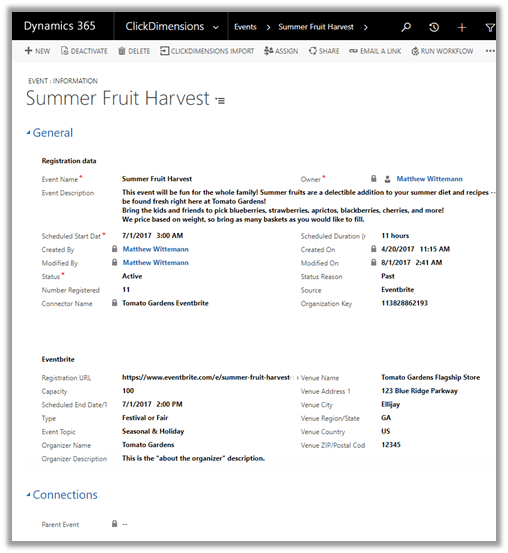
Navigate to ClickDimensions à Events to view all the events generated.

Sample Event Record
Navigate to ClickDimensions à
Event Participants to view all the Event Participants records.
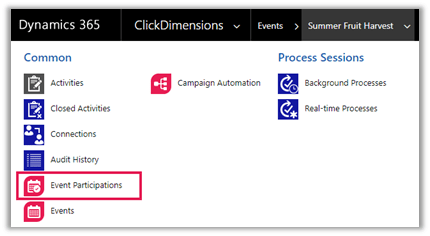
Sample Event Participants

Note: Event and Event Participant records can also be created manually if connectors are not used.
Marketing Channel – Social
Social Marketing feature allows CRM Users to create, schedule and publish social posts and to track the interactions people are having with theses posts from within Dynamics CRM.
The different connectors supported are
- Facebook – Facebook Page and Facebook Group are supported.
- LinkedIn – LinkedIn Profile and LinkedIn Company are supported.
- Twitter – Twitter Profile.
- Instagram
To create social posts, navigate to ClickDimensions à Social Posts

Click on New to create a new Social Post record.
Sample Social Post
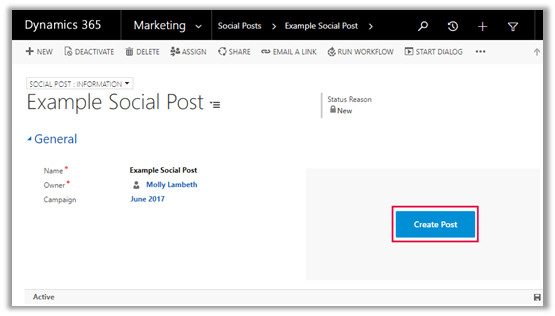
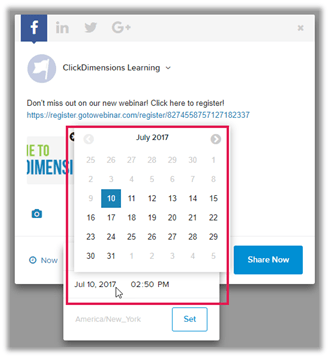
Click on Create Post to create, schedule and publish the Social Post à
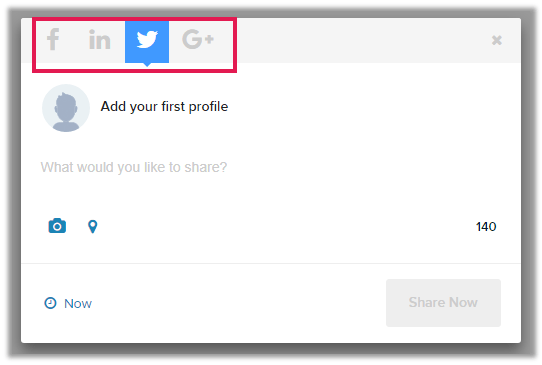
Sample Post:
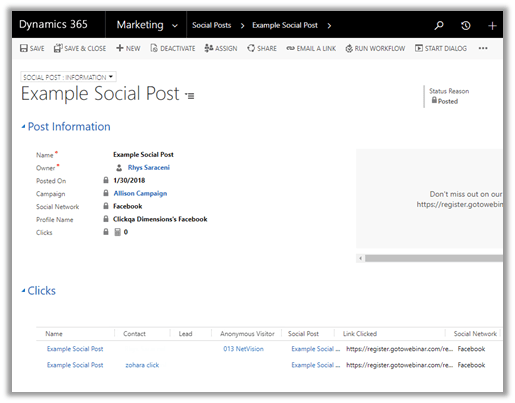
Once a social post has been published, the Social Post record will show the details of the Social Post along with the Social Clicks information as shown below.
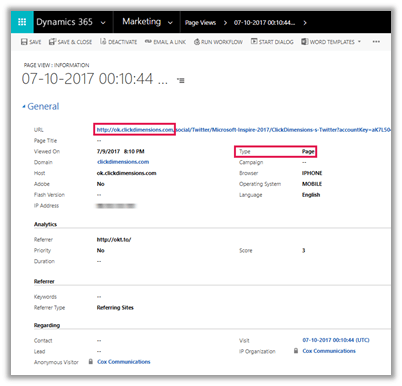
The Page View record will show the details of the clicks on links from the published social post.
Navigate to ClickDimensions à Page Views
Sample Page View
Web Content – Forms
ClickDimensions allows CRM users to create Forms that will allow visitors to submit information like name, email address, phone number, country, etc. which is then stored in CRM. These forms can be embedded in the landing page or on the website and this information can be associated with the lead or contact record in CRM.
There are 2 ways of creating Forms in ClickDimensions
Form Builder and Form Capture
Using Form Builder, we can create the form from scratch whereas Form Capture uses an existing HTML for the existing web site of the company.
The first step is to create Form Fields.
Navigate to ClickDimensions à Form Fields and click on New
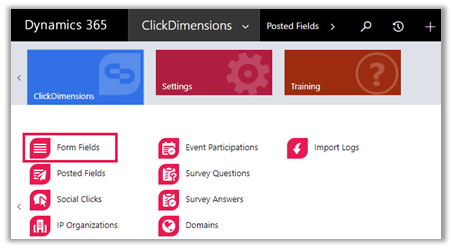
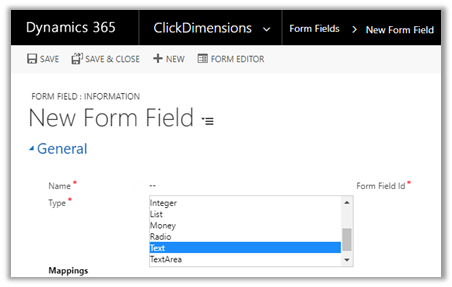
Different type of fields that can be created
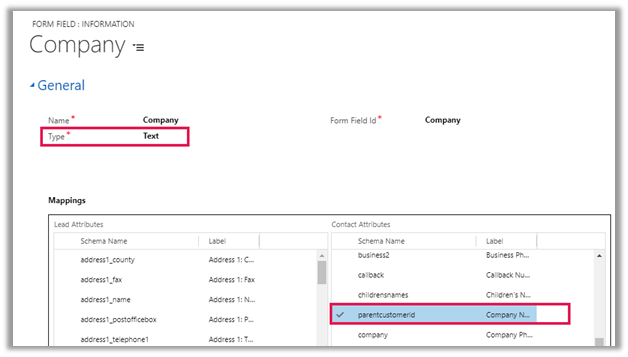
The new form field needs to be mapped with existing fields in Lead and Contact as shown below.
Navigate to ClickDimensions à Web Content and create a new Web Content of type Form for adding the Form Fields and designing the form using Form Builder.
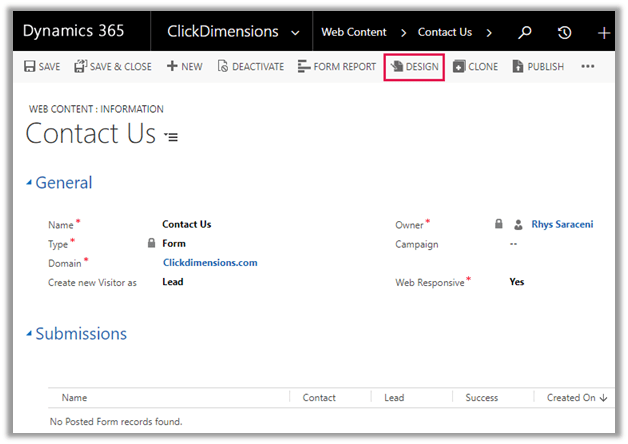
Click on Design to open the form designer and drag and drop the forms fields in the Form Designer canvas to design the form

Click on Actions to define the action to be performed after submission of the form.

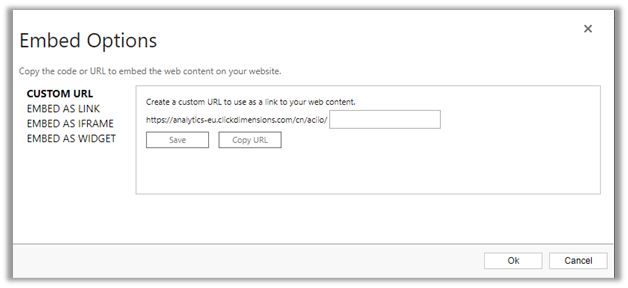
Click on Embed which will list down various options of embedding the form.
We can also use Form
Capture to use existing HTML in the website for creating our form. Before we can use the existing web page for Form Capture we need to make sure the page is accessible over the internet, the ClickDimensions tracking script must be installed and working on the page.
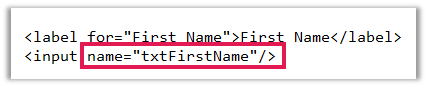
The Form Fields records should be already created and associated to Form Capture fields and are being referred with their Form Field Id value in the name property inside HTML as shown below.

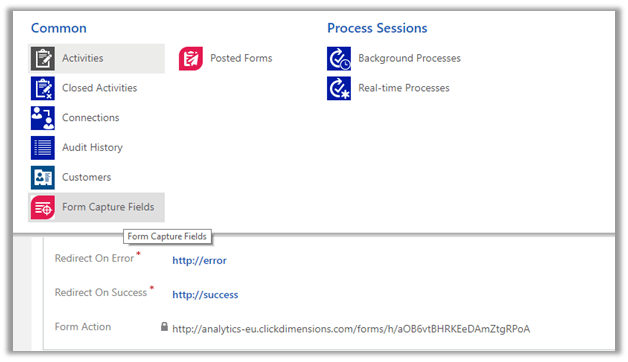
Navigate to ClickDimensions à Form Capture and click on New to create a new Form Capture

The Form Action URL will be used in the action URL in the HTML Page.

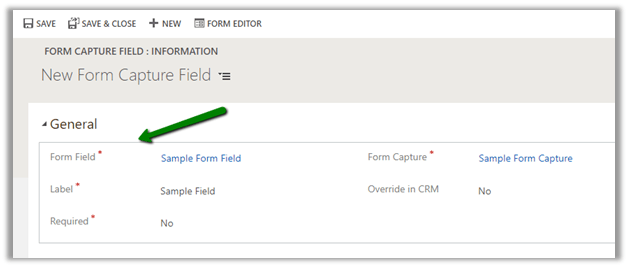
Go to related records for the Form Capture record created and create a new Form Capture field

Specify the Form Field to be used in Form Capture and save the record. Repeat the same steps for additional fields.
Web Content – Surveys
ClickDimensions provide the Survey feature for getting user’s feedback. This can be embedded in landing pages or web site and the answers provided can be associated with lead and contact records in Dynamics CRM.
To get started we need to first create the Survey Questions. Navigate to ClickDimensions à Survey Questions and click on New
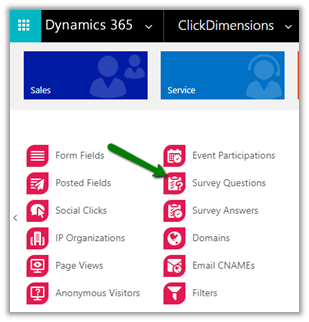
Below is the different type of Survey Questions that can be created.

Once we have created all the Survey Questions, we need to create Web Content of type Survey. Navigate to ClickDimensions à Web Content and click on New.

Click on Design button on ribbon menu to Design the survey.

Below are the different Survey Components that can be added in Survey
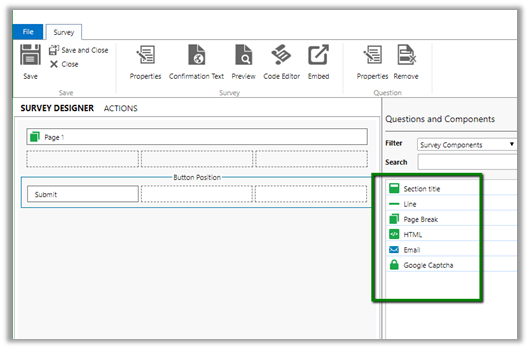
After we are done with designing the Survey, we can select Actions to define the action to be taken once the Survey is submitted by the user as shown below.
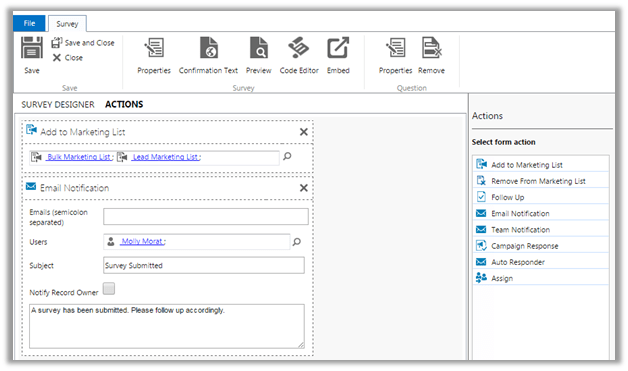
Once we are ready to Publish the Survey, we can click on Embed and select the appropriate option.


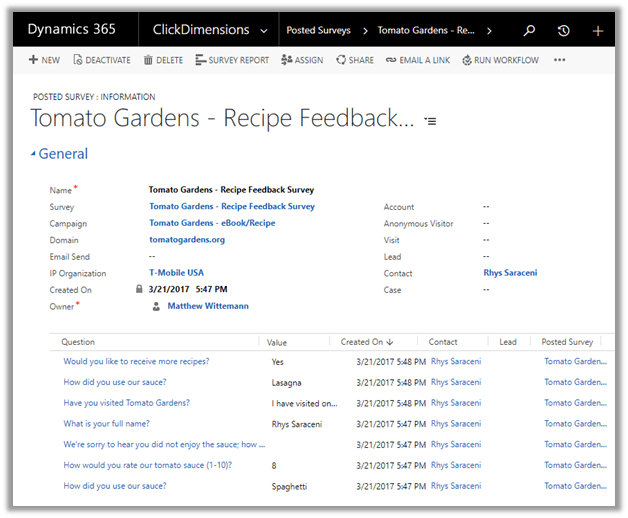
Navigate to Posted Survey record to check the Survey Statistics
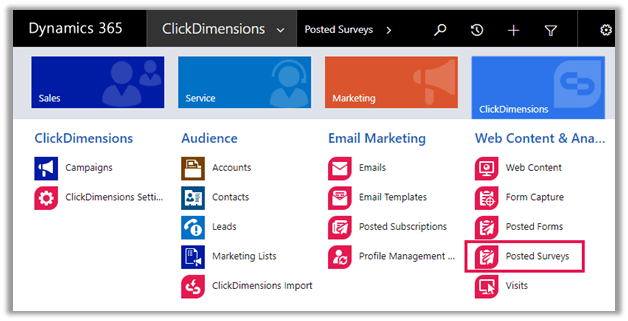
Web Content – Landing Pages
Landing Pages are stand-alone pages for any advertisement, newsletter, distribute coupon codes, etc. The landing pages can embed Survey and Forms in them.
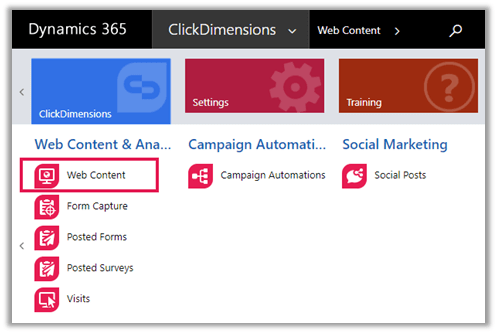
To get started, Navigate to ClickDimensions à Web Content and create on New to create the new Web Content record of Type as Landing Page.
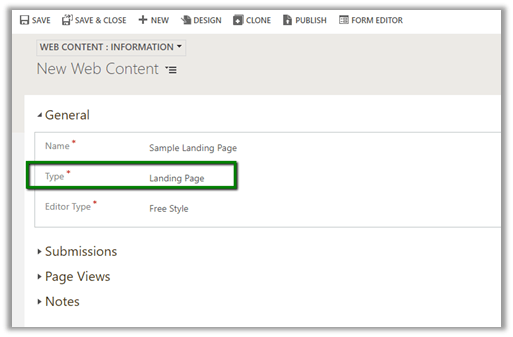
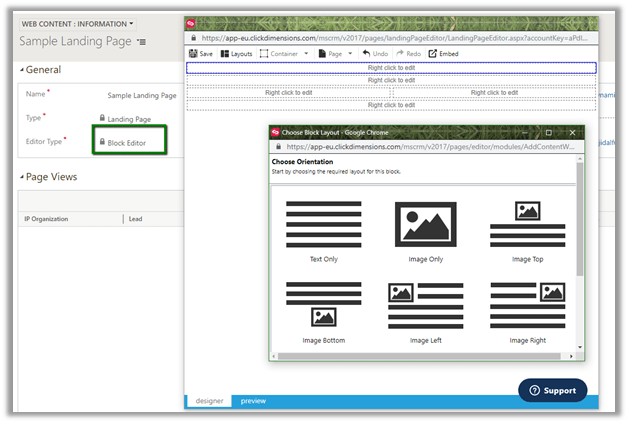
Landing Page supports 2 different type of editors – Free Style and Block Editor.
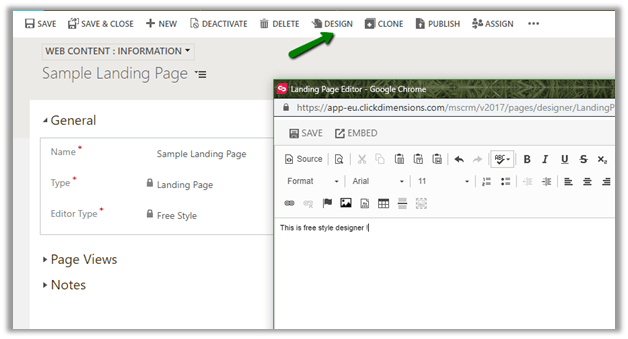
Click on Design to open the designer.
The Free Style editor
The Block editor
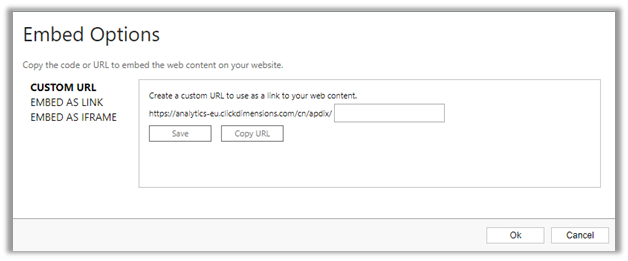
Once we are done with designing and are ready to Publish the Landing Page, we can click on Embed on Designer and select the appropriate options
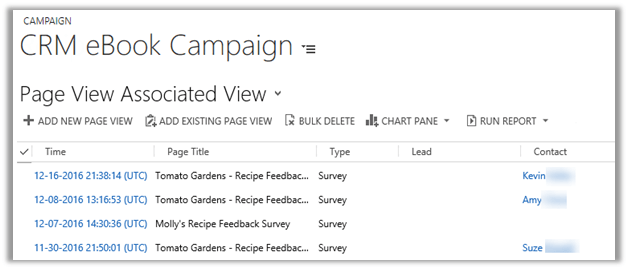
To link the landing page with the Campaign, copy the Campaign Code from the campaign record and place the code inside the Landing Page or through the Campaign field in the Web Content record.

Page View related record of Campaign will have the details of all the visits to the Landing Page.

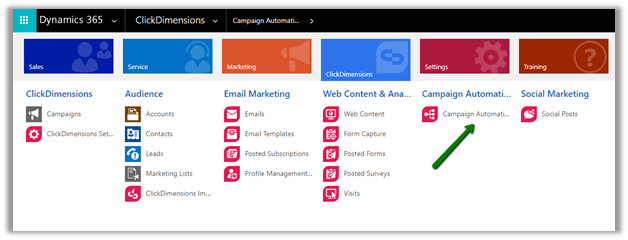
Campaign Automation
Campaign Automation feature allows the user to set up the dynamic path that a campaign will follow using Triggers and Actions.
Navigate to ClickDimensions à
Campaign Automation and click on New to create the new Campaign Automation record.
Save the record and click on Open Builder to create a new Campaign Automation Builder which provides the canvas for defining and building the Campaign Automation.

Campaign Builder: On the right side we have Triggers, Actions, Timers and Series which can be dragged onto the canvas.

Below link and the pdf list down some of the examples of Campaign Automation
http://blog.clickdimensions.com/top-5-campaign-automation-scenarios-clickdimensions-customers/

Lead Scoring
ClickDimensions provides Lead Scoring capability for the Lead, Contact and Anonymous Visitors (custom Click Dimension entity). Here scoring specifies the interest level of the individual which is calculated based on email clicks, web form submissions, page view, link clicks, etc.
Navigate to ClickDimensions à
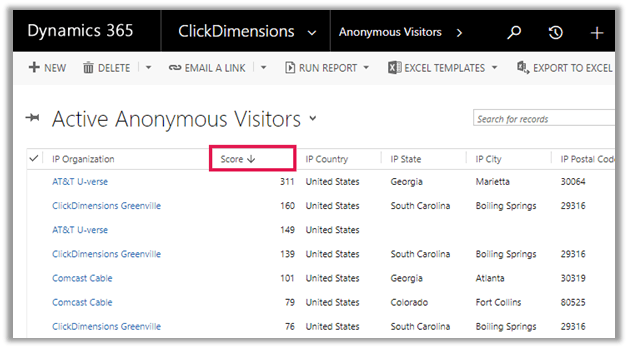
Anonymous Visitors
The score field shows the Total Score for the Anonymous Visitor
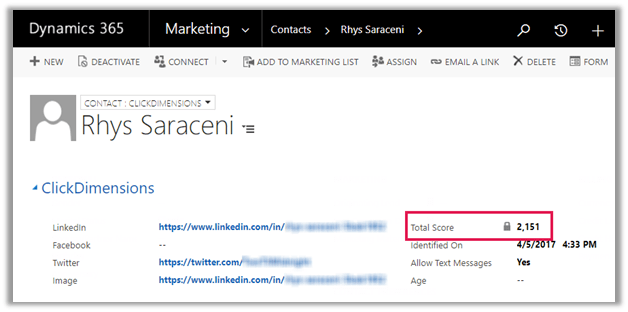
For Contact and Lead, the value is available is the Total Score field on the form.
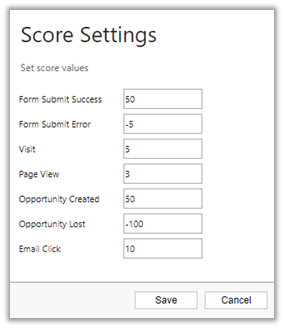
The Score values can be modified from ClickDimension à ClickDimension Settings à Score Settings

Cons of using ClickDimension with Microsoft Dynamics CRM
The SMS marketing feature is limited and doesn’t provide a details statistic and reports similar to Email marketing. Currently supports Twillio, MessageNet and BulkSMS connector which comes with additional cost. If we are planning to use some other Vendor instead of the above 3, then custom SMS integration needs to be built in Dynamics CRM using the Software Development Kit provided by Microsoft.
There are certain limitations with regards to what fields can be dynamically accessed inside ClickDimensions for Email and SMS marketing.
-
For Emails – It can pull data from Lead, Contact, Account, Owner (User), EmailSend entity and those entities that have an n-1 relationship to them. And that also only up to one level.
-
For SMS – It can pull data from Lead, Contact, Account, Owner (User) entity and those entities that have an n-1 relationship to them. And that also only up to one level
The workaround to get data from any other entities is to create the custom fields in the Owner, Lead, Contact, Account, and EmailSend entity and populate them which requires customization.
https://support.clickdimensions.com/hc/en-us/articles/115001162773-FreeMarker-Restrictions
Tightly integrated with Microsoft Dynamics CRM, so if we want to run a campaign for Customers that exist in other systems/applications, we need to push/sync that information inside CRM first.
Doesn’t support Inbound Marketing (blogging, webinar, podcast, etc.).
Doesn’t have Predictive Analytics or AI features
Additonal Resources
Hope it helps..