While testing one scenario we observed one of the plugins (asynchronous) was not updating the record as expected.
Checking the System Jobs, we saw the below error.
The async operation was skipped because the org is in “Disable Background Processing” mode.
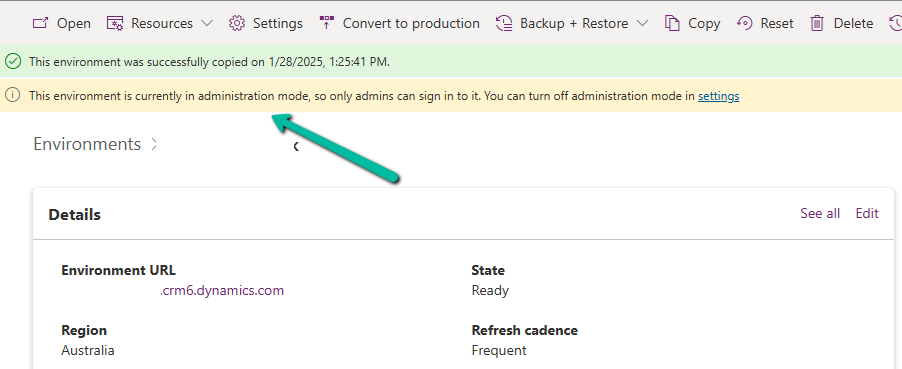
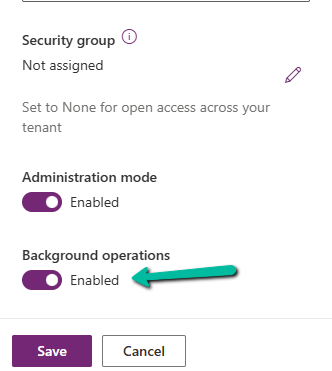
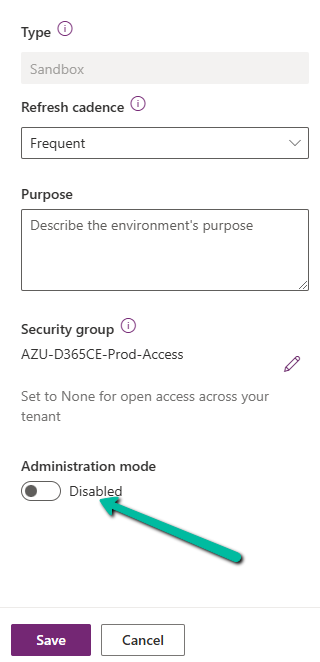
Well, this was because we had recently created this environment by copying our UAT environment and had forgotten to disable the Admin mode / enable Background operations.
We all know how frustrating it can be to dig through records just to find key details. With AI-generated record summaries, users can instantly access important information—saving time, reducing effort, and boosting productivity.
We can now create AI-powered record summaries for any table in Power Apps using a simple, guided prompt builder. We get to choose the fields and details that matter most, ensuring users see the right information briefly. There’s even an online testing option to fine-tune the summary before rolling it out. Once set up, the record summary will be readily available in forms, making information access effortless.
To enable it inside the Power Platform Admin Center, select an environment and navigate to
Environment >> Settings >> Features >> AI insights cards
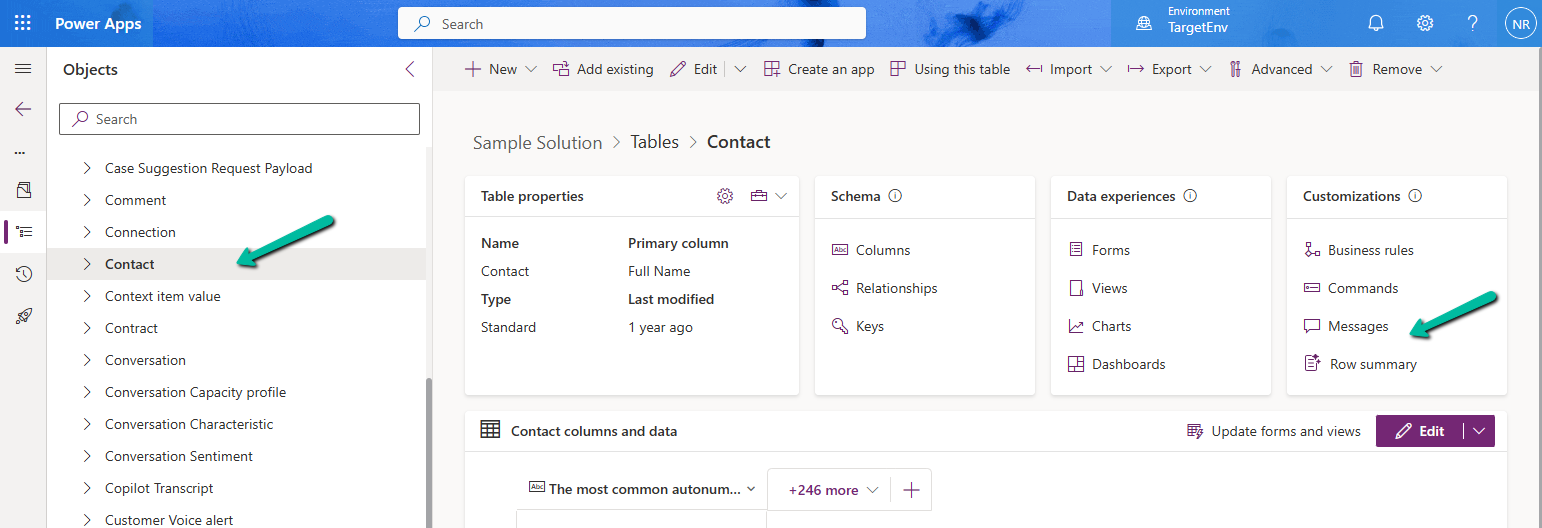
Inside Maker Portal, select the table, and from the Customizations section select the Row summary option.
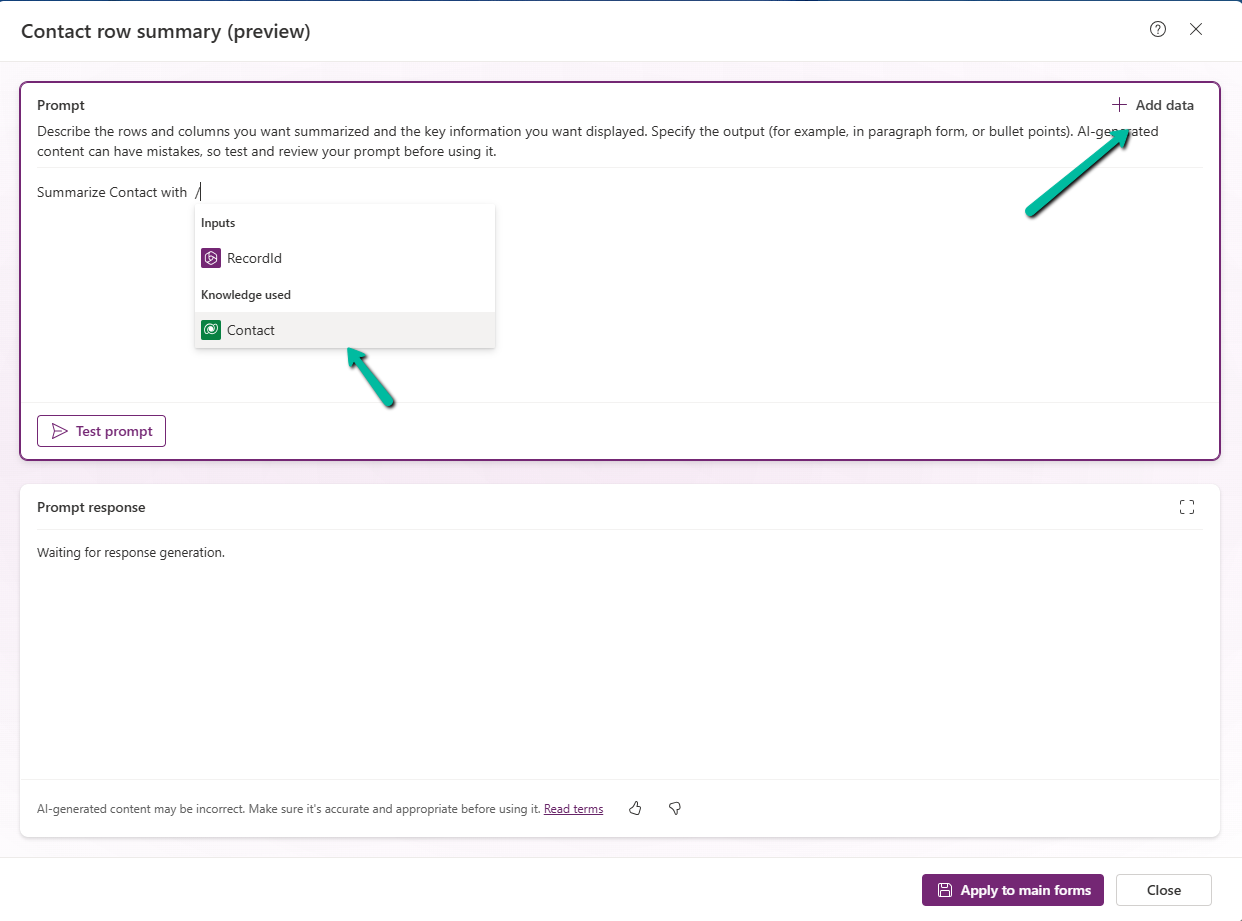
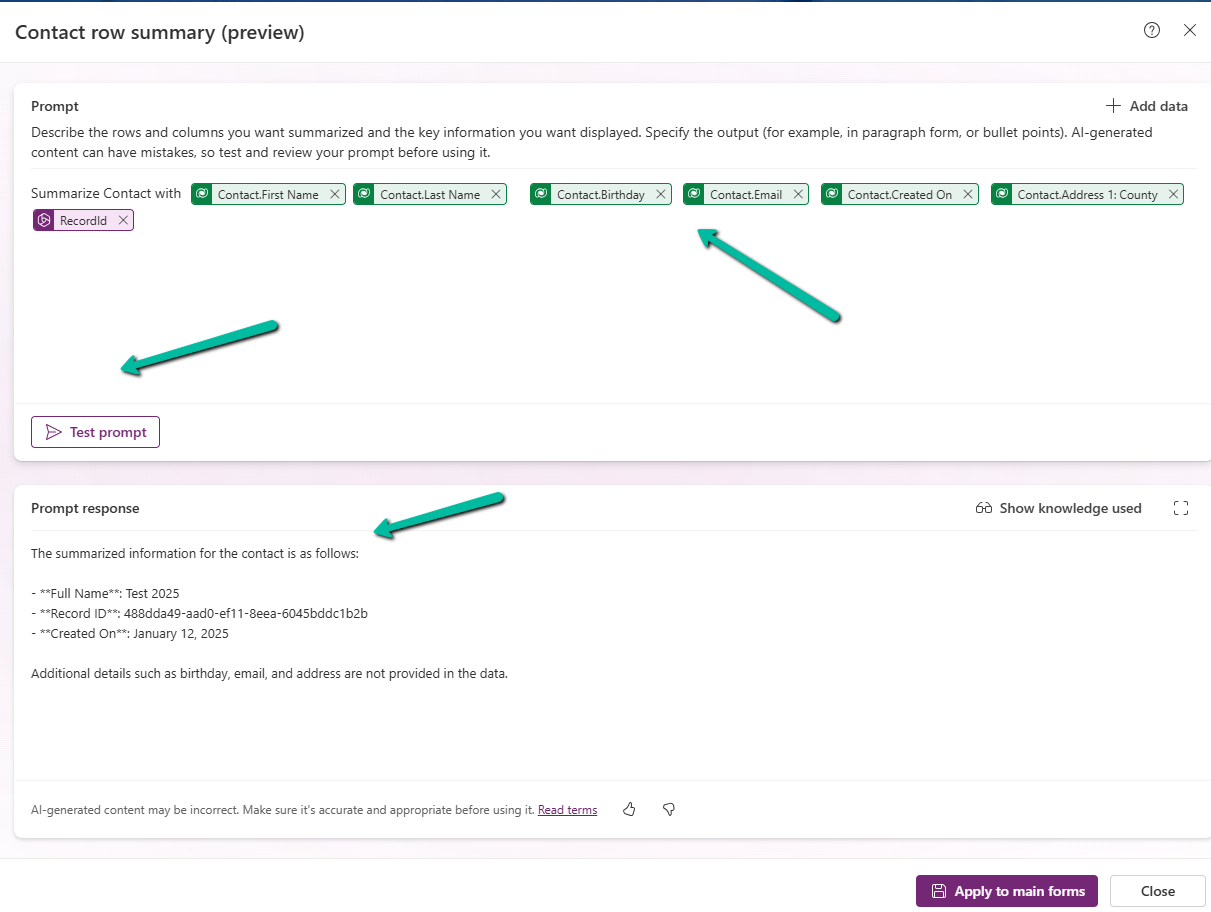
In the Prompt box, we can specify the columns we want to include as part of the summary.
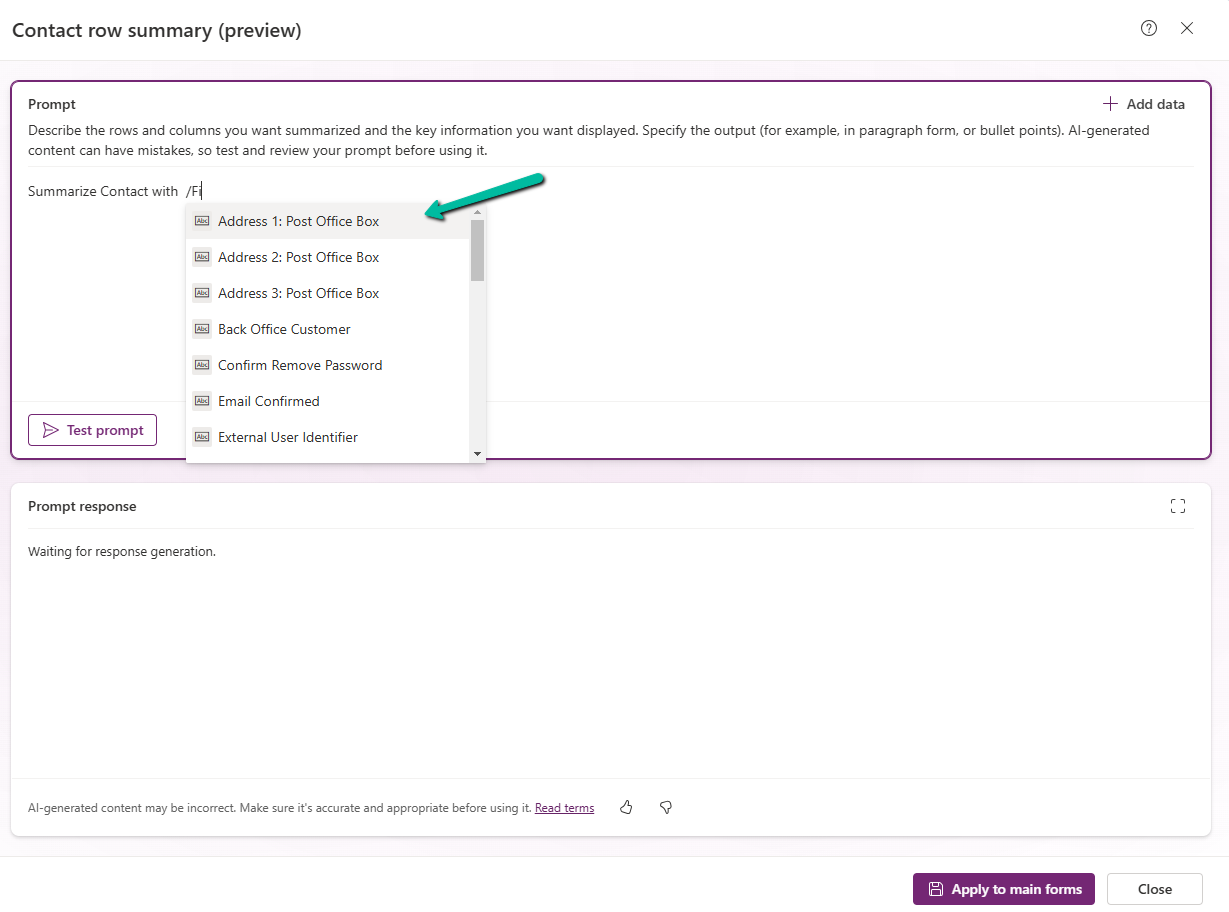
We can click on +Add data to do so can type the name of the field after “/”
After specifying the fields, we can click on the Test prompt to see the response. And can fine tune it further.
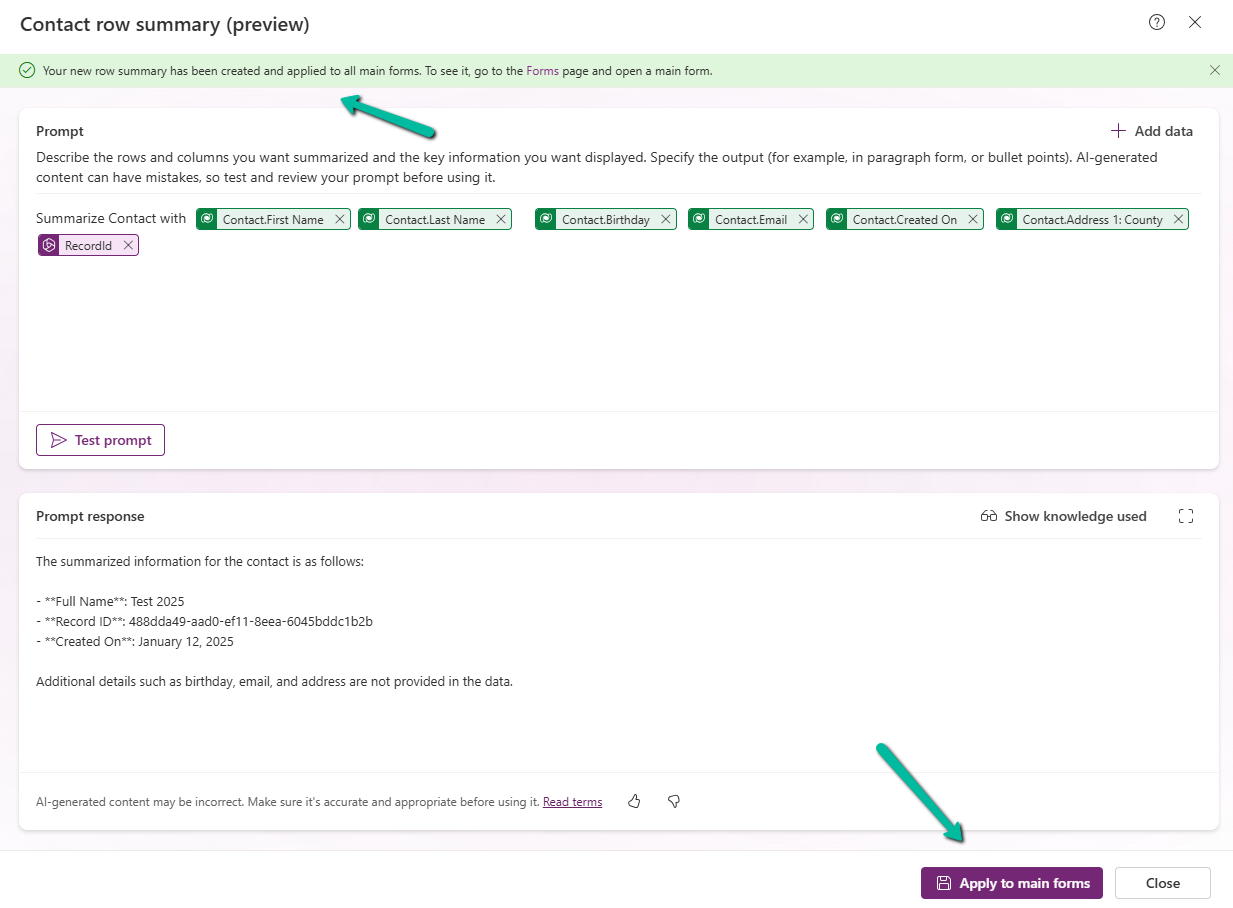
Clicking on Apply to main forms applies to all the main forms for the table.
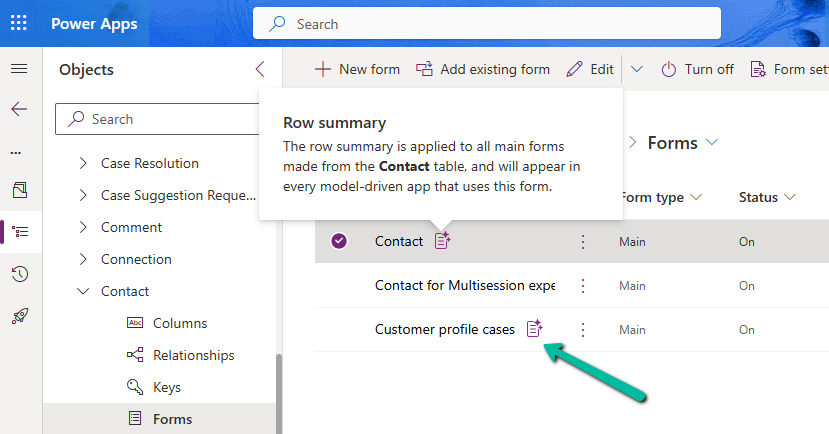
We can see the icon added next to the main forms.
The Row summary toolbar allows us to show, hide, and edit the summary.
Publish the changes.
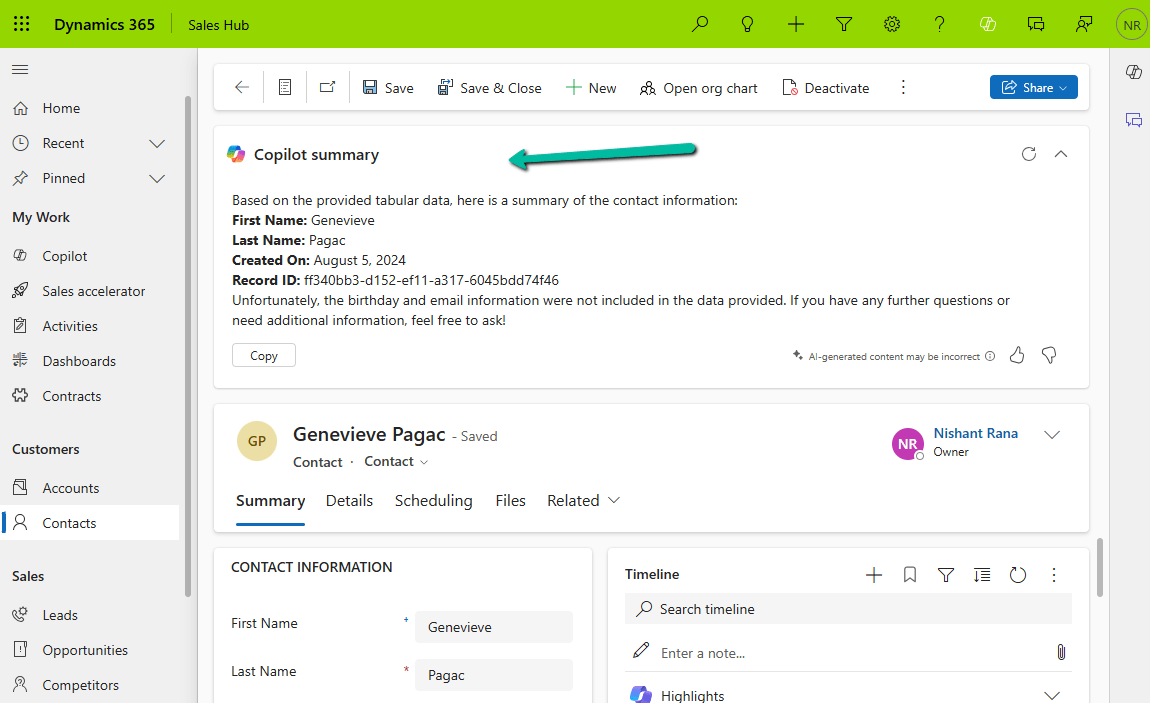
Below we can see the summary generated for the Contact’s main forms.
In Dynamics 365, there are instances when we need to dynamically change the labels of option set fields based on specific conditions. For example, we might want to update the label of the “Priority” field option from High to Critical when a case is marked as escalated (Is Escalated = True).
Below is the sample code we can use for it. The code will be registered on the OnLoad for Form and OnChange of Is Escalated field.
	function SetLabel(executionContext)
	{
		 var formContext = executionContext.getFormContext();
		 var isEscalated = formContext.getAttribute("isescalated");
		 var optionSetControl = formContext.getControl("prioritycode"); // field is in header and not in form
		 var optionHigh = 1; // high
		 var newLabel = "Critical";

		 if(optionSetControl && isEscalated.getValue() == true)
		 {
			var options = optionSetControl.getOptions();
            for (var i = 0; i < options.length; i++) {
                if (options[i].value === optionHigh) {
                    optionSetControl.removeOption(optionHigh);
                    optionSetControl.addOption({
                        text: newLabel,
                        value: optionHigh
                    });
                    break;
                }
            }
		 }
	}
On opening the form, we can see the Priority’s value High changed to Critical in case Is Escalated = Yes.
var formContext = executionContext.getFormContext(); = This retrieves the form context from the execution context, which is essential to interact with the form’s attributes and controls.
var isEscalated = formContext.getAttribute(“isescalated”) = The isescalated attribute is used to determine whether the case is escalated.
var optionSetControl = formContext.getControl(“prioritycode”);
The current options are retrieved using getOptions().
The option with the value 1 (High priority) is removed.
A new option with the updated label “Critical” and the same value is added.
However, one interesting thing to note is the Header still shows the old value High, it seems there is no supported way to change the label in case if the field is used in the Header.
While importing a patch (unmanaged) solution we got the below error –
“Solution ‘abc_Configuration’ failed to import: Solution manifest import: FAILURE: Solution patch with version 1.6.1.1 already exists. Updating patch is not supported.”
This is because Dataverse does not allow updating an existing patch solution with the same version number. Dataverse treats patches as immutable once imported. So if a patch already exists in the target environment, we cannot re-import a patch with the same version. Unlike full solutions, patches cannot be updated or overwritten—they must be uniquely versioned.
To fix this we can increase the Patch Version in our source environment. Here we incremented the patch version (from 1.6.1.1 → 1.6.1.2). Exported the patch again and imported it into the target environment.
Dataverse considers each patch version as unique, so increasing the version allows re-import.
Below we can see the new version of the patch imported replacing the old one.
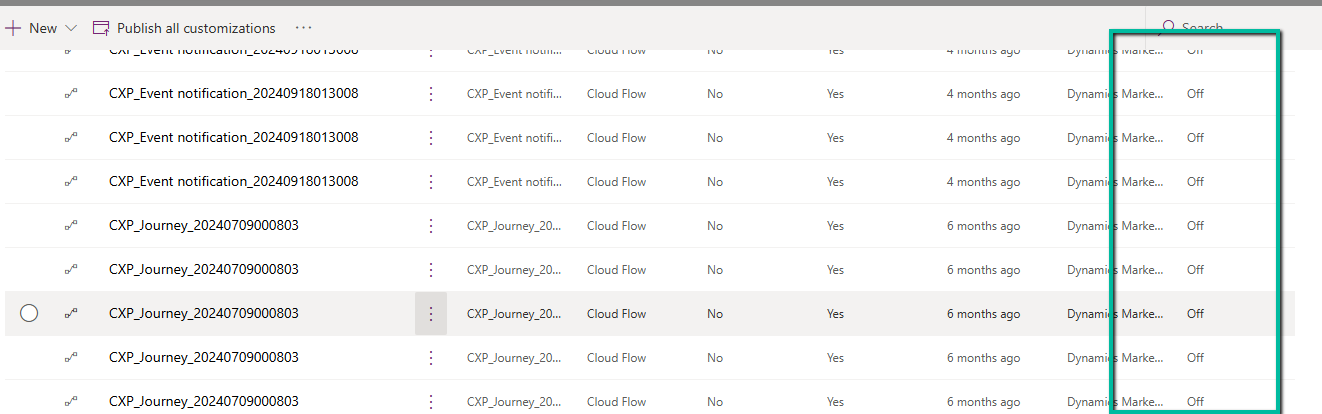
Recently we copied our UAT environment to one of the testing environments. After copying, we saw that all the cloud flows were in Off / Disabled state.
This was because during copy the environment is set in administration mode and background operations are also disabled.
Flows are automatically turned off to prevent –
Accidental execution of automation in a copied/test environment
Potential integration issues due to different connectors or authentication.
Unintended data modifications (e.g., flows interacting with external systems like SharePoint, SQL, or APIs).
If required, we can disable the administration mode or at least enable the background operations.
However, the flows will not automatically switch On even if we enable either the Administration Mode or Background operations.
Here we need to switch them On manually or use PowerShell scripts or API to do so.
Connection References: If the flows use connection references (like SharePoint, Dataverse, Outlook, etc.), we need to verify them in Solution > Connection References and update them if necessary.
Environment Variables: If the flows depend on environment variables (e.g., API URLs, credentials), we need to update them the new environment.
Reassign Flow Owners: If the original owner of a flow is missing from the copied environment, we need to assign a new owner.
Lastly, if flows are not behaving correctly, check the callback registration records