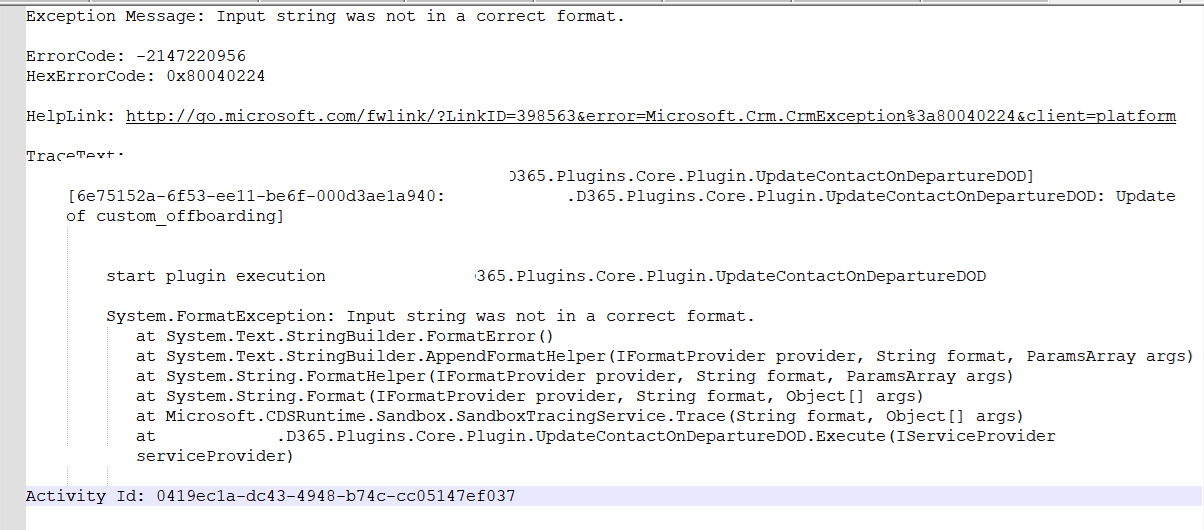
In one of our plugins, we encountered “The specified domain does not exist or cannot be contacted – System.FormatException: Input string was not in a correct format” error. Basically this issue can arise due to incorrect string formatting, unexpected data types, or missing values.
Our initial thought was that it could be because one of the GUID data type fields was null and being used in the Retrieve method.
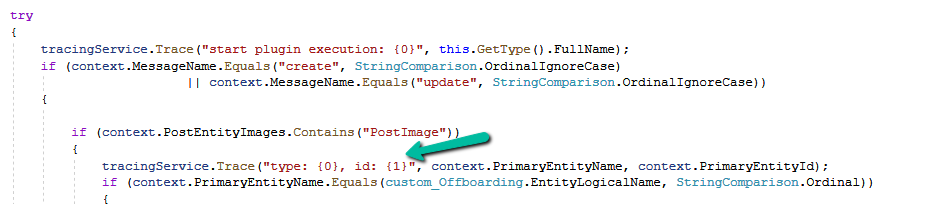
However, it turned out to be because of the following trace statement.
Sample code –
Extra space inside { 1}. The correct syntax is {1} instead of { 1}. We removed the extra space.
The copilot-powered data visualization in views feature, currently in preview, allows us to generate quick and insightful charts from Dataverse table views using natural language. We can select a table view and ask Copilot to generate visualizations, making data interpretation easier.
Natural Language Queries – Ask Copilot in simple terms to generate relevant charts.
Multiple Chart Types – Bar charts, pie charts, line graphs, and more.
Instant Insights – No need to build reports; visualize directly from your data view.
Interactive Refinements – Modify the chart type or tweak the data selection.
To enable it, for the environment, navigate to Settings >> Features and enable Natural Language Grid and View Search.
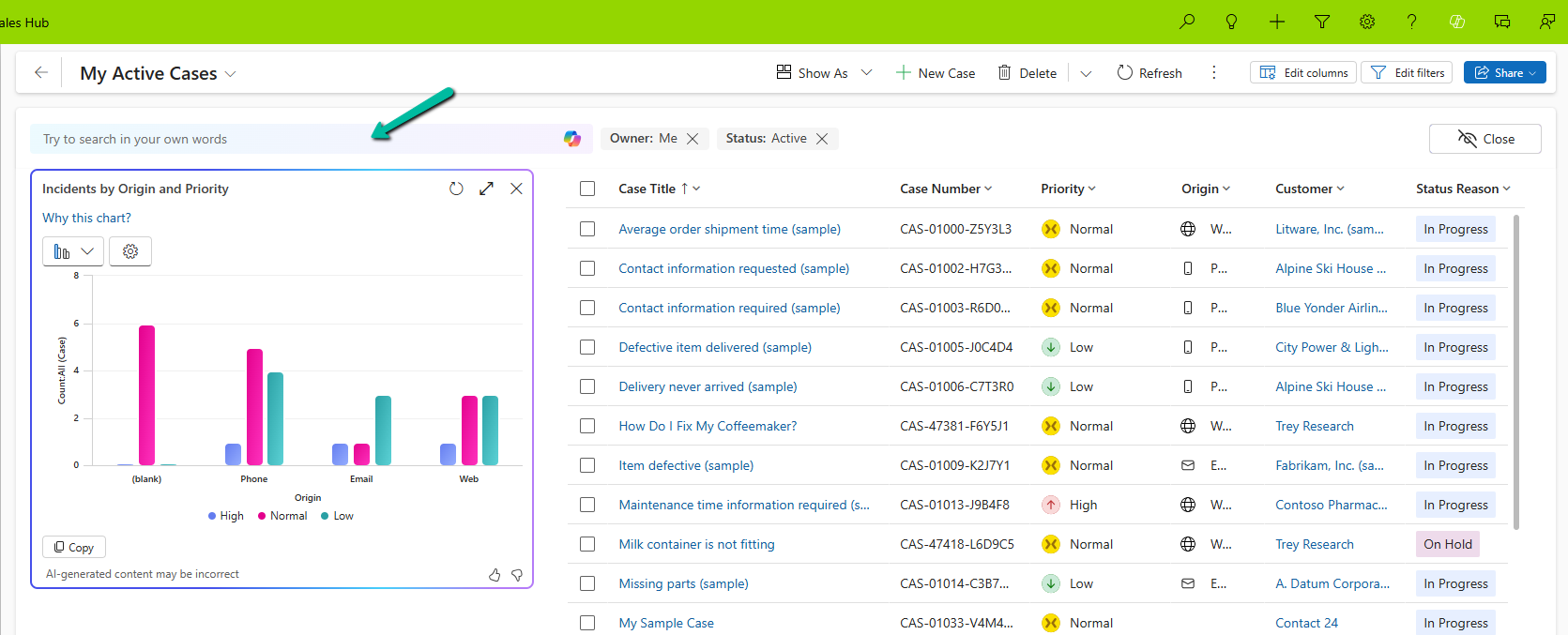
We can see the Visualize button added to the views.
It generates the Chart based on the data in the view.
Selecting a particular area filters the data in the view accordingly.
We also have the option to change the chart type, copy the chart, expand the view, etc.
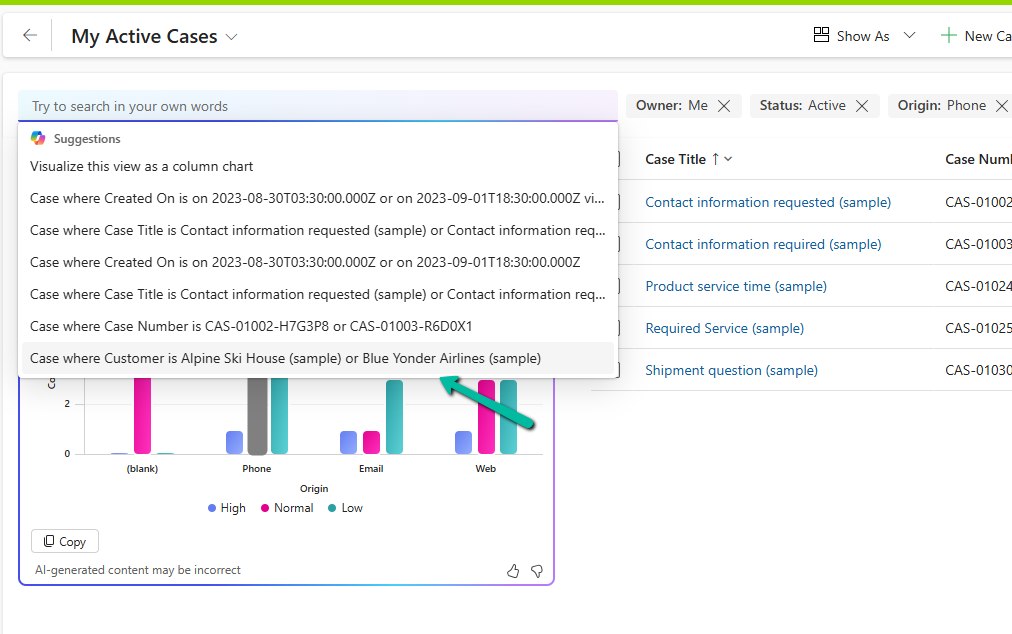
We can also use natural language to specify the data or can select AI-generated suggestions for the views.
Here we selected/specified the query “Cases where customer is Alpine Ski House” and the Chart and View updated accordingly.
This Copilot-driven data visualization feature is a game-changer for users who need quick insights from their data without setting up complex reports. With just a few clicks and simple queries, Power Apps can now deliver meaningful charts on the fly.
When working with Power Automate (Cloud Flows) for Dataverse, a common scenario is handling multiple triggers efficiently. By default, we often create separate flows for different events, such as Create, Update, or Delete. However, using the SdkMessage field, we can identify the event that triggered the flow and handle different scenarios within a single flow. This approach reduces redundancy and simplifies flow management.
When a row change occurs in Dataverse, the SdkMessage value represents the operation that triggered the event e.g. Create, Update, and Delete.
Benefits of using SdkMessage –
Avoid multiple flows: Instead of separate flows for Create, Update, and Delete, use one flow and branch logic accordingly.
Improve maintainability: Less duplication means fewer flows to update when business logic changes.
Enhance performance: Fewer active flows reduce execution overhead and clutter.
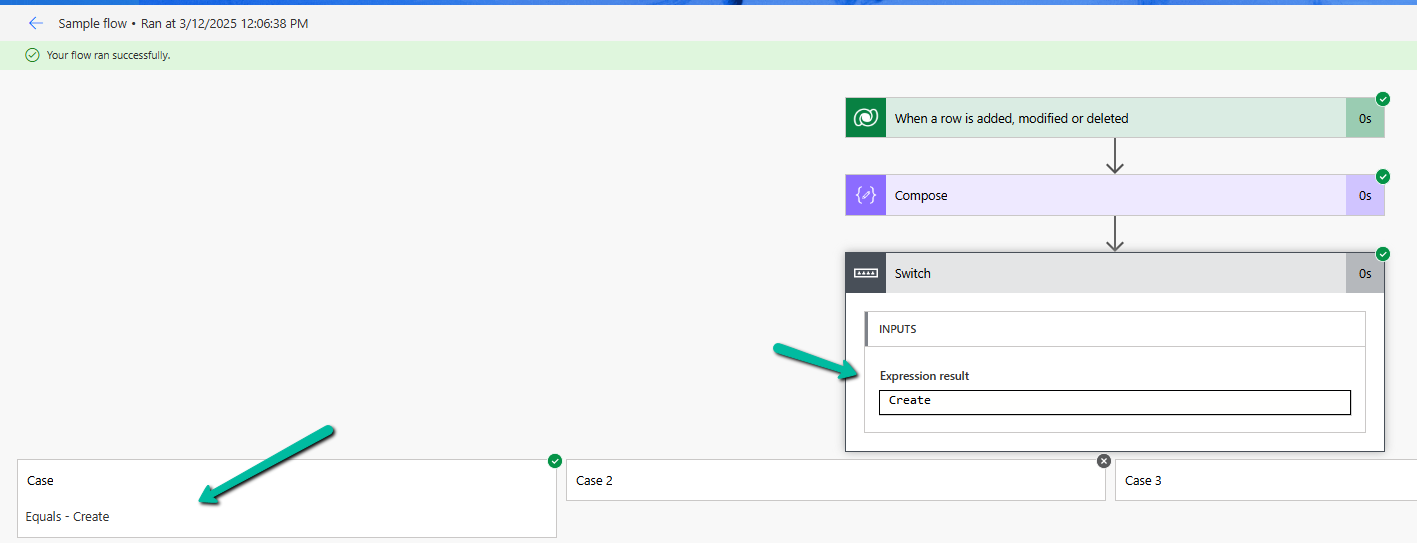
Let us see it in action, we have created a flow with the “When a row is added, modified, or deleted” Trigger.
And a switch action on SdkMessage with Case for Create, Update, and Delete.
triggerOutputs()?[‘body/SdkMessage’]
On creating the lead record we can see the corresponding action being triggered.
Same for the update.
Using SdkMessage in a single Dataverse flow allows you to consolidate multiple triggers into one, making your automation cleaner and more efficient.
Additionally, we should use the Select columns and the Filter rows properties to avoid unnecessary flow runs and improve efficiency.
Recently we got the below error while trying to assign the record.
Unable to save. This form can’t be saved due to a custom setting.
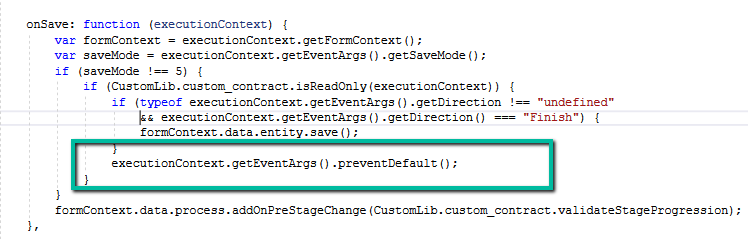
Turned out we had certain conditions in the OnSave event for the form, and if the record satisfies those conditions we were canceling the save event using
MultiSelect OptionSet (Choices) fields in Dataverse provide a flexible way to store multiple values within a single field. However, querying and filtering these fields require different techniques depending on the approach used.
In this blog post, we will explore various ways to filter records based on the Skills field (cr1a7_skills), which has the following values:
Name
Value
C#
255780000
Java
255780001
Python
255780002
We have the Skills (choices) field in our Contact table.
The query is to fetch all the contact records where skills includes C# or Java.
Filtering Using FetchXML
FetchXML allows filtering MultiSelect Option Set fields using the contain-values operator.
Using QueryExpression, we can apply the ContainValues condition to filter Multi
var query = new QueryExpression("contact");
query.ColumnSet.AddColumns("fullname");
query.Criteria.AddCondition("cr1a7_skills", ConditionOperator.ContainValues, 255780000, 255780001);
Filtering Using OData (Web API)
OData allows filtering MultiSelect Option Set fields using the ContainValues function.
If you’re using the SQL4CDS tool in XrmToolBox, you can filter MultiSelect Option Set fields using LIKE conditions.
SELECT contactid,
       fullname
FROM   contact
WHERE  statecode = 0
       AND (cr1a7_skills = '255780000'
            OR cr1a7_skills LIKE '255780000,%'
            OR cr1a7_skills LIKE '%,255780000,%'
            OR cr1a7_skills LIKE '%,255780000'
            OR cr1a7_skills = '255780001'
            OR cr1a7_skills LIKE '255780001,%'
            OR cr1a7_skills LIKE '%,255780001,%'
            OR cr1a7_skills LIKE '%,255780001'
            );
Filtering Using LINQ (C#)
For LINQ queries, MultiSelect Option Sets must be processed as OptionSetValueCollection.
        if (myServiceClient.IsReady)
        {
            using (var context = new OrganizationServiceContext(myServiceClient))
            {

                var skillValues = new List<int> { 255780000, 255780001 };

                var allContacts = context.CreateQuery("contact")
                .Where(c => c["cr1a7_skills"] != null &&
                            (int)c["statecode"] == 0)
                .ToList();

                var filteredContacts = allContacts
                    .Where(c => ((OptionSetValueCollection)c["cr1a7_skills"])
                                .Select(osv => osv.Value)
                                .Any(skill => skillValues.Contains(skill)))
                    .Select(c => new
                    {
                        ContactId = c["contactid"],
                        FullName = c.Contains("fullname") ? c["fullname"].ToString() : string.Empty
                    })
                    .ToList();

                var result = filteredContacts;

            }
        }
In Microsoft Dataverse, calculated columns are a powerful way to derive values dynamically without the need for manual updates. However, one challenge is that plugins do not trigger directly on calculated column changes since these values are computed at runtime and not stored in the database.
Since calculated columns use/depend on other fields, we can register a plugin on the change of those dependent fields. If a calculated column Total Amount is based on Quantity and Unit Price, then we can trigger the plugin on the Update event of Quantity and Unit Price.
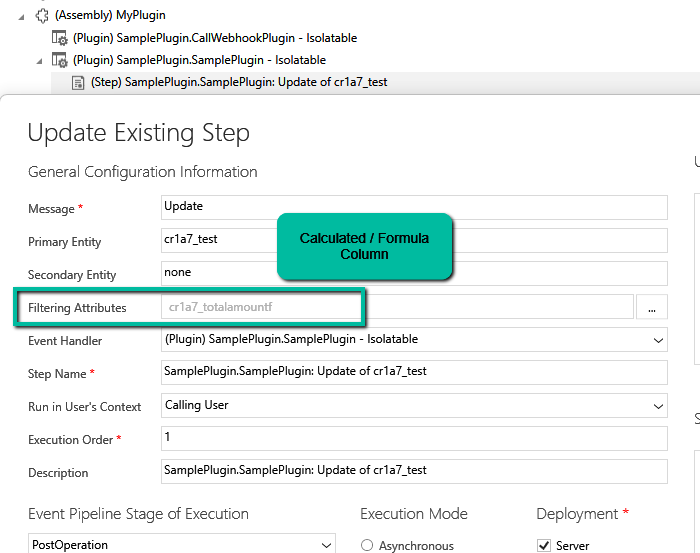
Let us see it in action, we have the below plugin registered in the update event.
On specifying the Formula / Calculated column as a Filtering attribute, our plugin doesn’t get triggered.
Here we updated the Unit Price, which changed the Total Amount, but we do not see any trace log generated.
Now we have updated the filtering attribute to be Quantity and Unit Price the field used by the Calculated column.
We updated both the Quantity and Unit Price and see the log generated i.e. plugin triggered.
The trace log –
While plugins can’t directly trigger on the calculated column changes, this workaround ensures we still get the desired automation.