How to use – User Multiplexing to get better performance for Data Migration /Integration using KingswaySoft Integration Toolkit for Dynamics 365 (Dataverse / SSIS)


Let us see how we can make use of User Multiplexing to get better performance.

Below is our SSIS Package, which uses Data Spawner to create sample records, 20 K in this case, and CDS Destination to create those records (contact).

Data Spawner is used to create the 20000 contact record.

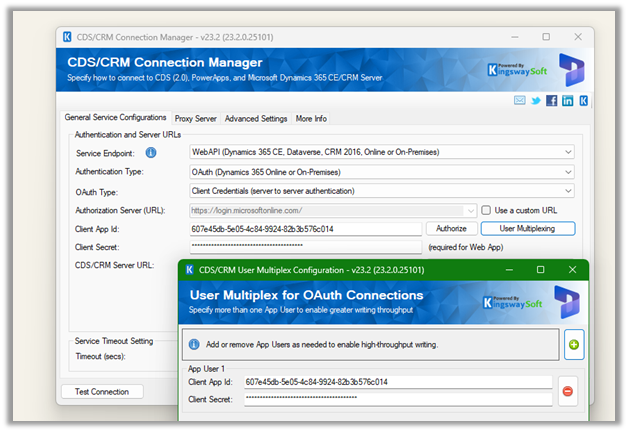
The CRM Connection is using just one application user.
For the Destination Component we have specified,

  • Batch size = 10
  • Thread = 5

The mapping –

To create 20 K contact records with the above settings took around 20 mins

Now let’s add 2 more application users making it 3 application users in total. We’d keep the batch size and thread the same i.e. 10 and 5.

Open the Connection Manager>> User Multiplexing and add 2 more application users configured in the environment.
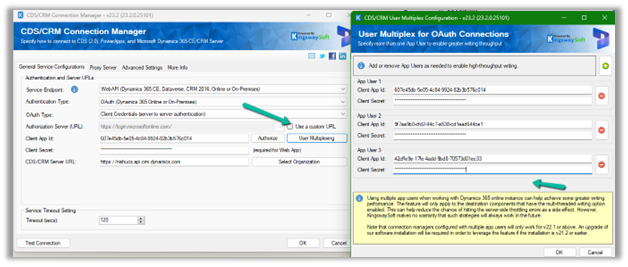
Let us run it again and observe the performance, this time it took around

11 minutes.

Let us increase the thread to 15 this time and see
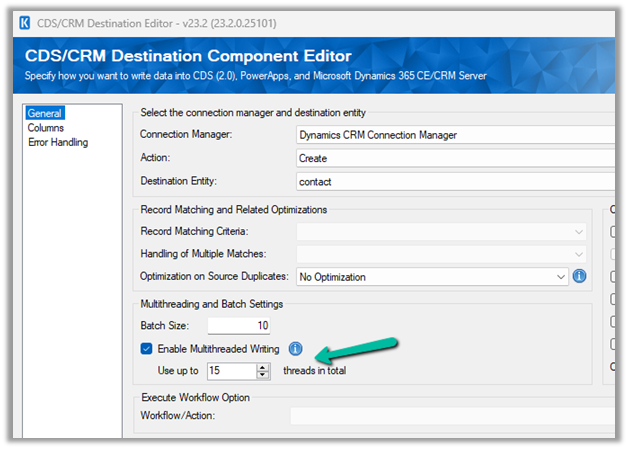
It came down to 6 minutes.

Now let us keep the batch size at 10 and thread at 15, but increase the number of application users to 5.

This brought it further down to 4:45

Let us run now with 10 batch sizes, and 5 application users but with 20 threads instead of 15.

It took 3:54 minutes

So to create 20 K contact records –

Batch Size

Thread

Application Users

Execution Time (mins)

10

5

1

19:39

10

5

3

11:17

10

15

3

6:47

10

15

5

4.45

10

20

5

3.54

Thus we need to consider using User Multiplexing (having different connections running under different application users) for better performance.

Get all details here – https://www.kingswaysoft.com/products/ssis-integration-toolkit-for-microsoft-dynamics-365/help-manual/crm/connection-manager

Hope it helps..

Advertisements

How to –Upload files to File Column / Attribute in SSIS from Azure Blog Storage – KingswaySoft (Dynamics 365 / CRM)


Below are a few ways we can upload files to the File Column type field using KingswaySoft’ s Integration Toolkit and Premium Flat File Source and Premium Derived column which are part of the SSIS Productivity Pack of KingswaySoft

https://nishantrana.me/2022/03/17/how-to-upload-files-from-file-column-attribute-using-ssis-kingswaysoft-dynamics-365-crm/

Using the Import columnhttps://nishantrana.me/2022/08/10/how-to-upload-files-to-file-column-attribute-using-ssis-kingswaysoft-and-import-column-dynamics-365-crm/

Using the Script Componenthttps://nishantrana.me/2022/08/09/how-to-use-script-component-to-upload-files-to-file-column-attribute-in-ssis-kingswaysoft-dynamics-365-crm/

Here instead of uploading the files from the local drive, we will be uploading the files stored in the Azure Blob Storage to the corresponding contact records inside CRM.

Below is our Blob Container – here to make things simple we have the mobile number of the contact records used as the pdf file name uploaded, and which will be used for updating the contact records.

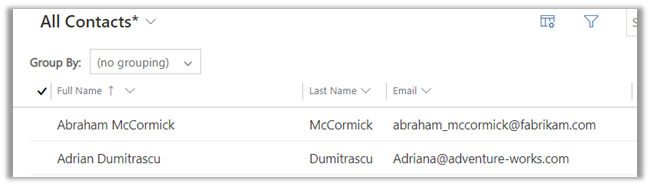
The contact records in CRM

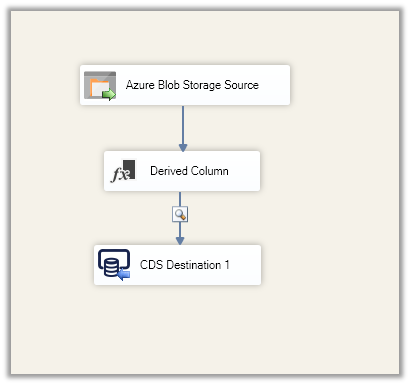
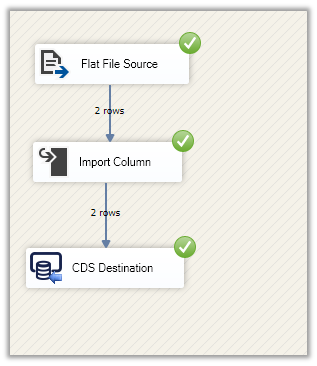
Below is how our package looks like

Here we have specified the Item Selection Mode as Recursive (File Only) to make sure it picks the files only and not the folder.

Within the Derived Column, we are replacing the pdf extension from the file name i.e. mobile number, and using it to find the contact records and update them.

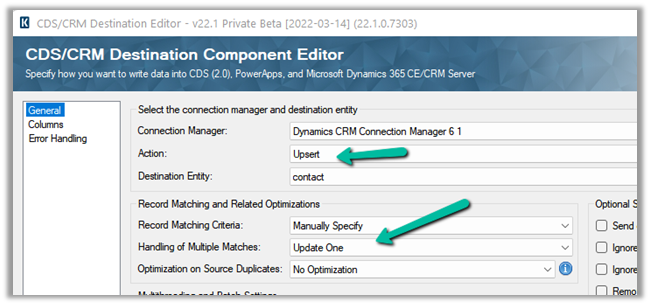
Finally, in the CDS / CRM Destination Component, we are performing an upsert using the dervied Mobile Phone Formatted derived column as a match.

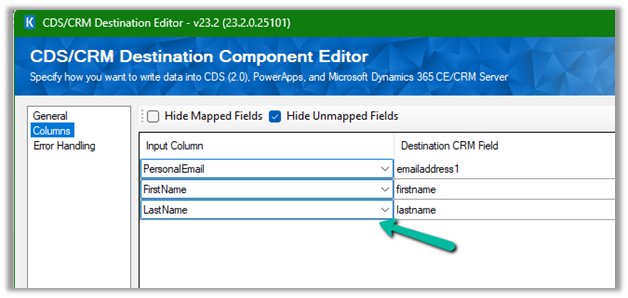
The mapping –

Let us now run the package.

Let us now open the records and check.

As expected we can see the file uploaded.

Thanks to Venkata for this solution https://www.linkedin.com/in/venkata-satya-kumar-nagumalli-77923972

Also, check out –

To extract attachments from notes-https://nishantrana.me/2021/02/10/extracting-attachments-from-notes-in-dynamics-365-dataverse/

To download files using Download Block Requesthttps://nishantrana.me/2022/03/14/how-to-download-file-from-file-column-using-initializefileblocksdownload-and-downloadblock-request-dynamics-365-crm-dataverse/

To upload files using Upload Block Requesthttps://nishantrana.me/2022/03/15/how-to-upload-file-to-file-column-using-initializefileblocksupload-and-uploadblock-request-dynamics-365-crm/

Understand File and Image Data Typehttps://nishantrana.me/2021/10/01/using-file-and-image-data-type-in-dataverse-dynamics-365/

Try out the wonderful, feature-rich, and powerful SSIS Integration Toolkit for Dynamics 365 by KingswaySofthttps://www.kingswaysoft.com/products/ssis-integration-toolkit-for-microsoft-dynamics-365/download

Check other articles on SSIS plus CRM – https://nishantrana.me/2018/11/26/ssis-and-microsoft-dynamics-365/

Hope it helps..
Advertisements

How to – Use Import Column to Upload files to File Column / Attribute in SSIS KingswaySoft(Dynamics 365 / CRM)


A few weeks back had posted on how to upload files to the File Column type field using KingswaySoft’ s Integration Toolkit and Premium Flat File Source and Premium Derived column which are part of the SSIS Productivity Pack of KingswaySoft

https://nishantrana.me/2022/03/17/how-to-upload-files-from-file-column-attribute-using-ssis-kingswaysoft-dynamics-365-crm/

Here we will see an example of achieving the same without using the KingswaySoft Productivity Pack’s Premium Flat File Source and Derived column. (although would recommend using it as it includes over 300 premium components making it easier to rapidly build efficient solutions)

https://www.kingswaysoft.com/products/ssis-productivity-pack

Below is our source file

The contact records in CRM

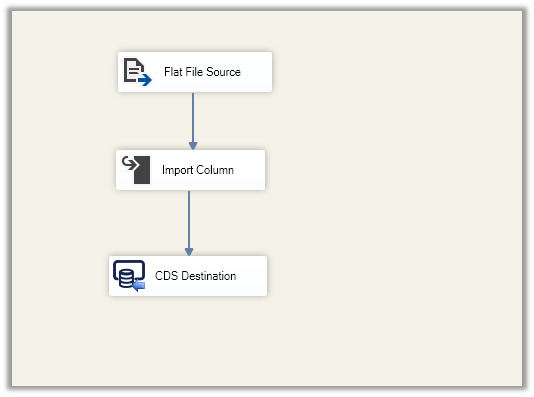
Below is how the package looks like

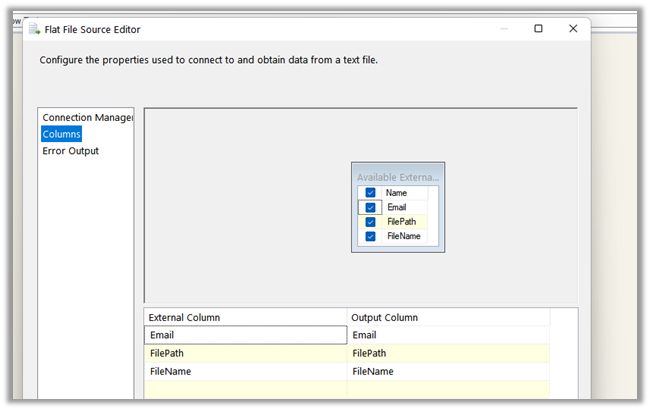
The Flat File Source points to the location where we have the source csv file containing email, file path, and file name.

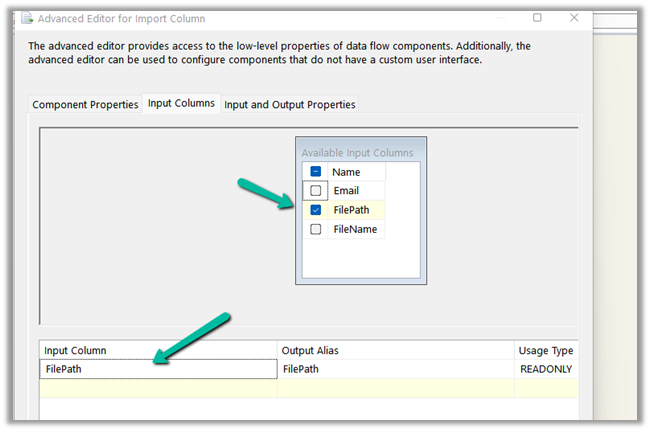
Import Column takes the File Path as the Input.

For the Input and Output properties, add an output column (BinaryColumn) of DataType = image.

In the FilePath input column properties, specify the column id of the output column.

Finally, in the CDS / CRM Destination Component, we are performing an upsert using the Email id as a match.

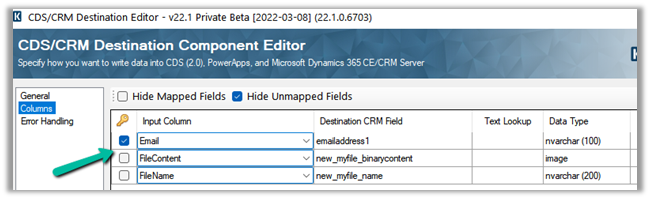
Here we have mapped the output column of the Import Column i.e. BinaryColumn to the binary content field of the file type attribute of the CRM.

Let us now run the package.

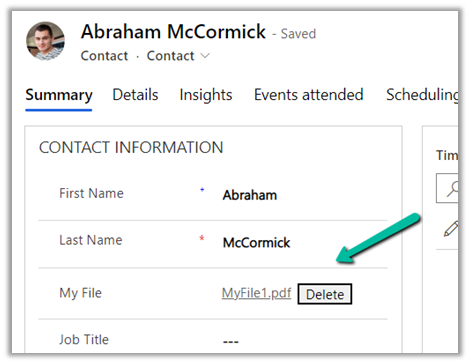
Let us now open the records and check.

As expected we can see the file uploaded.

Also, check out –

To extract attachments from notes-https://nishantrana.me/2021/02/10/extracting-attachments-from-notes-in-dynamics-365-dataverse/

To download files using Download Block Requesthttps://nishantrana.me/2022/03/14/how-to-download-file-from-file-column-using-initializefileblocksdownload-and-downloadblock-request-dynamics-365-crm-dataverse/

To upload files using Upload Block Requesthttps://nishantrana.me/2022/03/15/how-to-upload-file-to-file-column-using-initializefileblocksupload-and-uploadblock-request-dynamics-365-crm/

Understand File and Image Data Typehttps://nishantrana.me/2021/10/01/using-file-and-image-data-type-in-dataverse-dynamics-365/

Try out the wonderful, feature-rich, and powerful SSIS Integration Toolkit for Dynamics 365 by KingswaySofthttps://www.kingswaysoft.com/products/ssis-integration-toolkit-for-microsoft-dynamics-365/download

Check other articles on SSIS plus CRM – https://nishantrana.me/2018/11/26/ssis-and-microsoft-dynamics-365/

Hope it helps..
Advertisements

How to – Use Script Component to Upload files to File Column / Attribute in SSIS – KingswaySoft (Dynamics 365 / CRM)


A few weeks back had posted on how to upload files to the File Column type field using KingswaySoft’ s Integration Toolkit and Premium Flat File Source and Premium Derived column which are part of the SSIS Productivity Pack of KingswaySoft

https://nishantrana.me/2022/03/17/how-to-upload-files-from-file-column-attribute-using-ssis-kingswaysoft-dynamics-365-crm/

Here we will see an example of achieving the same without using the KingswaySoft Productivity Pack’s Premium Flat File Source and Derived column. (although would recommend using it as it includes over 300 premium components making it easier to rapidly build efficient solutions for different scenarios)

https://www.kingswaysoft.com/products/ssis-productivity-pack

Here we will be using Script Component to read the file from the path and convert it to DT_IMAGE.

Below is our source file

The contact records in CRM

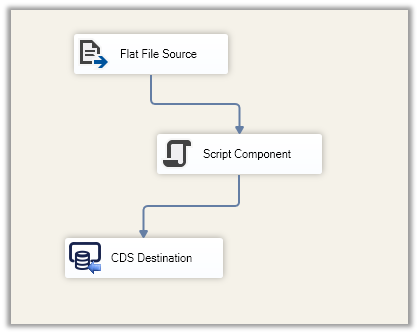
Below is how the package looks like

The Flat File Source points to the location where we have the source CSV file containing email, file path, and file name.

Script Component has File Path and File Name as the input.


Add a column using Add Column in the Output Columns, with Data Type as image [DT_IMAGE]


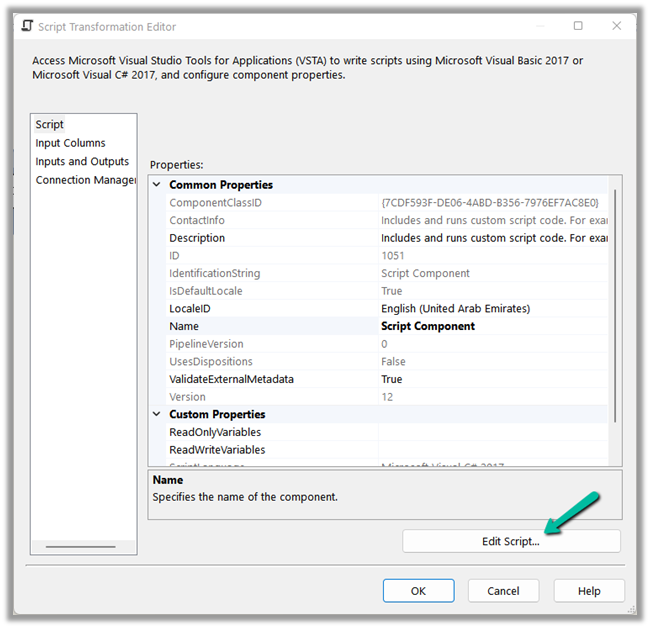
Click on Edit Script..

Add the below code to read the bytes from the file path and add it to the output column.

Finally, in the CDS / CRM Destination Component, we are performing an upsert using the Email id as a match.

Here we have mapped the output column of the Import Column i.e. DerviedFileContent to the binary content field of the file type attribute of the CRM.

Let us now run the package.

Let us now open the records and check.

As expected we can see the file uploaded.

Also, check out –

To extract attachments from notes-https://nishantrana.me/2021/02/10/extracting-attachments-from-notes-in-dynamics-365-dataverse/

To download files using Download Block Requesthttps://nishantrana.me/2022/03/14/how-to-download-file-from-file-column-using-initializefileblocksdownload-and-downloadblock-request-dynamics-365-crm-dataverse/

To upload files using Upload Block Requesthttps://nishantrana.me/2022/03/15/how-to-upload-file-to-file-column-using-initializefileblocksupload-and-uploadblock-request-dynamics-365-crm/

Understand File and Image Data Typehttps://nishantrana.me/2021/10/01/using-file-and-image-data-type-in-dataverse-dynamics-365/

Try out the wonderful, feature-rich, and powerful SSIS Integration Toolkit for Dynamics 365 by KingswaySofthttps://www.kingswaysoft.com/products/ssis-integration-toolkit-for-microsoft-dynamics-365/download

Check other articles on SSIS plus CRM – https://nishantrana.me/2018/11/26/ssis-and-microsoft-dynamics-365/

Hope it helps..
Advertisements

How to – Upload files to File Column / Attribute using SSIS – KingswaySoft (Dynamics 365/ CRM)


Let us take a simple example to understand how we can upload files to the file column through SSIS Package + KingswaySoft’s Integration Toolkit.

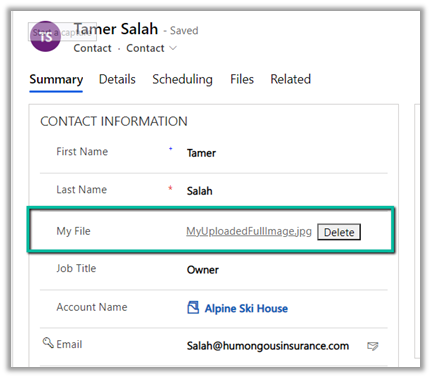
Here we have a File Column defined for the Contact Entity.

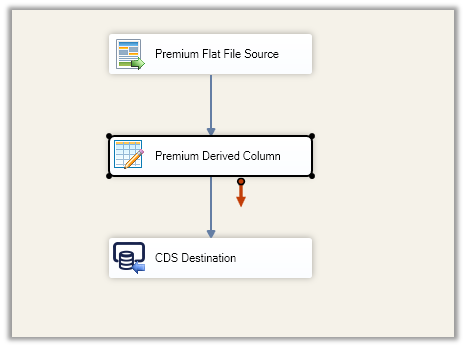
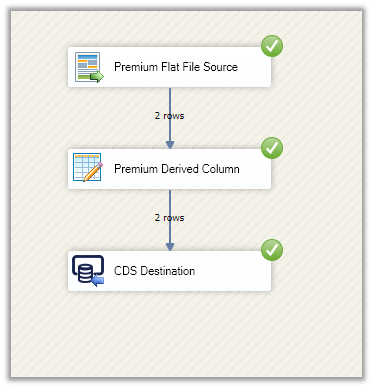
This is what our final package looks like –

Our SSIS package will pick up the contact’s email, file path, and file name from the CSV file as the source using the Premium Flat File Source component.

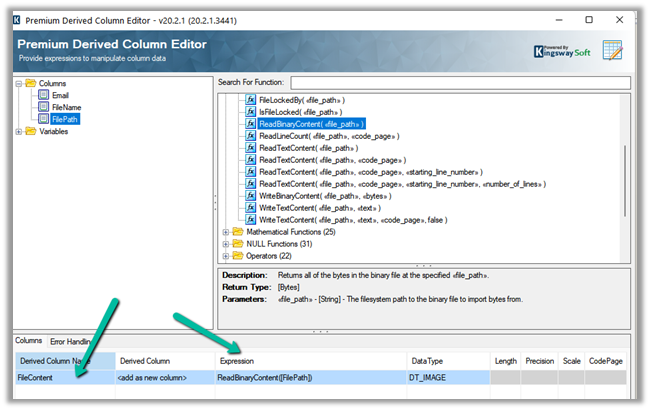
The premium derived component adds a new column that reads / stores the binary content of the file specified in excel.

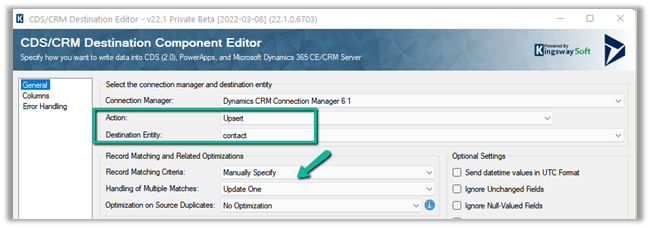
Finally, in CDS Destination we are doing Upsert on contact entity based on the email id field specified in the source excel file.

The mapping –

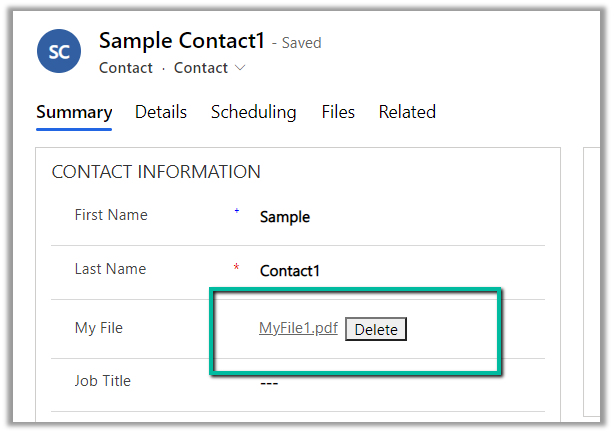
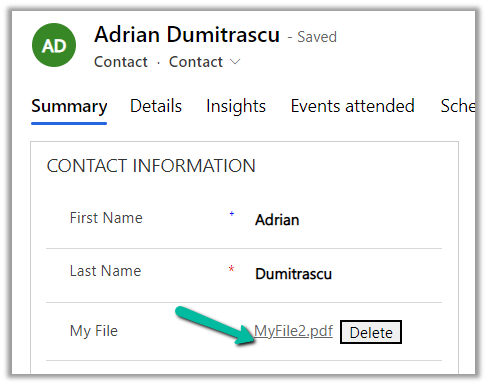
On running the package, we can see the file uploaded to the corresponding contact records.

To extract attachment from notes-https://nishantrana.me/2021/02/10/extracting-attachments-from-notes-in-dynamics-365-dataverse/

To download files using Download Block Request –https://nishantrana.me/2022/03/14/how-to-download-file-from-file-column-using-initializefileblocksdownload-and-downloadblock-request-dynamics-365-crm-dataverse/

To upload files using Upload Block Request –https://nishantrana.me/2022/03/15/how-to-upload-file-to-file-column-using-initializefileblocksupload-and-uploadblock-request-dynamics-365-crm/

Understand File and Image Data Type –https://nishantrana.me/2021/10/01/using-file-and-image-data-type-in-dataverse-dynamics-365/

Try out the wonderful, feature-rich, and powerful SSIS Integration Toolkit for Dynamics 365 by KingswaySoft –https://www.kingswaysoft.com/products/ssis-integration-toolkit-for-microsoft-dynamics-365/download

Check other articles on SSIS plus CRM – https://nishantrana.me/2018/11/26/ssis-and-microsoft-dynamics-365/

Hope it helps..

Advertisements

How to – Download files from File Column / Attribute using SSIS – KingswaySoft (Dynamics 365/ CRM)


Let us take a simple example to understand how we can download files from the file column using SSIS Package + KingswaySoft’s Integration Toolkit.

Here we have a File Column defined for Contact Entity.

Our SSIS package will run on all the contact records and will extract the file from the records to one of the folders in the local machine.

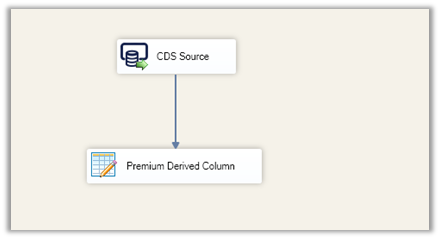
This is what our package’s data flow looks like.

It has just 2 components CDS Source and Premium Derived Column.

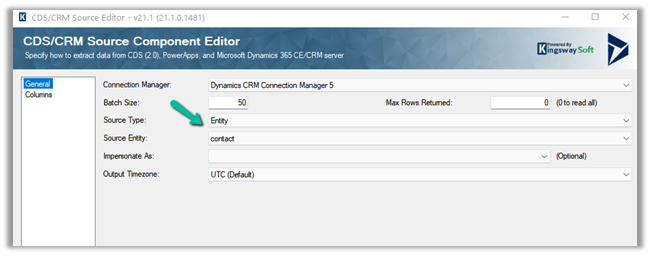
CDS Source is connected to the Contact entity.

For Columns, we have selected our file column fields.

Next, we have next added a Primary Derived Column component.

We have used the WriteBinaryComponent function to write the binary content (new_myfile_binarycontent field) to a file.

WriteBinaryContent(“D:\\MyDownloadedFile\\”+[new_myfile_name], new_myfile_binarycontent])

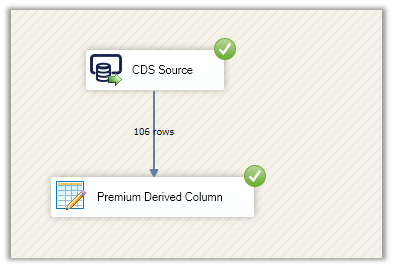
On running the package successfully, we can see the files downloaded at the folder specified.

The result – as we just had 2 contact records out of 106 having file uploaded to it we can see those 2 filed downloaded.

Hope it helps..

Advertisements