Fixed – Unable to process template language expressions for trigger. In the template language function ‘convertToUtc’, the value provided for the time zone id ‘Gulf Standard Time’ was not valid while using Delay Until property– Power Automate


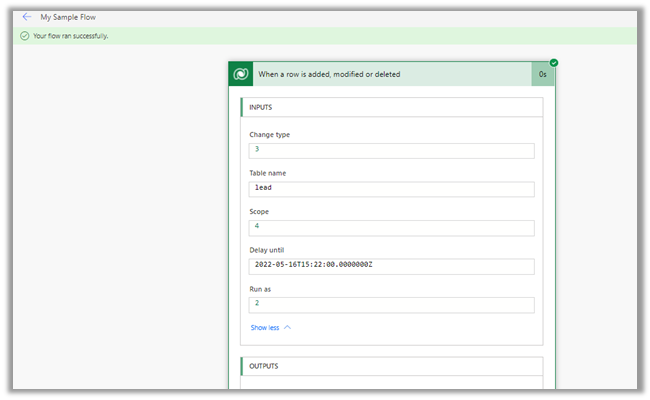
Recently while using Delay until property of the trigger, in one of the flows, we got the below error

“Unable to process template language expressions for trigger ‘When_a_row_is_added,_modified_or_deleted’ at line ‘1’ and column ‘16344’: ‘In the template language function ‘convertToUtc’, the value provided for the time zone id ‘Gulf Standard Time’ was not valid. ‘.”
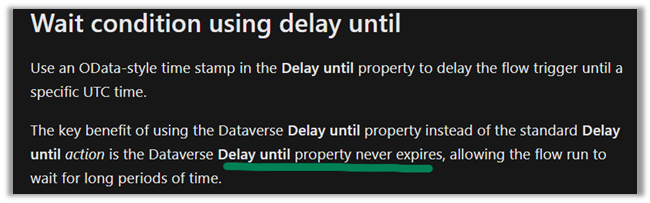
Usage of Delay until is nicely explained here by Debajit –

https://debajmecrm.com/how-to-delay-a-power-automate-flow-execution-till-a-specified-date-and-time/

https://debajmecrm.com/replicate-dynamics-365-workflow-timeout-wait-condition-in-microsoft-flows/


Delay until = convertToUtc(‘2022-05-16T17:22:00′,’Gulf Standard Time’)

It turns out that Gulf Standard Time is not a valid time zone id.

Changing it to Arabian Standard Time resolved the issue for us.

i.e.

convertToUtc(‘2022-05-16T19:22:00′,’Arabian Standard Time’)

Also check – https://nishantrana.me/2022/01/19/how-to-use-do-until-and-delay-in-power-automate/

Hope it helps..

Advertisements

Fixed – Invalid template. Unable to process template language expressions in action. Template language expression cannot be evaluated: the template action is not defined in the current scope (Power Automate)


While testing a cloud flow in Power Automate, for one of the actions, we got the below error

Unable to process template language expressions in action ‘Update_a_row’ inputs at line ‘0’ and column ‘0’: ‘Template language expression cannot be evaluated: the template action ‘Do_until’ is not defined at current scope.’.


We were getting the error because we were referring Current Iteration Index of Do Until control, which was inside Scope 1, in the Update a Row action of Scope 2, i.e. outside the scope of Do Until control.

Scopes – https://nishantrana.me/2022/05/10/d365-implement-try-catch-finally-in-powerautomate/

The way we resolved it was to initialize a variable, setting it inside the Do Until action with the current iteration index and then referring it inside Scope 2.

Do Until – https://nishantrana.me/2022/01/19/how-to-use-do-until-and-delay-in-power-automate/

Hope it helps..

Advertisements

How to – Use Do until and Delay in Power Automate


Let us take a simple example to understand the usage of the Do unit with Delay control in Power Automate.

“When a Case Record’s Priority is updated to High until the case is resolved we want to perform certain action e.g. send a notification email or call an action etc. every 2 minutes or so.”

This is how the final flow looks like –

First is the trigger, when the case record is modified, i.e. priority code field with value as 1.

Next, initialize a Boolean type variable as false, this will be used within the Do until loop condition.

  • Next, add the Do until control with the condition – ConditionMet i.e. the variable is equal to true.
  • Followed by Delay action, here we have specified a 2-minute delay.
  • Next, we are retrieving the same record to check the condition, this is required to get the updated value within the loop.
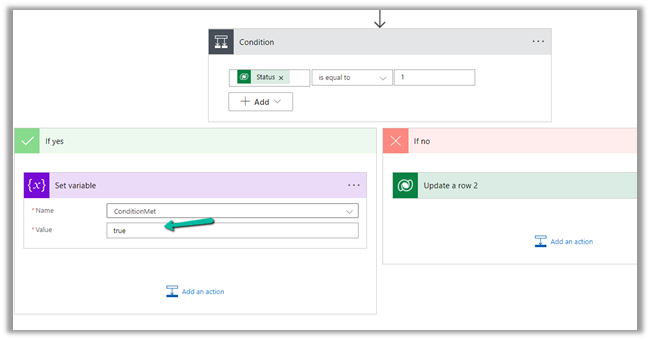
  • Condition is – is the case resolved? i.e. Status is equal to 1.
  • If Yes then we are setting the variable as true to come out of the do until loop.
  • If No then we perform any action, like send an email notification, reminder or call any action, etc.

The Current Iteration Index of Do unit holds the value of the current index starting from 0. Here we are updating the case title with the index just for testing.

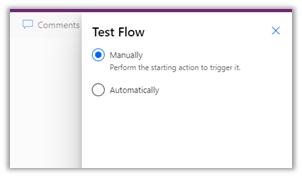
To see it in action, let us Test the flow.

Updating the priority of the case to high triggers the flow.

After a delay of 6 minutes, we can see the Case Title updated with the current index i.e. 2 as it has iterated 3 times starting from 0.

Let us now resolve the case.

We can see our flow successfully completed after the 4th iteration after the case is resolved.

Also refer –

https://techwizard.cloud/2018/05/20/microsoft-flow-mystery-of-do-until-loop/

https://www.futurelearn.com/info/courses/cloudswyft-msft-dynamics-365-power-platform-auto/0/steps/208142

Hope it helps.

Advertisements

Solved – Flow run timed out. Please try again in Power Automate (Microsoft Flow)


While testing one of the flows which was having “Do until” action in it, we ran across the below error.

Error – Flow run timed out. Please try again.

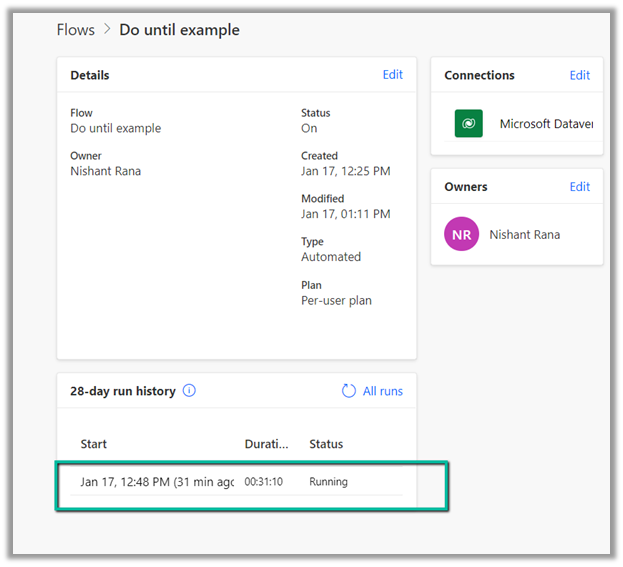
However, while navigating to the run history we can still see the flow running, and has run for over 30 minutes. That’s the default behavior.

Refer to this – https://powerusers.microsoft.com/t5/General-Power-Automate/Flow-run-timed-out/m-p/713628#M58900

Hope it helps..

Advertisements

Fixed – The API version ” is not valid for provider ‘Microsoft.BusinessAppPlatform’ – Action ‘Force_Sync_user’ failed error – Power Automate


Recently while testing a flow we got the below error message

The API version ” is not valid for provider ‘Microsoft.BusinessAppPlatform’ The supported list of API versions are: ‘2016-02-01, 2016-11-01, 2018-01-01, 2018-10-01, 2019-05-01, 2019-10-01, 2020-04-01, 2020-05-01, 2020-06-01, 2020-08-01, 2020-09-01, 2020-10-01, 2021-03-01, 2021-04-01, 2021-07-01’.

API Version is as the name suggests is the version of the API, as there could be discrepancies in the different versions of API with regards to the input and the output parameters or some other changes.

We were using the below template

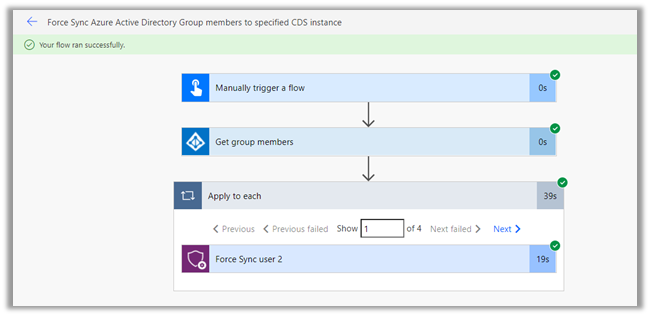
Force Sync Azure Active Directory Group members to specified CDS instance

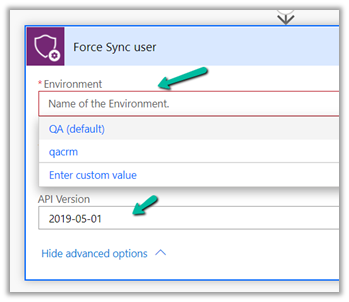
The existing Force Sync user action in the template was having the API version as blank.

The way we fixed it was by adding a new Force Sync user action and deleting the existing one.

The new version of Force Sync User action was listing down the Environment in the drop-down and also had the version number mentioned in it.

After making the changes, this time it ran successfully.

Also, check

https://nishantrana.me/2021/12/14/the-trick-to-force-trigger-user-sync-power-platform-dynamics-365/

https://nishantrana.me/2021/12/13/using-force-sync-user-to-sync-powerapp-crm-users-power-platform-dynamics-365/

Hope it helps..
Advertisements

Using Force Sync User to sync PowerApp / CRM users – Power Platform / Dynamics 365


Recently in one of our trial environments, some of the users were not showing up in the Enabled Users view in Dynamics 365, although the users were having appropriate licenses assigned to them. (was more than 24 hours)

In such a scenario we can use Force Sync user action of Power Platform Management Connector.

https://docs.microsoft.com/en-us/connectors/powerplatformforadmins/

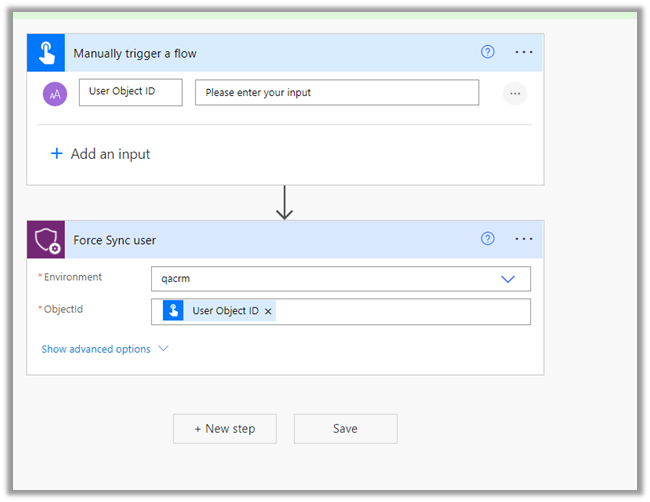
For Force Sync users, we will be passing the object id of the user and selecting the appropriate environment.

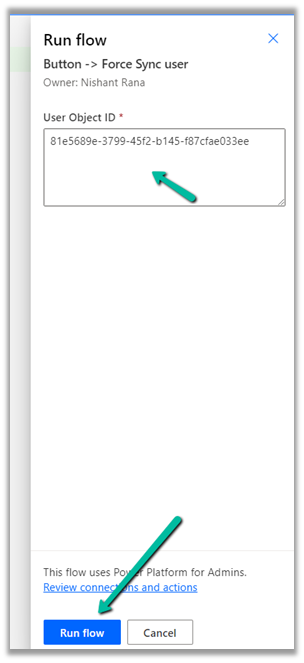
Run the flow manually.

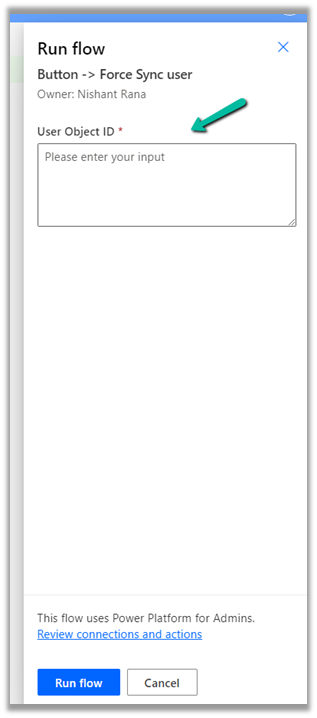
It asks for the Object Id of user.

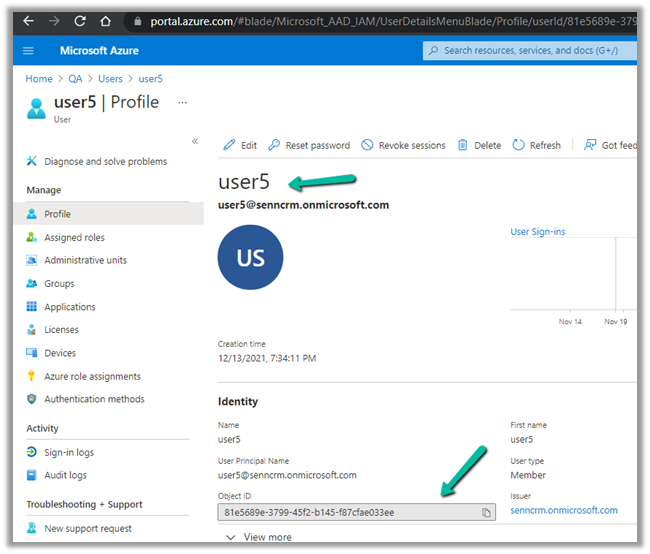
Inside Azure Portal >> Azure Active Directory >> Users, get the Object Id of the user

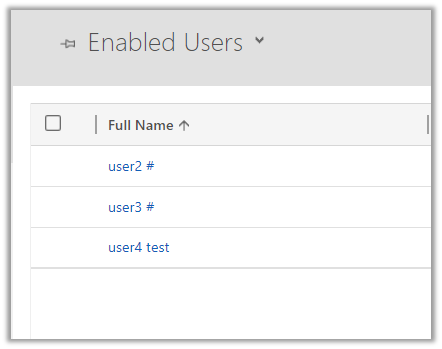
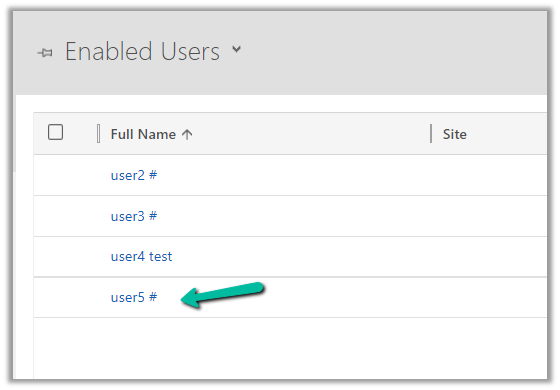
Currently, we have below 3 users in CRM

Let us run the flow.

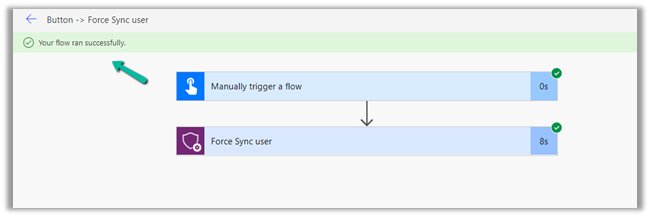
Wait for the flow to complete.

After successful execution of the flow, back in CRM, we can see user 5 added to the list of enabled users.

In case we are using a security group for the environment we can make use of the below Power Automate Template, it takes the security group’s object id as input and loops through each of the members and applies Force Sync user action.

We can also make use of PowerShell cmdlets to achieve the same

https://nishantrana.me/2021/01/20/force-sync-users-from-azure-ad-to-dynamics-crm/

Force Sync Azure Active Directory Group members to specified CDS instance

Hope it helps..

Advertisements