With this new feature (preview) now we can specify the columns to be downloaded on mobile devices for offline use.
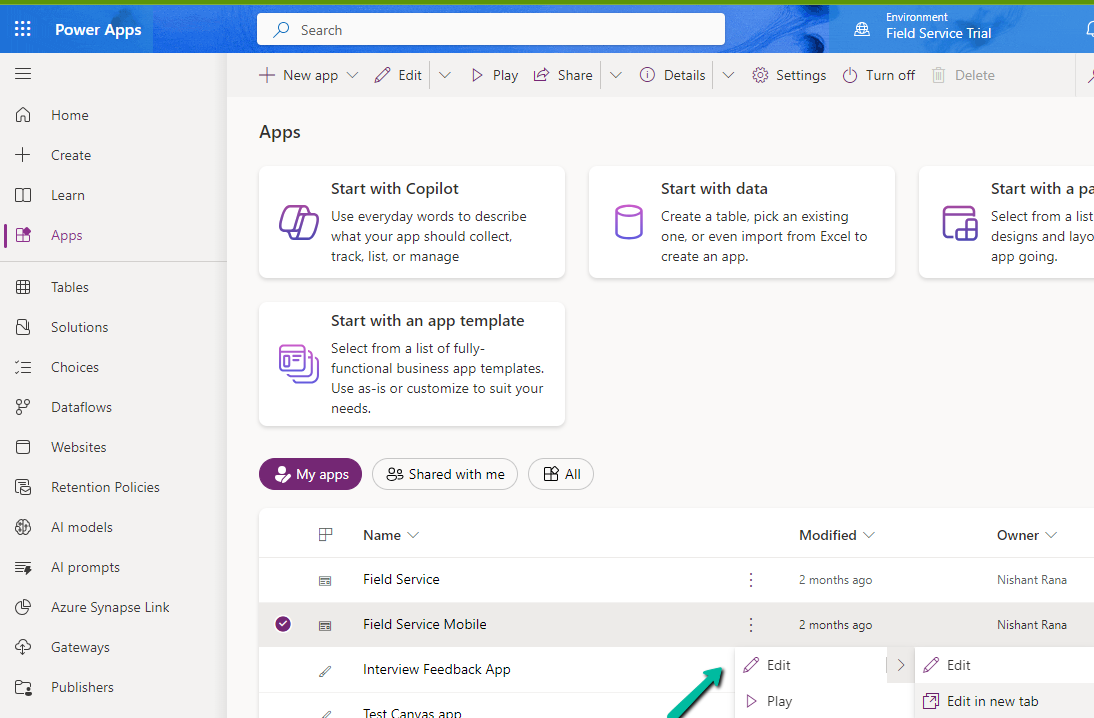
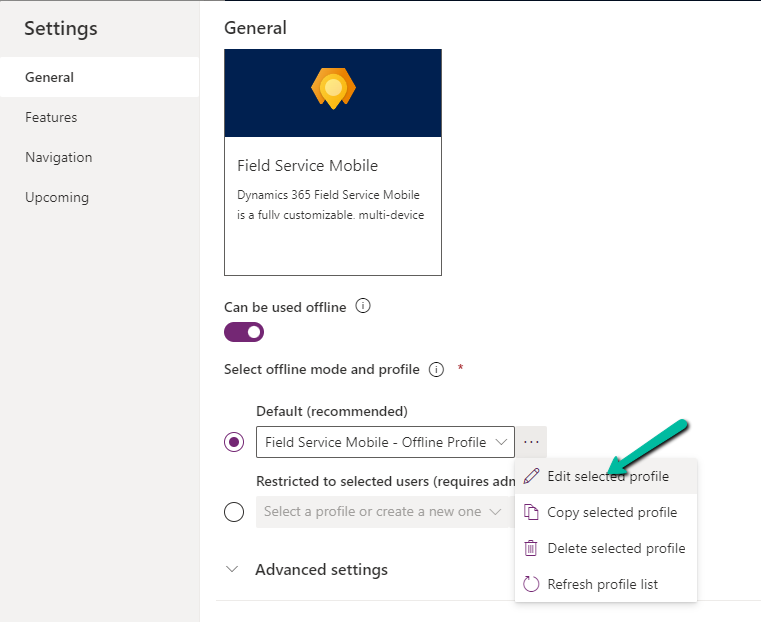
Select edit for the Model-driven app.
Select Settings and select an existing offline profile or create a new profile.
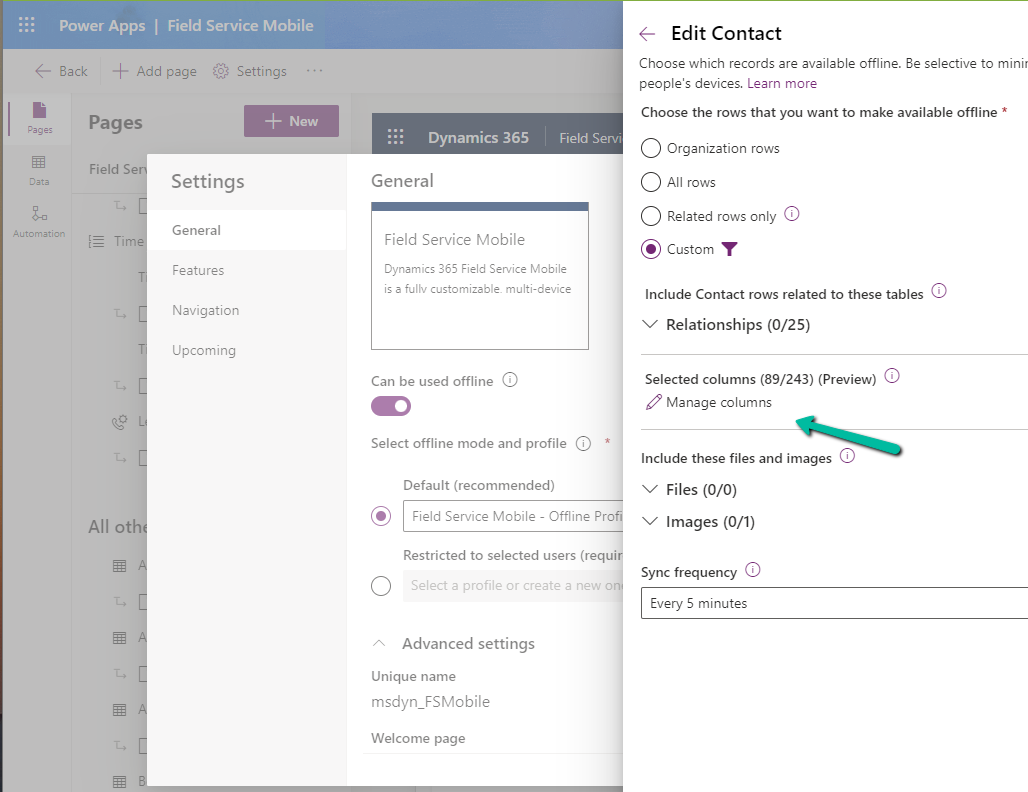
Select a new table or an existing table for the profile, we can see the Manage Columns option for it.
We can see key columns already selected as part of Required Columns.
We can select columns from the other columns section for our offline profile. The fewer the columns the faster the app will download the data for offline usage.
One point to note is that we get this option only from the Maker Portal not from the Power Platform Admin Center.
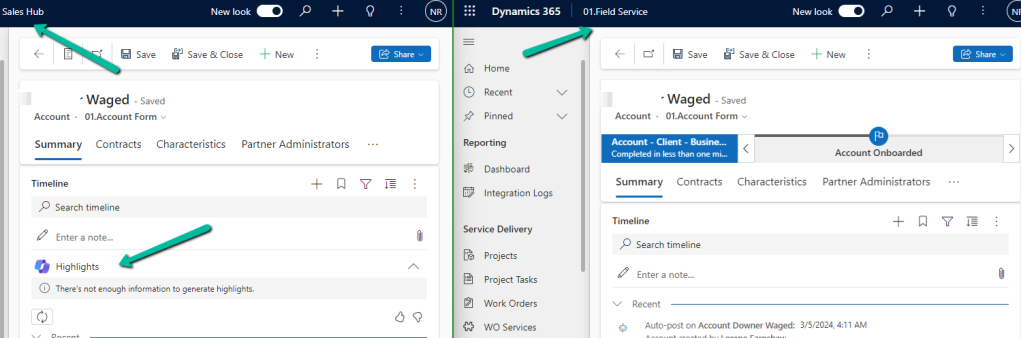
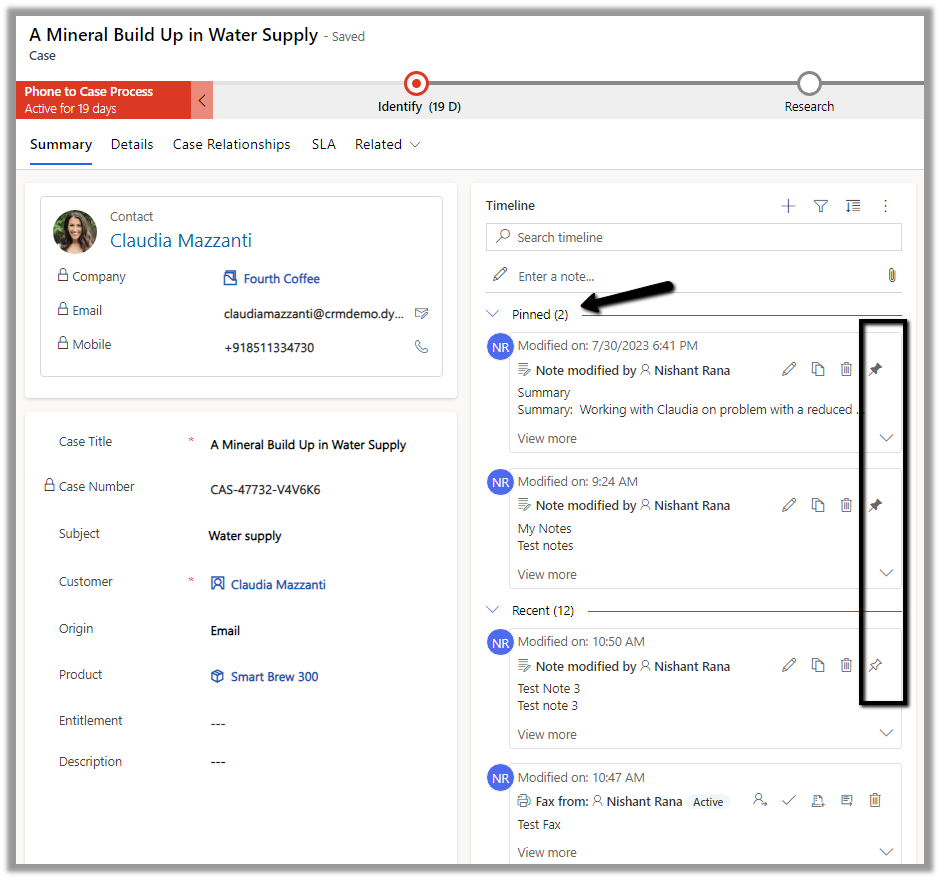
With the Timeline highlights (Generative AI) feature, agents can quickly view the critical information (summary) about the different activities in the timelines, without the need for clicking/reading through each of the activities.
We can enable and disable it at both the form level, app level and environment level.
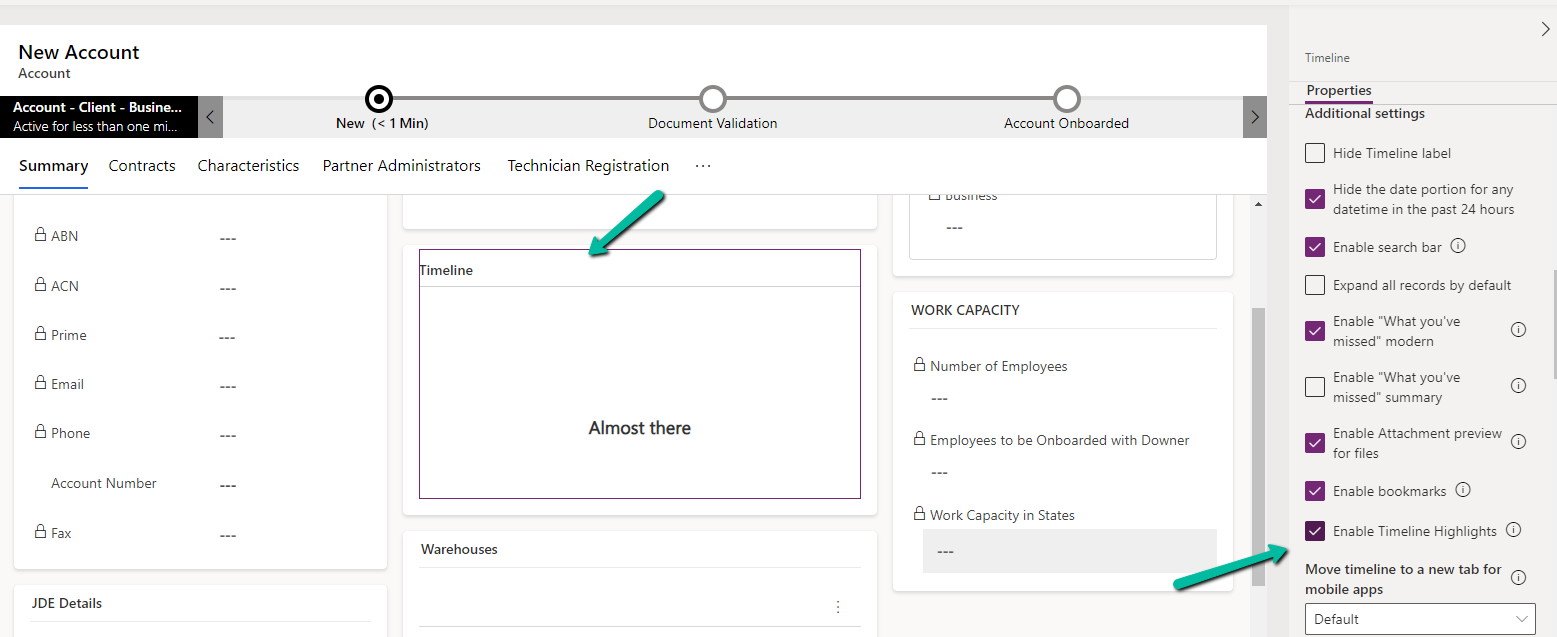
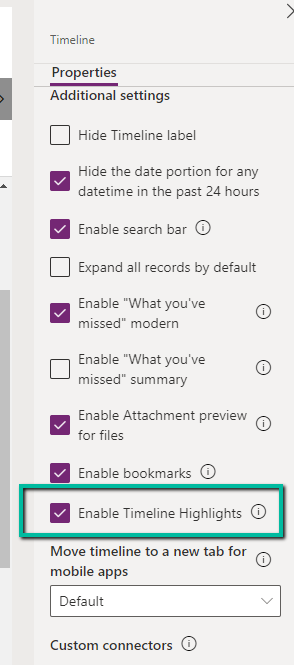
At the form level, we can check/uncheck the Enable Timeline Highlights checkbox for the timeline component.
At the App level, open the Settings >> Features for the corresponding App.
Here if we disable it at the App-level it won’t show up even if it is enabled for that particular form for that particular app.
For e.g. we see timeline highlights in the Sales Hub App but not in the Field Service app in which we had it disabled for the account form.
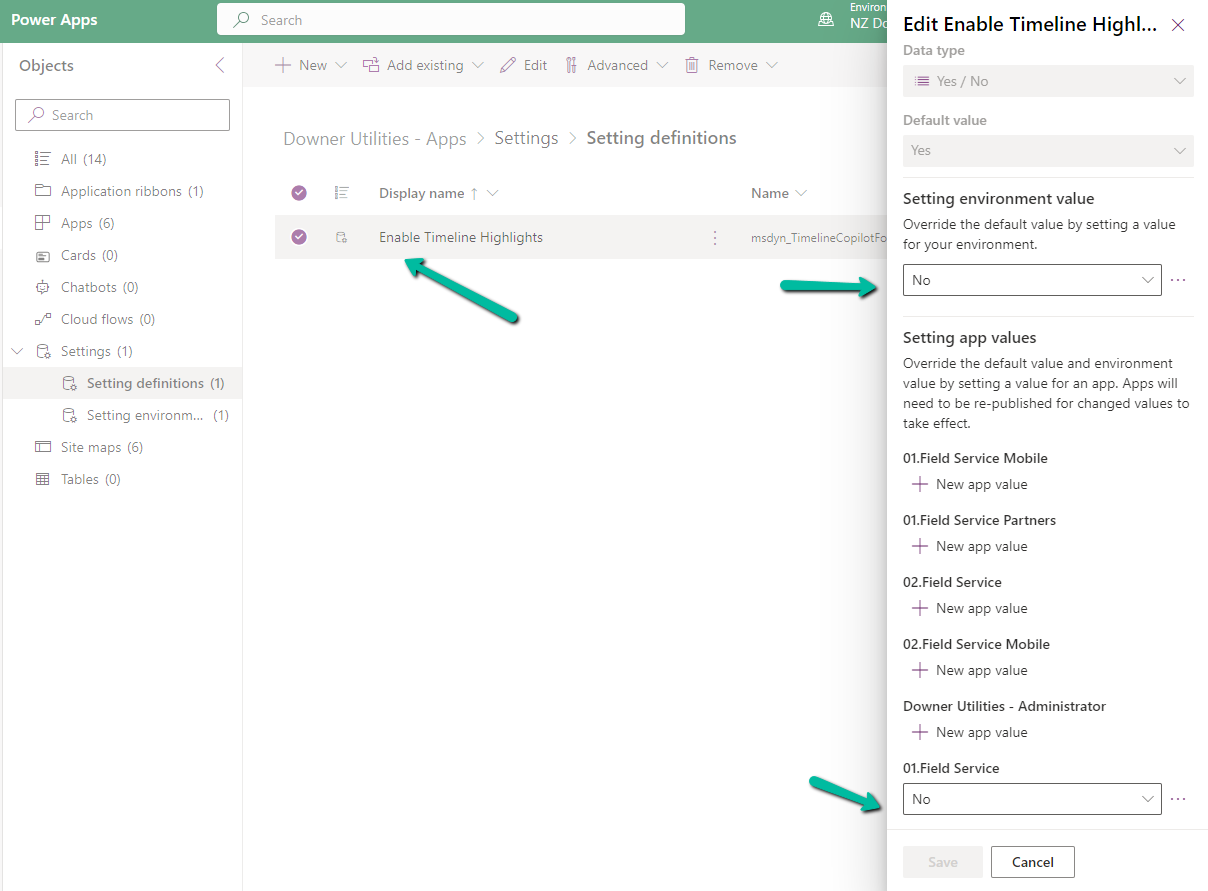
We can also specify it using the Setting Definitions and Environmentvalues as shown below.
Below is what our existing or current Email Template editor looks like (Sales Hub >> Personal Settings >> Email templates)
Let us now enable the Enhanced Email Template editor for the App / Environment (it is enabled by default for Customer Service workspace and Customer Service Hub apps)
Create or Open an existing solution, Add existing >> Setting >> Enable the New Email Template Editor
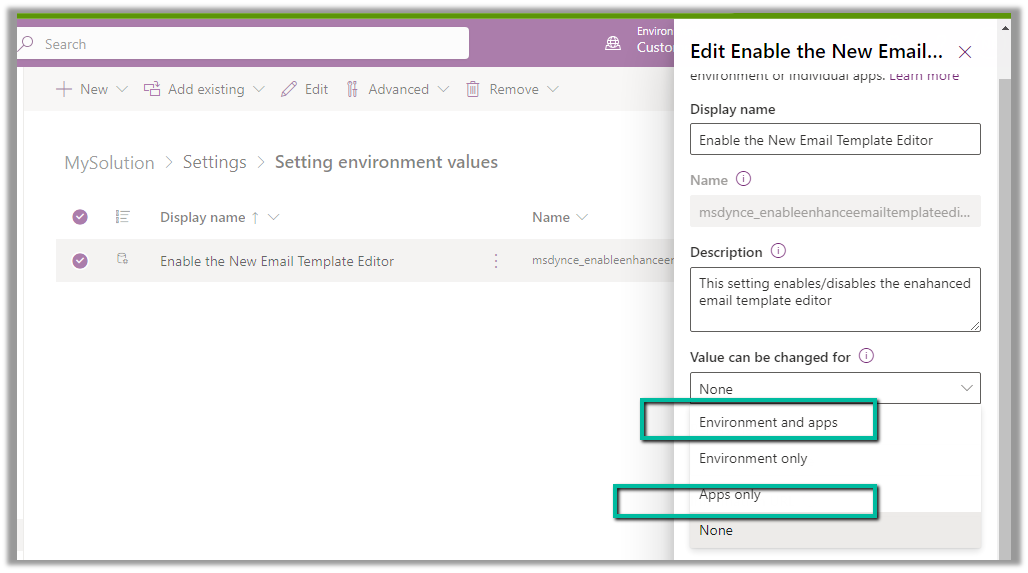
We can set the value as Yes for the Setting environment value to apply it for the environment.
To enable it for a specific app, make sure we have the option “Environment and apps” and “Apps Only” selected for Value can be changed for option.
To specify the app(s) for which we want to enable the new email template editor, we need to add that corresponding app to the solution.
On adding the Sales Hub App, we get the option to set the value for the Sales Hub app, which we have set as Yes.
Publish all customization.
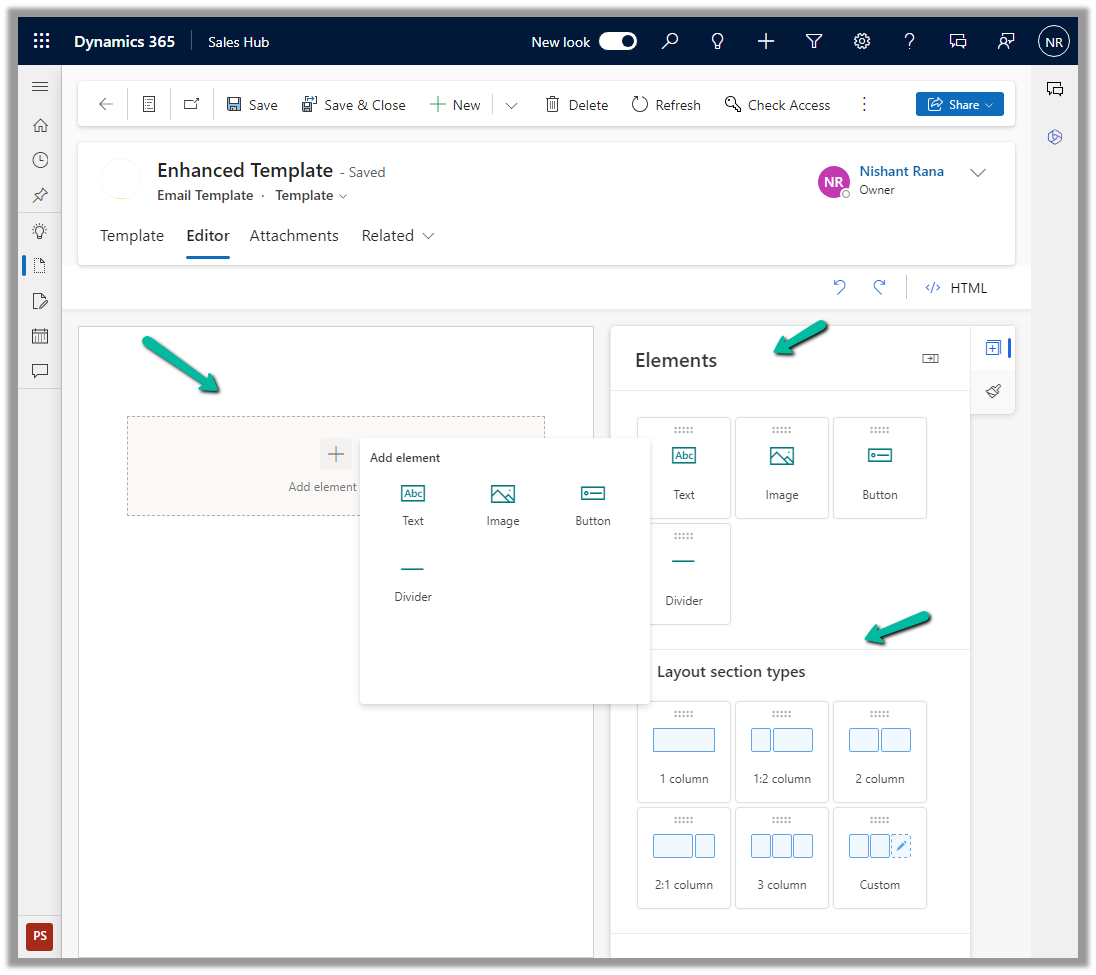
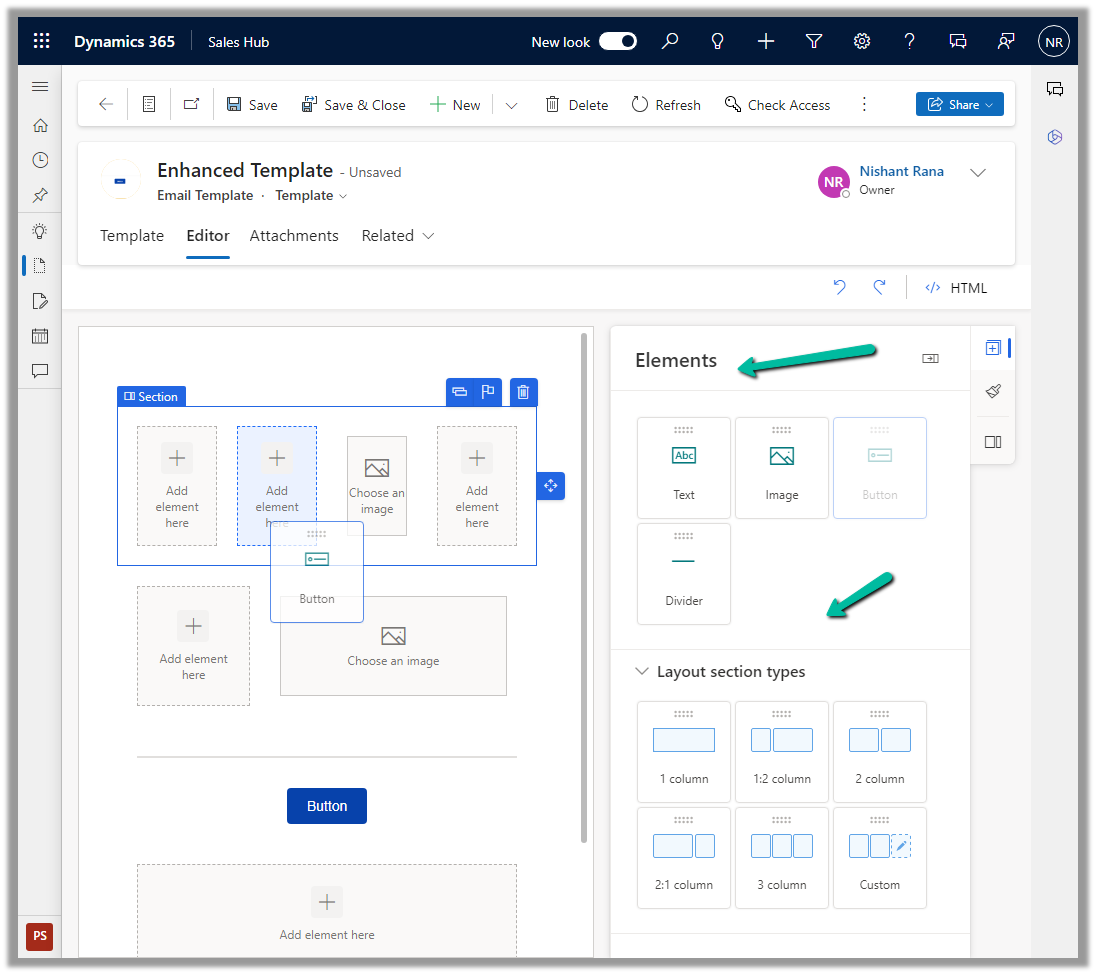
We can now see the new Editor tab added for the new Email Template record inside Sales Hub.
We can drag and drop, and specify properties, of the layout section and elements in the new editor.
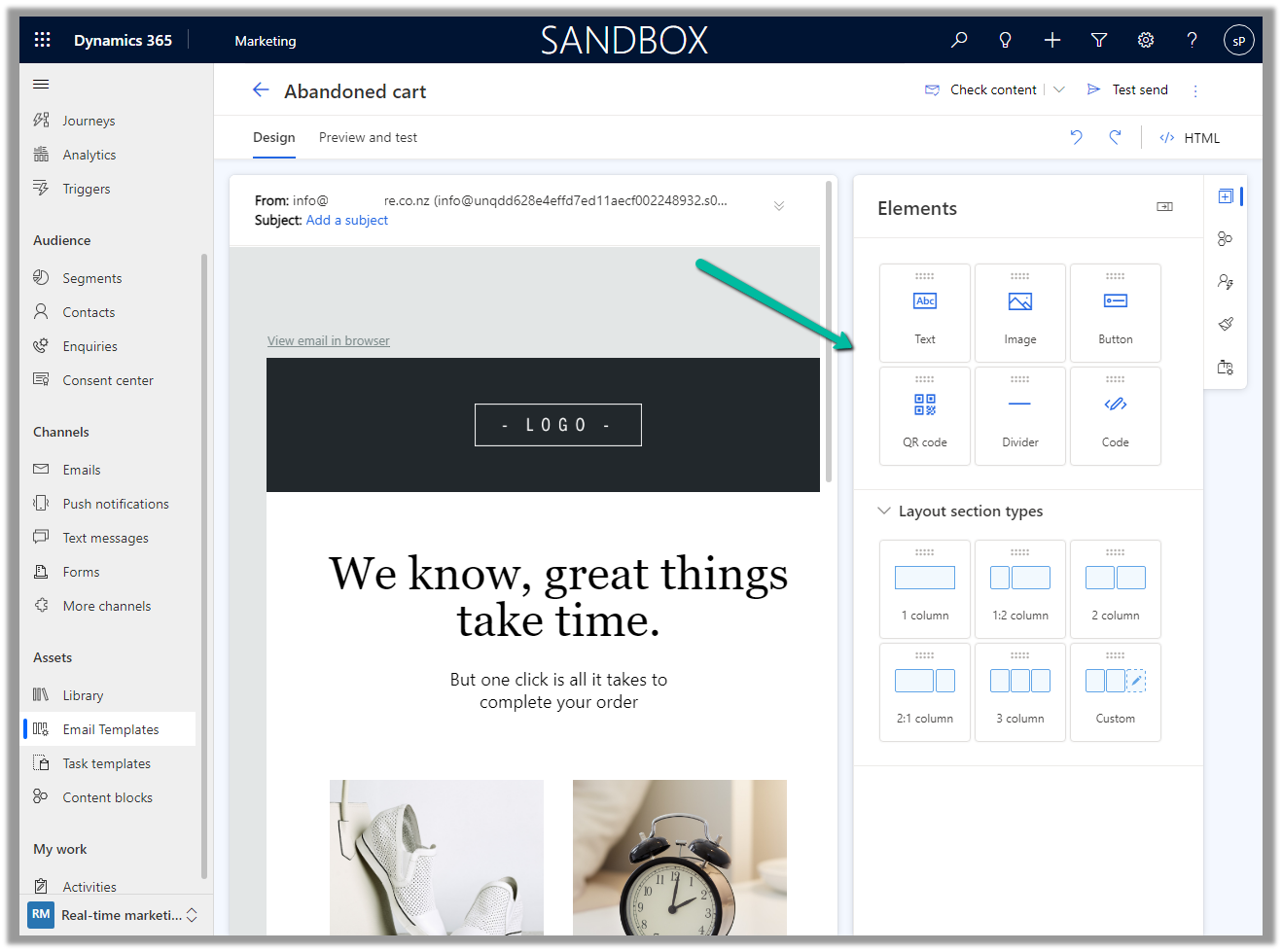
The new email template editor uses the same design as the email editor in Dynamics 365 Marketing, making it more consistent across the different apps in the platform.
The new modern refreshed look for the Model-driven app can be enabled from Maker Portal >> Model-driven App (Edit) >> Settings >> Upcoming – Try the new look and feel (preview)