Fixed – User Presence not working – Customer Service Workspace / Omnichannel (Dynamics 365/CRM)


Recently while exploring Customer Service Workspace we could not see the presence being loaded for the users.

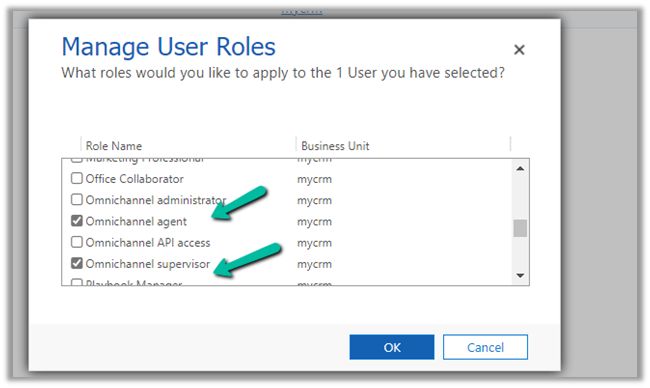
The first thing we need to check here is if the user has either the Omnichannel Agent / Supervisor role or Customer Service Representative role assigned. (it will not load even if you are a system admin or Omnichannel Administrator role only)

The next thing to check is the omnichannel record (Channel Integration Framework V2.0 Providers entity/table)

Check the value for the Channel URL field –

It should be

https://oc-cdn-ocprod.azureedge.net/convcontrol/ChatControl.htm?uci=true&clientName=zfp&cloudType=Public&env=prod&ocBaseUrl=https://unq0c996fcff27241fb845216a48ece6-crm.omnichannelengagementhub.com&ucilib=https://org749544d7.crm.dynamics.com/webresources/Widget/msdyn_ciLibrary.js

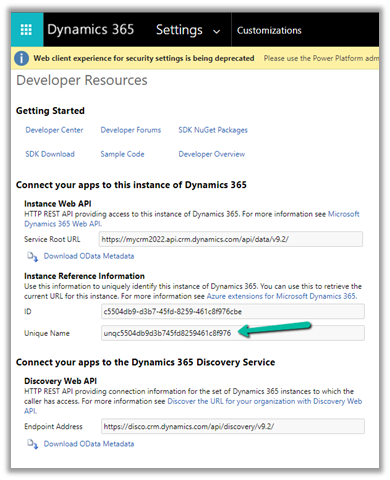
Replace the first part in ocBaseUrl with your organization’s Unique Name (Customization > Developer Resources)

and second is the organization base url in the uclib.

If it still doesn’t work or gets stuck at 25 or 57 percent, check if you have security defaults enabled in the tenant if so either disable it.

Disable Security Defaults while login into Power Platform / Dynamics 365 – Nishant Rana’s Weblog

Or make sure the users have the multi-factor authentication set up on their account.

After we made sure all the above settings – we had the presence working for the users.

Get all the details here-

Troubleshoot issues in Omnichannel for Customer Service

Hope it helps..
Advertisements

Mind Map – Power Platform 2022 Release Wave 1 Overview


Check out the Mind Map for the 2022 Release Wave 1 Power Platform by Khoa Nguyen

https://dyncrmexp.com/2022/03/05/power-platform-2022-release-wave-1-overview/

Advertisements

Solved – Disabled Turn on unified routing option in Dynamics 365 Customer Service Hub


Recently while trying to provision Unified Routing from Dynamics 365 Customer Service Hub in one of our trial environments (Service Management >> Service Configuration >> Unified Routing – Turn on unified routing.),

even after providing the consent multiple times (by clicking on Provide consent, with Global Admin role)

it kept coming as disabled and kept asking for providing the consent.

Opening in in-private browsing or a different browser didn’t fix it.

Clearing the cache also didn’t help – Empty Cache and Hard Reload
https://nishantrana.me/2018/02/28/empty-or-disable-cache-while-working-with-web-resources-in-dynamics-365-chrome/

The trick that worked here was creating a workstream record

which also triggered the provision of Unified Routing 

And after our workstream record got created,

we could see the unified routing enabled successfully.

Hope it helps..

Advertisements

How to – Use Business Rules to Disable / Read-only fields in Editable Grid (Dynamics 365 / CRM)


In the previous post, we saw how to use Field Level Security and JavaScript to disable field/column in the Editable Grid Control.

How to – Disable / Read Only fields in Editable Grid control (Dynamics 365 / CRM) – Nishant Rana’s Weblog

We can also use Business Rules to achieve the same.

Here we will be disabling the email field.

Below is our sample business rule to lock the email field.

The result – we have the field locked/disabled in the editable grid control.

Couple of things we need to take care of

1st the field that we are using in the condition inside business rule, last name in our case, should be there in the view.

And the Scope of the Business Rule should be either – Entity or All Forms.

Also check  – https://nishantrana.me/2022/02/15/power-apps-grid-control-in-model-driven-apps-dynamics-365-crm/

Hope it helps..
Advertisements

HTTP Status Codes | What those one liners “jokes” actually means.


Deepak Gaur's avatarD CRM Explorer

There is nothing painful when you are coding something which is related to some URL and a one line message appears.

What Now ? select error and hit google !! and juggling between website to understand whats this means.

I found this old text file when I was looking for my college day’s work (I’ll share them in couple of days or week maybe busy playing  Injustice 2 😦 you know its hard to keep up with the flash )

It is very important to understand all kind of error and prepare some funny error pages so that user experience will be let say “less bad” 🙂 , Why it matters ?

What you want to see ?

A one liner default error message no one usually understand.  
A funny message or a joke  which makes you happy.

Well you have your answer already 🙂 so lets get into details.

SHORT DESCRIPTION…

View original post 2,093 more words

How to – Disable / Read Only fields in Editable Grid control (Dynamics 365 / CRM)


Say for e.g. we have a requirement to make a certain field or column in the Editable Grid as read-only.

Here we have enabled Editable Grid control for Contact table.

Below are the 2 ways of achieving it –

Here we are taking the email field as an example.

  • Field level security

We have enabled Field Security on the Email field.

And we have set Allow Read and Allow Create as Yes and Allow Update as No.

And added the appropriate users or teams to which this profile should apply.

Now when the user tries to make changes in the email field, it comes as locked.

The other fields still come as editable as we have not enabled them for field security.

  • The other option is JavaScript on the OnRecordSelect event

Code –

function onGridRowSelected(context) {
    context
        .getFormContext()
        .getData()
        .getEntity()
        .attributes.forEach(function (attr) {
            if (attr.getName() === "emailaddress1") {
                attr.controls.forEach(function (myField) {
                    myField.setDisabled(true);
                });
            }
        });
}

The result –

Also check  – https://nishantrana.me/2022/02/15/power-apps-grid-control-in-model-driven-apps-dynamics-365-crm/

Hope it helps..

Advertisements