How to – Force User Sync– Power Platform / Dynamics 365


Suppose you have added a user in Microsoft 365 Admin Center and assigned the required license to access Dynamics 365 Apps / added to the appropriate security group (if used) of the environment also.

You log in to CRM and the user still doesn’t appear there.

We see the sample user and not the sample user test we added.

We have multiple options to force the user sync here.

Ask the user to access the CRM – https://nishantrana.me/2021/12/14/the-trick-to-force-trigger-user-sync-power-platform-dynamics-365/

Use Power Automate Force Sync User action or PowerShell cmdlets

https://nishantrana.me/2021/12/13/using-force-sync-user-to-sync-powerapp-crm-users-power-platform-dynamics-365/

or the quickest is to log in to Power Platform Admin Center

Select the Users (see all) option for the Environment

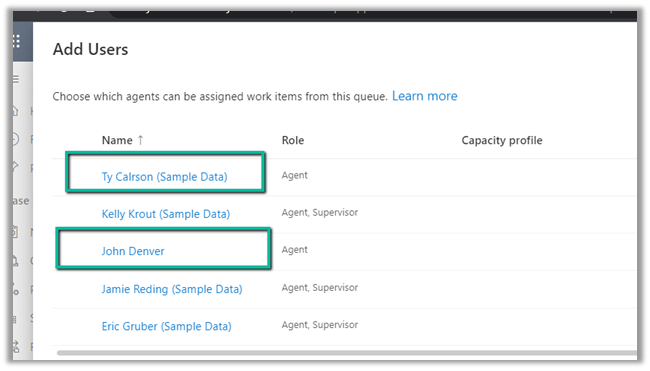
Click on Add User and search for the user and add

Here we have searched and added the Sample User Test we added earlier in Microsoft 365 Admin Center

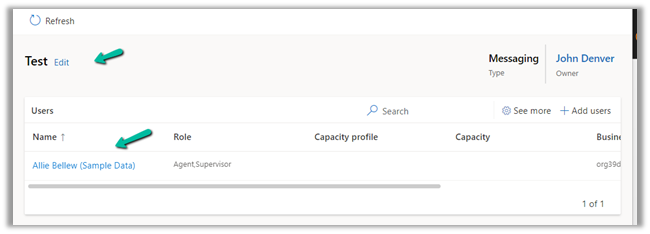
We will get the notification that the user has been added, on refresh we can see the user added.

Back inside CRM also we can see the user.

Thanks to my friend Sharif  (CRM Architect) for the tip.

Hope it helps..

Advertisements

Fixed – Resource not found for the segment in Power Automate


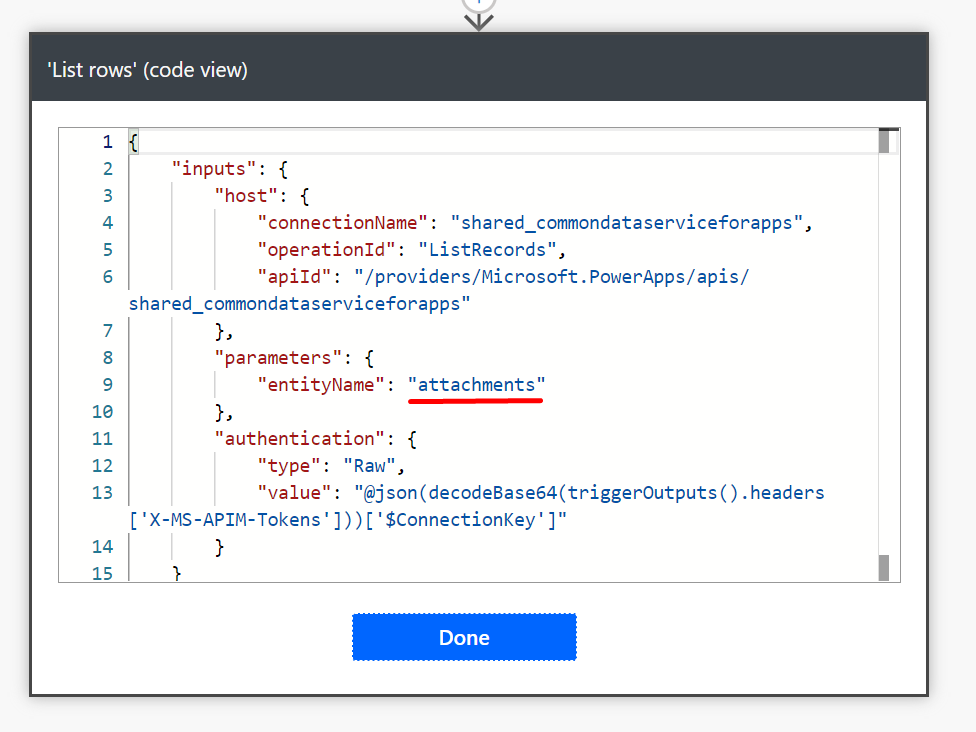
You might get this error while writing a flow –

Fixed – Resource not found for the segment – ‘GUID’

The error was for the below field – Owner (lookup)

To populate a lookup field, we need to specify the plural schema name of the entity /table, followed by the GUID –

Both the option worked –

Hope it helps..

Advertisements

Run as option in When a row is added, modified or deleted trigger – Power Automate


Let us see Run As option of When a row is added, modified or deleted trigger in action, to understand its behavior.

Below is our example flow – it triggers when a field on the case is updated and then it updates the lead record.

Here we have not specified any value for Run as for When a row is added, modified or deleted trigger step.

On updating a case record using the User 1 account who is also the Flow Owner, we can see the modified user as User 1 for the lead record.

Let us trigger the flow this time through User 2.

This time also modified by for the lead record is User 1, even though the Modifying User and Row Owner were different.

So if Runs as is not specified, the Microsoft Dataverse actions are performed using the context of the Flow Owner.

To test it further let us remove the update rights of User 1, who is the flow owner, and trigger the flow again using User 2.

As expected the flow run fails this time.

Principal with id 7252e222-c07f-ec11-8d22-000d3a98d479 does not have WriteAccess right(s) for record with id 8ce6c6de-1bff-e411-80d4-c4346bac4730 of entity lead

Not let us specify Run as = Modifying User this time, and trigger the flow using User 2 again. (we have restored the rights of User 1)

This time also we can see the modified by the user as User 1 (Nishant Rana) the flow owner.

For it to run under the context of the user set as “Run As” in When a row is added, modified or deleted trigger, we need to select the Use invoker’s connection setting for the Update a row step.

Let us trigger the flow again through User 2, remember we have Run As set as modifying user.

Interestingly it still shows User 1 as the Modified By user.

Let us again remove the write rights of User 1 and trigger the flow using User 2.

This time flow is successful. If you remember it failed last time when we removed the User 1 rights and the Run as was default Flow Owner.

And this time, it shows modified by as User 2. (as we can see for user 1, the record is read-only as we have the rights removed)

This time it worked because had set Run As as Modifying User and specified Use invoker’s connection for the subsequent step i.e. update a row in this case, so it used User 2’s context which modified the case record to trigger the flow, which in turn updated the lead record using user 2’s context.

Now it will fail if User 1 updates the case record and triggers the flow because it will try to update the lead record using its context i.e. Run as = modified by

We will observe a similar behavior with Run As = Row Owner.

In case the owner of the record is a team, instead of a user, then it falls back to the flow owner option.

Get all the details here – https://docs.microsoft.com/en-us/power-automate/dataverse/create-update-delete-trigger#user-impersonation-using-run-as

Also check – https://d365demystified.com/2020/10/30/run-as-context-in-cds-current-environment-flow-trigger-power-automate/

Hope it helps..

Advertisements

Fixed – Flow client error returned with status code “Forbidden” and details – MissingAdequateQuotaPolicy, the user does not have a service plan adequate for the non-Standard connection in Power Automate


Recently one of the users reported this error while trying to Test a flow.

Request to XRM API failed with error: ‘Message: Flow client error returned with status code “Forbidden” and details “{“error”:{“code”:”MissingAdequateQuotaPolicy”,”message”:”The user ‘8a47d139-662e-4b73-bca3-53a59e8bebeb’ does not have a service plan adequate for the non-Standard connection ‘Microsoft Dataverse’. https://go.microsoft.com/fwlink/?linkid=2123710″,”extendedData”:{}}}”. Code: 0x80060467 InnerError: ‘.

As here the Premium Dataverse connection was being used, the resolution was to either purchase a Per User plan or Per Flow plan or to enable the trial of Power-Automate per user plan.

After the trial was enabled for the user, the error got resolved.

Hope it helps..

Advertisements

[Step by Step] Dataverse | Connect Cloud flow with Service Principal (Application User)


Rajeev Pentyala's avatarRajeev Pentyala – Technical Blog on Power Platform, Azure and AI

By default, Cloud flow Dataverse connectors run under the Owner (i.e., User who created the flow) context. When the flows move to different environment via solutions, connectors run under the user account who imported the Solution.

Making the flows run under interactive user accounts is not recommended as they cause confusion when we check the record’s audit for who updated the record. Its recommended to make the flow run under ‘Application User’, if the calling user can be a fixed account.

In this article lets see how to make the flow run under Application User using Connect the flow using Service Principal option.

High level design:

Following are the steps we gonna go through.

  • App registration in Azure Active Directory (AAD)
  • Create an Application User in Environment.
  • Create a Cloud Flow and connect with Application User.

App registration in Azure Active Directory (AAD)

View original post 242 more words

{Power 2022} Enable editable grid on a Dashboard component in Dynamics 365 CE


deepeshsomani2013's avatarMSDYNAMICSBLOG BY DEEPESH

Requirement: Enable editable grid on a Dashboard component for views.

Solution:

Follow the following steps to configure editable grid on a view component within Dynamics 365 CE dashboard:

  1. Open the Dashboard for editing by clicking Edit:

  • Double click the View component in which you wish to add Editable Grid control and select control tab:

  • Select Editable grid in the control and set relevant option (selected Web in our example in the blog):

  • Clock Ok and then Save, Close the dashboard(using Personal Dashboard in this example)

Result:

Hope it helps!

Power 365ing as usual!

Any problem in Power Platform or Dynamics 365 – end user, Microsoft partner or an individual?

Problem Area – Technical, Functional, Training, Development or consulting?

Me and my team are here to assist, please fill the following form for your business needs:Click here

View original post