Fixing – “We’re sorry. You do not have sufficient permission on the server to load the application” error in Dynamics 365 for Tablet.


Recently while configuring Dynamics 365 for Tablet we got the below error.

“We’re sorry. You do not have sufficient permission on the server to load the application”

After enabling the tracing we got the details of the error.
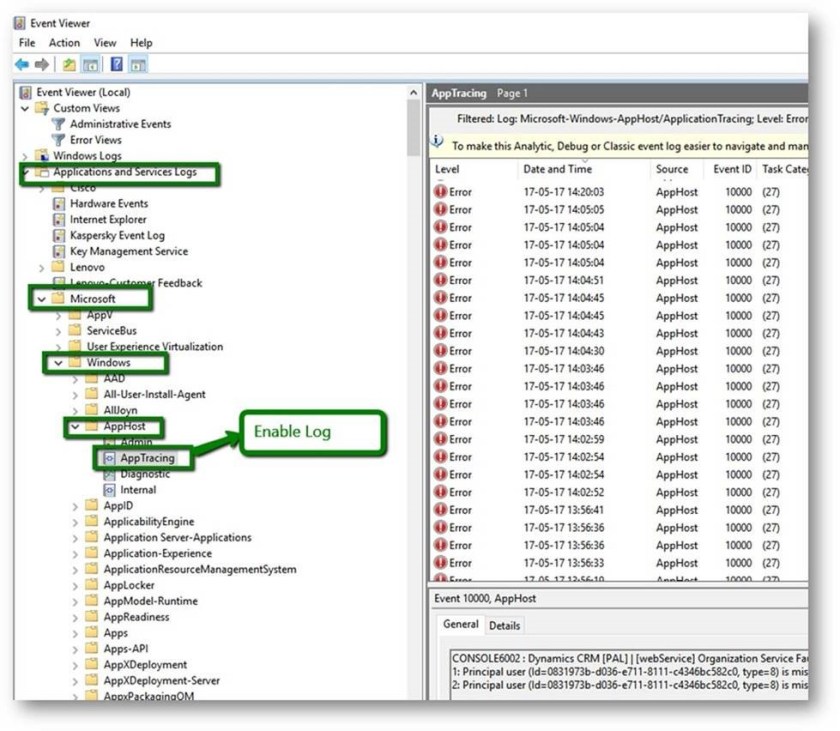
https://technet.microsoft.com/en-us/library/hh699694.aspx?f=255&MSPPError=-2147217396#BKMK_MoCA_tracing


The user was having a custom security role to which we had to add the permission for the following entities

  • Connection
  • Role
  • Connection role
  • User Dashboard
  • Note etc..

After updating the security roles with all the required permissions, we were able to use the App.

Hope it helps..


How to – Use ILMerge for Plugin in CRM


If we make use of external assembly in our Plugin (sandboxed) we will get the exception of FileNotFound.

So here we can make use of ILMerge which basically merges the assembly referenced and the plugin into a single assembly.

Install the following NuGet Package.

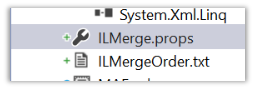
This adds the following files in our Plugin project.

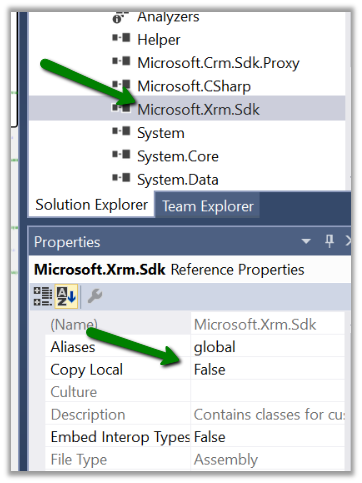
We need to set Copy Local as true for all our referenced assembly that we want to merge with our plugin.

We need to set Copy Local as false for all other assemblies that we do not want to be merged with plugin.

Just build the project and we are done.

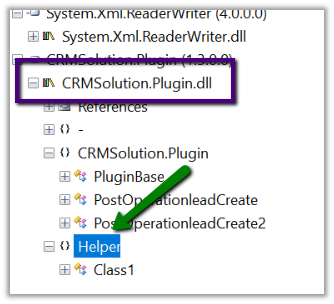
The assembly inside Reflector: –

Hope it helps.

Advertisements

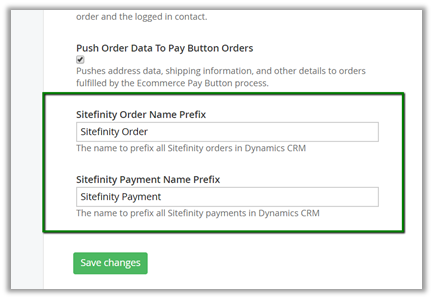
Change Order Name and Payment Name Prefix in The Portal Connector (TPC)


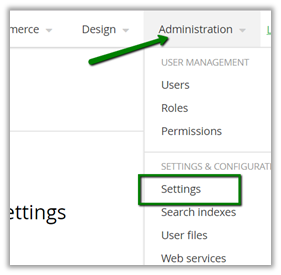
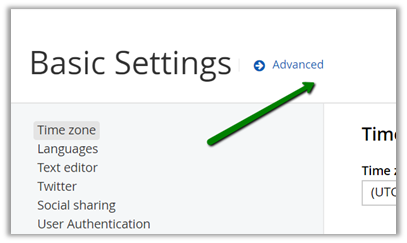
To update the prefix, go to Administration – Settings

Then to Advanced

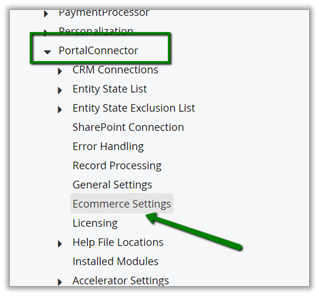
Then to Ecommerce settings

Scroll down to the bottom

Hope it helps..
Query CRM from The Portal Connector (TPC) through Saved Queries


Within The Portal Connector we can make use of Saved Queries to define Fetch XML Query.

Once defined we get a REST based URL which can be used from our client side script.

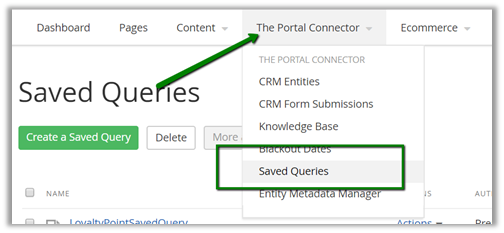
Login to the Portal and go to Saved Queries

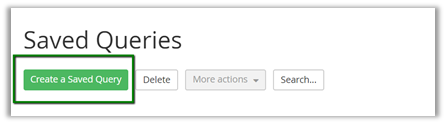
Click on Create a Saved Query

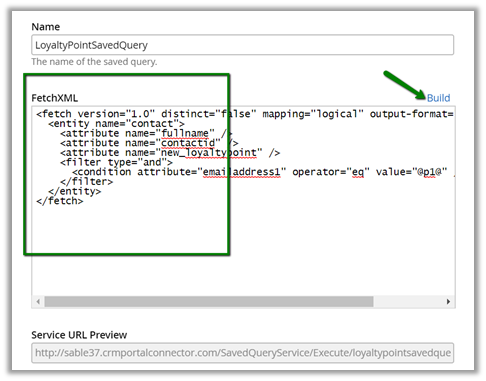
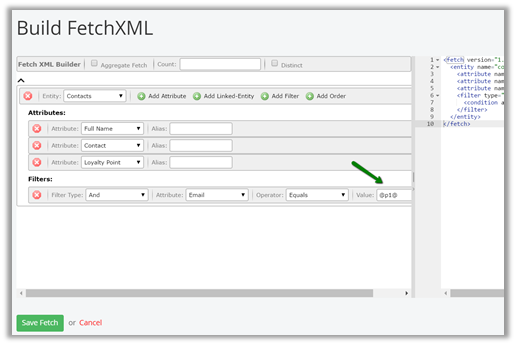
Click on Build and create a Fetch XML Query

The fetch xml builder

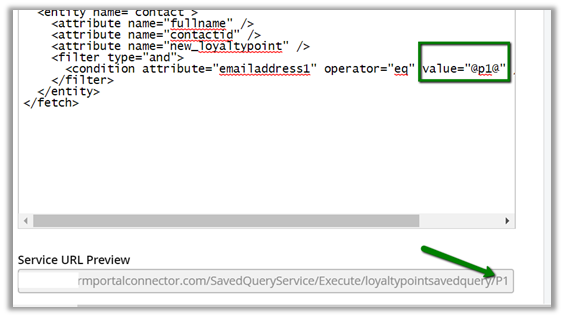
We can see the parameter added to the query string.

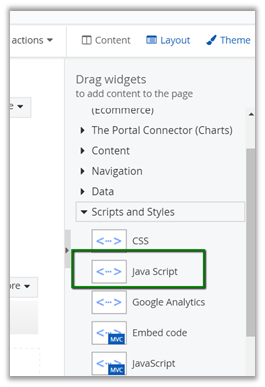
To consume it we can make use of JavaScript widget

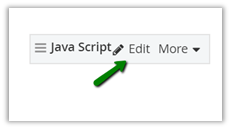
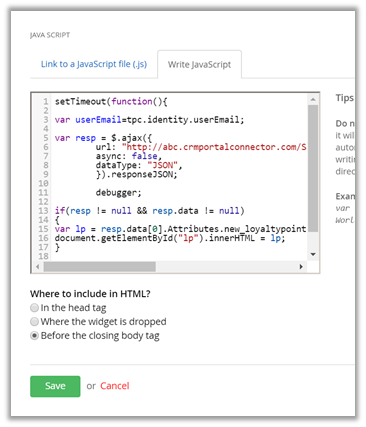
Click on Edit and define the JavaScript inside it to call the function

The JavaScript code.


setTimeout(function(){

// get the logged in user's email i.e. contact in CRM

var userEmail=tpc.identity.userEmail;

var resp = $.ajax({
url: "http://abc.crmportalconnector.com/SavedQueryService/Execute/loyaltypointsavedquery/" + userEmail,
async: false,
dataType: "JSON",
}).responseJSON;
if(resp != null && resp.data != null)
{
var lp = resp.data[0].Attributes.new_loyaltypoint;
document.getElementById("lp").innerHTML = lp;
}
}, 1500);

Hope it helps..
Using tpc.identity to get the logged in user details in JavaScript in The Portal Connector (TPC)


Recently while working in TPC, we had a requirement to get the details of the logged in user (which is basically a contact record in CRM).

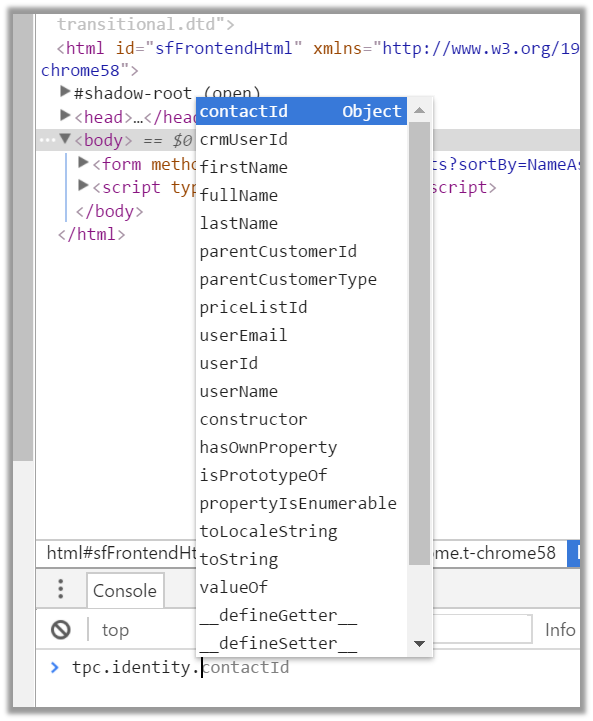
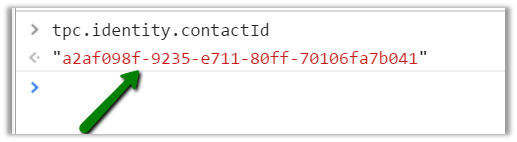
To do so we can make use tpc.identity object in Client Side.

For e.g. contactId

Hope it helps..

Missing Price for Products in The Portal Connector – E Commerce Settings – Dynamics CRM.


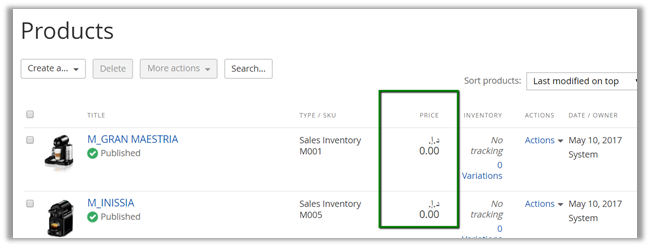
Recently we configured products from CRM to e-commerce setting of The Portal Connector and found that the price for the product was missing.

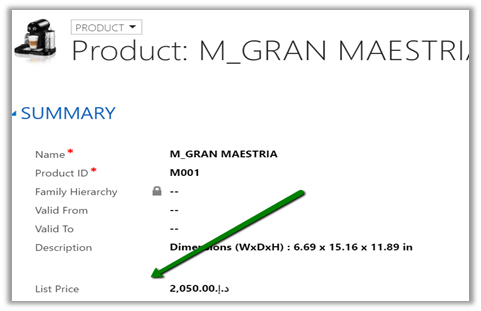
The way to fix this issue is to Open the product form in CRM and add the list price field on the product form and specify the value there.

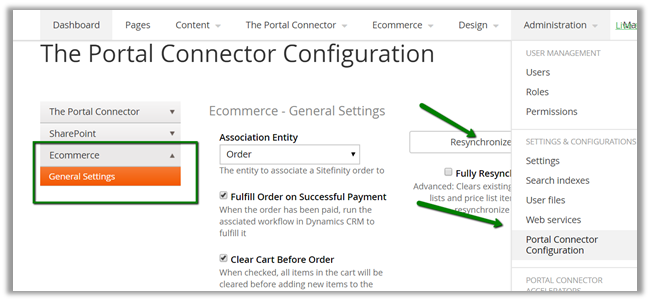
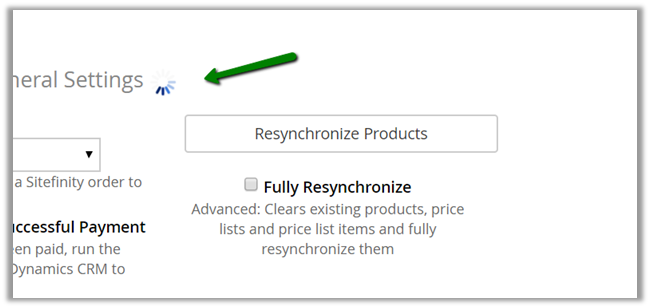
Once value is specified, go to administration – portal connector configuration and click on Resynchronize to update the product record in the portal.

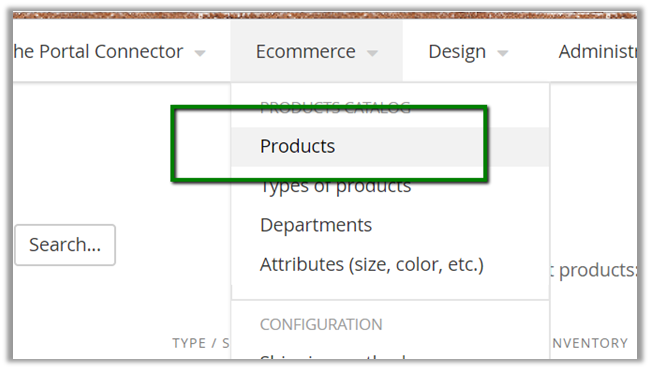
Once synchronization is done, we can see the values updated in the portal.

Hope it helps..