Environment Variable referencing Azure Key Vault secrets (Dataverse / Power Platform)


Check out the below articles –

https://docs.microsoft.com/en-us/power-apps/maker/data-platform/environmentvariables#use-azure-key-vault-secrets-preview

Within plugin https://itmustbecode.com/azure-key-vault-secrets-in-dataverse/

Within Power Automatehttps://www.msautomate.com/2022/06/16/azure-keyvault-and-power-automate/

https://powerapps.microsoft.com/en-us/blog/how-to-use-environment-variables-with-akv-secrets-in-the-ci-cd-pipeline-when-deploying-applications/

https://blog.yannickreekmans.be/environment-variable-secrets-azure-key-vault-improvement/

Advertisements

How to – Use Import Column to Upload files to File Column / Attribute in SSIS KingswaySoft(Dynamics 365 / CRM)


A few weeks back had posted on how to upload files to the File Column type field using KingswaySoft’ s Integration Toolkit and Premium Flat File Source and Premium Derived column which are part of the SSIS Productivity Pack of KingswaySoft

https://nishantrana.me/2022/03/17/how-to-upload-files-from-file-column-attribute-using-ssis-kingswaysoft-dynamics-365-crm/

Here we will see an example of achieving the same without using the KingswaySoft Productivity Pack’s Premium Flat File Source and Derived column. (although would recommend using it as it includes over 300 premium components making it easier to rapidly build efficient solutions)

https://www.kingswaysoft.com/products/ssis-productivity-pack

Below is our source file

The contact records in CRM

Below is how the package looks like

The Flat File Source points to the location where we have the source csv file containing email, file path, and file name.

Import Column takes the File Path as the Input.

For the Input and Output properties, add an output column (BinaryColumn) of DataType = image.

In the FilePath input column properties, specify the column id of the output column.

Finally, in the CDS / CRM Destination Component, we are performing an upsert using the Email id as a match.

Here we have mapped the output column of the Import Column i.e. BinaryColumn to the binary content field of the file type attribute of the CRM.

Let us now run the package.

Let us now open the records and check.

As expected we can see the file uploaded.

Also, check out –

To extract attachments from notes-https://nishantrana.me/2021/02/10/extracting-attachments-from-notes-in-dynamics-365-dataverse/

To download files using Download Block Requesthttps://nishantrana.me/2022/03/14/how-to-download-file-from-file-column-using-initializefileblocksdownload-and-downloadblock-request-dynamics-365-crm-dataverse/

To upload files using Upload Block Requesthttps://nishantrana.me/2022/03/15/how-to-upload-file-to-file-column-using-initializefileblocksupload-and-uploadblock-request-dynamics-365-crm/

Understand File and Image Data Typehttps://nishantrana.me/2021/10/01/using-file-and-image-data-type-in-dataverse-dynamics-365/

Try out the wonderful, feature-rich, and powerful SSIS Integration Toolkit for Dynamics 365 by KingswaySofthttps://www.kingswaysoft.com/products/ssis-integration-toolkit-for-microsoft-dynamics-365/download

Check other articles on SSIS plus CRM – https://nishantrana.me/2018/11/26/ssis-and-microsoft-dynamics-365/

Hope it helps..

Advertisements

Understanding Change limits option in Do until control – Power Automate


Within Do Until control in Power Automate we have the option of defining the limits i.e. how long the do until will run either based on count or timeout.

By default, the value for count is 60 and Timeout is PT1H which equates to 1 hour i.e. it will either run 60 times or will run for 1 hour which occurs first.

Let us set the count to 5 and test it.

We have also added the delay of 1 minute along with the condition for do until and triggering it on the update of a lead record.

As expected if the condition is not true, after running 5 times it stops successfully.

Now let us change the Timeout to 2 minute and we keep the count as 5.

As expected after 2 minutes (by that time it has looped 2 times with 1 min delay), the flow stops successfully.

The flow will also be successful when the Do until condition is met.

Here we can make use of Current Iteration Index property of Do until to find out the number of times it has looped.

To set the time out format –

https://www.digi.com/resources/documentation/digidocs/90001437-13/reference/r_iso_8601_duration_format.htm

Lastly the Count value can be maximum 5000 – 

countlimit

Also check –

https://nishantrana.me/2022/05/17/fixed-invalid-template-unable-to-process-template-language-expressions-in-action-template-language-expression-cannot-be-evaluated-the-template-action-is-not-defined-in-the-current-scope/

https://nishantrana.me/2022/01/19/how-to-use-do-until-and-delay-in-power-automate/

https://nishantrana.me/2022/05/19/filter-rows-and-trigger-conditions-in-power-automate/

Hope it helps..

Advertisements

Filter rows and Trigger Conditions in Power Automate


Filter rows and Trigger Conditions can be used to specify the condition on which the trigger should fire. This makes sure that we do not exceed flow execution limits.

Power Automate Licensing – Power Platform Requests

Power Automate Limits and Configuration

In the case of our Dataverse trigger “When a row is added, modified or deleted” we can make use of either Filter rows or Trigger Conditions, as we have both options available.

We’d be using Trigger Conditions for those triggers where we do not have additional property to specify the filter condition.

E.g. we want the flow to run only on a specific file in a library or based on the extension of the file as nicely explained here

https://tomriha.com/trigger-power-automate-flow-only-on-specific-file-in-a-library/

https://www.enjoysharepoint.com/trigger-conditions-in-power-automate/

Now out of curiosity, we tried specifying both Filter rows and Trigger conditions to see how it behaves.

Here for the same trigger we have specified Filter Rows as below

address1_city eq ‘Ahmedabad’

And Trigger Conditions as below

@equals(triggerOutputs()?[‘body/companyname’], ‘MS’)

During our test, we observed that the trigger is firing only when both the conditions or expressions, specified in Filter Rows as well as Trigger Conditions are true.

So basically it will only fire for those rows or records having Company as MS and City equal to Ahmedabad.

It will not fire if either of Filter Rows or Trigger Conditions expression evaluate to be false.

Hope it helps..
Advertisements

Fixed – Unable to process template language expressions for trigger. In the template language function ‘convertToUtc’, the value provided for the time zone id ‘Gulf Standard Time’ was not valid while using Delay Until property– Power Automate


Recently while using Delay until property of the trigger, in one of the flows, we got the below error

“Unable to process template language expressions for trigger ‘When_a_row_is_added,_modified_or_deleted’ at line ‘1’ and column ‘16344’: ‘In the template language function ‘convertToUtc’, the value provided for the time zone id ‘Gulf Standard Time’ was not valid. ‘.”

Usage of Delay until is nicely explained here by Debajit –

https://debajmecrm.com/how-to-delay-a-power-automate-flow-execution-till-a-specified-date-and-time/

https://debajmecrm.com/replicate-dynamics-365-workflow-timeout-wait-condition-in-microsoft-flows/


Delay until = convertToUtc(‘2022-05-16T17:22:00′,’Gulf Standard Time’)

It turns out that Gulf Standard Time is not a valid time zone id.

Changing it to Arabian Standard Time resolved the issue for us.

i.e.

convertToUtc(‘2022-05-16T19:22:00′,’Arabian Standard Time’)


Also check – https://nishantrana.me/2022/01/19/how-to-use-do-until-and-delay-in-power-automate/

Hope it helps..

Advertisements

Autonumber field values in case of exception in Dynamics 365 / CRM


Recently in one of our projects, where we were using the auto number attribute (with sequential numbers), we realized that it gets incremented even in case of an exception thrown during Pre Stage of the Plugin Execution. We were assuming the number gets incremented only after the record gets created i.e. on post-stage.

But as the documentation mentions, the number gets pre-selected as soon as the record is started.

https://docs.microsoft.com/en-us/power-apps/maker/data-platform/autonumber-fields

Let us see it in action also –

Here we have the lead record created with My Autonumber as the auto number column with seed as 1000

The auto number field has a value of 1009 currently.

Now let us register a plugin on the Pre-Create stage that throws the exception.

Let us try creating a new lead record, which as expected will throw the exception.

Let us try saving the record 3 times more, triggering the record creation as well as the plugin along with the exception.

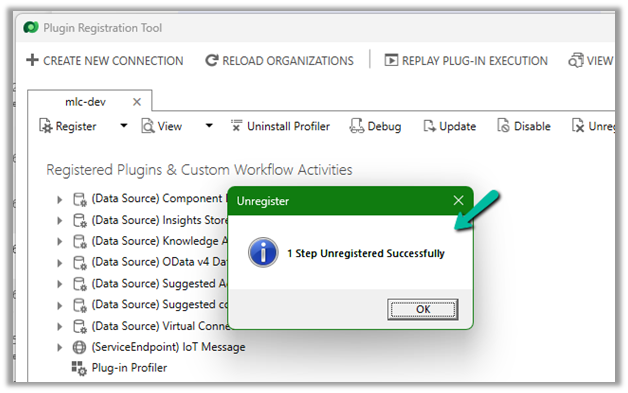
Now let us disable the plugin step and save/create the record.

As expected the record gets created, and the auto number field has a value of 1014.

The same behavior was observed in case of Pre-Validation stage.

Hope it helps..
 

Advertisements