Fixed – Exception in creation of lead (Dynamics 365 Marketing)


Recently we were getting the below error in one of our marketing forms for form submission record.

Exception in Creation of lead – Activity id: 40ff82fc-bb10-4d30-8671-12683392ccdf, Request id: AsChkx2zn5IKrjHVC4cTb6j-ZkB23D0PqgCdxwi8kEE_0, Exception: An item with the same key has already been added.

This was because we had mistakenly added first name fields twice as the form-matching attribute in the form-matching rule used for that form.

Deleting that extra field resolved the issue for us.

Hope it helps..

Advertisements

How to – Extend (Recover) the trial environment (Dataverse / Dynamics 365)


On logging into Power Platform Admin Center, we would see our trial environment as expired

And then within one day or so, we would see them deleted inside Recently deleted environments

Select the deleted environment and Select Recover

Within 10 -15 minutes we can see the environment recovered with the trial extended for 13 more days.

Hope it helps..

Manage Security Roles using the new modern UI (preview) – Power Platform Admin Center


Security roles can be now managed using the new modern UI (preview).

Select Security Roles (See all) for an environment, within Power Platform Admin Center.

Select Edit for a security role.

We can see here Display only parent security roles option is On by default.

We can see the different options.

  1. Filter based on table or privileges

2. Specify Member’s privilege inheritance option

https://learn.microsoft.com/en-us/power-platform/admin/security-roles-privileges#define-the-privileges-and-properties-of-a-security-role

Nicely explained here –

https://debajmecrm.com/team-members-privilege-inheritance-what-is-this-doing-in-security-role-screen-of-dynamics-365/

3. Tabs for Table specific, Miscellaneous, and Privacy-related privileges

4. Filter privileges further by all, assigned or unassigned.

5. Collapsible

6. Option to Copy Table Permission to another table(s) and apply predefined Permission Settings i.e. Access Levels.

Copy table permissions to multiple tables

Permission Settings (Access Levels)

7. Specify Access Level for Privileges

Get all the details here – Security Roles and new modern UI

Hope it helps..

Advertisements

Get RequiredAttendee (Required) from the Meeting (appointment) table – Power Automate / Dataverse


Below is the sample flow we can use to retrieve the Required (requiredattendees) field’s value from the Meeting table (on the update of the record).

Here we are triggering the flow, if there is an update in the subject field of the meeting record.

Then using the List rows action we are fetching the Activity Parties record associated using the Appointment’s unique identifier and participation mask as 5.

More on participation type mask

And in the last step, we are checking for all the associated Activity Party GUIDs for a specific GUID and then update the record or cancel the record.

Hope it helps..

Advertisements

Filter rows using contains, startswith and endwith Power Automate – Dataverse


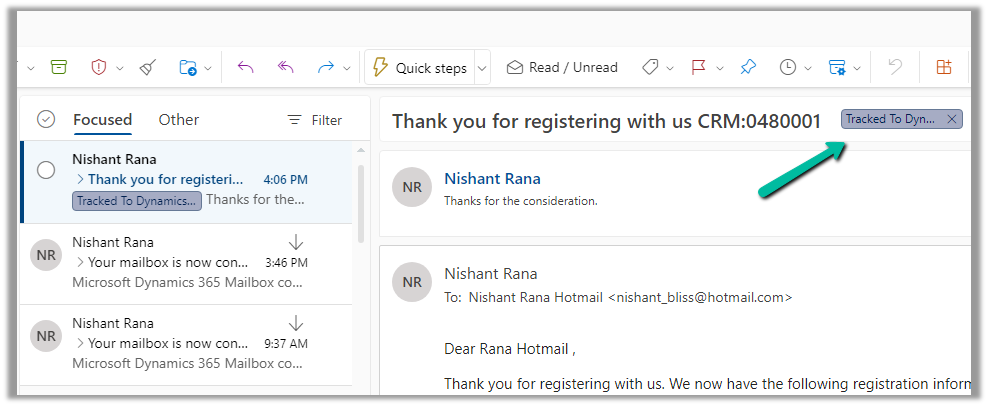
Recently in one of our projects, we were using the Microsoft Bookings App for the users to book an appointment(outlook) and then were syncing this appointment back to Dynamics 365 through the category “Tracked to Dynamics 365” (Server Side Synchronization)

Get more details on it here – https://nishantrana.me/2022/03/22/how-to-synchronize-appointments-between-dynamics-365-and-outlook-using-server-side-synchronization/

Here if the users were canceling the tracked appointment in Outlook, it will update the subject of the appointment record with the prefix – Canceled but will not cancel the record i.e. update the status of the record.

This would happen if the user canceling the appointment is not the organizer.

https://learn.microsoft.com/en-us/power-platform/admin/sync-logic#syncing-canceled-and-deleted-appointments-from-exchange-to-dynamics-365

So here we were implementing a flow to check for updates in the Subject column with the word canceled and then updating the status of the appointment as canceled.

Here we can specify our select columns and filter conditions as follows – contains

Or startswith

https://learn.microsoft.com/en-us/power-apps/developer/data-platform/webapi/query-data-web-api#standard-query-functions

Hope it helps..
Advertisements

Hide Show Button in Command Bar / Ribbon in Dynamics 365 / Model-Driven App (For Quick Reference)


Open the App in the App Designer, select the Edit Command Bar for the table

Also, check the limitations of the Command designer, the important one being that the pre-existing classic commands cannot be customized with the new command designer.

For the new Command added, set its Visible property based on the status of the current selected item/record.

More on Power Fx

Now similarly if we want to show the button only for an existing record by updating the RibbonDiffXML, we can write the following DisplayRule based on FormStateRule


Hope it helps..
 

Advertisements