CRM Manipulation Library – Custom Workflow Activities for CRM 2016


Hi,

Recently we used the CRM Manipulation Library for some Days related calculation.

https://manipulationlibrary.codeplex.com/

To use it in CRM 2016, we updated the references to use latest SDK assemblies. You could download it form here.

https://www.codeplex.com/Download?ProjectName=manipulationlibrary&DownloadId=1614740

While working with it we found a strange issue,

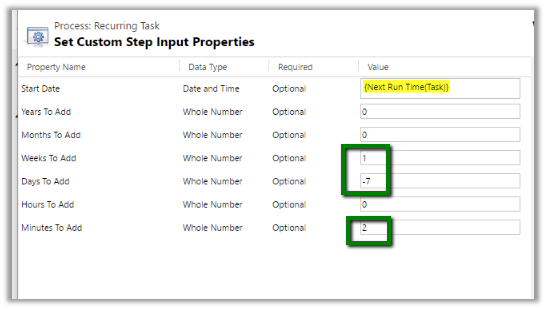
If we are using Add Days and we do not specify any value to Days to Add it will not perform any calculation. The workaround suggested was to add 1 Week and remove 7 days, something of that sort. Basically, we wanted to add 2 minutes here.

Thanks to this post for that

http://practical-crm.blogspot.in/2013/12/crm-manipulation-library-date.html

Hope it helps..

How to – Delete Components from Managed Solution in Dynamics CRM 2016 without using Holding Solution.


Before the updates that we have received for solution in CRM 2016 the only way to delete components from managed solution was to use Holding Solution.

The following post nicely explains this.

https://blogs.msdn.microsoft.com/devkeydet/2012/05/29/deleting-things-from-a-deployed-crm-2011-managed-solution-package/

Now let us see how we can do this in CRM 2016 without using Holding Solution.

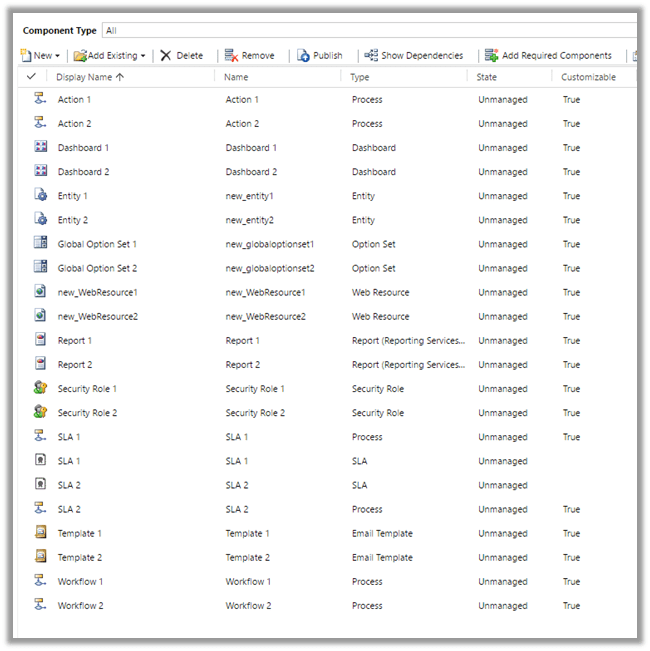
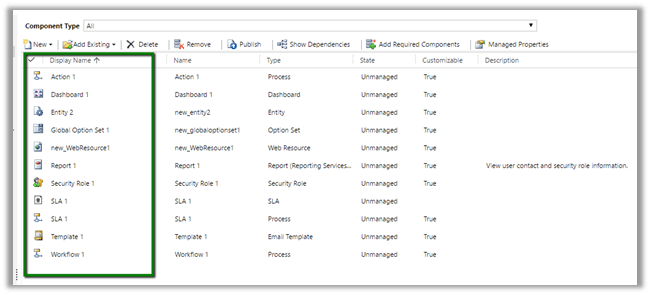
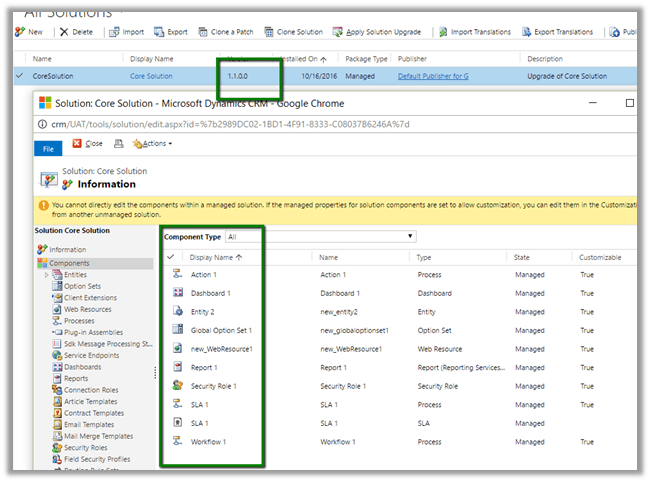
Suppose below is our managed solution that includes 2 Action, 2 Entity, 2 SLA, 2 Workflow.

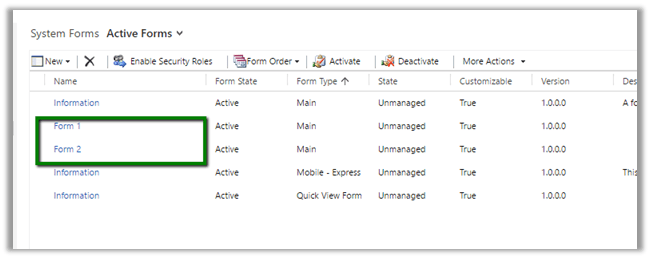
Entity 2 with two forms.

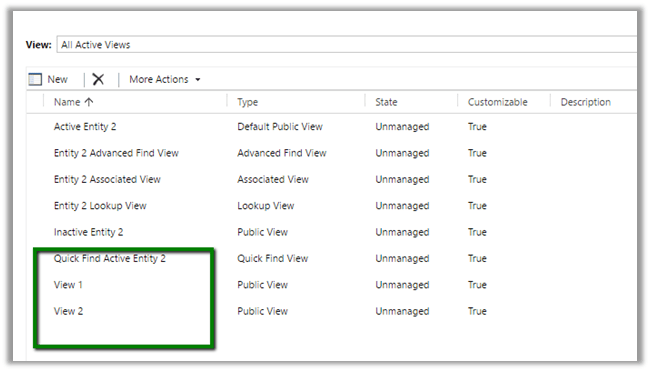
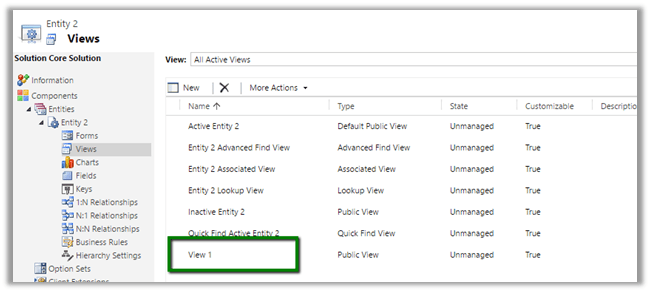
Entity 2 with 2 Views.

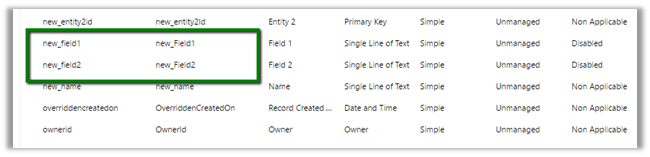
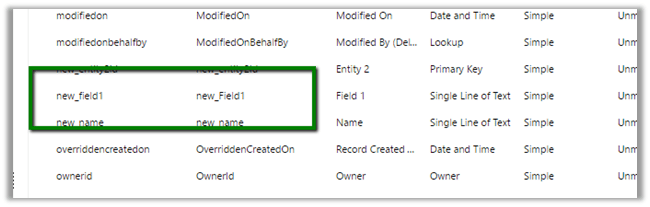
Entity 2 with two Fields.

Now import this solution as managed in destination org.

Now suppose we do not want following components in our Destination org – action 2, dashboard 2, Report 2, Security Role 2, Workflow 2 etc. along with View 2, Field 2 and Form 2 for Entity 2.

We remove some of the components and delete (field, form etc.) from our unmanaged solution (named Core Solution) which we had imported as Managed in our Destination Org.

Deleted View 2

Deleted Field 2

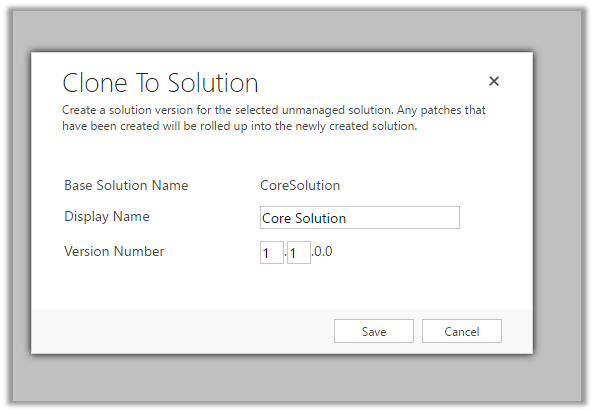
Now click on “Clone to Solution“. (This will increment the version number.)

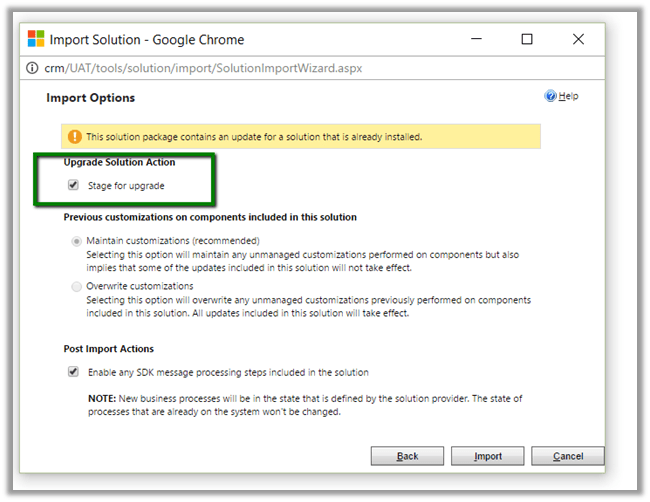
Now import this updated solution to our destination organization, and select “Stage for Upgrade

Click on “Apply Solution Upgrade

This will remove the components from our destination org.

The helpful post

http://www.inogic.com/blog/2016/08/how-to-delete-component-from-managed-solution-in-dynamics-crm-2016/

Hope it helps..

“​SharePoint Attachment Extractor & Metadata Manager” tool for Microsoft Dynamics CRM


Two of the most common requirements of the users while using OOB CRM and SharePoint integration have been

  • To associate some sort of metadata with the  document being uploaded from CRM
  • Moving attachments from notes of a particular record to the corresponding folder in SharePoint.

Finally we have a tool than enhances the Out the box integration between CRM and SharePoint and provides these features (in a fully supported manner)

Get all the details here :

https://debajmecrm.com/2016/10/05/new-tool-dynamics-crm-sharepoint-metadata-manager-attachment-extractor/

The tool has been developed by one of my closest friends and now also a MVP for Microsoft Dynamics CRM – Debajit Dutta.

Task and Phone Activity Created through the Social Pane CRM 2013/15/16


Interesting

Ranjeet Patel's avatarRanjeet Patel

When I tried to run a post create plugin on any activity (i.e. phonecall,  task, email, etc) that time i was unable to get the regardingobjectid in the target entity.

then I looked into the Audit history of this entity and found out that at time of creation we don’t get the “regardingobjectid”, internally some workflow of something runs and it creates one update audit history, and i found out that update audit history really update the regarding object id.

then i registered  my post create plugin to post update plugin and this solved my problem.

View original post

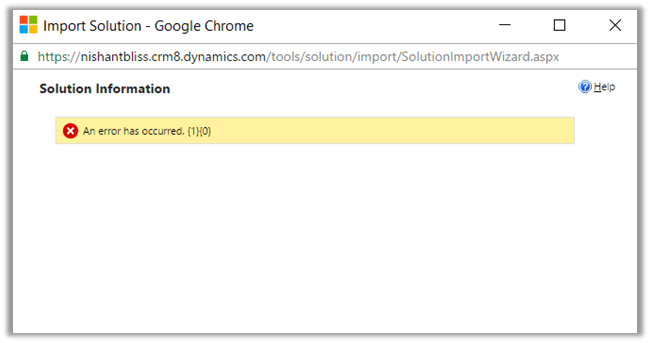
An error has occurred. {1} {0} while Importing Solutoin in CRM 2016 Online.


Hi,

I was getting below error while importing solutoin in my trial CRM 2016 Online Org. I tried with other browser and it was the same case. Infact I created a new trial and tried there but no success.

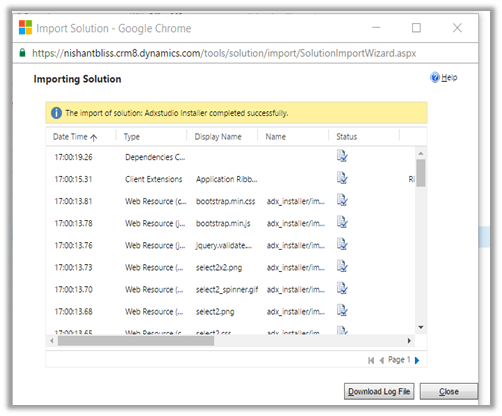
Without losing hope, tried the same in one of my VM (Windows Server 2012 Standard). It got successfully imported.

So went back to my workstation and cleared browser cache there.

And the Import was Successful.

Hope it helps..

Configure Office 365 Groups in CRM 2016 Online Update 1


Go to CRM Admin Center à Solutions à Install the Office 365 Groups Solution

Once installed, go to Settings – Office 365 Groups to configure Entities.

We have enabled it for Account (select entity and Publish All)

Open the Account Record and navigate to Office 365 Groups.

It will auto create a Group or we can specify an existing one.

Once configured we can see the Calendar, Conversation, Notebook etc.

Hope it helps..