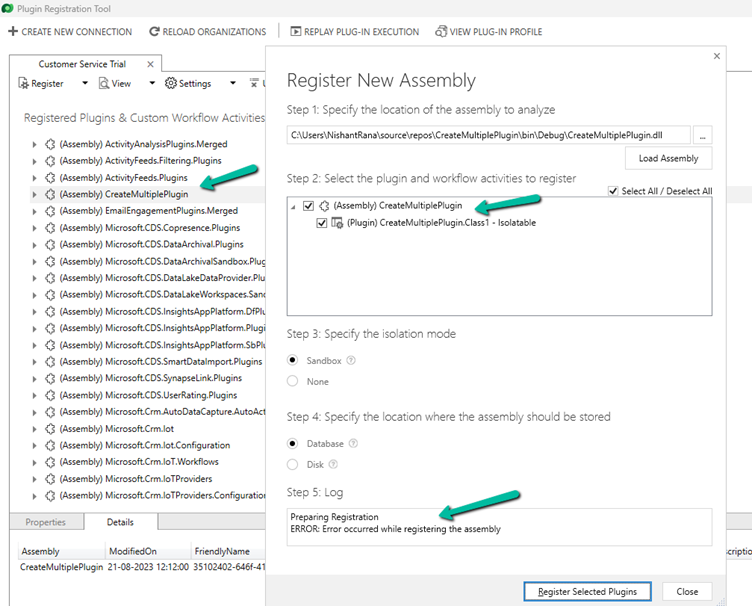
Recently while trying to register the plugin, we got the below error
Microsoft.Crm.CrmException: Plug-in assembly fullnames must be unique (ignoring the version build and revision number). —> Microsoft.Crm.CrmException: Plug-in assembly fullnames must be unique (ignoring the version build and revision number).
It was because we were trying to register the assembly which was already registered in that environment, instead of updating it.
From the notes in the timeline, now we can link an existing note to an existing case, contact, or account record (this will unlink it from the current record) and also create either a new case, contact, or account record.
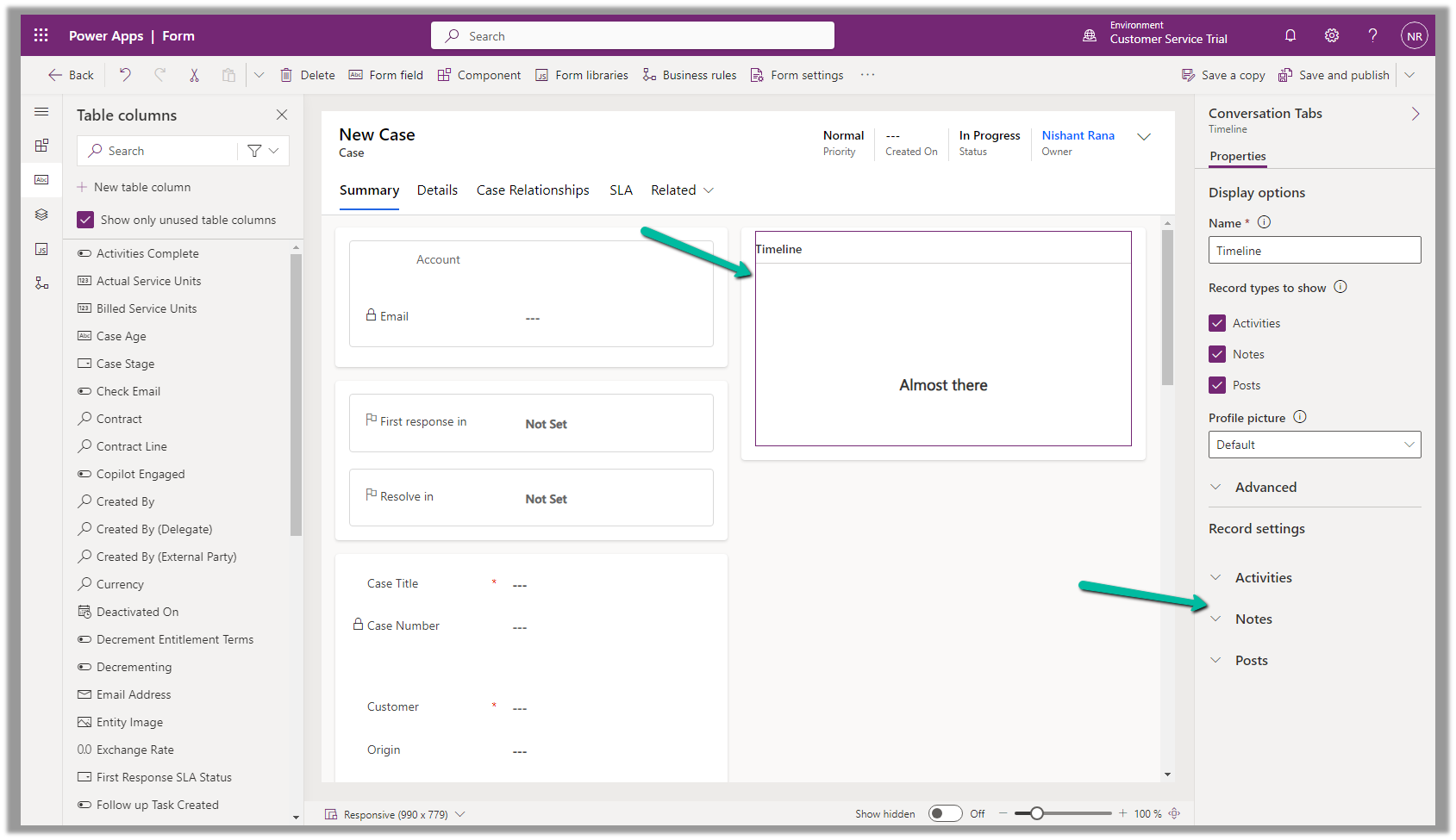
To configure it, open the Notes property of the Timeline section in the form.
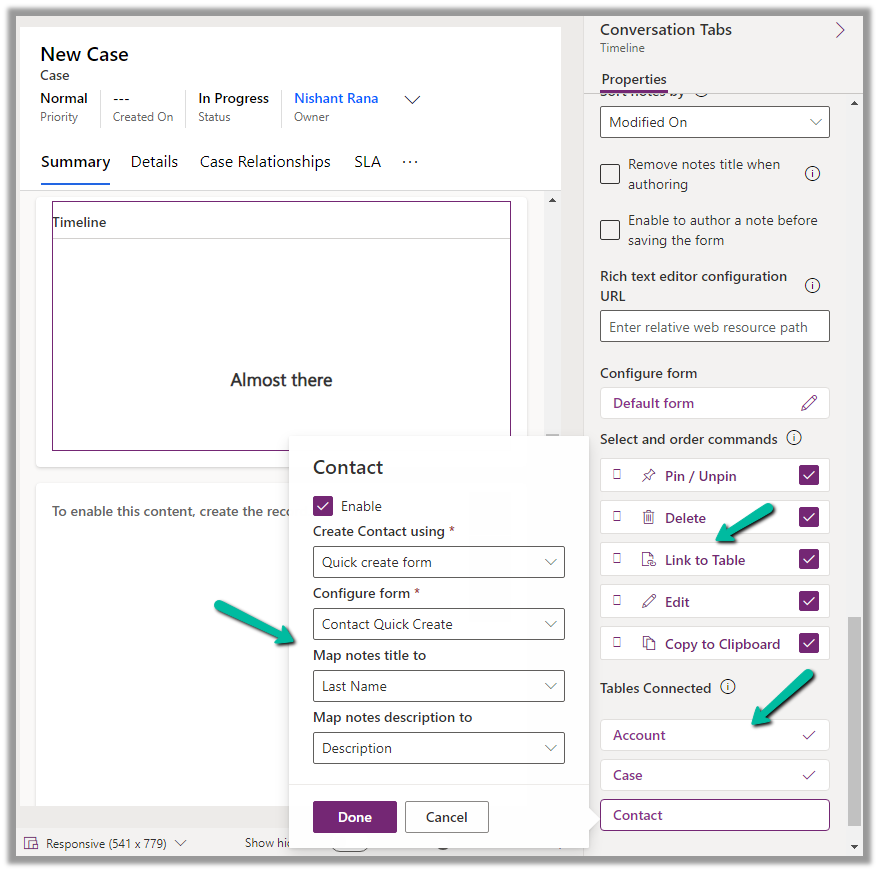
Below we can see the different properties we can configure.
Enable the Link to Table Command
Enable the Tables to be connected.
Here we are enabling the Contact table, and then specfiying the Quick Create Form to be used while creating the new contact record, and also the mapping of the title and description field of the Notes. We have the same configuration for Case and Account.
Save and publish the changes.
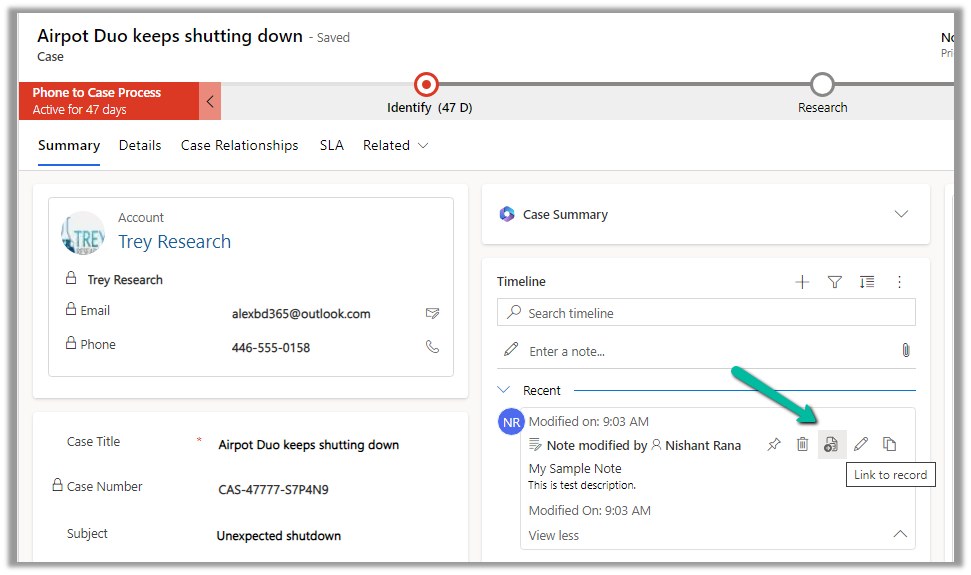
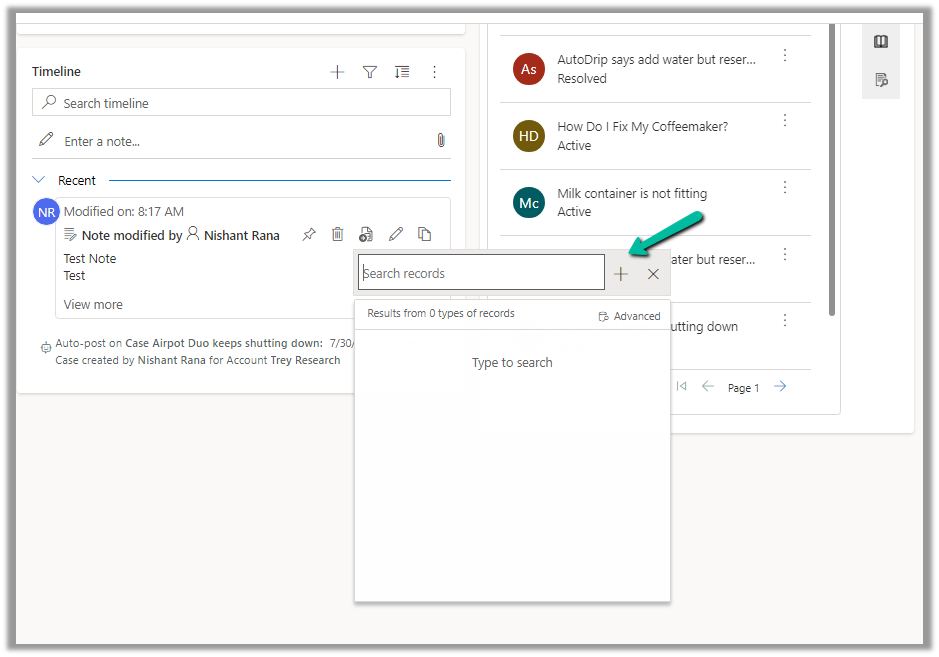
We can now see the option to Link to record for the notes.
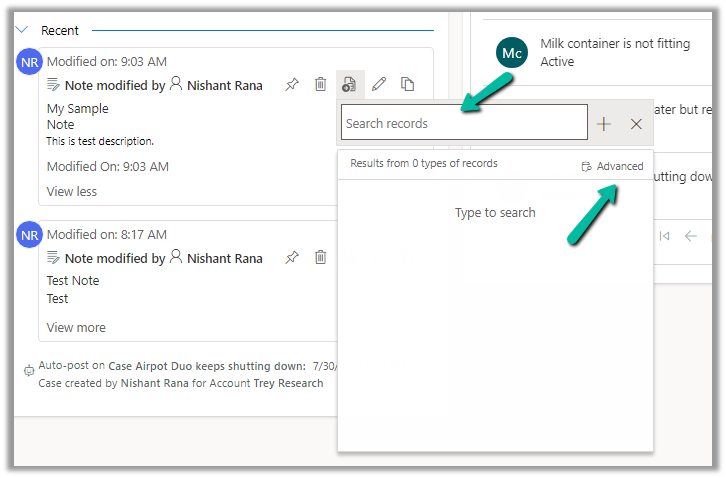
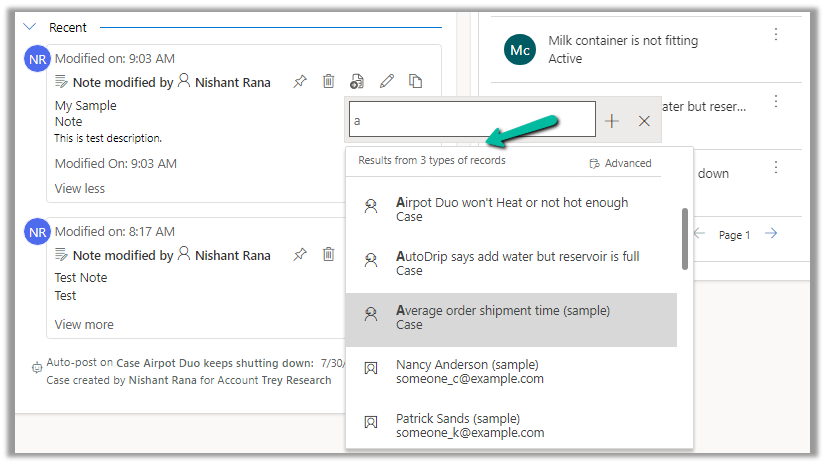
We get the option to search for an existing record (it will show results from tables connected).
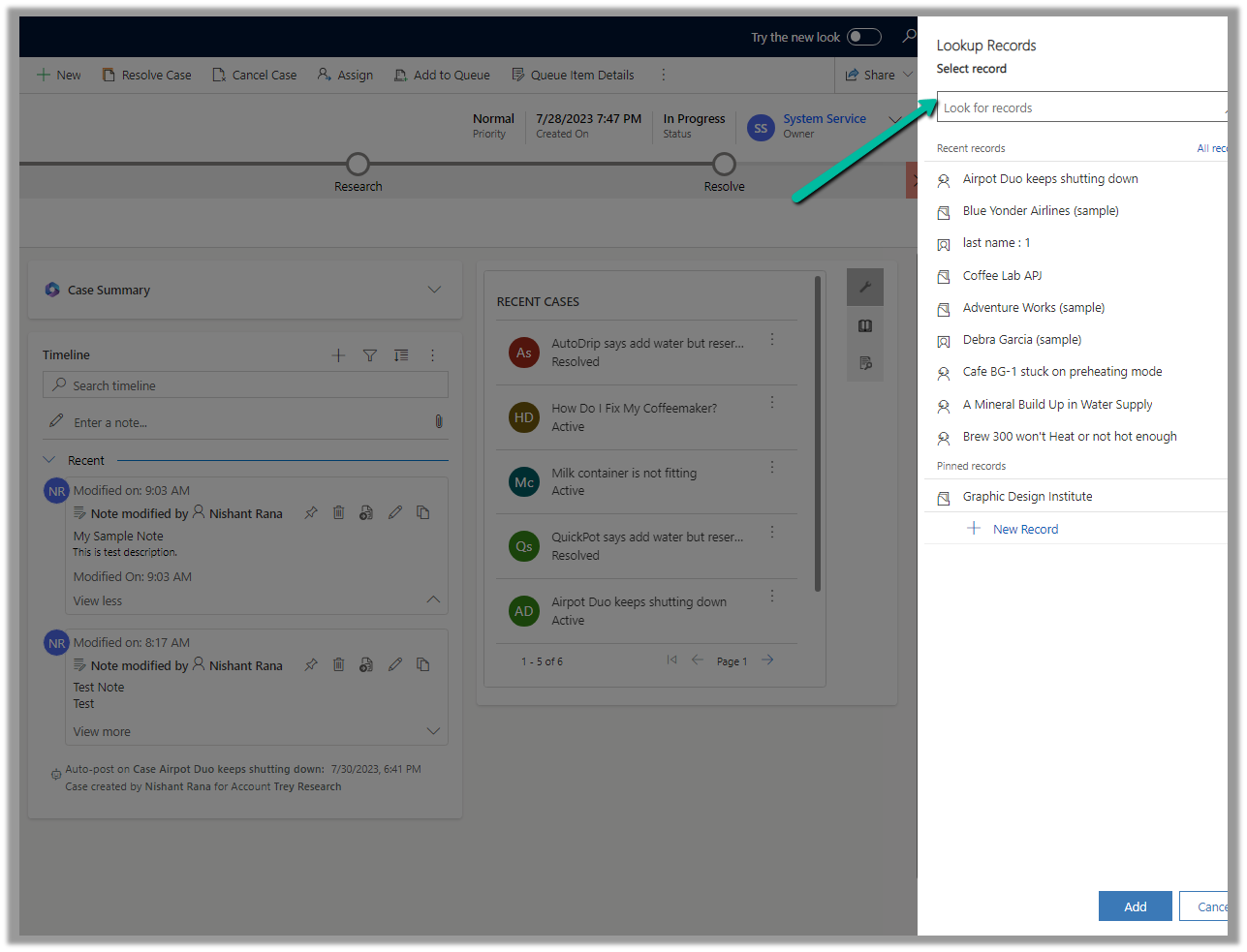
Clicking on Advanced opens the lookup dialog.
On Associating to an existing record, the notes get linked to the new record and unlinked to the current record.
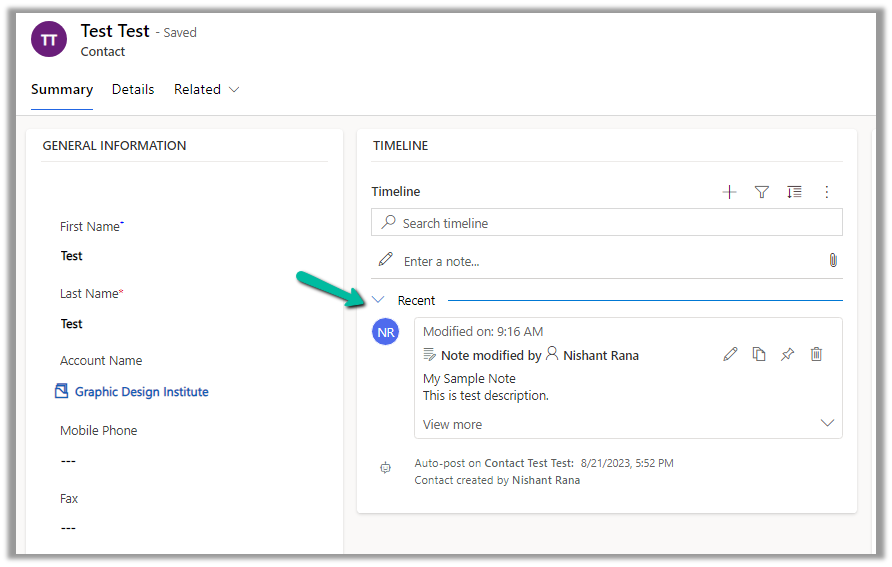
We can see the notes record associated with the contact record and removed from the existing case record.
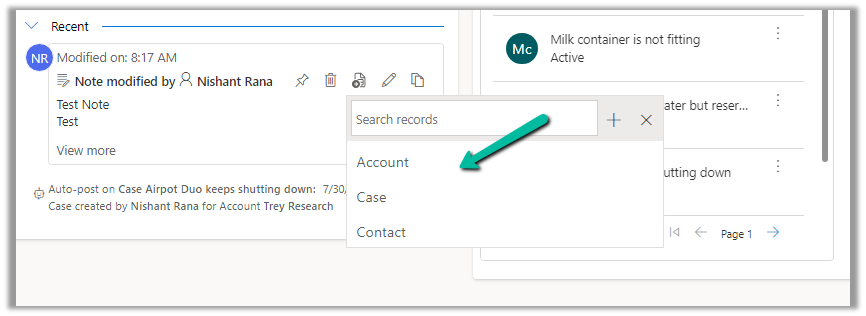
We can also use the plus + sign to create new records of the tables connected from the notes.
Account, Case, and Contact in this case.
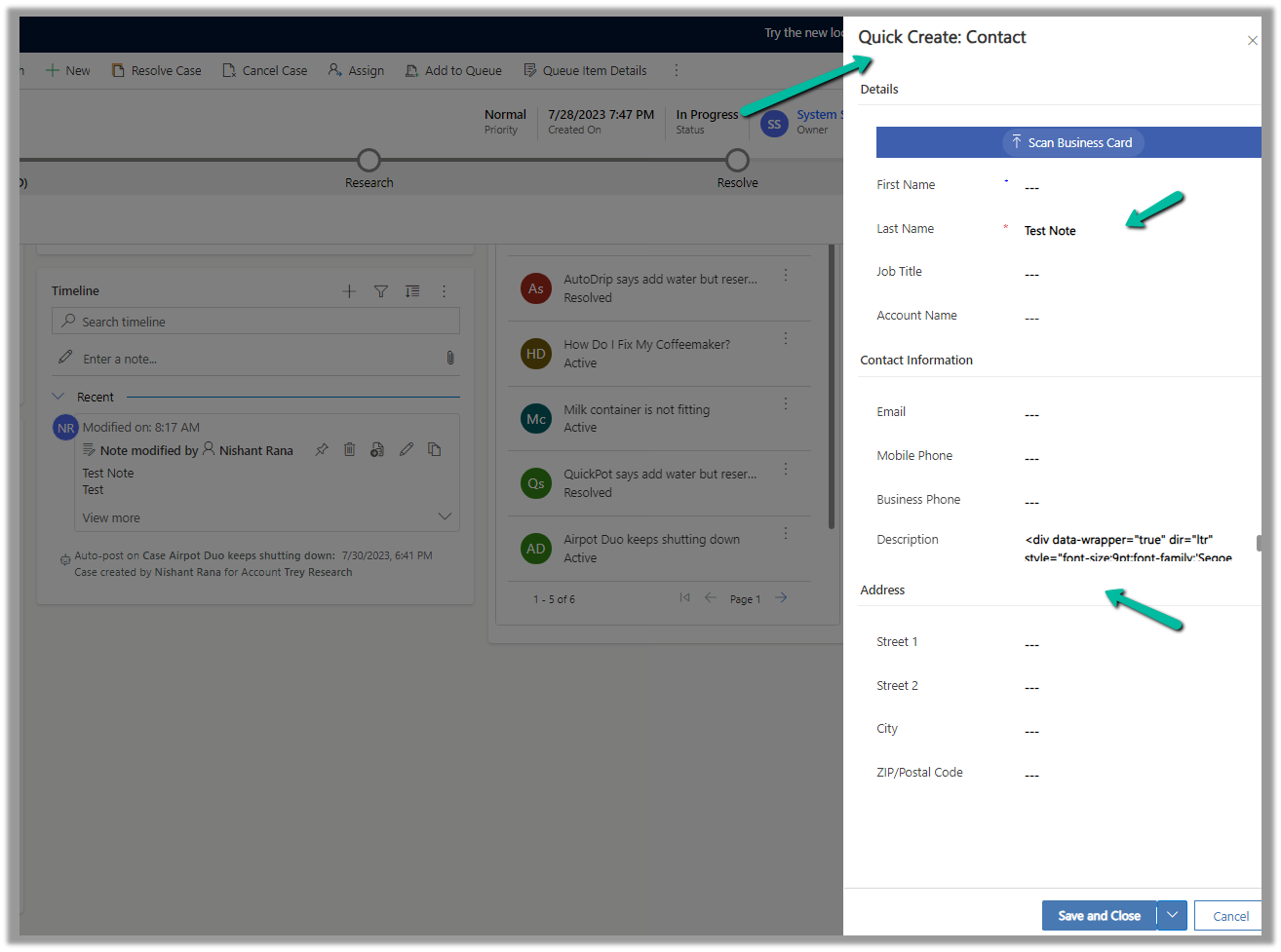
This opens the Quick Create form, with the title and description field of the notes mapped.
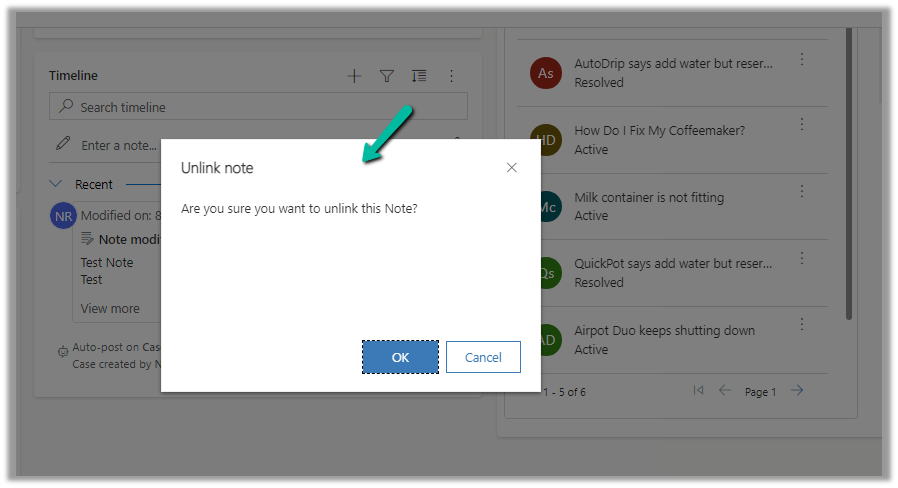
After the new record gets created, we are again presented with the option to Unlink that existing note from the current record.
Below we can see the new record with the note associated with it.
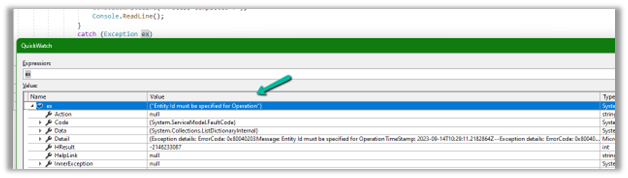
We might get the below error while performing the update operation.
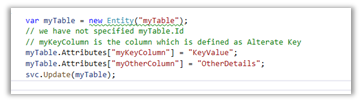
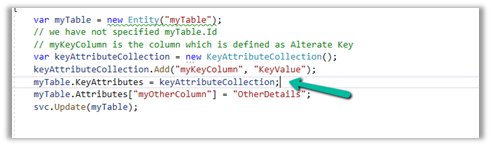
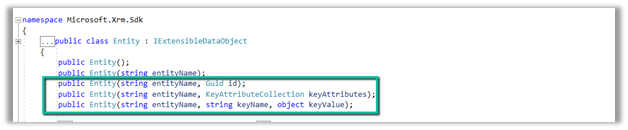
This could be if we have not specified the GUID of the record to be updated or if we are using an Alternate Key to update the record, we have not specified the KeyAttributes property.
We either need to specify the Id property or specify the KeyAttributes property
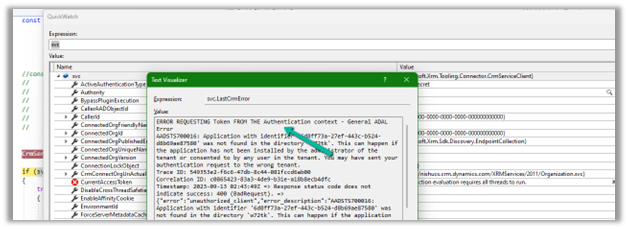
AADSTS700016: Application with identifier ‘6d8ff73a-27ef-443c-b524-d8b69ae87580’ was not found in the directory ‘w72tk’. This can happen if the application has not been installed by the administrator of the tenant or consented to by any user in the tenant. You may have sent your authentication request to the wrong tenant.
This could be if we have specified wrong Client or App Id.
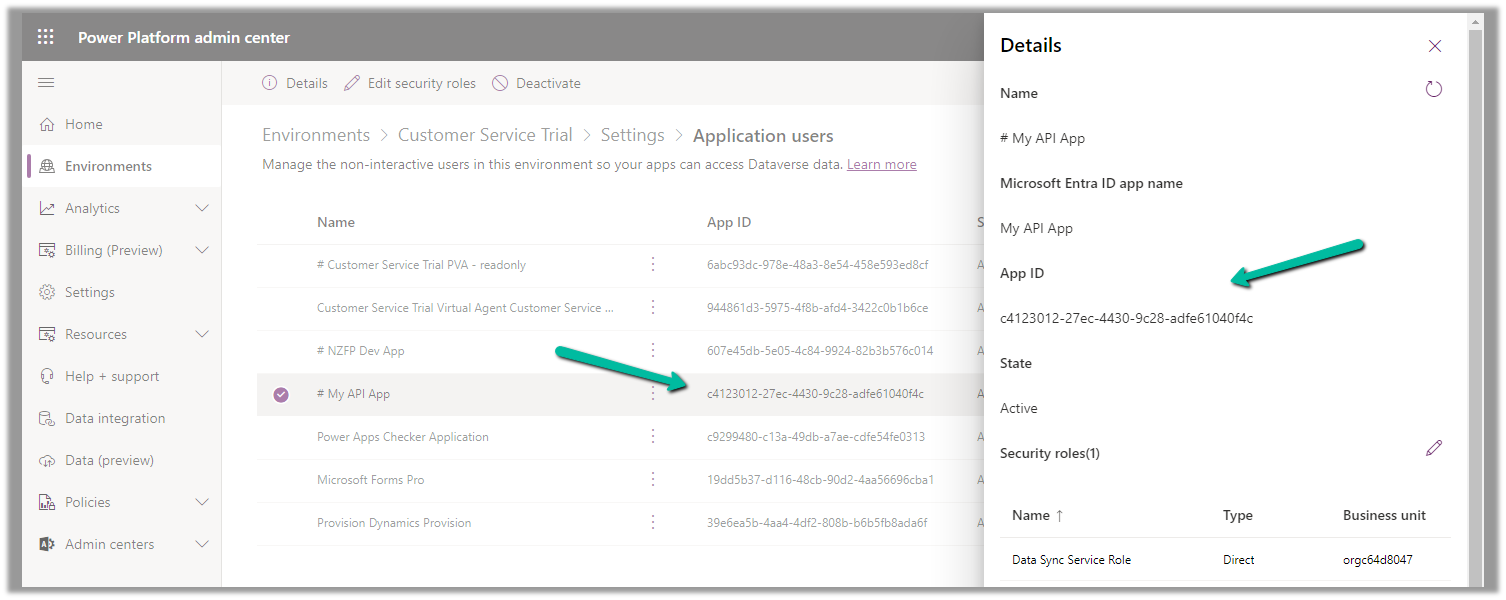
Check the correct App Id either from Azure you can also refer to the correponding Application User created for it.
Let us see it in action, by creating a new journey record.
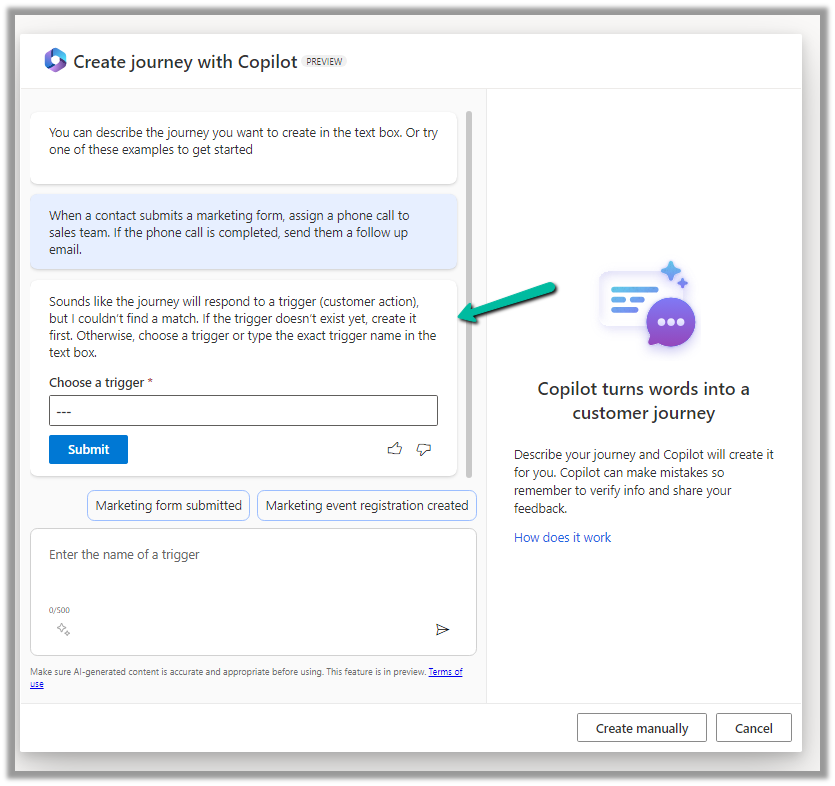
We get the option to select predefined examples to start with.
Here we have selected the last example “When a contact submits a marketing form, assign a phone call….”
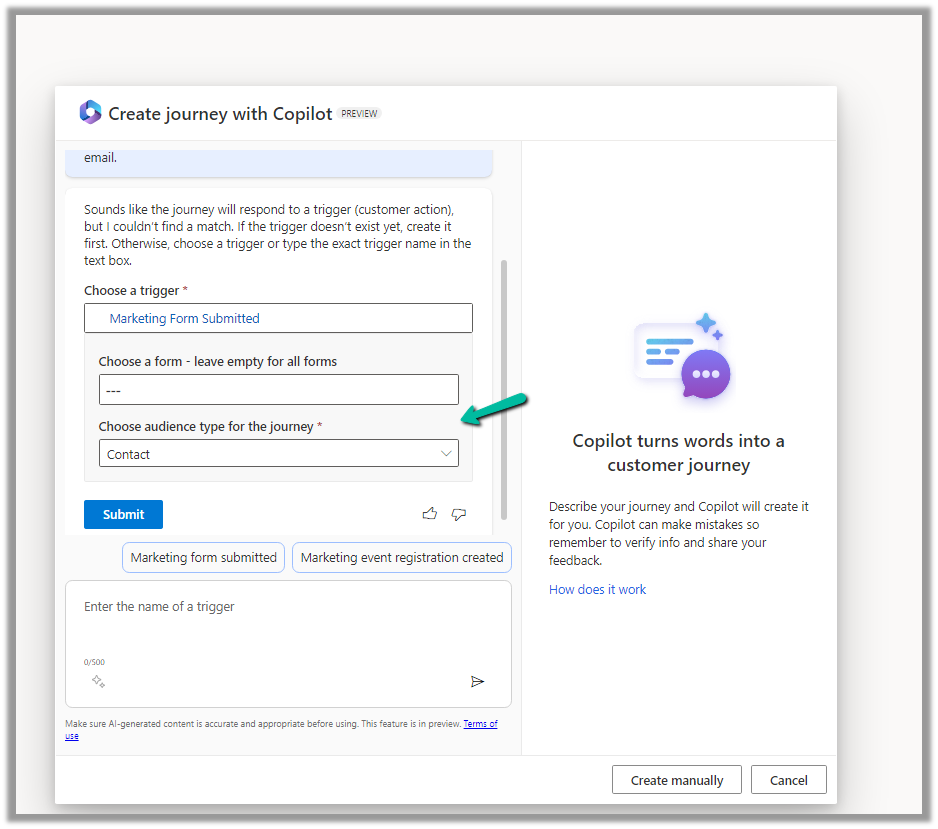
On selecting it, we are presented with the option to specify the Trigger.
We have selected the existing Marketing Form Submitted trigger record here.
After specifying the trigger, we get the option to specify the marketing form or to leave it empty to run it for all the form submissions and also the audience type, which could be either Contact or Lead.
Clicking on Submit gives the option to review and then eventually Create Journey.
Clicking on Create Journey generates the journey for us.
We can review the journey, add any further content required, modify it, etc.
For example, we need to specify the follow-up email to be sent, before we can save and publish it.
Once we are done with defining the journey, we can publish it.
Now let us try making use of the xMultiple feature (CreateMultiple, UpdateMultiple, and CreateMultiple messages) of the CRM / CDS Destination Component.
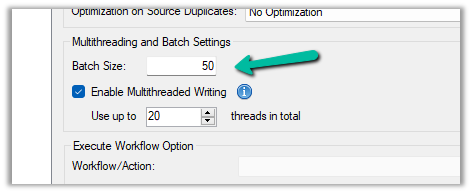
We have updated the Batch Size to 100 to trigger the xMultiple
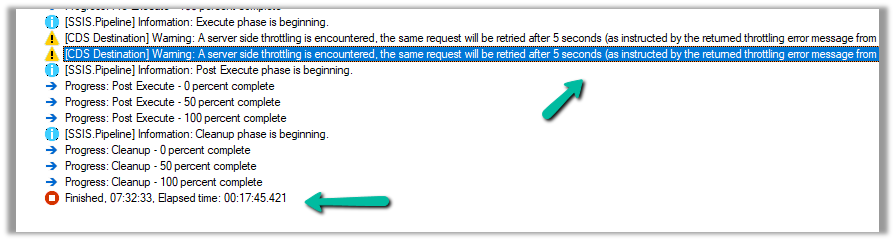
However this time we got the service throttling error, and it took around 17:45 minutes.
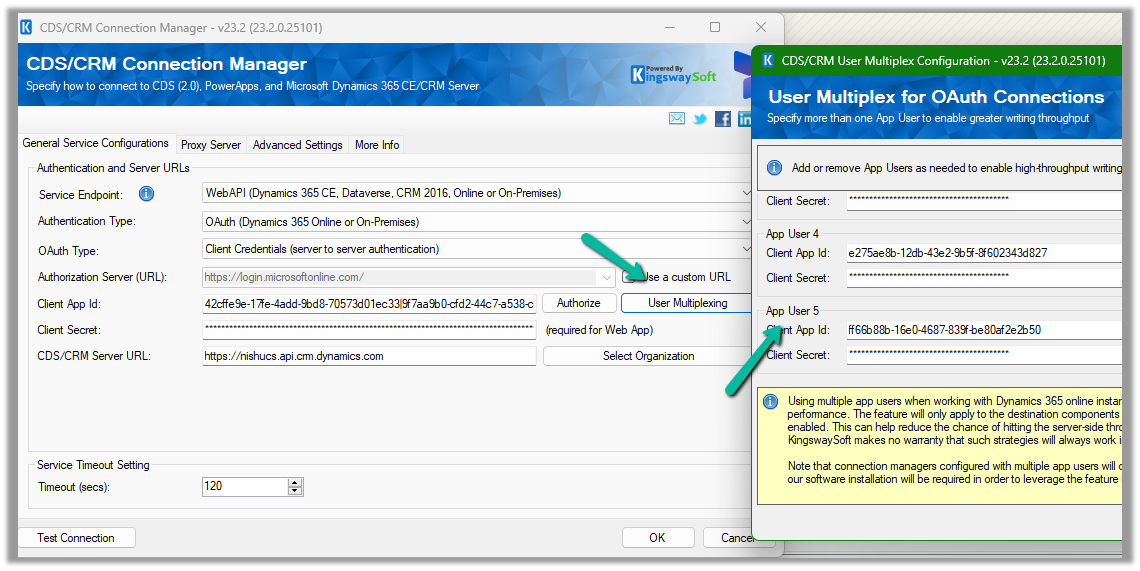
Let us try decreasing the batch size to 50 (to trigger xMultiple), keeping the thread the same as 20, and User Multiplexing with 5 Application users.
No throttling warning this time and took around 10:42 minutes.
Now let us try the same setup, for a custom table instead of a standard table.
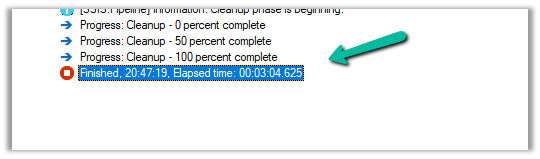
Here we have run our package to create 20K records, with User Multiplexing ( 5 Application users), Batch Size 10, and 20 Threads for our custom table named My Table.
It took around 3:04 minutes.
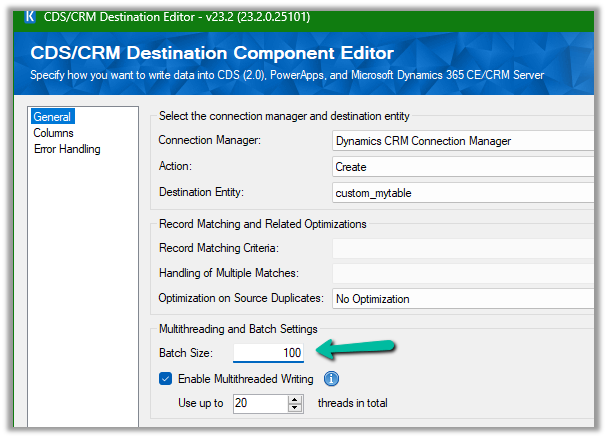
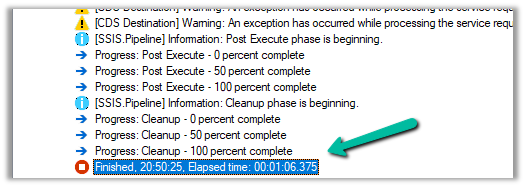
Let us increase the batch size to 100, to get the xMultiple enabled.
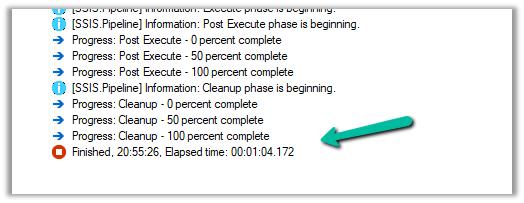
It took 1:06 minutes.
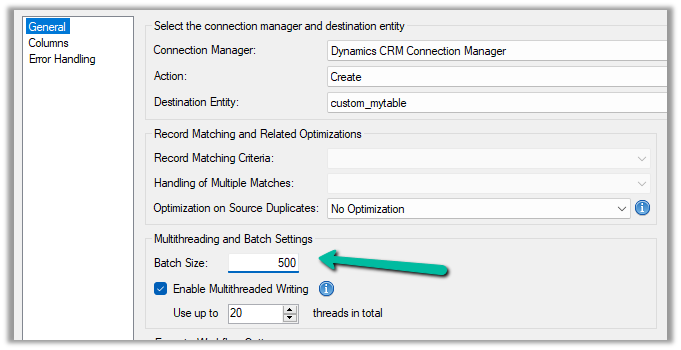
Let us set the batch size to 500
It took around 42 seconds.
And with 1000 batch size – 1:04 seconds
We can see huge performance improvements using xMultiple when it comes to a custom table.
So I think to get the performance improvements for the standard table we could stick with Batch Size – 10, Thread –10-20, and increase the number of users (Multiplexing).
But for the custom table, we could increase the batch size to either 100 or 500 to make use of xMultiple along with Multiplexing.






















 Nishant Rana's Weblog