Configure Automatically suggest knowledge articles using Cognitive Services Text Analytics (Preview) in Dynamics 365 (online)


As a first step, we need to set up Text Analytics Service and connect it to our CRM Online. Follow the below post for that

https://nishantrana.me/2017/03/24/configure-case-topic-analysis-using-cognitive-services-text-analytics-preview-in-dynamics-365-online/

Next, we need to set up Knowledge Search field settings

For this go to Settings – Service Management and click on Knowledge Search field Settings
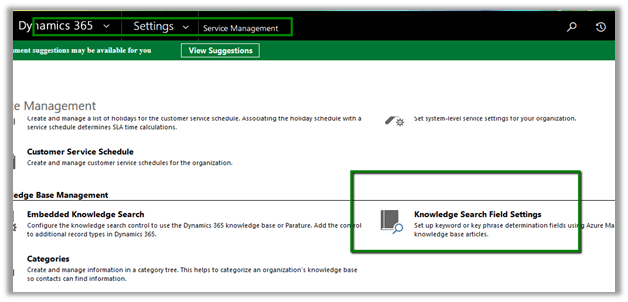
There click on New to create a new Search Model record.

Below we have specified case as our source entity. Click on Save.
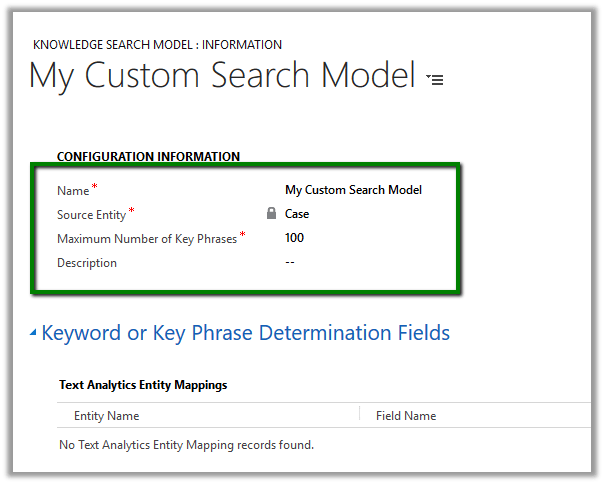
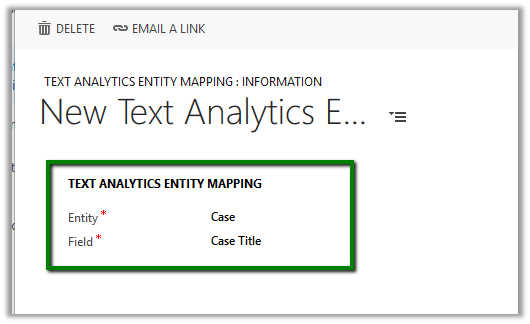
Next, we need to define Keyword fields for our model, click on + to create a new text analytics entity mapping record.

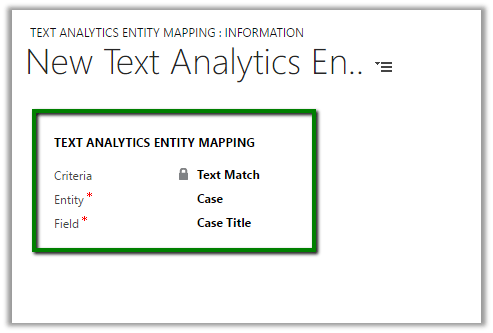
To keep things simple, we have selected entity as Case and Field as Case Title based on which suggestions will be made. Save the record.
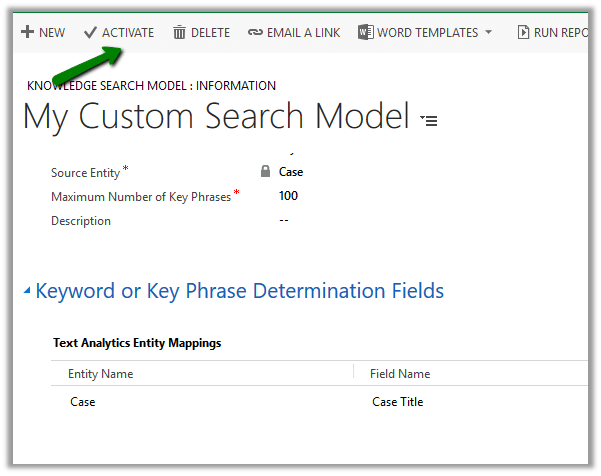
Click on Activate to activate the model.
Next, we need to modify the Case form to include knowledge base suggestions
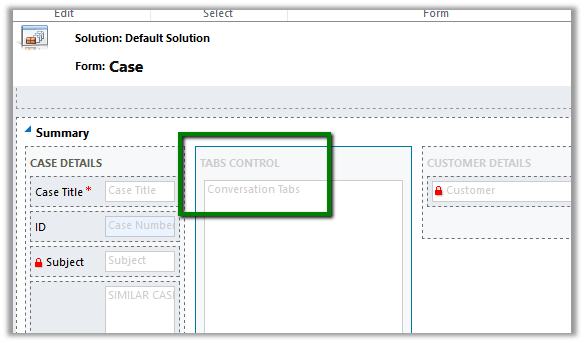
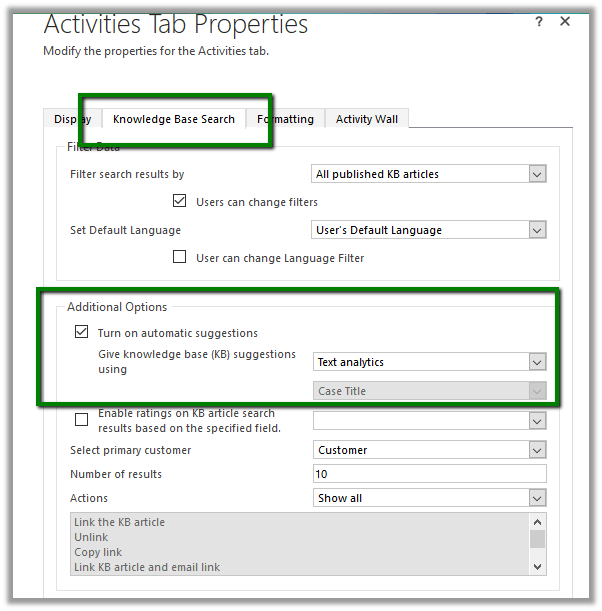
Open the Conversation Tabs, go to Knowledge Base Search and select Text Analytics for Give Knowledge base suggestions as described below and publish the form
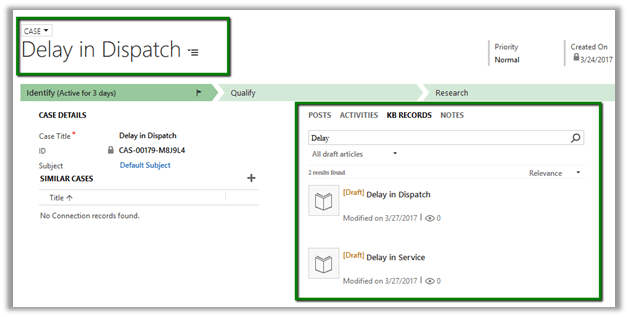
Open any of the case record, go to KB Records. Here based on the Case Title, the text analytics picks up the keyword “Delay” and shows/suggests the corresponding KB Articles matching that keyword.
Get all the details here

https://technet.microsoft.com/en-us/library/mt703319.aspx

Hope it helps..

Configure Document Suggestions using Cognitive Services Text Analytics (Preview) in Dynamics 365 (online)


Let us take a simple example to understand how to configure Document Suggestion preview feature.

To do so first we need to enable Text Analytics Service, Connect it to our CRM Online and configure similar record suggestions. Please follow the below post for all the details.

https://nishantrana.me/2017/03/27/configure-similar-record-suggestion-using-cognitive-services-text-analytics-preview-in-dynamics-365-online/

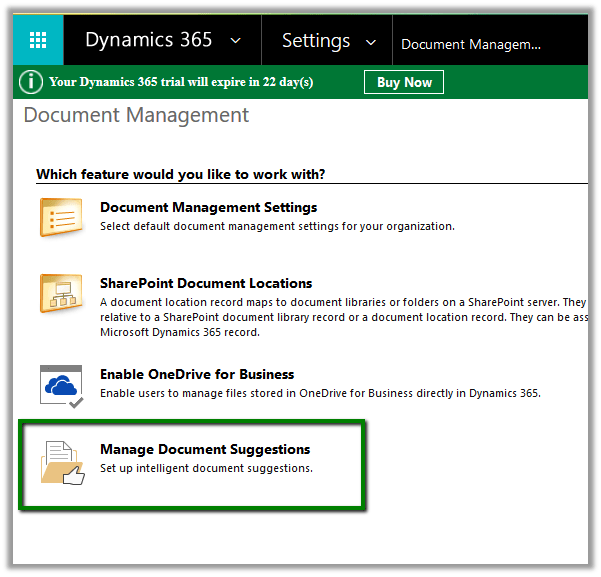
Go to Settings – Document Management – Manage Document Suggetions

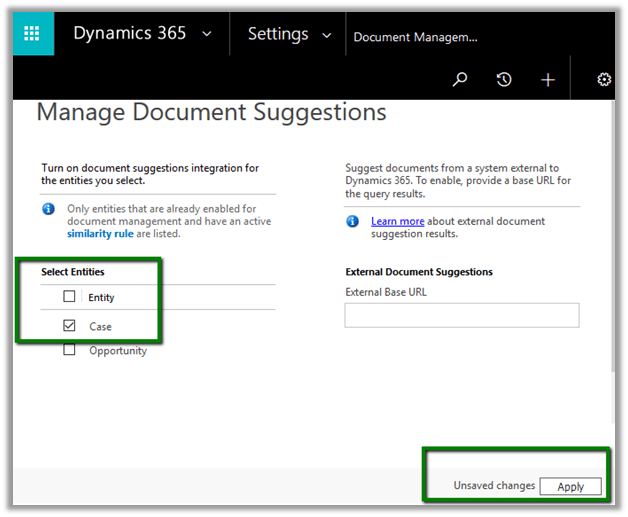
Select the entity for which we want to enable it, as we had our similar record suggestions enabled for Case we select the Case entity here.

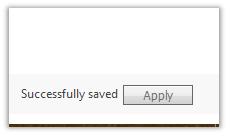
Click on Apply.

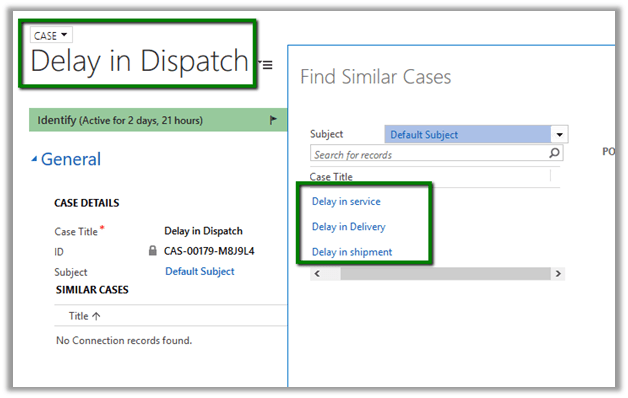
Now as we already have Similar Record Suggestions configured for Case entity, for a case record with Delay keyword in its title we get the below suggestions

So, for Delay in Dispatch record we are getting Delay in service, delivery and shipment as suggestions as similar cases.

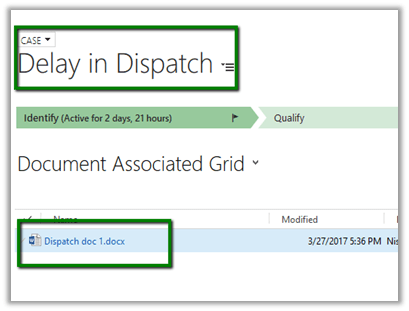
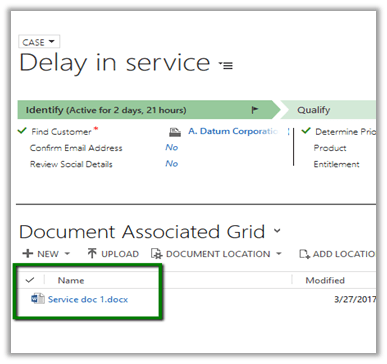
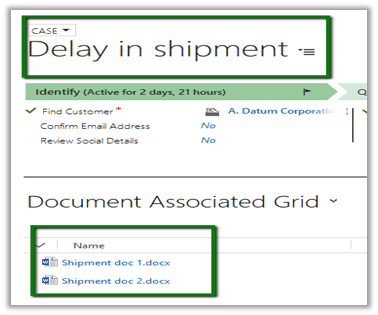
Now what we have done over here next is that we have attached document(s) to each of these case records.

For Delay in Dispatch case record –

For Delay in Service case record –

For Delay in Shipment record we have 2 document attached.

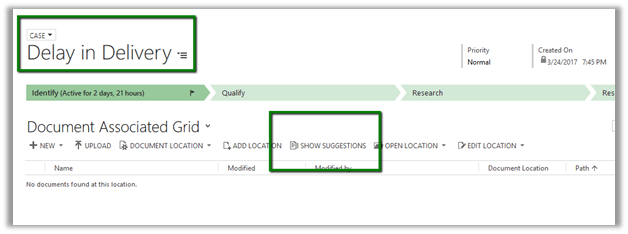
For Dispatch in Delivery case record we do not have any document attached yet.

Now let us open case with title “Dispatch in Delivery” and go to its Documents related records and click on Show Suggestions button

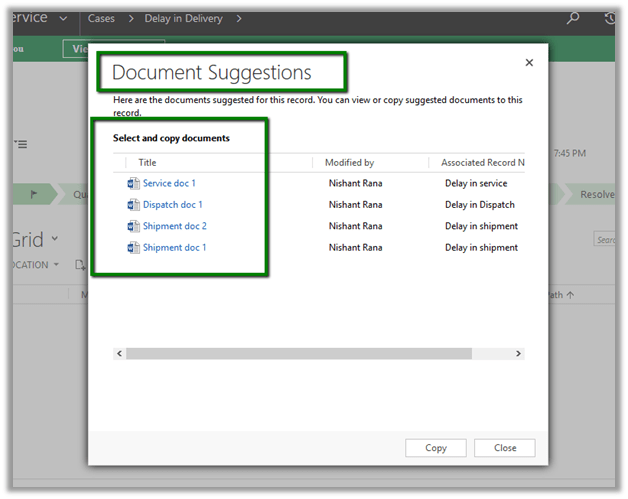
A dialog opens which list all the documents that are associated to the case records similar to the Delay in Delivery record i.e. all the remaining case records having delay keyword in its title.

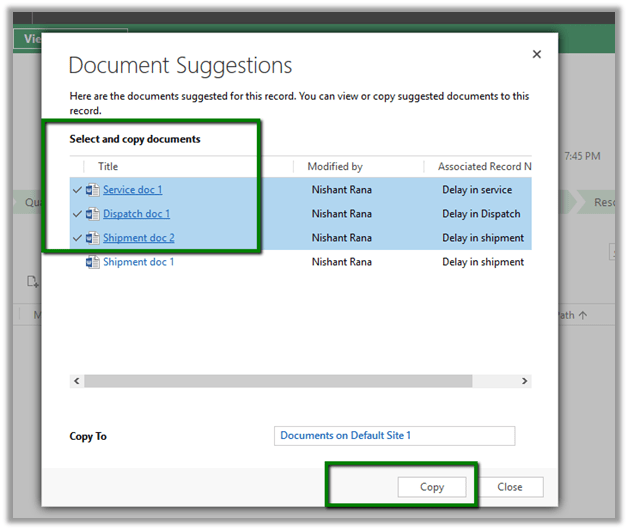
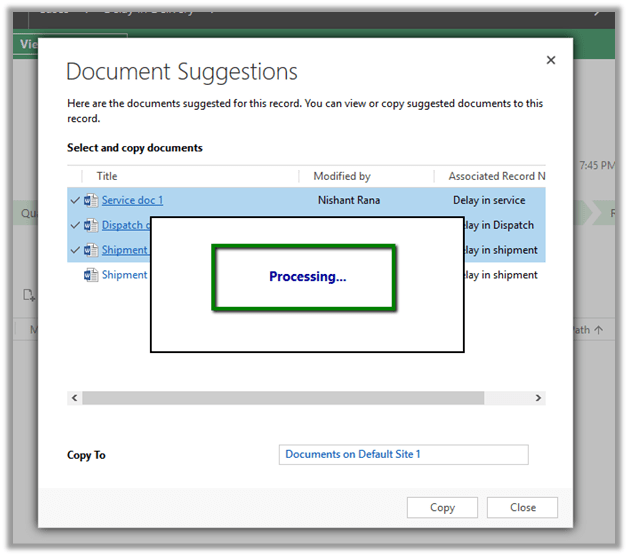
Select documents and click on Copy.

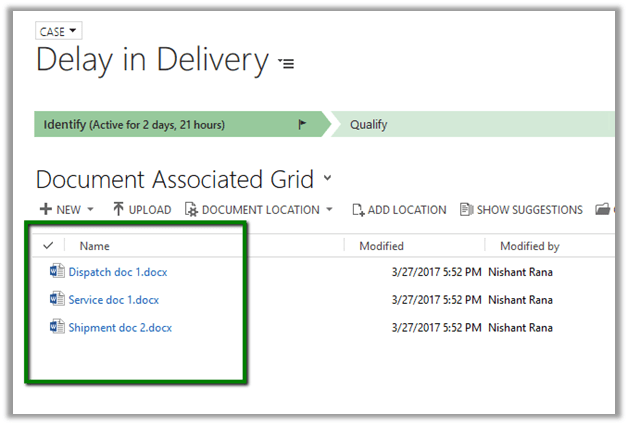
Documents Copied to the Delay in Delivery record.

Hope it helps..

Configure Similar Record Suggestion using Cognitive Services Text Analytics (Preview) in Dynamics 365 (online)


As a first step, we need to enable text analytics and connect it to CRM.

Follow the below post for enabling text analytics, connecting CRM online to Text Analytics service.

https://nishantrana.me/2017/03/24/configure-case-topic-analysis-using-cognitive-services-text-analytics-preview-in-dynamics-365-online/

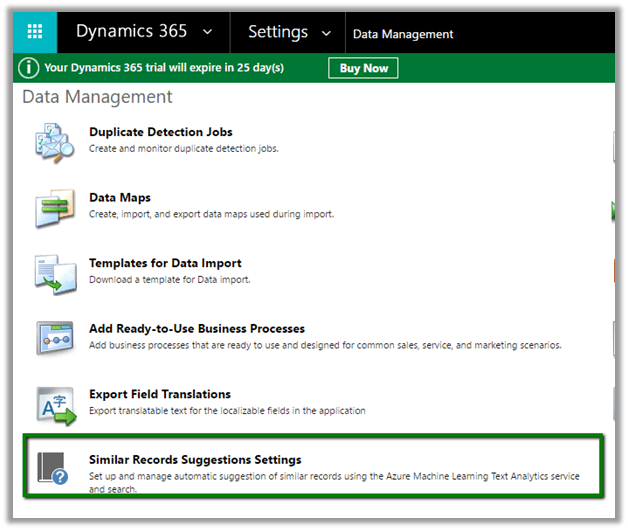
As a next step, we need to configure Similar Records Suggestions, for that go to

Settings – Data Management – Similar Records Suggestions settings

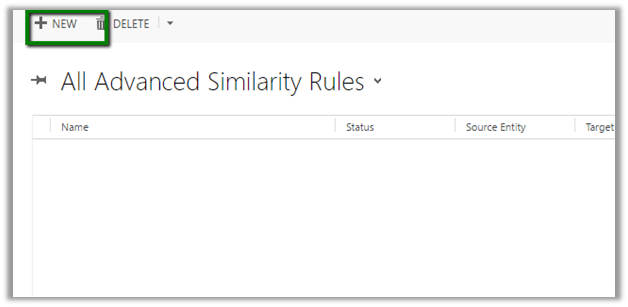
Click on New to create a new similarity rule record

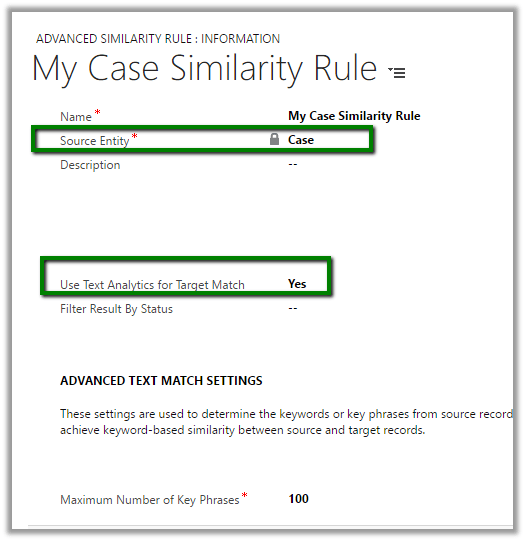
Below we have created rule with Case as source entity and specified Yes for “Use Text Analytics for Target Match”

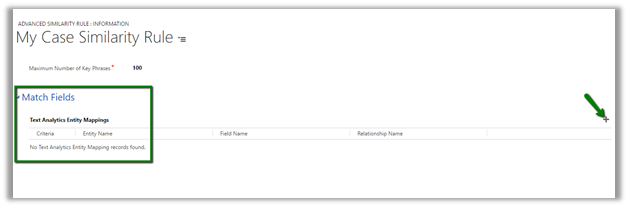
After we have created the similarity rule, we need to define the fields based on which matching will be done and suggestions will be made.

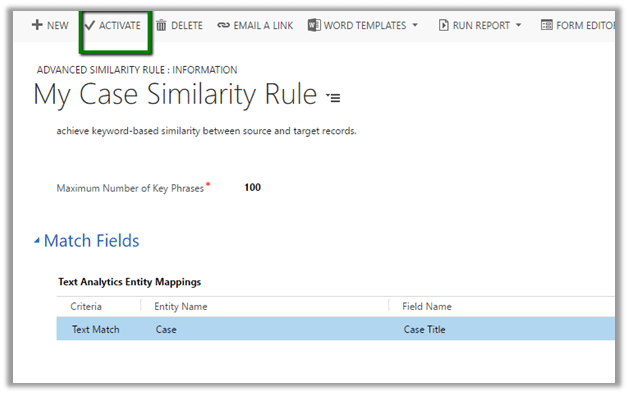
Here we have specified Criteria as Text Match, which would match the Text for the field Case Title of the Case Entity.

Save the above record and click on Activate to run the similarity rule.

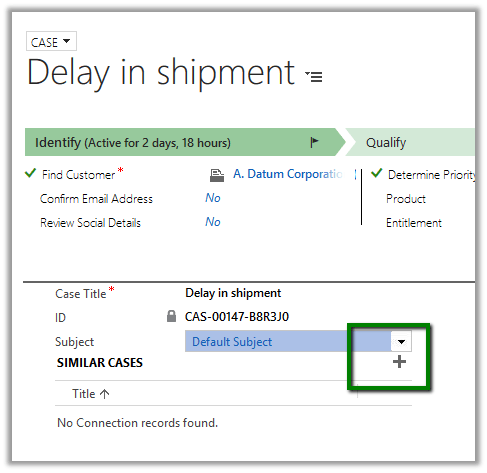
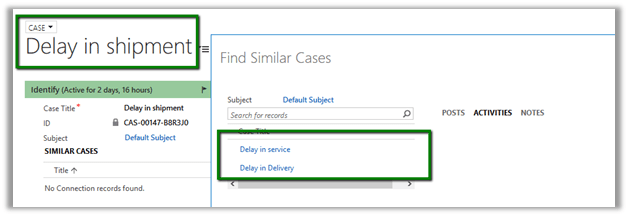
Open any of the existing case, in our below scenario we have opened the case with title “Delay in Shipment” and click on +

This opens up the dialog that shows similar cases (with title having Delay word in it) using Text Analytics Service configured.

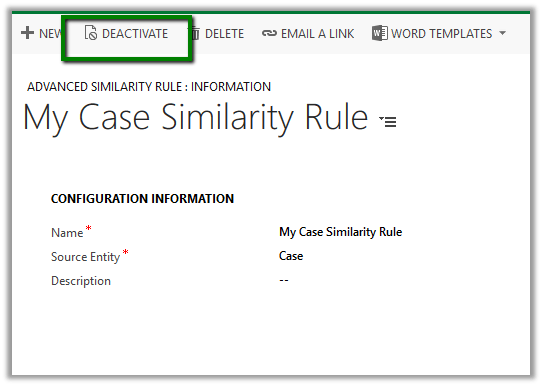
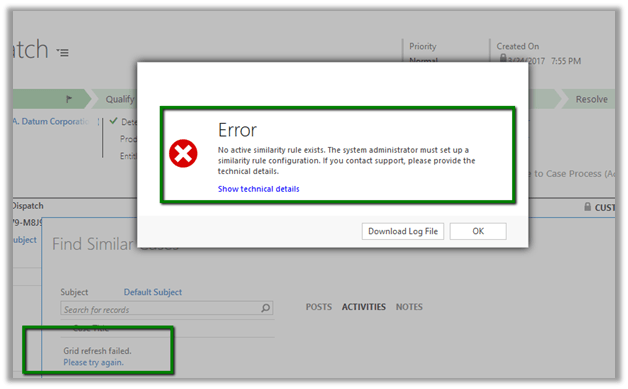
What happens if we deactivate the Similarity Rule?

We get the below error –

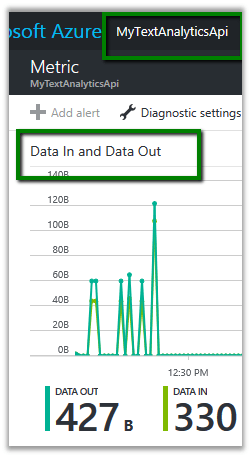
Checking the metric in the Text Analytics API.

Get all the details here

https://technet.microsoft.com/en-us/library/mt703318.aspx

Hope it helps..
Requests to this API should contain at least 100 documents, where each document is not null or empty error while configuring Topic Analysis using Text Analytics in Dynamics 365


Hi,

Recently while trying to configure Topic Analysis in Dynamics 365

https://nishantrana.me/2017/03/24/configure-case-topic-analysis-using-cognitive-services-text-analytics-preview-in-dynamics-365-online/

we got the below error for the failed record.

Error Message:{“code”:”BadRequest”,”message”:”Invalid request”,”innerError”:{“code”:”InvalidRequestContent”,”message”:”Requests to this API should contain at least 100 documents, where each document is not null or empty”,”minimumNumberOfDocuments”:100}}

This was because we had very few case records in our CRM organization < 30. We created few more records to increase the count to be more then 100 and re run the build. This time it got succeeded.

Hope it helps..
Create a simple logic app with Dynamics 365 connector


Let us create a simple logic app that on create of a contact record in CRM creates the same contact in Gmail.

Log in to the azure portal.

https://portal.azure.com/#create/hub

Select New Logic App

Specify Name, Resource Group and Location for the logic app.

Select Blank Logic App

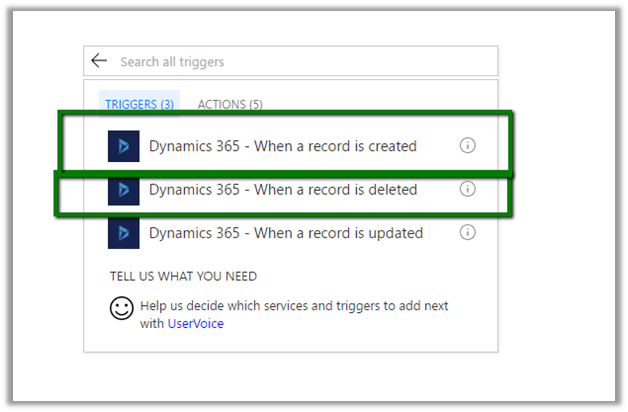
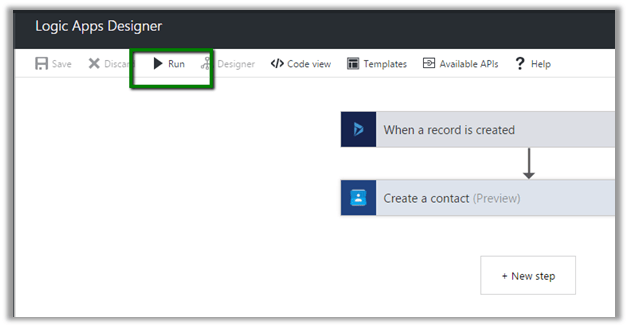
Select “When a record is created” as Trigger.

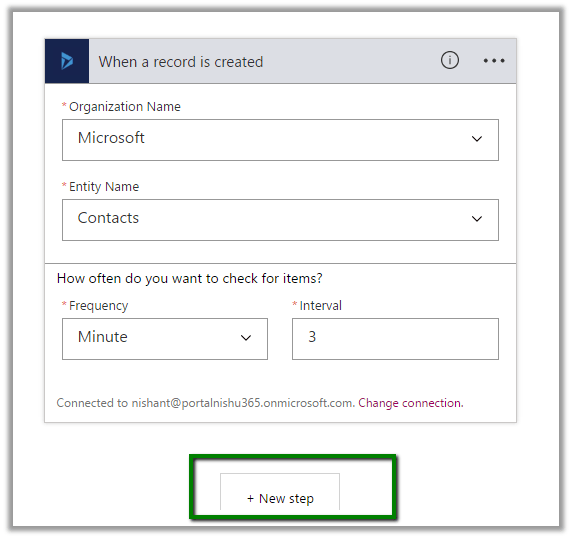
Sign in to Dynamics 365 Instance.

Select the Organization name and Entity as Contact.

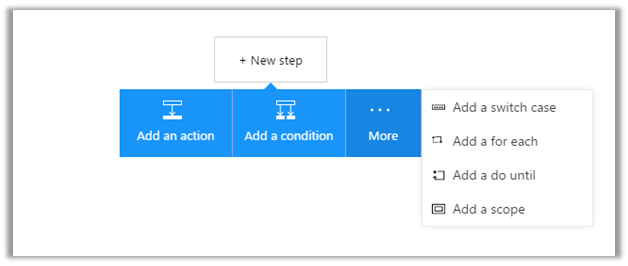
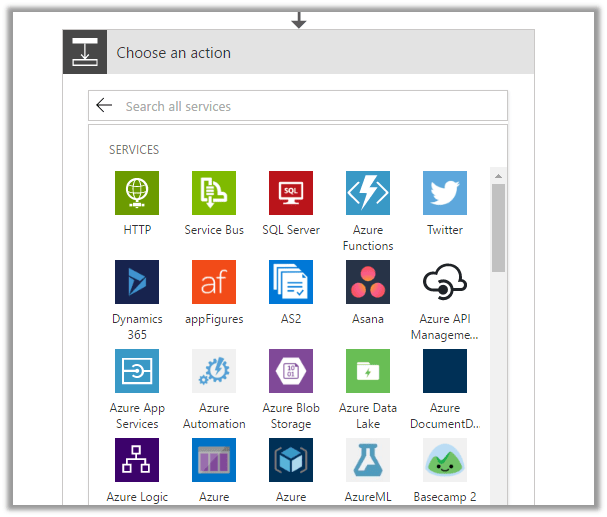
Select Add an action and the New Step

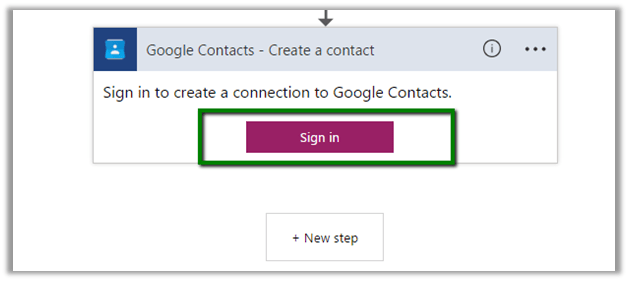
Choose Google Contacts as the Service

Sign in to your Gmail account to be connected

Allow permission to Logic App to access Gmail

Configure Full Name and Primary Email (Dynamic content) as the values for the contact record to be created in Gmail.

Save and Run the app.

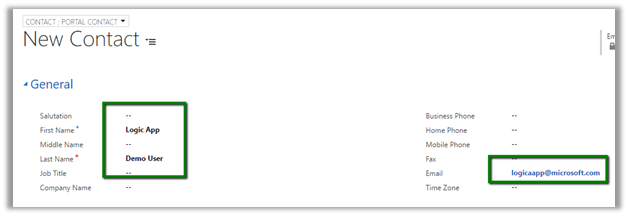
Create the new contact record in CRM that triggers the logic app.

On Successful run à

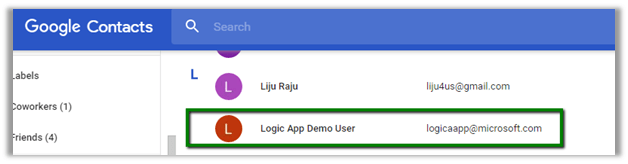
We can see the contact record created in Gmail.

Find all the details here

https://docs.microsoft.com/en-us/azure/connectors/connectors-create-api-crmonline

Hope it helps..
Partner Field Service Portal in Dynamics 365.

Dynamics 365 comes with Partner Field Service portal which helps Partners manage work order, service request, assets, invoices, opportunities etc. from within the portal.

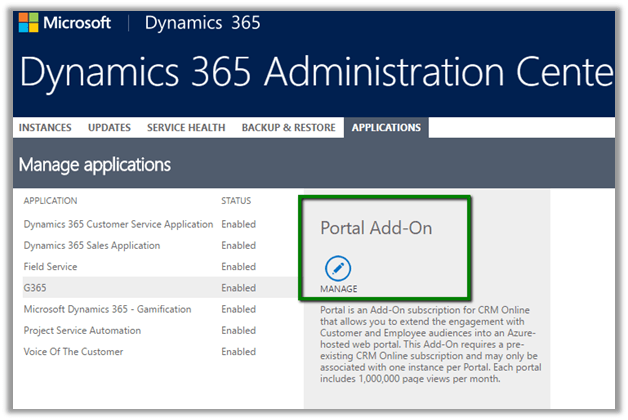
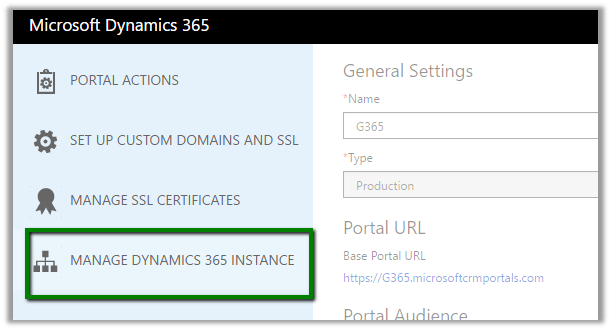
Go to Administrator Center, select Portal and click on Manage.

Select Manage Dynamics 365 Instance

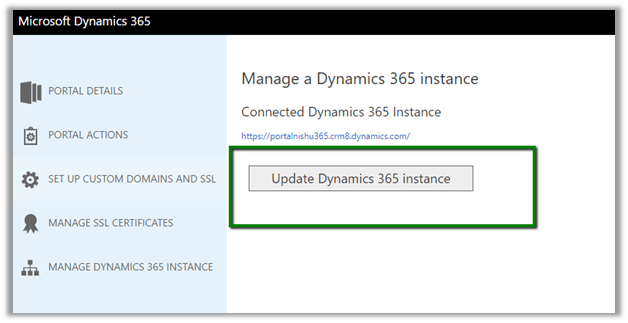
Click on Update Dynamics 365 Instance

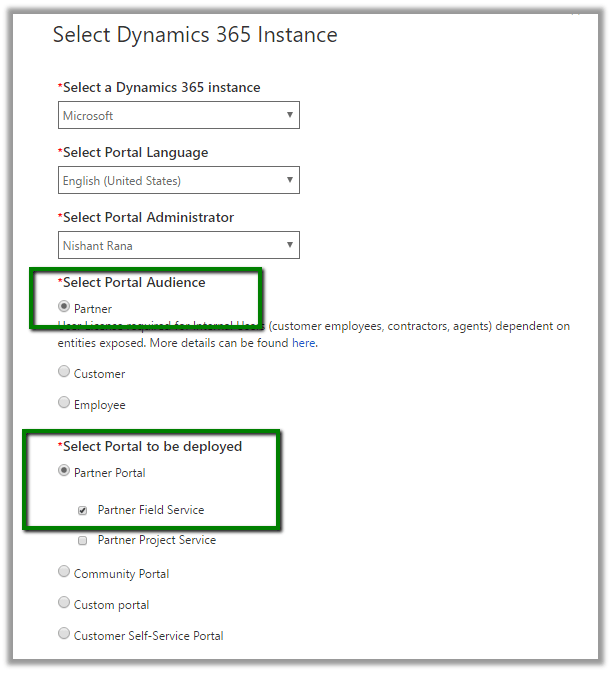
Select Partner as Audience and Partner Field Service as the portal to be deployed

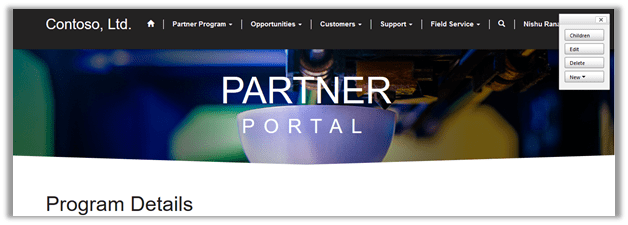
Once installed this is how Partner Portal looks like

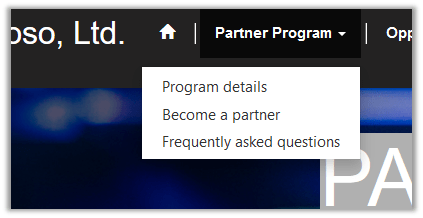
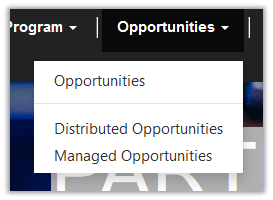
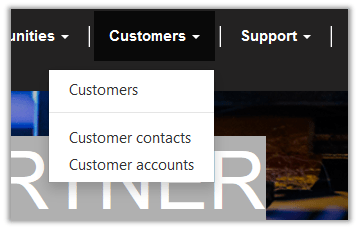
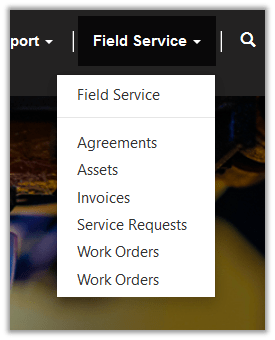
Below are the different menu options that comes OOB.

Partner Program

Opportunities

Customers

Field Service

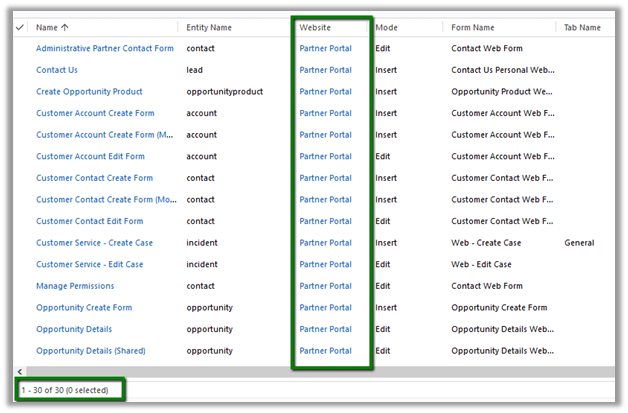
Below are the Entity Forms associated to the Partner Portal Web site created in CRM.

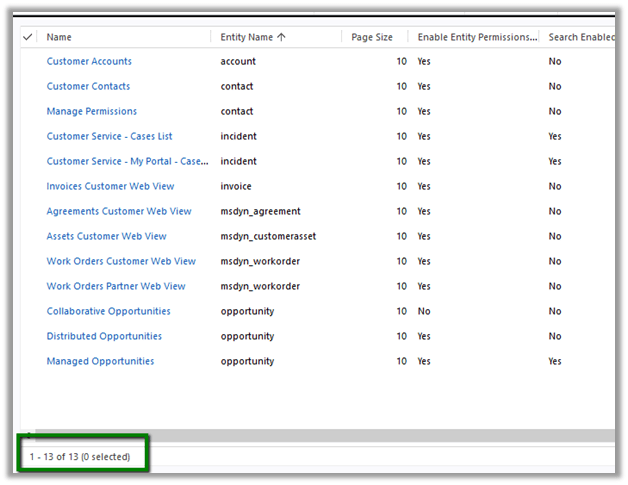
Below are the Entity Lists associated to the Partner Portal Web site created in CRM.

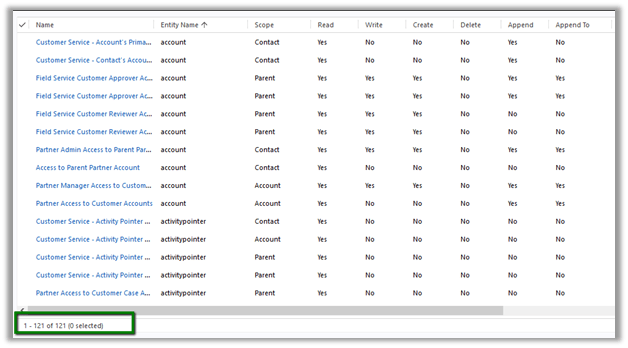
Around 121 Entity Permission records are added by the Partner Portal

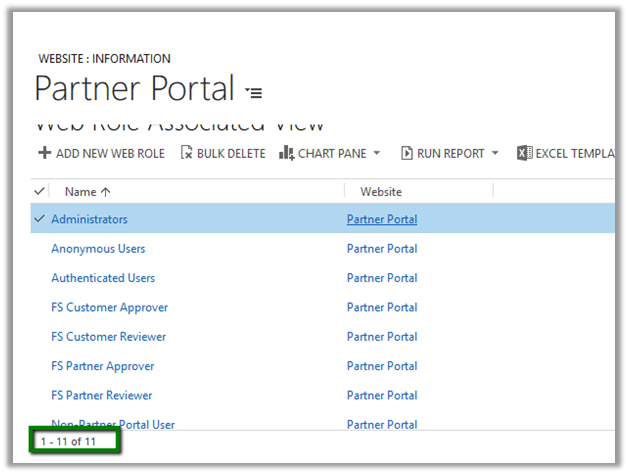
Web Roles specific to Partner Portal.

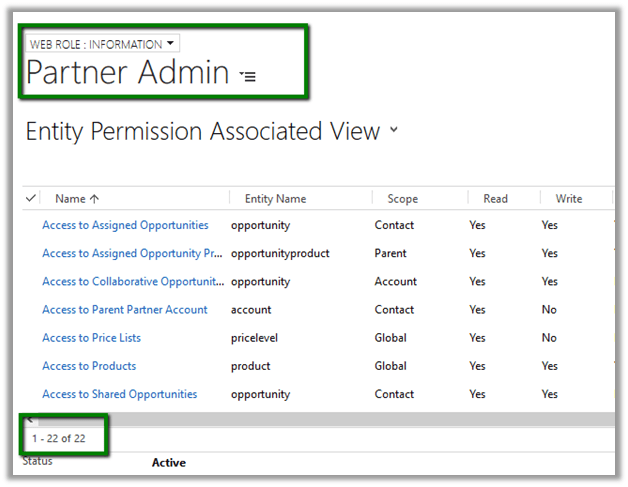
Below are some of the permission for the Partner Admin web role.

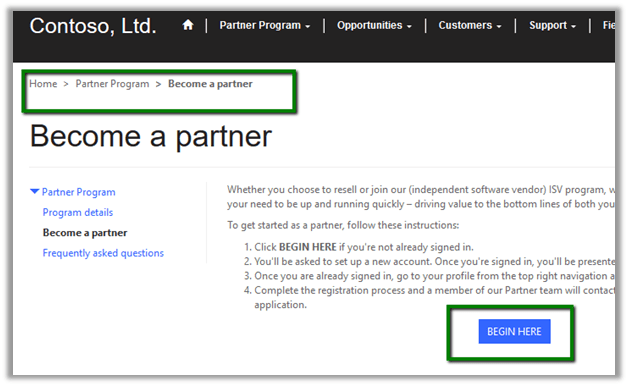
Once the portal is setup next step would be to Become a Partner. Click on Begin Here.

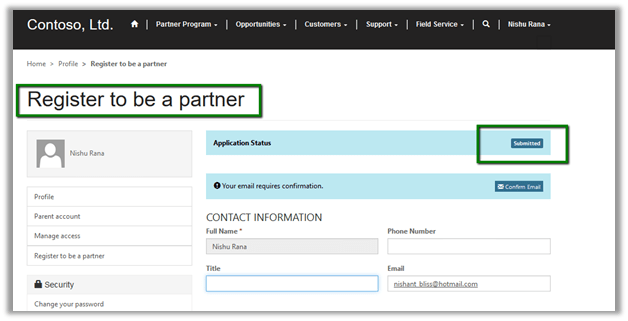
Update the profile and click on submit.

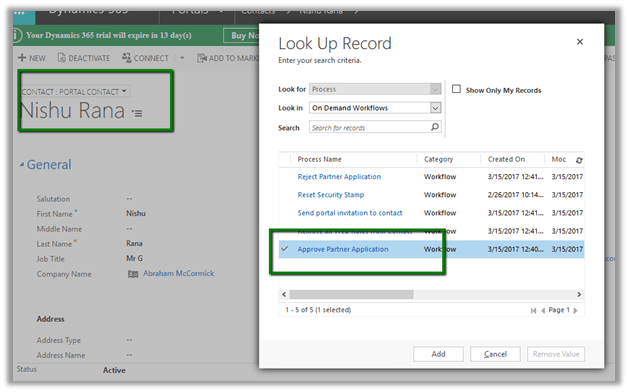
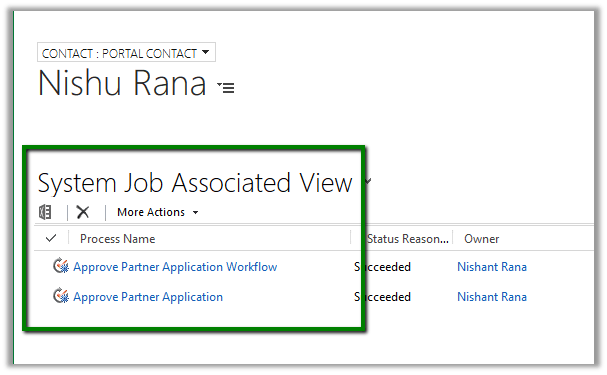
Within CRM, the admin user needs to run the Approve Partner Application workflow on the corresponding portal contact user record.

After workflow succeeds we can assign appropriate web roles to the portal contact user.

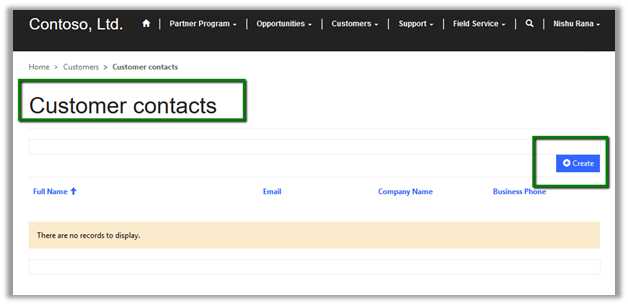
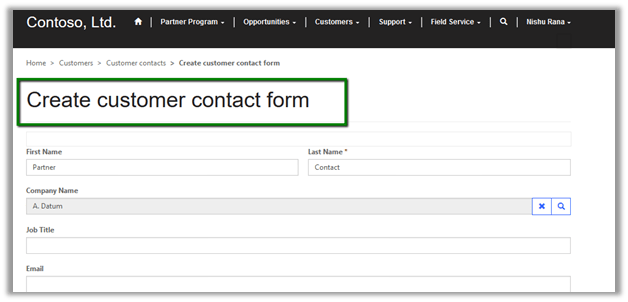
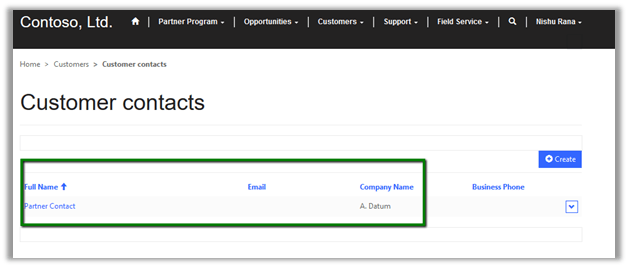
The portal user can create customer contacts record

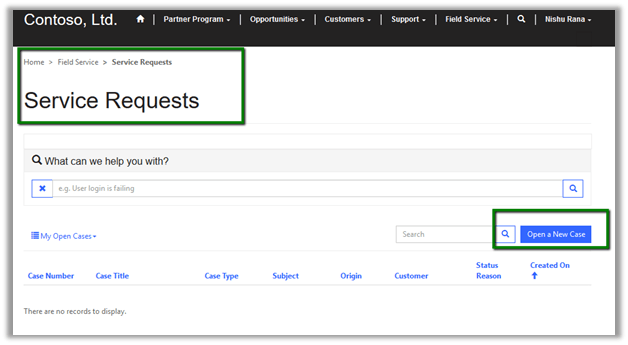
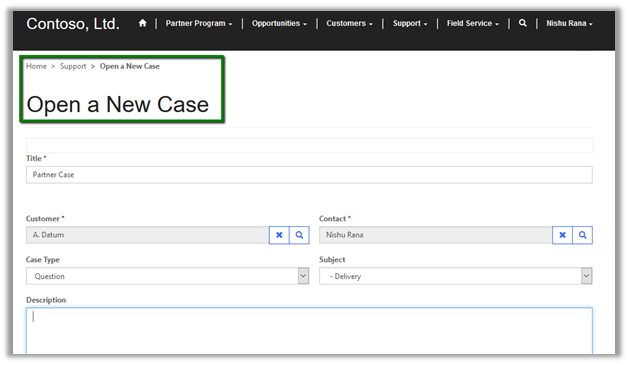
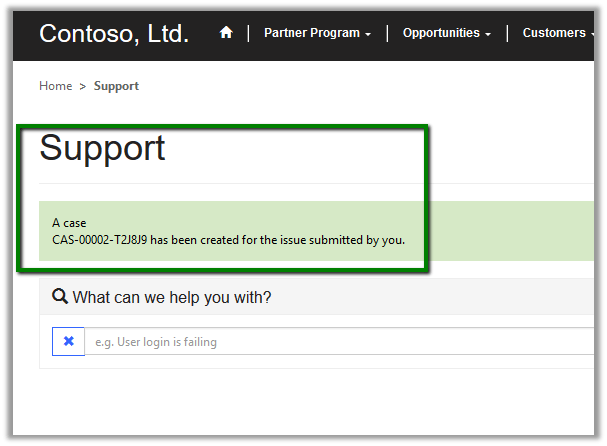
The portal user can raise Service Requests from within the portal.

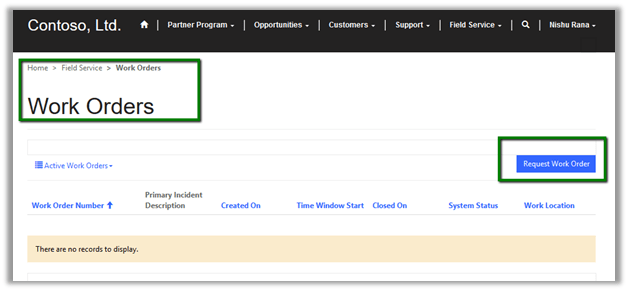
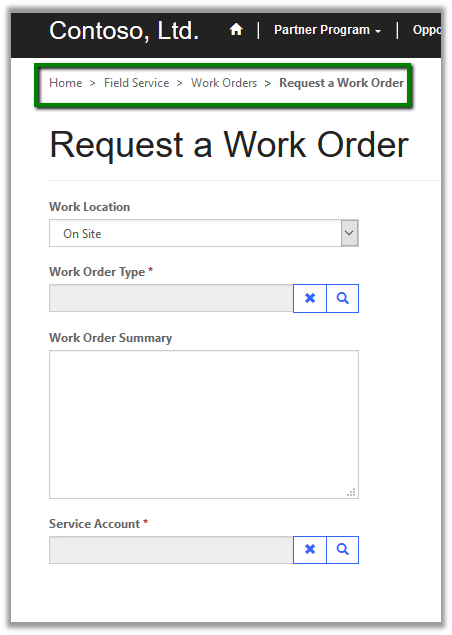
Can manage Work Orders.

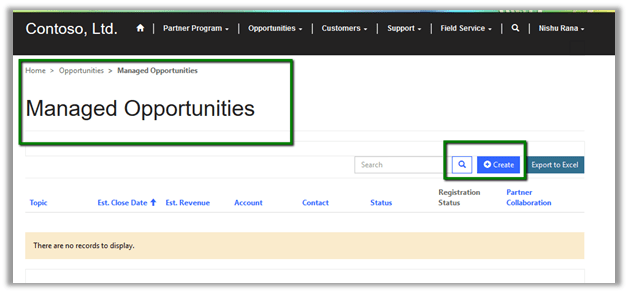
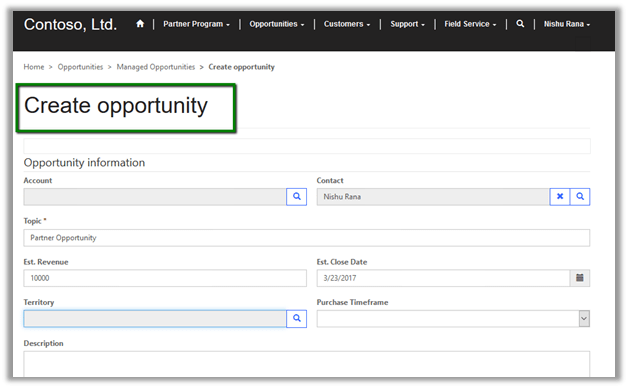
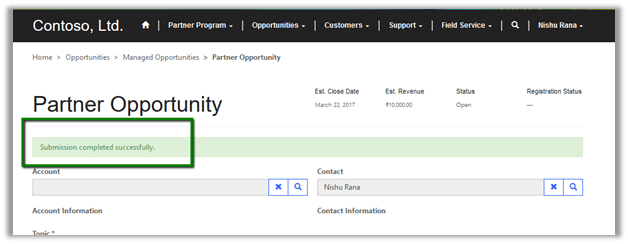
Can manage Opportunities.

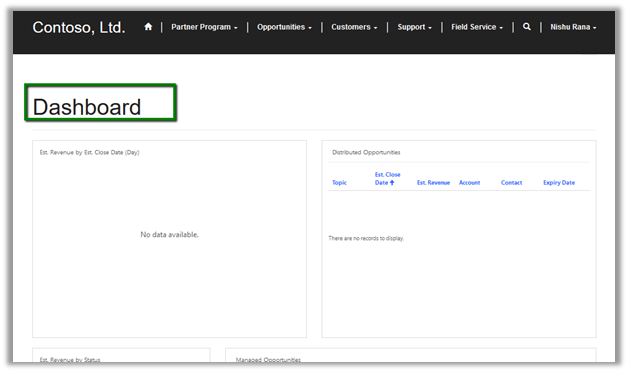
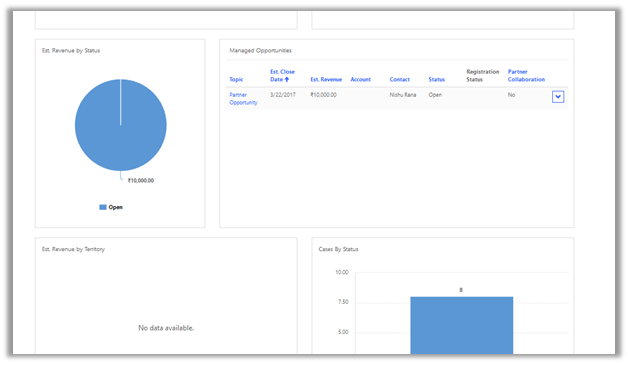
The portal has the Dashboard that shows the details around the opportunity and the cases.

Hope it helps..