How to – Clone a record in Dataverse / Dynamics 365 (C#)


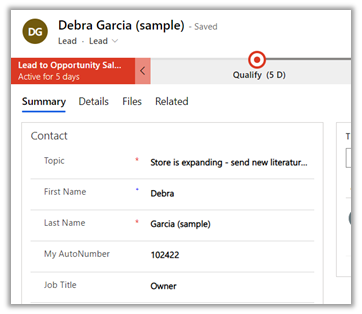
Here we will be cloning the below contact record –
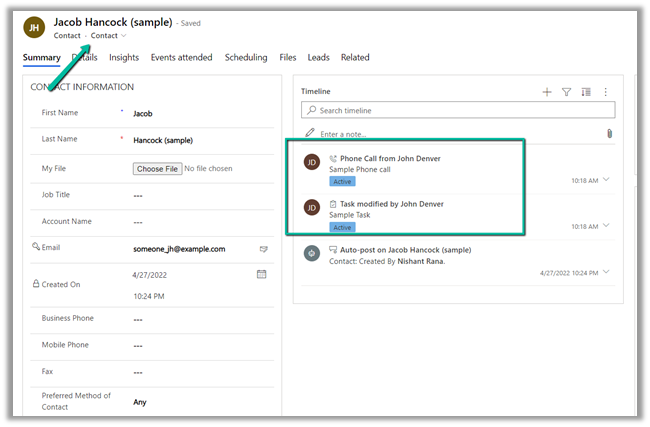
For it, we can make use Clone method of EntityExtensions class

If we run the below code, we will get the “Cannot insert duplicate key” exception.
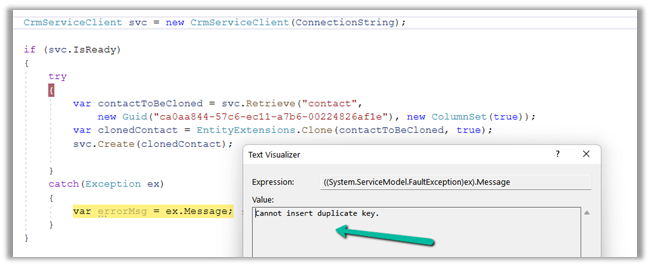
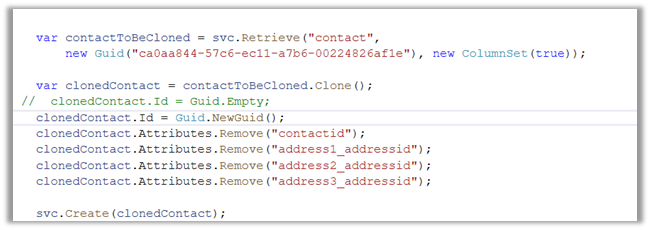
Because we need to set the ID for the newly cloned record to either empty or a new GUID.

Also, we need to remove the contactid attribute or entity’s id field else we will get the below exception – “Entity Id must be the same as the value set in property bag

Also if we are retrieving all the attributes we need to make sure we remove those attribute which can cause below unique constraint errors.

Sql error: The operation attempted to insert a duplicate value for an attribute with a unique constraint. CRM ErrorCode: -2147012606 Sql ErrorCode: -2146232060 Sql Number: 2627

In case of contact, we had to remove the address id attributes, to get the record cloned.
Now let us clone the same contact record with its related leads.
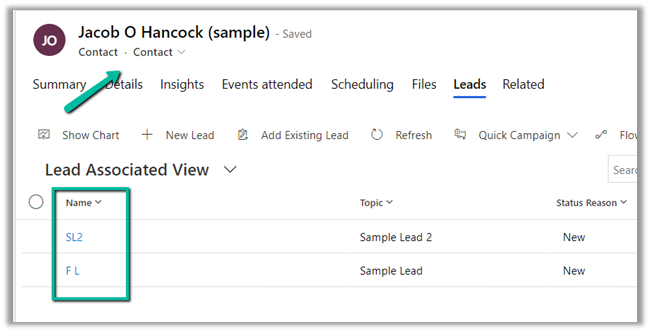
  • Here first we need to retrieve contact along with its associated lead record.
  • Then remove the id attribute that could duplicate issues in the child lead records also.
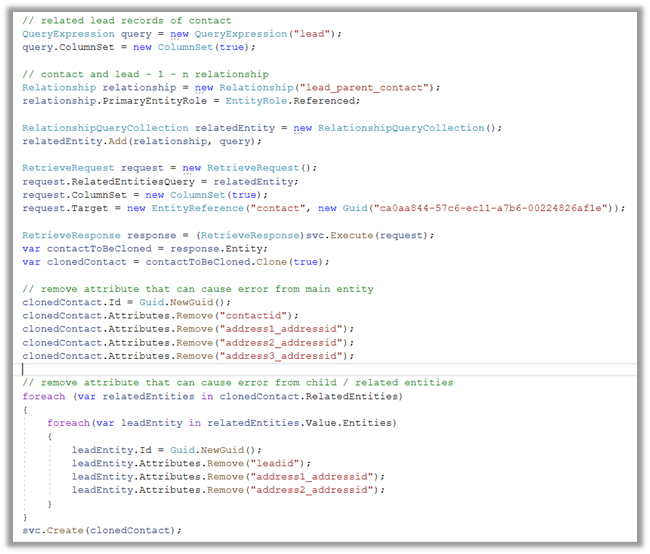
Please refer the helpful posts –

https://debajmecrm.com/clone-record-dynamics-crm-clone-method/

https://www.inogic.com/blog/2014/08/clone-records-in-dynamics-crm/

https://dyncrmexp.com/2017/10/24/retrieve-primary-entities-along-with-related-entities-with-one-queryexpression/comment-page-1/

https://dynamict.eu/2016/08/09/create-record-with-related-records-in-a-single-request-using-c/

Hope it helps..

 // related lead records of contact
                    QueryExpression query = new QueryExpression("lead");                    
                    query.ColumnSet = new ColumnSet(true);

                    // contact and lead - 1 - n relationship
                    Relationship relationship = new Relationship("lead_parent_contact");
                    relationship.PrimaryEntityRole = EntityRole.Referenced;

                    RelationshipQueryCollection relatedEntity = new RelationshipQueryCollection();
                    relatedEntity.Add(relationship, query);

                    RetrieveRequest request = new RetrieveRequest();
                    request.RelatedEntitiesQuery = relatedEntity;
                    request.ColumnSet = new ColumnSet(true);
                    request.Target = new EntityReference("contact", new Guid("ca0aa844-57c6-ec11-a7b6-00224826af1e"));

                    RetrieveResponse response = (RetrieveResponse)svc.Execute(request);
                    var contactToBeCloned = response.Entity;                   
                    var clonedContact = contactToBeCloned.Clone(true);

                    // remove attribute that can cause error from main entity             
                    clonedContact.Id = Guid.NewGuid();
                    clonedContact.Attributes.Remove("contactid");                    
                    clonedContact.Attributes.Remove("address1_addressid");
                    clonedContact.Attributes.Remove("address2_addressid");
                    clonedContact.Attributes.Remove("address3_addressid");

                    // remove attribute that can cause error from child / related entities
                    foreach (var relatedEntities in clonedContact.RelatedEntities)
                    {
                        foreach(var leadEntity in relatedEntities.Value.Entities)
                        {
                            leadEntity.Id = Guid.NewGuid();
                            leadEntity.Attributes.Remove("leadid");
                            leadEntity.Attributes.Remove("address1_addressid");
                            leadEntity.Attributes.Remove("address2_addressid");
                        }
                    }
                    svc.Create(clonedContact);
Advertisements

Environment Variable referencing Azure Key Vault secrets (Dataverse / Power Platform)


Check out the below articles –

https://docs.microsoft.com/en-us/power-apps/maker/data-platform/environmentvariables#use-azure-key-vault-secrets-preview

Within plugin https://itmustbecode.com/azure-key-vault-secrets-in-dataverse/

Within Power Automatehttps://www.msautomate.com/2022/06/16/azure-keyvault-and-power-automate/

https://powerapps.microsoft.com/en-us/blog/how-to-use-environment-variables-with-akv-secrets-in-the-ci-cd-pipeline-when-deploying-applications/

https://blog.yannickreekmans.be/environment-variable-secrets-azure-key-vault-improvement/

Advertisements

How to – Use Import Column to Upload files to File Column / Attribute in SSIS KingswaySoft(Dynamics 365 / CRM)


A few weeks back had posted on how to upload files to the File Column type field using KingswaySoft’ s Integration Toolkit and Premium Flat File Source and Premium Derived column which are part of the SSIS Productivity Pack of KingswaySoft

https://nishantrana.me/2022/03/17/how-to-upload-files-from-file-column-attribute-using-ssis-kingswaysoft-dynamics-365-crm/

Here we will see an example of achieving the same without using the KingswaySoft Productivity Pack’s Premium Flat File Source and Derived column. (although would recommend using it as it includes over 300 premium components making it easier to rapidly build efficient solutions)

https://www.kingswaysoft.com/products/ssis-productivity-pack

Below is our source file

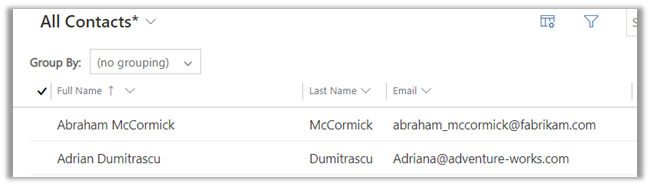
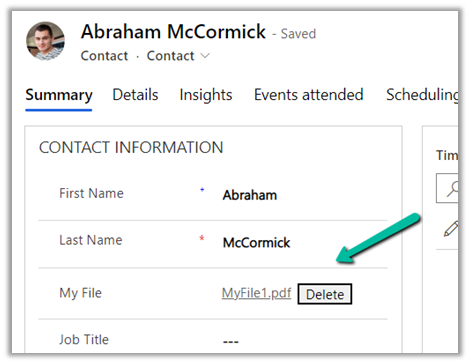
The contact records in CRM

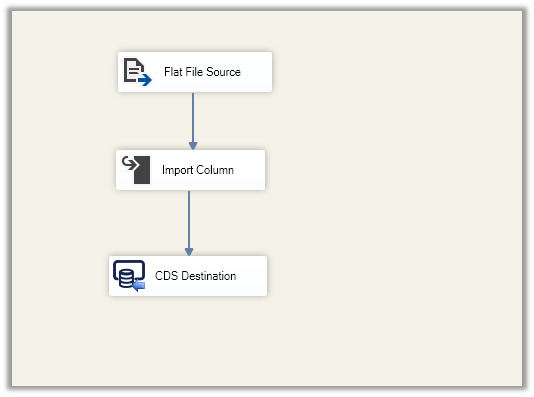
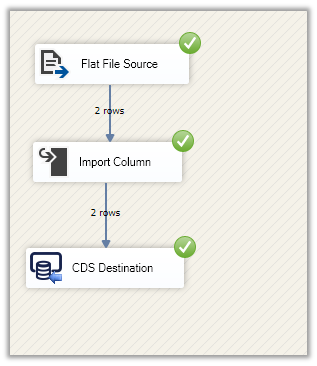
Below is how the package looks like

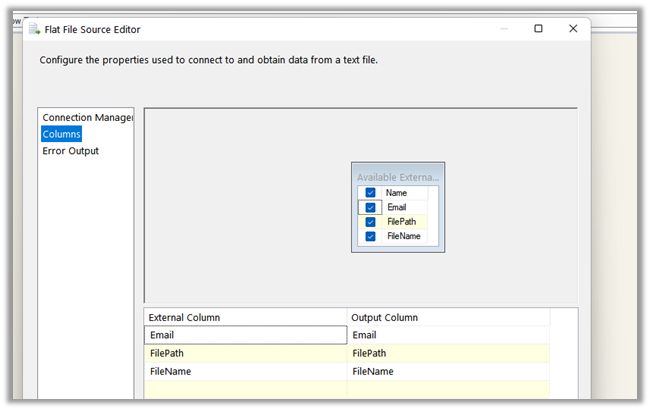
The Flat File Source points to the location where we have the source csv file containing email, file path, and file name.

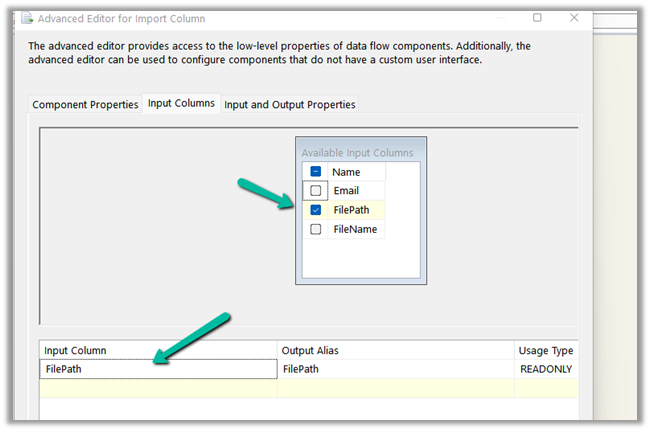
Import Column takes the File Path as the Input.

For the Input and Output properties, add an output column (BinaryColumn) of DataType = image.

In the FilePath input column properties, specify the column id of the output column.

Finally, in the CDS / CRM Destination Component, we are performing an upsert using the Email id as a match.

Here we have mapped the output column of the Import Column i.e. BinaryColumn to the binary content field of the file type attribute of the CRM.

Let us now run the package.

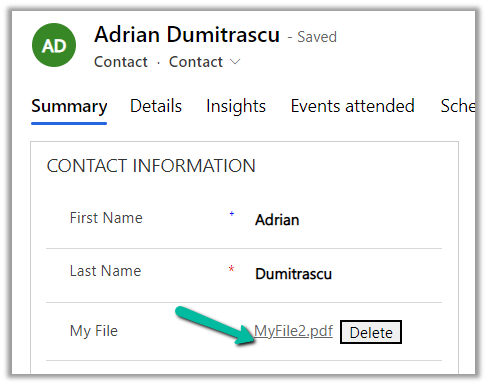
Let us now open the records and check.

As expected we can see the file uploaded.

Also, check out –

To extract attachments from notes-https://nishantrana.me/2021/02/10/extracting-attachments-from-notes-in-dynamics-365-dataverse/

To download files using Download Block Requesthttps://nishantrana.me/2022/03/14/how-to-download-file-from-file-column-using-initializefileblocksdownload-and-downloadblock-request-dynamics-365-crm-dataverse/

To upload files using Upload Block Requesthttps://nishantrana.me/2022/03/15/how-to-upload-file-to-file-column-using-initializefileblocksupload-and-uploadblock-request-dynamics-365-crm/

Understand File and Image Data Typehttps://nishantrana.me/2021/10/01/using-file-and-image-data-type-in-dataverse-dynamics-365/

Try out the wonderful, feature-rich, and powerful SSIS Integration Toolkit for Dynamics 365 by KingswaySofthttps://www.kingswaysoft.com/products/ssis-integration-toolkit-for-microsoft-dynamics-365/download

Check other articles on SSIS plus CRM – https://nishantrana.me/2018/11/26/ssis-and-microsoft-dynamics-365/

Hope it helps..

Advertisements

How to – Add users to the Queue – using Manage NN relationships XrmToolBox Plugin and AddPrincipalToQueueRequest (Dynamics 365)


Recently we implemented Unified Routing for one of our projects, and as part of testing we were supposed to add multiple users to different queues (advanced queues in case of unified routing).

So we were looking for a way to do this either through any existing tool or programmatically.

Well, using the Manage NN relationships XrmToolBox plugin we can add users to the queue.  (Thanks to Prashant for suggesting this)

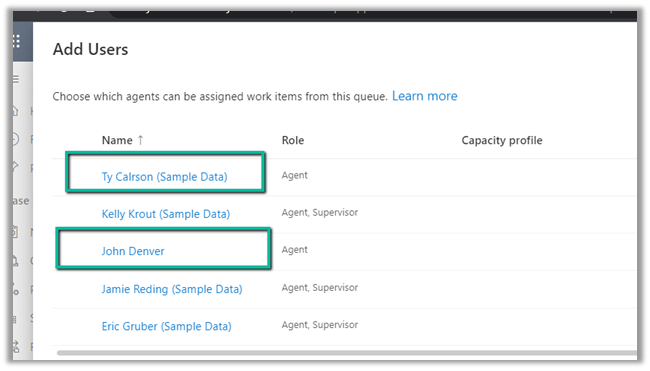
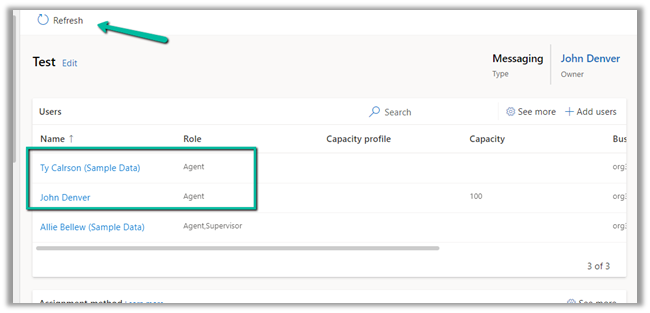
Just as an example, we want to add the below users

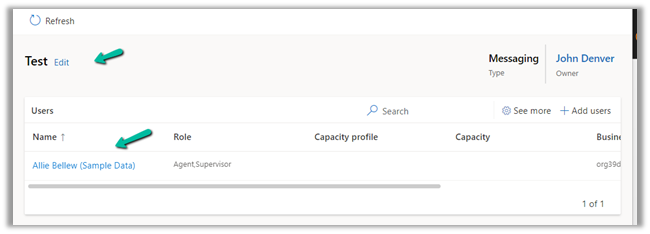
to the following Queue named Test, which currently has only one user added to it.

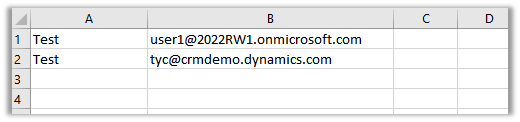
Below is the sample CSV file we have created having the name of the Queue and the email id of the users to be added.

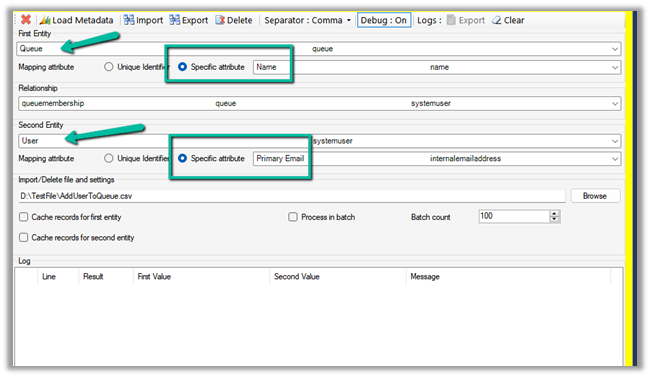
Now let us open the Manage NN relationships tool and specify the appropriate values there.

Here we have specified the First Entity as Queue and the Second Entity as System User.

For Queue we have selected Name and for System User, we have specified Primary Email as the attribute to be considered while importing the data.

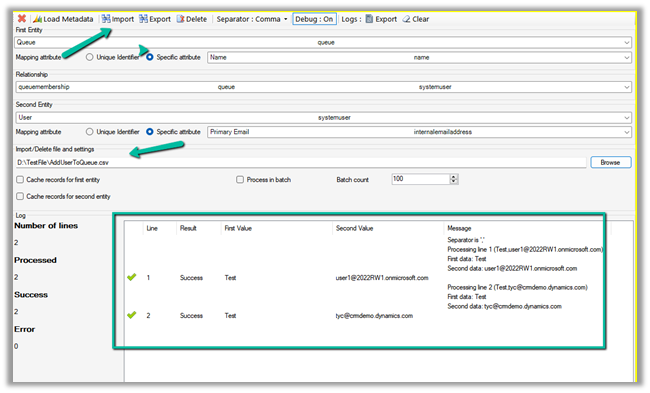
Click on Browse and load the file, followed by a click on the Import button to start the process.

As we have received the Success result, let us refresh our Queue to see if the users were added to the Queue or not.

As expected we can see the users added to the Test Queue.

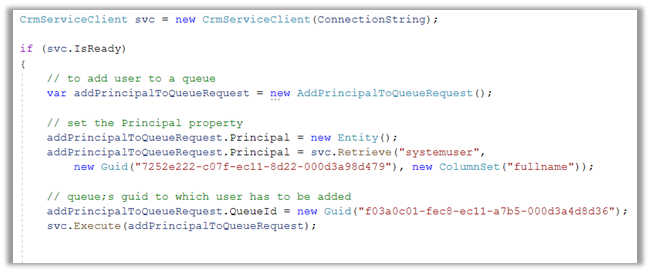
We can also add users programmatically by using the AddPrincipalToQueue Request class.

We need to populate the Principal and QueueId property as shown below.

More on AddPrincipalToQueueRequest.

Hope it helps..

Advertisements

Import Data (Import Data Wizard) – Few key points


Let us understand a few points about the Import Data feature with a simple example –

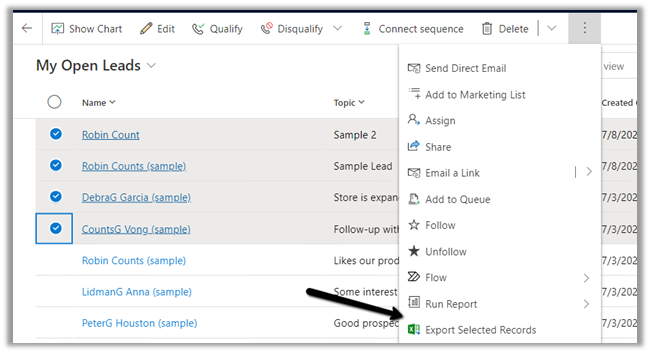
Say for example we have exported the following 4 records.

The exported file will have the view name along with the timestamp.

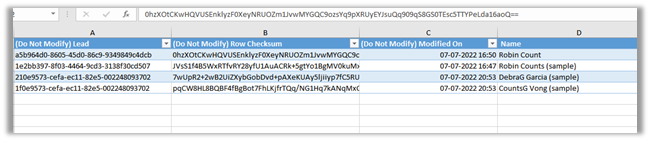
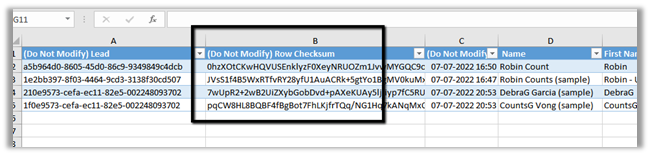
The exported file – 

It has 3 hidden columns that allow for re-import of these records possible.

1st column contains the GUID of the record, the second contains the Row Checksum which it uses to make sure to update only those records or rows which are changed, and the 3rd column is Modified On which it uses to track if the record has been modified since it was exported.

Now let us update one of the records we exported inside CRM.

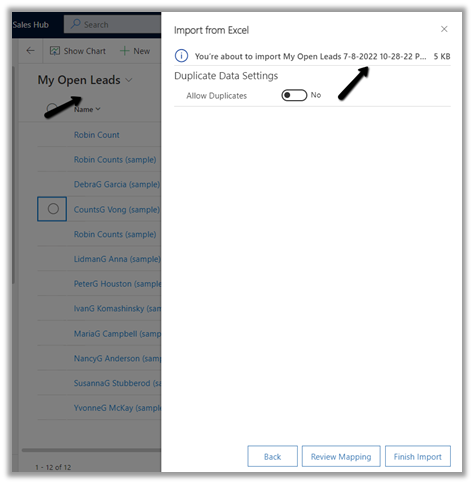
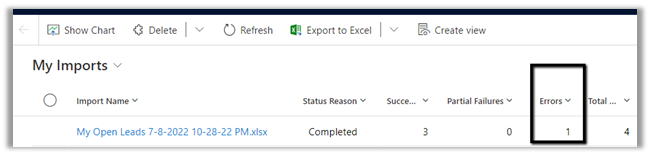
On importing the same file,

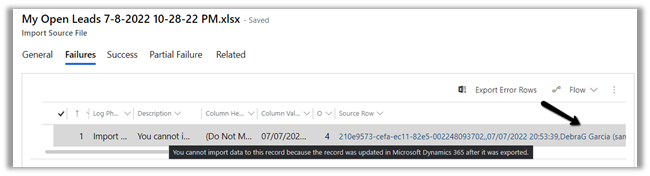
as expected we get 1 failure.

Error message – “You cannot import data to this record because the record was updated in Microsoft Dynamics 365 after it was exported” for the same record which we updated inside the app.

Now let us update one of the records (which has a possible duplicate) and re-import the file.

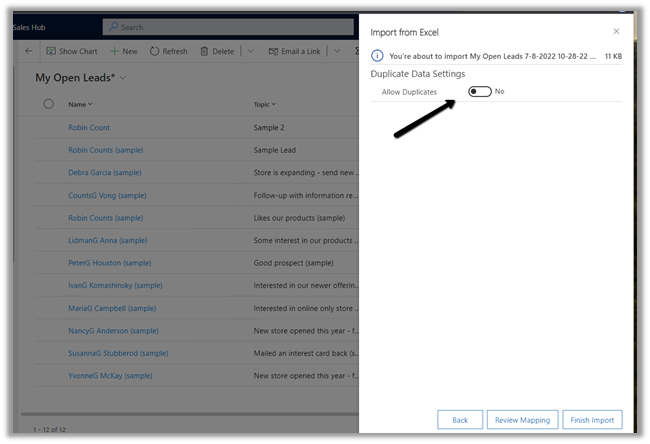
During import, we have let the Allow Duplicates settings be default i.e. No.

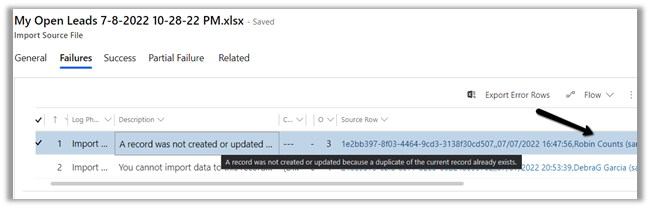
This time also apart from the previous error we get one partial failure.

The error message says – “A record was not created or updated because a duplicate of the current record already exists.

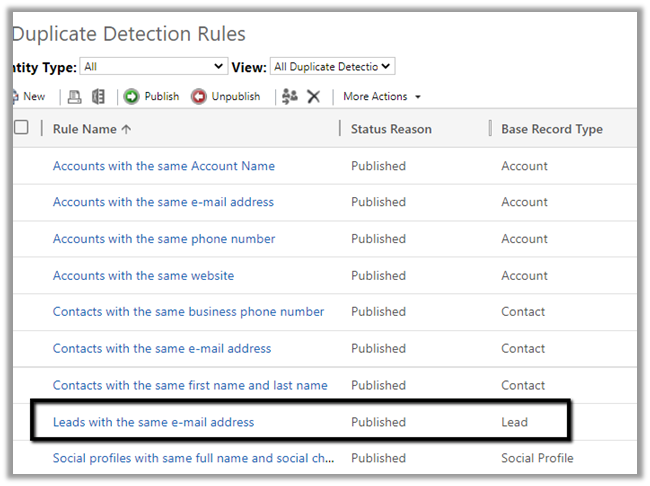
This is because the record that was modified and imported was having another record having the same email id, triggering our duplicate detection rules. Also, we had specified Allow Duplicates as No while importing the file.

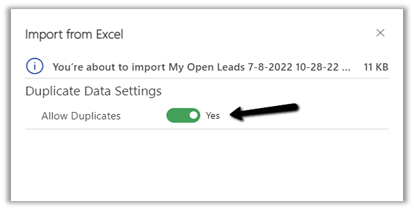
This time let us set Allow Duplicates as Yes and try the import with the same file.

As expected there was no partial error this time.

And the record got updated this time.

Another point to remember is if we export and import the file without any changes, or for the rows with no modification, it will not perform any action, i.e. trigger a create/update for any of the records.

For tracking the changes, as we mentioned earlier it uses the Row Checksum column’s hash value.

Now let’s update the GUID of the record in the 1st row (changed b to c in the end) and the modified date (changed to 55 from 53 minute part) for the 4th row and see the results.

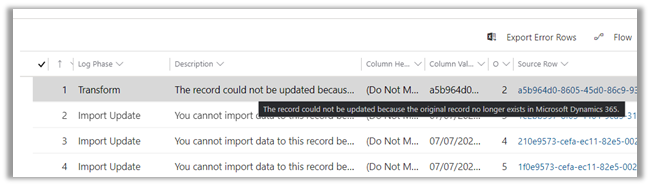
As expected both these records failed – 1st one where we changed the GUID with the error message – “The record could not be updated because the original record no longer exists in Microsoft Dynamics 365” and the 4th row with the error that “You cannot import data to this record because the record was updated in Microsoft Dynamics 365 after it was exported” as we had changed the Modified Date in the imported excel file.

Lastly, let us restore the original value of those 2 fields of the hidden columns and try the import to see the results.

As expected we do not get any error for those 2 rows as we had restored the original value.

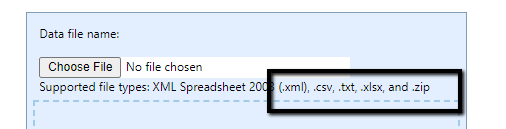
  • For .zip files 32 MB is the max size limit for other file types i.e. xlsx, csv, txt and xml it is 8 MB.

G

  • Microsoft recommends import to be limited to 20K rows or fewer.

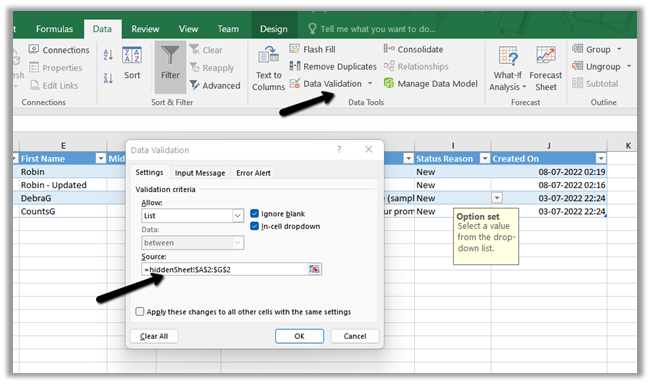
Just in case we are interested to see how the data validation works especially for the option set field in the exported excel file from CRM.

Select the field in excel and open the Data Validation from the Data tab, which refers to the hiddenSheet.

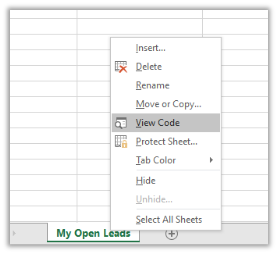
To see the hiddenSheet, right-click the worksheet and select the View Code option.

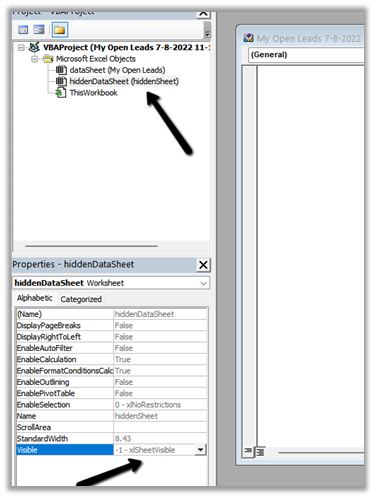
It opens the VBA window, where we can select the hiddenDataSheet object and change its Visible property to -1-xlsSheetVisible.

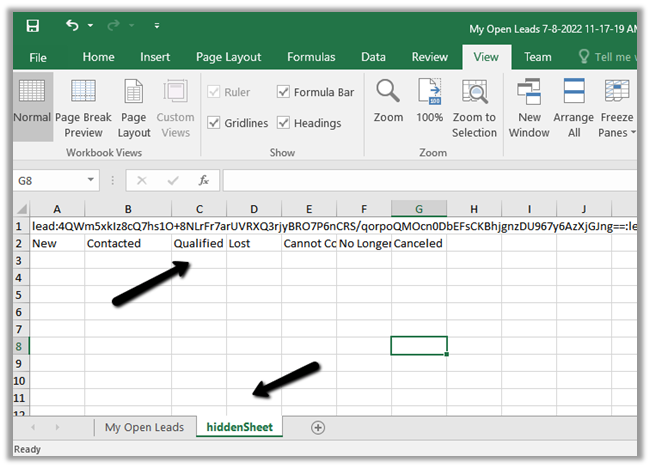
Back in our excel, we can see the hiddenSheet visible and the values of our option-set fields.

Hope it helps..

Advertisements

Managed Environments (preview) – Power Platform Admin Center


Managed Environments is a new feature added in the Power Platform Admin Center to simplify the administration of the platform. It is in Preview currently.

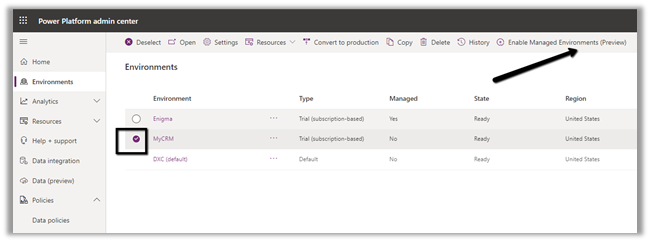
To enable it, select a particular environment and click on Enable Managed Environments.

We will need either Global Admin, Power Platform Administrator, or Dynamics 365 Administrator AD roles to enable the Managed Environments.

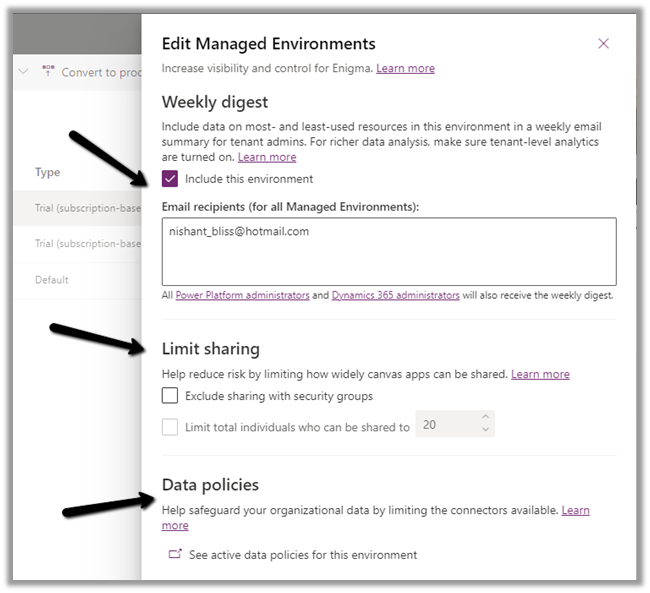
Through Managed Environment, we can specify who can receive the Weekly
Digest i.e., a weekly email summary of resource usage in the environment, apart from Dynamics 365 and Power Platform Admin. (it can be managed through PowerShell also)

Limit the sharing of the canvas apps to the security group and max number of users.

New Environment filters for the Managed Environment with regards to data policies.


For the Weekly Digest, we need to enable the tenant-level analytics from Power Platform Admin Center, click on the settings gear, and enable it from the Power Platform settings window.

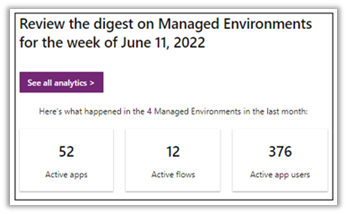
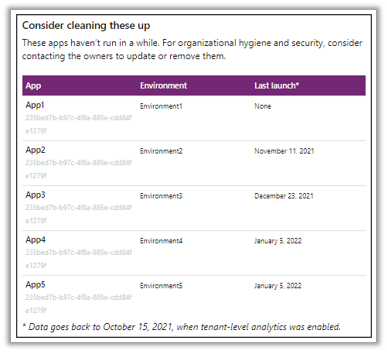
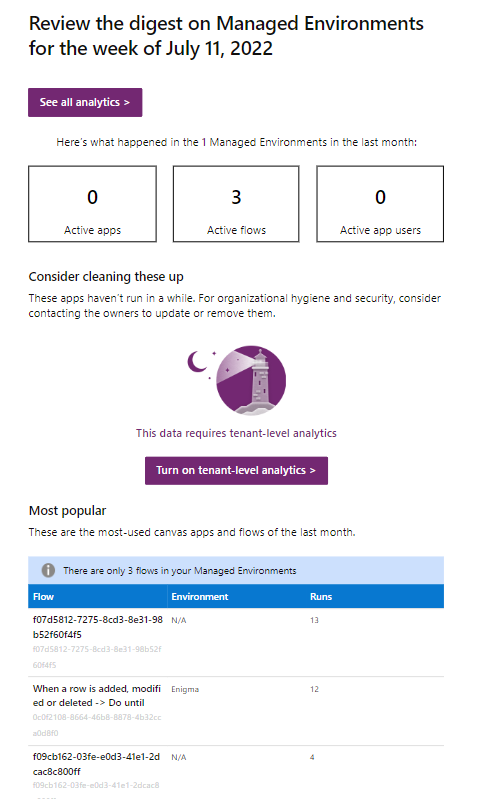
Below are the information provided in the Weekly Digest

Total Apps, active flows and active app users in the past month in the managed environments.

Details of the apps that haven’t been launched for a long time.

Details of the most popular apps and flows of the last month.

Through Limit Sharing we can configure sharing with security groups as well as the max number of users with whom the app can be shared with. Here just for testing, we have set it as 1.

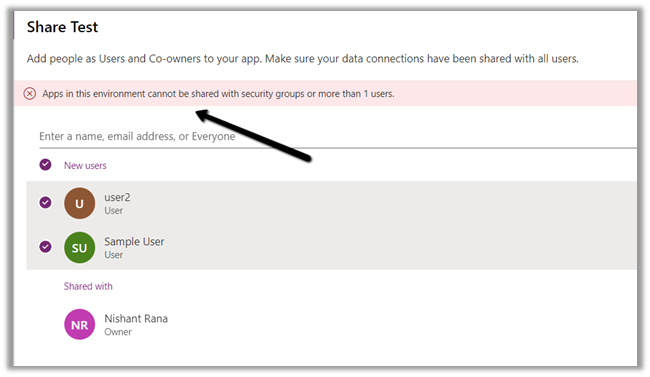
On trying to share the canvas apps with more than one user we will get the below error

“Apps in this environment cannot be shared with security groups or more than 1 user.”

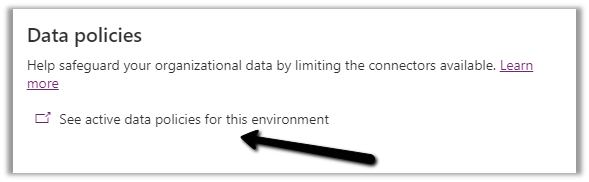
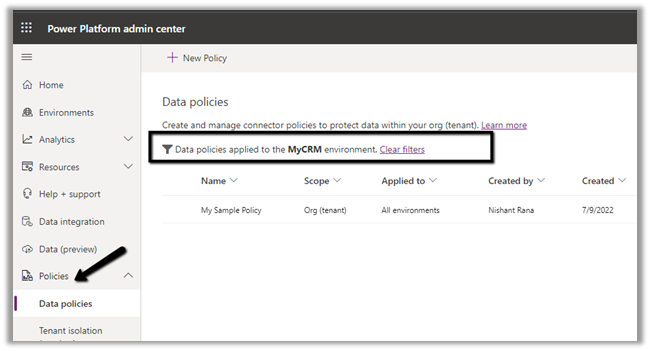
The Data policies option adds the additional filter on the Data Policies page to show the details for the selected environment.

Click on the See active data policies for this environment

Below we can see the Environment filter added.

Get all the details here

Below is the mail we received for one of our trial tenant, which had hardly anything in it.

Analytics

Hope it helps..

Advertisements