Using bootstrap classes and components in Portal (Dynamics 365)


As Portals are based on Bootstrap framework we can make use of classes, components etc. specified as part of the framework in our Portal.

Below we have created a new blank page to which we will add content.

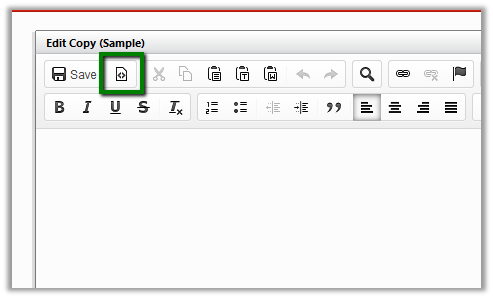
Click on Edit in the content editor.

Click on Edit Source icon.

For reference go to the getbootstrap web site

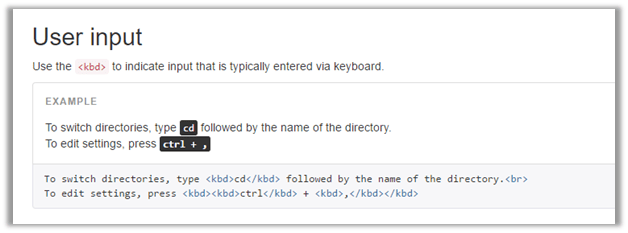
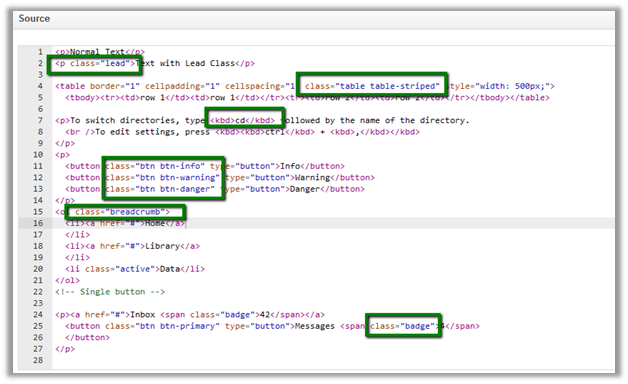
Below are some of the classes that we will add

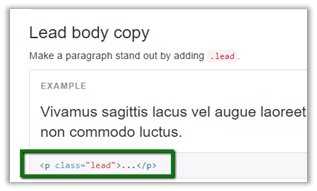
Lead Class –

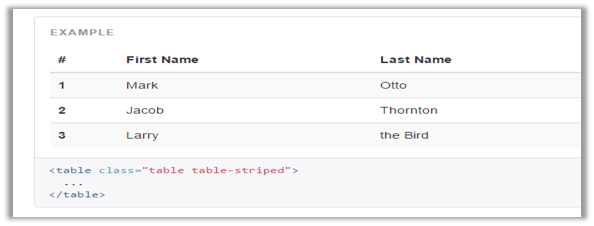
Table table-striped class –

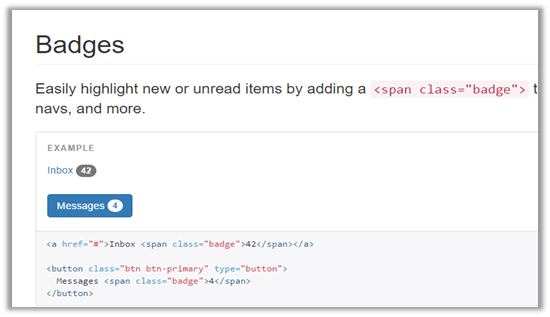
Badges Component

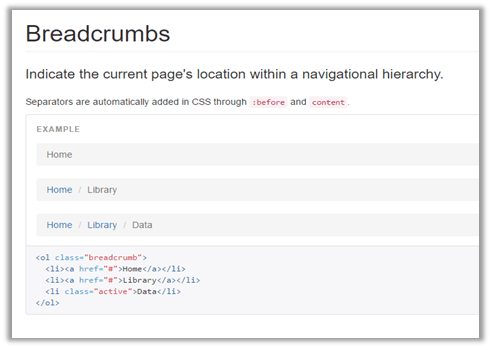
Breadcrumbs

Below is our sample source code

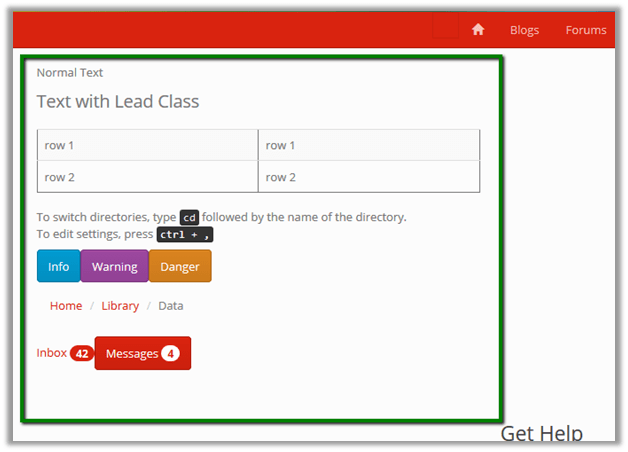
This is how it renders in the page.

Hope it helps..

Applying Theme in Portal in Dynamics 365


Suppose we have the below portal configured whose theme we would like to change.
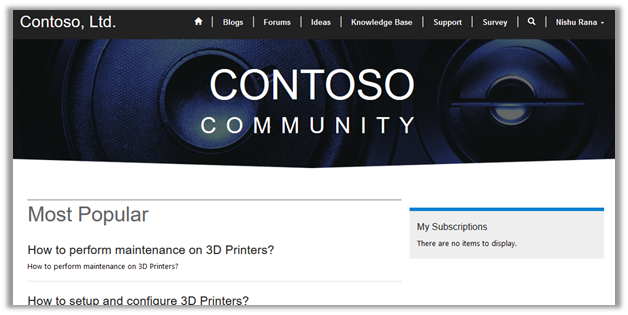
As Portal is based on Bootstrap framework, we can apply any of free bootstrap themes to it.

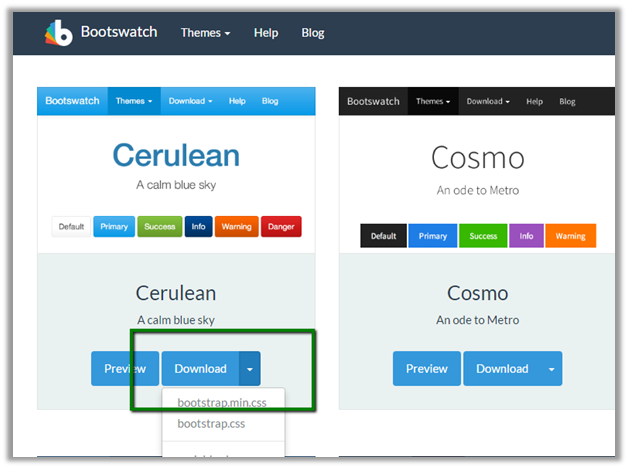
Go to the below site which offers few free themes.

https://bootswatch.com/

Here we have download the Cerulean theme’s bootstrap.min.css file.
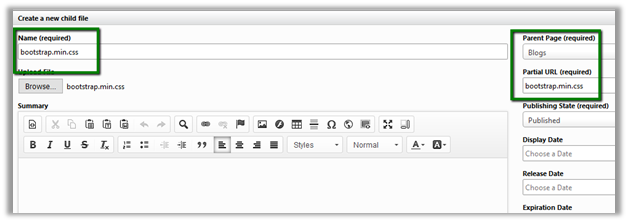
Now inside the portal home page, create a new child file
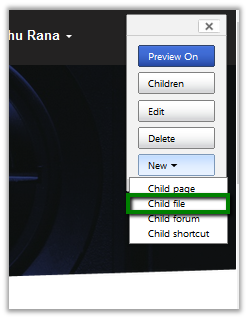
Name the file as bootstap.min.css
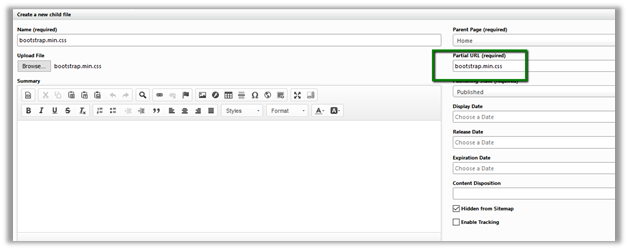
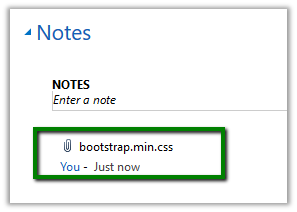
Basically, this creates a web file in CRM that has the bootstrap.min.css file associated as notes attachment to it. (with Home page as the parent page)
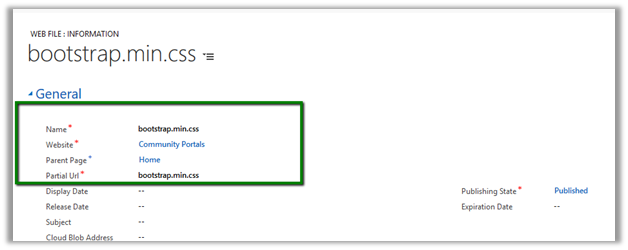
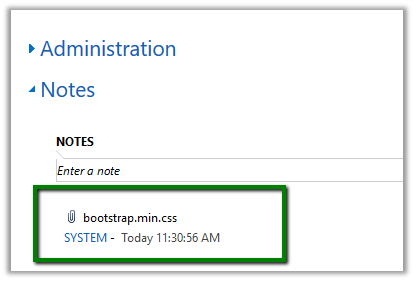
Refresh the portal to see the changes
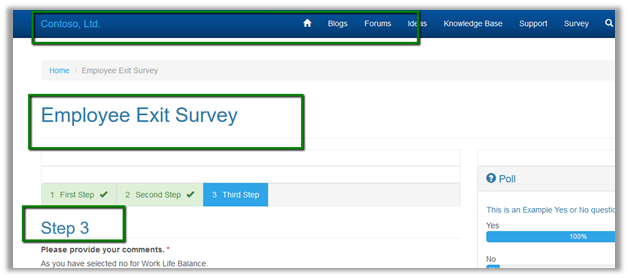
Another way of doing the same is create a new web file or update the bootstrap file attached as attachment to notes in the existing web file.

Download a new theme file.
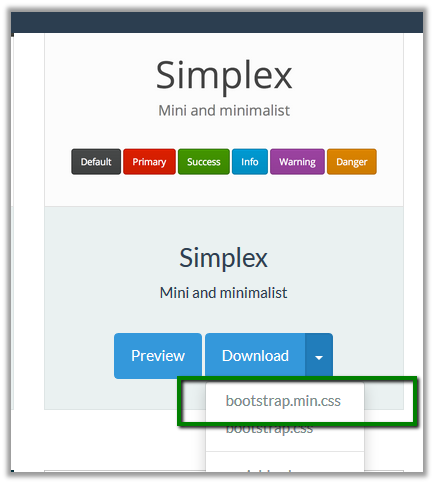
Delete the existing attachment and upload this newly downloaded theme file.
Refresh the portal.
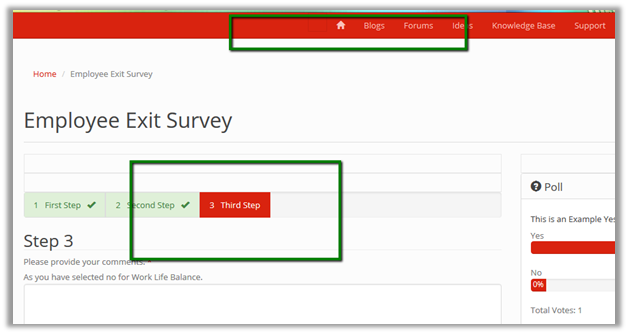
The theme here gets applied to all the child pages of Home. If we want a different theme for any of the child pages, we can repeat the same step.

For e.g. we want a different theme to be applied to Blog and its child pages. For this we will create a new child file, upload the theme file.
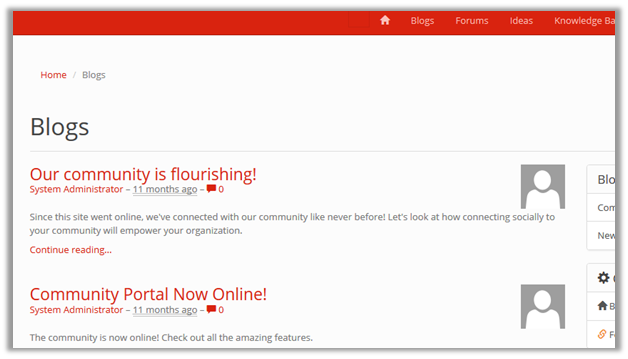
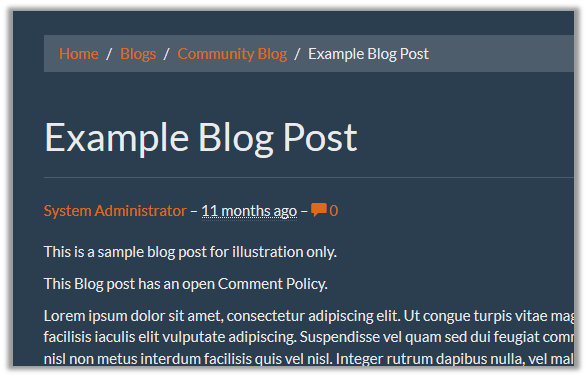
On clicking on any of the child pages of the Blog we can see the new theme applied only to its child page.
Hope it helps..

Advertisements

Portal Blog Post List


Using Multiple Choice Matrix and Likert Scape Option Sets in Web Form in Dynamics 365.


Let us continue with our previous example wherein we have already setup a sample Survey Web Form and added a Multi choice Field

https://nishantrana.me/2017/03/06/configuring-multiple-choice-field-for-web-form-in-portal-dynamics-365/

Here we would be making use of Multiple Choice Matrix.

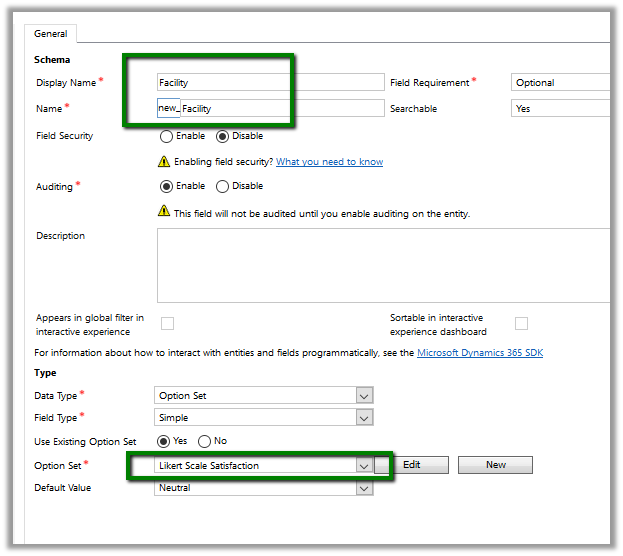
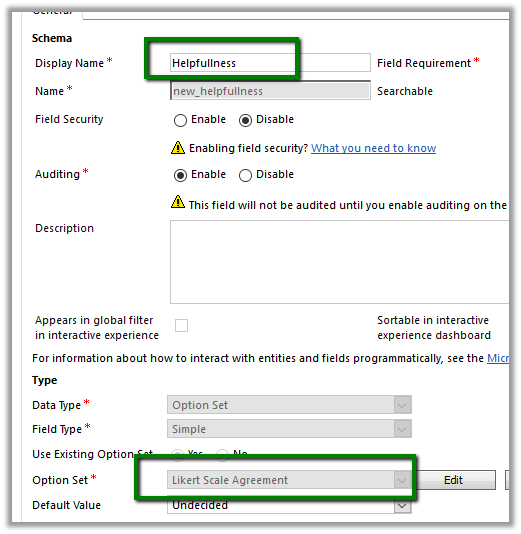
For this first let us create 2 option sets in our Survey Entity. We’d put those field in Step 3 Tab.

  • Here we will use the existing global option set for Likert Scale which is added by the Portal in CRM.

Our first field – FacilityLikert Scale Satisfaction.

Our second field

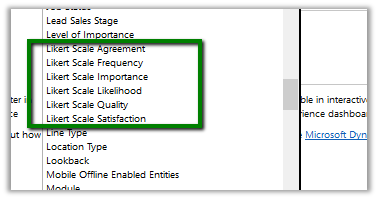
Below are the different Likert Scale Global Option Set available within CRM added by Portal.

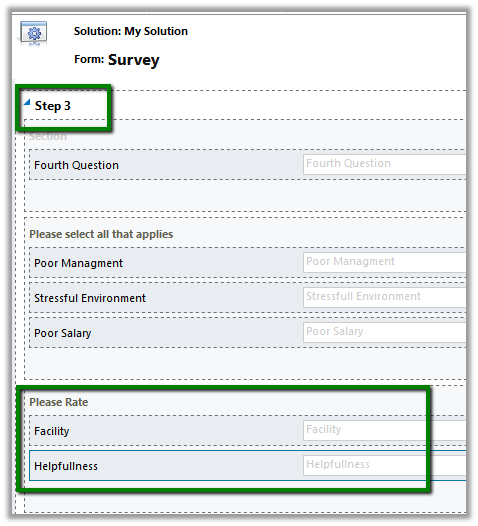
Now in the Survey form we have added a section named “Please Rate” and with the newly created fields inside it.

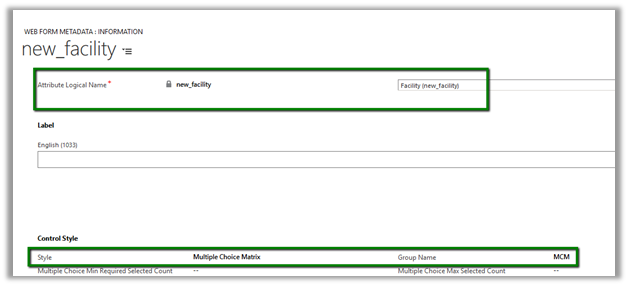
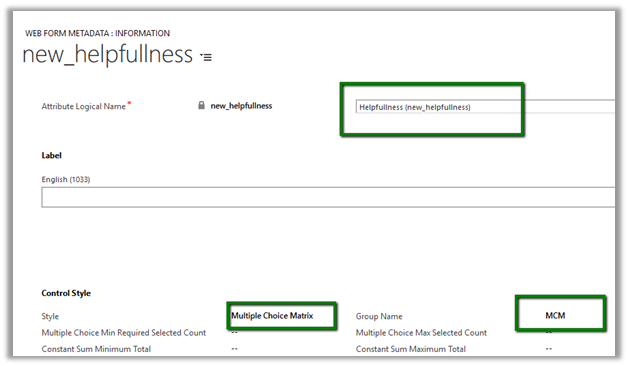
In the Web Form Step corresponding to the Step 3 tab and we added Web Form Metadata records one for each of the fields.

Style Multiple Choice Matrix
Group Name MCM

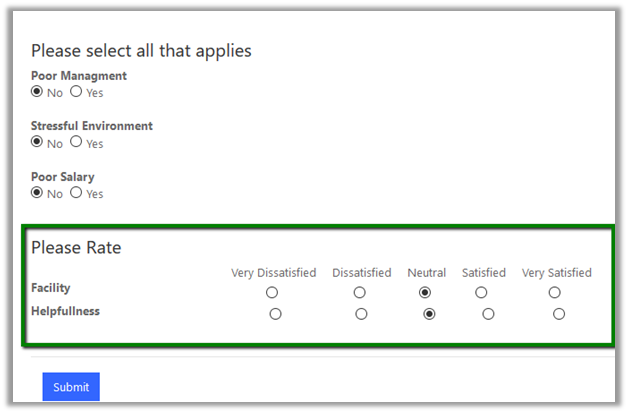
Refreshing the page in the Portal shows the option sets as Multi Choice Matrix

Hope it helps..

Configuring Multiple Choice field for Web Form in Portal (Dynamics 365)


Let us continue with our previous example and add a Multiple-Choice field for Step 3 Web Form Step as shown below.

https://nishantrana.me/2017/03/06/using-conditional-branching-in-web-form-in-portal-dynamics-365/

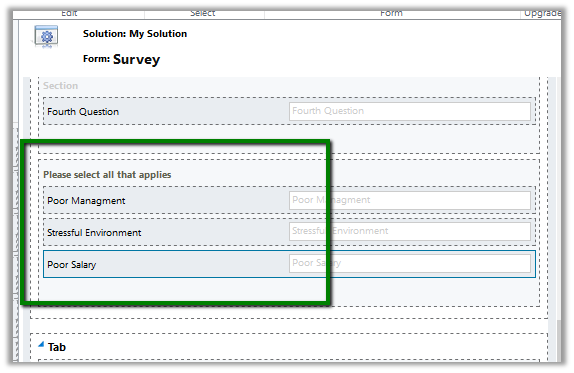
To configure this, add a section named “Please select all that applies” to Step 3 Tab and 3 two options (Boolean) fields in the Survey Form.

Now go to Step 3 Web Form Step and add Web Form Metadata for each of these bool fields.

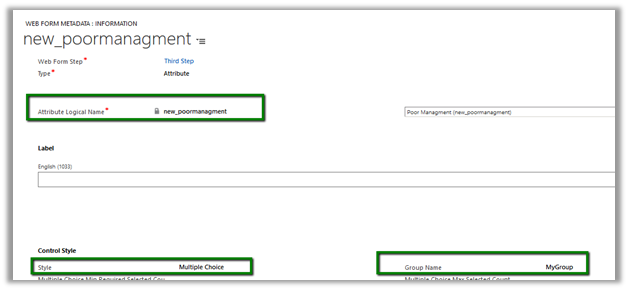
For the poor management field,

  • Style – Multiple Choice
  • Group Name – MyGroup

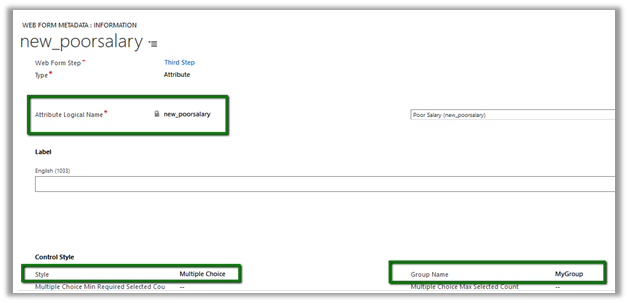
For the poor salary field, specify the same value for style and group name field

  • Style – Multiple Choice
  • Group Name – MyGroup

Do same for the third two options field.

The main point to remember here is that the Group Name should be same.

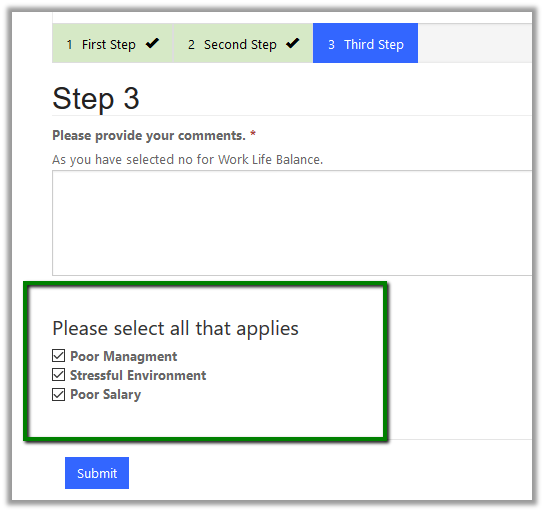
Now open the portal page and go to the web form step.

The page shows the newly added Boolean Fields in the Web Form Step as checkboxes.

Hope it helps..

Advertisements

Using Conditional Branching in Web Form in Portal (Dynamics 365)


Let us continue with our previous example of Employee Exit Survey and add conditional branching step to it.

https://nishantrana.me/2017/03/05/using-web-form-to-create-a-simple-survey-in-portal-dynamics-365/

Here we’d add a conditional web form step which will check the response of the user for Work Life Balance question and in case if it false, it shows one more step to the user and asks for the comments.

So, let us first create a web form of type Condition with below details

Type Condition
Target Entity Logical Name Our custom survey entity
Next Step Web Form Step when condition is true
Condition If new_thirdquestion is true

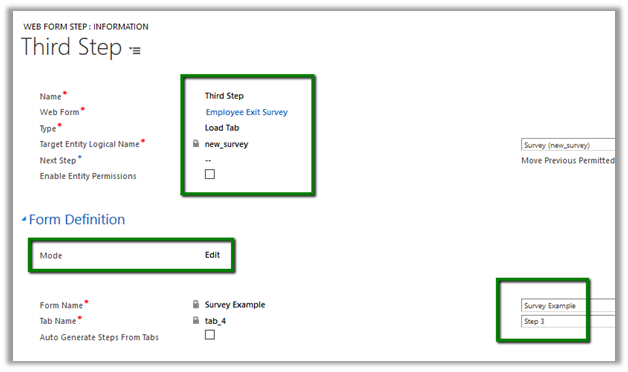
Now let us see the details of web form step – third step which we have defined as Next Step for the condition Web Step above.

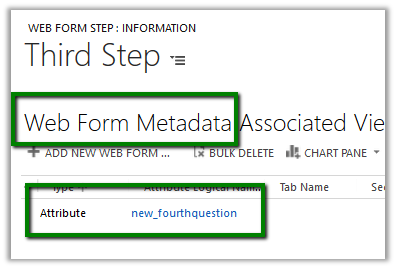
We have also created associated Web Form Metadata record of the type attribute for defining the label and other properties for the new field named fourth question in our survey form.

Adding label –

Adding Description –

Making field required –

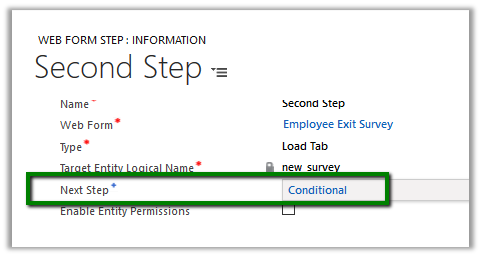
Finally update the Second Web Form Step to point to the Condition Step

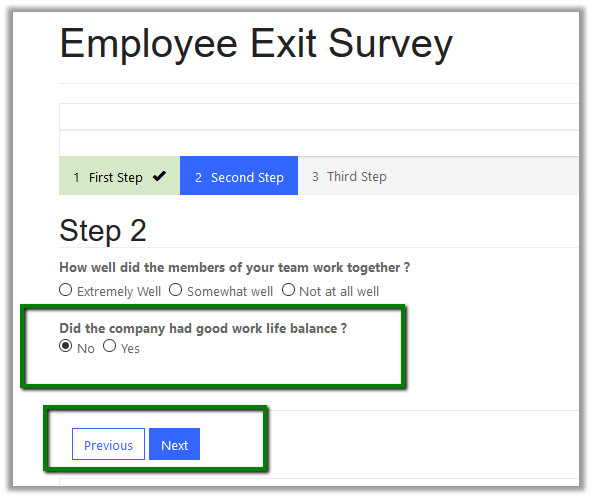
We are done with our configuration, now going back to our web page shows the Web Form with all the 3 steps.

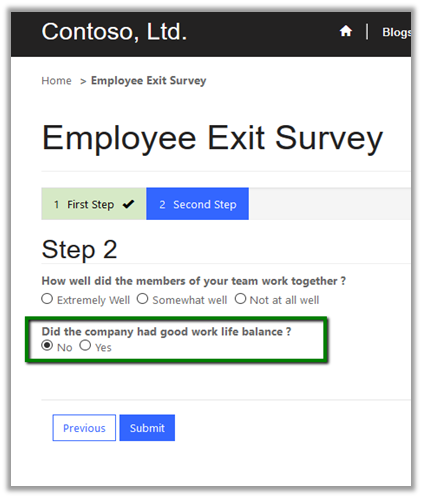
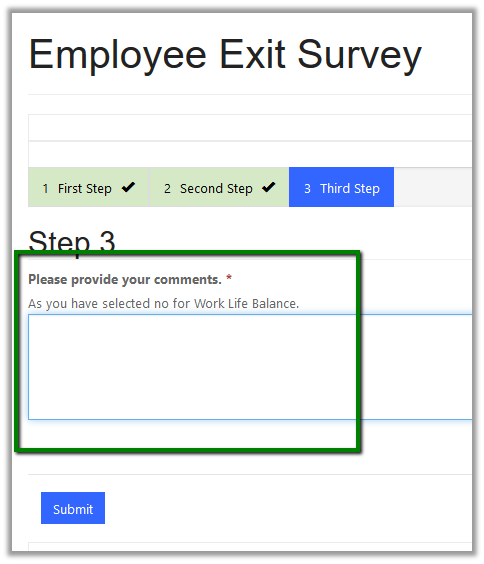
Clicking on next with No as the answer for the Work Life balance Question shows the third web form step. Note here we can see the label defined, description defined and also the field is mandatory which we did using Webform Metadata.

Clicking on submit without specifying comments shows the required field message

All the details here

https://community.adxstudio.com/products/adxstudio-portals/documentation/configuration-guide/web-forms/web-form-steps/conditional-step/

Hope it helps..

Advertisements