2022 Release Wave 1 – First impressions


carinamclaesson's avatarCarina M. Claesson

Today Release Notes for 2022 Release Wave 1 were made available. In this post I will summarize my first impressions and focus will be on Power Apps and Power Automate, but there are also new features from other areas that I will highlight. Here are links to the Power Platform 2022 Release Wave 1 Plan and Dynamics 365 2022 Release Wave 1 Plan.


View original post 1,343 more words

How to – Set up Dynamics 365 Customer Insights Trial


https://nishantrana.me/2022/02/09/how-to-import-data-from-local-data-files-to-dynamics-365-customer-insights/To set up the trial of Customer Insights, open the Dynamics 365 Free Trial Page and scroll down to Dynamics 365 Customer Data Platform section

https://dynamics.microsoft.com/en-gb/dynamics-365-free-trial/

Click on Try for free

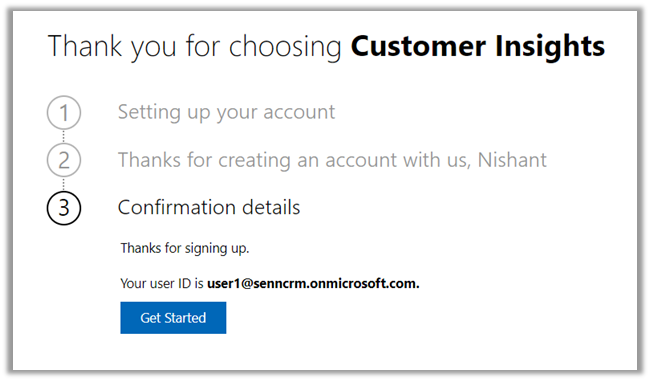
Sign in with your work account or the Dynamics 365 trial account created and click on Get Started

As a first step, it asks for specifying the region for the communication preferences.

For the trial, let us choose the Audience Insights option.

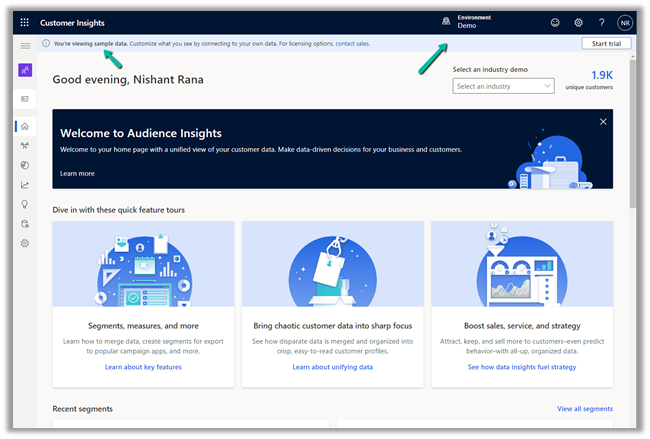
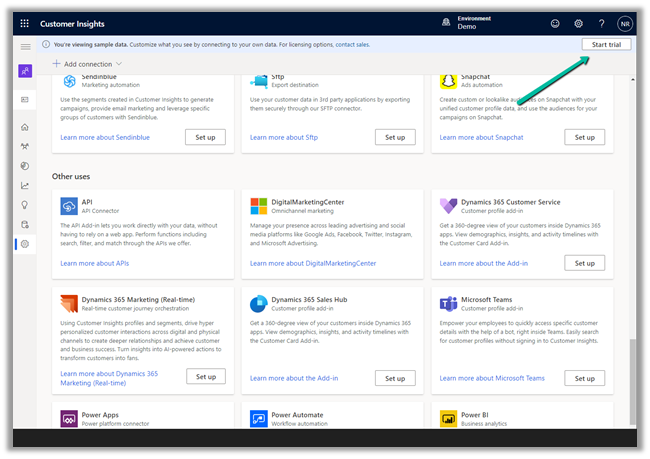
It opens the Demo environment having the sample data. We can explore and understand the features with the sample data or we can start a trial.

Let us select the option Start trial in the tool bar to connect it to an existing CRM / Dataverse Environment.


Enter the basic information requested. Make sure you have selected the correct region else you might get unable to create an environment error later.

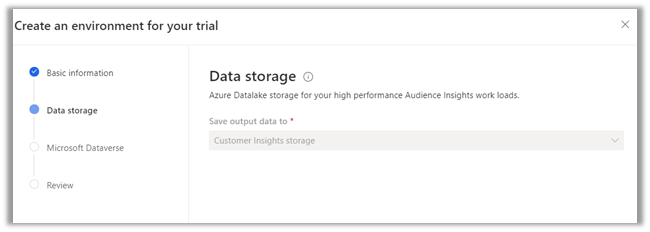
The data storage option comes as disabled.

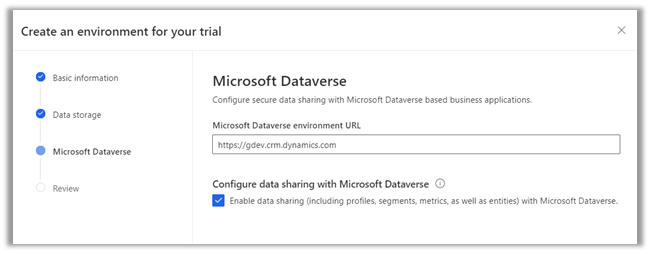
Specify the Dataverse / CRM environment’s URL. (here I am logged in with System Administrator user who is also the Global Admin)

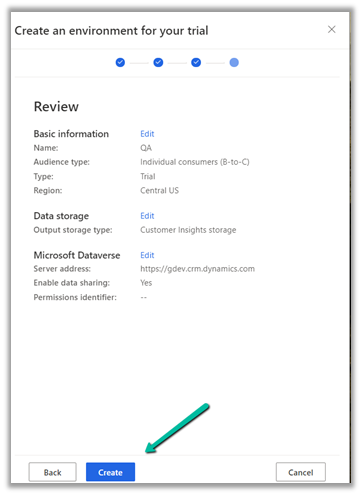
Finally, review the information and click on Create.

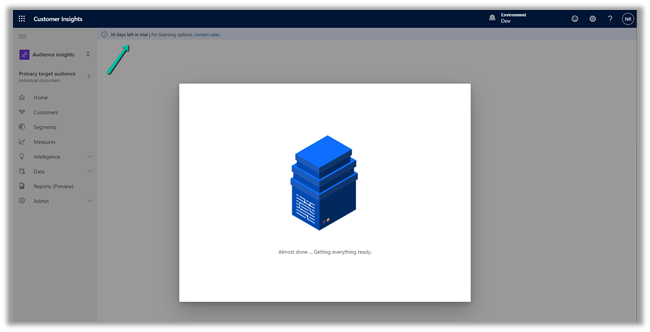
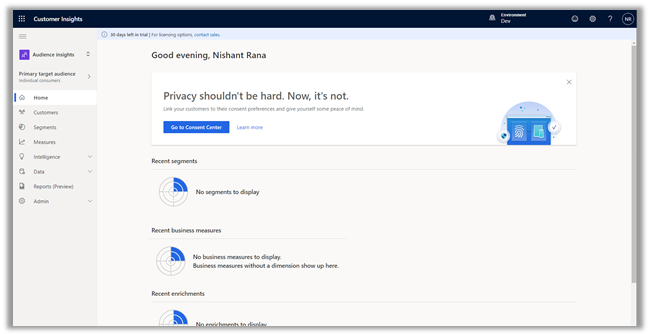
This will configure a 30 day trial against the CRM / Dataverse environment.

Now we are ready to explore it further.

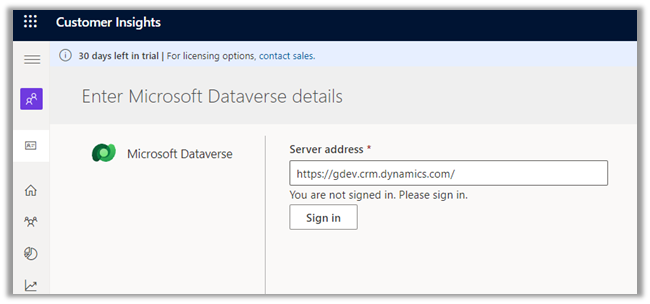
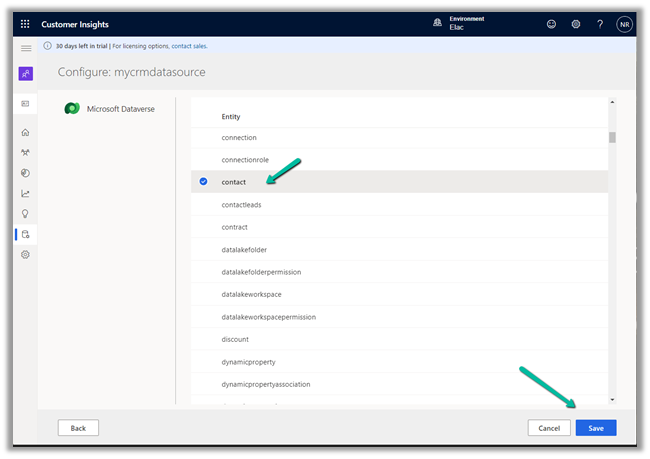
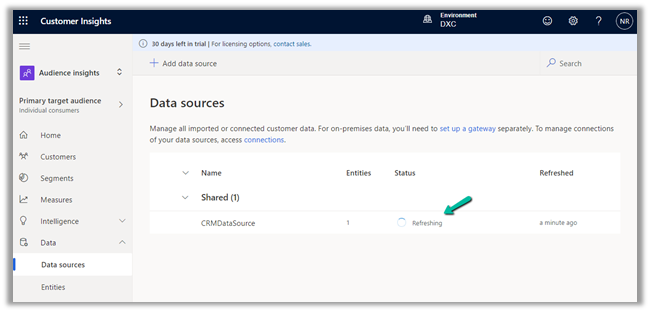
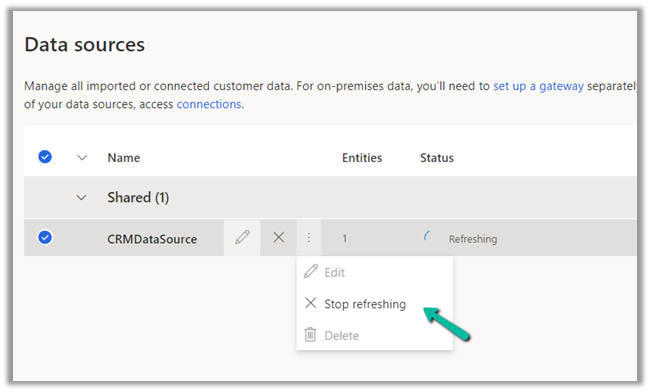
How to – Import Data from Dataverse / CRM to Dynamics 365 Customer Insights

How to – Import Data from local data files to Dynamics 365 Customer Insights

How to – Unify (Map, Match and Merge) Entities in Dynamics 365 Customer Insights

Hope it helps..

Advertisements

How to – Use RetrieveAttributeChangeHistoryRequest to get audit data for an attribute (Dataverse/ Dynamics 365/ CRM)


We can use RetrieveAttributeChangeHistoryRequest to get the change history of a particular field / attribute of a record.

We need to set the Target and the AttributeLogicalName property of the request.

AuditDetails records of the RetrieveAttributeChangeHistoryResponse contains the detail of the audit records.

The Audit History records in CRM- 

AttributeAuditDetail contains the details of the changes made on the field’s value. It contains property like – objectid, userid, operation etc. as well as new value and the old value as shown below.

Sample Code (C#) 

 string ConnectionString = "AuthType = OAuth; " +
                  "AppId=51f81489-12ee-4a9e-aaae-a2591f45987d; " +
                  "Username=User1@xxxx.onmicrosoft.com; " +
                  "Password=*******; " +
                  "RedirectUri=app://58145B91-0C36-4500-8554-080854F2AC97;" +
                  "Url = https://xxx.crm.dynamics.com//;";


            CrmServiceClient svc = new CrmServiceClient(ConnectionString);

            if (svc.IsReady)
            {

                var attributeChangeHistoryReq = new RetrieveAttributeChangeHistoryRequest();

                attributeChangeHistoryReq.Target =
                    new EntityReference("incident", new Guid("0a9f62a8-90df-e311-9565-a45d36fc5fe8"));
                attributeChangeHistoryReq.AttributeLogicalName = "prioritycode";

                var attrChangeResponse = (RetrieveAttributeChangeHistoryResponse)svc.Execute(attributeChangeHistoryReq);
                var auditDetailCollection = attrChangeResponse.AuditDetailCollection;


                foreach (var auditDetails in auditDetailCollection.AuditDetails)
                {
                    // Type =  AttributeAuditDetail, AuditDetail, 
                    var type = auditDetails.GetType();

                    if (type == typeof(AttributeAuditDetail))
                    {
                        var attributeDetail = (AttributeAuditDetail)auditDetails;

                        var userName = attributeDetail.AuditRecord.GetAttributeValue<EntityReference>("userid").Name;
                        var operation = attributeDetail.AuditRecord.FormattedValues["operation"];
                        var action = attributeDetail.AuditRecord.FormattedValues["action"];
                        var createdOn = attributeDetail.AuditRecord.GetAttributeValue<DateTime>("createdon");
                        var newValue = attributeDetail.NewValue.FormattedValues["prioritycode"];
                        var oldValue = attributeDetail.OldValue?.FormattedValues["prioritycode"];

                    }
                }
            }

Check other posts on Audit

Hope it helps..

Advertisements

Exchange Online – Sending Email from Secondary Address


Tech Wizard (Sukhija Vikas)'s avatarTech Wizard

I am writing this small post to share the cool feature that has been introduced last year in Exchange online. This is sometimes required and some platforms on the internet was having this facility from some time now.

Now this is available in office 365 as well so enterprises can also utilize it.

So how to Turn it one, its simple:

Connect to Exchange online from PowerShell

Check if it is enabled using below command:

Get-OrganizationConfig | fl sendFromAliasEnabled

Let us enable it now:

Set-OrganizationConfig -SendFromAliasEnabled:$true

Now let us check by sending email from the Alias

Now after we made the change and waited for some time.

You can send it from Alias and Alias from different domains as well.

Note: Please make sure if using different domains aliases, then those domains are spf, dkim, dmarc compliant.

Go ahead, update your Tenant if its not already updated –> if you…

View original post 17 more words

How to – Use Do until and Delay in Power Automate


Let us take a simple example to understand the usage of the Do unit with Delay control in Power Automate.

“When a Case Record’s Priority is updated to High until the case is resolved we want to perform certain action e.g. send a notification email or call an action etc. every 2 minutes or so.”

This is how the final flow looks like –

First is the trigger, when the case record is modified, i.e. priority code field with value as 1.

Next, initialize a Boolean type variable as false, this will be used within the Do until loop condition.

  • Next, add the Do until control with the condition – ConditionMet i.e. the variable is equal to true.
  • Followed by Delay action, here we have specified a 2-minute delay.
  • Next, we are retrieving the same record to check the condition, this is required to get the updated value within the loop.
  • Condition is – is the case resolved? i.e. Status is equal to 1.
  • If Yes then we are setting the variable as true to come out of the do until loop.
  • If No then we perform any action, like send an email notification, reminder or call any action, etc.

The Current Iteration Index of Do unit holds the value of the current index starting from 0. Here we are updating the case title with the index just for testing.

To see it in action, let us Test the flow.

Updating the priority of the case to high triggers the flow.

After a delay of 6 minutes, we can see the Case Title updated with the current index i.e. 2 as it has iterated 3 times starting from 0.

Let us now resolve the case.

We can see our flow successfully completed after the 4th iteration after the case is resolved.

Also refer –

https://techwizard.cloud/2018/05/20/microsoft-flow-mystery-of-do-until-loop/

https://www.futurelearn.com/info/courses/cloudswyft-msft-dynamics-365-power-platform-auto/0/steps/208142

Hope it helps.

Advertisements

Solved – Flow run timed out. Please try again in Power Automate (Microsoft Flow)


While testing one of the flows which was having “Do until” action in it, we ran across the below error.

Error – Flow run timed out. Please try again.

However, while navigating to the run history we can still see the flow running, and has run for over 30 minutes. That’s the default behavior.

Refer to this – https://powerusers.microsoft.com/t5/General-Power-Automate/Flow-run-timed-out/m-p/713628#M58900

Hope it helps..

Advertisements