How to – Upload File to File Column using InitializeFileBlocksUpload and UploadBlock Request (Dynamics 365/ CRM)


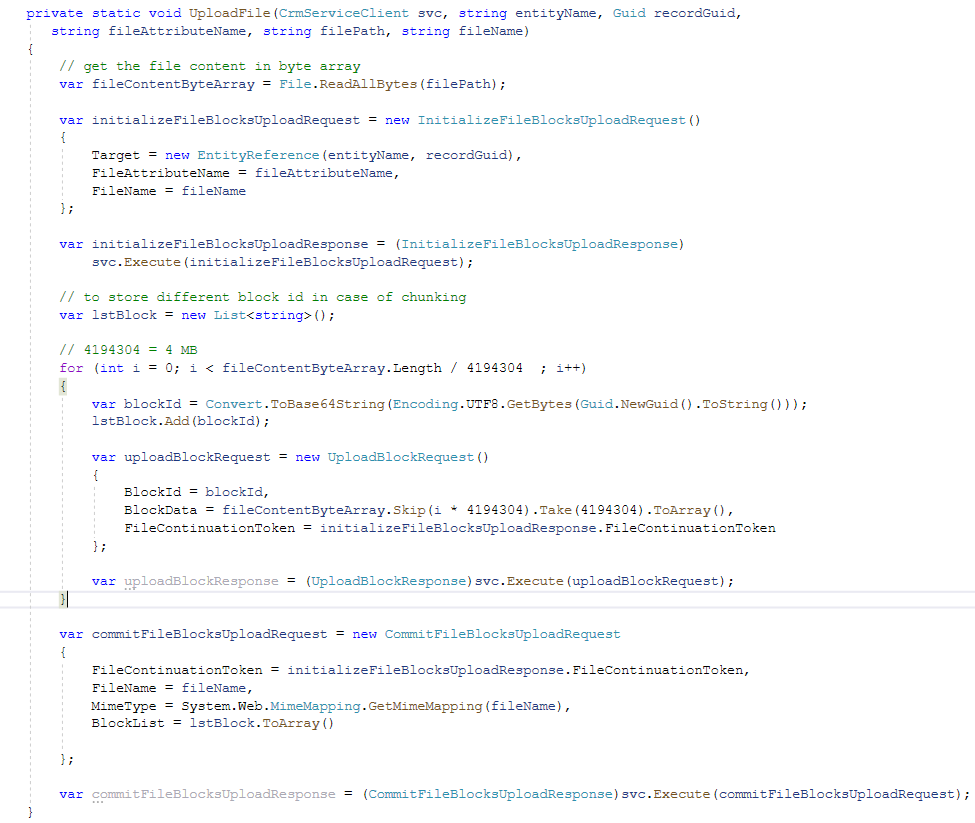
Sharing a sample code, we can use to upload a file to the File Column

Also read –

https://nishantrana.me/2021/10/01/using-file-and-image-data-type-in-dataverse-dynamics-365/

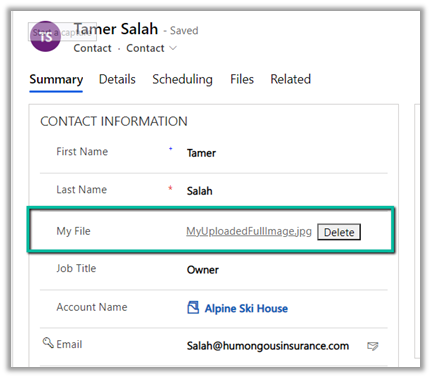
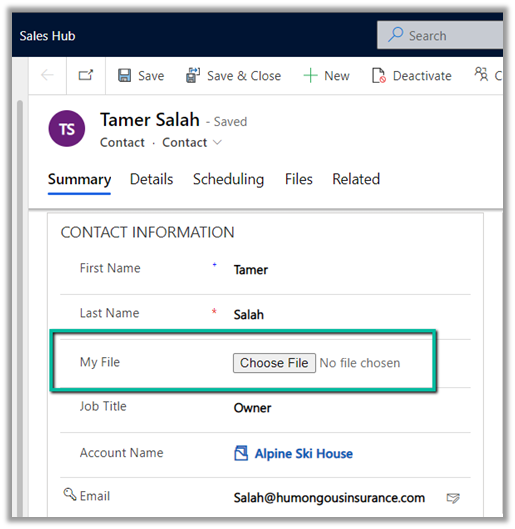
File Attribute

https://nishantrana.me/2022/03/14/how-to-download-file-from-file-column-using-initializefileblocksdownload-and-downloadblock-request-dynamics-365-crm-dataverse/

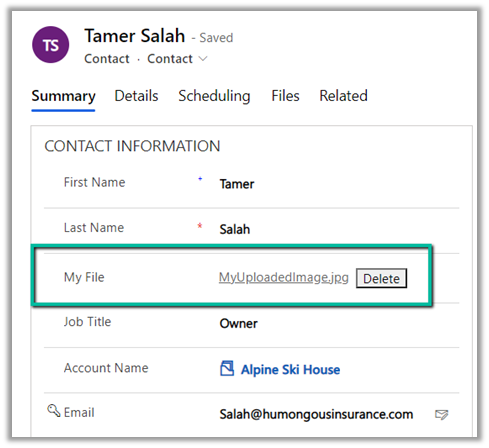
Here we would upload the below file to one of the contact records.

For file size more than 4 MB we need to implement chunking and combine the data before committing.

uploadimg

On calling the method –

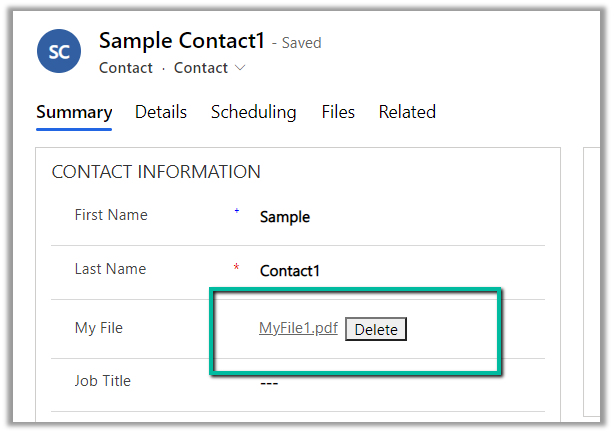
We can see the file uploaded to the contact record.

The restriction of using chunked upload for files greater than 16 MB has been removed, see the below code for full file upload. The chunking APIs are still kept for backward compatibility.

Example – .NET C# code for full file upload. (recommended way of uploading)

Hope it helps..
  private static void UploadFile(CrmServiceClient svc, string entityName, Guid recordGuid,
           string fileAttributeName, string filePath, string fileName)
        {
            // get the file content in byte array
            var fileContentByteArray = File.ReadAllBytes(filePath);

            var initializeFileBlocksUploadRequest = new InitializeFileBlocksUploadRequest()
            {
                Target = new EntityReference(entityName, recordGuid),
                FileAttributeName = fileAttributeName,
                FileName = fileName
            };

            var initializeFileBlocksUploadResponse = (InitializeFileBlocksUploadResponse)
                svc.Execute(initializeFileBlocksUploadRequest);

            // to store different block id in case of chunking           
            var lstBlock = new List<string>();         

            // 4194304 = 4 MB
            for (int i = 0; i < fileContentByteArray.Length / 4194304  ; i++)
            {
                var blockId = Convert.ToBase64String(Encoding.UTF8.GetBytes(Guid.NewGuid().ToString()));
                lstBlock.Add(blockId);
                
                var uploadBlockRequest = new UploadBlockRequest()
                {
                    BlockId = blockId,
                    BlockData = fileContentByteArray.Skip(i * 4194304).Take(4194304).ToArray(),
                    FileContinuationToken = initializeFileBlocksUploadResponse.FileContinuationToken
                };

                var uploadBlockResponse = (UploadBlockResponse)svc.Execute(uploadBlockRequest);
            }

            var commitFileBlocksUploadRequest = new CommitFileBlocksUploadRequest
            {
                FileContinuationToken = initializeFileBlocksUploadResponse.FileContinuationToken,
                FileName = fileName,
                MimeType = System.Web.MimeMapping.GetMimeMapping(fileName),
                BlockList = lstBlock.ToArray()

            };

            var commitFileBlocksUploadResponse = (CommitFileBlocksUploadResponse)svc.Execute(commitFileBlocksUploadRequest);
        }
Advertisements

How to – Download File from File Column using InitializeFileBlocksDownload and DownloadBlock Request (Dynamics 365/ CRM / Dataverse)


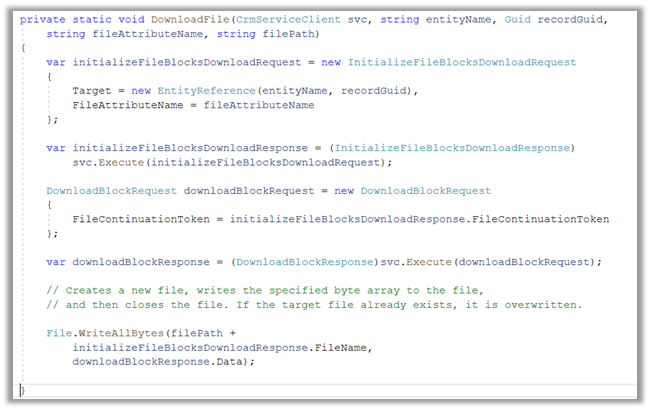
Sharing a sample code which we can use to download the file from the File Column

Also read –

https://nishantrana.me/2021/10/01/using-file-and-image-data-type-in-dataverse-dynamics-365/

File Attribute

Here we would download the below file uploaded to one of the contact records.

The sample code –

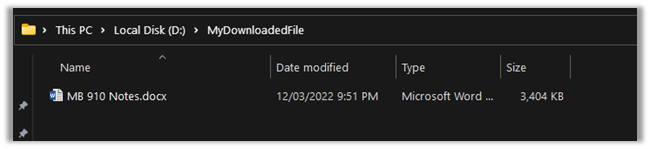
On calling the method –

We can see the file downloaded at the location specified

Here the file transfers are limited to a maximum of 16 MB in a single call. In case of more than 16 MB, we need to divide the data into 4 MB or smaller chunks, combine or join the downloaded data to form the complete file.

https://docs.microsoft.com/en-us/powerapps/developer/data-platform/file-attributes#example-net-c-code-for-download-with-chunking

Get more details – Retrieve File Data

*interestingly enough we didn't get any error while trying to download files with size more than 16 GB by using the DownloadBlockRequest

Hope it helps..
private static void DownloadFile(CrmServiceClient svc, string *interestingly enough we didn't get any error while trying to download files with size entityName, Guid recordGuid, 
            string fileAttributeName, string filePath)
        {
            var initializeFileBlocksDownloadRequest = new InitializeFileBlocksDownloadRequest
            {
                Target = new EntityReference(entityName, recordGuid),
                FileAttributeName = fileAttributeName
            };

            var initializeFileBlocksDownloadResponse = (InitializeFileBlocksDownloadResponse)
                svc.Execute(initializeFileBlocksDownloadRequest);

            DownloadBlockRequest downloadBlockRequest = new DownloadBlockRequest
            {
                FileContinuationToken = initializeFileBlocksDownloadResponse.FileContinuationToken
            };

            var downloadBlockResponse = (DownloadBlockResponse)svc.Execute(downloadBlockRequest);

            // Creates a new file, writes the specified byte array to the file,
            // and then closes the file. If the target file already exists, it is overwritten.

            File.WriteAllBytes(filePath + 
                initializeFileBlocksDownloadResponse.FileName, 
                downloadBlockResponse.Data);

        }
Advertisements

Fixed – User Presence not working – Customer Service Workspace / Omnichannel (Dynamics 365/CRM)


Recently while exploring Customer Service Workspace we could not see the presence being loaded for the users.

The first thing we need to check here is if the user has either the Omnichannel Agent / Supervisor role or Customer Service Representative role assigned. (it will not load even if you are a system admin or Omnichannel Administrator role only)

The next thing to check is the omnichannel record (Channel Integration Framework V2.0 Providers entity/table)

Check the value for the Channel URL field –

It should be

https://oc-cdn-ocprod.azureedge.net/convcontrol/ChatControl.htm?uci=true&clientName=zfp&cloudType=Public&env=prod&amp;ocBaseUrl=https://unq0c996fcff27241fb845216a48ece6-crm.omnichannelengagementhub.com&ucilib=https://org749544d7.crm.dynamics.com/webresources/Widget/msdyn_ciLibrary.js

Replace the first part in ocBaseUrl with your organization’s Unique Name (Customization > Developer Resources)

and second is the organization base url in the uclib.

If it still doesn’t work or gets stuck at 25 or 57 percent, check if you have security defaults enabled in the tenant if so either disable it.

Disable Security Defaults while login into Power Platform / Dynamics 365 – Nishant Rana’s Weblog

Or make sure the users have the multi-factor authentication set up on their account.

After we made sure all the above settings – we had the presence working for the users.

Get all the details here-

Troubleshoot issues in Omnichannel for Customer Service

Hope it helps..
Advertisements

Mind Map – Power Platform 2022 Release Wave 1 Overview


Check out the Mind Map for the 2022 Release Wave 1 Power Platform by Khoa Nguyen

https://dyncrmexp.com/2022/03/05/power-platform-2022-release-wave-1-overview/

Advertisements

Solved – Disabled Turn on unified routing option in Dynamics 365 Customer Service Hub


Recently while trying to provision Unified Routing from Dynamics 365 Customer Service Hub in one of our trial environments (Service Management >> Service Configuration >> Unified Routing – Turn on unified routing.),

even after providing the consent multiple times (by clicking on Provide consent, with Global Admin role)

it kept coming as disabled and kept asking for providing the consent.

Opening in in-private browsing or a different browser didn’t fix it.

Clearing the cache also didn’t help – Empty Cache and Hard Reload
https://nishantrana.me/2018/02/28/empty-or-disable-cache-while-working-with-web-resources-in-dynamics-365-chrome/

The trick that worked here was creating a workstream record

which also triggered the provision of Unified Routing 

And after our workstream record got created,

we could see the unified routing enabled successfully.

Hope it helps..
Advertisements

How to – Use Business Rules to Disable / Read-only fields in Editable Grid (Dynamics 365 / CRM)


In the previous post, we saw how to use Field Level Security and JavaScript to disable field/column in the Editable Grid Control.

How to – Disable / Read Only fields in Editable Grid control (Dynamics 365 / CRM) – Nishant Rana’s Weblog

We can also use Business Rules to achieve the same.

Here we will be disabling the email field.

Below is our sample business rule to lock the email field.

The result – we have the field locked/disabled in the editable grid control.

Couple of things we need to take care of

1st the field that we are using in the condition inside business rule, last name in our case, should be there in the view.

And the Scope of the Business Rule should be either – Entity or All Forms.

Also check  – https://nishantrana.me/2022/02/15/power-apps-grid-control-in-model-driven-apps-dynamics-365-crm/

Hope it helps..
Advertisements