How to – Use Power Apps Ideas (preview) to generate Power Fx Formulas.


Let us have a quick look at the powerful Power Apps Ideas feature with a few examples.

Power Apps Ideas feature works for –

  • Items property – Gallery and Data table control.
  • Data Sources – Microsoft Dataverse, Microsoft Lists, Excel, SharePoint.
  • Data Types – Text, Whole Number, Decimal Number, Date and Time, Choice, Boolean.
  • It is only available in environments in the US region with en-us as the browser’s default language.
  • Check the list of supported Functions

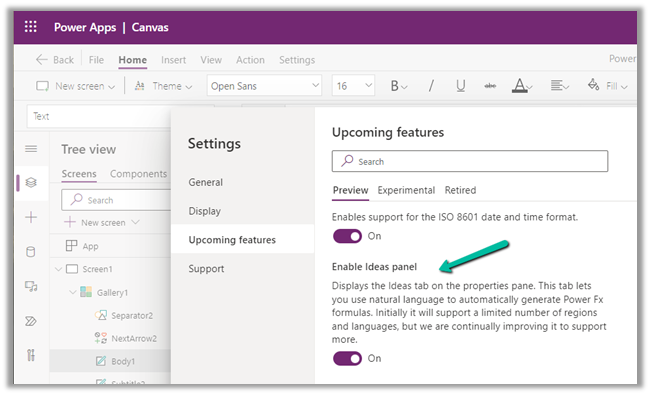
The feature can be controlled from the Settings within the App.

Let us check some of the examples of natural language transformation to Power Fx Formulas.

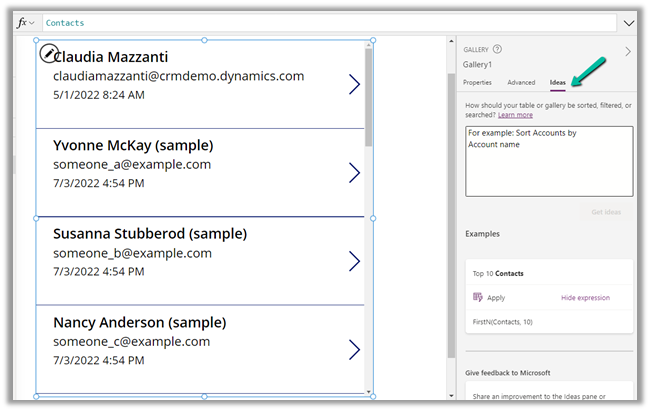
We have a sample canvas app with the gallery control bound to Contacts (Dataverse).

Select the Gallery control, and navigate to the Ideas tab.

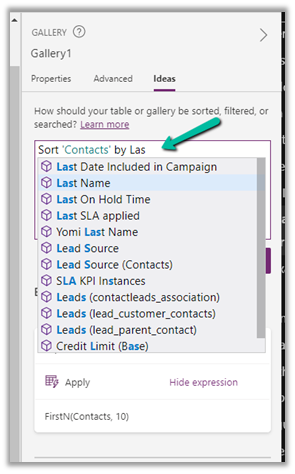
Let us first sort the contacts by Last Name. As we type we get the IntelliSense support.

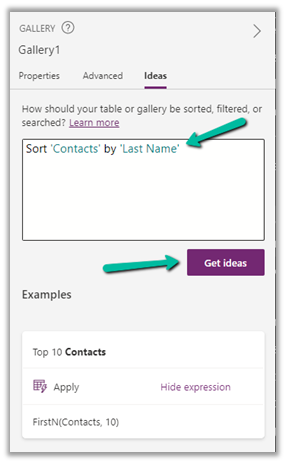
We have our condition ready to sort by Last Name now let us click on Get ideas.

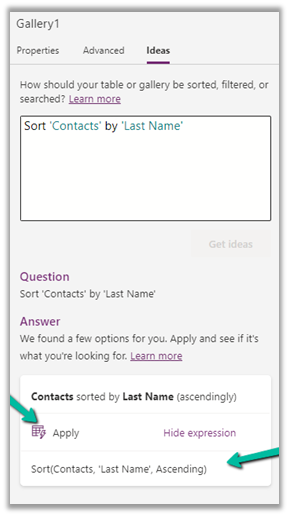
We can see the formula generated for the same. We can click on Appy to apply the formula.

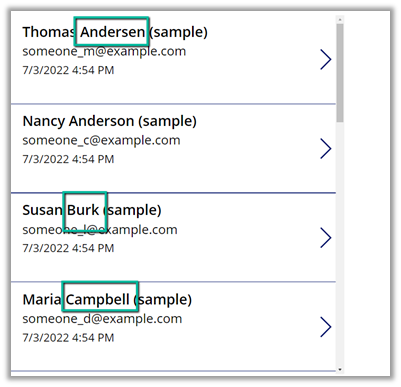
As a result of applying the formula, we have the contacts sorted by Last Name.

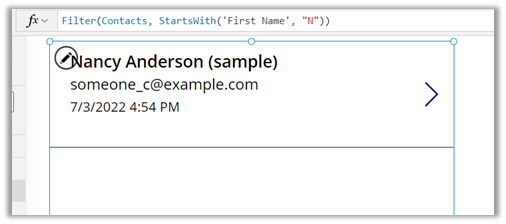
Let us try a filter – filter contacts where the first name starts with N.

On applying the formula, the result –

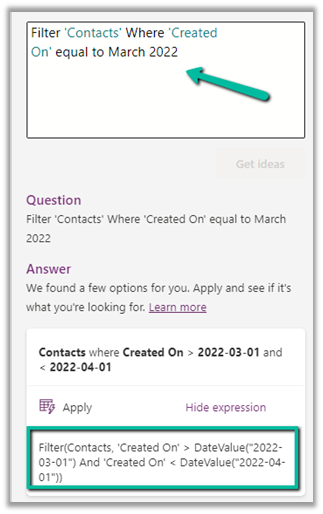
Another example of a filter based on Created On.

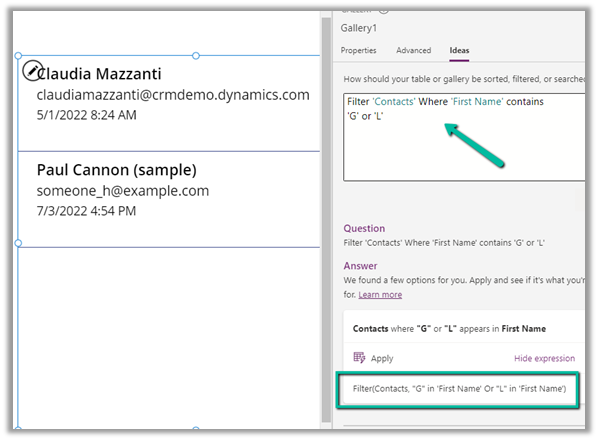
Filter based on text –

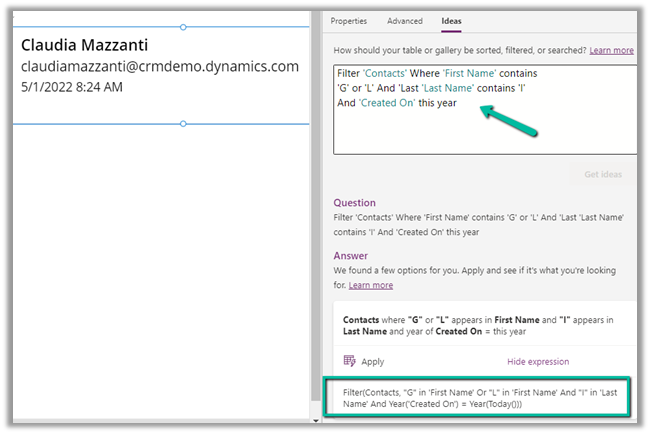
Filter with multiple And conditions –

At times we would have to tweak the generated formula to get the desired result if it is interpreted differently.

We saw the transformation of the natural language, now let us check the transformation of the examples to Power FX Formulas, for this let us select the fields inside the gallery.

As an example, if we only want the initials of the first and last name instead of the full name, we can change the name to the initials and click on Get Ideas.

Let us change it to C M, followed by selecting Get ideas and Apply.


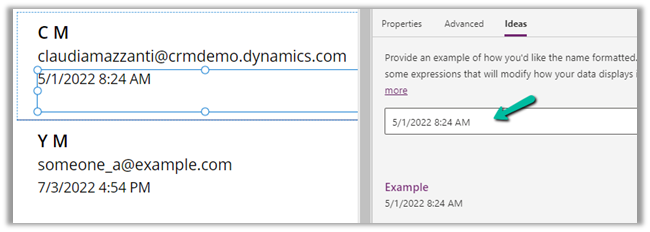
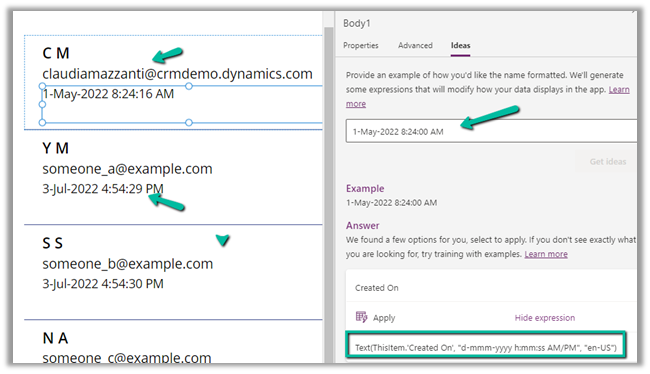
Next, let us change the date format to include the seconds part and the name of the month.

From –

Here we added the name of the month and the seconds in the example and clicked on the Get ideas, which generated the formula, followed by Apply.

We can see the result as expected.

Thus Power App Ideas make it easy for users to quickly apply the correct formulas using natural language and examples.

Get all the details here – Power App Ideas

Hope it helps..

Advertisements

How to – Add users to the Queue – using Manage NN relationships XrmToolBox Plugin and AddPrincipalToQueueRequest (Dynamics 365)


Recently we implemented Unified Routing for one of our projects, and as part of testing we were supposed to add multiple users to different queues (advanced queues in case of unified routing).

So we were looking for a way to do this either through any existing tool or programmatically.

Well, using the Manage NN relationships XrmToolBox plugin we can add users to the queue.  (Thanks to Prashant for suggesting this)

Just as an example, we want to add the below users

to the following Queue named Test, which currently has only one user added to it.

Below is the sample CSV file we have created having the name of the Queue and the email id of the users to be added.

Now let us open the Manage NN relationships tool and specify the appropriate values there.

Here we have specified the First Entity as Queue and the Second Entity as System User.

For Queue we have selected Name and for System User, we have specified Primary Email as the attribute to be considered while importing the data.

Click on Browse and load the file, followed by a click on the Import button to start the process.

As we have received the Success result, let us refresh our Queue to see if the users were added to the Queue or not.

As expected we can see the users added to the Test Queue.

We can also add users programmatically by using the AddPrincipalToQueue Request class.

We need to populate the Principal and QueueId property as shown below.

More on AddPrincipalToQueueRequest.

Hope it helps..

Advertisements

How to – Show only relevant activities in the New Activity drop-down – Dynamics 365


Let us understand this new feature released as part of 2022 Release Wave 1 with a simple example.

Here we have opened the New Activity drop-down list for an existing lead record within Dynamics 365 Sales Hub.

We can see around 15 activities listed there.

Now let us enable the feature. Navigate to

Environments > [Your Environment] > Settings > Features

Scroll down to the bottom, toggle the switch on and save the changes.


As expected now we see only 4 activities listed, that were added in the Sales Hub App appearing there.

Now let’s edit the Sales Hub app and add a new activity table e.g. letter there

Save and Publish the changes

As expected we can see Letter in the New Activity drop-down list.

Now let us open an existing contact record and check.

As expected it is the same for the contact record with the Sales Hub.

Just to confirm let us open the contact record from Dynamics 365 Customer Service Hub.

As expected it shows a different list. It doesn’t show the Letter activity as the letter was added to Sales Hub and shows Service Activity in the drop-down.

Get the details here

Hope it helps..

Advertisements

10 highlights of 2022 Release Wave 2


Must read !

carinamclaesson's avatarCarina M. Claesson

How time flies! 2022 Release Wave 2 plans are already here. The Release Plans describe new functionality planned to be rolled out from October 2022 to March 2023. In this post I have picked 10 features that I want to highlight from the Power Platform release plan. Remember that the plans are living documentation, features can be added or removed and dates might change. It’s time to prepare for the wave and let the plans give you 💡 for future solutions!


View original post 1,032 more words

Import Data (Import Data Wizard) – Few key points


Let us understand a few points about the Import Data feature with a simple example –

Say for example we have exported the following 4 records.

The exported file will have the view name along with the timestamp.

The exported file – 

It has 3 hidden columns that allow for re-import of these records possible.

1st column contains the GUID of the record, the second contains the Row Checksum which it uses to make sure to update only those records or rows which are changed, and the 3rd column is Modified On which it uses to track if the record has been modified since it was exported.

Now let us update one of the records we exported inside CRM.

On importing the same file,

as expected we get 1 failure.

Error message – “You cannot import data to this record because the record was updated in Microsoft Dynamics 365 after it was exported” for the same record which we updated inside the app.

Now let us update one of the records (which has a possible duplicate) and re-import the file.

During import, we have let the Allow Duplicates settings be default i.e. No.

This time also apart from the previous error we get one partial failure.

The error message says – “A record was not created or updated because a duplicate of the current record already exists.

This is because the record that was modified and imported was having another record having the same email id, triggering our duplicate detection rules. Also, we had specified Allow Duplicates as No while importing the file.

This time let us set Allow Duplicates as Yes and try the import with the same file.

As expected there was no partial error this time.

And the record got updated this time.

Another point to remember is if we export and import the file without any changes, or for the rows with no modification, it will not perform any action, i.e. trigger a create/update for any of the records.

For tracking the changes, as we mentioned earlier it uses the Row Checksum column’s hash value.

Now let’s update the GUID of the record in the 1st row (changed b to c in the end) and the modified date (changed to 55 from 53 minute part) for the 4th row and see the results.

As expected both these records failed – 1st one where we changed the GUID with the error message – “The record could not be updated because the original record no longer exists in Microsoft Dynamics 365” and the 4th row with the error that “You cannot import data to this record because the record was updated in Microsoft Dynamics 365 after it was exported” as we had changed the Modified Date in the imported excel file.

Lastly, let us restore the original value of those 2 fields of the hidden columns and try the import to see the results.

As expected we do not get any error for those 2 rows as we had restored the original value.

  • For .zip files 32 MB is the max size limit for other file types i.e. xlsx, csv, txt and xml it is 8 MB.

G

  • Microsoft recommends import to be limited to 20K rows or fewer.

Just in case we are interested to see how the data validation works especially for the option set field in the exported excel file from CRM.

Select the field in excel and open the Data Validation from the Data tab, which refers to the hiddenSheet.

To see the hiddenSheet, right-click the worksheet and select the View Code option.

It opens the VBA window, where we can select the hiddenDataSheet object and change its Visible property to -1-xlsSheetVisible.

Back in our excel, we can see the hiddenSheet visible and the values of our option-set fields.

Hope it helps..

Advertisements

Duplicate Detection for leads (Preview) – Dynamics 365 Sales


Few key points on the new duplicate detection rules (preview) –

  • This new Duplicate Detection feature is available only for leads.
  • This can be enabled from Dynamics 365 Sales app. We need to navigate App Settings >> Data ImprovementDuplicate Detection (preview) to enable this feature.

It identifies duplicate leads based on –

  • Email address
  • Phone number
  • Similar name and company name (e.g. John Denver from Contoso and John Danver from Contoso. inc)
  • Similar name and the same email domain ( John Denver, JR@contoso.com, and John Danver, SalesExecutive@contoso.com)

It uses Dataverse Search for detecting duplicates.

  • It works along with the already existing duplicate detection rules set through Settings >> Data Management >> Duplicate detection rules


  • It takes around a couple of minutes for the setting to get enabled. Also, we get the message that data is getting prepared and it might take a few hours and up to a few days for it.


After this new detection rule is enabled, we can select the potential duplicate lead record and select the View duplicates option from the command bar.

This opens the Duplicate records page, with the duplicate records listed.

It also highlights the field based on which it identified the duplicate record. Email and the name in this case.

  • We have the option to Remove and Delete the selected duplicate record(s).

We get the same options when we open the record which has possible duplicate records as a notification on the form.

Clicking on View possible duplicates open the same duplicate records page.

Get all the details here

Hope it helps..

Advertisements