Resolved – Request to XRM API failed with server error: ‘Message: Timeout occurred when calling the XRM api’ Code: InnerError: Type: System.Threading.Tasks.TaskCanceledException Message: A task was canceled in Power Automate


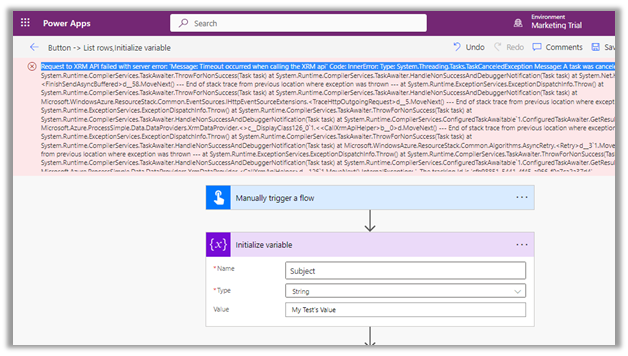
We were getting below Timeout error while trying to save our Power Automate flow.

Request to XRM API failed with server error: ‘Message: Timeout occurred when calling the XRM api’ Code: InnerError: Type: System.Threading.Tasks.TaskCanceledException Message: A task was canceled. 

It could be because of some issues at the product end – some outage or server load. It lasted for around 15-20 minutes for us, after which we were able to save and test our flow successfully.

Hope it helps..

Advertisements

Power Automate: Share Record using Unbound Action


miraghaly's avatarMG

Sharing Records in CDS/ Dynamics CDS automatically based on a specific action??!!! we used to write Custom Workflow Activity or some kind of plugin to Achieve it which may take some hours to develop deploy and Fix.

Well ! NO CODE 1 Step workflow can achieve this!

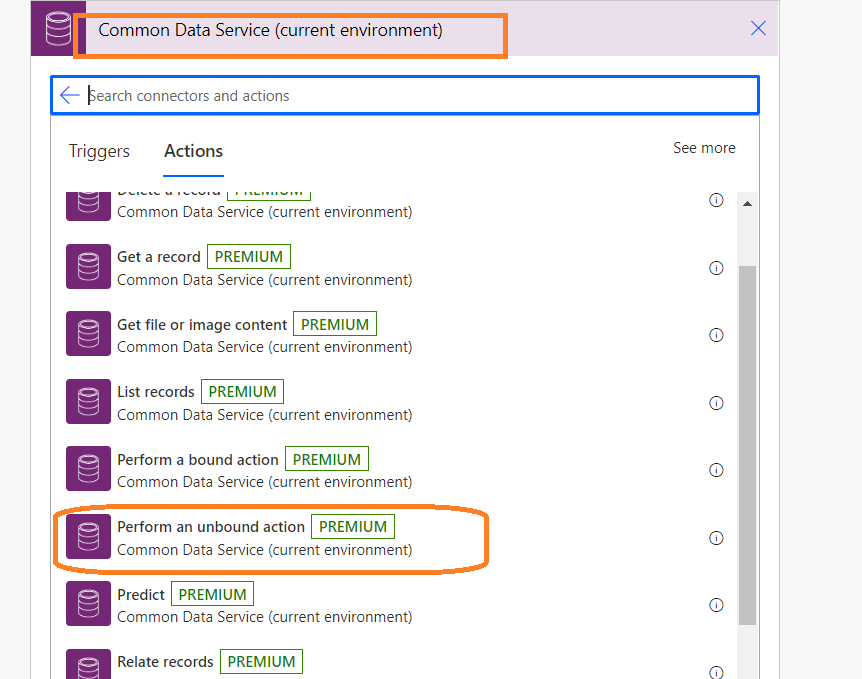
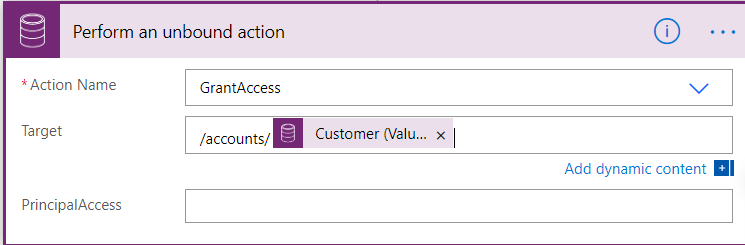
  1. By using the Common Data Services ( Current Environment) -> Select Perform Unbound Action

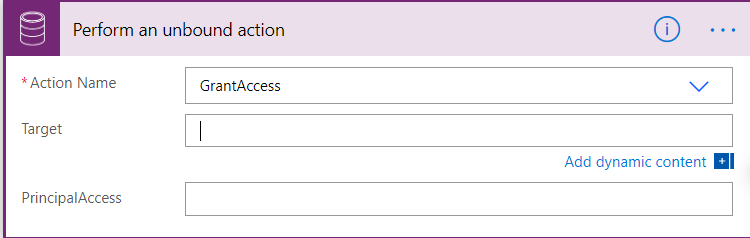
2. Choose Grant Access

3. Now the Target should be  entitylogicalname-plurarl(recordid) or entitylogicalname-plurarl/recordid , record if will be pulled from the Dynamic Contents Property

4. PrincipalAccess which needs to be in JSON format, which will include user or team to which the access will be provided and the Access Mask for the Privilege they will be given.

Principal Access for Team:

{
"Principal:"
{
"teamid":"",
"@@odata.type":"Microsoft.Dynamics.CRM.team"
},
"AccessMask":"ReadAccess"
}

Principal Access for User:

{
"Principal" : 
{
"systemuserid":"@{triggerOutputs()?['body/_createdby_value']}",
"@@odata.type":"Microsoft.Dynamics.CRM.systemuser"
},
"AccessMask":"ReadAccess"
}

Below is the list of…

View original post 99 more words

Plugin registration profile record not getting created – Dataverse / Dynamics 365


Recently while trying to debug a plugin with Persist to Entity mode on the update step, we didn’t find any profile record getting created.

One option is to try to reinstall the profiler. This could happen when we are using a different version of the plugin registration tool and it has the Profiler already installed/configured from the other version of the tool.

If that doesn’t help, then opt for Exception mode, that has always worked.

Hope it helps..
Advertisements

How to – Enable inbox for agents in Dynamics 365 Customer Service Workspace / Omnichannel


Inbox view in the agent workspace allows agents to quickly perform a preliminary assessment of the service requests coming from different channels for a timely response. Agents can view cases, conversations, and activities assigned in the inbox tab.

To enable inbox for the agents, inside the Customer Service admin center

Navigate to Agent Experience >> Workspaces >> Agent Experience profiles >> Manage


We can create new profiles or can add users to any of the existing profile that has inbox enabled

E.g. Customer Service Trial profile has the inbox enabled.

Below is the agent experience profile record, that doesn’t have inbox enabled.

Let us add one of the users to the below profile.

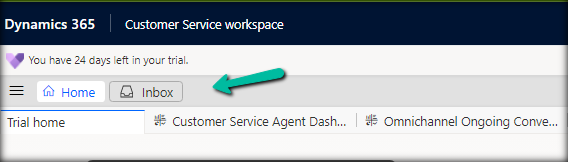
The Customer Service workspace before the user’s inbox is enabled. We can only see the Home tab.

After adding the user to the profile.

The agent can see the Inbox tab.

The agents can see the views configured in the profile inside the inbox tab.

Read more about Configuring the Inbox

To learn more about Voicemail- https://neilparkhurst.com/2022/11/08/omnichannel-for-customer-service-voicemail/

Hope it helps.

Advertisements

Manage Custom Presence – Dynamics 365 Customer Service (Omnichannel)


To manage presences, navigate to Customer Service Admin Center >> Agent Experience >> Productivity >> Custom Presence

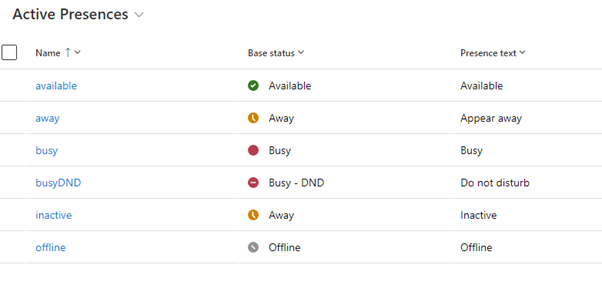
Out of the box we have the following presences.

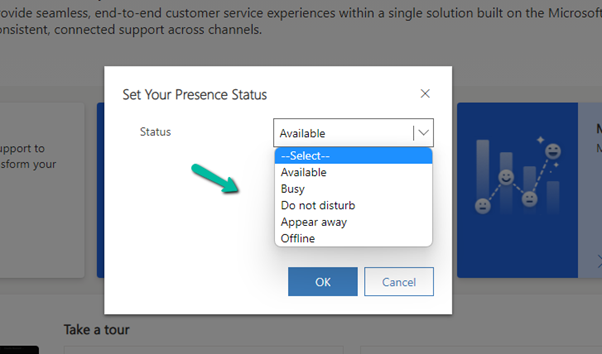
Only the below presences will be available for the agents to select.

The inactive and offline statuses will be automatically set by the system.

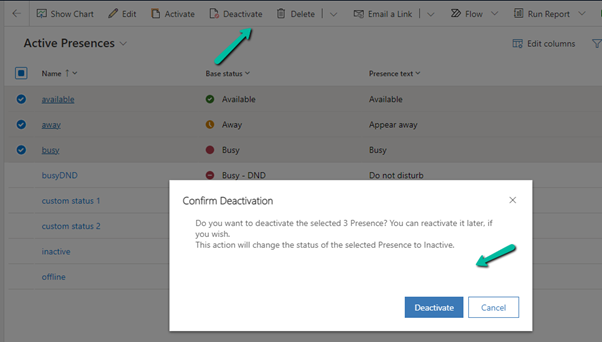
Although we can deactivate the presence, that doesn’t remove it for the agents.

The agents can still see all the presence statuses.

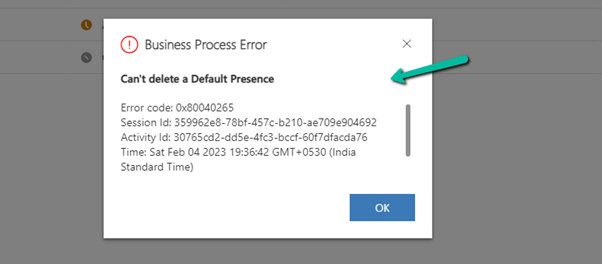
We cannot delete the default presence; we will get the below error if we try to delete them.

We can edit the Presence text for the default presence.

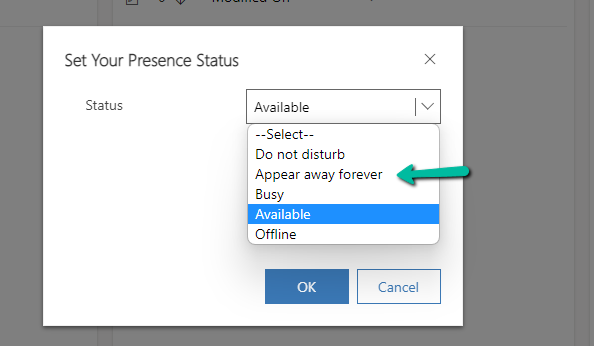
For the agent –

We can create custom presences that are based on the existing base status.

For the agents –


Unlike default presence, we can delete the custom presence status.

Hope it helps..

Advertisements

How to – enable marketing interactions in lead and contact timeline – Dynamics 365 Marketing


To view marketing interactions, we need to add a custom connector to the timeline of the lead and the contact form. This step is only required if we are using custom forms and not the out-the-box marketing forms for lead and contact.

The OOB Form already has this connector defined.

Open the form for customization, select the timeline control, scroll down to Advanced >> Additional Settings >> Custom connectors, and click on Add connector.

Specify Constructor and Resource Path and save the record.

  • Constructor: msdynmkt_DynamicsMktTimelineInteractionAnalytics.TimelineInteractionAnalyticsResource
  • Resource path: msdynmkt_DynamicsMktTimelineInteractionAnalytics

Save the form and publish it.

We can see the marketing interactions being displayed in the timeline.

Hope it helps..

Advertisements