Enable / Disable (turn on / off) multiple business rules – Dataverse / Dynamics 365


Within the Maker Portal, we can only turn on / turn off one business rule at a time.

If we select multiple business rules, we do not see that option.

Here we can make use of XrmToolBox’s Bulk Update Plugin.

Get the required business rules, using the FetchXML and use the Set State option to update the status of the business rule.

Here Category = 2 is Business Rule and Type = 1 is Activated.

The other values for type are Definition and Template.

Get more details on the type – https://sachinbansal.blog/2018/05/02/error-while-deactivating-workflows-should-be-exactly-1-messageprocessingstep-registered-for-workflow-dynamics-365/

We can also use the Advanced Find editor to activate/deactivate the business rules.

We can see our business rule activated.

Similarly, we can enable and disable multiple cloud flows –

Hope it helps..

Advertisements

Use Sales Copilot to prepare for upcoming meetings


Sales Copilot can help salespersons prepare for upcoming meetings using the “Prepare for upcoming meetings / Prepare me for today’s meetings” prompt.

Make sure you have Sales Copilot enabled.

Navigate to Sales Hub >> App Settings >> Copilot (General Settings)

Check the “Try our newest preview features before they’re rolled out to everyone” option and select the Apps on which we want to enable the copilot.

Within Sales Copilot, we could select the prompt “Prepare me for today’s meetings

or select the Sparke Icon and select “Prepare for upcoming meetings

Copilot will list down the appointments in the next 24 hours.

Select one of the appointments and click on Prepare.

The Copilot will generate the summary using the notes from the last 3 months and recent emails from the Regarding record of the appointment.

Check other posts on Copilot –

Hope it helps..

Advertisements

Business Rules in Bulk Edit and Import (Dataverse / Dynamics 365)


Let us see an example of a Business Rule with scope as Table (Entity) triggering on Bulk Edit as well as Data Import.

Below is our Business Rule – It shows the error message if the First Name is equal to the Last Name of Contact.

Here we are bulk updating the contact records and setting the last name same as the first name.

We can see the exception being thrown.

Below are the exception details –

Now let us try exporting/importing these records by setting the same value for both the first name and last name fields.

On Importing the Excel, we can see the records as partially failed.

We can see our error message in the Failures tab of the import record.

Similarly, let us check another Business Rule that sets’s description value based on the value of the First Name field.

Below we are bulk updating the contact record’s first name field.

We can see the Description field updated.

Now let us try the export and import of some of the records after updating its first name

Before –

After –

The import record status shows success

As expected that triggered the business rule

Hope it helps..

Photo by Monstera Production on Pexels.com
Advertisements

The webhook call failed because the Http request timed out at client side. Please check your webhook request handler – Dataverse / Dynamics 365


Recently we were getting the below for one of our webhooks registered on Update of lead.

Exception Message: The webhook call failed because the Http request timed out at client side. Please check your webhook request handler.

To test the timeout, we created a below Microsoft Flow with HTTP trigger, Delay and actions to be used as Webhook.

Helpful post – https://d365demystified.com/2021/11/23/call-flow-from-webhooks-in-dynamics-365-crm-power-automate/

Let us register this through the Plugin Registration tool.

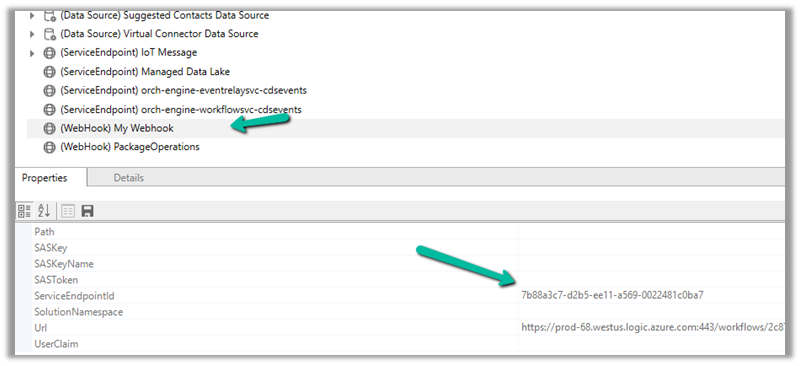
We can get the values from the HTTP Post URL Generated.

For the Endpoint URL, enter URL Path and use Params for Key and Values.

Register the synchronous step on the update of the lead for the webhook

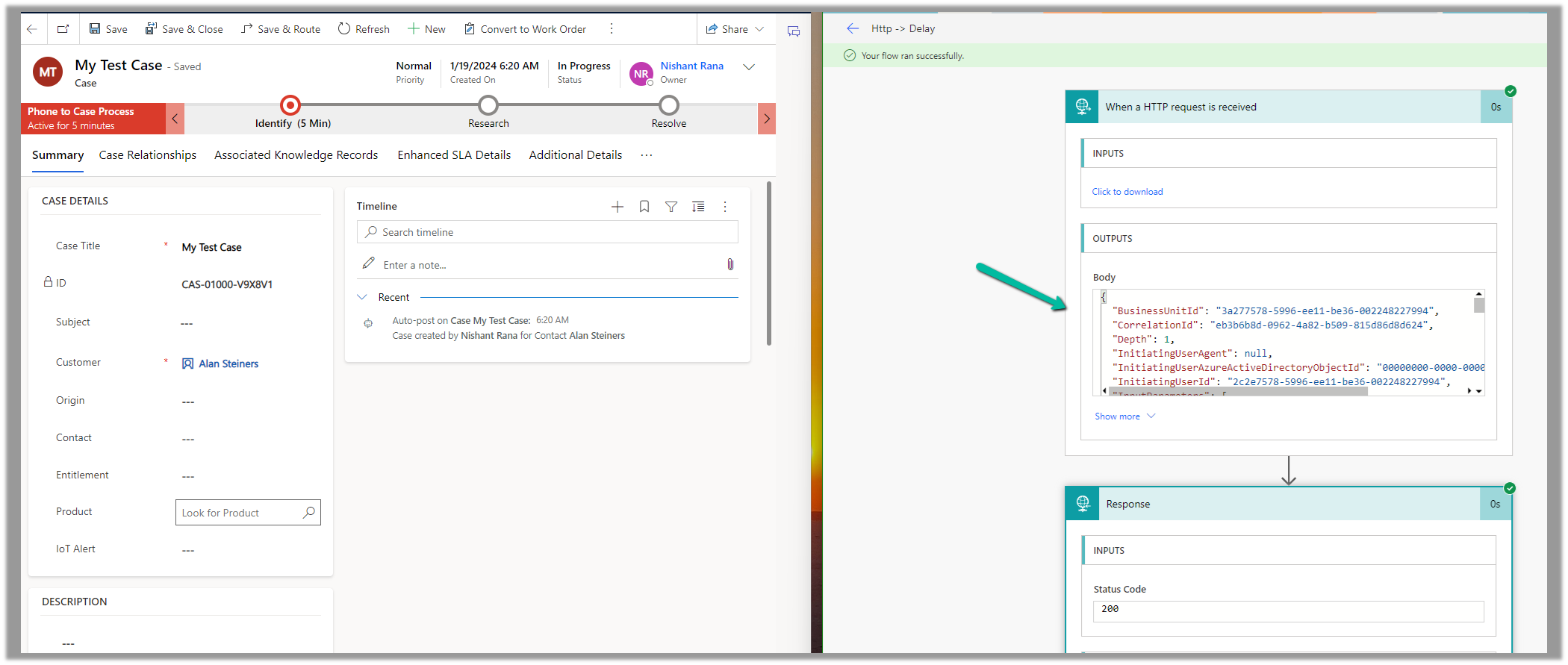
Let us trigger the flow, right now we have Delay set as 10 seconds.

The flow runs successfully as expected.

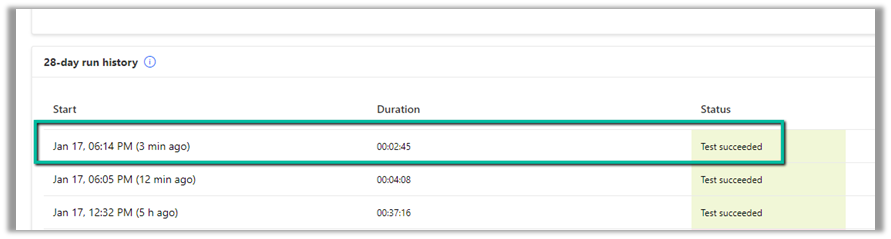
Now let us update the delay to 61 seconds and trigger the flow again by updating the lead record.

As expected we get the time-out error this time.

The same is the case if we register the plugin step asynchronously.

For the asynchronous step, we can check the corresponding system job for the error.

https://learn.microsoft.com/en-us/dynamics365/customerengagement/on-premises/developer/use-webhooks?view=op-9-1#possible-causes-for-failure

Hope it helps..

Advertisements

The user cannot write data to this table, only the integration users may write data to this table – Dynamics 365 Project Operations


We configured the Project Operations app in one of our Dataverse Environments, and while creating a Company record we got the below error.

Exception Message: OrganizationServiceFault Microsoft.Xrm.Sdk.InvalidPluginExecutionException: “The user be60d0fd-778e-ee11-be36-00224893a88b cannot write data to this table, only the integration users may write data to this table.” At Mcrosoft.Dynamics.FOCommon.Plugins.Services.ReadonlyEntityService.PreModify(LocalPluginContext localcontext) at Microsoft.Dynamics.FOCommon.Plugins.PluginBase.Execute(IServiceProvider serviceProvider)

Plugin: ExceptionFromPluginExecute: Microsoft.Dynamics.FOCommon.Plugins.ReadonlyEntityPreModify


The error is because the system doesn’t allow creating a Company in the Dataverse / Dynamics 365 Project Operations App. Ideally, it has to be created at the F&O end and integrated with the Dataverse Environment.

Company Concept in Dataverse

The steps to setup / initialize the company data

https://learn.microsoft.com/en-us/dynamics365/fin-ops-core/dev-itpro/data-entities/dual-write/bootstrap-company-data

This was because we had unintentionally installed the dual-write application orchestration package that installs multiple solutions in their Microsoft Dataverse environment, which added the company table.

https://learn.microsoft.com/en-us/dynamics365/project-operations/environment/resource-manual-deploy-dataverse-dualwrite

So one option is to remove the Dual Write solutions installed in that environment.

https://learn.microsoft.com/en-us/dynamics365/fin-ops-core/dev-itpro/data-entities/dual-write/uninstall-solutions

As mentioned, for Dynamics 365 Notes we got the below error, for which we need to raise a Support Ticket.

Luckily in our case, we had just created the environment a few days back, so had the option to Reset it. So we eventually took the path of resetting the environment with the Project Operations app selected.

Hope it helps..

Advertisements

Fix – This portal has multiple website bindings, which will cause issues with the portal (Power Pages)

Recently we updated the Site Details like the Site Name and Site URL of a particular Website (Power Platform Admin Center >> Resources >> Dynamics
365
apps, Select the Website and choose Manage)

After which we started getting the below error message –

“Error: This portal has multiple website bindings. which will cause issues with the portal. Delete extra website binding records for this portal in the attached Dynamics 365 Organization.”

This was caused because of multiple active website binding records.

To fix it, open the corresponding Portal Management
app of the corresponding Dataverse / CRM environment.

Navigate to Website >> Website Bindings

Delete or deactivate the extra binding records leaving just one Active record to fix this issue.

Hope this helps..

Advertisements