Unexpected error (SQL Timeout error) while trying to delete Audit Log


Unexpected error (SQL Timeout error) while trying to delete Audit Log

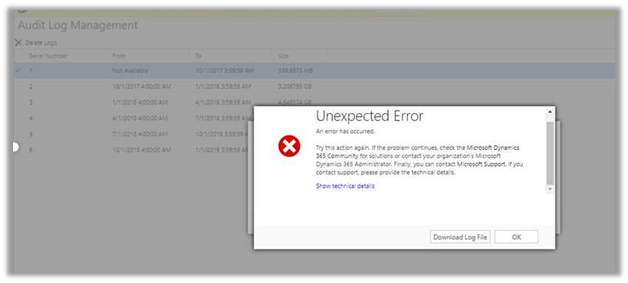
We had around 200 GB of Audit Log data in our Production Environment (Online), but while trying to delete it through Audit Log Management resulted into unexpected error.

The only option is to raise the support ticket with Microsoft. We also raised the same but it unfortunately resulted in our Production Server being down for brief period of time because of time out issue while performing the operation in Audit Base.

So, in short if we are facing issue while deleting log ourselves, we need to raise the support ticket and also the plan the same during downtime or weekends when users are not using the system.

Hope it helps..

How To Access Master & Duplicate Record In Merge Operation Plugin


Rawish Kumar Prajapati's avatarPassion Dynamics

Here is a quick blog on how to access master & child records during a Merge operation in a plugin.

I recently had to develop a plugin where in I needed to do some manipulation with the records being merged.

You can access three entities in your plugin when a record is merged from Context.InputParameter : 

       1. SubordinateId – the duplicate record
       2. Target – the master record
       3. UpdateContent   – a temp entity contains the final attribute as outcome of the merge operation.

To Access them in the code simply do this:

Entity duplicate = context.InputParameters[“SubordinateId“]; // To access the duplicate record simply retrieve the attributes using service.retrieve and by proving the duplicate.Id.

EntityReference target= (EntityReference)context.InputParameters[“Target“];

Entity finalRecord = context.InputParameters[“UpdateContent“]; //To access the final record simply retrieve the attributes using service.retrieve and…

View original post 10 more words

Requesting the backup of Microsoft Dynamics 365 Online Database


In theory, requesting the backup of the online database seems very easy and straightforward. We basically need to raise a support ticket with Microsoft and provide the following details.

  • SQL Version – Standard or Enterprise
  • SQL Year of the version. In our case it was (Microsoft SQL Server 2016 (SP1) (KB3182545) – 13.0.4001.0 (X64) Oct 28 2016 18:17:30 Copyright (c) Microsoft Corporation Standard Edition (64-bit) on Windows Server 2016 Datacenter 6.3 <X64> (Build 14393)
  • Global Admin E-mail Address – to who the backup will be shared.

We had requested the same, some 3 weeks back. In our case, the Database size of our production was around 600 GB out of which 200 GB were occupied by Audit Data. For some business-specific reason, we wanted to have the backup of Audit Data with us before we delete it. Now, this Audit has a separate story with it, when we tried deleting it from UI we got the SQL Time Out issue and on raising the support ticket when Support Team tried the same through back end it, resulted in our Production Server being down briefly for few minutes. We also tried to take the back up through 3rd party tools using SSIS, however again we ran into some issue where the tool was not able to pull the Audit Data for few of the entities.

Well to cut the story short, it is around 21 days after we raised the request, and we are yet to receive the backup of our production database, we have been told that support team is actively working on it and it is because of the large size of the organization.

Will keep posting the update on the backup and the Audit deletion.

The purpose of this blog post was to share that certain things might seem straightforward and would have taken maximum few hours, could still run into issues and challenges causing delays. So, when we plan for it we need to aware of these factors as well.

Hope it helps..

Azure: Execute Stored Procedure using Azure Data Factory


Ajit Patra's avatarAjit Patra

In this blog post, we’ll see how to execute Stored Procedure in Azure SQL Database inside Azure SQL Server. Let’s go through the steps to see it in action.

  • Login to Azure Portal.
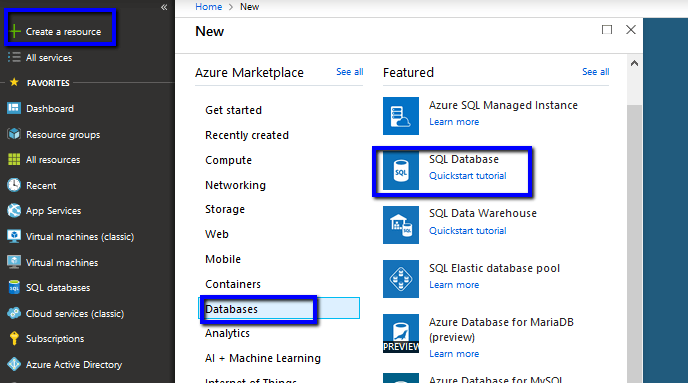
  • Click Create a resource –> Databases –> SQL Database.

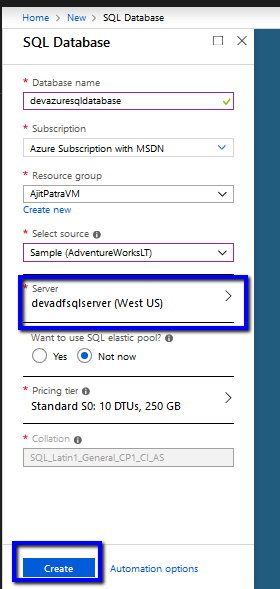
  • Give a unique name to the Azure SQL Database. Click on Server field to create Azure SQL Server on the fly. 
  • Give a unique name to the Azure SQL Server, provide credential for login and click Select.

  • Make sure the Azure SQL Server that we just created is selected as Server while creating Azure SQL Database. Fill the mandatory fields and click Create.

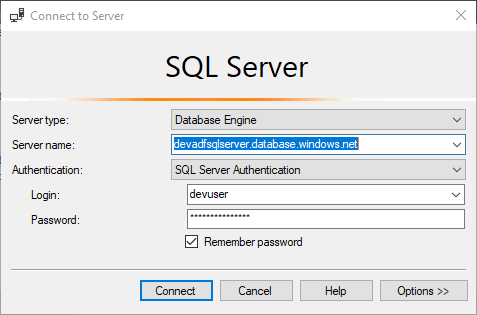
  • Let’s connect to the Azure SQL Server using SSMS. On clicking Connect a new pop up will open where we need to put Azure subscription credential to login.

  • Using Azure subscription credential we need to create a firewall rule so that…

View original post 272 more words

SSIS and Microsoft Dynamics 365


Listing down the posts on SSIS and Microsoft Dynamics 365 for quick reference

Advertisements

Using Azure Bot Service to create Bot


Using Microsoft Bot Framework

Azure Bot Service is an integrated environment that allow us to easily register, build, deploy our bots. It provides the required components and hosting environment for creating bots through Bot Builder SDK using either C# or JavaScript and connector service to connect to various channels.

Login to Azure Portal.

https://portal.azure.com

Search for Web App Bot

We have selected Basic Bot template.

After the Bot Web App is created, we have the option to either Download Bot Source Code to keep developing using Visual Studio or we can open it in online code editor.

Online Code Editor allows to update the source code within the App Service Editor
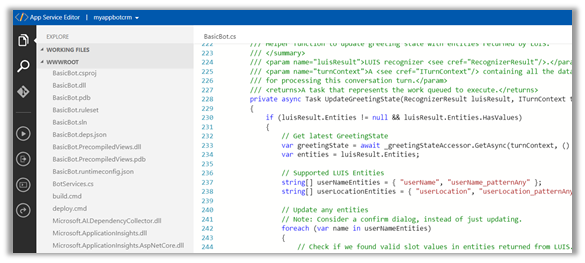
As the basic bot app template uses the Language Understanding Intelligent Services, we can log on to the Luis

https://www.luis.ai/welcome

There we can see the app.

With all the corresponding Intents, Entities and Utterances.

To test the bot either we can either download the emulator for testing locally or can test online using Web Chat.

Select Test in Web Chat

After we have tested it, next we add channel to our Bot, here we will add Skype.

Below are some of the configuration that can be applied for Skype.

Messaging gives the option of enabling the messaging, Calling let us to enable calling, groups allows us to add the bot to groups and Publish option allows to publish the bot and also submit it for review if it to be used by more than 100 contacts as shown below.

Clicking on Save publishes the bot and we can see the Skype added as one of the channels.

Click on Skype icon to add it to skype.

Add to contacts will add it to Skype and can start our conversation.

Hope it helps..