Fixed – Remote Server returned ‘550 5.7.708 Service unavailable. Access denied, traffic not accepted from this IP – using Send Email with Option in Power Automate


While trying to send an email using Send an email with options action in Power Automate to my email id from a trial account, got the access denied error message.

Check out the wonderful post on sending Approval Emails to external users 

https://debajmecrm.com/approvals-with-external-users-in-power-automate-without-consuming-power-automate-flow-license/

The error message –

The cause of this issue was because we were using the trial tenant.

https://docs.microsoft.com/en-us/exchange/mail-flow-best-practices/non-delivery-reports-in-exchange-online/fix-error-code-5-7-700-through-5-7-750#57708-access-denied-traffic-not-accepted-from-this-ip

Seems like the resolution is to contact support for an exception till we purchase the license.

Check the below post – 

https://blog.thenetw.org/2019/10/31/remote-server-returned-550-5-7-708-service-unavailable-access-denied-traffic-not-accepted-from-this-ip/

Hope it helps..

Advertisements

Delete the current (active) partition in Audit – Dynamics 365


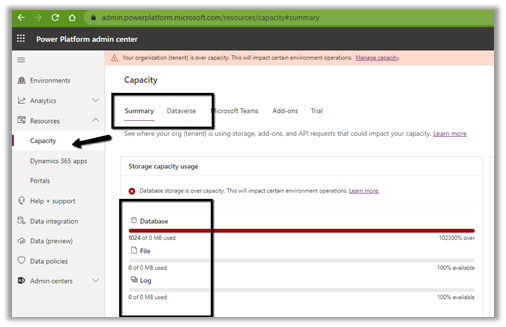
We recently exceeded log storage capacity for our Power Platform environment

We can check the same at Resources >> Capacity inside the Power Platform admin center.

One of the sandbox environments had the most Log Usage

https://docs.microsoft.com/en-gb/power-platform/admin/legacy-capacity-storage#capacity-page-details

We deleted the plugin trace logs and all the audit partitions (except the active/current one, which the system doesn’t allow)

If we try deleting the current active partition, we will get the below error –

Microsoft.Crm.CrmException: You cannot delete audit data in the partitions that are currently in use, or delete the partitions that are created for storing future audit data.

The partitions are created on quarterly basis each year –

1 Jan – April, 1 April – July, 1 July – October, 1 Oct – January

Even after deleting the plugin trace logs and the partitions, we didn’t see any change in the storage capacity usage. So we raised a Microsoft Support Ticket and were informed by the team that they can delete the active partition for us, and it could take around 3 days. As that was a sandbox environment and we had no use of Audit data we went ahead and the Support Team deleted the active partition for us. (Also there was some issue in our data center with regards to the recalculation of the storage and it took few more days for that change to reflect inside the Capacity page of Power Platform Admin Center).

This way we were able to reclaim some of the log storage.

So basically we just need to raise Microsoft Support Ticket and request the same.

More on Audit

Also check the new process for deleting audit logs –

https://docs.microsoft.com/en-gb/power-platform/admin/free-storage-space#method-10-delete-audit-logs—new-process

Select audit logs to delete.

Hope it helps..

Audit Entity / Table – Few key points (Dynamics 365 / Power Apps)


In the earlier post we looked at different ways of extracting Audit History data.

Extract Audit Historyhttps://nishantrana.me/2021/05/17/how-to-export-the-audit-history-values-from-dynamics-365/

We can use Microsoft 365 Security and Compliance Center for the same, though it is limited to the Production environment only.

https://docs.microsoft.com/en-us/power-platform/admin/enable-use-comprehensive-auditing#requirements

Then we have Audit History Extractor, and we can also write SSIS Packages as well as Custom Code.

Let us just revisit some of the key points with regards to the Audit entity.

  • Do we have the Audit entity available for Advanced Find? >> No.

  • Do we have it available inside Report Wizard? >> No.

  • Can we write SSRS Report against the Audit entity using the TDS endpoint?

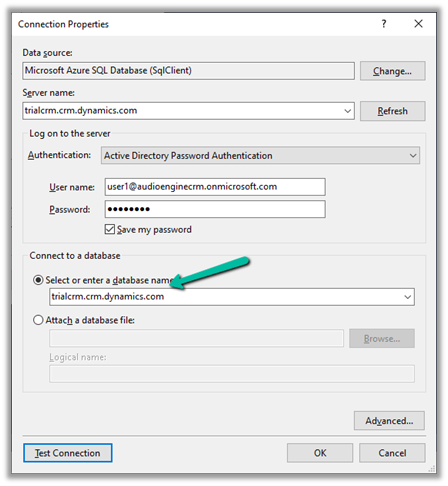
Let us create the Data Source.

Select the authentication as Active Directory Password Authentication for the TDS endpoint.
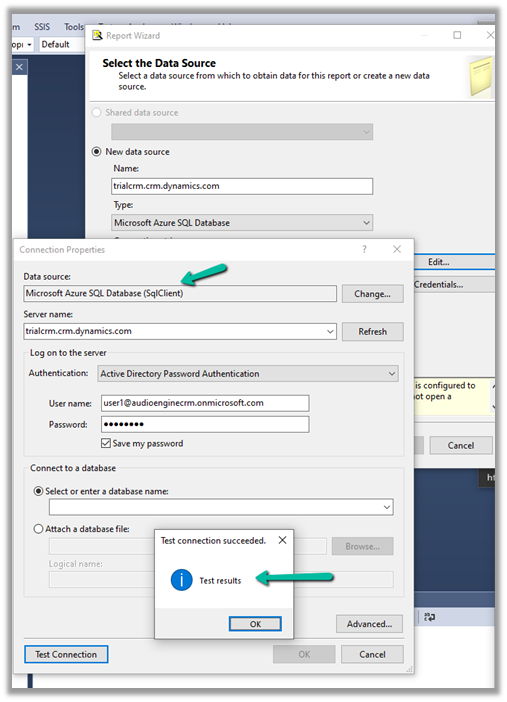
Enter the database name manually.
The final connection string >>
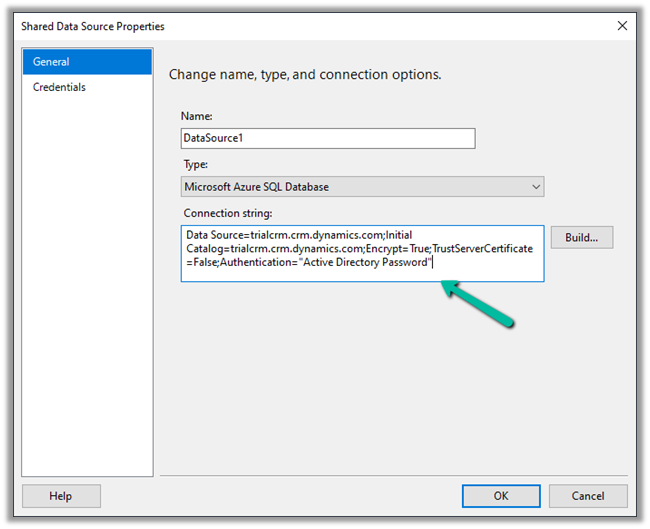
Data Source=orgnamae.crm.dynamics.com;Initial Catalog=orgname.crm.dynamics.com;Encrypt=True;TrustServerCertificate=False;Authentication=”Active Directory Password”

Within SQL4CDS the following query works

However, the same query doesn’t work inside SSRS.

It will give the below error message >>

Table audit is not available for reports

  • Do we have the Audit entity in the Power BI Dataverse connector? >> No
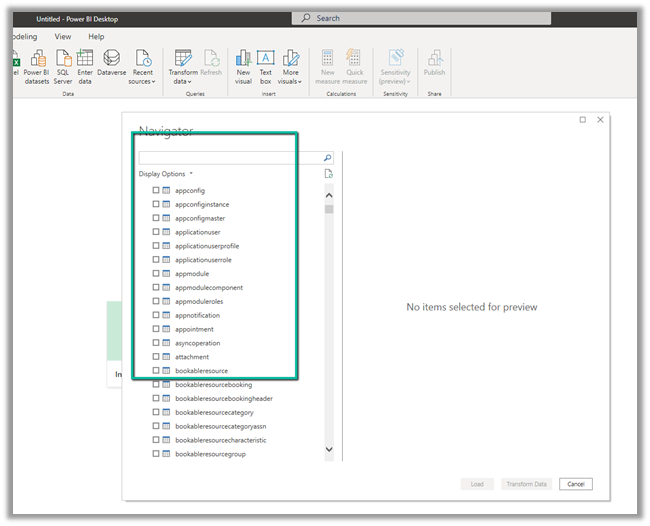
However, we can use the OData endpoint to create the report against the Audit entity.

https://www.365knowledge.com/2019/03/06/dynamics-365-user-access-report-with-fetchxml-and-power-bi/

  • Do we have the Audit entity available in Azure Synapse Link (Export to Data Lake)? >> No
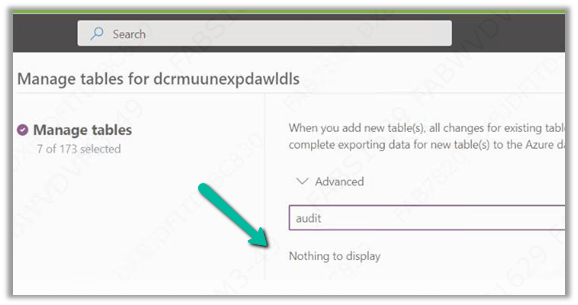
How to set up Azure Synapse Link >>

https://nishantrana.me/2021/06/16/how-to-setup-azure-synapse-link-microsoft-dataverse/

  • Cannot we write a Fetch XML Based SSRS report?

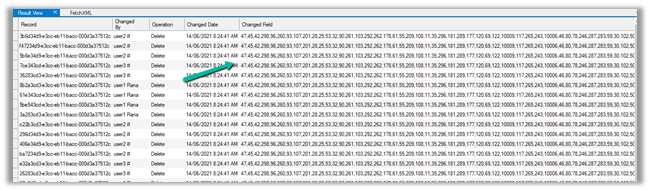
Writing a Fetch XML based-report would be challenging, because of the way information is saved.

Check the below article to understand how the audit table stores the information.

https://mahadeomatre.blogspot.com/2015/02/ms-crm-audit-database-table-details.html

http://makdns.blogspot.com/2014/06/dynamics-crm-audit-entity.html
  • How about SQL Based SSRS Report if we are using SQL – for On-Premise?

Refer to the below article that provides the steps to do so.

http://makdns.blogspot.com/2014/06/dynamic-crm-20112013-audit-report-in.html

Hope it helps..

Advertisements

How to – Get the size of tables in Dataverse / Dynamics 365


Using the Capacity page in the Power Platform Admin Center we can extract the details of size occupied by table (in MB) within a particular environment.

Login to the admin portal and navigate to Capacity

https://admin.powerplatform.microsoft.com/resources/capacity

Select the Dataverse tab and click on Details or in case of trial click on the Trial tab

Here we have selected the details (graph) option for one of the environments.

Select Download all tables option for the Top database capacity use, by table chart


We can see the details within the extracted CSV file.

Get all the details here

https://docs.microsoft.com/en-us/power-platform/admin/capacity-storage#environment-storage-capacity-details

Hope it helps..

Advertisements

Solved– No function signature for the function with name ‘contains’ matches the specified arguments in Canvas Apps


We were getting the below error while trying to set the Items property of the Gallery control and were using Filters in the formula.

“The requested operation is invalid. Server Response: Sectors failed: No function signature for the function with name ‘contains’ matches the specified arguments. The function signatures considered are: contains(Edm.String Nullable=True, Edm.String Nullable=true).”

We were sure that the formula used was correct.

After trying for a couple of minutes more, we simply saved the app, and later when we again opened the app for edit, the error was no more there.

The same has been mentioned here –

https://powerusers.microsoft.com/t5/Building-Power-Apps/No-function-signature-when-filtering-using/td-p/592218

Hope it helps..

Advertisements

Sample AppId / ClientId and RedirectUri for quick prototyping (Dataverse / Dynamics 365)


At times we want to quickly try out few things (PoC) by writing a console application or running an SSIS package etc., there we can use the sample ClientId and RedirectUri provided by Microsoft, instead of registering the application in Azure AD / creating Application User 

  • Sample AppId or ClientId = 51f81489-12ee-4a9e-aaae-a2591f45987d
  • Sample RedirectUri = app://58145B91-0C36-4500-8554-080854F2AC97

https://docs.microsoft.com/en-us/powerapps/developer/data-platform/xrm-tooling/use-connection-strings-xrm-tooling-connect

Connection String within a console app à

CDS /CRM Connection Manager of KingswaySoft ->

or use Interactive Login –  https://nishantrana.me/2021/07/01/interactive-login-option-in-cds-crm-connection-manager-in-kingswaysoft-dynamics-365-integration-toolkit/

Also check out -Sample Code (Dynamics 365 Web API) https://nishantrana.me/2021/01/06/sample-code-dynamics-365-web-api-organization-service/

Hope it helps..

 private void Form1_Load(object sender, EventArgs e)
        {

           string ConnectionString = "AuthType = OAuth; " +
           "Username =  [username].onmicrosoft.com; " +
           "Password = [password]; " +
           "Url = https://[org].crm.dynamics.com/;" +
           "AppId=51f81489-12ee-4a9e-aaae-a2591f45987d;" +
           "RedirectUri=app://58145B91-0C36-4500-8554-080854F2AC97;" +
           "LoginPrompt=Auto";

            CrmServiceClient svc = new CrmServiceClient(ConnectionString);

            if (svc.IsReady)
            {
              
                 // do the needful

            }
        }
Advertisements