Modernize Business Units / Matrix data access structure -Record ownership across business units (Preview) in Dynamics 365 / Dataverse


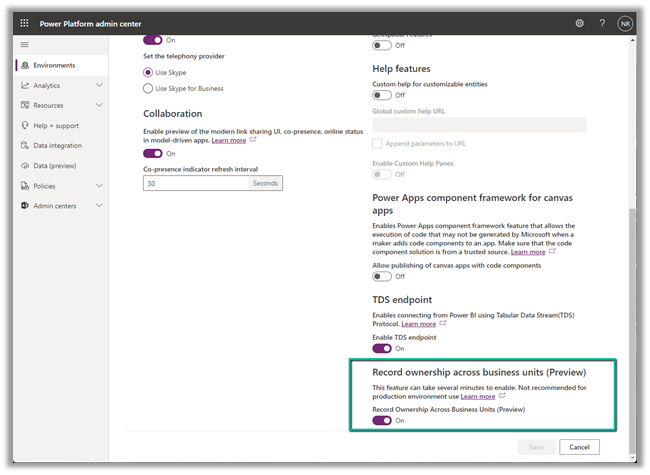
To enable this preview feature, log in to the Power Platform admin center, switch on the

Environment >> Settings >> Features >> Record ownership across business units (Preview)

It took around 5 minutes to enable.

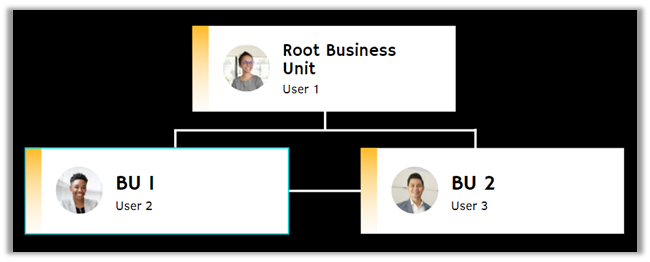
Now let us say we have a BU structure like below.

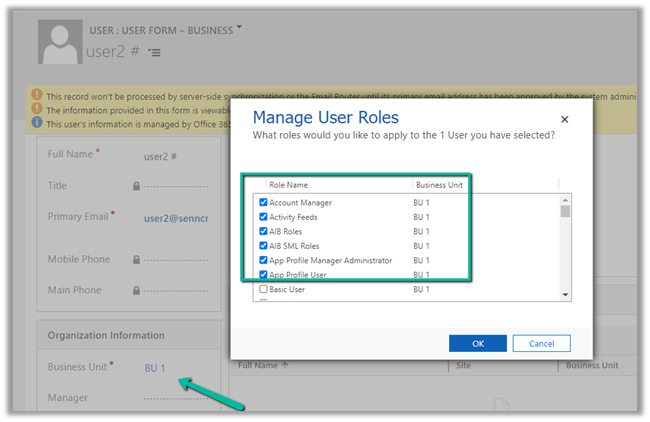
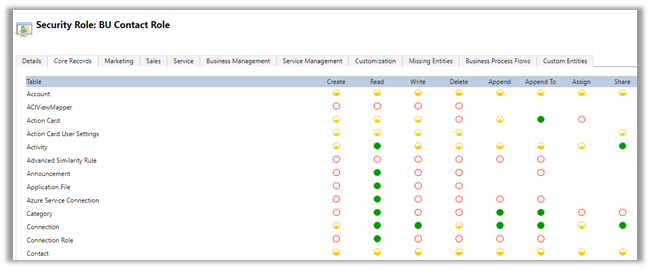
And custom security roles with BU level access to Contact – BU Contact Role.

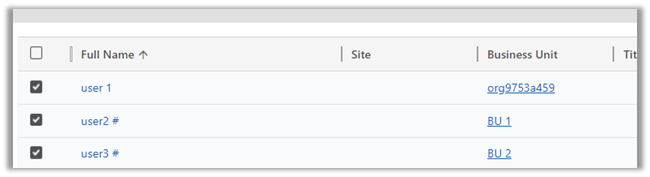
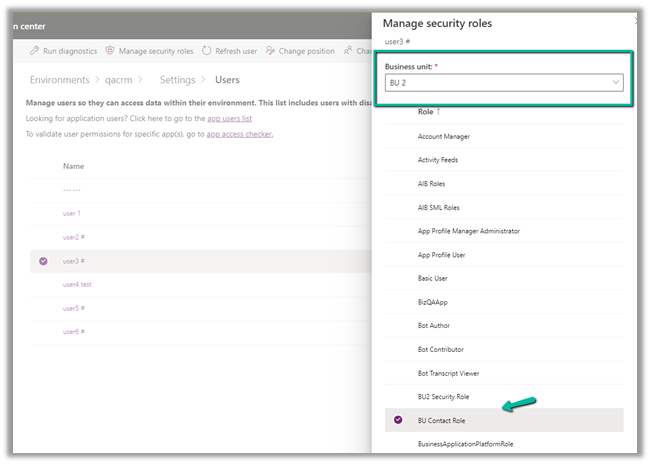
Both user 2 and user 3 have only the BU Contact Role of BU 1 and BU 2 business unit respectively assigned.

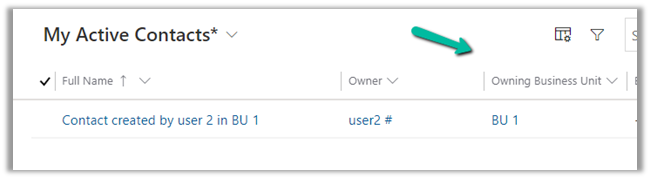
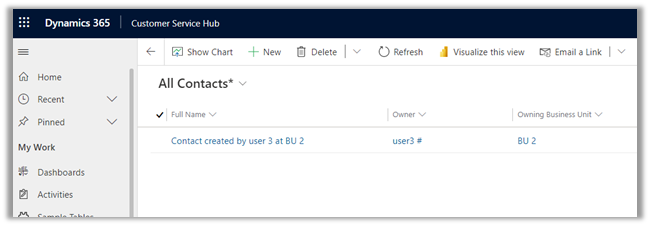
Below is the Contact record created by User 2.

As expected User 3 does not have access to the above record.


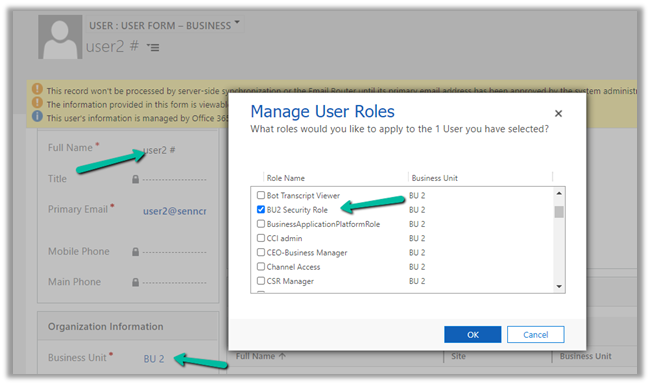
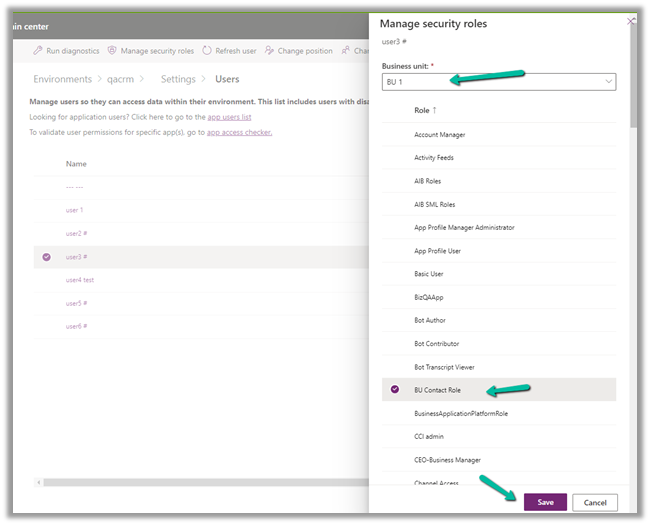
Now let us provide the same BU Contact role to User 3 but this time from BU 1.

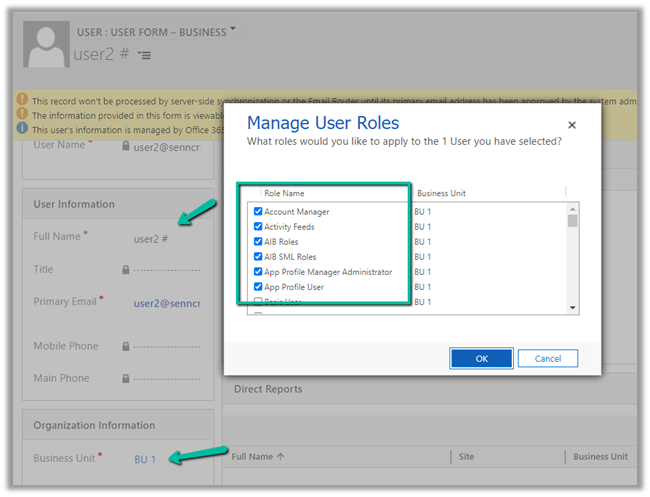
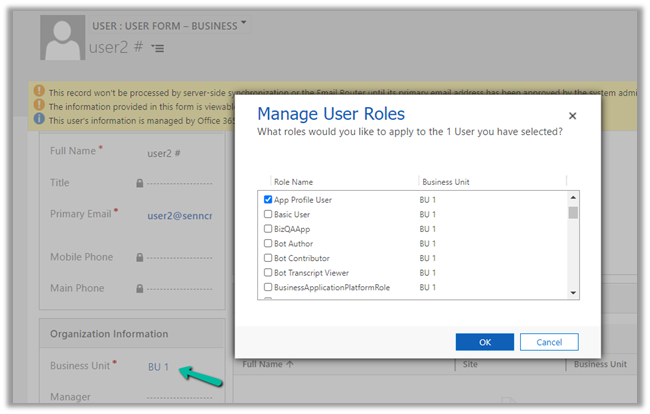
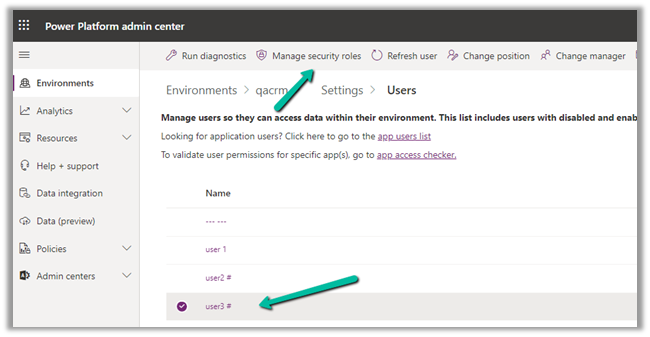
Select the User 3 in Settings >> Users >> Manage Security Roles

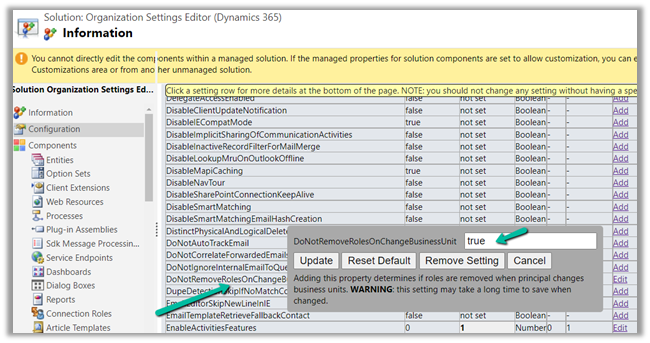
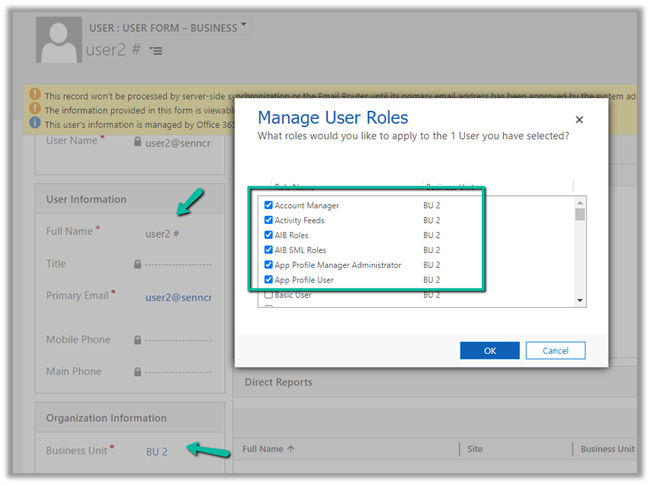
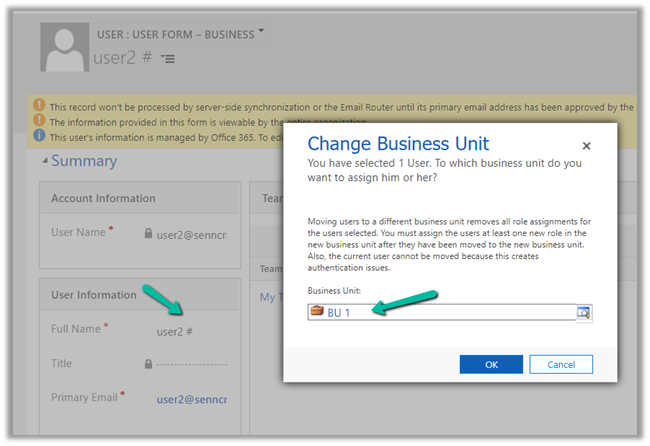
The user has already has BU Contact Role in BU 2. Let us change the Business Unit and assign the same role for BU 1.

Click on Save.

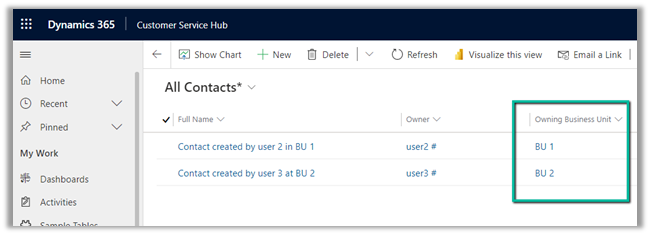
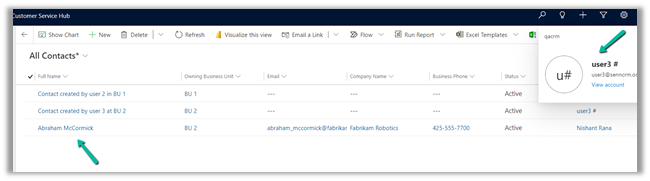
On refreshing the All Contacts view for user 3 now we can see both the records, showing the corresponding owner and the owning business unit the records belong to.

This makes it easy to provide required access to the users across the business unit, without the need of sharing the record or using team access or teams ownership concept here.

With this preview, we can also update the Owning Business Unit field.

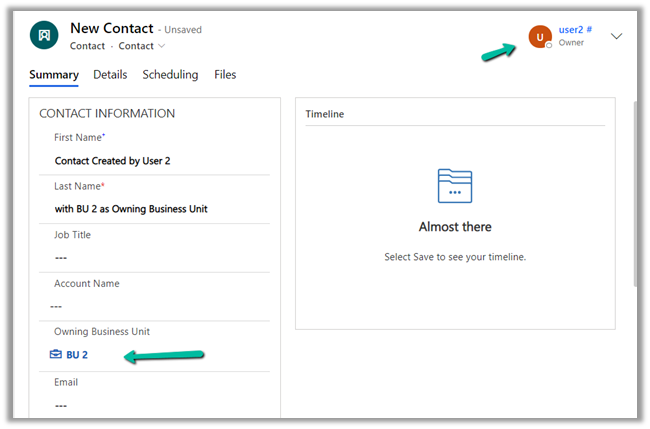
Below the User 2 is creating a new contact record and setting Business Unit as BU 2.

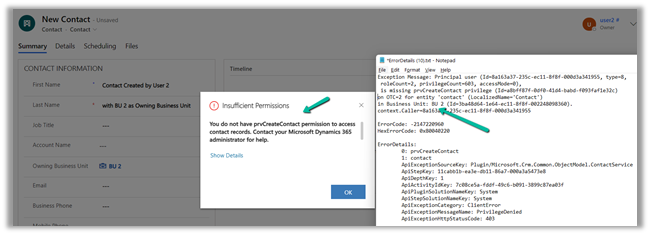
Here it fails because User 2 only has BU level access for Contact Create Rights, and he is trying to create at BU 2.

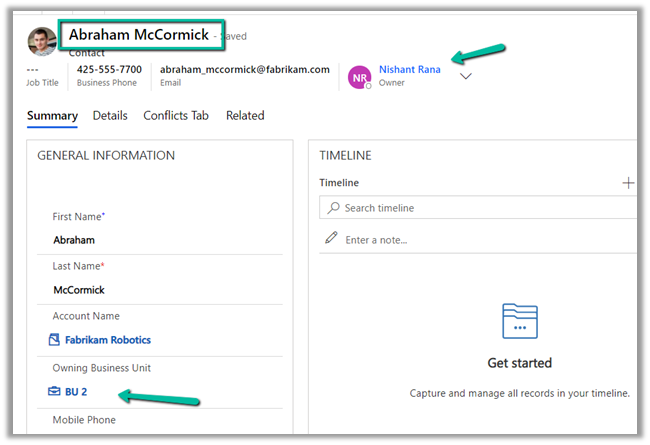
Let us update one of the existing contact records, by setting Owning Business Unit as BU 2, this time through System Administrator user which belongs to the root Business Unit.

As expected the record is available to User 3, as we have set BU 2 as the owing business unit.

Get all the details here

https://docs.microsoft.com/en-gb/power-platform/admin/wp-security-cds#matrix-data-access-structure-modernize-business-units—preview

Hope it helps..

Advertisements

Quickly visualize the VIEW data using Power BI quick report (preview) in Dynamics 365 / Power Apps


With a recent update to the platform, now we can use Power BI quick report (preview) on the view page in a model-driven app, to visualize the data.

To enable the feature, open the model-driven app in the modern app designer.

Here we are opening the Customer Service Hub app in the modern app designer.

Click on Settings.

Navigate to Features and enable the Power BI quick report visualization on a table option.

Publish and Play the app.

We can see the Visualize this view option added in the command bar for all the views within the app.

It asks for getting a power bi license if we do not have one.

Click on Get a free license and set up the Power BI Account.

Now Visualize this view option will open the Power BI report.

The visuals will run under the context of the view selected – All Contacts in this case.

The visuals will use some of the fields and add additional fields to the table in the report.

Here we are running it against the My Cases view.

The Power BI quick report –

The report gets updated based on the fields selected in the data pane. Power BI adds or removes charts based on the selected fields as shown below.

We can also further Personalize the visual

Visualize this view doesn’t run on selected records for a view.

The option is also available for the Activities view.

The option also works on a Custom table/entity.

Get all the details here –

https://docs.microsoft.com/en-us/power-bi/create-reports/dynamics-quick-create-report

Hope it helps..

Advertisements

Fixed – The API version ” is not valid for provider ‘Microsoft.BusinessAppPlatform’ – Action ‘Force_Sync_user’ failed error – Power Automate


Recently while testing a flow we got the below error message

The API version ” is not valid for provider ‘Microsoft.BusinessAppPlatform’ The supported list of API versions are: ‘2016-02-01, 2016-11-01, 2018-01-01, 2018-10-01, 2019-05-01, 2019-10-01, 2020-04-01, 2020-05-01, 2020-06-01, 2020-08-01, 2020-09-01, 2020-10-01, 2021-03-01, 2021-04-01, 2021-07-01’.

API Version is as the name suggests is the version of the API, as there could be discrepancies in the different versions of API with regards to the input and the output parameters or some other changes.

We were using the below template

Force Sync Azure Active Directory Group members to specified CDS instance

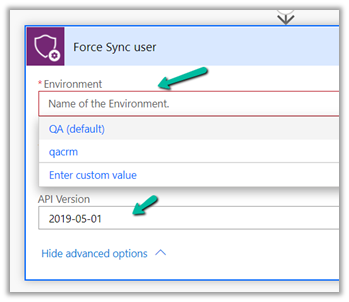
The existing Force Sync user action in the template was having the API version as blank.

The way we fixed it was by adding a new Force Sync user action and deleting the existing one.

The new version of Force Sync User action was listing down the Environment in the drop-down and also had the version number mentioned in it.

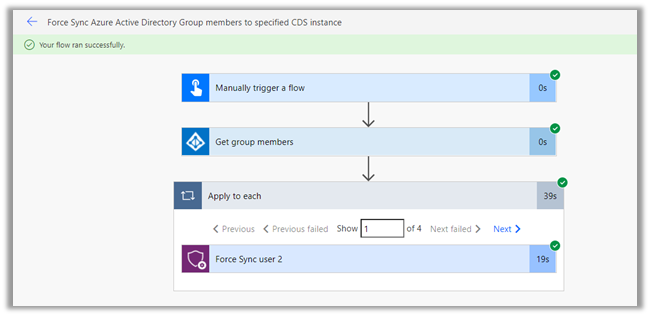
After making the changes, this time it ran successfully.

Also, check

https://nishantrana.me/2021/12/14/the-trick-to-force-trigger-user-sync-power-platform-dynamics-365/

https://nishantrana.me/2021/12/13/using-force-sync-user-to-sync-powerapp-crm-users-power-platform-dynamics-365/

Hope it helps..

Advertisements

The trick to force / trigger user sync – Power Platform / Dynamics 365


Sometimes it takes a long time for the users to appear in Dynamics 365, even though users have the appropriate licenses.

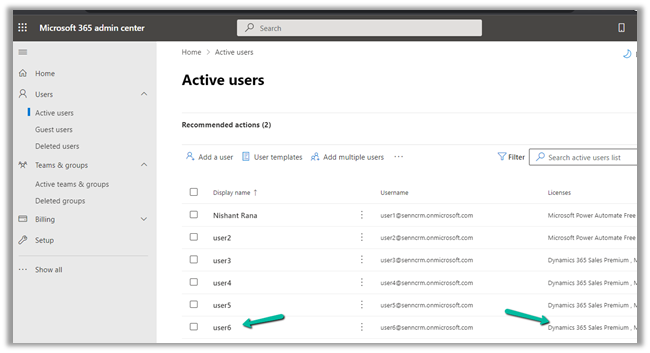
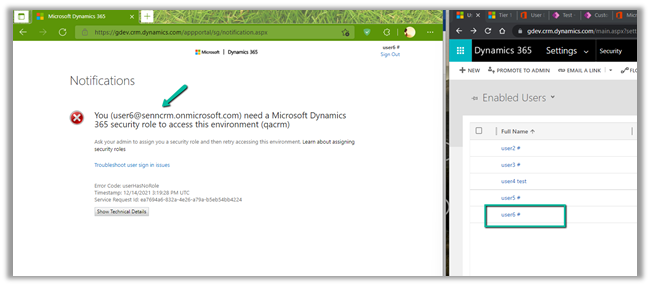
E.g. here we have added user6 in Microsoft 365 Admin Center.

Back in CRM, we do not see user 6 added.

One way to add the user is through Force Sync User action of Power Platform Management connector.

https://nishantrana.me/2021/12/13/using-force-sync-user-to-sync-powerapp-crm-users-power-platform-dynamics-365/

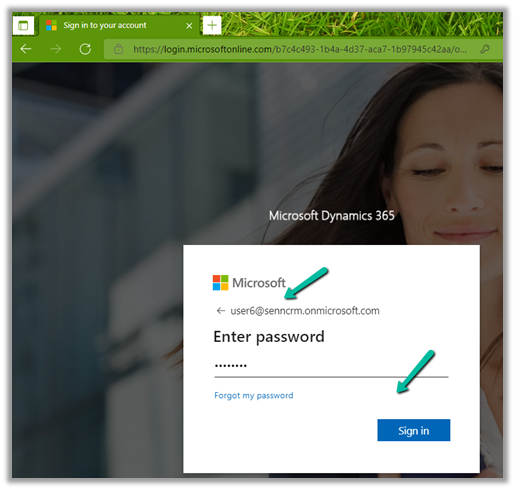
or the other option is to ask the user to log in to the Power Apps.

As soon as the user logs in we can see his account added/synced to the enabled users in CRM.

Thanks to Emre Gulcan for this trick

Hope it helps..

Advertisements

Using Force Sync User to sync PowerApp / CRM users – Power Platform / Dynamics 365


Recently in one of our trial environments, some of the users were not showing up in the Enabled Users view in Dynamics 365, although the users were having appropriate licenses assigned to them. (was more than 24 hours)

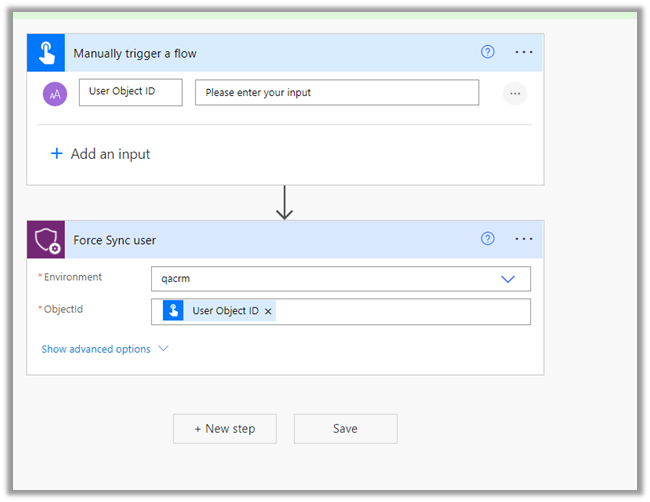
In such a scenario we can use Force Sync user action of Power Platform Management Connector.

https://docs.microsoft.com/en-us/connectors/powerplatformforadmins/

For Force Sync users, we will be passing the object id of the user and selecting the appropriate environment.

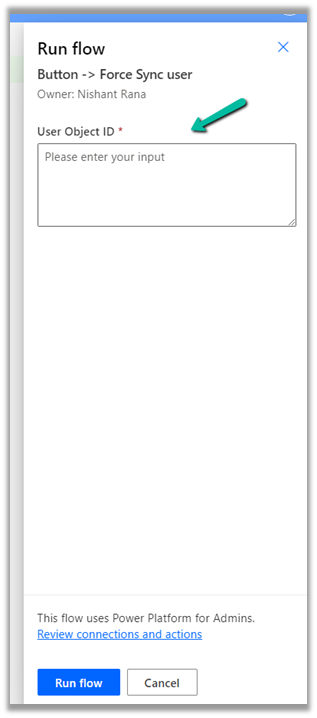
Run the flow manually.

It asks for the Object Id of user.

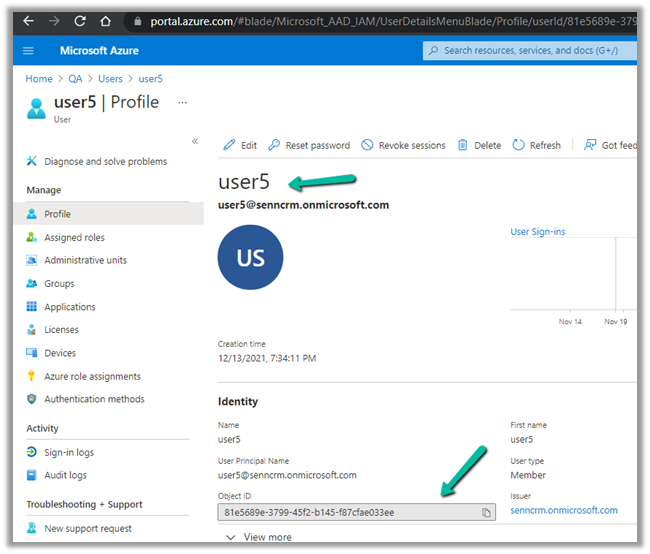
Inside Azure Portal >> Azure Active Directory >> Users, get the Object Id of the user

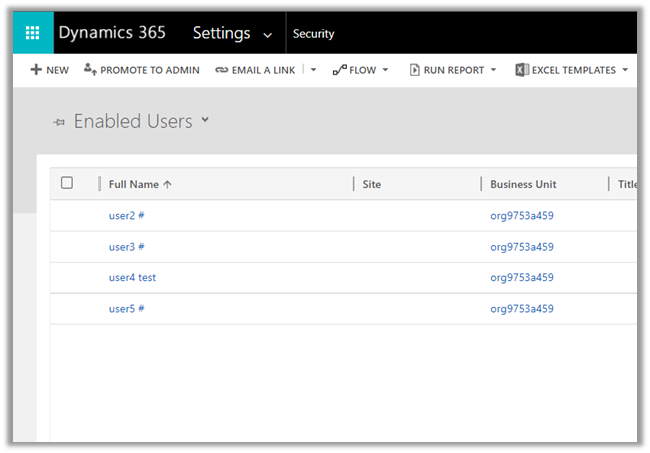
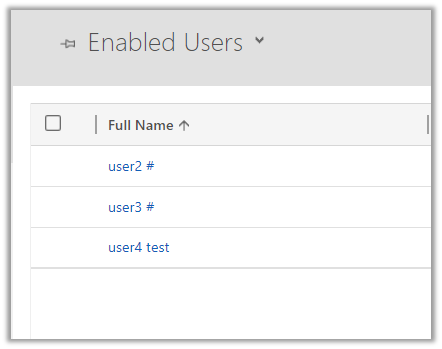
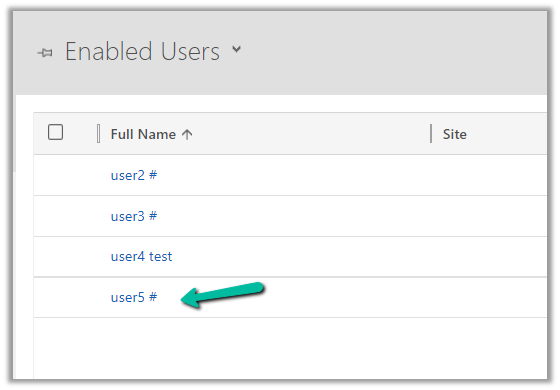
Currently, we have below 3 users in CRM

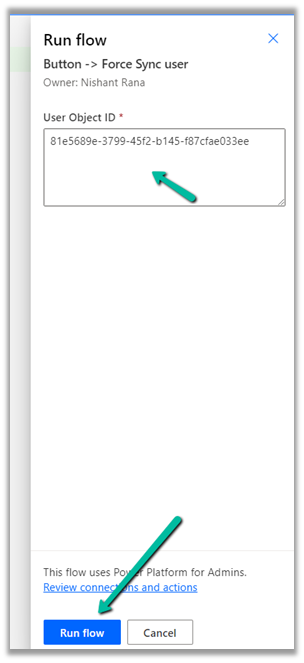
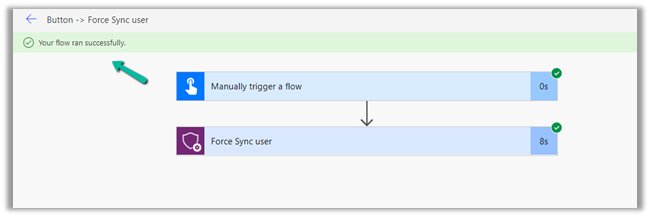
Let us run the flow.

Wait for the flow to complete.

After successful execution of the flow, back in CRM, we can see user 5 added to the list of enabled users.

In case we are using a security group for the environment we can make use of the below Power Automate Template, it takes the security group’s object id as input and loops through each of the members and applies Force Sync user action.

We can also make use of PowerShell cmdlets to achieve the same

https://nishantrana.me/2021/01/20/force-sync-users-from-azure-ad-to-dynamics-crm/

Force Sync Azure Active Directory Group members to specified CDS instance

Hope it helps..

Advertisements

Fixed – BadGateway. The request failed. Error code: ‘502’. Error Message: ‘BadGateway’ in PowerAutomate – Start and wait for an approval


Recently we were getting the below error for one of our Flows.

BadGateway. The request failed. Error code: ‘502’. Error Message: ‘BadGateway’.

Everything seemed right.

Finally, found (thanks to the forum) that the fix was to update the Approvals Administrator security role.

Provide – Read Access to System Job inside Customization tab.

Before

After

This time our flow worked smoothly.

Hope it helps..

Advertisements