Autonumber field values in case of exception in Dynamics 365 / CRM


Recently in one of our projects, where we were using the auto number attribute (with sequential numbers), we realized that it gets incremented even in case of an exception thrown during Pre Stage of the Plugin Execution. We were assuming the number gets incremented only after the record gets created i.e. on post-stage.

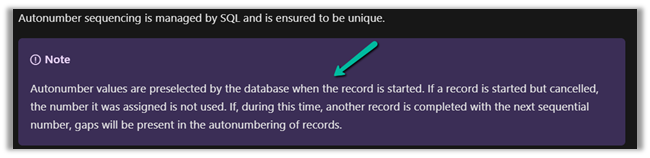
But as the documentation mentions, the number gets pre-selected as soon as the record is started.

https://docs.microsoft.com/en-us/power-apps/maker/data-platform/autonumber-fields

Let us see it in action also –

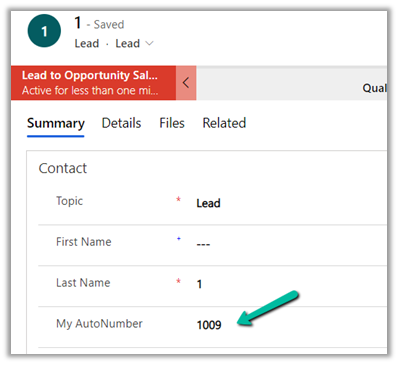
Here we have the lead record created with My Autonumber as the auto number column with seed as 1000

The auto number field has a value of 1009 currently.

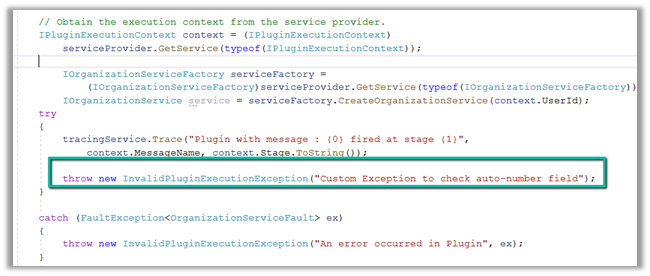
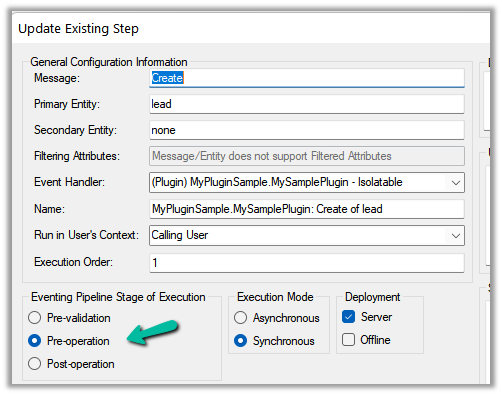
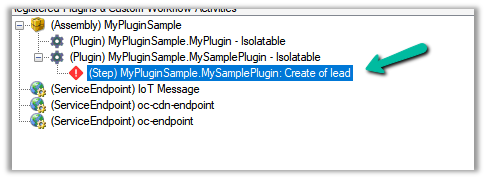
Now let us register a plugin on the Pre-Create stage that throws the exception.

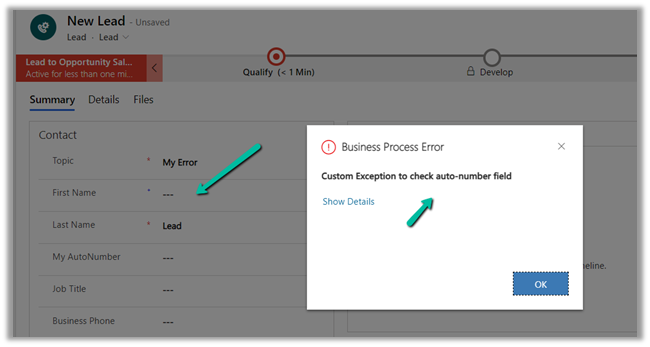
Let us try creating a new lead record, which as expected will throw the exception.

Let us try saving the record 3 times more, triggering the record creation as well as the plugin along with the exception.

Now let us disable the plugin step and save/create the record.

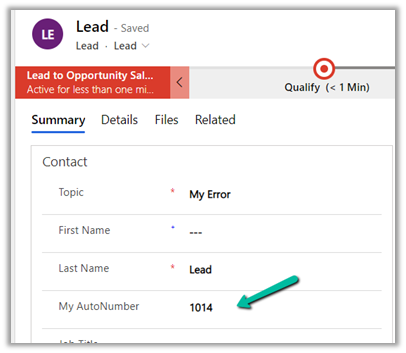
As expected the record gets created, and the auto number field has a value of 1014.

The same behavior was observed in case of Pre-Validation stage.

Hope it helps..


Advertisements

Fixed – Sorry, we need additional information to verify your identity. Please Contact Support error while creating Dynamics 365 Trial


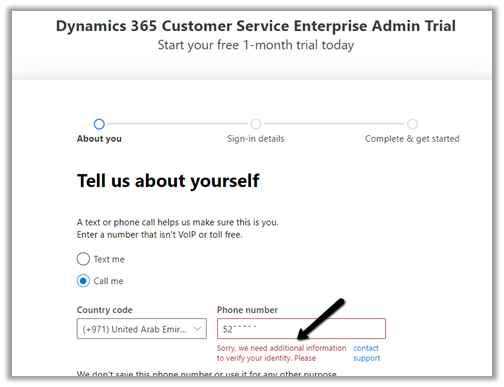
Recently while creating a Dynamics 365 Trial, https://dynamics.microsoft.com/en-us/dynamics-365-free-trial/, we were getting the below error, during the verification step

“Sorry, we need additional information to verify your identity. Please Contact Support”


This error could be related to the same phone number being used multiple times to create the Dynamics 365 trial or could be related browser cache.

Before trying with a new phone number, we should first try creating a trial in the In-Private mode (or clear cache in the browser).

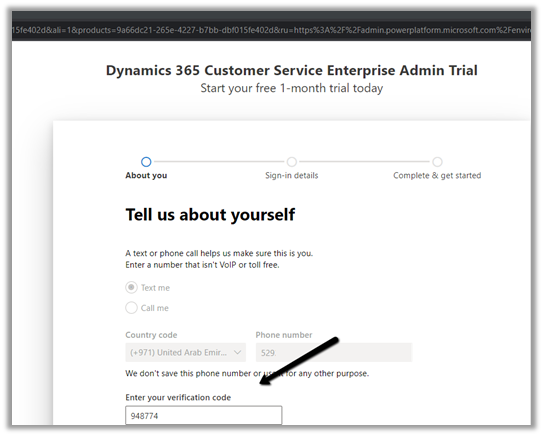
In our case, the In-Private mode worked as shown below, and we were able to create the trial.

Hope it helps..

Advertisements

Fixed – You do not have prvReadmsdyn_personasecurityrolemapping permission to access Persona Security Role Mapping records. Contact your Microsoft Dynamics 365 administrator for help


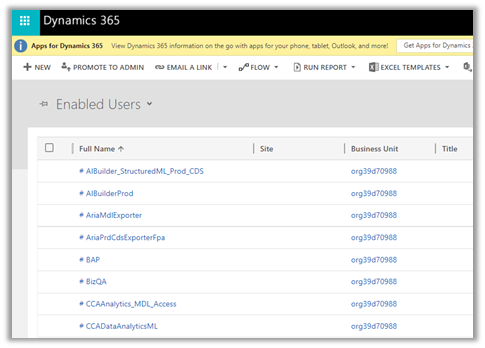
Recently one of the users, while accessing a few of the System User’s views, was getting the below error.

You do not have prvReadmsdyn_personasecurityrolemapping permission to access Persona Security Role Mapping records. Contact your Microsoft Dynamics 365 administrator for help.

There were a few System users’ views that were working fine.

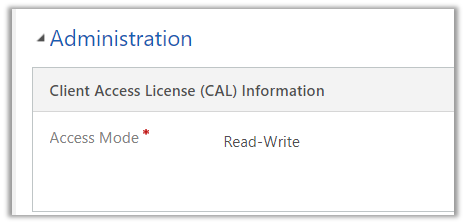
The user had the Security Role = System Administrator, however, the Access Mode was set to Administrative.

Changing the Access Mode to Read-Write fixed the issue.

Hope it helps..

Advertisements

How to – Use Refresh Option to force user state synchronization in Power Platform Admin Center – Dynamics 365 / CRM


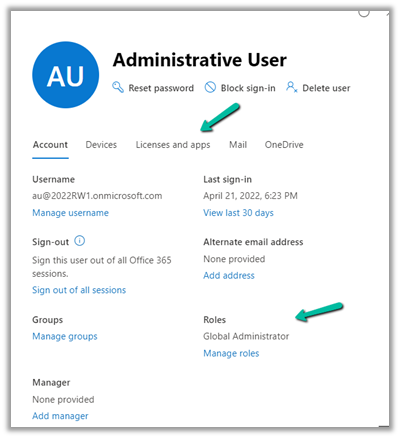
At times we would assign or update the licenses and roles assigned to the users in Microsoft 365 Admin Center, and these changes would take time to reflect inside the Dynamics 365 applications.

A background system process takes care of synchronizing the user state in Azure AD to the System User table in Dataverse.

However, here we can also use the Refresh
User option in Power Platform Admin Center to force the synchronization instead of waiting.

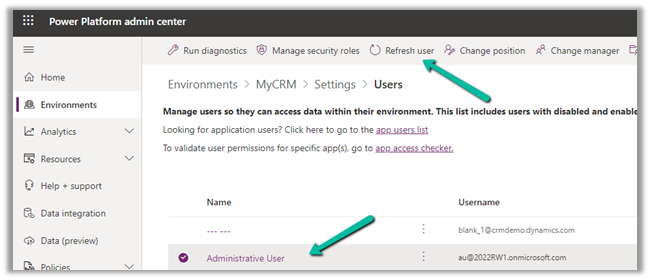
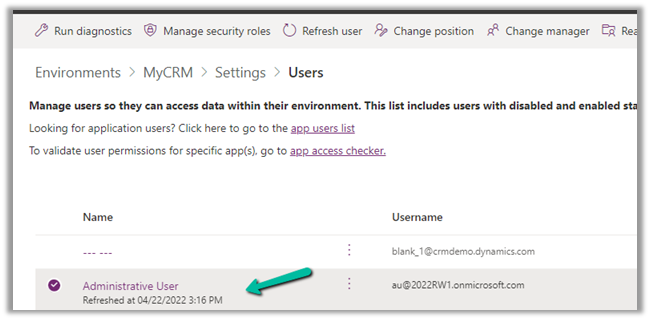
Inside Power Platform Admin Center – Navigate to Environment >> [Env]>> Settings >> Users and select the user and click on Refresh user option.

This will immediately start the synchronization process.

Hope it helps..

Advertisements

Security Enhancements – 24 hours maximum user session timeout in Dynamics 365 / CRM


With recent security enhancements in Customer engagement apps, the maximum user session timeout of 24 hours is removed.

https://docs.microsoft.com/en-us/power-platform/admin/user-session-management#user-session-timeout-management

Now it uses the Azure AD Session Policy to manage user session timeout, which by default has Azure AD refresh token expiration set as 90 days.

https://docs.microsoft.com/en-us/azure/active-directory/develop/active-directory-configurable-token-lifetimes#refresh-and-session-token-lifetime-policy-properties

Refresh toke lifetime and expirationhttps://docs.microsoft.com/en-us/azure/active-directory/develop/refresh-tokens#refresh-token-lifetime

Use Configuring sign-in frequency in Conditional Access to define the periods before a user is required to sign-in again – https://docs.microsoft.com/en-us/azure/active-directory/conditional-access/howto-conditional-access-session-lifetime

Earlier the default session timeout used to be 24 hours with 20 minutes for warning the user – https://nishantrana.me/2017/11/17/configure-session-timeout-and-inactivity-timeout-dynamics-365/

However, we can still override the default Azure AD Session policy, by setting the session timeout and/or inactivity timeout for the individual environment.

To set the same navigate to –

Environments > [Environment] > Settings > Privacy + Security in Power Platform Admin Center.

Specify appropriate values and save the changes.

Get all the details here –

https://docs.microsoft.com/en-us/power-platform/admin/user-session-management#configure-session-timeout

Hope it helps..


Advertisements

How to – Stop Synchronization of Task / Appointment through System View using Sync Filter Manager


In the previous post, we saw how we can create a user filter (outlook) for a particular user and apply the same to other users through Sync Filter ManagerXrmToolBox plugin.

https://nishantrana.me/2022/03/29/how-to-stop-synchronization-of-task-appointment-between-dynamics-365-and-outlook/

In this post, we’d achieve the same through System View.

Here we have created below System View on Tasks entity/table.

The Created On Doesn’t Contain Data False Condition will make sure none of the records of the task are synced.

Open the Sync Filter Manager, navigate to the System Views tab and click on Load System Views

Select the new System View- Task Filter which we created earlier and click on Create – System Synchronization Filter Template from selected view(s)

Select Outlook Template for System Rule Type

We are presented with the option to specify the user(s) to who we want to apply the new template.

If we select Yes, we get the Select users dialog box to select the user(s).

Inside the Synchronization Filters Templates tab, we can click on Load Synchronization Filter Templates to list down all the outlook templates.

We can see our custom template listed there.

From there again we apply it to the user(s) or define it as the default filter.

After applying Define as default, we can see the custom filter applied to the new users. It won’t be applied or make changes to the filters of the existing users.

So for the existing users, we have to explicitly apply this filter using Apply to users option

As the last step, we need to disable or delete any other filter on the task, to make sure that we only have the new filter applied.

On disabling the filter, we can see their status updated as inactive.

Lastly, we can only delete Custom Outlook Template, if we try deleting any default out of the box template we will get the below error.

E.g. on trying to delete the My Tasks default filter, we will get the below error

“Error while deleting selected records: SavedQuery My Tasks for otc 4212 cannot be deleted”

Check other posts on Synchronization –

Hope this helps..

Advertisements