Fixed – The domain where this form is embedded might not be enlisted as a domain record for externally hosted forms in Dynamics 365 Marketing


Recently we were getting the below issue for our Marketing Forms hosted on an external website on a particular authenticated domain. The pages were working fine in other authenticated domains.

The domain where this form is embedded might not be enlisted as a domain record for externally hosted forms. Otherwise, a browser extension or plugin may be blocking this form from loading. Review and reload form to continue.”

This particular domain was also shown as authenticated in our Dynamics 365 marketing.

Our website was e.g. https://www.domain.kiwi/ so we had domain.kiwi authenticated in Dynamics 365 Marketing.

Eventually, we had to raise a Microsoft Support Ticket and were instructed to add/ authenticate www.domain.kiwi   (with www.) also, doing so resolved the issue for us.

Also, there seemed like a UI bug in the Marketing which will cut out “www.” automatically when trying to authenticate the domains.

Hope it helps..

Advertisements

ParentContext property of IPluginExecutionContext – Dynamics 365 / Dataverse


Recently we had to write a plugin that should trigger only when a user has manually associated the record from the form (N-N relationship). This was because we were also doing the same association through another plugin, in which case we didn’t want this new plugin to trigger.

Here we can make use of ParentContext property to identify if the plugin is getting triggered because of another plugin.

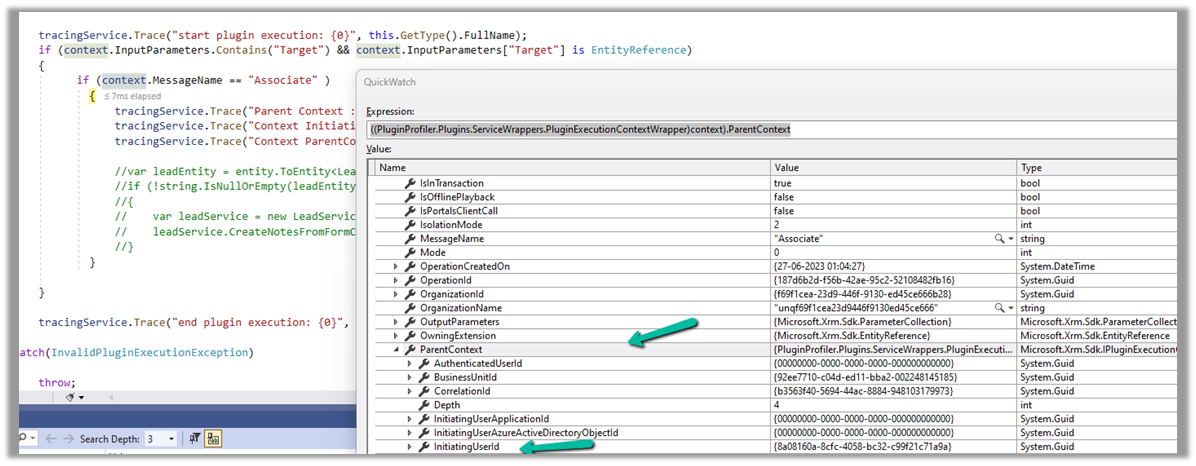
Below we can see ParentContext property getting populated and also in the InitiatingUserId property we get the id of the user who triggered the plugin.

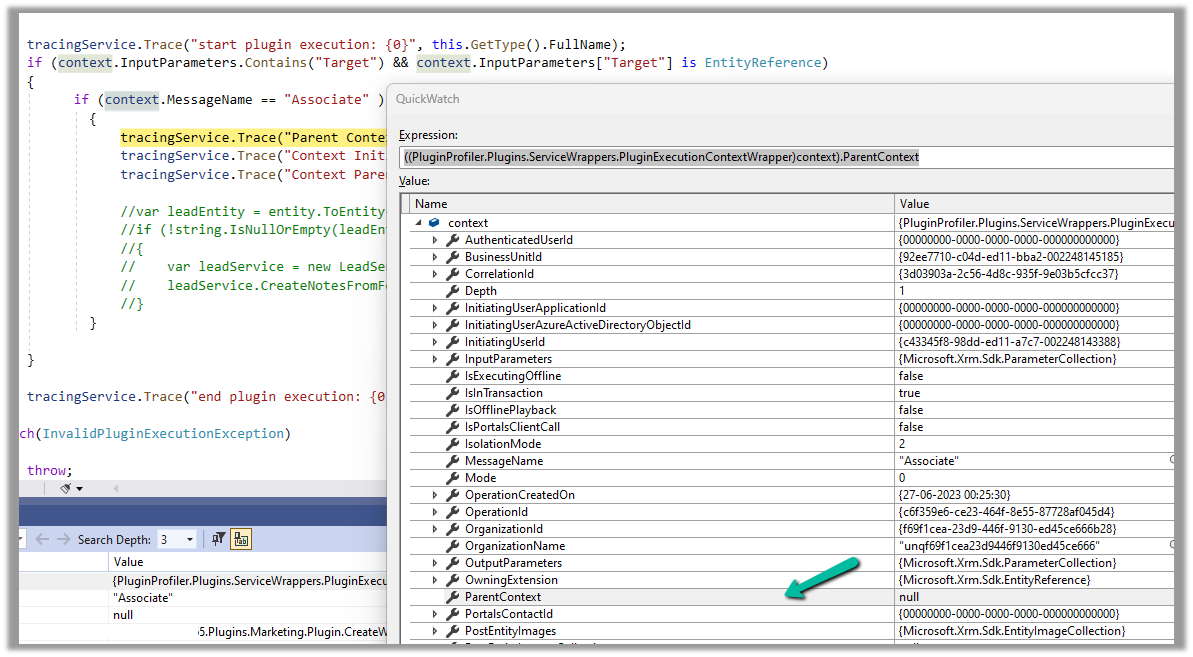
And if the user has manually performed the association from the form, we can see ParentContext being null.

Hope it helps..

Advertisements

Fixed – View Name as Blank in Dynamics 365 / Model-driven app


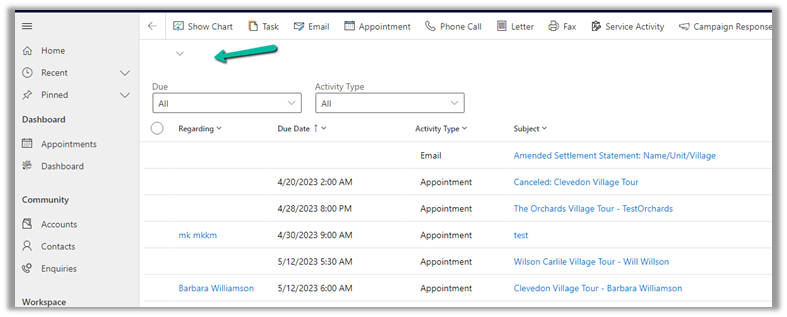
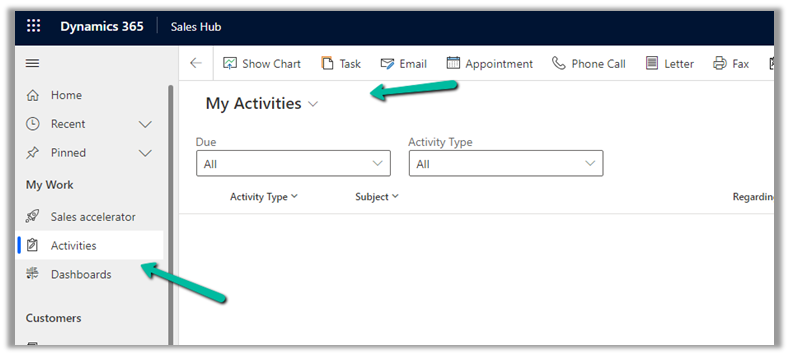
Recently we faced an issue where one of the views was not showing its Name in the app.

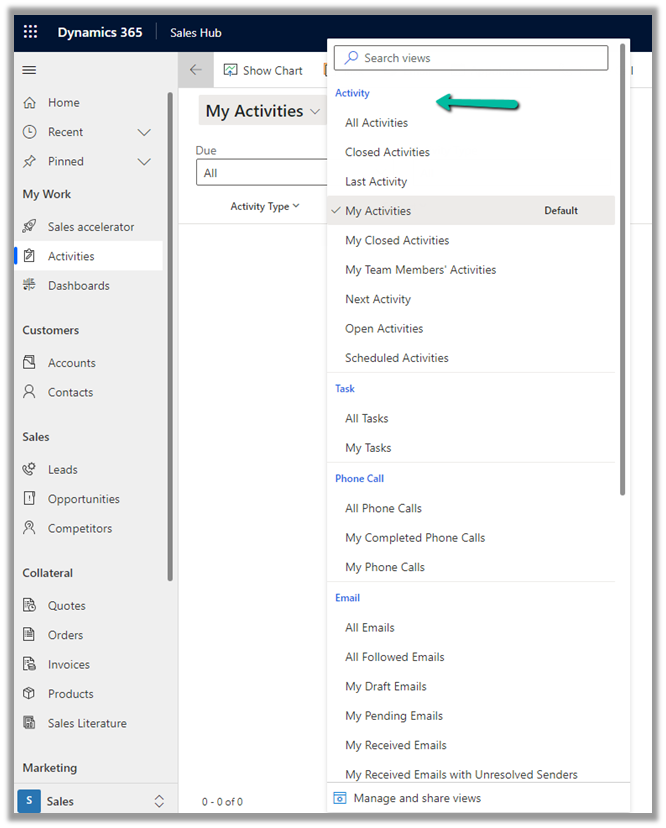
On selecting the View Selector, we were not getting the option to select that view.

Checking in a Vanilla CRM instance, we can see it is OOB My Activities view.

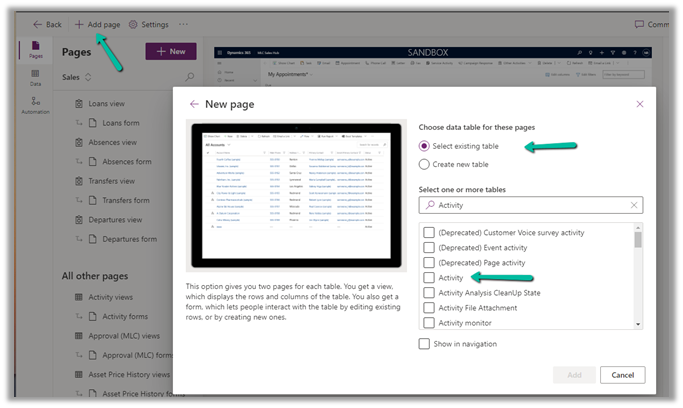
To fix it, we had to edit the App, Add Page >> Dataverse Table >> Select exiting table >> Activity


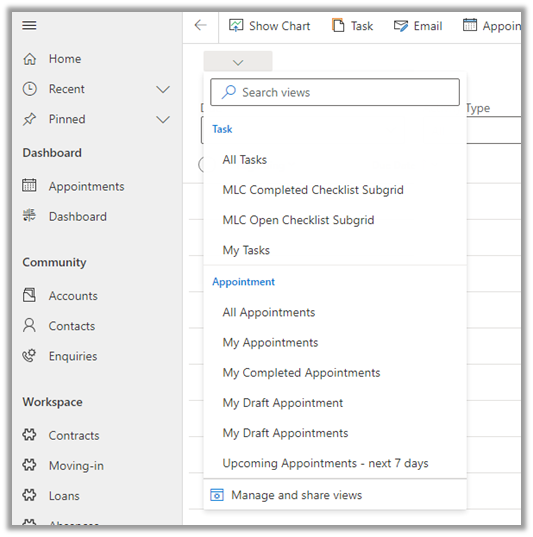
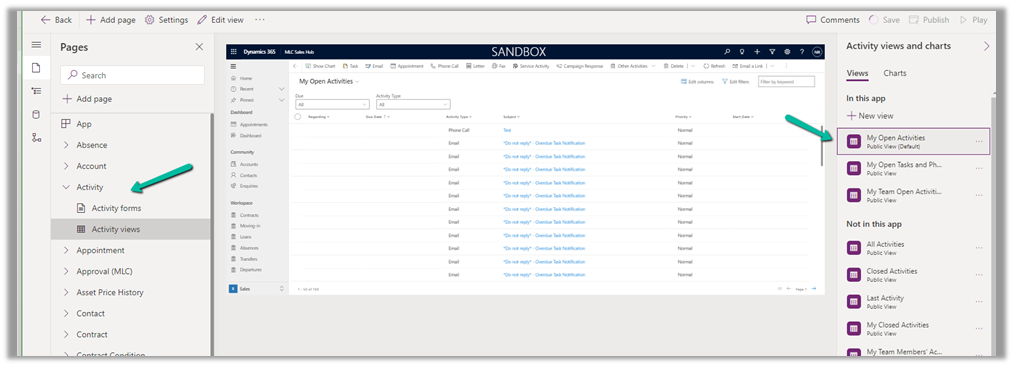
And add that view to that app and publish the changes.

The result –

Hope it helps..
Advertisements

Fix – Exception in creation of lead (Dynamics 365 Marketing)


We were getting this error in the submission of one of our outbound Marketing forms.

Activity id: e1ede147-efb6-457d-bc19-826c6176a2e4, Request id: jH7xRiEzGFTdZQTbE2fkh9_Z_WtjumCqJERuYZbGSL0_0, Exception: Entity ‘Contact’ With Id = 896b960d-c5d7-4c4d-95c7-a9e226afbf8e Does Not Exist

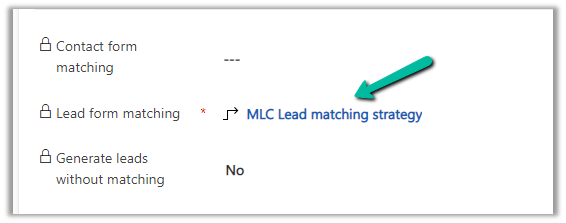
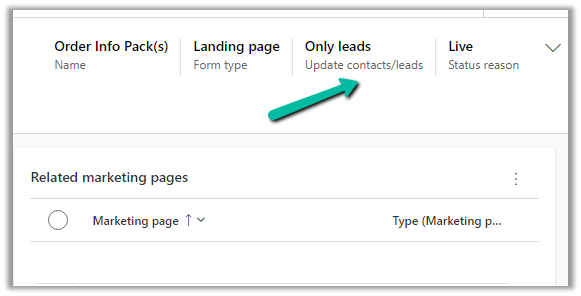
The form had only the Lead form matching defined and Only leads for Update contacts / leads.

So here because of some earlier multiple/different form submissions, a contact got created and stored in the browser’s cookie, which CRM was referring to, and trying to set a Parent Contact for the lead record even though we were having Only leads set for update contact/leads option.

This is the behavior of the product.

https://learn.microsoft.com/en-us/dynamics365/marketing/marketing-forms#createupdate-leads-only

The solution is to delete the cookie or try in incognito or in-private mode or a different browser, and it would work.

This would probably arise because while setting up marketing forms we would do multiple submissions with test data for testing.

Hope it helps..
Advertisements

Fixed – Expected non-empty Guid while importing solution in Dynamics 365/ Dataverse


While trying to import the solution (patch), we were getting the below error.

“Expected non-empty Guid”

There was hardly any detail in the log file also

We tried removing the solution component one by one in our source environment and trying the import again in the target environment.

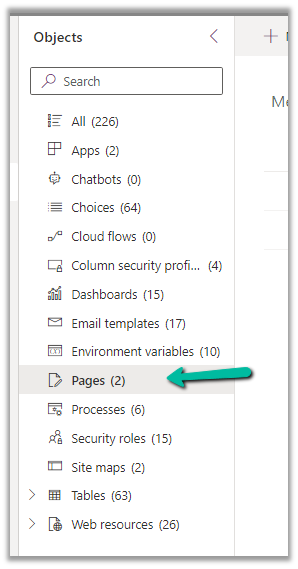
Eventually removing the Pages (custom page) allowed us to import the solution successfully into the target environment.

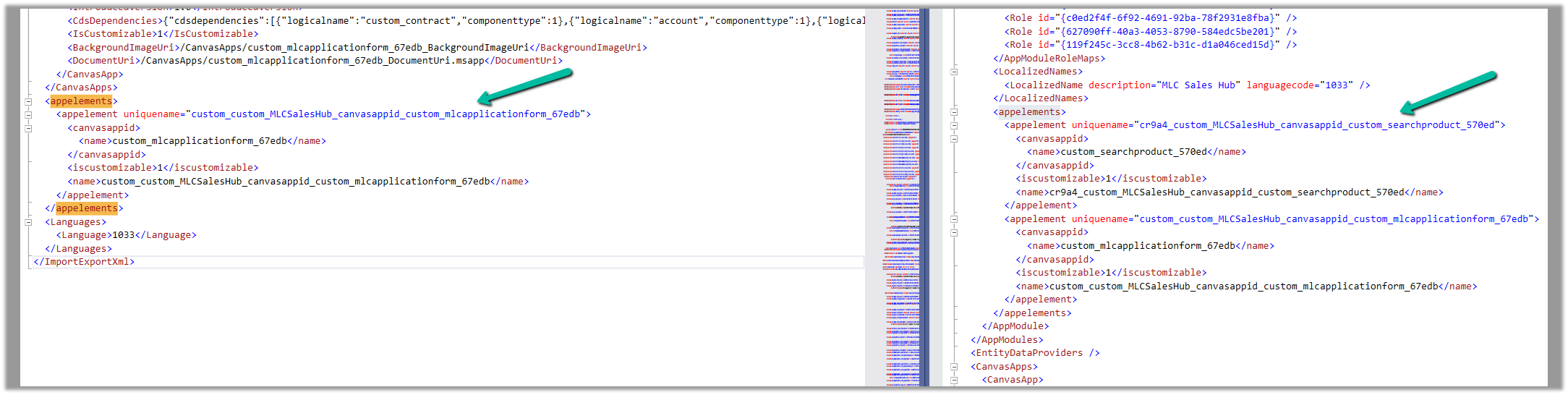
We then compared the customization.xml of the current solution with the backup solution of the Target and see the information missing in the current solution.

Left is – Current solution (giving error) and Right is the backup solution of the target.

Interestingly next time when we extracted the new patch after a couple of days, we could see the tag there and so no issues that time.

Hope it helps.

Advertisements

How to – set Calendar View to start the week from Monday – Dynamics 365


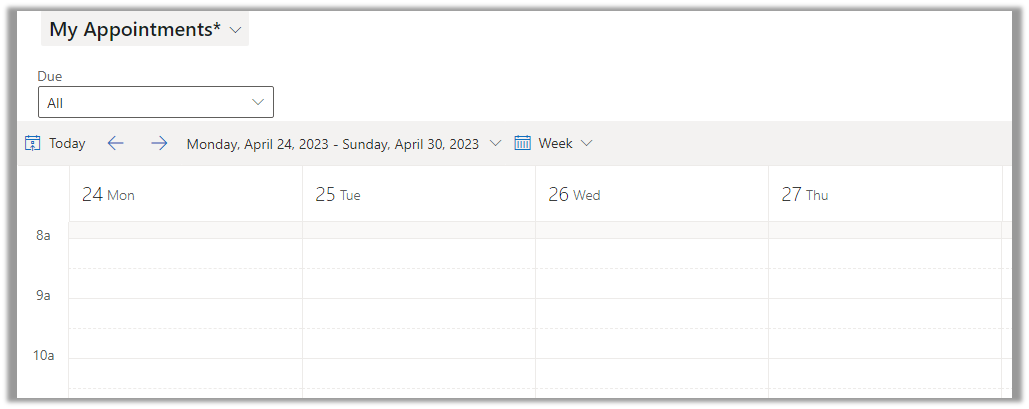
By default, if the calendar view is starting on Sunday for the week as shown below, we can update the system settings, to start it on Monday or any other day

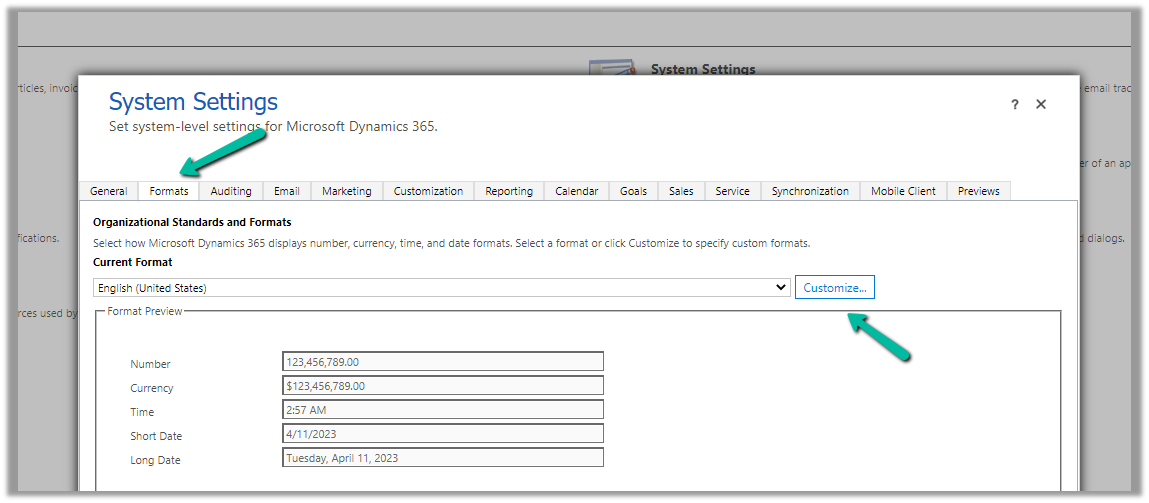
From Administration >> System Settings > > Formats >> Customize (Current Format)

Specify the First Day of Week

On update, we can see the view updated to show the week starting from Monday.

Hope it helps..

Advertisements