Using Microsoft Copilot Studio to create Copilot for Teams channel with Dataverse as Knowledge source – Copilot / Dataverse


Below are the quick steps to create a copilot with Dataverse as the Knowledge source and Teams as the channel

Open the Microsoft Copilot Studio site https://www.microsoft.com/en-us/microsoft-copilot/microsoft-copilot-studio

Select the Try free option to get started.

Select the appropriate environment and click on New copilot option (Create+)

A screenshot of a computer

Description automatically generated

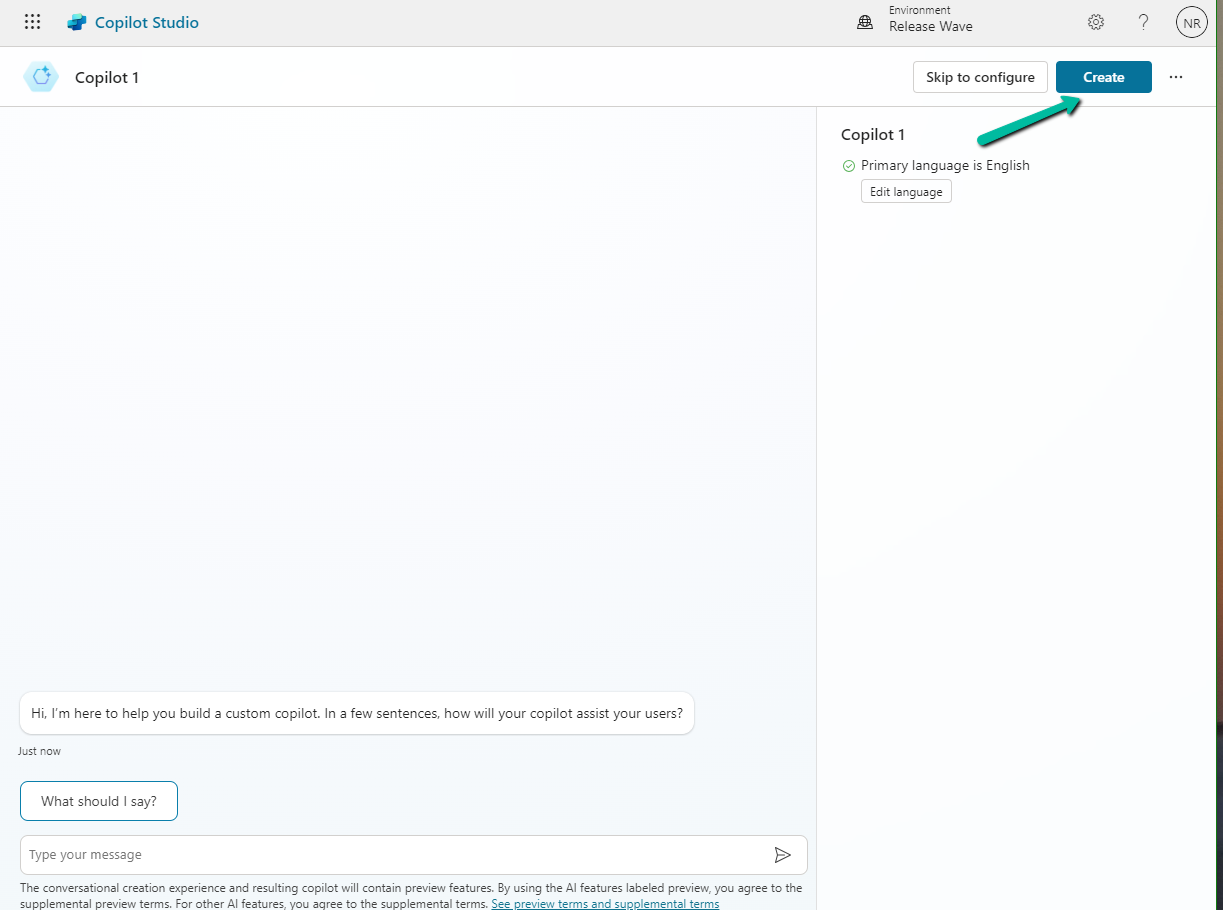
Select Create

A screenshot of a computer

Description automatically generated

Here we have renamed the Copilot, next click on Add knowledge to add Dataverse as the source.

A screenshot of a computer

Description automatically generated

Add Dataverse

A screenshot of a computer

Description automatically generated

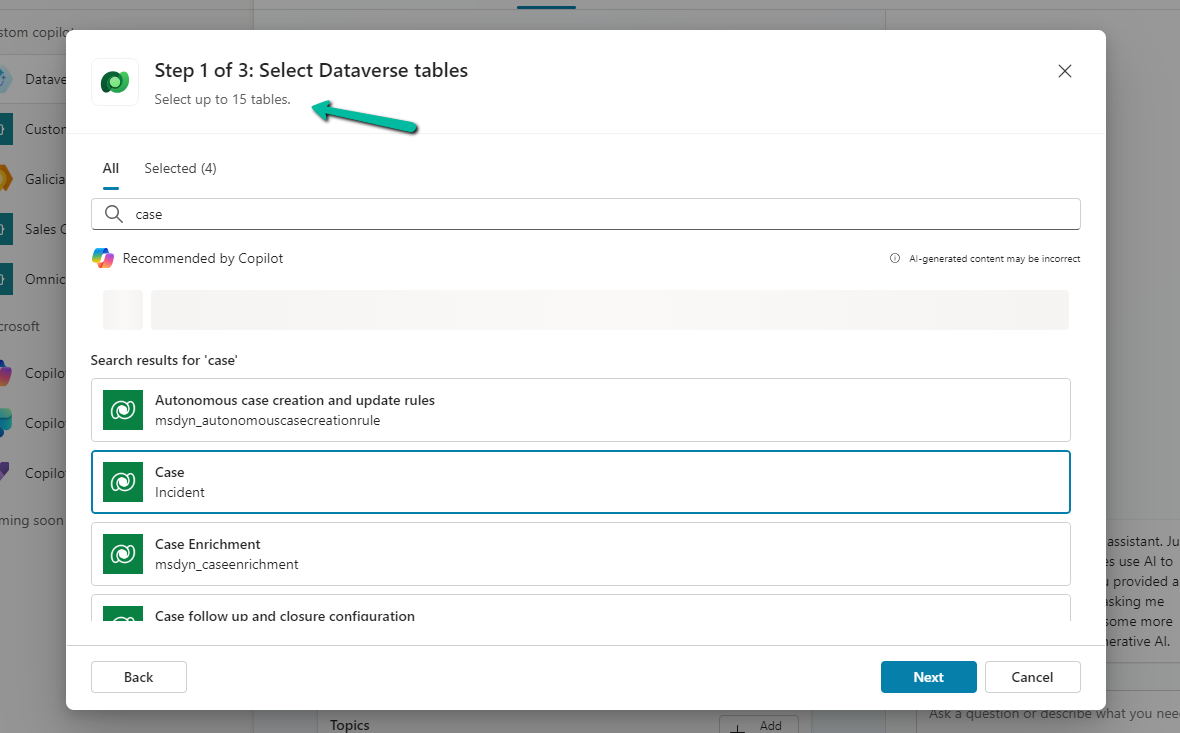
We can select up to 15 tables, and we have specified lead, contact, account, and case for now.

Next, we get the option to review the data for the tables selected.

A screenshot of a computer

Description automatically generated

In the last step, we get the option to review it. Here we can add/ edit the synonyms and glossaries that would make it easier for the copilot to understand and fetch the data. We’d skip it just to see how it works without configuring them.

Our copilot is ready now. The other things that we can do are to add actions, build topics, and publish which we’d leave as it is for now.

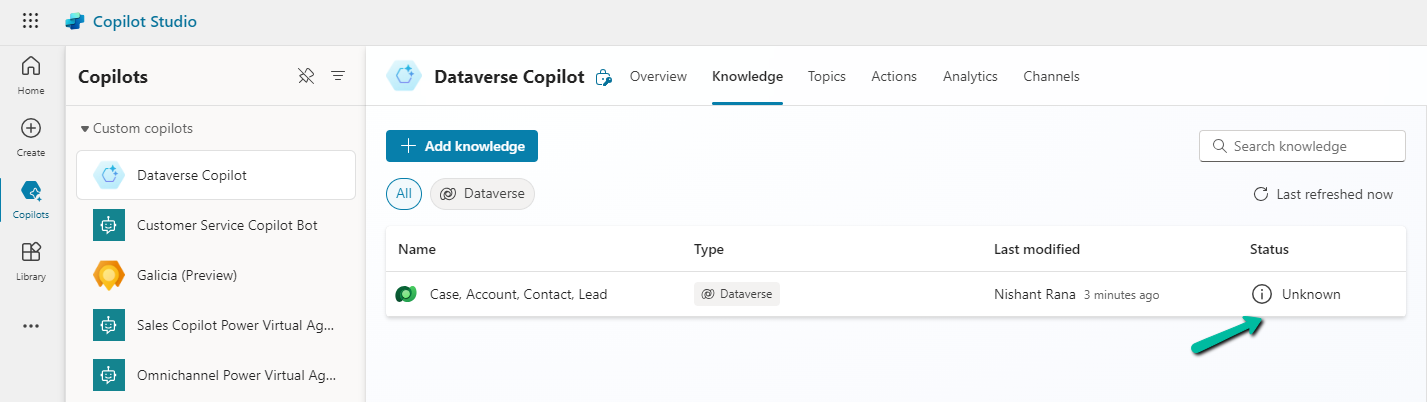
Click on the Knowledge tab. In a short time, we’d see the status changed to In Progress

A screenshot of a computer

Description automatically generated

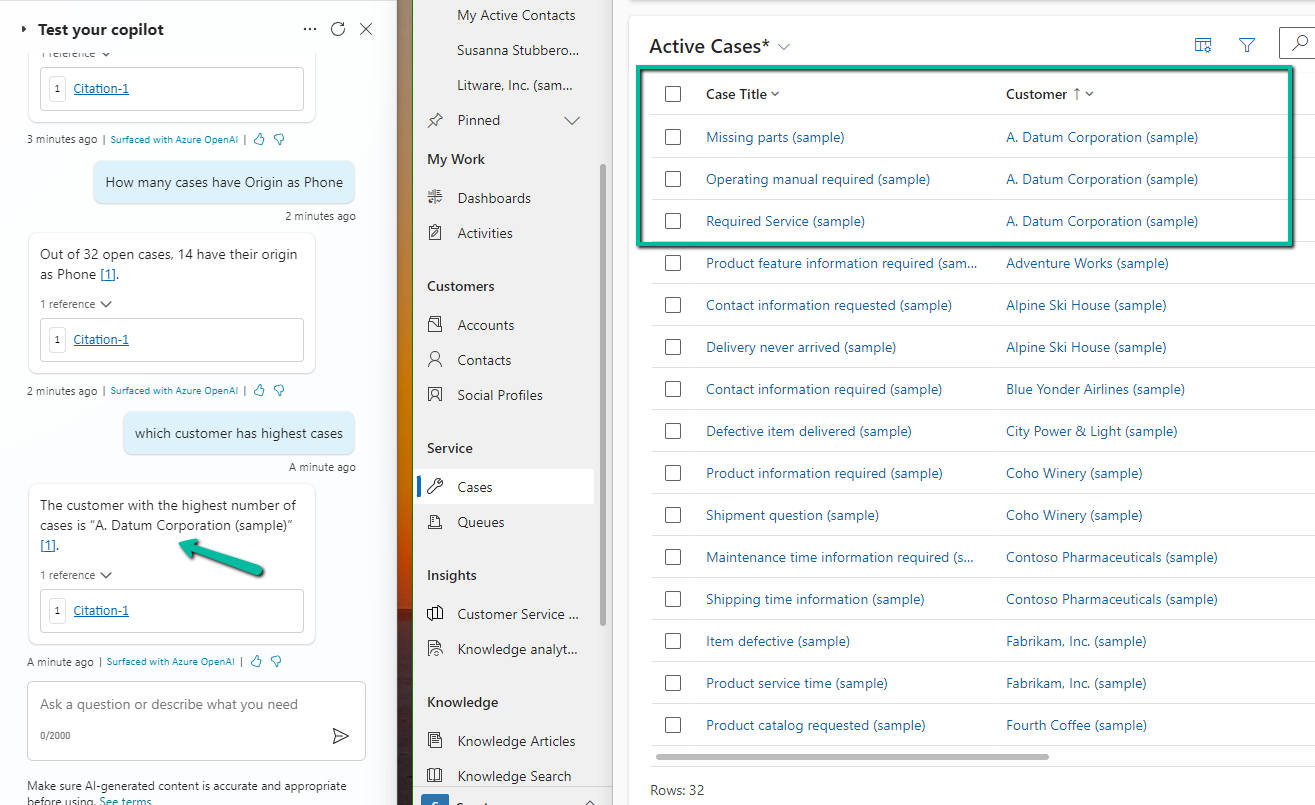
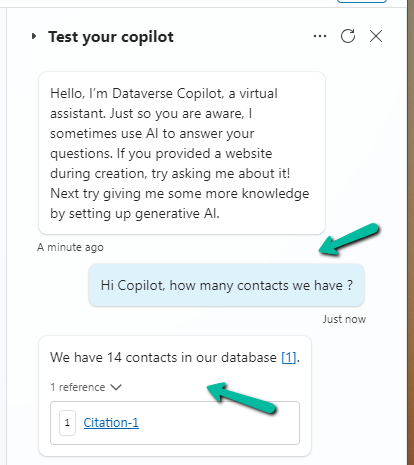
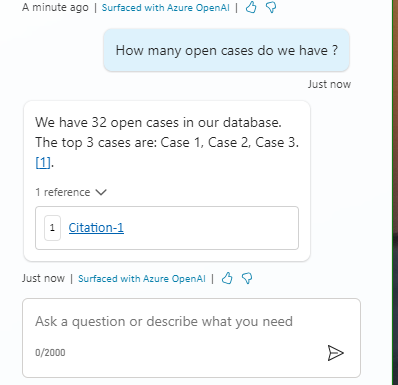
Meanwhile, we can still go ahead and test it.

A screenshot of a chat

Description automatically generated
A screenshot of a computer

Description automatically generated

As we are done with the testing let us try publishing it, before that let us check the authentication for it.

Navigate to Settings >> Security >> Authentication, here we can see Authenticate with Microsoft selected. We’d leave it like that.

Based on the Authentication mode selected, we will have different channels enabled / disabled.

Let us select the Microsoft Teams channel for our copilot.

Select Turn on Teams

A screenshot of a computer

Description automatically generated

Select Edit details

Add / Edit the details and click on Save.

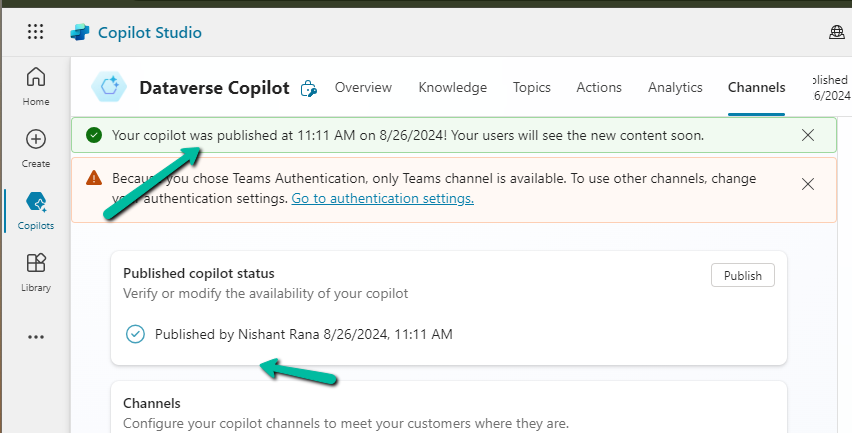
Now time to Publish our copilot.

A screenshot of a computer

Description automatically generated

A screenshot of a computer

Description automatically generated

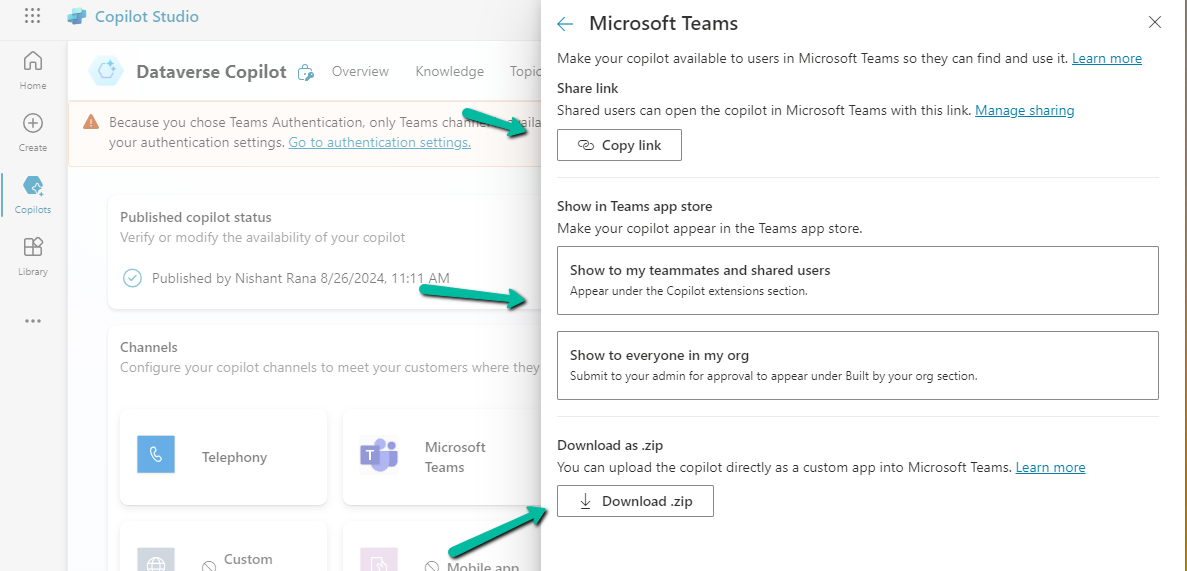
We can now again open the Microsoft Teams channel and select the Availability options.

Here we can see multiple options, one is to share the link, upload the zip, and show it in the teams store.

We selected the Show to my teammates and shared users option. We can add search and add users to share it with them.

A screenshot of a computer

Description automatically generated

The other option is to Copy link and share the link.

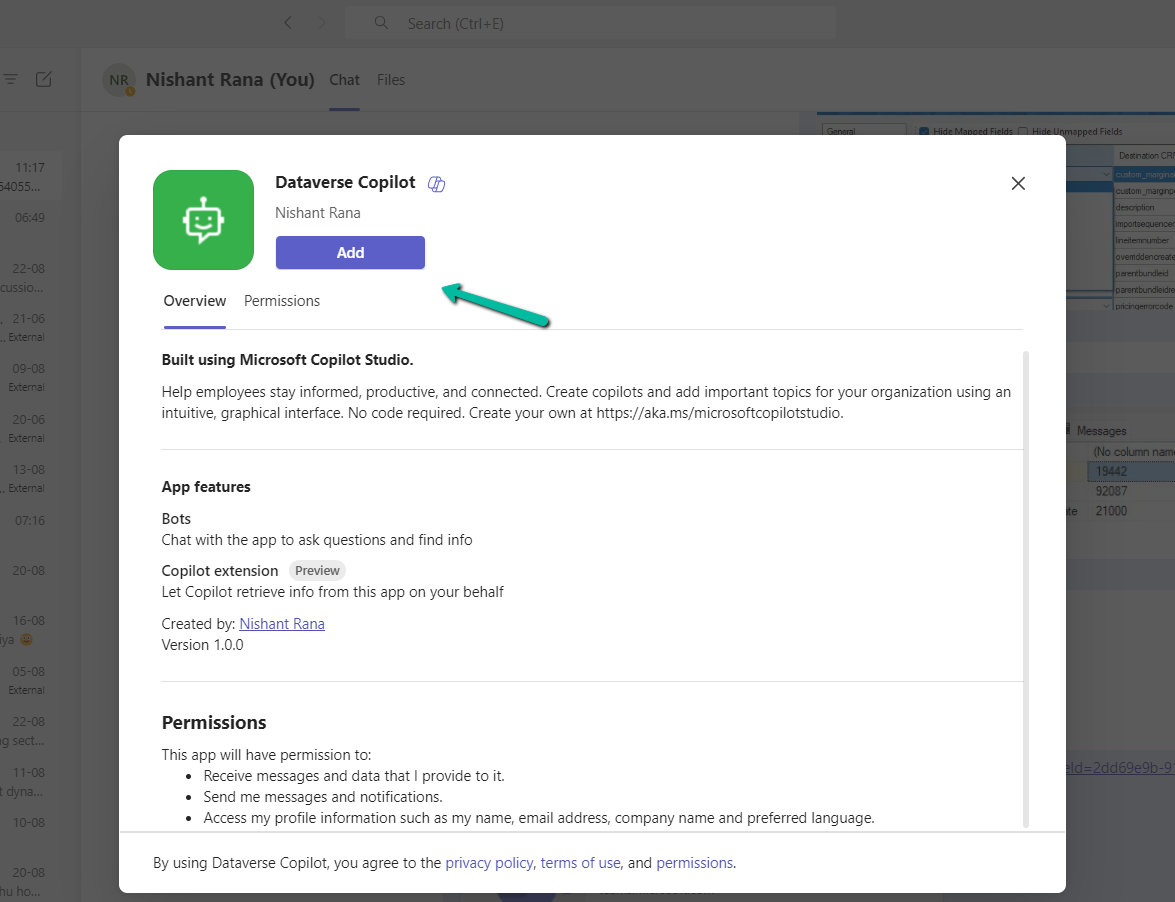
On opening the link, we get the option to add the app.

A screenshot of a computer

Description automatically generated

We can see our app added in the Manage your apps section in Teams.

A screenshot of a computer

Description automatically generated

Finally now we can start interacting with our copilot.

Get all the details –

https://learn.microsoft.com/en-us/microsoft-copilot-studio/

Hope it helps..

How to remove contact and customer validation on Cases– Dynamics 365


By default, we can only specify the contact associated with the customer for the case record. If we try specifying a contact record that is not associated with the Customer selected, we will get the below error message.

Invalid Contact – The specified contact doesn’t belong to the account selected as the customer. Specify a contact that belongs to the selected account, and then try again.

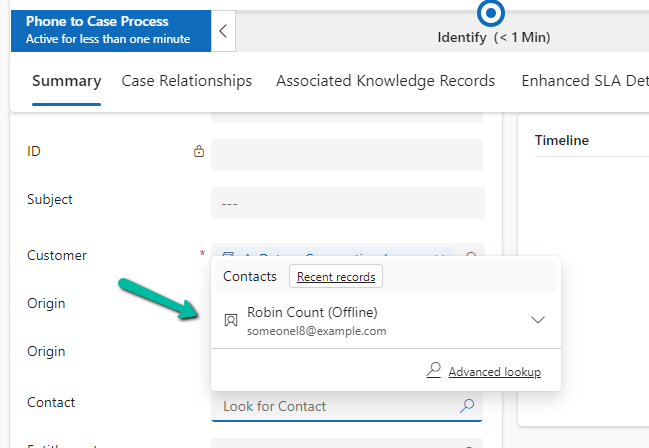
Also, CRM will filter the lookup to show only the associated contact record

A screenshot of a computer

Description automatically generated

However, if we do not want this validation, we can remove it using the environment variable.

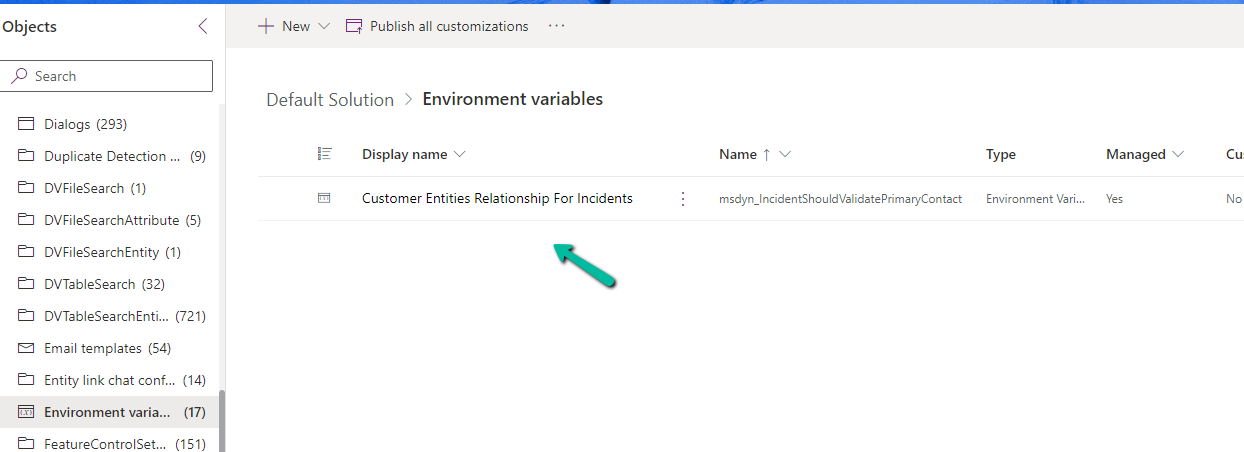
Search for Customer Entities Relationship For Incidents / msdyn_IncidentShouldValidatePrimaryContact

A computer screen shot of a computer screen

Description automatically generated

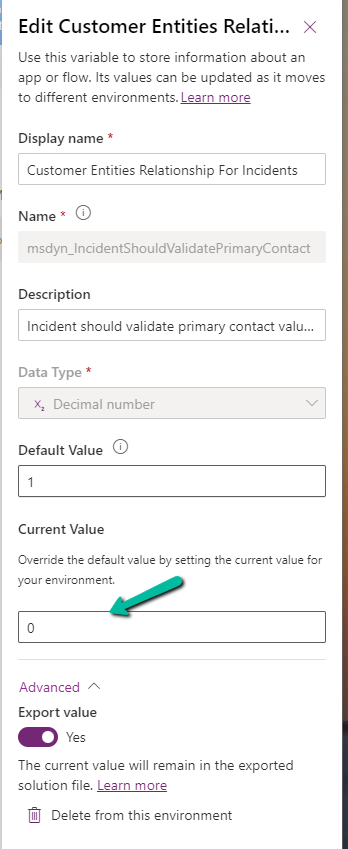
Set the new value as 0.

A screenshot of a computer

Description automatically generated

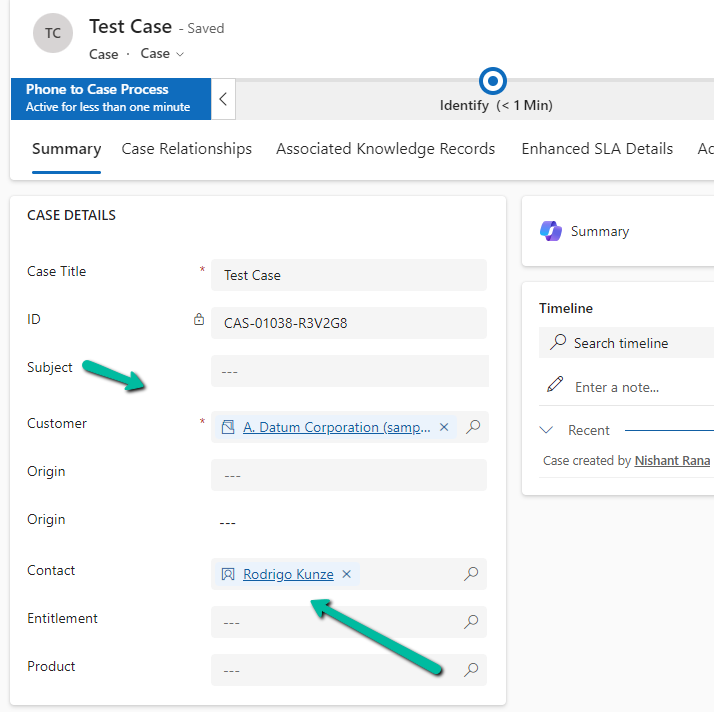
Now we will be able to save the record using an unassociated contact.

A screenshot of a test case

Description automatically generated

Get all the details here

Hope it helps..

Use OptionSet Wrapper component to show color-coded options on the form – Model-driven apps/ Dynamics 365


We can make use of the OptionSet Wrapper component to show color-coded options on the form for the choices or option set fields.

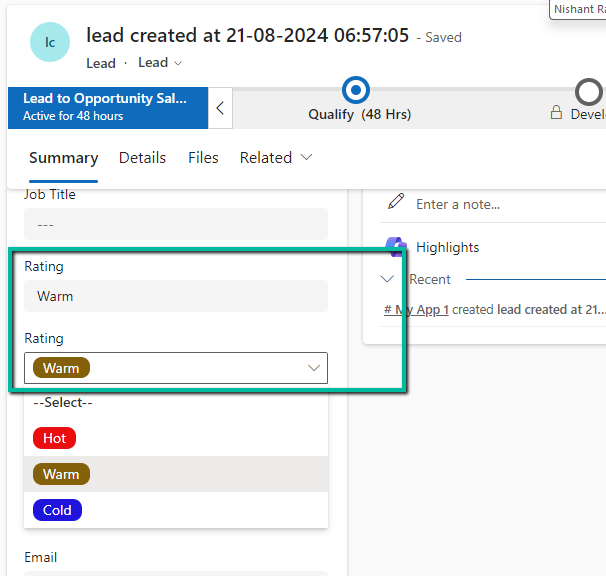
Below we have added the Option Set wrapper component to the Rating field of the lead in the Lead (Main) form.

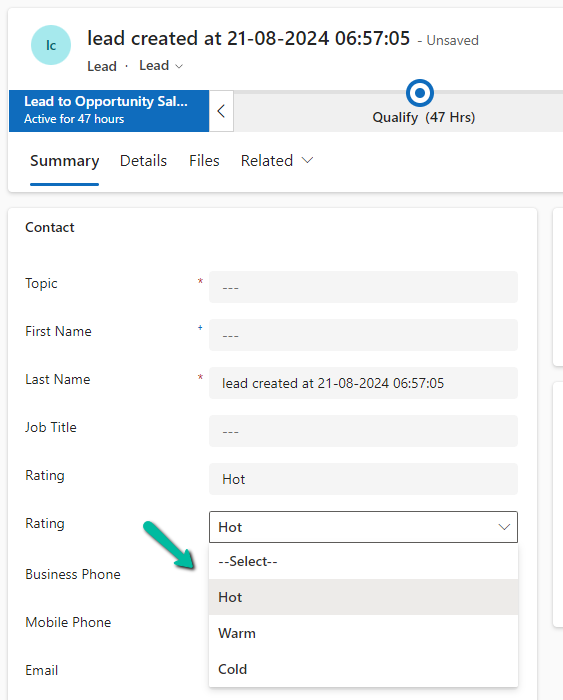
We can see the field added but do not see any colors for it.
A screenshot of a contact form

Description automatically generated

This is because it uses the color defined for that column, which wasn’t defined out of the box for that field.
We then defined the colors as shown below for different choices / options.

After saving and publishing our changes, we were able to see the corresponding color for the choices.

A screenshot of a computer

Description automatically generated

Also check –

Hope it helps..

Advertisements

New Lead Qualification Experience – Dynamics 365 Sales


To enable the new lead experience, navigate to App Settings >> Lead + opportunity management in the Sales Hub App.

A screenshot of a computer

Description automatically generated

On enabling it, we get the option to specify whether the Account, Contact, and Opportunity records are created automatically or the user (seller) has the option to specify which record to create.

We also see the option to Copilot summarizing the case once a lead is qualified.

For opportunity, if we select Seller, we get an additional option to modify the Opportunity form by adding or removing fields and also the option to allow a maximum of 5 new opportunities during lead qualification.

A screenshot of a computer

Description automatically generated

Clicking on the Add or remove fields link opens the Opportunity qualify lead form for customization.

A screenshot of a computer

Description automatically generated

Let us see it in action.

On clicking the Qualify command, we can see the new Qualify lead dialog opened in the side pane.

It gives us the option to create a new Account, Contact, and/or Opportunity record.

A screenshot of a computer

Description automatically generated

For Account and Contact, we can specify an existing record or select none if we do not want the Account and Contact record to be created.

A screenshot of a computer

Description automatically generated

For opportunity, we can click on edit icon to update the details of the opportunity record to be created. It will open the Opportunity qualify lead form.

A screenshot of a computer

Description automatically generated

Similarly clicking on + New opportunity allows us to specify a value for the new opportunity record.

A screenshot of a computer

Description automatically generated

As we had selected the option of a maximum of 5 opportunities, we got the below message on trying to specify the 6th opportunity record.

“You can’t add more than 5 opportunities.”

A screenshot of a computer

Description automatically generated

Let us click on Qualify.

We can see below details, the link to the records generated, and the summary.

A screenshot of a computer screen

Description automatically generated

Clicking on Finish opens the 1st opportunity record. We can also see the summary added to it.

A screenshot of a computer

Description automatically generated

On setting all the options to Automatic,

A screenshot of a computer

Description automatically generated

we can see the below details in the Qualify lead dialog, all as read-only information.

Get all the details here

Hope it helps..

Advertisements

Set an app (Model-driven or Canvas App) as a startup app – Power Apps Mobile


Microsoft has introduced a new feature, through which we can now specify a particular app as a start-up app, that will open up when we launch the Power Apps mobile, instead of waiting for the home page / or selecting it from favorites.

Below we can select the option Open at Startup to specify the Customer Service Hub app as the startup app as an example.

A screenshot of a phone

Description automatically generated

Or we can swipe left to mark an app as “Startup App

A screenshot of a phone

Description automatically generated

We can see an icon next to the app.

Now launching the Power Apps mobile app will directly open the Customer Service Hub app.

A screenshot of a phone

Description automatically generated

Using the Remove from startup option we can remove it as the startup app

A screenshot of a phone

Description automatically generated

We can only have one app set as a startup app, if we try setting up another app as a startup we get the notification that it will replace the existing app.

A screenshot of a phone

Description automatically generated

Get all the details here

Hope it helps..

Advertisements

Using BypassBusinessLogicExecution Parameter (Preview) to bypass Custom Sync and Async Logic (Plugin and Workflow) – Dataverse / Dynamics 365


Using the new BypassBusinessLogicExecution parameter we can bypass both sync as well as asynchronous custom logic (i.e. sync / async custom plugin and custom workflow registered), unlike the BypassCustomPluginExecution parameter which applied to only the synchronous custom logic.

Let us see it in action with a simple example.

We have the following Plugin registered against the lead table that writes to the Plugin Trace Log.

A screenshot of a computer program

Description automatically generated

We have the Update step (synchronous) registered for the plugin.

A screenshot of a computer

Description automatically generated

Below is our console app that updates one of the lead records triggering the plugin.

A computer screen shot of a program

Description automatically generated

On running it we can see our plugin step triggered and a trace log created.

A screenshot of a computer

Description automatically generated

Now let us use the BypassCustomPluginExecution parameter of Update Request or BypassPluginExecution property of CrmServiceClient.

A computer screen shot of a program

Description automatically generated

This time as expected the plugin is not triggered, so no plugin trace log record was created.

However, if our plugin step is registered in Asynchronous mode, we will have our plugin triggered, even if we are using the BypassCustomPluginExection parameter.

A screenshot of a computer

Description automatically generated
A screenshot of a computer

Description automatically generated

For bypassing the Asynchronous plugin only, or Sync Plugin, or both Async or Sync plugin, we can use the new optional parameter BypassBusinessLogicExecution passing the following values to it

  • CustomSync – to bypass synchronous logic.
  • CustomAsync – to bypass asynchronous logic.
  • CustomSync, CustomAsync – to bypass both Sync and Async logic.

On running the below code, our Plugin Step registered Asynchronously earlier is not triggered, in fact, any Synchronous step also, as we have specified both the CustomSync and CustomAsync.

A screenshot of a computer code

Description automatically generated

Also, any Workflow (Asynchronous or Real-time) registered will not trigger.

In short,

  • BypassBusinessLogicExecution + CustomAsync parameter = Asynchronous workflow/plugin will be bypassed. We will have our Sync Plugin and Real-time workflow getting triggered.
  • BypassBusinessLogicExecution + CustomSync parameter or BypassCustomPluginExecution or BypassPluginExecution = Synchronous workflow/plugin will be bypassed. We will have our Asynchronous Plugin and Real-time workflow getting triggered
  • BypassBusinessLogicExecution + CustomSync + CustomAsync = Both Async / Sync Plugin and Workflow will be bypassed.

A few key points –

  • The user making the request needs to have the prvBypassCustomPlugins privilege.
  • These parameters will not apply to Core Plugin and Workflow included in a solution where Microsoft is the publisher.
  • Power Automate flows are not bypassed using these optional parameters.

Get all the details here

Hope it helps..

Advertisements