Sample Code to Approve Email – Mailbox programmatically C# (Dynamics 365/CRM)


Suppose we want to Approve the Email for the mailbox of the user(s) programmatically.

We’d see the below notification for the user whose mailbox is not yet approved.

Email won’t be processed for this mailbox until the email address of the mailbox is approved by an Office 365 Global Administrator or by an Exchange Administrator. For more information, contact your system administrator.

Below is the sample code –

On running the code, we can see the notification for the email address approval removed or the mailbox approved for the user.

C# Code –

            CrmServiceClient svc = new CrmServiceClient(ConnectionString);

            if (svc.IsReady)
            {

                var systemUser = new Entity("systemuser", new Guid("C48A539A-F493-EC11-B400-000D3A4F37D3"));

                // emailrouteraccessapproval - status of the primary email address
                //0	= Empty, 1 = Approved, 2 = Pending Approval, 3 = Rejected
                systemUser.Attributes["emailrouteraccessapproval"] = new OptionSetValue(1);

                svc.Update(systemUser)

The code should run under the context of the user who has either Global Admin or Exchange Admin role.

Hope it helps..

Advertisements

How to – Stop Synchronization of Task / Appointment through System View using Sync Filter Manager


In the previous post, we saw how we can create a user filter (outlook) for a particular user and apply the same to other users through Sync Filter ManagerXrmToolBox plugin.

https://nishantrana.me/2022/03/29/how-to-stop-synchronization-of-task-appointment-between-dynamics-365-and-outlook/

In this post, we’d achieve the same through System View.

Here we have created below System View on Tasks entity/table.

The Created On Doesn’t Contain Data False Condition will make sure none of the records of the task are synced.

Open the Sync Filter Manager, navigate to the System Views tab and click on Load System Views

Select the new System View- Task Filter which we created earlier and click on Create – System Synchronization Filter Template from selected view(s)

Select Outlook Template for System Rule Type

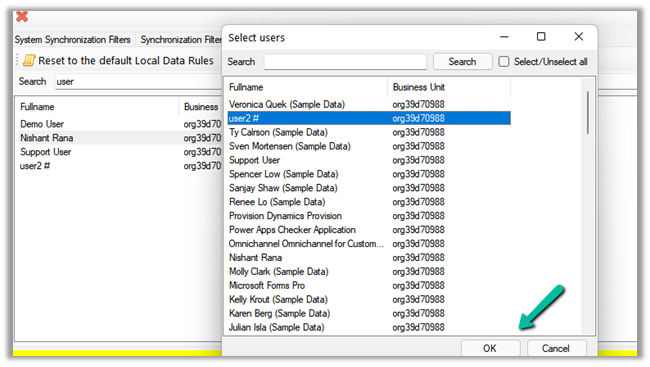
We are presented with the option to specify the user(s) to who we want to apply the new template.

If we select Yes, we get the Select users dialog box to select the user(s).

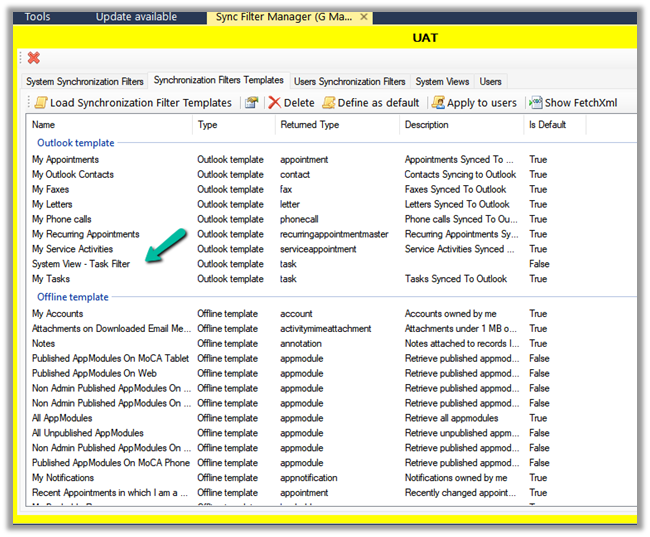
Inside the Synchronization Filters Templates tab, we can click on Load Synchronization Filter Templates to list down all the outlook templates.

We can see our custom template listed there.

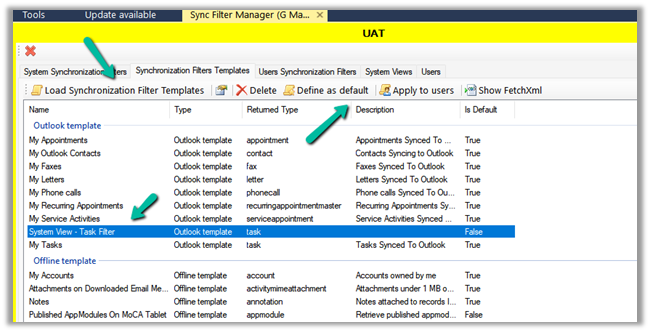
From there again we apply it to the user(s) or define it as the default filter.

After applying Define as default, we can see the custom filter applied to the new users. It won’t be applied or make changes to the filters of the existing users.

So for the existing users, we have to explicitly apply this filter using Apply to users option

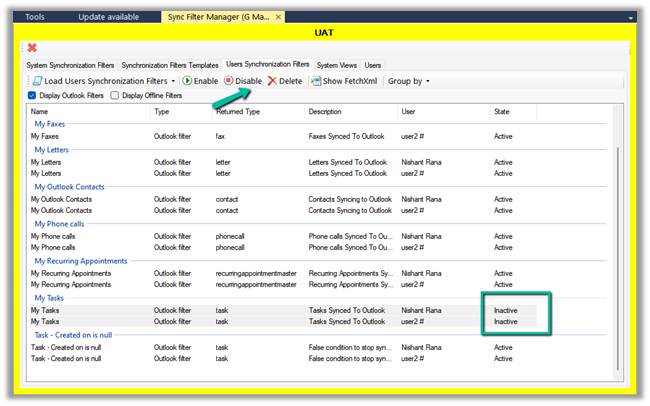
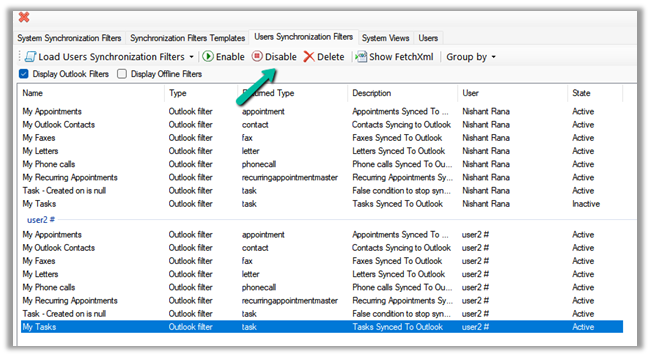
As the last step, we need to disable or delete any other filter on the task, to make sure that we only have the new filter applied.

On disabling the filter, we can see their status updated as inactive.

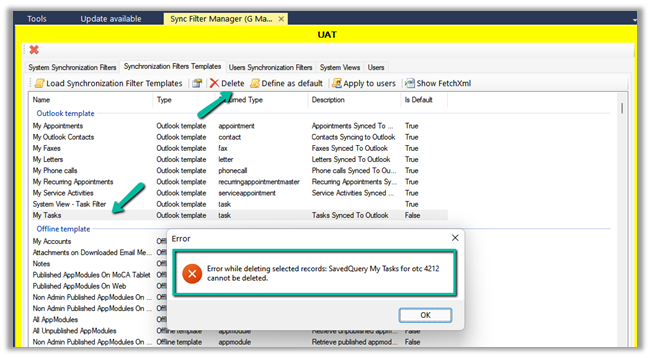
Lastly, we can only delete Custom Outlook Template, if we try deleting any default out of the box template we will get the below error.

E.g. on trying to delete the My Tasks default filter, we will get the below error

“Error while deleting selected records: SavedQuery My Tasks for otc 4212 cannot be deleted”

Check other posts on Synchronization –

Hope this helps..

Advertisements

How to – Stop synchronization of Task / Appointment between Dynamics 365 and Outlook


In the earlier posts we saw how synchronization works for different activities type and how to work with user as well as system filters.

In this post, we will how to use the wonderful Sync Filter Manager (XrmToolBox Plugin) for managing the outlook filters.

Suppose we don’t want Tasks to be synced for some of the users.

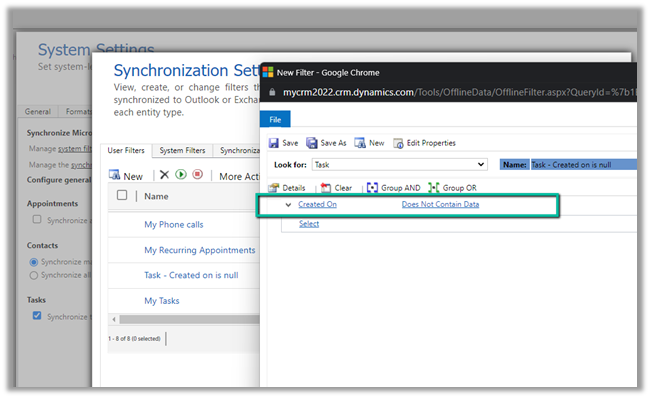
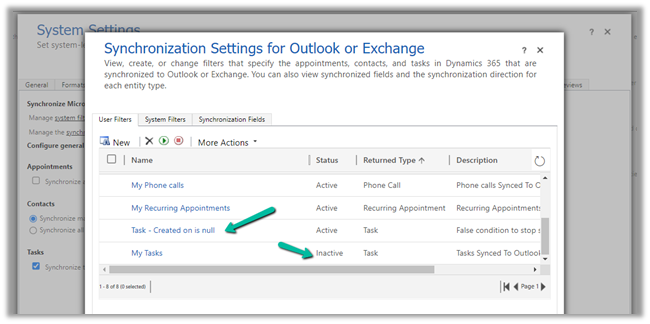
Here we already have a custom user filter (Task- Created on is null) defined for one of the users, specifying the condition which will always be false.

We have also disabled the default filter on tasks – My Tasks for that user.

For that particular user, now we do not see any tasks getting synced.

Now to apply the same setting to the others users, we can use the wonderful Sync Filter Manager – XrmToolBox plugin.

To know more about the tool –

http://mscrmtools.blogspot.com/2013/12/introducing-new-tool-sync-filter-manager.html

https://www.slideshare.net/jukkan/control-outlook-synchronization-settings-for-dynamics-crm-users

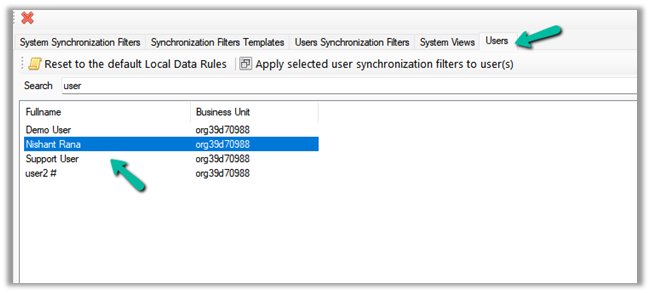
Navigate to the Users tab, search for the user whose setting we want to apply to other users, and select it.

Here we have selected the source user record

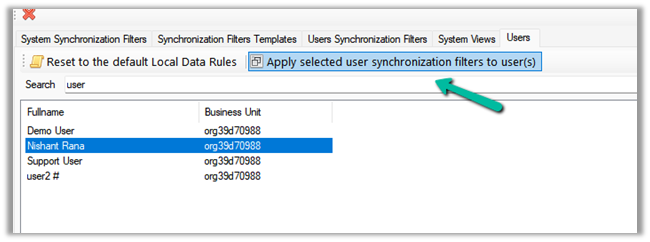
Click on Apply selected user synchronization filer to user(s) button.

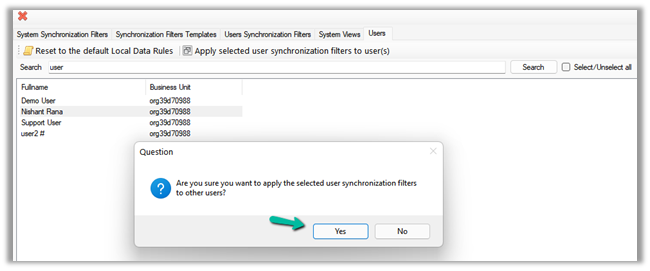
For Question Dialog Box – “Are you sure want to apply the selected user synchronization filters to other users ?” – select Yes

For now, we have selected only User 2. We can select multiple users or select / unselect all the users.

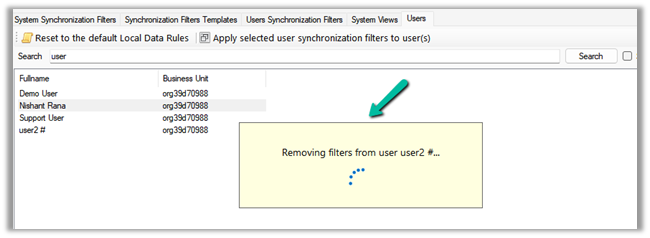
It will remove the default / or existing filters from users. User 2 in our case.

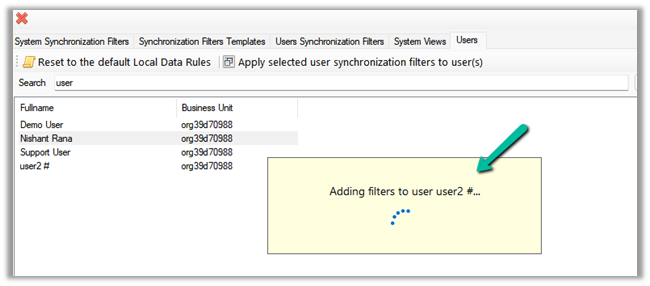
And will add the filters from the selected user to it.

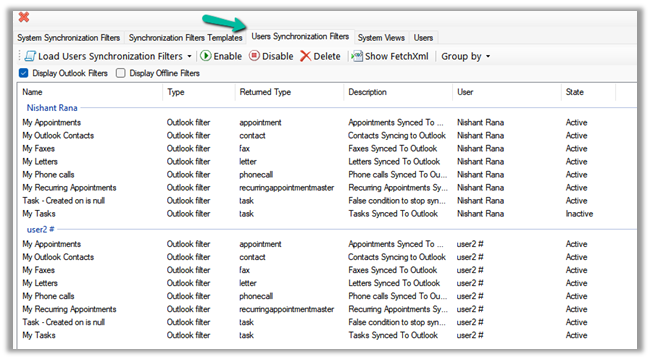
After some time, we can see the filters updated for User 2, with the Task – Created on is null filter added.

We can also verify it from the User Synchronization Filters tab, where we can load the synchronization filters for all the users.

As a last step we just need to deactivate/delete the default My Tasks filter for User 2 also(or all the other users for who we want to disable task sync) and we are done.

Hope it helps..

Advertisements

How to – Synchronize Appointments between Dynamics 365 and Outlook using Server-Side Synchronization


Appointments, Contacts, Fax, letters, Tasks, etc. entities can be synced both ways between Dynamics 365 and Outlook.

This setting is configurable.

Navigate to System Settings >> Synchronization tab

Click on Synchronized Fields. It lists down all the entities there.

We can define the synchronization direction by clicking on the arrow of the attribute for a particular entity type.
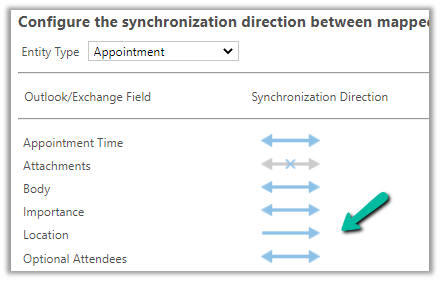
Email synchronization is handled separately as we can see below.

We cannot have a custom activity entity enabled for Synchronization.

https://community.dynamics.com/crm/f/microsoft-dynamics-crm-forum/269218/sync-custom-activity-to-outlook/862671

Now to get it working the next step is to approve, test, and enable the user’s mailbox.

And set Appointment, Contacts, and Tasks to Server-Side Synchronization. (default = none).

Now let us create an Appointment record in Dynamics 365.

We have specified values for the Required and Subject field.
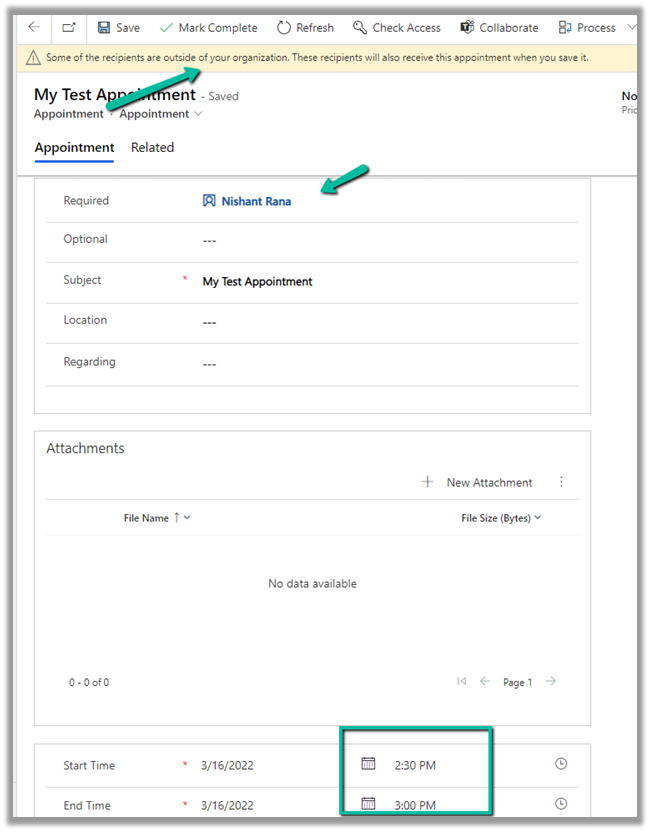
We get a notification before saving the record. Here the contact record specified had the Hotmail id associated.
Some of the recipients are outside of your organization. These recipients will also receive this appointment when you save it.

After saving the record we can see the Appointment reflected in Outlook along with the reminder after few mins.
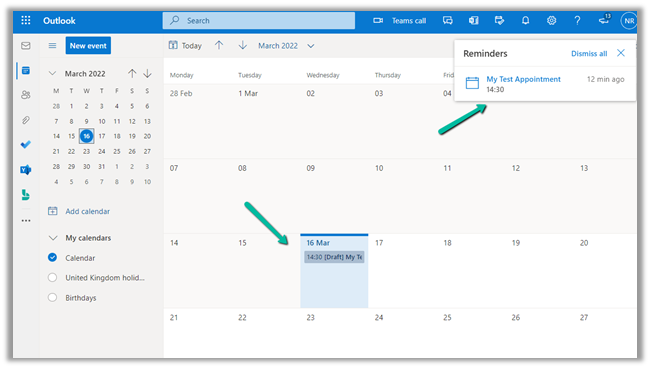
We can see it categorized as “Tracked to Dynamics 365

Now let us update the same appointment inside Outlook and send it.
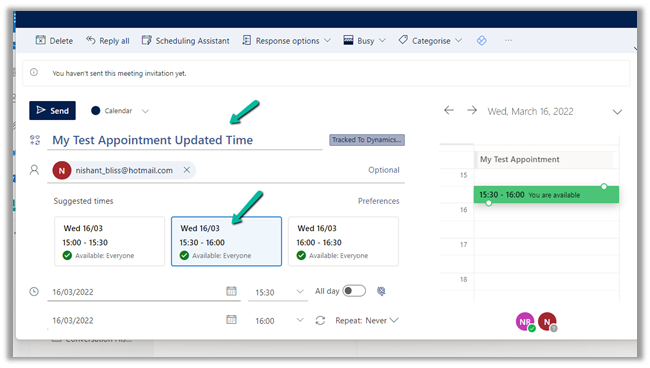
After a couple of minutes, we could see the record updated back in CRM.

Now for new appointments created in Outlook to reflect in CRM, we need to have either of the following conditions in place –

It has to be created or tracked in Dynamics 365 from Dynamics 365 for Outlook App.

Or from within the Outlook app, we need to apply Tracked to Dynamics 365 Category to it.

The same record in CRM –

Now let us delete one of the appointments in Dynamics 365

It is already synced to Outlook.

We will see the appointment deleted in Outlook because it fulfills the below criteria i.e.

The appointment is in the future and the user is also the appointment organizer.

This will also send the cancellation to the users/attendees.

And similarly, if we cancel an appointment in Outlook, it will send the cancellation to the attendees and will also delete the record in Dynamics 365.

The appointment record canceled in Dynamics 365 doesn’t sync to Outlook as canceled by default.
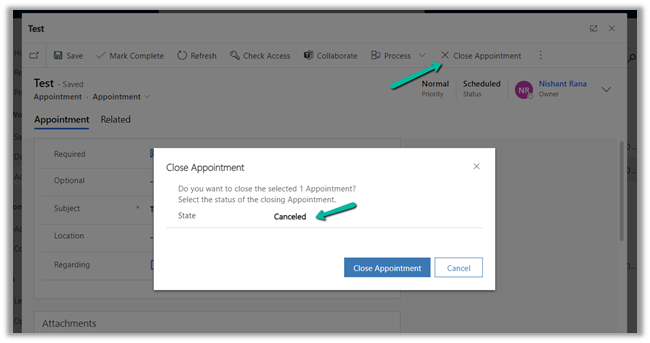
We need to enable SSSPropagateAppointmentCancellationsToExchange settings in OrgDbOrgSettings for it.

https://github.com/seanmcne/OrgDbOrgSettings/releases

https://support.microsoft.com/en-us/topic/orgdborgsettings-tool-for-microsoft-dynamics-crm-20a10f46-2a24-a156-7144-365d49b842ba

After this is enabled, the appointment is canceled in Outlook also, and cancellation is sent to the attendees.

Get all the details here – https://docs.microsoft.com/en-us/power-platform/admin/sync-logic#syncing-canceled-and-deleted-appointments-from-dynamics-365-to-exchange

https://learn.microsoft.com/en-us/dynamics365/outlook-addin/user-guide/delete-records-that-have-been-tracked#appointments

https://community.dynamics.com/365/sales/f/dynamics-365-for-sales-forum/426757/externally-cancelled-tracked-appointment-not-marked-as-cancelled-in-dynamics

Hope it helps..

Advertisements

How to – Upload files to File Column / Attribute using SSIS – KingswaySoft (Dynamics 365/ CRM)


Let us take a simple example to understand how we can upload files to the file column through SSIS Package + KingswaySoft’s Integration Toolkit.

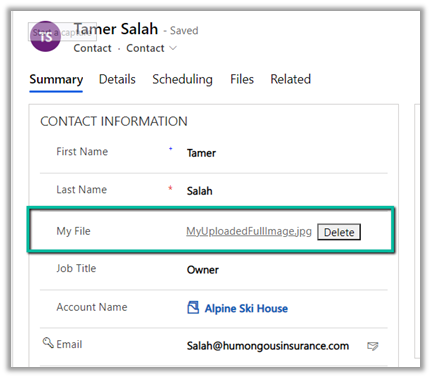
Here we have a File Column defined for the Contact Entity.

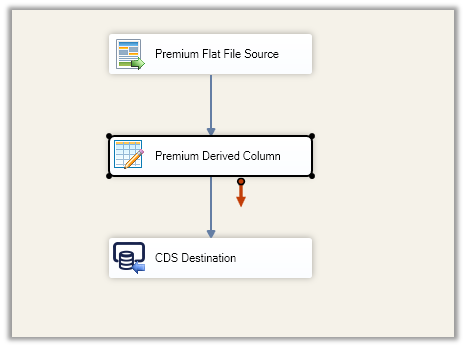
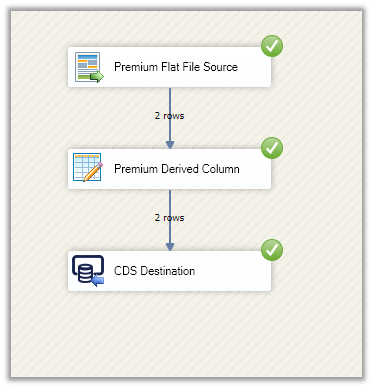
This is what our final package looks like –

Our SSIS package will pick up the contact’s email, file path, and file name from the CSV file as the source using the Premium Flat File Source component.

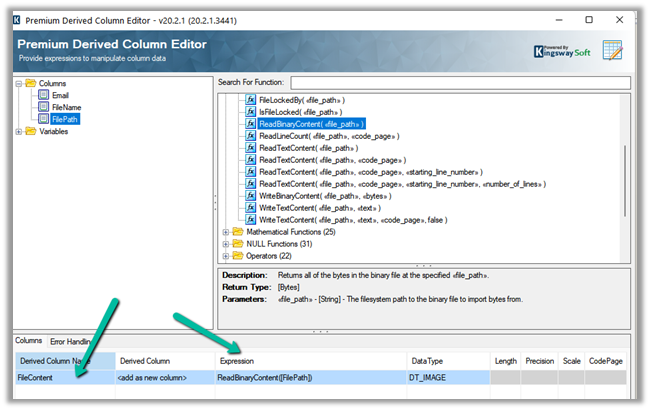
The premium derived component adds a new column that reads / stores the binary content of the file specified in excel.

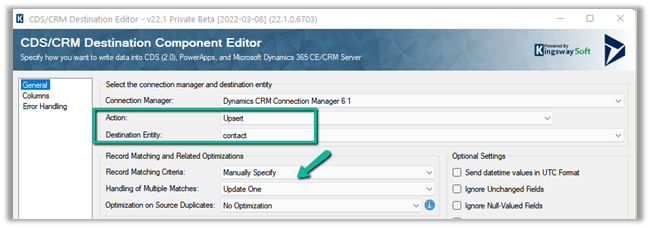
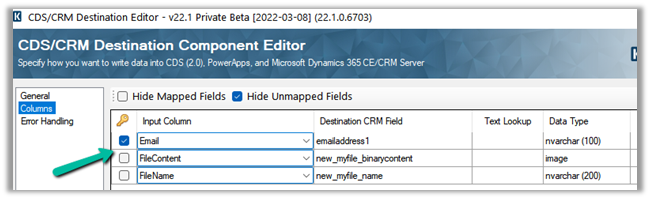
Finally, in CDS Destination we are doing Upsert on contact entity based on the email id field specified in the source excel file.

The mapping –

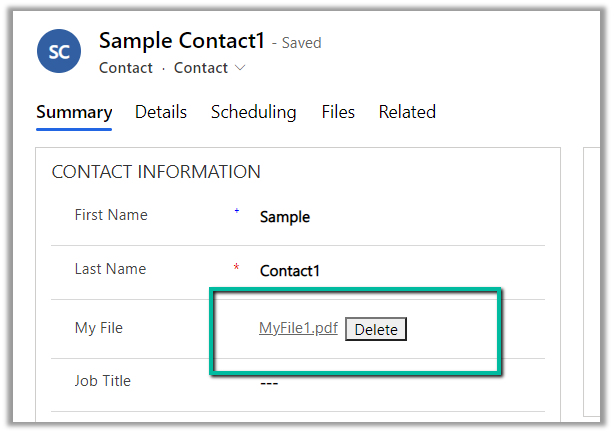
On running the package, we can see the file uploaded to the corresponding contact records.

To extract attachment from notes-https://nishantrana.me/2021/02/10/extracting-attachments-from-notes-in-dynamics-365-dataverse/

To download files using Download Block Request –https://nishantrana.me/2022/03/14/how-to-download-file-from-file-column-using-initializefileblocksdownload-and-downloadblock-request-dynamics-365-crm-dataverse/

To upload files using Upload Block Request –https://nishantrana.me/2022/03/15/how-to-upload-file-to-file-column-using-initializefileblocksupload-and-uploadblock-request-dynamics-365-crm/

Understand File and Image Data Type –https://nishantrana.me/2021/10/01/using-file-and-image-data-type-in-dataverse-dynamics-365/

Try out the wonderful, feature-rich, and powerful SSIS Integration Toolkit for Dynamics 365 by KingswaySoft –https://www.kingswaysoft.com/products/ssis-integration-toolkit-for-microsoft-dynamics-365/download

Check other articles on SSIS plus CRM – https://nishantrana.me/2018/11/26/ssis-and-microsoft-dynamics-365/

Hope it helps..

Advertisements

How to – Download files from File Column / Attribute using SSIS – KingswaySoft (Dynamics 365/ CRM)


Let us take a simple example to understand how we can download files from the file column using SSIS Package + KingswaySoft’s Integration Toolkit.

Here we have a File Column defined for Contact Entity.

Our SSIS package will run on all the contact records and will extract the file from the records to one of the folders in the local machine.

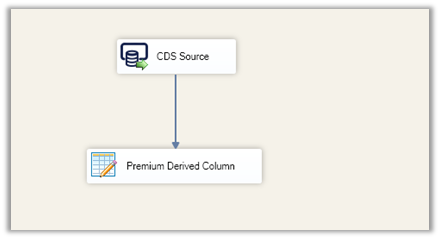
This is what our package’s data flow looks like.

It has just 2 components CDS Source and Premium Derived Column.

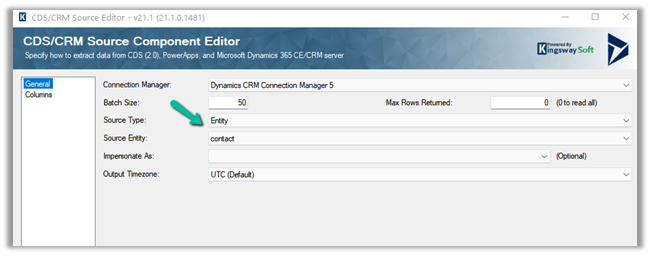
CDS Source is connected to the Contact entity.

For Columns, we have selected our file column fields.

Next, we have next added a Primary Derived Column component.

We have used the WriteBinaryComponent function to write the binary content (new_myfile_binarycontent field) to a file.

WriteBinaryContent(“D:\\MyDownloadedFile\\”+[new_myfile_name], new_myfile_binarycontent])

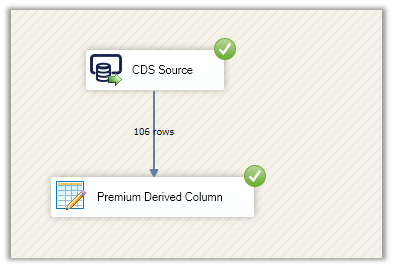
On running the package successfully, we can see the files downloaded at the folder specified.

The result – as we just had 2 contact records out of 106 having file uploaded to it we can see those 2 filed downloaded.

Hope it helps..
Advertisements