

Kupp Software, Microsoft Partner, based in Austria, last year released their product Kupp Code Analytics (Code Analytic Tool) for Microsoft Dynamics 365, intending to help the teams to be more proficient through automating manual tasks, provide IntelliSense, code analysis, performance analysis, etc.
In this blog post, we’d have a brief look at Kupp Code Analytics. Kupp Code Analytics is a powerful Visual Studio Extension, for Microsoft Dynamics 365 and Power Platform (Dataverse). The technical team can use the tool to code faster, easier, and more efficiently, and at the same time can use the tool to analyze and get insights and adhere to best practices.
There are 2 versions of the products, the Community Version which is free, and other is Premium Version with additional capabilities.
The community version provides key features like
IntelliSense
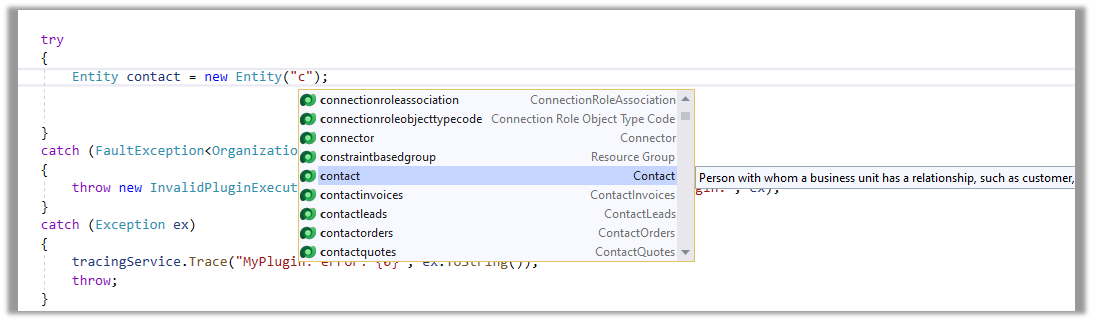
Below we can see IntelliSense in work, we get the name of the table suggested while writing the code.
Also, we can see it listed down the corresponding attributes of the table in the context.
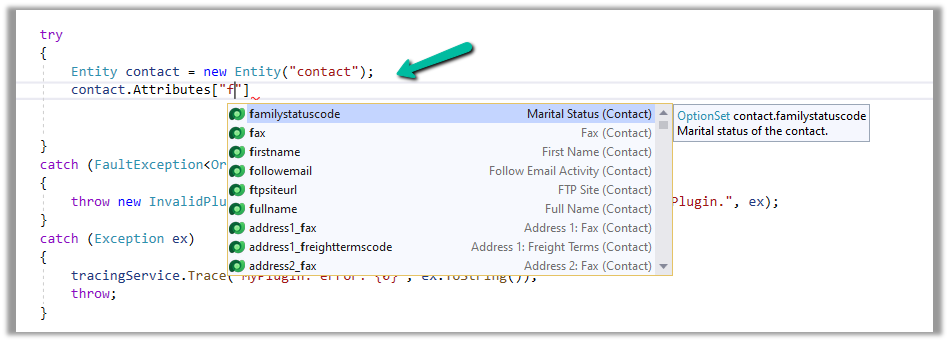
It also filters the suggestion based on the attribute or column type as shown below. We can see only the OptionSet type attributes being listed down.

IntelliSense is not limited to C# code but also applies to OData. (Retrieve operations)
Below we can see it listing down different Query Options
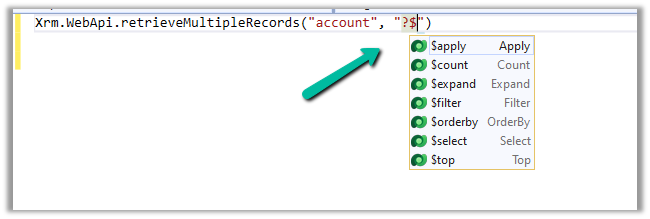
This allows us to write our OData queries that use the filter

Or any Query Functions

It also provides IntelliSense for some complex scenarios as well both, which we’d cover in detail in the forthcoming posts.
Deploy Assemblies and Web Resource
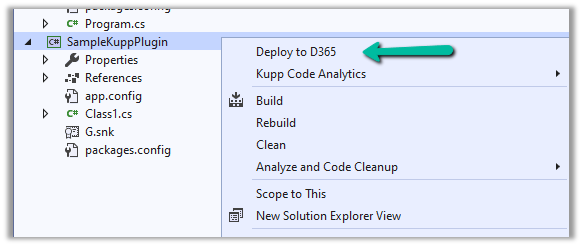
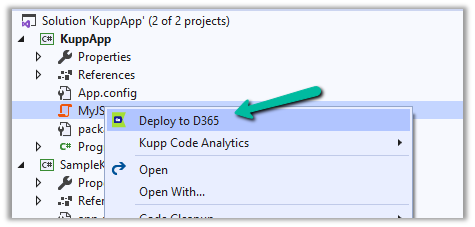
The developers can also quickly deploy/update plugins and web resources from within Visual Studio.
To deploy the plugin, right-click on the project and select Deploy to D365 option.
For the Web resource file, right-click and select the Deploy to D365 option.
Generate Early Bound Code and Convert Late Bound code to Early Bound
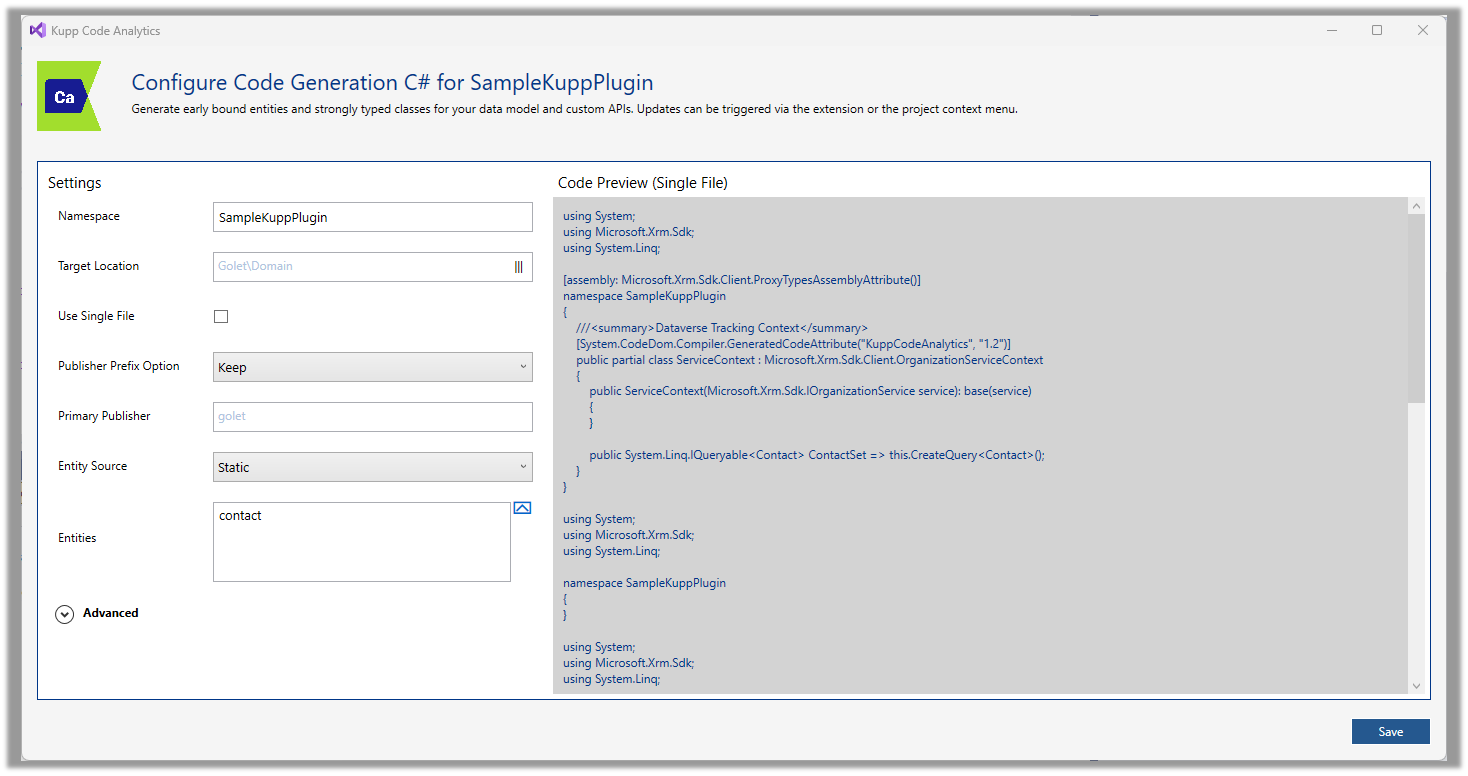
Developers can configure and quickly generate Early Bound Entities using the Code Generation feature of the tool.
Below is the code generation dialog for C#.
Similarly, early bound classes can be generated for TS/JS

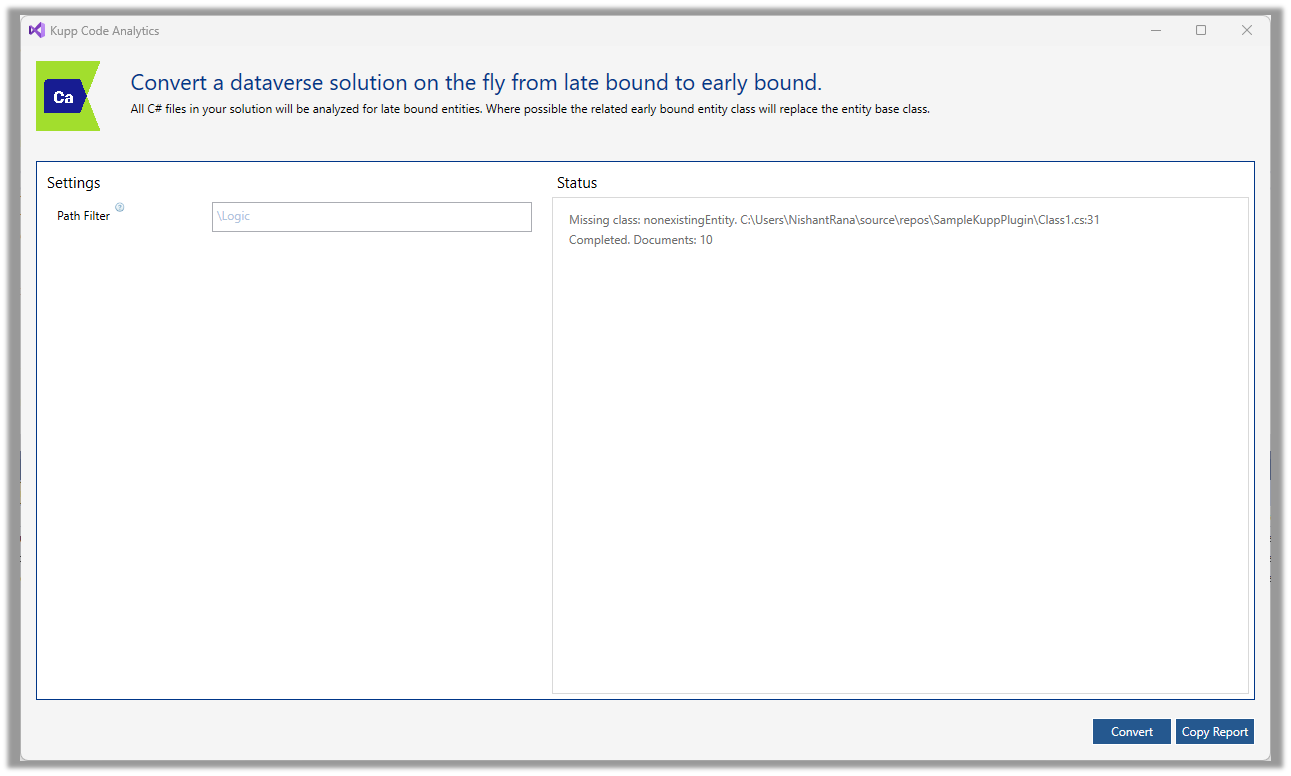
The users can also convert the late bound code to early bound with just one click.
In the premium version of the tool, the users get the below additional capabilities.
Code and Performance Analytics
The tool has a custom code analysis rule set defined that guides the developers while writing the code.
Below we can some of the rules like usage of early bound entity, specifying only required columns instead of all columns, in action. There are other rules also which we will cover in later posts.

Debug Plugin
Another feature that is available in the premium version of the tool is the option to debug the plugin.
Selecting the options Tools >> Debug Plugin generates a ready-to-use Unit test project to test the plugin with the required plugin context generated.

Here we covered some of the key capabilities of Kupp Code Analytics, check the below links to download it and learn more about it.
- Get the tool/extension from here – https://marketplace.visualstudio.com/items?itemName=KuppSoftware.kca2022
- Product Documentation – https://docs.kuppsoft.com/Kupp-Code-Analytics
- Product feature demo – https://www.youtube.com/playlist?list=PLLCCvcH6S3yvOMnmQU0v_HzCkXVihVGzY
Hope it helps..

















 Nishant Rana's Weblog