How to – Upload File to File Column using InitializeFileBlocksUpload and UploadBlock Request (Dynamics 365/ CRM)


Sharing a sample code, we can use to upload a file to the File Column

Also read –

https://nishantrana.me/2021/10/01/using-file-and-image-data-type-in-dataverse-dynamics-365/

File Attribute

https://nishantrana.me/2022/03/14/how-to-download-file-from-file-column-using-initializefileblocksdownload-and-downloadblock-request-dynamics-365-crm-dataverse/

Here we would upload the below file to one of the contact records.

For file size more than 4 MB we need to implement chunking and combine the data before committing.

uploadimg

On calling the method –

We can see the file uploaded to the contact record.

The restriction of using chunked upload for files greater than 16 MB has been removed, see the below code for full file upload. The chunking APIs are still kept for backward compatibility.

Example – .NET C# code for full file upload. (recommended way of uploading)

Hope it helps..

  private static void UploadFile(CrmServiceClient svc, string entityName, Guid recordGuid,
           string fileAttributeName, string filePath, string fileName)
        {
            // get the file content in byte array
            var fileContentByteArray = File.ReadAllBytes(filePath);

            var initializeFileBlocksUploadRequest = new InitializeFileBlocksUploadRequest()
            {
                Target = new EntityReference(entityName, recordGuid),
                FileAttributeName = fileAttributeName,
                FileName = fileName
            };

            var initializeFileBlocksUploadResponse = (InitializeFileBlocksUploadResponse)
                svc.Execute(initializeFileBlocksUploadRequest);

            // to store different block id in case of chunking           
            var lstBlock = new List<string>();         

            // 4194304 = 4 MB
            for (int i = 0; i < fileContentByteArray.Length / 4194304  ; i++)
            {
                var blockId = Convert.ToBase64String(Encoding.UTF8.GetBytes(Guid.NewGuid().ToString()));
                lstBlock.Add(blockId);
                
                var uploadBlockRequest = new UploadBlockRequest()
                {
                    BlockId = blockId,
                    BlockData = fileContentByteArray.Skip(i * 4194304).Take(4194304).ToArray(),
                    FileContinuationToken = initializeFileBlocksUploadResponse.FileContinuationToken
                };

                var uploadBlockResponse = (UploadBlockResponse)svc.Execute(uploadBlockRequest);
            }

            var commitFileBlocksUploadRequest = new CommitFileBlocksUploadRequest
            {
                FileContinuationToken = initializeFileBlocksUploadResponse.FileContinuationToken,
                FileName = fileName,
                MimeType = System.Web.MimeMapping.GetMimeMapping(fileName),
                BlockList = lstBlock.ToArray()

            };

            var commitFileBlocksUploadResponse = (CommitFileBlocksUploadResponse)svc.Execute(commitFileBlocksUploadRequest);
        }
Advertisements

How to – Download File from File Column using InitializeFileBlocksDownload and DownloadBlock Request (Dynamics 365/ CRM / Dataverse)


Sharing a sample code which we can use to download the file from the File Column

Also read –

https://nishantrana.me/2021/10/01/using-file-and-image-data-type-in-dataverse-dynamics-365/

File Attribute

Here we would download the below file uploaded to one of the contact records.

The sample code –

On calling the method –

We can see the file downloaded at the location specified

Here the file transfers are limited to a maximum of 16 MB in a single call. In case of more than 16 MB, we need to divide the data into 4 MB or smaller chunks, combine or join the downloaded data to form the complete file.

https://docs.microsoft.com/en-us/powerapps/developer/data-platform/file-attributes#example-net-c-code-for-download-with-chunking

Get more details – Retrieve File Data

*interestingly enough we didn't get any error while trying to download files with size more than 16 GB by using the DownloadBlockRequest

Hope it helps..

private static void DownloadFile(CrmServiceClient svc, string *interestingly enough we didn't get any error while trying to download files with size entityName, Guid recordGuid, 
            string fileAttributeName, string filePath)
        {
            var initializeFileBlocksDownloadRequest = new InitializeFileBlocksDownloadRequest
            {
                Target = new EntityReference(entityName, recordGuid),
                FileAttributeName = fileAttributeName
            };

            var initializeFileBlocksDownloadResponse = (InitializeFileBlocksDownloadResponse)
                svc.Execute(initializeFileBlocksDownloadRequest);

            DownloadBlockRequest downloadBlockRequest = new DownloadBlockRequest
            {
                FileContinuationToken = initializeFileBlocksDownloadResponse.FileContinuationToken
            };

            var downloadBlockResponse = (DownloadBlockResponse)svc.Execute(downloadBlockRequest);

            // Creates a new file, writes the specified byte array to the file,
            // and then closes the file. If the target file already exists, it is overwritten.

            File.WriteAllBytes(filePath + 
                initializeFileBlocksDownloadResponse.FileName, 
                downloadBlockResponse.Data);

        }
Advertisements

How to – Use Business Rules to Disable / Read-only fields in Editable Grid (Dynamics 365 / CRM)


In the previous post, we saw how to use Field Level Security and JavaScript to disable field/column in the Editable Grid Control.

How to – Disable / Read Only fields in Editable Grid control (Dynamics 365 / CRM) – Nishant Rana’s Weblog

We can also use Business Rules to achieve the same.

Here we will be disabling the email field.

Below is our sample business rule to lock the email field.

The result – we have the field locked/disabled in the editable grid control.

Couple of things we need to take care of

1st the field that we are using in the condition inside business rule, last name in our case, should be there in the view.

And the Scope of the Business Rule should be either – Entity or All Forms.

Also check  – https://nishantrana.me/2022/02/15/power-apps-grid-control-in-model-driven-apps-dynamics-365-crm/

Hope it helps..

Advertisements

How to – Disable / Read Only fields in Editable Grid control (Dynamics 365 / CRM)


Say for e.g. we have a requirement to make a certain field or column in the Editable Grid as read-only.

Here we have enabled Editable Grid control for Contact table.

Below are the 2 ways of achieving it –

Here we are taking the email field as an example.

  • Field level security

We have enabled Field Security on the Email field.

And we have set Allow Read and Allow Create as Yes and Allow Update as No.

And added the appropriate users or teams to which this profile should apply.

Now when the user tries to make changes in the email field, it comes as locked.

The other fields still come as editable as we have not enabled them for field security.

  • The other option is JavaScript on the OnRecordSelect event

Code –

function onGridRowSelected(context) {
    context
        .getFormContext()
        .getData()
        .getEntity()
        .attributes.forEach(function (attr) {
            if (attr.getName() === "emailaddress1") {
                attr.controls.forEach(function (myField) {
                    myField.setDisabled(true);
                });
            }
        });
}

The result –

Also check  – https://nishantrana.me/2022/02/15/power-apps-grid-control-in-model-driven-apps-dynamics-365-crm/

Hope it helps..

Advertisements

How to – Immediately (sync)bulk delete AsyncOperation or Workflow System Job records in Dataverse (Dynamics 365 / CRM)


Recently we noticed File usage of some of our environments reaching around 50 GB, and most of it was because of the AsyncOperation table.

async

So to quickly delete the AscyncOperation records the option we can choose is –

Create a new Bulk Record Deletion job from Settings >> Data Management

Select System Jobs table and filter as System Job Type equals Workflow

Select Bulk deletion job start time as Immediately

The Immediately option will only be available –

  • For entity – System Jobs
  • Filter Criteria is System Job type equals Workflow (we can add additional criteria)
  • User has organization-level
    delete rights on AsyncOpertion entity.

This will only delete the AsyncOperation records that are in the completed state of system job type workflow.

It will delete 1 million records whenever it is run. If there are more than 1 million records, it will have to be run again.

The key part is that it will delete the records through direct SQL Execution, so the records will be deleted immediately, rather than each record going through the delete pipeline, thus improving the performance immensely.

Back to our bulk deletion job, we can click on Submit to initiate the deletion.

We encountered a few errors when submitting, the solution was to keep trying, and eventually it will get submitted successfully.

error

After successful submission, we can see all our completed workflow system job records deleted immediately.

Also as it is Sync Job, we will not see it listed in Bulk Record Deletion views.

Get more details here –

https://cloudblogs.microsoft.com/dynamics365/it/2018/06/21/cleaning-up-records-from-the-asyncoperationbase-workflowlogbase-table/

https://docs.microsoft.com/en-us/power-platform/admin/free-storage-space#reduce-file-storage

Hope it helps..

Advertisements

Microsoft.Crm.CrmException: An application user’s access mode cannot be changed error in Dataverse (Dynamics 365 / CRM)


Just a short one –

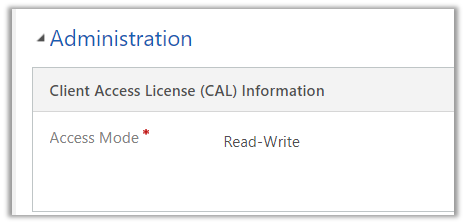
As the error message suggests “An application user’s access mode cannot be changed “, it is not possible to change the Access mode of an application user from Non-interactive to either administrative or Read-write.

While trying to change the Application User’s Access Mode to Read-Write, the error message –

Get all the details about different type of users –

https://docs.microsoft.com/en-us/power-platform/admin/create-users#user-types

also check – https://community.dynamics.com/365/sales/f/dynamics-365-for-sales-forum/367844/when-uisng-non-interactive-users-when-using-application-users

Hope it helps..

Advertisements