Send bulk email / direct email to Customers – Dynamics 365


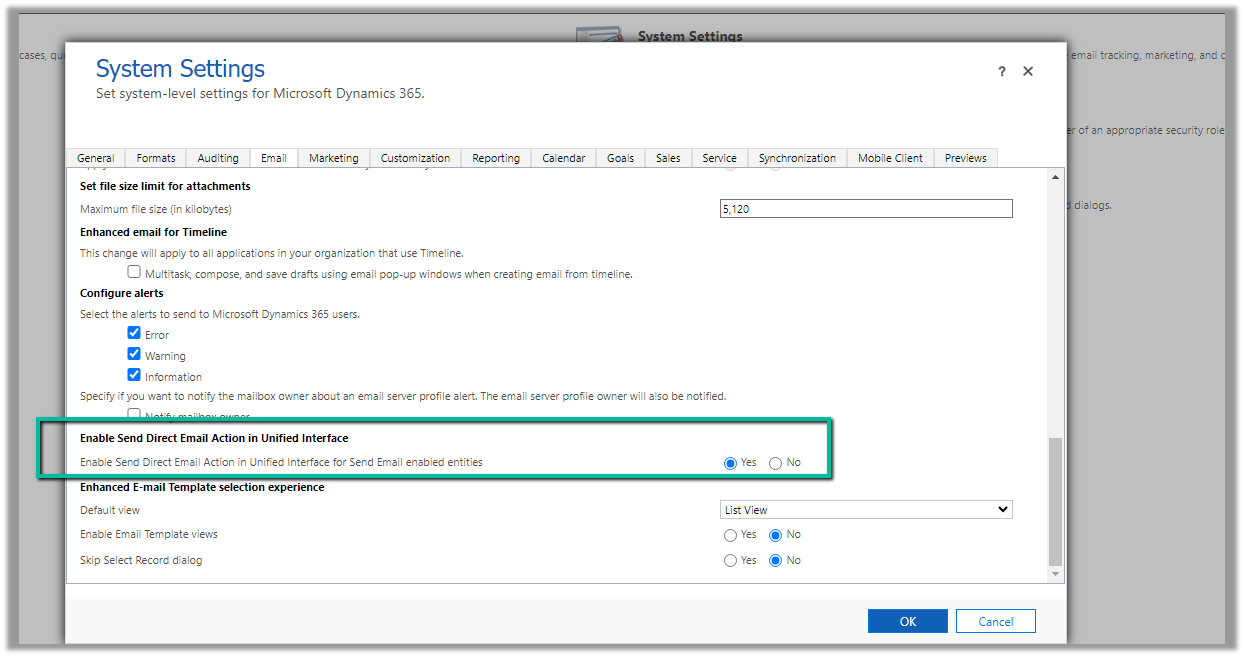
To enable the option of sending bulk email / direct mail in Unified Interface, we can navigate to Settings >> Administration >> System Settings >> Email >> Enabled Send Direct Email Action in Unified Interface

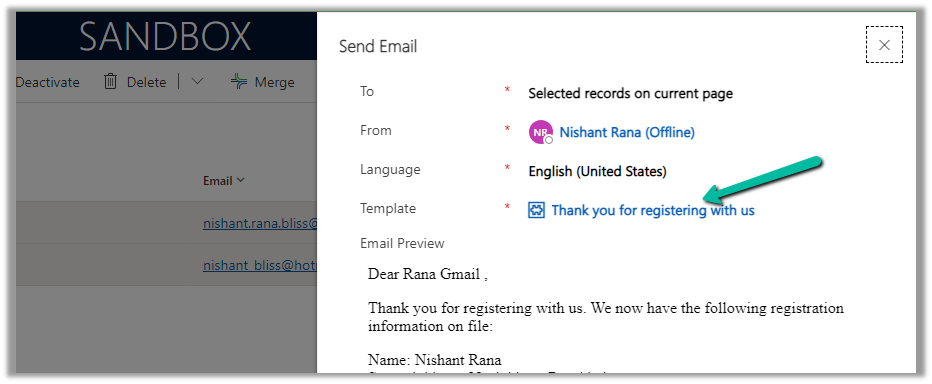
Now on selecting the record(s) of email enabled table, we get the option “Send Direct Email”

We can also specify the Email Template and preview the content before sending.

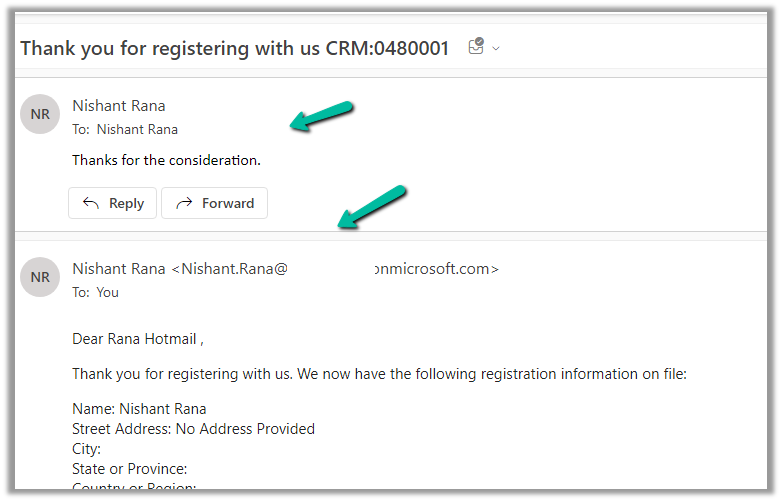
We can see the mail received in the Hotmail account from the CRM user’s email id/mailbox configured.

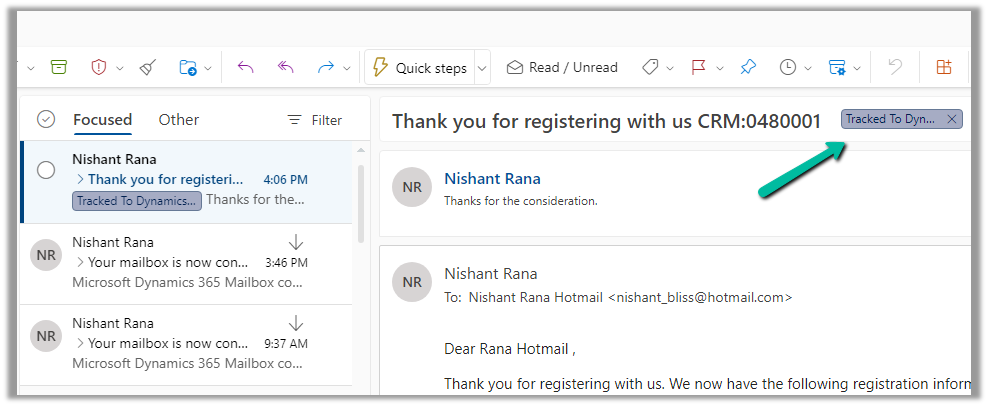
Here the end-user has also replied to the email.

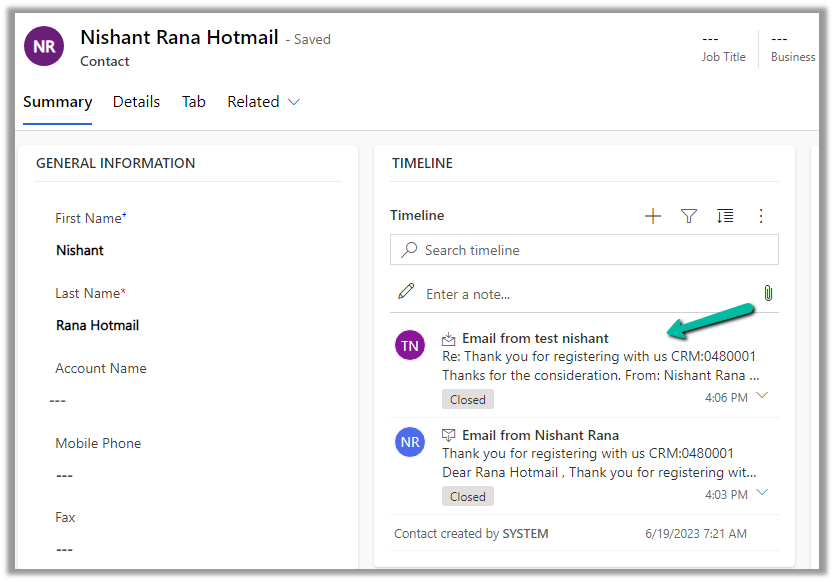
We can see the response / reply automatically “Tracked to Dynamics 365” in the CRM user’s outlook. (based on the CRM user’s Personal Options setting)

Which creates Email activity (closed status) in the corresponding contact record inside CRM.

More on Tracking Email

Hope it helps..
Advertisements

Interesting articles on Plugin behavior – Dynamics 365 / Dataverse


Found below interesting articles, do check out- 

Can we create child records in Pre-Operation Plugin?https://community.dynamics.com/forums/thread/details/?threadid=1e757e7a-60b2-4fc6-9a94-acea44b18f8c

What happens when we use ExecuteMultiple within Plugin?https://www.inogic.com/blog/2015/11/executemultiple-workflow-or-plugin-assemblies/

Advertisements

ParentContext property of IPluginExecutionContext – Dynamics 365 / Dataverse


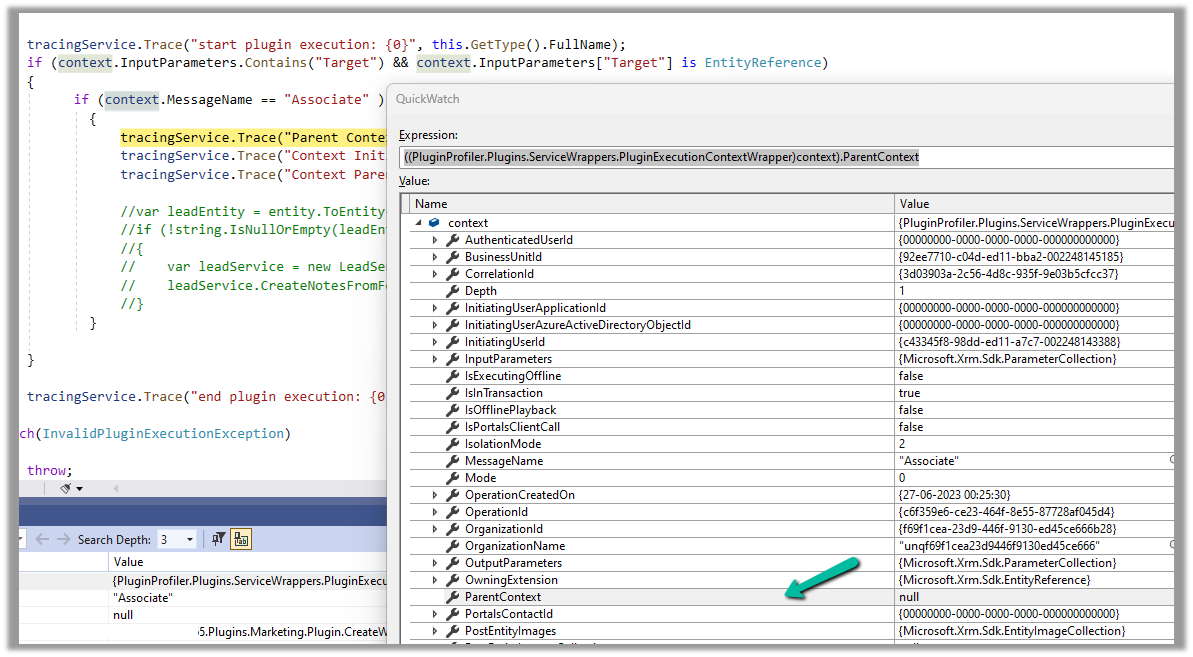
Recently we had to write a plugin that should trigger only when a user has manually associated the record from the form (N-N relationship). This was because we were also doing the same association through another plugin, in which case we didn’t want this new plugin to trigger.

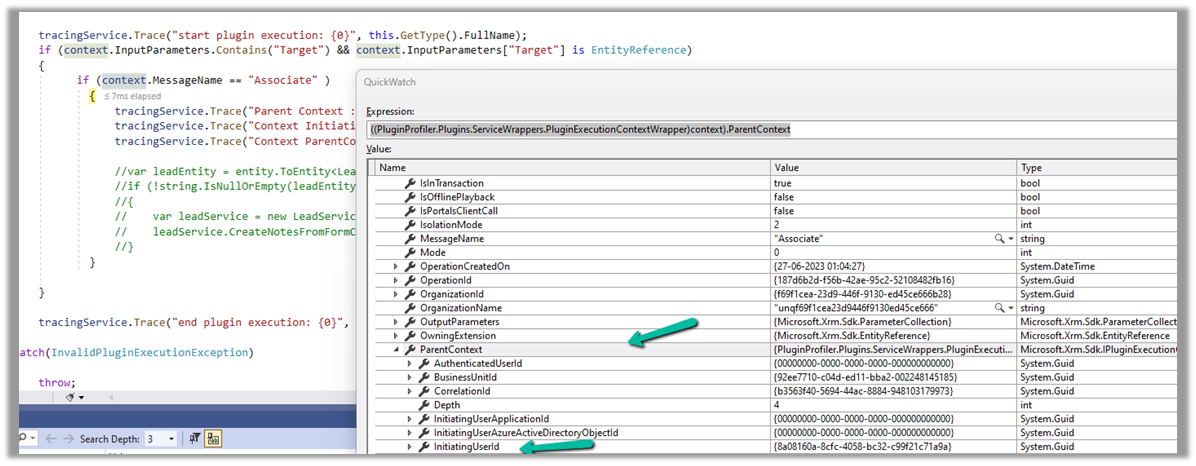
Here we can make use of ParentContext property to identify if the plugin is getting triggered because of another plugin.

Below we can see ParentContext property getting populated and also in the InitiatingUserId property we get the id of the user who triggered the plugin.

And if the user has manually performed the association from the form, we can see ParentContext being null.

Hope it helps..
Advertisements

Missing dependencies – You’ll need to import the following items to this environment error while importing the solution – Dynamics 365 / Dataverse


Recently while trying to import one of the solutions we got the below error

Missing dependencies. You’ll need to import the following items to this environment.

It was referring to one of the Managed Solutions – DynamicsMKT_PushNotification, managed by Microsoft, for Microsoft Dynamics 365 Marketing.

We realized that the source environment had a higher version installed than the destination environment.

Source – 1.1.25335.61 and destination environment – 1.1.22667.44

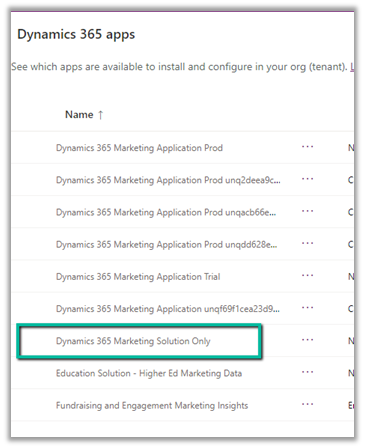
Initially, we thought the error is because the Dev had full marketing app configured i.e. both Solution and Services app configured and the destination had only Dynamics 365 Marketing Solution Only app.

The marketing apps –

After raising the Microsoft Support, we got guidance/advice from the Microsoft Support / Product team that the Dynamics 365 Marketing Solution Only app was not installed in the destination environment and it was a copy of some other environment that had marketing installed. They suggested installing the Dynamics 365 Marketing Solution Only app in the destination environment. After installing the app, we could see the version of the DynamicsMKT_PushNotification solution increased and were able to install our custom solution successfully.

Hope it helps..
 

Advertisements

Sample Code – Enable / Disable Plugin Step (sdkmessageprocessingstep) Dynamics 365 / Dataverse


Recently we had to disable plugin steps as part of data migration, below is the sample code we can use, either specify the name of the assembly, plugin, or plugin step as we are using the “begins with” condition or make changes as required.

 class Program
    {
        static void Main(string[] args)
        {

            const string ConnectionString = "AuthType = OAuth; " +
                                            "Username = Nishant.Rana@xyz.com; " +
                                            "Password = testxyz; " +
                                            "Url = https://orgname.crm6.dynamics.com;" +
                                            "AppId=51f81489-12ee-4a9e-aaae-a2591f45987d;" +
                                            "RedirectUri=app://58145B91-0C36-4500-8554-080854F2AC97;" +
                                            "LoginPrompt=Auto";


            CrmServiceClient svc = new CrmServiceClient(ConnectionString);

            if (svc.IsReady)
            {
                try
                {
                    // we can specify step / plugin / assembly name
                    var pluginStepAssemblyName = "MyD365.Plugins.Core.Plugin.AssignOwner";
                    // 0 for active and 1 for inactive
                    var pluginStateCode = 0;                   

                    var query = new QueryExpression("sdkmessageprocessingstep");
                    query.ColumnSet = new ColumnSet("name", "sdkmessageprocessingstepid");
                    query.Criteria.AddCondition(new ConditionExpression("name", ConditionOperator.BeginsWith, pluginStepAssemblyName));
                    var sdkMsgProcessStepCollection = svc.RetrieveMultiple(query);

                    foreach (var sdkMsgProcessStep in sdkMsgProcessStepCollection.Entities)
                    {
                        var setStateRequest = new SetStateRequest();
                        setStateRequest.EntityMoniker = new EntityReference("sdkmessageprocessingstep", sdkMsgProcessStep.Id);
                        setStateRequest.State = new OptionSetValue(pluginStateCode);
                        setStateRequest.Status = new OptionSetValue(-1);
                        svc.Execute(setStateRequest);
                    }
                }
                catch (Exception ex)
                {
                    Console.WriteLine("Exception Messainge : {0} ", ex.Message);
                }

            }
        }
    }

Hope it helps..
Advertisements

Fixed – 0x90000010 Can not retrieve view’s metadata (Dynamics 365)


We were recently getting the below error in one of the views in the Dashboard.

0x90000010 Can not retrieve view’s metadata

The issue occurred because we had converted that Dashboard from a personal to System / Public Dashboard using the below wonderful XrmToolbox Plugin, https://www.xrmtoolbox.com/plugins/Carfup.XTBPlugins.PersonalViewsMigration/, which converted it to System Dashboard successfully, however, this was one of the personal views inside that dashboard.

So we converted that personal view to the system view (using the same tool) and then updated the Dashboard to refer to the converted system view, which fixed the issue.

Hope it helps..

Advertisements