JavaScript for fields in Business Process Flow (few key points)– Dataverse / Dynamics 365


Suppose we have the following fields in the form as well as in the business process flow stage for the lead.

  • Rating and Email in the form.
  • Rating 1, Rating 2, and Email in the BPF.
A screenshot of a computer

Description automatically generated

And let us apply the below JavaScript on the form load.

A screenshot of a computer code
Description automatically generated

On opening the lead form below is the result we get.

formContext. getControl(“leadqualitycode”).setVisible(true);

Sets the Rating field visible on the form.

formContext. getControl(“header_process_leadqualitycode”).setVisible(false);

Hides the Rating 1 field on the BPF.

formContext.getControl(“header_process_leadqualitycode_1”).setVisible(true);

Set the Rating 2 field visible on the BPF.

As the getControl method is used to show or hide the field it only applies to the field being referenced. That is why we only have the Rating 1 field on the BPF being hidden.

formContext. getAttribute(“leadqualitycode”).setRequiredLevel(“required”);

Set the Rating field on the form as mandatory.

formContext.getControl(“header_process_leadqualitycode_1”). getAttribute().setRequiredLevel(“none”);

Set the Rating 2 field in BPF as non-mandatory

We are setting the Rating field on the form as mandatory, in the next line we are setting the Rating 2 field on the BPF as non-mandatory, the final result is Rating field is non-mandatory on the form as well because here getAttribute method is used which applies to the attribute level so gets applied to all its corresponding controls.

formContext.getAttribute(“leadqualitycode”).setValue(3)

Set the Rating field on the form’s value to Cold

As getAttribute is being used the value set for the Rating field on the form applies to the field in the BPF also.

formContext. getControl(“header_process_leadqualitycode_1”).setDisabled(true);

Set the Rating 2 BPF field as disabled.

As getControl is used it only applies/disables the Rating 2 field on the BPF.

formContext.getControl(“header_process_emailaddress1”). getAttribute().setValue(“test@test.hotmail.com”);

Set the value of the Email address field on the form.

As getAttribute is being used the value set for the Email field on the BPF also applies to the field on the form.

formContext.getControl(“header_process_leadqualitycode_1”). getAttribute().addOnChange(function () { var lastNameValue = formContext.getAttribute(“lastname”).getValue(); if (lastNameValue) { alert(“Hello, ” + lastNameValue + “!”); } else { alert(“Hello World!”); } });

Adds the on-change event to the Rating 2 field on the BPF.

As getAttribute is being used the on-change event handler is applied to both the fields on the form as well as field.

Check other posts on BPF –

https://nishantrana.me/2024/10/09/use-javascript-to-enable-a-field-only-if-the-stage-is-active-in-business-process-flow-dynamics-365-dataverse/

https://nishantrana.me/2024/10/10/use-javascript-to-add-onchange-event-to-a-field-in-the-business-process-flow/

Hope it helps..
Advertisements

Fixed – EntityState must be set to null, Created (for Create message) or Changed (for Update message) exception in Dataverse / Dynamics 365


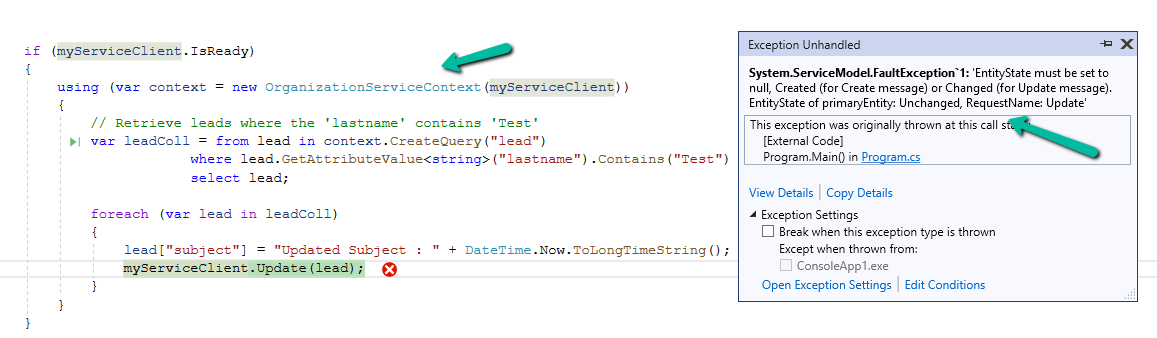
We might get this error while trying to update one of the records.

Exception Message: EntityState must be set to null, Created (for Create message) or Changed (for Update message).

EntityState of primaryEntity: Unchanged, RequestName: Update

ErrorCode: -2147220989

A computer screen shot of a computer

Description automatically generated

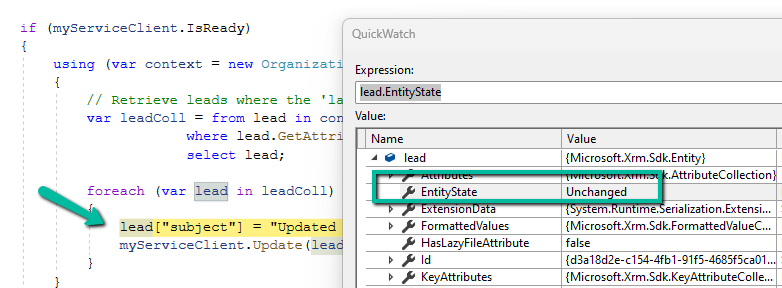
The error occurs when OrganizationServiceContext tries to update an entity that has not been marked as modified. The EntityState remains Unchanged, and Dataverse expects it to be Changed or null for update operations.

OrganizationServiceContext automatically tracks entities’ states. When we retrieve an entity, it is set to Unchanged by default.

If we modify the entity without informing the context (e.g., using UpdateObject()), the context still thinks the entity is Unchanged, leading to this error during the update process.

A screenshot of a computer

Description automatically generated

This error typically happens within OrganizationServiceContext since it relies on internal state-tracking mechanisms, with IOrganizationService (e.g., Retrieve or RetrieveMultiple), we typically don’t run into this error because entities retrieved via IOrganizationService aren’t tracked in the same way.

There are 2 ways to resolve this error.

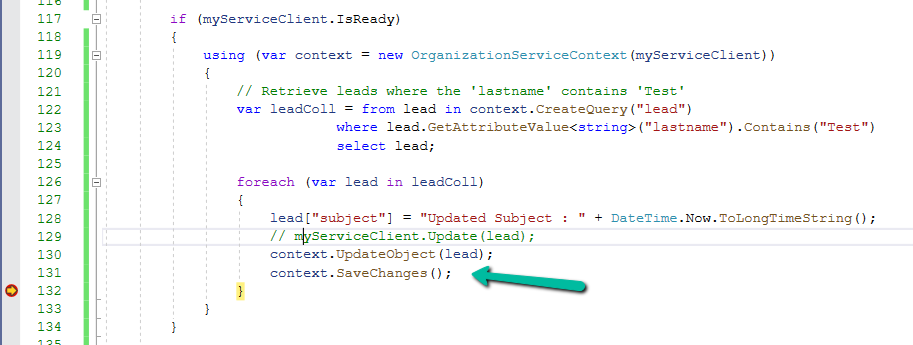
  1. Use UpdateObject, it explicitly tells the context that the entity has been changed followed by SaveChanges() to commit the changes.
A computer screen shot of a program

Description automatically generated

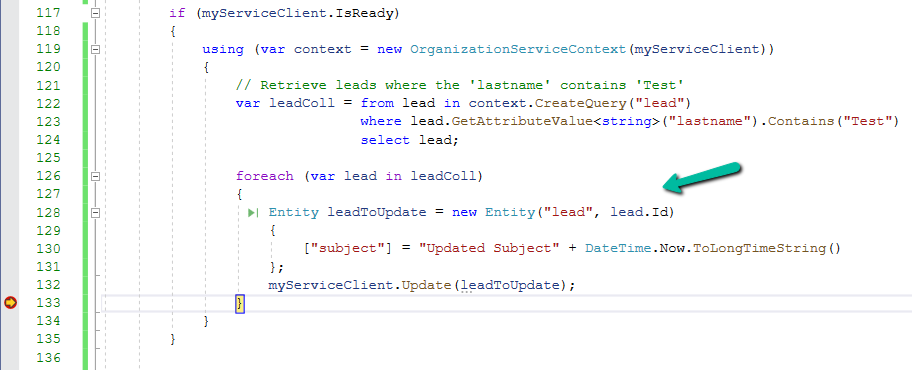
2. Create a new Entity object for update.

Sample Code –

 if (myServiceClient.IsReady)
        {
            using (var context = new OrganizationServiceContext(myServiceClient))
            {
                // Retrieve leads where the 'lastname' contains 'Test'
                var leadColl = from lead in context.CreateQuery("lead")
                               where lead.GetAttributeValue<string>("lastname").Contains("Test")
                               select lead;

                // use Update Object
                foreach (var lead in leadColl)
                {
                    lead.Attributes["subject"] = "Updated Subject" + DateTime.Now.ToLongTimeString();
                    context.UpdateObject(lead);
                    context.SaveChanges();
                }

                // or create a new Entity object
                foreach (var lead in leadColl)
                {
                    Entity leadToUpdate = new Entity("lead", lead.Id)
                    {
                        ["subject"] = "Updated Subject" + DateTime.Now.ToLongTimeString()
                    };
                    myServiceClient.Update(leadToUpdate);
                }     
            }
        }

Hope it helps..

Advertisements

Add line break / new line for description field of Email – Dataverse / Power Automate


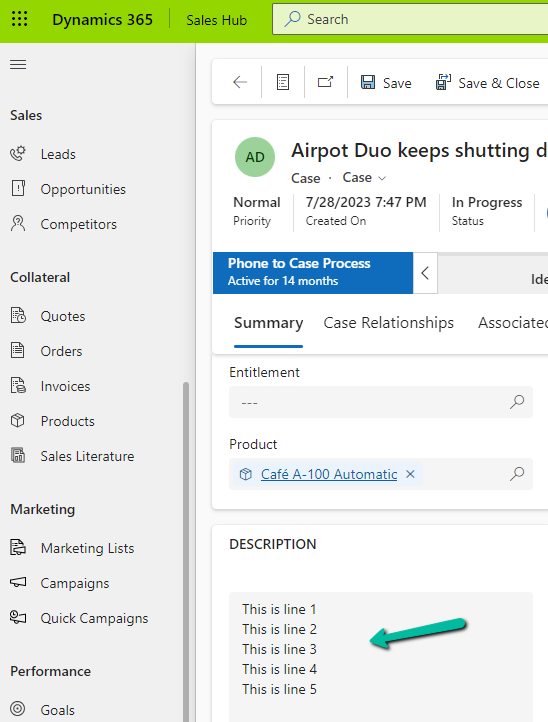
In one of our requirements, we wanted to create/send an email on the creation/update of the case with the description of the email same as the description of the case.

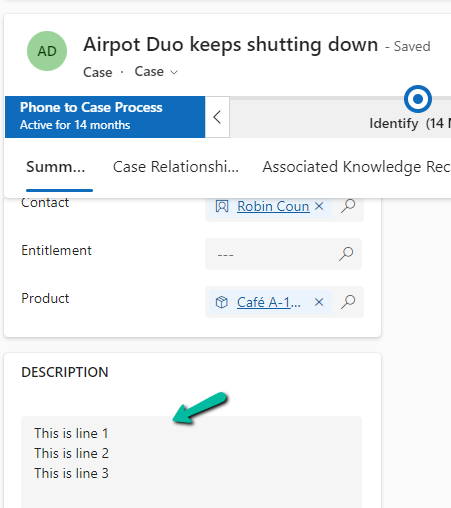
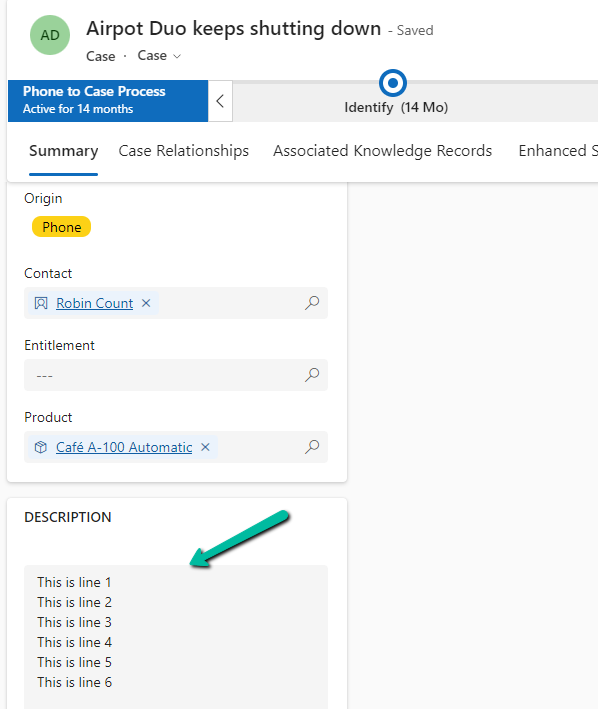
In our Case record, for the description, we have the line break (\n) specified.

A screenshot of a computer

Description automatically generated
A screenshot of a computer

Description automatically generated

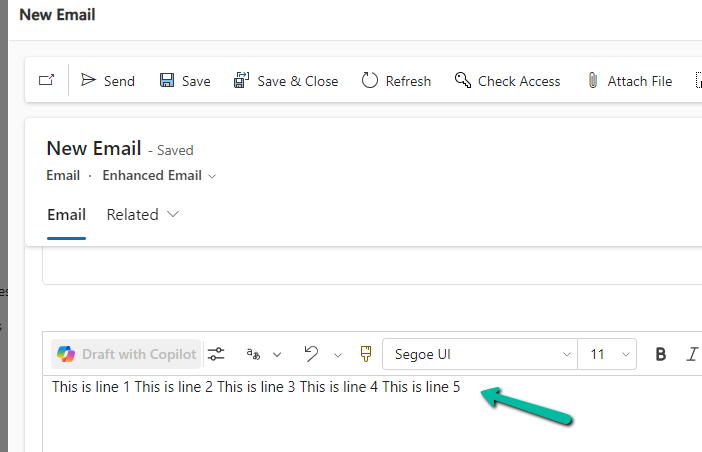
However, for the email created, we see the line break ignored.

A screenshot of a computer

Description automatically generated

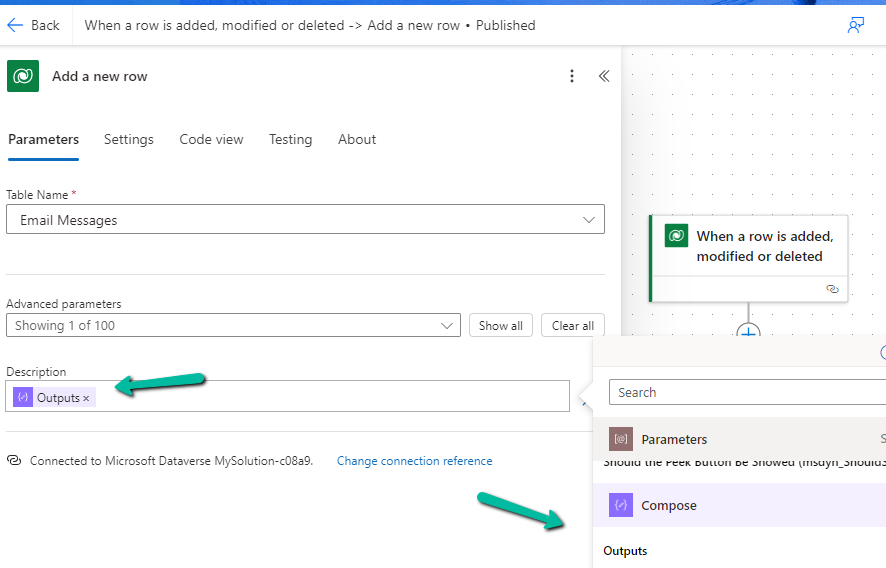
To fix this we might think of applying the below formula by replacing “\n” with “”.

replace(triggerOutputs()?[‘body/description’],’\n’,’
‘)

A screenshot of a computer

Description automatically generated
A screenshot of a computer

Description automatically generated

On triggering our flow after these changes.

A screenshot of a computer

Description automatically generated

We still do not see the line break added in the description of the email.

This is because the ‘/n’ character is ignored by the replace formula.

To fix this we need to first initialize a variable for the new line of type string by hitting/pressing the Enter button for the Value.

A screenshot of a computer

Description automatically generated

Next comes our formula where we will use this variable.

replace(triggerOutputs()?[‘body/description’],variables(‘varNewLine’),’
‘)

A screenshot of a computer

Description automatically generated

Triggering the flow now –

A screenshot of a phone

Description automatically generated

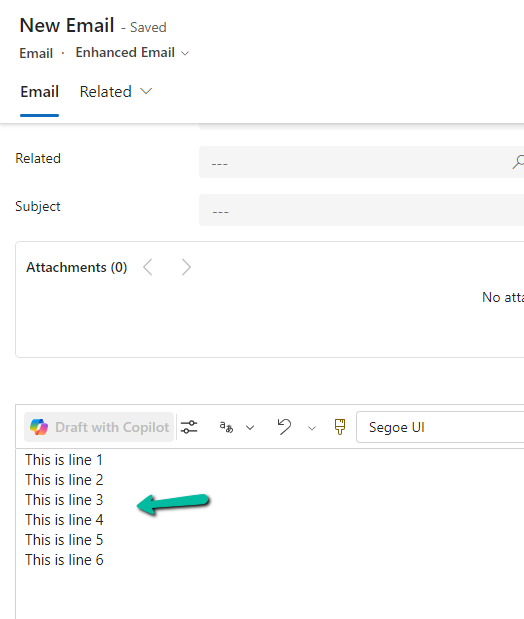
generates the proper email description with line break.

A screenshot of a email form

Description automatically generated

The helpful post – https://tomriha.com/how-to-replace-new-line-n-in-a-power-automate-expression/

Hope it helps..

Advertisements

Free up Storage space – ActivityPointerBase and WorkflowLogBase (Dataverse / Dynamics 365)


Had shared the steps we had followed to reduce the storage space for one of our environments which was a copy of production below a few months back –https://nishantrana.me/2023/09/28/free-up-storage-space-dataverse-dynamics-365/

This time we followed more or less the same steps, the main difference was this time we used our favorite XrmToolBox plugin SQL4CDS to perform the delete operations instead of the bulk deletion job.

However, even after deleting all the Activity type records (except one appointment record which was giving some error on deletion), as shown below, the ActivityPointer was still showing 13 GB of space occupied.

select activitytypecodename,activitytypecode, Count(activitytypecode) as Total
from activitypointer
group by activitytypecode, activitytypecodename
order by Total desc

And the same was true for the WorkflowLogBase, we used a bulk deletion job for deleting the system jobs with status as succeeded which deleted around 1200 records, however running the same query in SQL4CDS showed us around 70K records with status as success.

On trying to run the following query it gave us an “Expected non-empty Guid” error and we could not delete the records.

Eventually, we raised the Support Ticket for it, and the team ran the script in the background to delete/reduce the size of the Activity Pointer and Workflow Log table and eventually we were able to reduce the database usage (we also deleted few other table records)

Before –

After –

A close up of a white background

Description automatically generated

Get more details

Hope it helps..

Advertisements

Use JavaScript to enable / disable a field only if the Stage is Active in Business Process Flow – Dynamics 365 / Dataverse


Recently we had a requirement to set some of the fields in our business process flow to be enabled only if that stage is active.

E.g. We want to Identify Sales Team field to be Enabled only if the Propose stage is active, else we want to set it as read-only.

A screenshot of a computer

Description automatically generated

We can use the below JScript to achieve the same.

A screen shot of a computer program

Description automatically generated

Because the Propose stage is Inactive we have Identify Sales Team as read only.

A screenshot of a computer

Description automatically generated

On moving to the Propose stage, we can see the field being enabled back.

A screenshot of a computer

Description automatically generated

The key steps are –

In the onload of the form associate your function/logic to the OnStage change method of the Process object.

formContext.data.process.addOnStageChange(CheckStageAndToggleFieldBPF);

Next, check for the active stage ID.

Here to get the active stage ID, open the business process flow and get its Guid.

A computer screen with a green arrow pointing to a black box

Description automatically generated

Then using the awesome SQL4CDS XrmToolBox plugin get the Guid of the particular stage.

A screenshot of a computer

Description automatically generated
function OnLoad(executionContext)
{
	 var formContext = executionContext.getFormContext();
	 formContext.data.process.addOnStageChange(CheckStageAndToggleFieldBPF);
	 CheckStageAndToggleFieldBPF(executionContext);
}

 function CheckStageAndToggleFieldBPF(executionContext) {

        var formContext = executionContext.getFormContext();     
        var activeStage = formContext.data.process.getActiveStage();
        var activeStageId = activeStage.getId();		
        var stagePropose = "3a275c22-fc45-4e89-97fc-41e5ec578743";
     
        if (activeStageId.toLowerCase() === stagePropose) {          
                formContext.getControl("header_process_identifypursuitteam").setDisabled(false);                 
        }
        else {
            formContext.getControl("header_process_identifypursuitteam").setDisabled(true);
        }       
  }
select processidname,stagename, processstageid  from processstage 
where processid = '919E14D1-6489-4852-ABD0-A63A6ECAAC5D'

Also if we have the same fields used in multiple places / stages in the Business Process Flow, we will have the suffix added to the fields, so we need to refer the field appropriately in our script.

  • header_process_identifypursuitteam
  • header_process_identifypursuitteam_1
  • header_process_identifypursuitteam_2

Also check – https://www.c-sharpcorner.com/blogs/options-for-locking-field-on-business-process-flow

Hope it helps..

Advertisements

How to remove contact and customer validation on Cases– Dynamics 365


By default, we can only specify the contact associated with the customer for the case record. If we try specifying a contact record that is not associated with the Customer selected, we will get the below error message.

Invalid Contact – The specified contact doesn’t belong to the account selected as the customer. Specify a contact that belongs to the selected account, and then try again.

Also, CRM will filter the lookup to show only the associated contact record

A screenshot of a computer

Description automatically generated

However, if we do not want this validation, we can remove it using the environment variable.

Search for Customer Entities Relationship For Incidents / msdyn_IncidentShouldValidatePrimaryContact

A computer screen shot of a computer screen

Description automatically generated

Set the new value as 0.

A screenshot of a computer

Description automatically generated

Now we will be able to save the record using an unassociated contact.

A screenshot of a test case

Description automatically generated

Get all the details here

Hope it helps..