Using Customer Lookup in Canvas Apps (Dataverse)


For this example, we are taking the Company Name customer lookup column of the contact table.

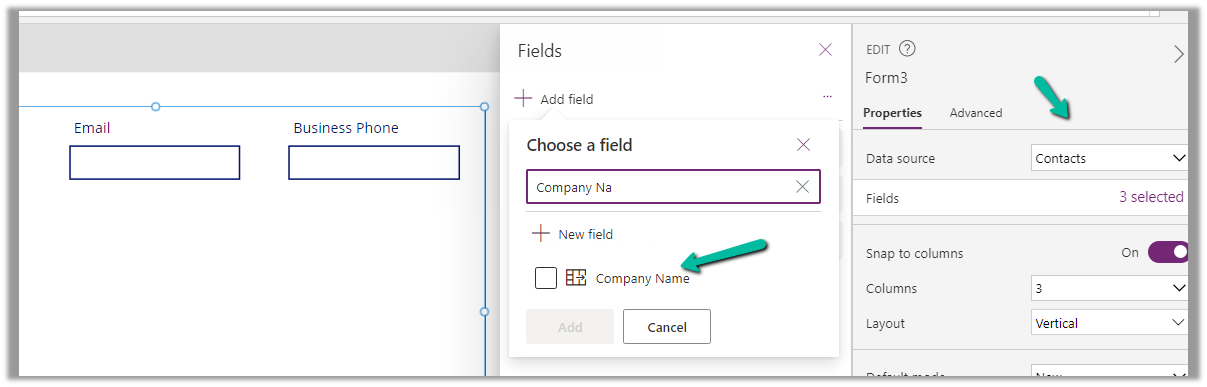
We start by adding the Customer Name field to the form.
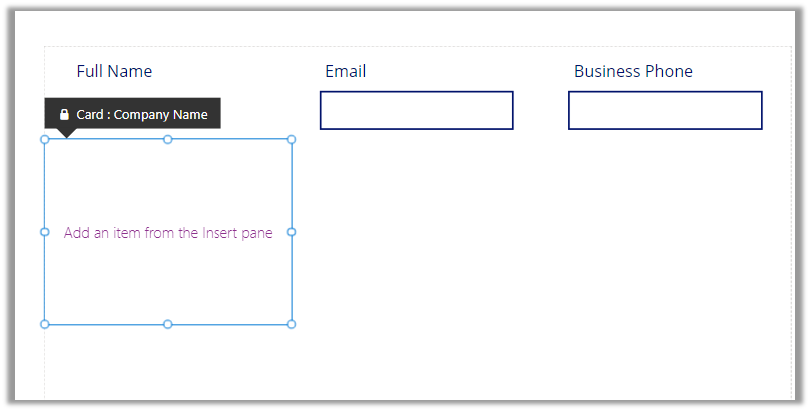
That adds a card to the form, let us add the required controls to get it working
Radio Button, Combo box, and Text Label for the combo box.
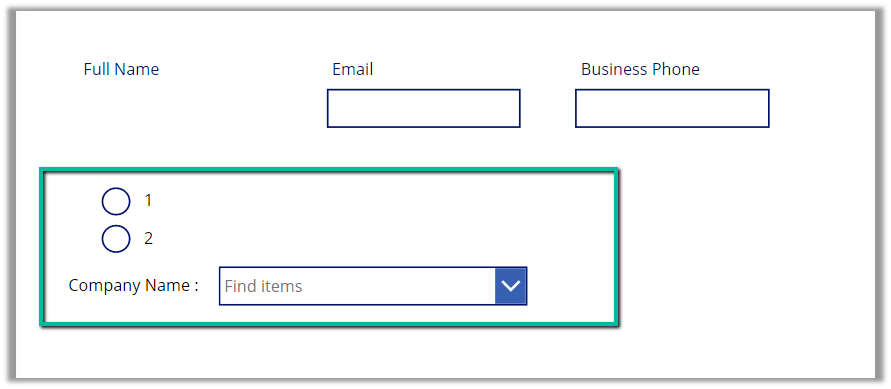
Change the Items property of the radio button to show the contact and account option.

Also, change the Layout to Horizontal and Default as Contact.

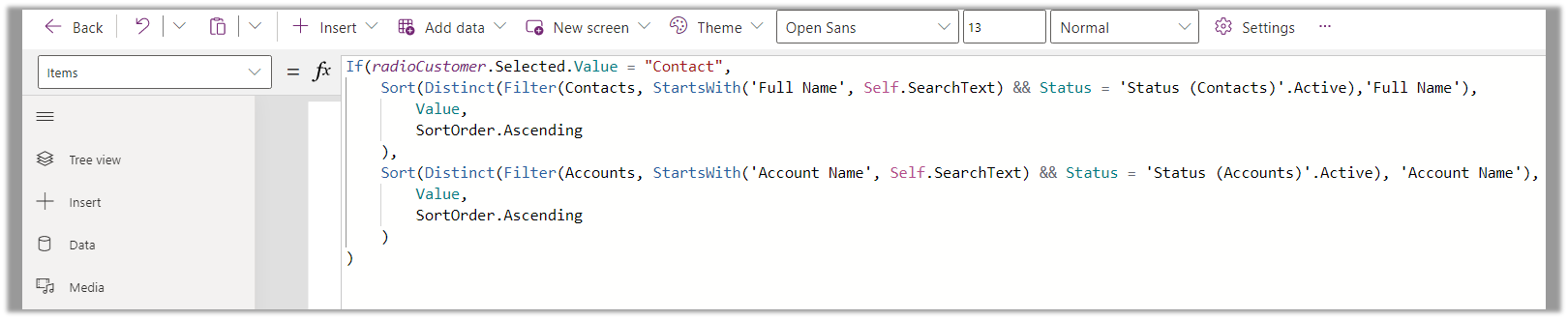
And set the Items property of the Combo box as below –

Based on the value selected in the radio button, we are setting the Data Source and also applying the Sort and Distinct function to it, along with StartsWith for delegation.

We have also set Allow searching as On for the combo box.
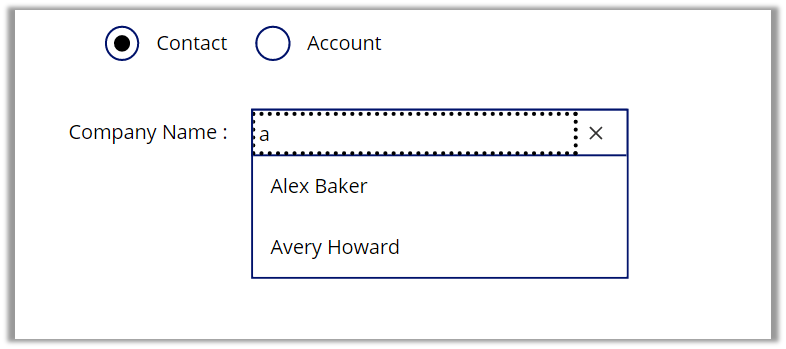
For the Contact option selected –
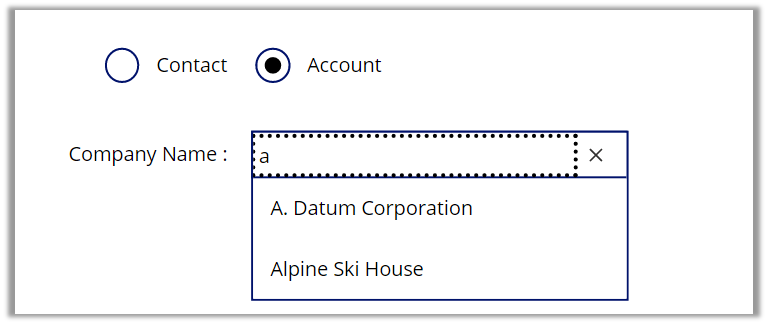
For the Account option selected –
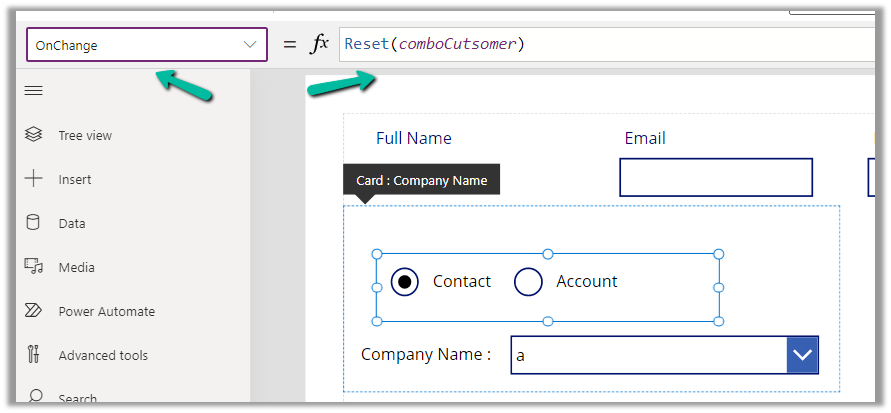
Also, we can set the OnChange property of the radio button to Reset(comboControl) to clear the selection when the user switches between Contact and Account options.
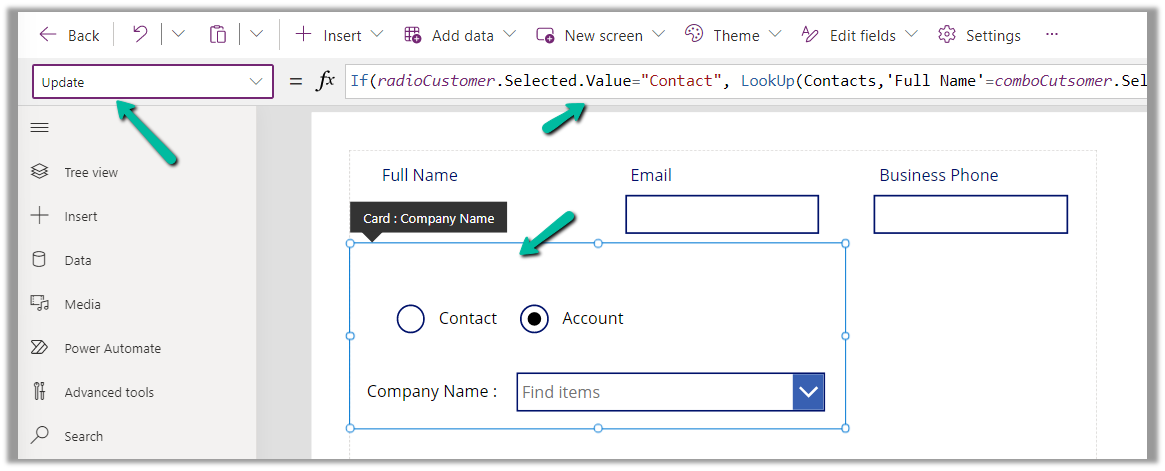
Now to have this value saved back we can specify the Update property of the custom data card in which we have placed these controls.

References –

https://www.youtube.com/watch?v=y-VvNDwy_Jw&t=1191s

https://debajmecrm.com/configure-customer-lookup-to-show-either-contacts-or-accounts-in-canvas-apps/

https://learn.microsoft.com/en-us/power-apps/maker/canvas-apps/working-with-references#show-the-columns-of-a-customer

Hope it helps..

Advertisements

Fixed – Canvas App / Custom Page not showing data (Dataverse / PowerApps)


Recently we faced an issue wherein the custom page was not loading any data, however, it was working for users with the System Administrator role.

The gallery control shows the Product details.

There were no errors in the Developer Tools, we tried by giving all Organization level rights to the users on the tables involved etc. but that didn’t help.

Eventually, it all came down to this particular line in the formula used for the Items property of the Gallery Control i.e. Asset Status field (custom field).

We had a field security profile created which had Read set as No and the users were part of that security profile, which explained why it was only working for System Admin users.

Changing the Read access to Yes for that column fixed the issue for us.

Hope it helps..

Advertisements

Enhanced Case experience – Full case form – Dynamics 365 Customer Service


Enhance Case Experience is currently available only for the Customer Service Workspace app which targets to increase the productivity of the agent.

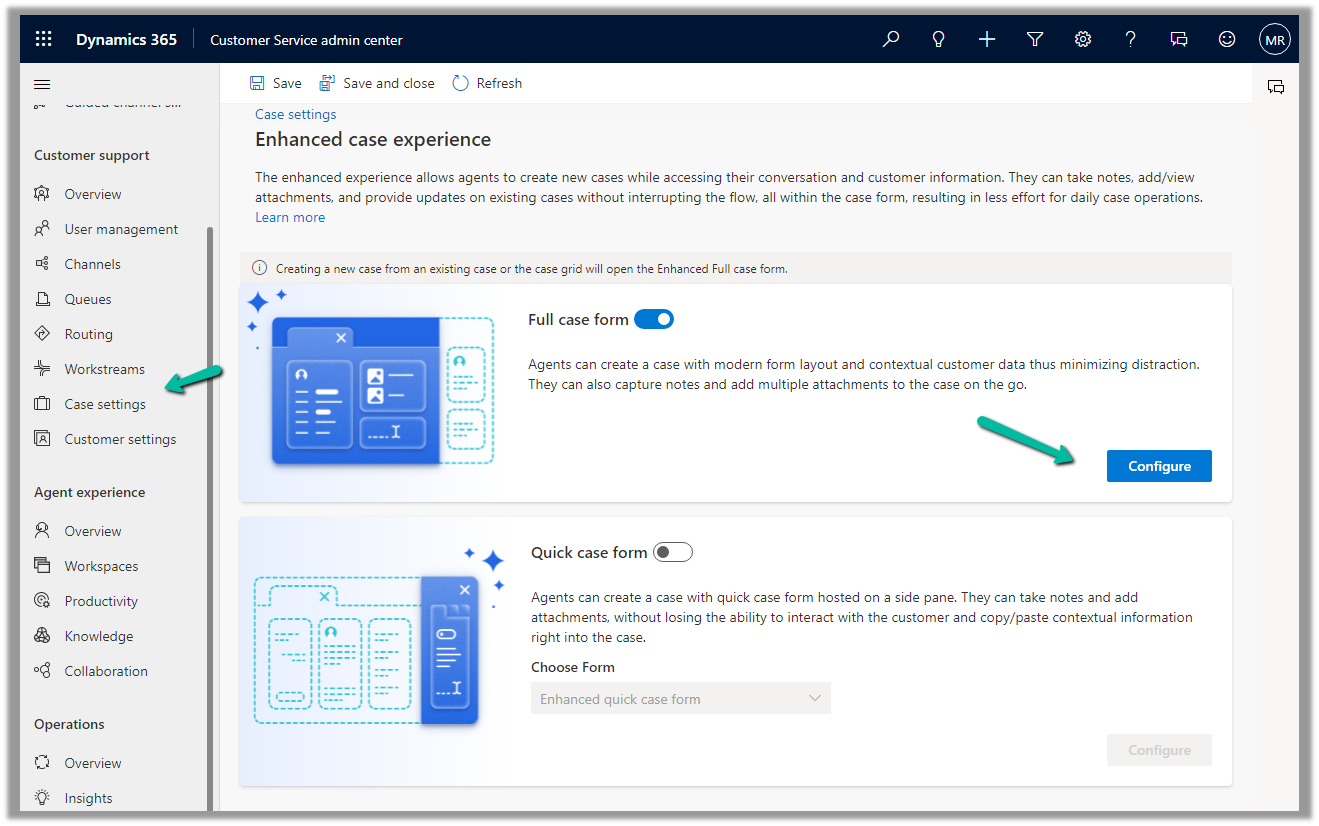
To enable it, navigate to Customer Service Admin Center >> Customer Support >> Case Settings >> Enhanced case experience (Manage)

Enable the options – Here we have enabled the Full case form experience.

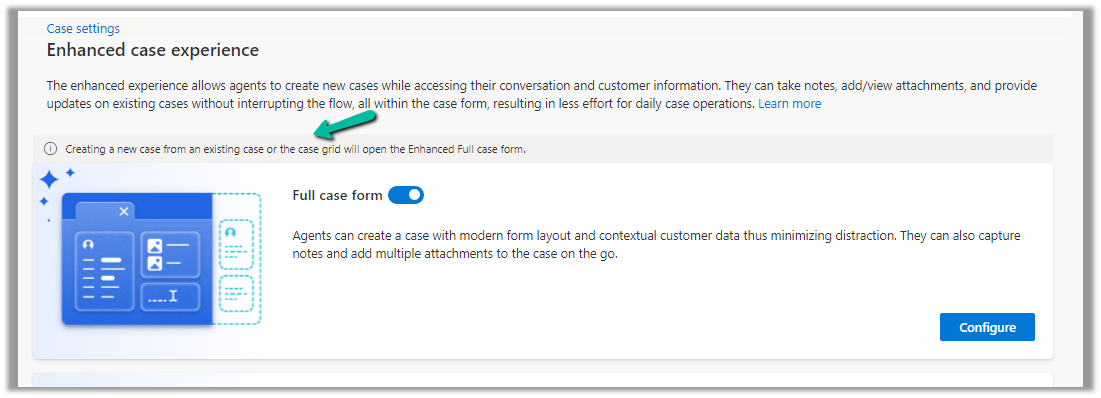
The new case form will show up while creating a new record from an existing case or the case grid.

Clicking on Configure opens the form in the Maker Portal.

The new Full Case form has the following new components added to it –

Grid Control – Case Associations (showing associated knowledge articles, similar cases, merged cases, and child cases)

  • Attachment Control – For the Case table, the new attachment control gives the option to directly upload the attachment as well as shows all the attachments either uploaded directly or associated with the notes or emails of the case record.

More on Attachment control:https://nishantrana.me/2023/05/08/new-attachment-control-dynamics-365/

  • Shows Priority and Case Status as color-coded options.

Due Activities Control – shows activities due today or overdue

More on Due Open Activities Control - https://nishantrana.me/2023/05/09/due-open-activities-control-dynamics-365/

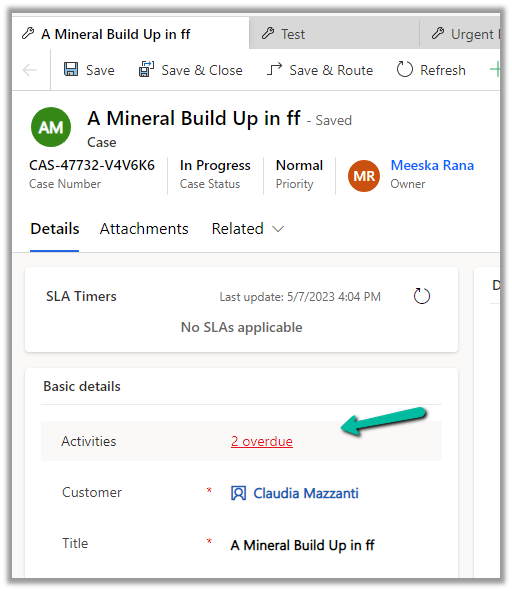
It shows the activities overdue

  • Queue control shows the details of the Queue the record belongs to along with Worked By field.
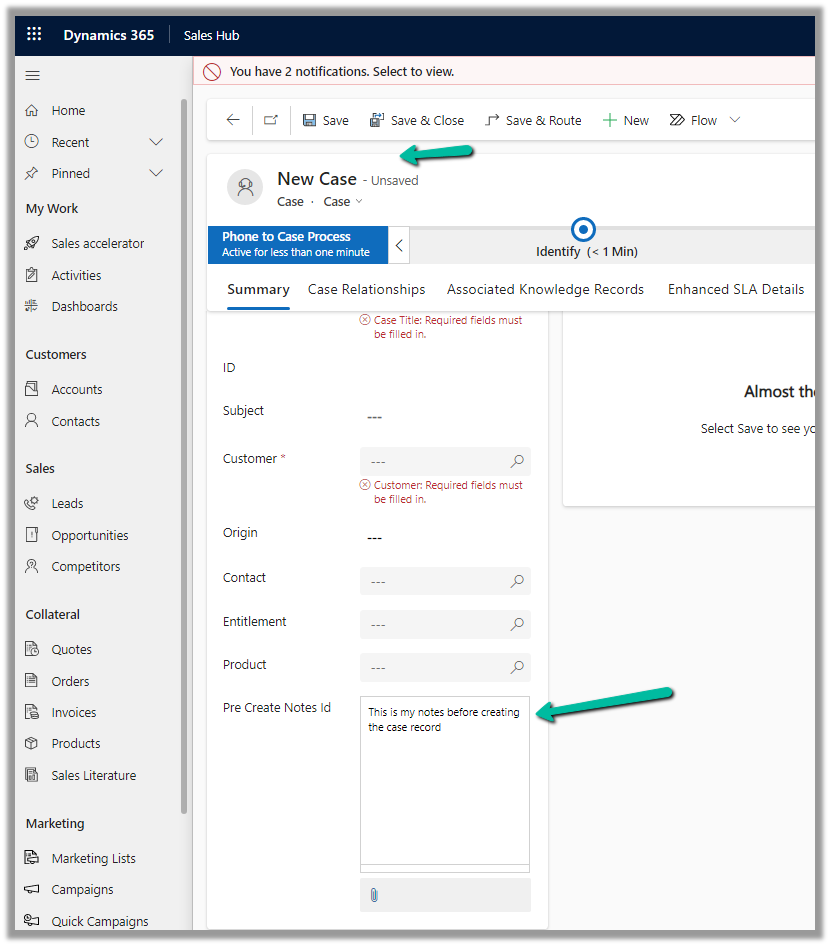
  • Notes control that allows taking notes before saving i.e. in a new record.

More on Notes control - https://nishantrana.me/2023/05/10/notes-control-dynamics-365/

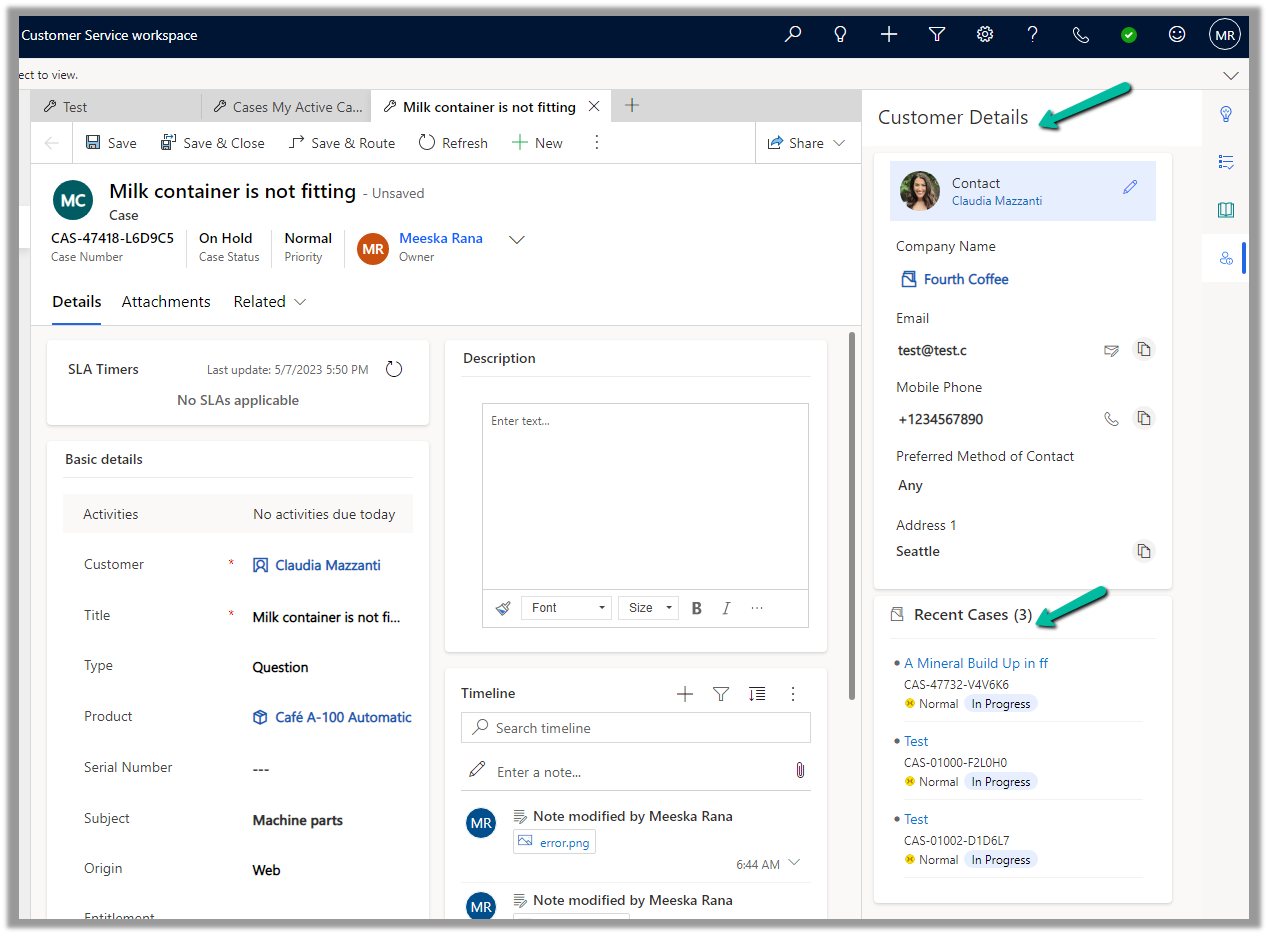
  • It also displays the Customer Details section based on the Customer selected in the case, as well as recent cases created.

Get more details on Enhanced Case Form

Hope it helps..

Advertisements

FaultException – RetrieveMultiple: GetEntityDataByFetchSearch while using Configuration Migration Tool – Dataverse / Dynamics 365


While recently trying to move configuration data using the Configuration Migration tool, we got the below error.

FaultException`1 - RetrieveMultiple : GetEntityDataByFetchSearch |=> 'msdyncrm_segment' entity doesn't contain attribute with Name = 'msdynmkt_name' and NameMapping = 'Logical'. MetadataCacheDetails: ProviderType=Dynamic, StandardCache=True, IsLoadedInStagedContext = False, Timestamp=65138568, MinActiveRowVersion=65138568, MetadataInstanceId=53062908, LastUpdated=2023-04-20 07:29:48.697, OrgId=f69f1cea-23d9-446f-9130-ed45ce666b28
Source : mscorlib
Method : HandleReturnMessage
Date : 21-04-2023
Time : 15:07:29
Error : Message: 'msdyncrm_segment' entity doesn't contain attribute with Name = 'msdynmkt_name' and NameMapping = 'Logical'. MetadataCacheDetails: ProviderType=Dynamic, StandardCache=True, IsLoadedInStagedContext = False, Timestamp=65138568, MinActiveRowVersion=65138568, MetadataInstanceId=53062908, LastUpdated=2023-04-20 07:29:48.697, OrgId=f69f1cea-23d9-446f-9130-ed45ce666b28

This was because we had the wrong filter condition applied to that table/entity.

Updating the filter to use correct attribute fixed the issue.

Hope it helps..

Advertisements

Notes Control – Dynamics 365


We now have new Notes control for the Case table.

The new notes control allows us to associate/create note without the need to create the case record first.

Here we are adding the Notes control in our Case form.

Specify Pre Create Notes Id (Text) as Table Column for Bound Attribute.

Save and publish the changes.

On creating the record we can see notes added to the timelines.

Also, we can observe that the control now shows – “No Data Available”.

In the case of the Enhanced Case Form, we have a script that hides that section after creation.

Due Open Activities Control – https://nishantrana.me/2023/05/09/due-open-activities-control-dynamics-365/

Attachment Control  – https://nishantrana.me/2023/05/08/new-attachment-control-dynamics-365/

Hope it helps..

Advertisements

Due Open Activities Control – Dynamics 365


The due open activities control shows the activities due today or overdue. It is added by default in the Enhanced Case form but can be added in the forms of other tables.

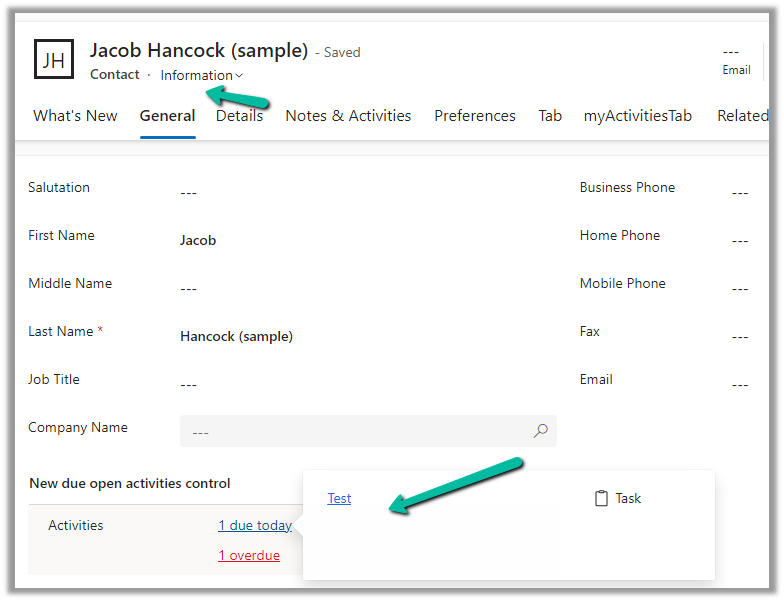
Hovering over it shows the details of the records.

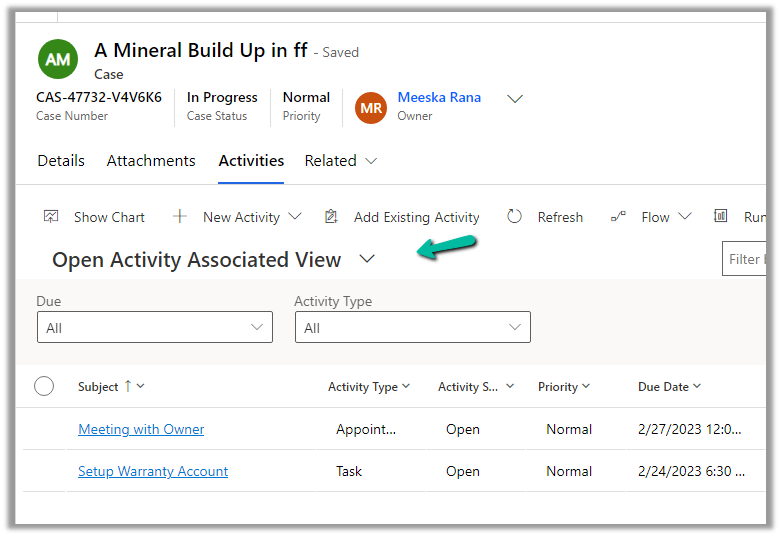
Clicking on it opens the Associated Activity view (tab).

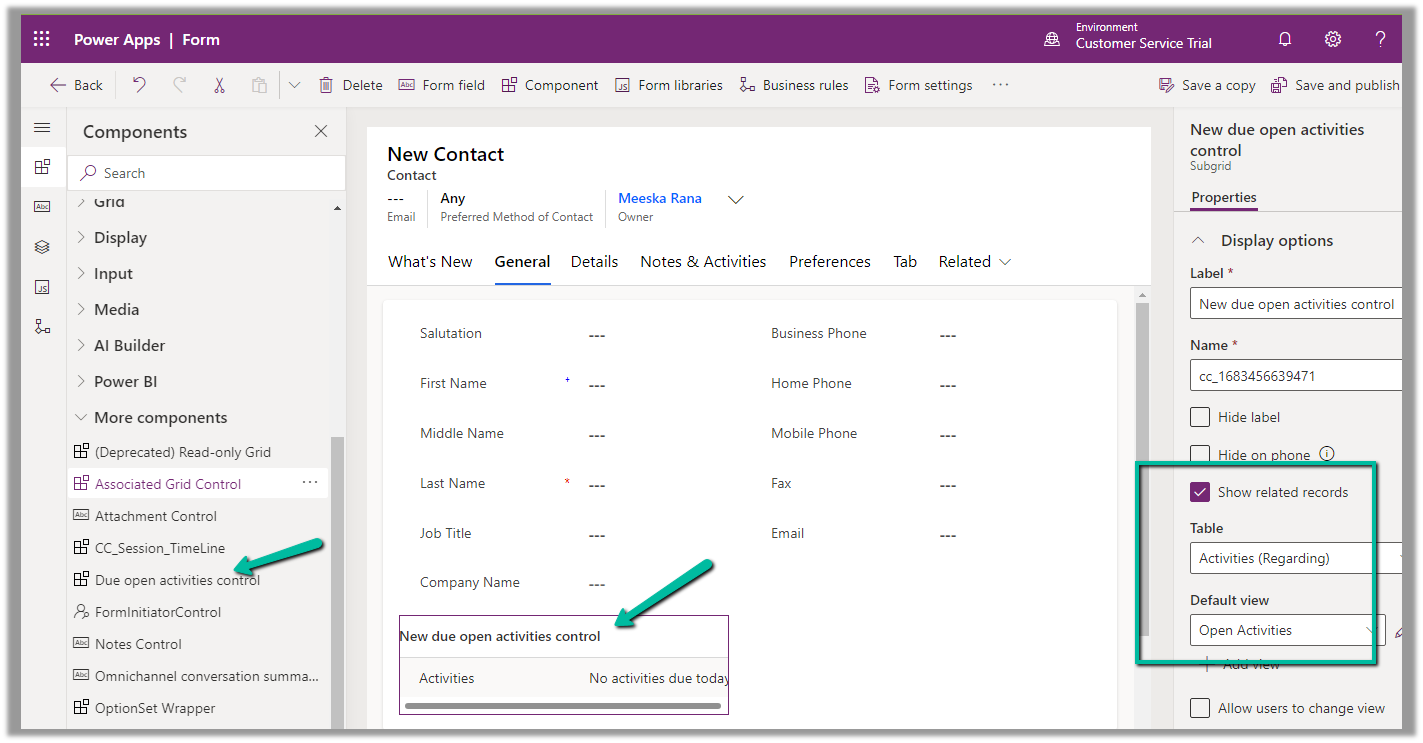
Below we are adding the Due open activities control to the Contact’s form.

Check Show related records, set table to Activities (Regarding) and Default view to Open Activities.

Set Static value Property as navActivities to open the Activities tab on click of the link.

Save and Publish the changes, and we can see the Due Date Activities control in our Contact form.

Clicking on the Test (Subject) link in the popup takes us to Open Activity Associated View

Get all the details here

Also check – Attachment Control  

Hope it helps..


Advertisements