How to – Create an Automated low-code plug-in (Dataverse) (experimental)


In the previous post, where we installed the Dataverse Accelerator app and saw how to write basic low-code Instant Plugins.

Here we’d look at the Automated low-code Plugins.

Select the New Plugin option in the Dataverse Accelerator app to create Automate Plugins.

We get the option to select the table, the event, define the behavior of the plugin using Power FX, specify pre or post-operation, and the solution as shown below.

To keep it simple, we have created a plugin on pre-operation that checks for null, the email address field in the Contact record on Create, and if blank throws an error.

On trying to create a contact record without an email address, we get the exception as specified in the plugin.

That’s all we are done with our plugin.

Now interestingly if we check our solution specified, we will not find our plugin there. We need to add them to the solution manually right now, here we need to look for FxExpression.

Read more about it here – https://debajmecrm.com/how-to-write-plugins-in-dataverse-using-low-code-powerfx-functions/

And all the details here

Hope it helps..

Advertisements

Based on entity behavior for SharePoint Folder – Dynamics 365 / Dataverse


After enabling Server-Based SharePoint Integration,

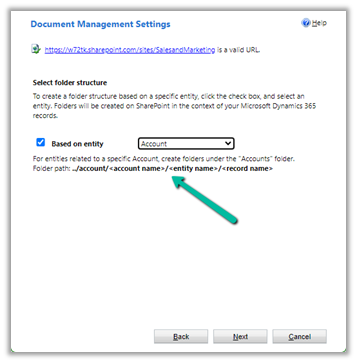
inside Document Management Settings, we can specify folder structure to be based on the entity either Account or Contact.

Here we have opted for Account-based first.

We can see the following folders created on the SharePoint site, that take the table or entity name.

And the records folder for Accounts created with AccountName_GUID format.

And if we open any Contact record >> Files / Documents tab, that will create the account parent folder (if not already created) and the contact folders inside it as shown below.

And if we create the contact record without having an account associated

That will create the folder for the record inside Contact Folder without the Parent Account folder created. (as there was no account associated)

For Case Records, we have the case folders created inside Account folders.

Now let us select the Contact based structure

The contact records are created inside the Contact folder, the account associated is not considered.

For Case also it is same.

For Building, a custom table, which is a child of Contact, we have the Building folder created inside the Contact folder.

Now let us keep Based on entity option unchecked

This creates the corresponding record’s folder inside the table parent folder.

Account –

Contact –

Check some of the interesting articles on SharePoint and Dynamics 365 Integration.

Hope it helps..
Advertisements

Send bulk email / direct email to Customers – Dynamics 365


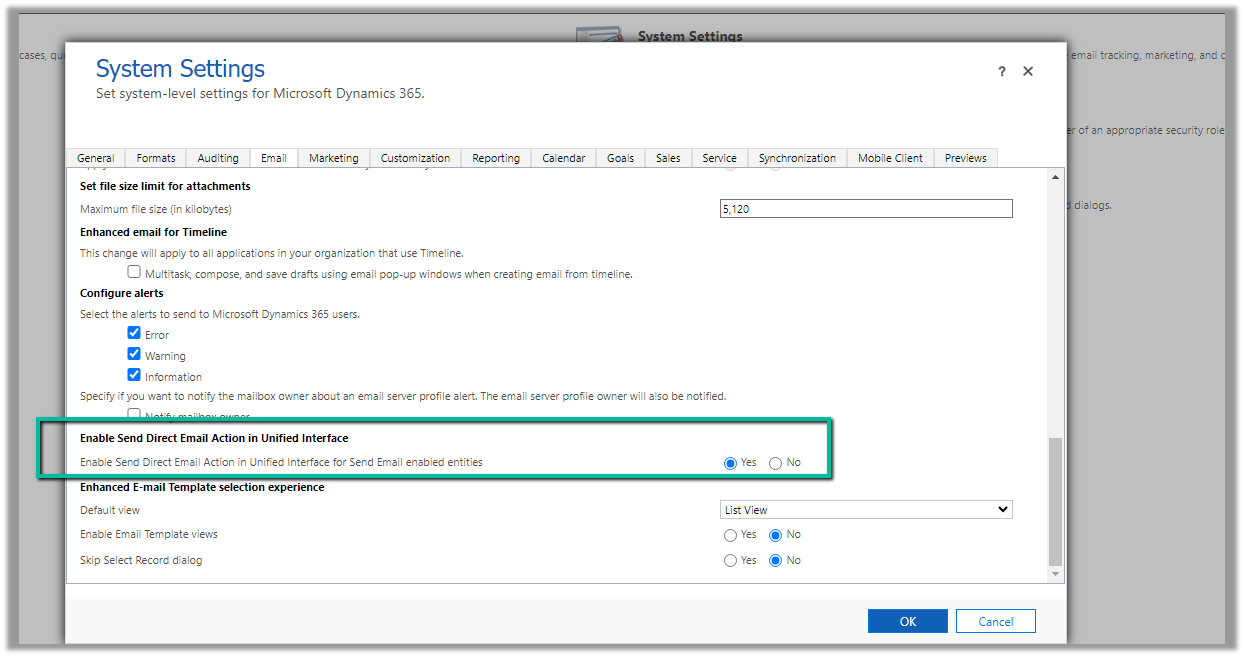
To enable the option of sending bulk email / direct mail in Unified Interface, we can navigate to Settings >> Administration >> System Settings >> Email >> Enabled Send Direct Email Action in Unified Interface

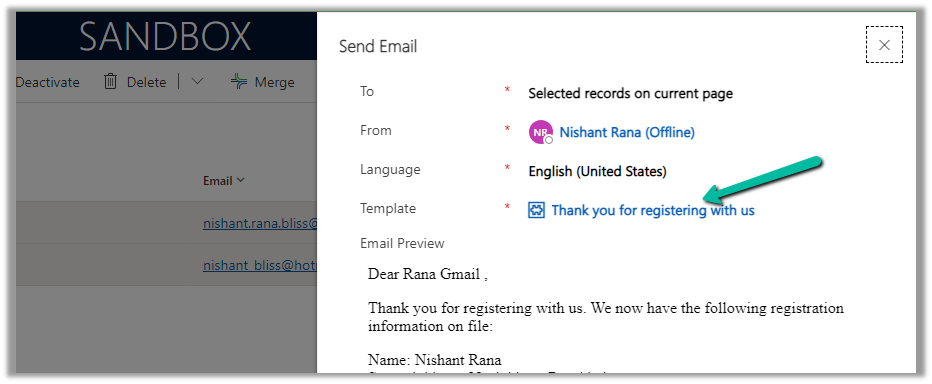
Now on selecting the record(s) of email enabled table, we get the option “Send Direct Email”

We can also specify the Email Template and preview the content before sending.

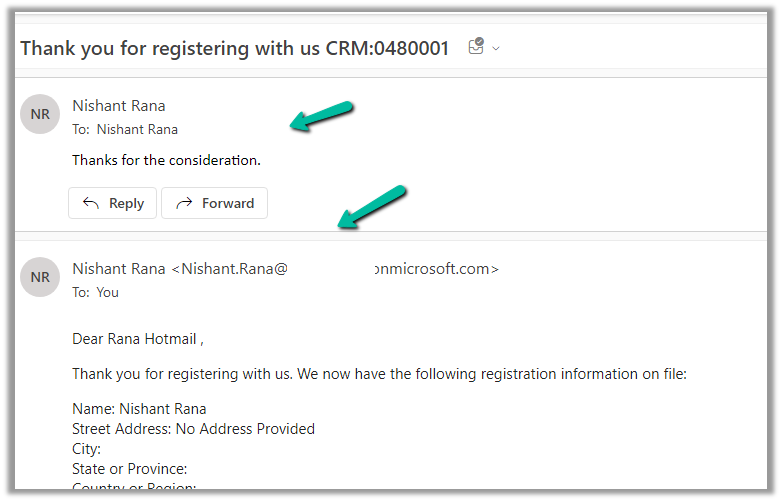
We can see the mail received in the Hotmail account from the CRM user’s email id/mailbox configured.

Here the end-user has also replied to the email.

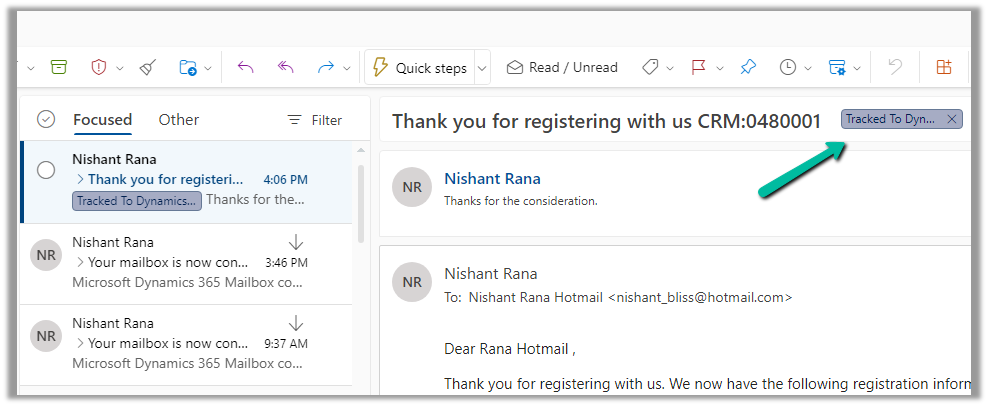
We can see the response / reply automatically “Tracked to Dynamics 365” in the CRM user’s outlook. (based on the CRM user’s Personal Options setting)

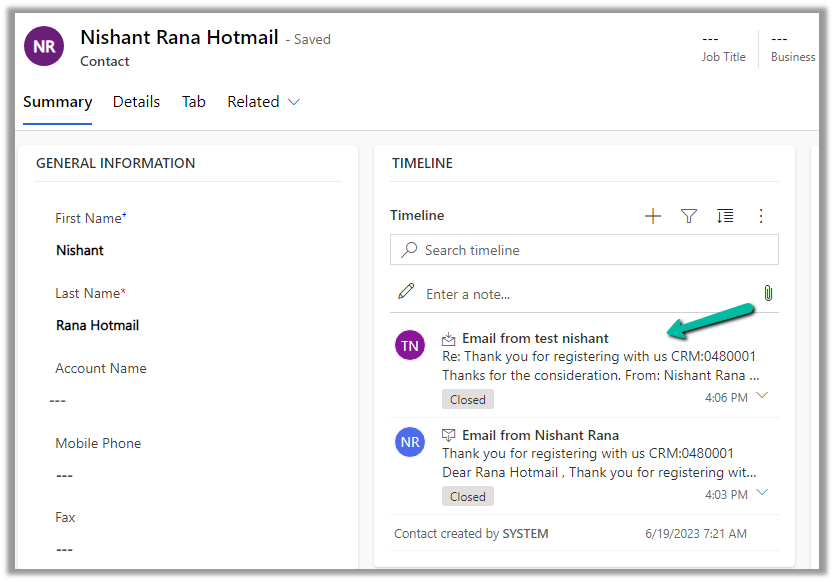
Which creates Email activity (closed status) in the corresponding contact record inside CRM.

More on Tracking Email

Hope it helps..
Advertisements

Fixed – This assets-oce.mkt.dynamics.com page can’t be found in Dynamics 365 Marketing


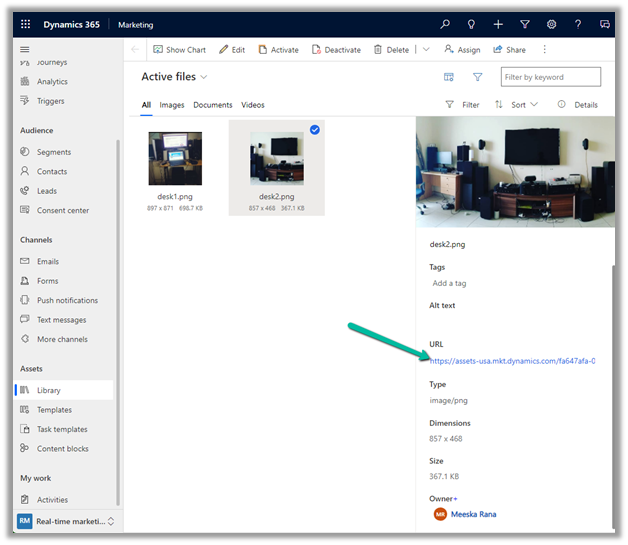
Recently we got the below error while trying to open the files in our Real-time marketing Assets Library.

We raised the Microsoft Support ticket for this and got the issue fixed.

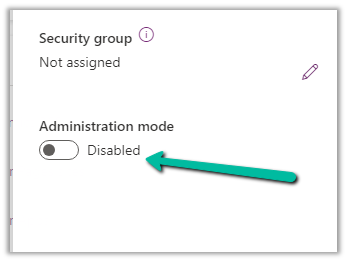
This was because our environment was in Admin mode. (as we were going live so had kept it in admin mode, till we verify it), and there are specific tasks related to processing marketing content, such as resizing image / optimizing image / etc. that requires some Async Service to run in the background which needs the environment to be in the non-admin mode.

Disabling the Admin mode for the environment fixed it.

Hope it helps..
Advertisements

Interesting articles on Plugin behavior – Dynamics 365 / Dataverse


Found below interesting articles, do check out- 

Can we create child records in Pre-Operation Plugin?https://community.dynamics.com/forums/thread/details/?threadid=1e757e7a-60b2-4fc6-9a94-acea44b18f8c

What happens when we use ExecuteMultiple within Plugin?https://www.inogic.com/blog/2015/11/executemultiple-workflow-or-plugin-assemblies/

Advertisements

ParentContext property of IPluginExecutionContext – Dynamics 365 / Dataverse


Recently we had to write a plugin that should trigger only when a user has manually associated the record from the form (N-N relationship). This was because we were also doing the same association through another plugin, in which case we didn’t want this new plugin to trigger.

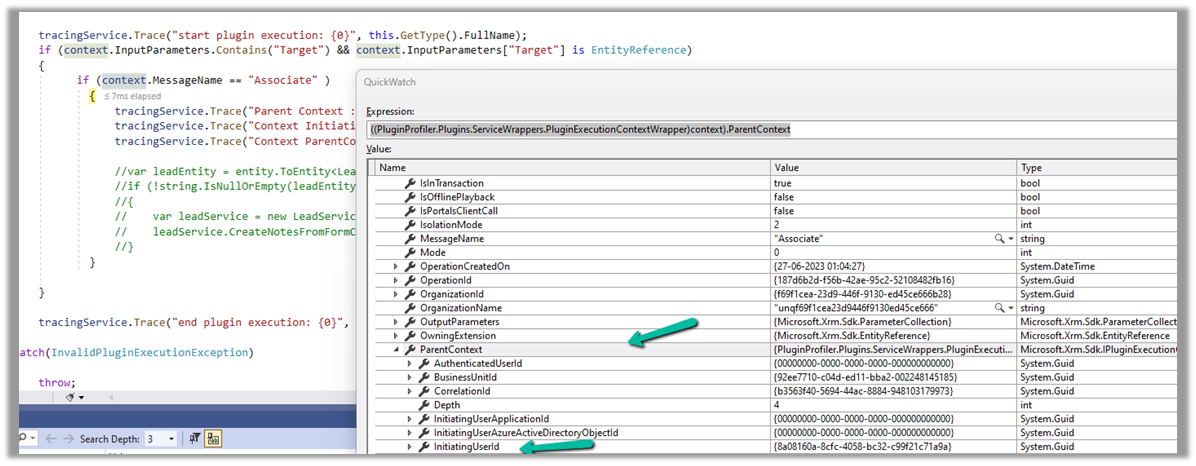
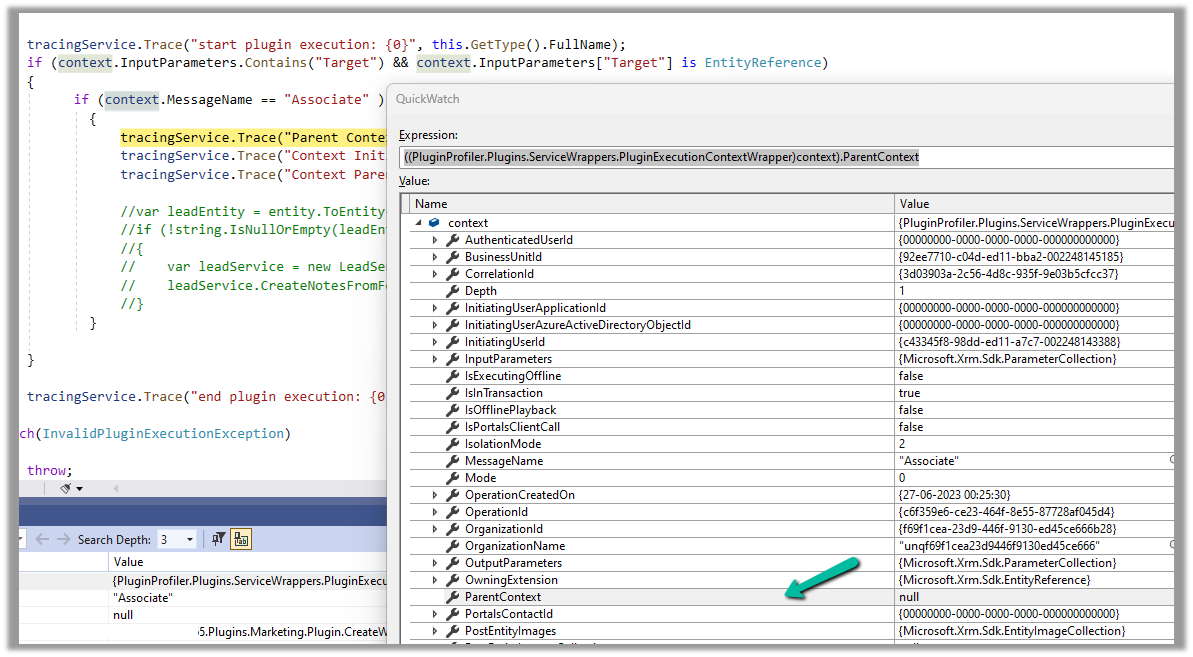
Here we can make use of ParentContext property to identify if the plugin is getting triggered because of another plugin.

Below we can see ParentContext property getting populated and also in the InitiatingUserId property we get the id of the user who triggered the plugin.

And if the user has manually performed the association from the form, we can see ParentContext being null.

Hope it helps..
Advertisements