Make sure all the prerequisites are in place –
https://learn.microsoft.com/en-us/dynamics365/customer-service/omnichannel-provision-license#prerequisites
Login to Power Platform Admin Center >> Environments
https://admin.powerplatform.microsoft.com/environments
Select Resources >> Dynamics 365 apps
Select Manage for Omnichannel for Customer Service – Telephony

It will open Dynamics 365 Administration Center | Omnichannel page
Click on Add environment

Select the required environment and click on Next.

If we do not have the required subscription for a particular channel we will get the below error
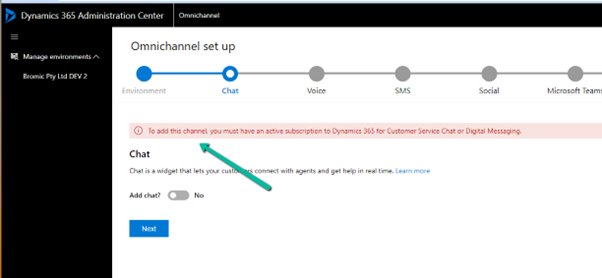
Next for Voice, select Add Voice along with Voice and Messaging preview terms.

Keep clicking on Next till confirmation (add other channels if required)

The confirmation page will show all the selections and details.
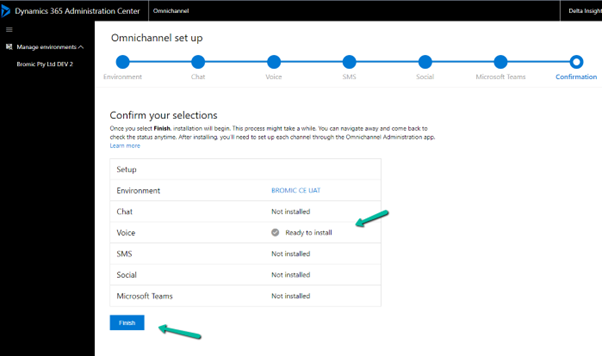
Clicking on Finish starts the installation process.

After around 1.5 -2 hours or so we could see the installation being successful.

If we want to add another channel e.g. SMS, select the SMS tab and save to start the process.

This starts the update
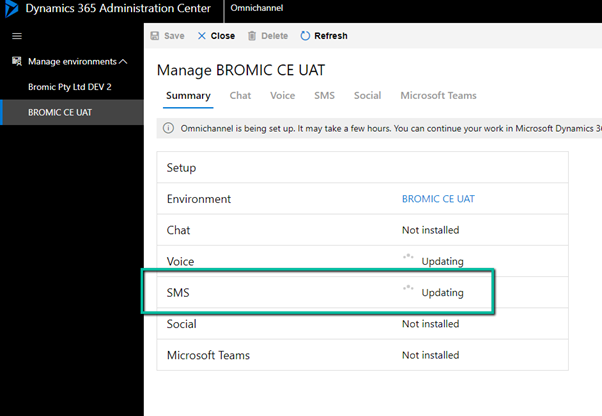
After an hour or so we see the status as installed for both Voice and SMS.

On opening the Customer Service Admin Center app, we can see the option of getting started with a voice demo.

Assign the account you are using the Omnichannel Agent and Omnichannel Admin role (even if you are a system administrator you need this role to start with the voice demo, admin to configure and agent to test)
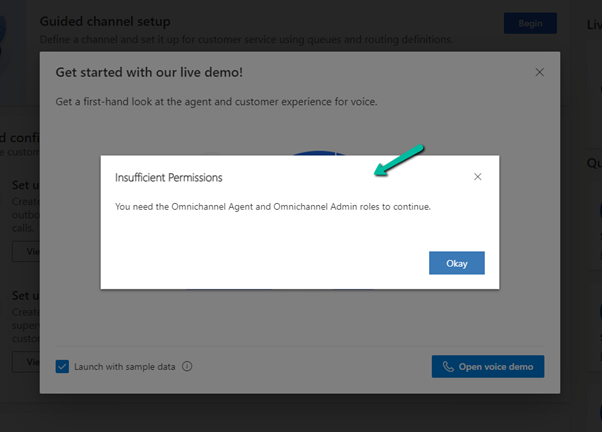
It will create the workstreams, acquire a phone number, create a voice channel, power virtual agent, etc. for the demo

After around 2 minutes or so, we will have our voice demo setup done.

We can open the agent app which is either Omnichannel for Customer Service or Customer Service Workspace App and can call the phone number configured to test the application.
We can see the following workstreams created for Voice and Voicemail channels.

The demo telephony workstream 1

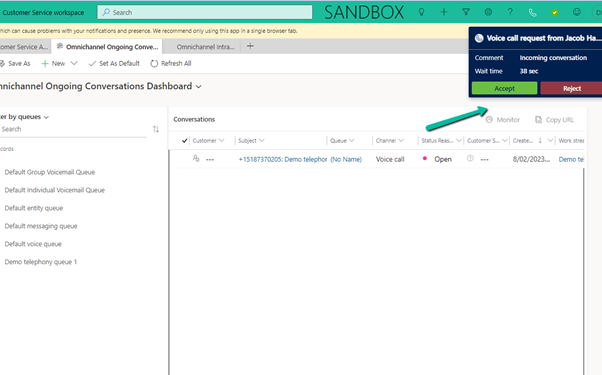
The agent receiving the notification
*At times we have faced an issue when there is a bot configured, so in case you are facing any issues, try removing the bot from the workstream

Hope it helps..












 Nishant Rana's Weblog