How to use – User Multiplexing to get better performance for Data Migration /Integration using KingswaySoft Integration Toolkit for Dynamics 365 (Dataverse / SSIS)


Let us see how we can make use of User Multiplexing to get better performance.

Below is our SSIS Package, which uses Data Spawner to create sample records, 20 K in this case, and CDS Destination to create those records (contact).

Data Spawner is used to create the 20000 contact record.

The CRM Connection is using just one application user.

For the Destination Component we have specified,

  • Batch size = 10
  • Thread = 5

The mapping –

To create 20 K contact records with the above settings took around 20 mins

Now let’s add 2 more application users making it 3 application users in total. We’d keep the batch size and thread the same i.e. 10 and 5.

Open the Connection Manager>> User Multiplexing and add 2 more application users configured in the environment.

Let us run it again and observe the performance, this time it took around

11 minutes.

Let us increase the thread to 15 this time and see

It came down to 6 minutes.

Now let us keep the batch size at 10 and thread at 15, but increase the number of application users to 5.

This brought it further down to 4:45

Let us run now with 10 batch sizes, and 5 application users but with 20 threads instead of 15.

It took 3:54 minutes

So to create 20 K contact records –

Batch Size

Thread

Application Users

Execution Time (mins)

10

5

1

19:39

10

5

3

11:17

10

15

3

6:47

10

15

5

4.45

10

20

5

3.54

Thus we need to consider using User Multiplexing (having different connections running under different application users) for better performance.

Get all details here – https://www.kingswaysoft.com/products/ssis-integration-toolkit-for-microsoft-dynamics-365/help-manual/crm/connection-manager

Hope it helps..

Advertisements

Use Sales Copilot to get the summary of a lead and opportunity (Dynamics 365)


Sales Copilot can generate a quick summary of a lead and opportunity record, based on the fields defined in a view.

Allow data movement across regions in the Power Platform Admin Center using Enable copilots and generative AI features outside United States and Switzerland – Power Platform | Microsoft Learn

To enable Sales Copilot, navigate to

Sales Hub >> App Settings >> Sales Copilot (preview) >> Set up Sales Copilot

Or if we have already enabled it, we can manage the features provided along with the different apps we want to apply the Sales Copilot using the Manage apps option.

Here we can specify to which apps we want to enable the Compose and Chat feature

For the Record summary feature, the first 7 fields of the view are considered. We can see “Default System View” selected by default.

However, we have the option to select a different view, and then the fields of the selected view will be used for the summaries.

Below if we select the Closed Leads view and we can see it corresponding fields that will be considered for the summaries.

The Closed Leads view

We can open an existing lead or opportunity record, and the Sales Copilot automatically generates the summary for that record.

Or if we want to generate summary for a specific lead or opportunity we can use the below prompt.

Summarize lead or Summarize opportunity followed by @ and the record’s name.

Below is the summary for Counts Vong (sample) lead record.

Here we can see the AI-generated summary making use of Created On, Topic, Preferred Method of contacct, Lead source field etc of Default system view.

Get more details here.

Hope it helps..

Advertisements

Cleaning up the ActivityPointBase to free up storage– Dataverse / Dynamics 365


In one of our environments, the ActivityPointBase table was occupying nearly 20 GB. It was earlier 40 GB, and we then deleted email records to bring it down to 20 GB.

On downloading the table details, we did not get a clear idea of what activity-type table was occupying that much space.

So we raised the Microsoft Support ticket, and they shared with us the breakdown of records occupied by different activity type tables.

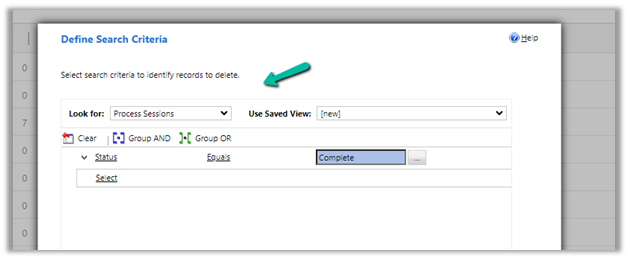
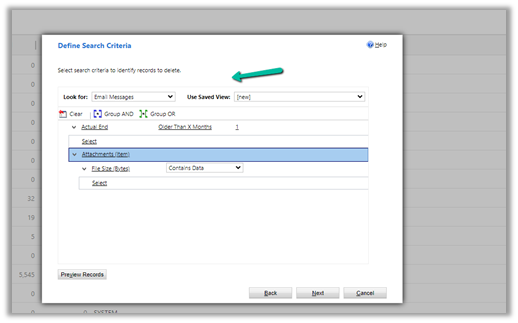
Then we configured our Bulk Deletion Job to delete the corresponding activity type records.

This helped us to bring down the ActivityPointerBase from 20 GB to 15 GB.

https://learn.microsoft.com/en-us/power-platform/admin/capacity-storage

Hope it helps..

Advertisements

Reparent relationship cascading behavior in Dynamics 365 / Dataverse


Check out the below articles explaining in detail the Reparent behavior.

About the reparent action

Advertisements

Dataverse Custom API – Key Articles / Tool


Thanks to David Rivard for the wonderful articles and XrmToolBox Plugin Custom API Manager on Custom API

Custom API Test (XrmToolBox plugin) by Jonas Rapp

https://www.xrmtoolbox.com/plugins/Rappen.XrmToolBox.CustomAPITester/

Also check the other interesting articles on Custom API –

https://xrmdynamicscrm.wordpress.com/tag/dynamics-crm-custom-api/

https://www.pragmatic-development.io/blog/implement-business-logic-with-dataverse-custom-api/

Advertisements

Use Sales Copilot to get recent updates (Catchup) on a lead and opportunity (Dynamics 365)


Using Sales Copilot, we catch up on updates to a lead and opportunity record since the last seven days or the last login.

We can use the prompt catchup with lead or catchup with opportunity followed by @ and the name of the record.

Sales Copilot uses Audit History to show the recent updates.

Allow data movement across regions in the Power Platform Admin Center using Enable copilots and generative AI features outside United States and Switzerland – Power Platform | Microsoft Learn

To enable Sales Copilot, navigate to

Sales Hub >> App Settings >> Sales Copilot (preview) >> Set up Sales Copilot

Or if we have already enabled it, we can manage the features provided along with the different apps we want to apply the Sales Copilot using the Manage apps option.

Here we can specify to which apps we want to enable the Compose and Chat feature.

For the Record catch-up feature, the first 10 fields of the view are considered. We can see “Default System View” selected by default.

However, we have the option to select a different view, and then the fields of the selected view will be used for generating the catchup content.

Below if we select the Open Opportunities view, we can see its corresponding fields that will be considered for the catchup.

We can open an existing lead or opportunity record or from the Chat tab of Sales Copilot can use catchup with opportunity prompt as shown below to get the updates.

We can see the catch-up details generated.

Also, we see another prompt – “Catch up since my last
login (16 hours ago)”, along with “catchup with lead or opportunity” prompt


If there are no updates to a record in the last 16 hours, we get the below message.

Get more details here.

Hope it helps..
Advertisements

Nishant Rana's Weblog

Everything related to Microsoft .NET Technology

Skip to content ↓