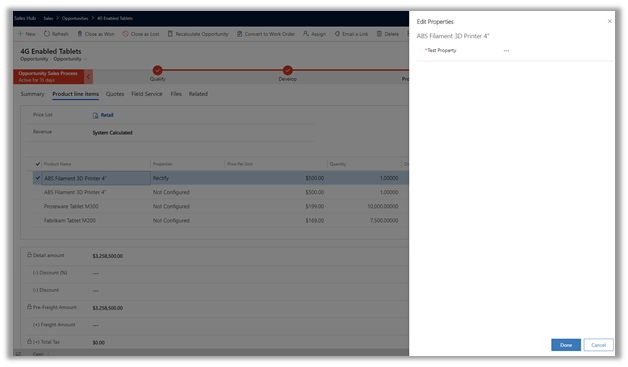
Contextual Email Communication in Dynamics 365 for Sales – 2019 Release Wave 2 (Unified Client)


The new capability allows salespeople to write an email in the context of the record. Email opening in the non-blocking pop window allows salespeople to refer to the data without navigating away from it, easily attach documents and can leave the drafts record open.

The existing experience à

Clicking on the email

takes us to the new entity create form

To enable the new experience, navigate to App Settings and apply the Enhanced email

Now with new enhanced email, we can easily refer/copy values from the main record, attach files, insert templates, etc.

We can also navigate to other records, with the popup email windows still open.

Below we have navigated to the account record and we still have our email window open.

A salesperson can also have multiple active draft emails open simultaneously.

Thus, the new enhanced contextual email feature makes working with email much more intuitive / productive for the salesperson

Hope it helps..

Lead Enhancements in Dynamics 365 for Sales – 2019 Release wave 2


Below are some of the capabilities added in Dynamics 365 for Sales with lead management.

It applies to both Unified Client Interface and Classic Web Client 

When creating a new lead, for Qualify sales stage,

on the selection of Existing Contact

First Name, Last Name, Job Title, Business Phone, Mobile Phone, and Email field will be populated

On selection of Existing Account

Company Name will be populated.

Ability to choose which records to create (Account, Contact and / or Opportunity)

To enable go to Sales Tab of Administration à System Settings

Qualify lead dialog box à

The Qualify Lead dialog box was always part of the product which was removed later, and the contact, account and opportunity records were auto-created based on certain conditions which are nicely explained here.

https://www.crminnovation.com/blog/qualify-lead-crm-2011-vs-crm-2015/

https://ledgeviewpartners.com/blog/how-to-qualify-a-lead-in-microsoft-dynamics-365-crm/

This is how the old dialog box looked like.

Notes and attachments associated with the lead are displayed in the opportunity record that is qualified from it.

Lead Record à

Opportunity records created from the lead have the notes associated.

Thus, these capabilities bring faster capture of lead information, more control of which records to be created as part of lead qualification and also quick reference on the opportunity records created through lead qualification.

Hope it helps..

Customize Opportunity Close Dialog Box – Dynamics 365 For Sales


With the 2019 release wave 2 plan, finally, we can customize the opportunity close dialog box (Unified Interface only)

Enable it from the Sales tab of System Settings dialog box.

The default out of the box Close Opportunity Dialog Box à

Now to add or remove fields to the dialog box, we need to customize the Quick Create form of Close Opportunity entity.

Change the ordering of the fields, added a custom field, removed Competitor and Description dialog box.

Updated Close Opportunity Dialog Box

We can use client-side validation on it

We can specify business rules

We can also customize the Main (Information) form.

This form can be used to check the details of closed opportunities.

Entity Relationships cannot be customized.

Great to see the feature available as it was one of the most requested features in the product.

https://experience.dynamics.com/ideas/idea/?ideaid=4792dfee-121a-e611-80e2-c4346badc228

Hope it helps..
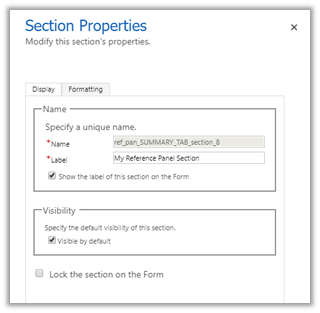
No capacity available please check with your administrator error while using business card scanner control in Dynamics 365 Sales


We might get below error while trying to use scan business card feature in Dynamics 365 Sales

This is because as pre requisite it requires AI Builder licensing.

https://docs.microsoft.com/en-us/ai-builder/administer-licensing

For enabling the 30 day

free trial login to PowerApps

https://make.powerapps.com/

For the AI Builder, start the free trial.

Once enable we can see the business card scanner control working properly.

Hope it helps..
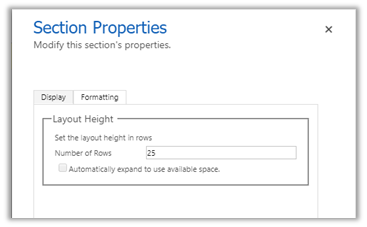
Export Dynamics 365 Data to Excel – different options


There are different options available for exporting Dynamics 365 Entity records to excel. The simplest being Export to Excel feature available in the product.

However, we might run into limitations like below

https://nishantrana.me/2018/08/15/maximum-file-size-exceeded-while-using-export-to-excel-in-dynamics-365-ce/

The easiest way of overcoming these limitations is to use the XrmToolBox plugin – Export to Excel

https://dreamingincrm.com/2015/05/30/new-xrmtoolbox-plugin-export-to-excel/

Other options include writing a windows executable that uses Dynamics 365 Web API for exporting data to excel format.

Use Microsoft Flow and export it to CSV file.

Create an SSRS report with required records \ columns and use Export to excel functionality.

Using KingswaySoft SSIS Integration Toolkit for Microsoft Dynamics 365 and other 3rd party data integration tools.

One such 3rd party tool that makes it easy to export the data to excel and also to schedule is Skyvia’s Export package.

Let us see a simple example to understand how it works.

Here we are planning to export a custom entity record that has 1835629 records.

Here we have already created the required Dynamics CRM Connection.

Navigate to the Data Integration section and create a new Export Package.

For target, we have .csv as the file format. For Target, we have various options of either saving it locally, FTP or in cloud services.

Here we can filter the records, specifying an ordering for them, select the columns we want to export.

Click on Save to create the package. Alternatively, we can also specify the schedule for the package to run at.

Click on Run

We can see the package running and its status in the Run History section.

Each of the options for exporting the excel has its own pros and cons. For e.g. OOB Export to Excel feature has a limitation with the number of records that can be exported, with KingswaySoft we need someone skilled in SSIS to write the package and also, we need to buy the license if we need to schedule it. With other 3rd party apps also we would need to buy the license.

Hope it helps..
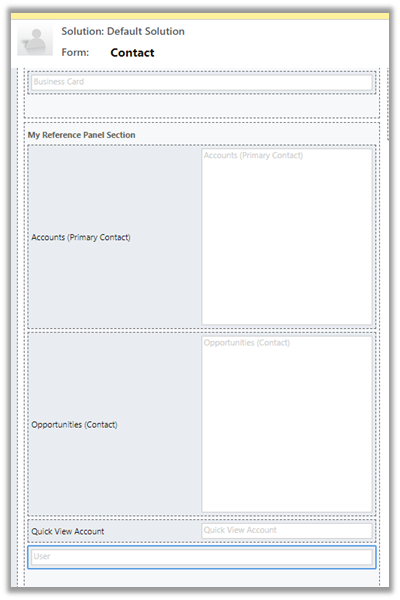
Synchronize (Bi-Directional) Dynamics 365 CRM Cloud data with SQL Azure using Skyvia’s Synchronization Package


Continuing our previous post where we used the replication package

https://nishantrana.me/2019/11/13/easily-set-up-dynamics-365-ce-crm-replication-incremental-to-azure-sql-sql-on-premise-using-skyvias-data-integration-services/

here we will see how we can use the synchronization service for bi-directional sync.

Below of the prerequisites of synchronization package to perform bi-directional sync –

  • We need to use the created on and modified on fields of the Entity
  • The synchronized tables to have an auto-generated primary key.

So here we need to alter the SQL Azure’s Contact table that was auto-created earlier by the Replication package to have the auto-generated primary key.

Connect to the SQL Azure database using Skyvia’s Query service and perform the alter operation

Or use the Query Editor (preview) of Azure

With necessary changes made, let us create a new Synchronization package

Specify the connection and click on Add Task to create the synchronization task.

We have specified contact entity from Dynamics CRM Source and contact table in SQL Azure which was earlier created for us by the replication package.

It automatically maps all the columns here based on the column name.

We can also manually specify mapping here for both Source To Target and Target to Source fields to be used for sync.

Click on Finish once done with the mapping.

Similarly to replication packages, the synchronization packages can be scheduled.

Click on Save to create the Task.

Click on Run

The run history shows the 220 records synced from Dynamics CRM to SQL Azure.

We can see the 220 records created in our SQL Azure DB

Now let us update a record in SQL Azure and run the package again.

We can see the record updated in Dynamics CRM

Now let us delete a few records from Azure SQL and run the package

We can see the records delete from Dynamics CRM

Similarly, let us delete a couple of records from Dynamics CRM and run the package

We can see the 8 records deleted in the destination SQL Azure

Thus, we saw how easy it is to do bi-directional sync using Skyvia’s Synchronization package.

Hope it helps..

Nishant Rana's Weblog

Everything related to Microsoft .NET Technology

Skip to content ↓